

Recruiting runs on follow-up work. You finish a call and immediately need to complete three more tasks: a message to the candidate, feedback nudge to the client, a check-in after next week’s interview. When you’re covering multiple roles at once, those don’t all get done — not because you forgot, but because there was nowhere to put them. Tasks give you one place to track every action you owe, each one linked to the person, job, client, or deal it belongs to, so nothing sits in your head or gets lost in a notes app.
Creating a task from the Tasks page
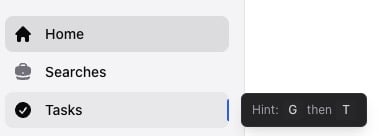
- Open the Tasks page from the sidebar (or press G T)
- Click + Add Task in the top-right corner
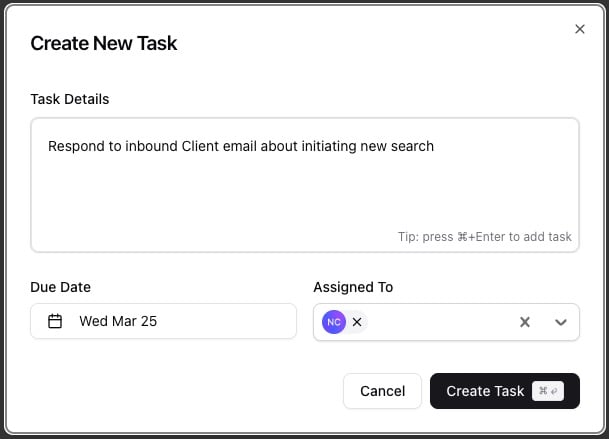
- In the Create New Task dialog, type what needs to happen in the Task Details editor (e.g., “Follow up with Sarah about the offer”). The editor supports rich text and @mentions of teammates
- Set the Due Date. It defaults to 3 days out, or remembers the last date you picked
- Under Assigned To, select one or more teammates. Your own name is pre-selected
- Click Create Task (or press Cmd+Enter / Ctrl+Enter)
You can also create a task by clicking Create New in the sidebar and selecting Task, or by pressing N T from anywhere in the app. Both open the same dialog.
Viewing your tasks
The Tasks page gives you three views, toggled with the buttons at the top: List — a paginated table sorted by due date, 20 tasks per page. Best for scanning what’s coming up and working through tasks one by one. Month — a full calendar grid for the current month. Useful for planning around deadlines and interviews. Week — the current week laid out day by day. Good for focusing on what’s immediately ahead. Your selected view persists between sessions.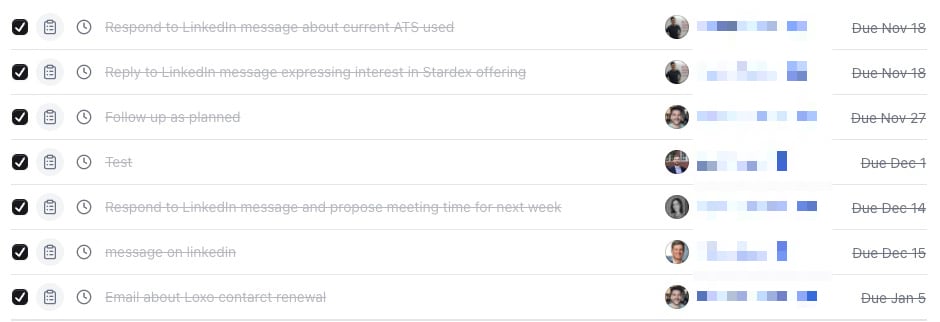
Filtering
Click the filter icon button to open the filter panel. All filters persist between sessions. Task Owners — show tasks assigned to specific teammates. Defaults to your own tasks. Person Owners / Candidate Owners — filter by who owns the person or candidate linked to each task. Associated with — narrow to tasks linked to a specific entity type: Client, Job, Person, or Deal. Type — filter by task type: Text, LinkedIn Message, LinkedIn Connection, Call, or Other. Show completed tasks only — check this to switch from upcoming tasks to completed ones. Search — find a task by typing part of its title.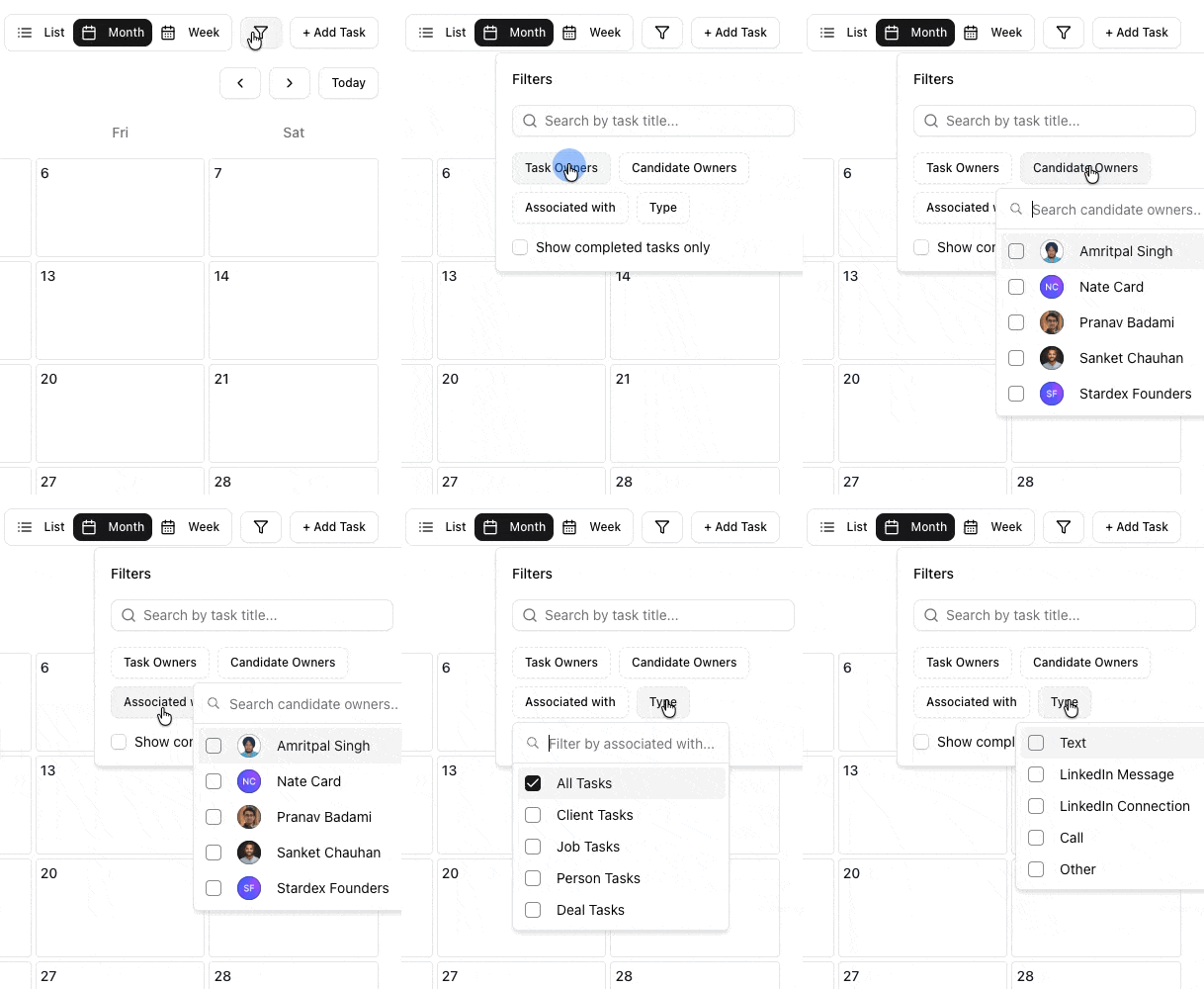
Working with tasks
Completing a task
Click the checkbox next to any task to mark it done. An undo option appears for 10 seconds if you change your mind. When you complete a task that has other assignees, they receive a notification.Snoozing a task
Not ready for it today? Click the clock icon on a task to push its due date out by 3 days from today. Like completion, this can be undone within 10 seconds.Editing a task
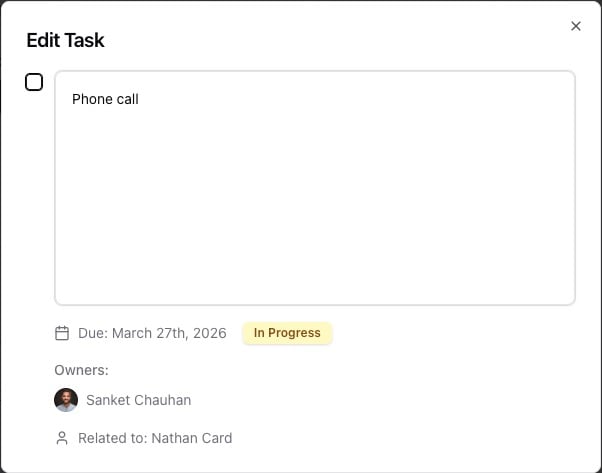
Click a task’s title to open it in a detail modal where you can edit the content, change the due date, reassign it, or delete it.Changing a due date
Click the due date on any task (in both the list view and on a person’s profile) to open an inline calendar picker and select a new date.Bulk task creation
From the People or Companies page, select multiple rows using the checkboxes, then choose the bulk task action from the action bar. This creates a task for each selected record in one step.Tasks on a person’s profile
When you open a person’s profile, their linked tasks appear in a card showing up to 5 incomplete tasks. Each task displays its type icon, content, linked job (if any), assignees, and due date. Overdue dates appear in red.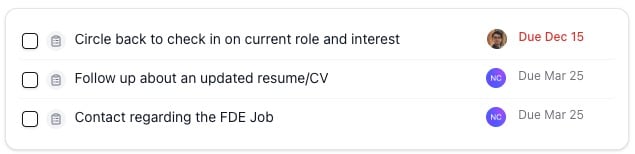
AI task generation
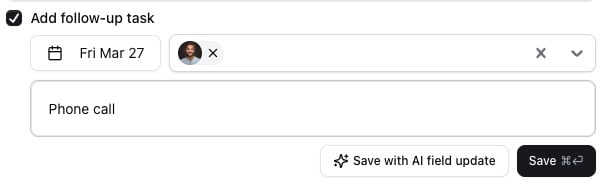
Stardex can create follow-up tasks automatically when you log an activity on a person’s profile. If you log a note like “Had a call - Sarah is interested but wants to wait until after the holidays,” the AI reads the activity and creates a task such as “Follow up with Sarah in January” with a suggested due date.Turning it on
- Go to Settings and select the Organization tab
- Open the AI & Automation section
- Toggle on AI Task Generation

Recognizing AI-generated tasks
AI-created tasks display a purple sparkle icon with an AI label. Click it to open a popover showing the reasoning behind the suggestion, such as which part of the activity triggered the task and why. You can edit, reassign, snooze, complete, or delete AI-generated tasks the same way as any other task.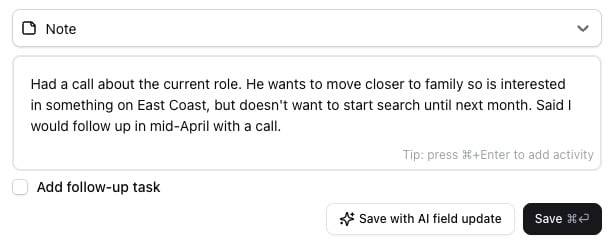

Task notifications
Daily task reminder emails
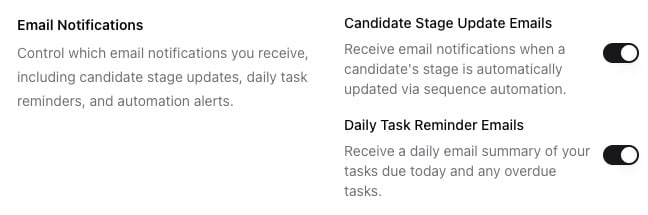
Stardex sends a daily email summarizing your tasks due today and any overdue tasks. This is on by default. To turn it off:- Go to Settings and select the My Settings tab
- Open the Preferences section
- Under Email Notifications, toggle off Daily Task Reminder Emails
Completion notifications
When a teammate completes a task you’re also assigned to, you receive a notification.Common use cases
- Tracking candidate follow-ups after phone screens or interviews
- Scheduling LinkedIn outreach messages for sourced candidates
- Reminding yourself to check in with a client after submitting candidates
- Coordinating handoffs between recruiters on the same role
- Logging post-interview debrief calls that need to happen by a specific date
FAQ
Q: What task types are available? Text, LinkedIn Message, LinkedIn Connection, Call, and Other. The type is visible on existing tasks but new tasks currently default to Other. Q: Can I assign a task to multiple people? Yes. The Assigned To field in the create dialog accepts multiple team members. Q: How does the due date default work? The first task you create defaults to 3 days from today. After that, the date picker remembers the last date you selected (stored locally in your browser). If that saved date is in the past, it resets to 3 days out. Q: Where do AI tasks come from? They are generated from person activities (notes, calls, logged interactions). The AI reads the activity content and decides whether a follow-up task is warranted. LinkedIn messages are excluded from processing. Q: Can I turn off the daily task reminder email? Yes. Go to Settings > My Settings > Preferences > Email Notifications and toggle off Daily Task Reminder Emails. This is a per-user setting. Q: Do task filters reset when I leave the page? No. All filters, the selected view mode, and search terms persist in your browser between sessions. Q: Does archiving a Campaign archive it’s Tasks? At this time, archiving a campaign doesn’t automatically remove the tasks tied to it — those stay in your task list since tasks are linked to the person, not the Campaign itself. The only way to clear them out is manually (completing or deleting each one).Key Takeaway
Tasks are your personal and team to-do list inside Stardex. They are not a pipeline or a stage tracker. Use jobs for hiring workflows and pipelines. Use tasks for the follow-ups, calls, and messages that keep those workflows moving.Related guides
- 👉 Keyboard shortcuts — G T opens Tasks, N T creates a new task from anywhere
- 👉 Tracking upcoming interviews — interviews also appear alongside your tasks on the Home page
- 👉 Setting up your multi-step outreach campaign — automate LinkedIn and email sequences instead of manual tasks