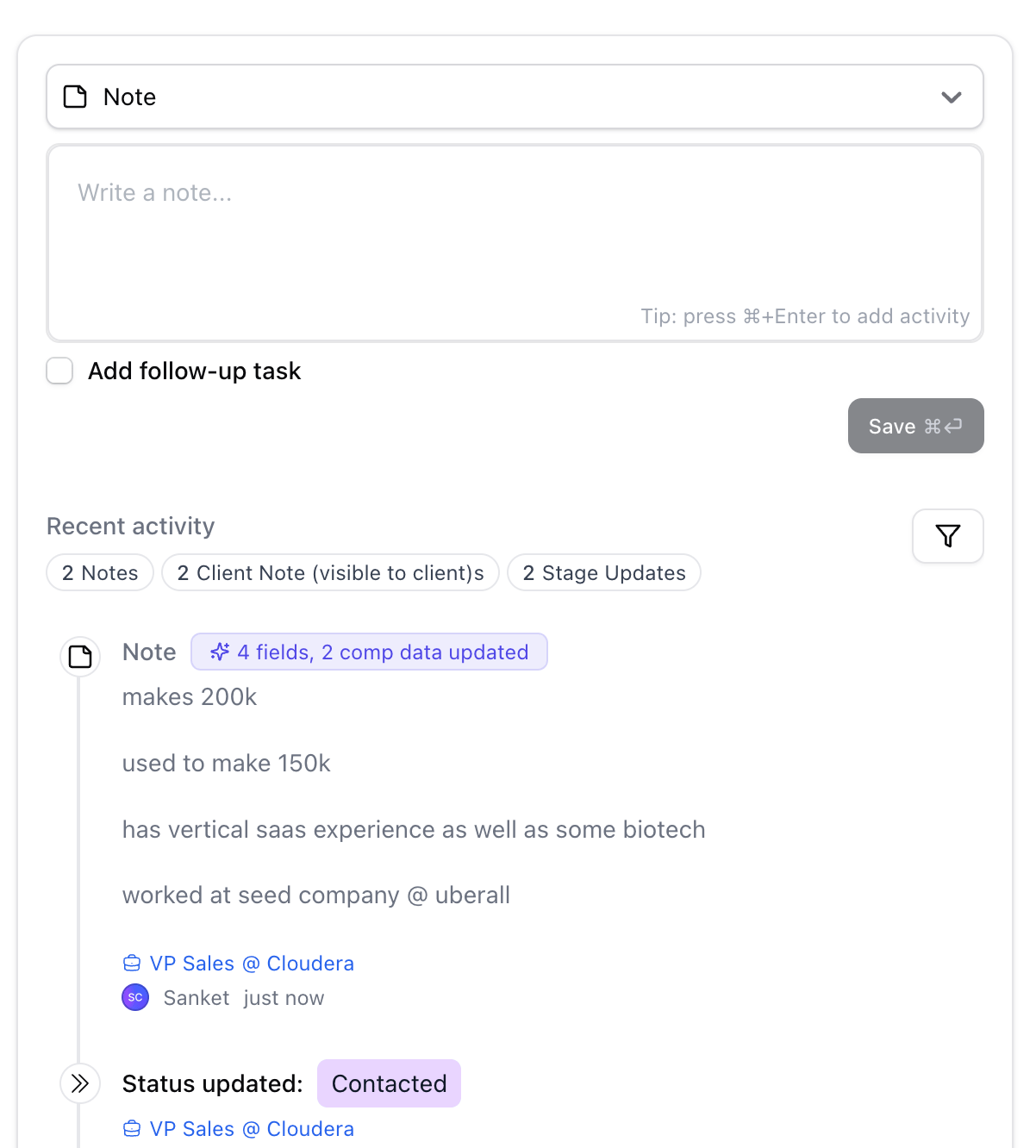
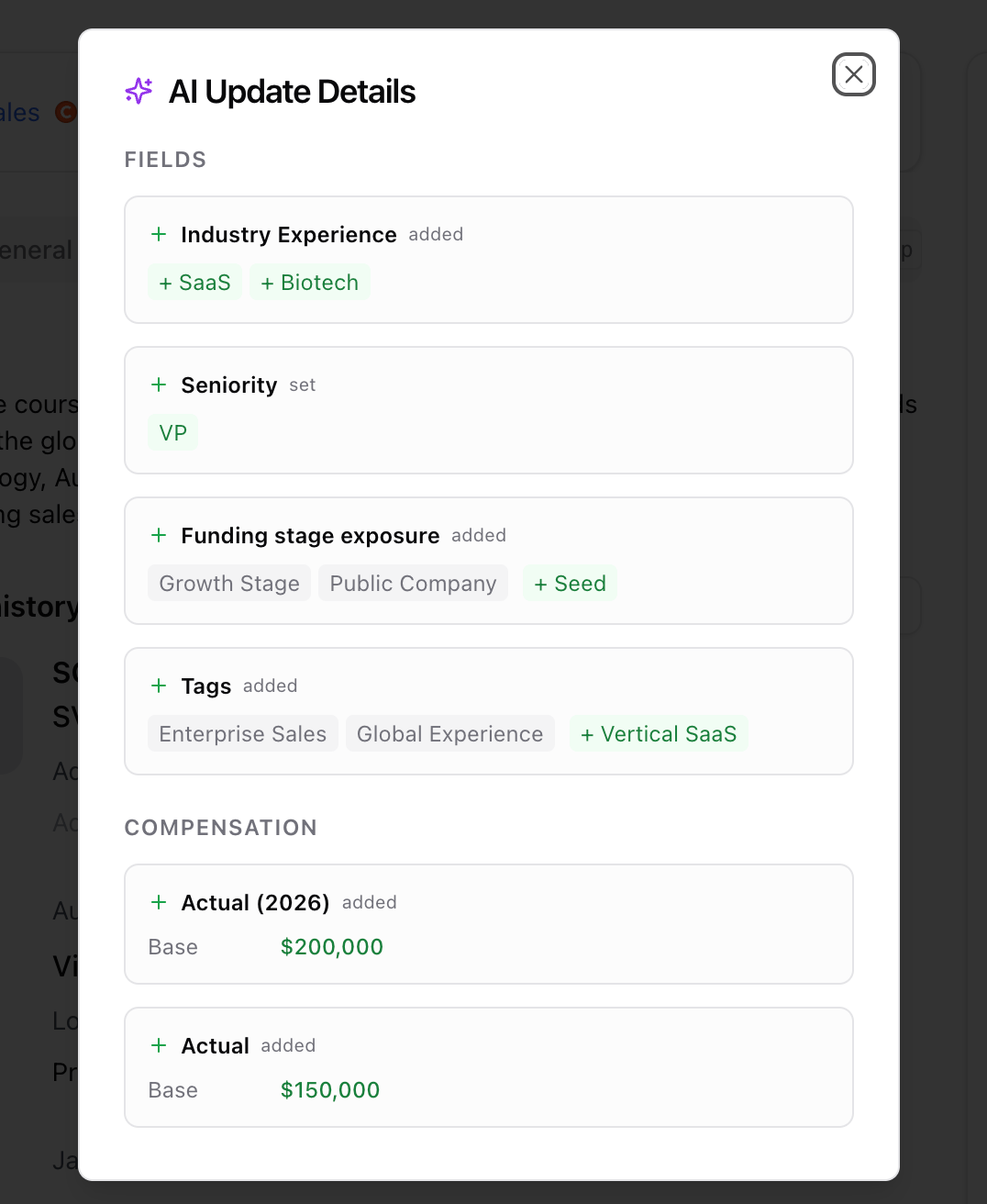
When you save an activity - a call note, meeting recap, or update from the Chrome extension — Stardex runs AI in the background to extract useful information. Depending on your settings, it can update custom fields, record compensation data, and create follow-up tasks automatically. AI Activity Updates — screenshot 1 AI Activity Updates — screenshot 2

What happens when you save an activity

As soon as an activity is saved, Stardex kicks off two independent AI pipelines in the background:
  1. AI Auto-Tagging & Compensation — reads the activity content and updates relevant custom fields and compensation data on the person’s profile. You will see a badge next to the activity if it updated fields or comp data. You can click on the badge to see what fields got updated
  2. AI Task Generation — reads the activity content and creates follow-up tasks based on what was discussed or agreed.
Both run in parallel. You can keep working — updates appear within a minute or two.

AI Auto-Tagging & Compensation

On by default. After an activity is saved, the AI scans the content and:
  • Updates custom fields on the person’s profile that have AI tagging enabled
  • Records compensation data (base salary, bonus, currency, etc.) if mentioned in the activity
You’ll know it ran by the sparkle badge on the activity in the timeline. Click it to see a before-and-after view of every field and compensation value the AI updated. If the content isn’t meaningful enough to extract anything (e.g. “left a voicemail”), the AI skips it silently. To turn off: Settings → AI Features → AI Auto-Tagging & Compensation (admins only) https://stardex.com/settings?tab=organization&section=ai-automation

Custom fields: enabling AI tagging per field

AI Auto-Tagging only updates fields that have been explicitly opted in. To enable a field, open the field editor and check “Use AI to auto tag this field based on profile information”. Supported field types: single-select, multi-select, text, URL, and decimal. To manage custom fields: Settings → Data Model More on custom fields Custom fields

AI Task Generation

Off by default. When turned on, the AI reads each new activity and creates follow-up tasks automatically — for example, if a note says “follow up next week”, a task gets created. Tasks appear on the person’s profile within a minute or two of saving the activity. To turn on: Settings → AI & Automation → AI Task Generation (admins only) https://stardex.com/settings?tab=organization&section=ai-automation

API & Chrome extension

Activities created via the Stardex API, Zapier, or the Chrome extension go through the same AI pipelines. No additional setup needed — both auto-tagging and task generation run automatically based on your org settings.

Summary