

Stardex never sends WhatsApp messages. Connecting only imports conversations from your phone. You still message people in WhatsApp itself.
Connecting your WhatsApp account
- Go to Settings → Email & other integrations → VoIP & messaging: stardex.com/settings?tab=email-calendar§ion=voip
- Find WhatsApp and click Connect.
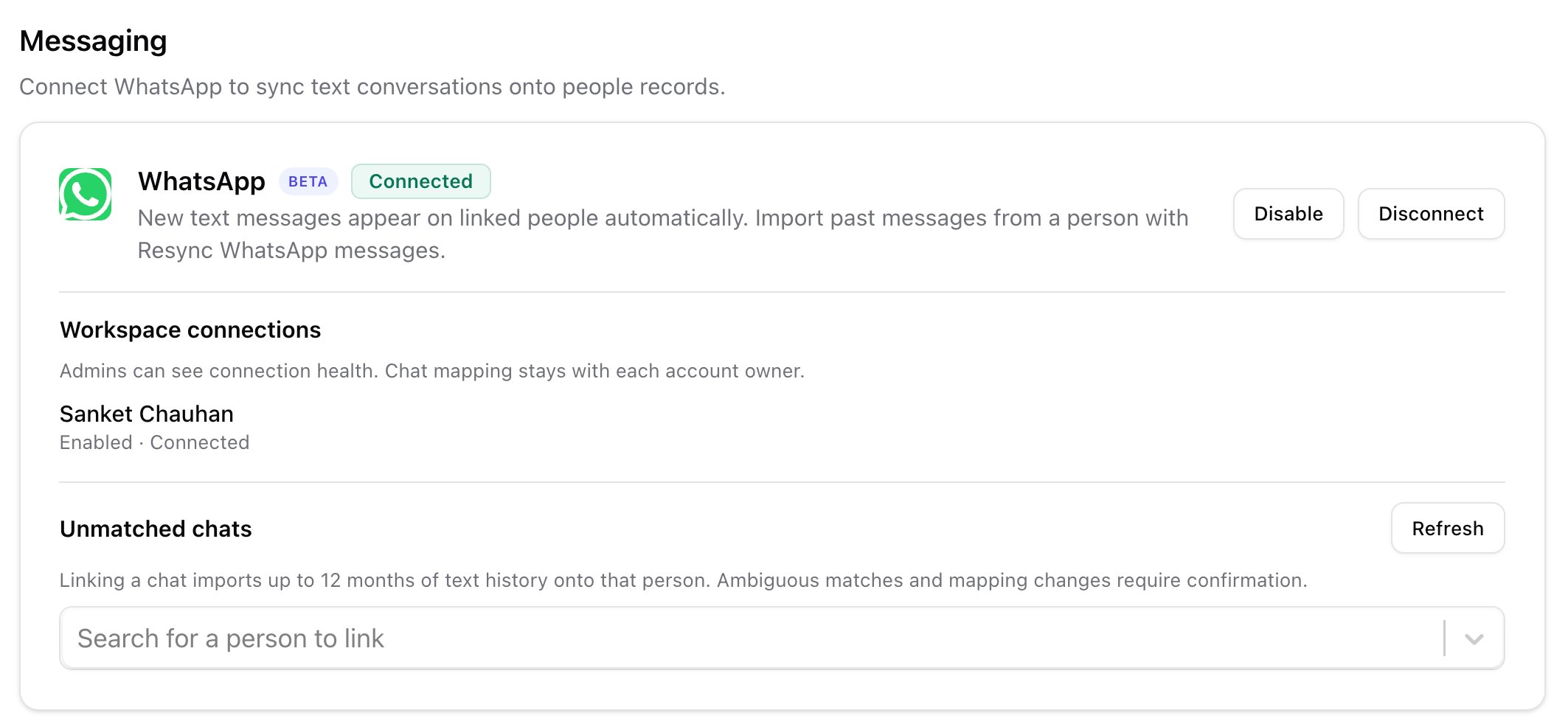
- A browser window opens with a QR code. On your phone, open WhatsApp, go to Settings → Linked devices → Link a device, and scan the QR code. The code expires after a few minutes; if it times out, go back to Stardex and click Connect again.
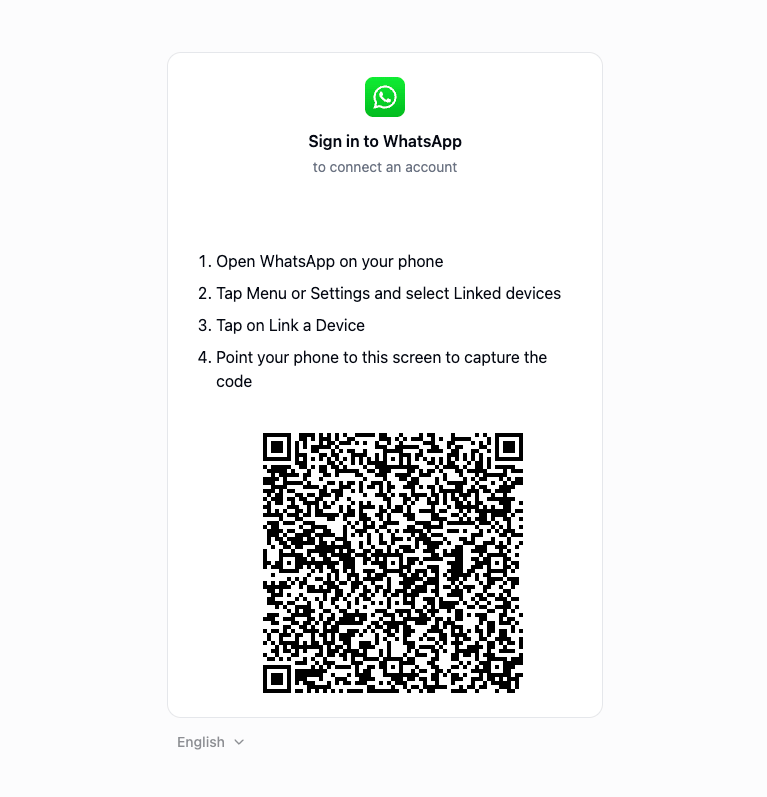
- After a successful scan you can close that window. Stardex keeps linking in the background and returns you to VoIP & messaging. You should see a Connected badge (you may briefly see Connecting or Importing first).
Connecting does not dump your entire chat history onto every person. New text messages start syncing. To pull older messages onto a specific person, use Resync WhatsApp messages on their profile.
What syncs (and what does not)
A text message that also has an attachment still syncs the text. Media-only messages are skipped.
Unmatched chats
If Stardex cannot match a WhatsApp thread to a person, it shows up under Unmatched chats on the same VoIP & messaging page. Only the person who connected that WhatsApp account sees this list. Link the chat to the right person from there.
Resync a candidate
Connecting WhatsApp only starts live sync. Past texts do not land on a candidate until you ask Stardex to pull them. That action is Resync WhatsApp messages on the candidate’s profile.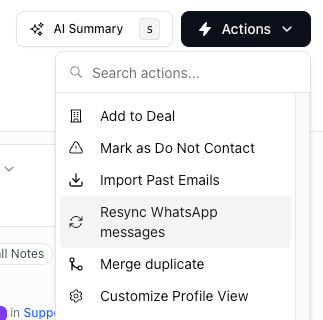
- You just connected WhatsApp and want an existing thread on the profile
- You know you have older messages with this candidate that are not on the timeline yet
- A live message arrived but history looks incomplete
How to resync
- Open the candidate in Stardex.
- Open the actions menu.
- Click Resync WhatsApp messages. The item only appears when WhatsApp is connected in this workspace.
- You should see WhatsApp resync started — Messages will appear on the timeline as they import. Leave the profile open or come back in a few minutes; a long thread is not instant.
What you need first
- WhatsApp is Connected in VoIP & messaging (not Disabled, and not waiting on Reconnect)
- The candidate has a phone number with the country code
- That number is the one they use on WhatsApp
- You actually have a 1:1 WhatsApp chat with them
- The number is unique in your workspace, or the chat is already linked to this candidate