

You often need to keep track of a group of people or companies that doesn’t belong to any one job. A pool of strong senior engineers you want to revisit. The target accounts your BD team is working through. Everyone you met at a conference last month. Tags are too loose; pipelines are tied to a specific role. Lists are the answer here, they provide a flexible way to group and curate people or companies, shareable with your team, that persist over time. We like to think of a list as a named folder: you define what goes in it, and optionally what record it lives on.
How to think about a list (two choices)
- What you’re collecting — Each row in the list is either a person or a company. Pick the type you will add over time.
- What you’re anchoring to — Optionally tie the list to a specific company, person, or job so the list appears directly on that record and is one click away from anywhere in the app.
Creating a new list
This can be done a few different ways
- On the sidebar click Create New then select List
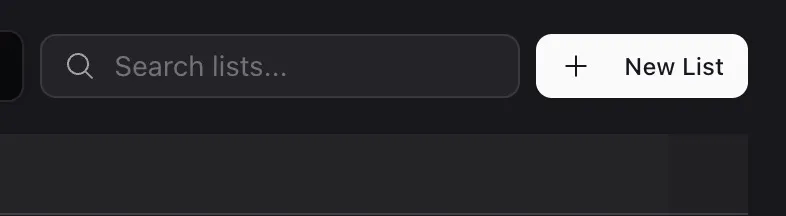
- From the Lists view you can click the New List button in the top right corner
- If you learn some of the keyboard shortcuts, you will be able to instantly create a list from almost anywhere by pressing N + L
Naming the list
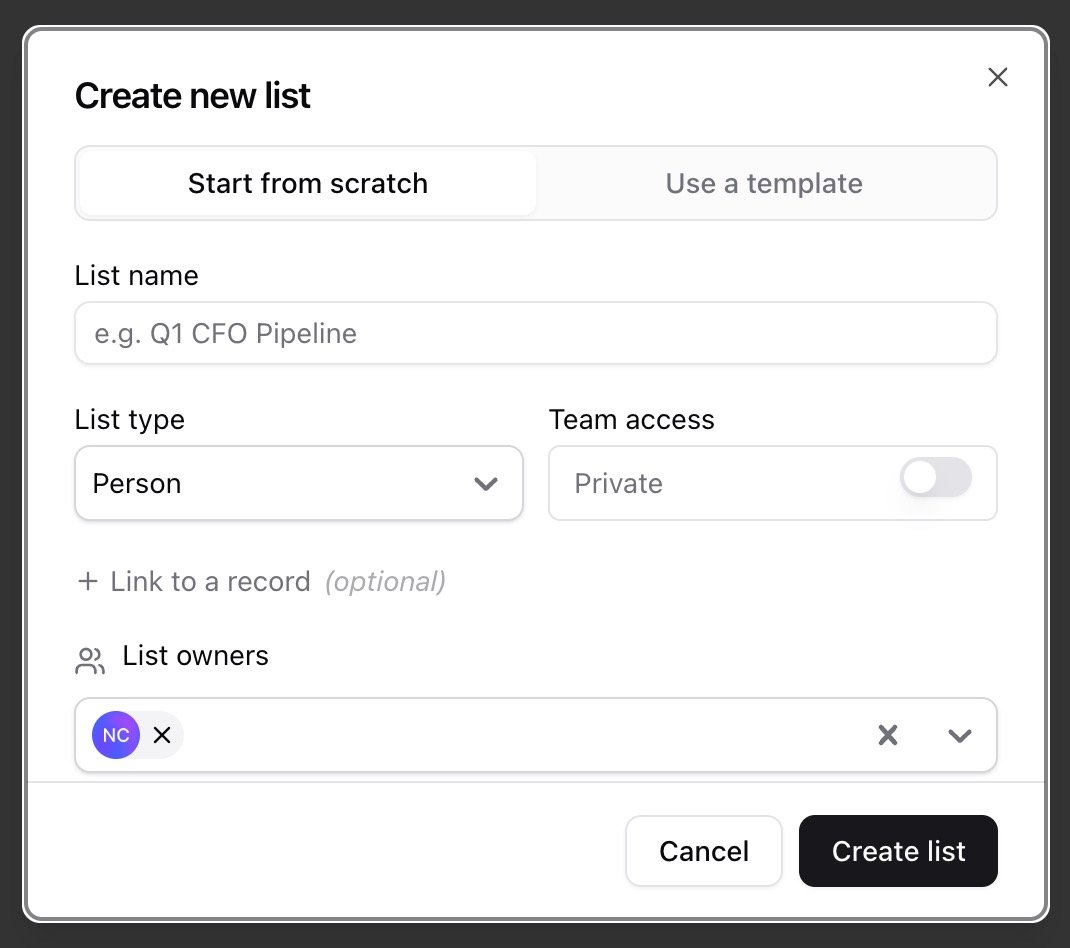
Next you will need to give your list a name, this will help you identify who or what your list will target.List options
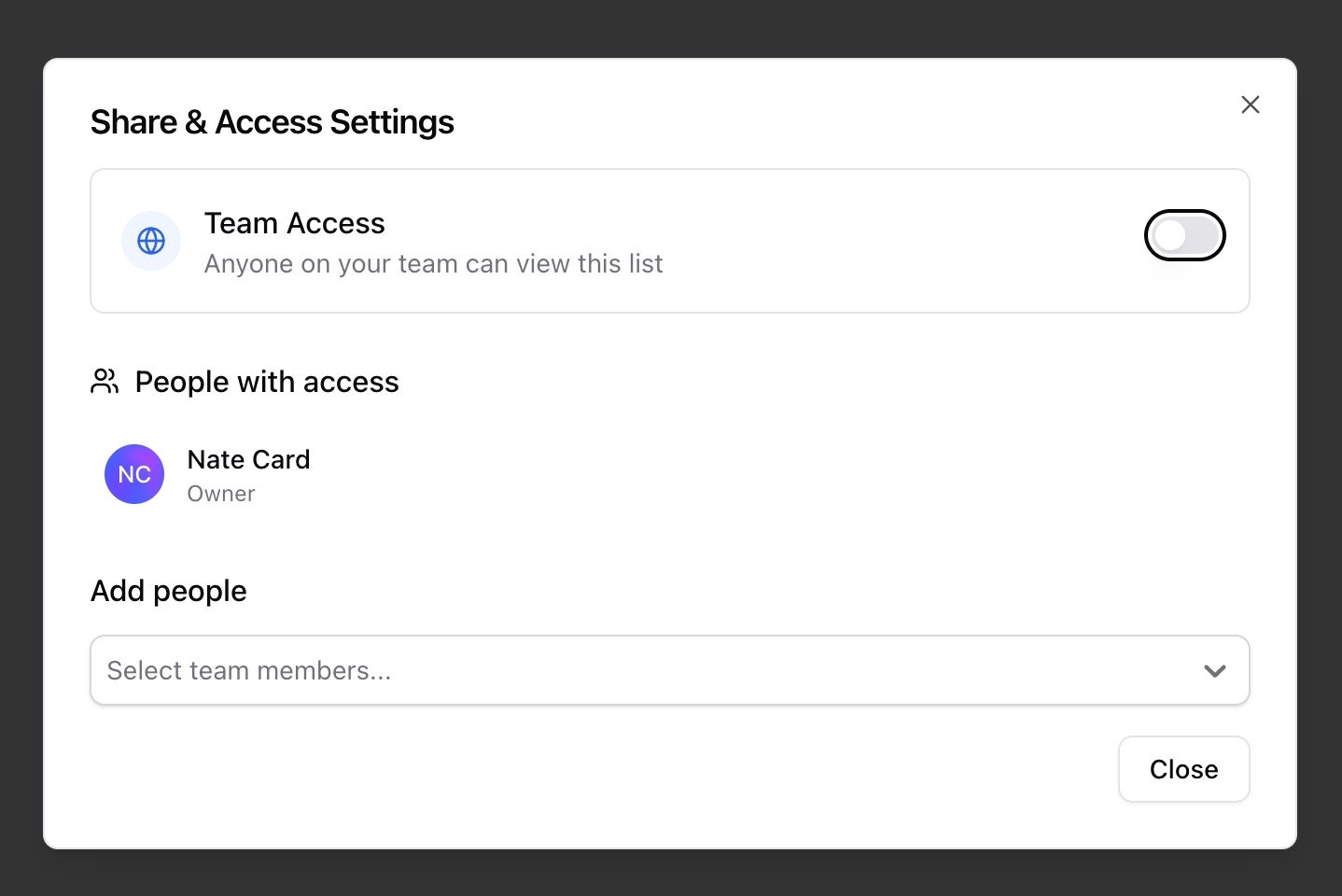
List type Choose Person or Company. This defines what you will be adding to the list over time, not what you are anchoring it to. A quick rule of thumb: if the list is connected to a company record, it is almost always a Person list; if it is connected to a person record, it is almost always a Company list. Team access Toggle Team Access on to make the list visible to everyone on your team. Leave it off to keep the list private to the owners you assign. You can change this any time from within the list. List owners Select the team members who can edit and manage this list. The person creating the list is added as an owner automatically.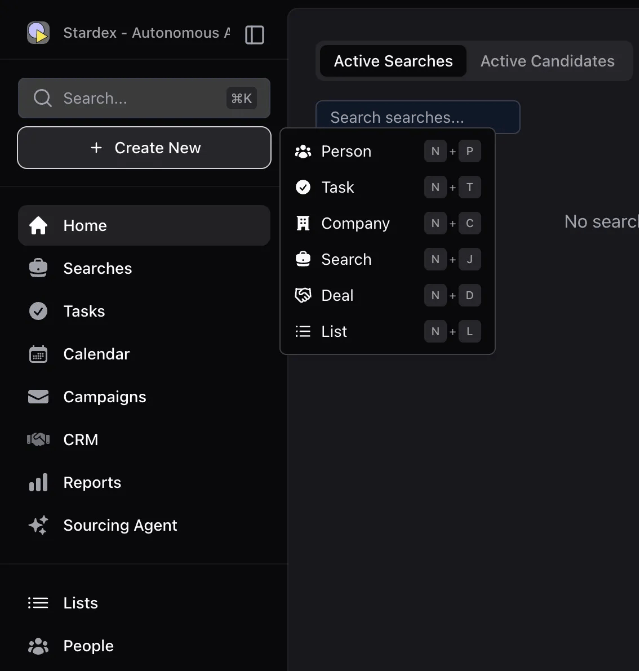
Sharing at a glance
- Team Access on: anyone on your team can view and use the list.
- Team Access off: only assigned owners can see it.
- Additional owners: add teammates who need edit or manage rights even when Team Access is off.
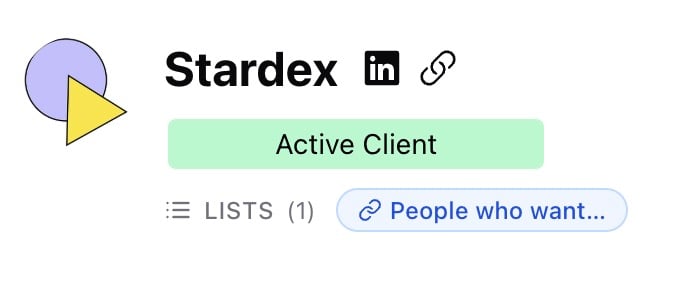
The list type is about what goes in the list, not what the list is about. If you anchor a list to the company Stardex, you will most likely be adding people to it — so set the type to Person. If you anchor it to a specific recruiter or contact, you may be tracking the companies relevant to them — so set the type to Company.
Common use cases
- Talent pools — keep a running list of strong candidates for roles you hire for frequently
- Target accounts — track companies you want to break into for BD or sourcing
- Event follow-ups — group everyone you met at a conference
- Client shortlists — create a list to share with a client before formally adding to a job pipeline
- Team projects — collaborate on a shared list for a specific initiative
Adding people or companies to a list
There are several ways to add people or companies to a list. All of them lead to the same modal, where you choose to add to an existing list or create a new one.From a Persons Profile
- Open a person’s profile
- Look for the Lists section
- Click to add them to an existing list, or create a new one right there
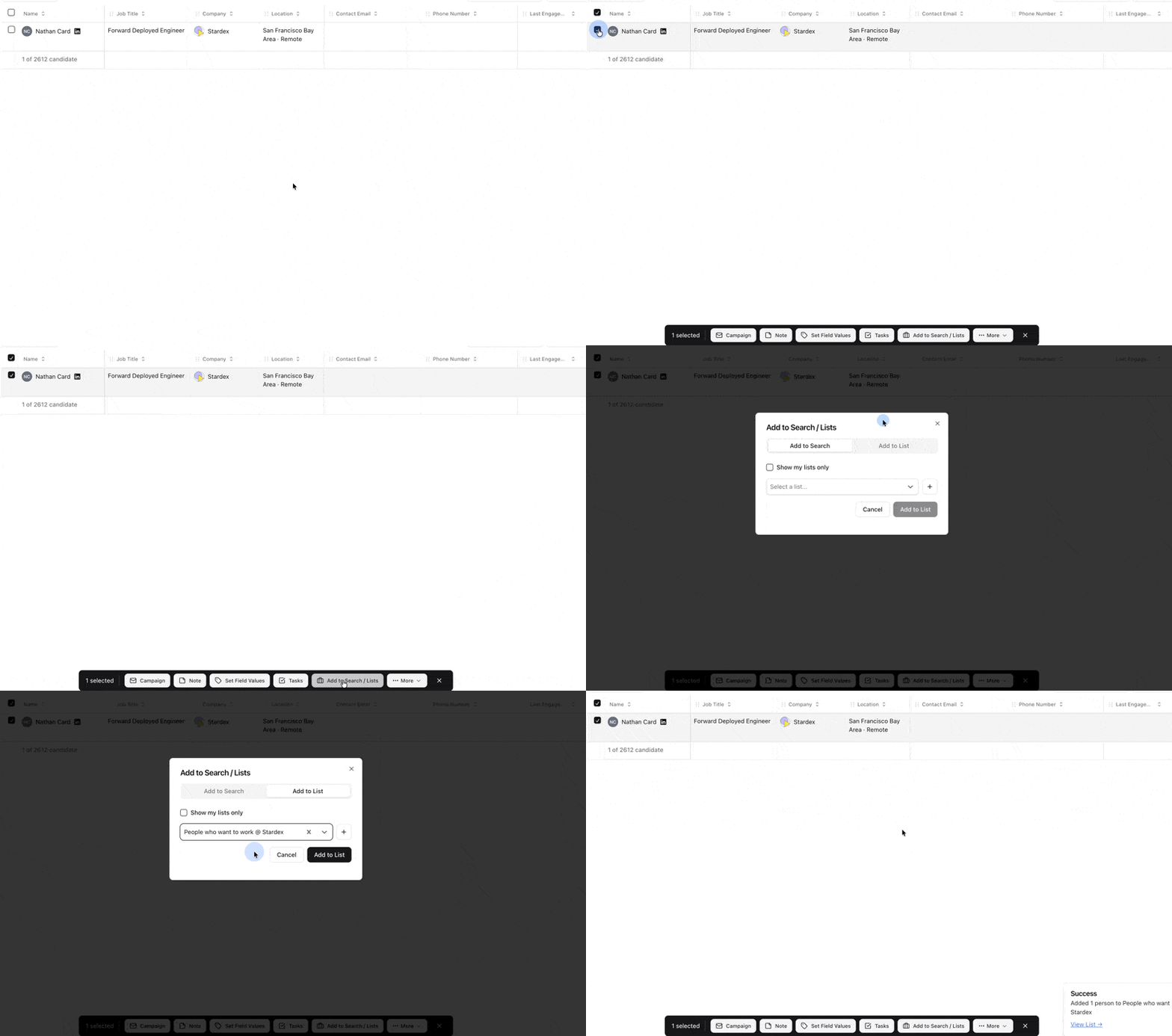
From bulk actions
- On the People page, select multiple candidates using the checkboxes
- Click Add to List from the bulk action bar at the bottom
- Pick the list you want
From search results
When you find candidates through AI search or filtering, you can bulk-select and add them to a list in one go.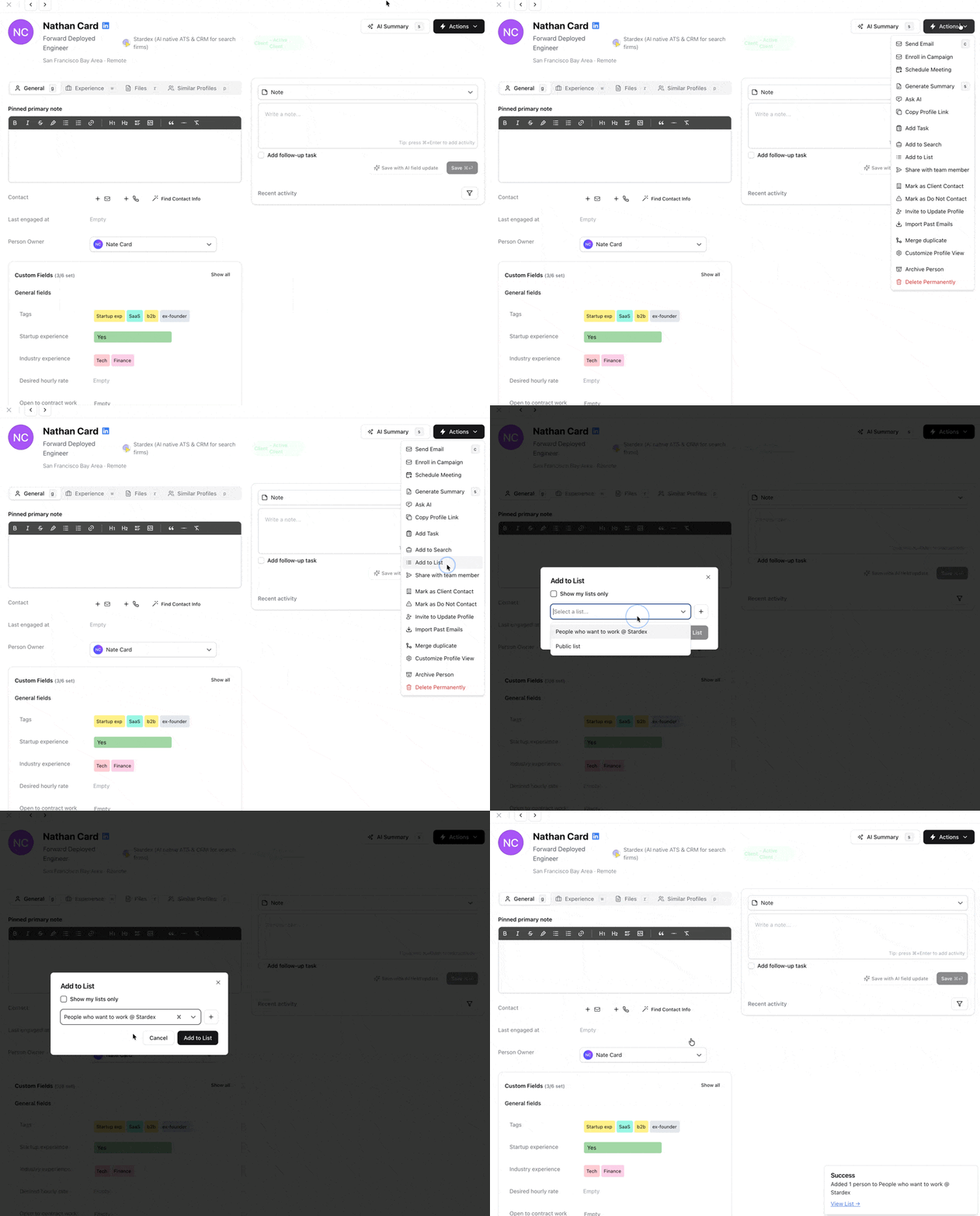
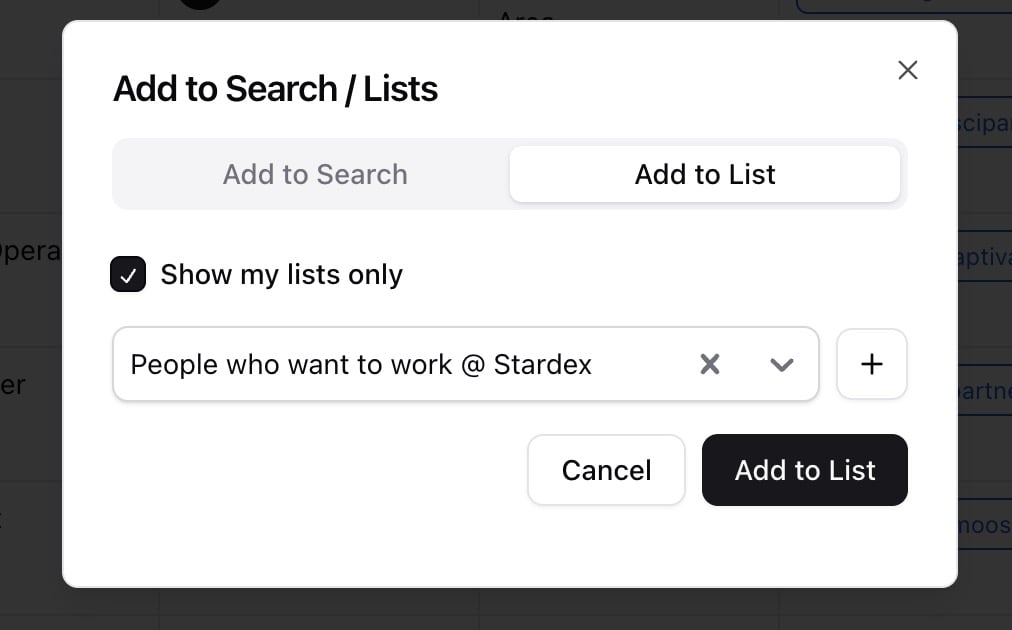
💡 You can add the same person to multiple lists, don’t worry they won’t be duplicated.
Managing your lists
Sometimes you want to recreate the same list but expand upon it or tweak it, or you and your team keep copying the same list then replacing the contents of the list to suit the new needs. Management of a list happens when viewing the list itself. Open the list you want to manage. All controls for that list live in the header row.Renaming a list
Click the list name in the header to edit it inline. Press Enter or click away to save. Only list owners can rename.Cloning a list
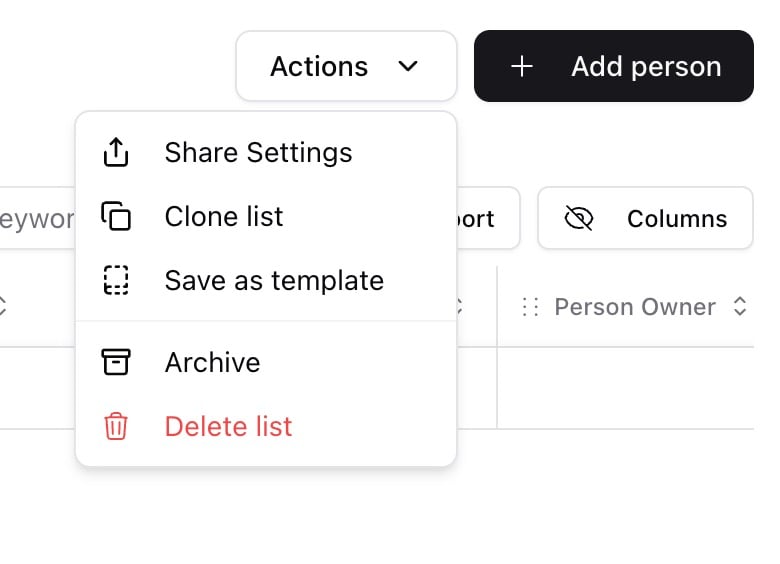
If you want to use a list as a starting point for a new one inside the Actions menu, select Clone list. You will be asked to choose one of three options:- Just the list items — copies all people or companies into a new list; list-specific custom columns are not included.
- List items and list-specific columns / attributes — copies members and their values for any custom fields scoped to this list.
- Just the template — creates an empty list with the same custom column structure but no members. Useful when you want a blank starting point with the same fields for a new search.

Archiving
Done with a list? Archive it instead of deleting it, this way you can always bring it back later. Use the Status filter on the Lists page to toggle between Active, Archived, and All.Deleting
Click the Trash in the header. Deletion is permanent and removes all membership records for that list. If you are not sure you need it again, clone it first before deleting.Saving as a template
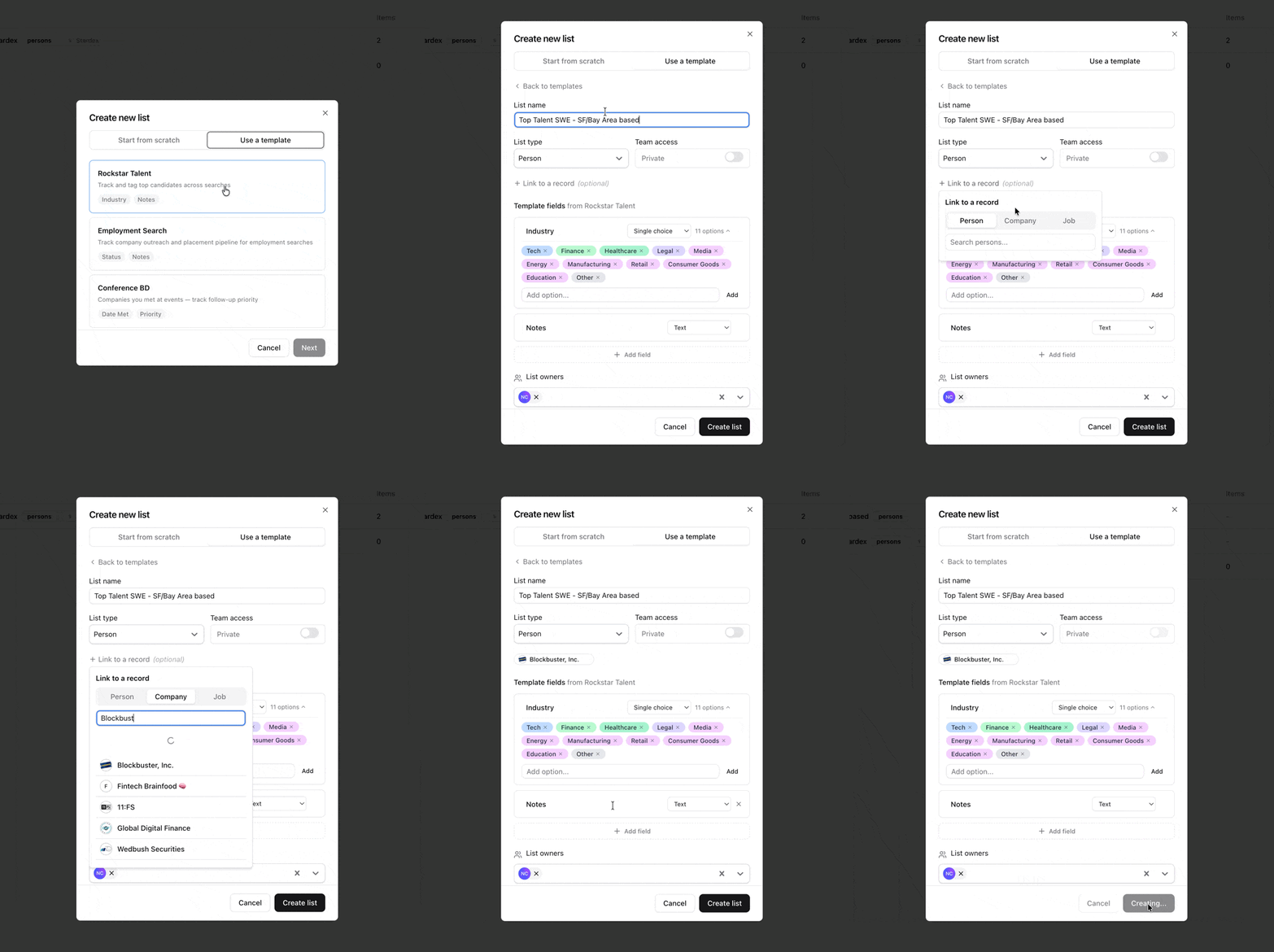
Turn a list into a reusable template so your team can create similar lists quickly. This helps with repeated, similar searches that copying doesn’t handle. You can see a list be created from a template named Rockstar Talent, this template and the other 2 on that modal are available as basic templates by default.Curating membership
Add or remove individuals directly from the list table using row actions, or use bulk actions to add or remove multiple people at once from the People or Companies views.Filtering and finding lists
The Lists page shows all lists you own and all lists your team has made visible. Use the controls at the top to narrow it down:- Search — type a list name in the search bar
- Owner filter — show only your lists or a specific teammate’s lists
- Status filter — Active, Archived, or All
- Sort — by name or date created
Key Takeaway
Lists are not job pipelines. Use Jobs for stage-based hiring workflows and candidate tracking. Lists are for cohorts you curate and revisit across multiple roles or over time.Related guides
- 👉 Bulk import candidates / clients / companies / resumes — import directly into a list
- 👉 Setting up your multi-step outreach campaign — enroll list members in a sequence