

Watch the video on Loom
Add a Scorecard to a Search
- Open the search.
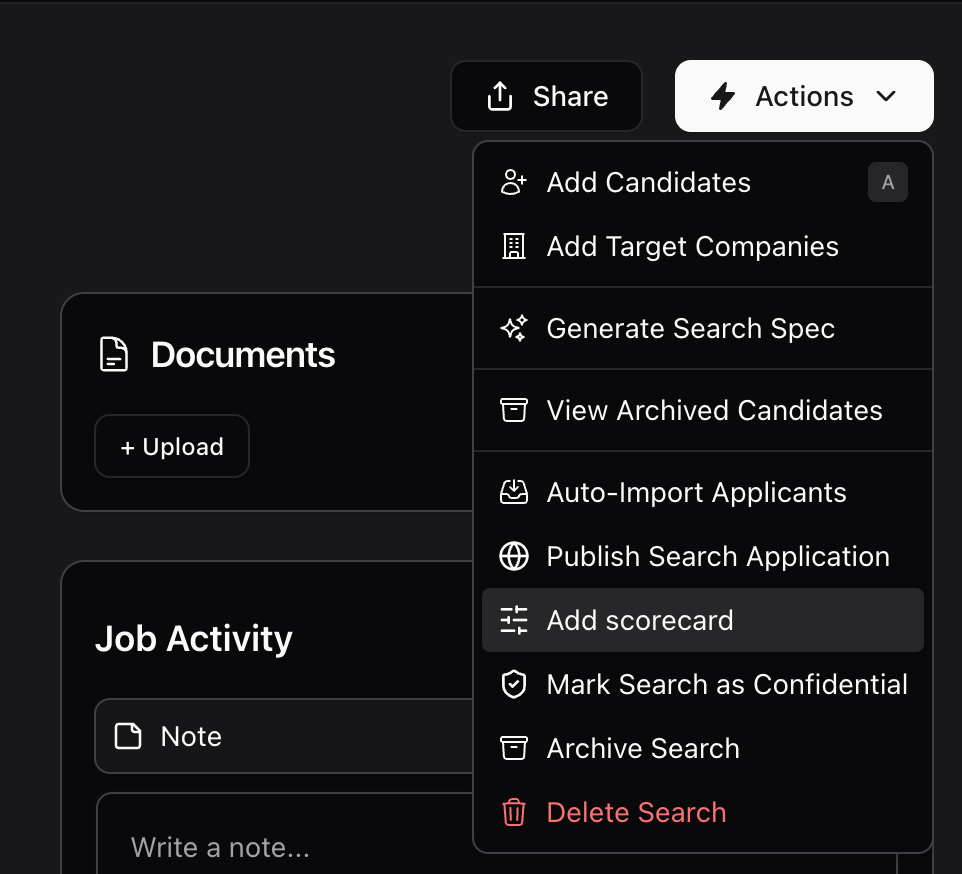
- Click Actions.
- Select Add Scorecard.
- Choose either:
- Create a new assessment
- Use an existing assessment
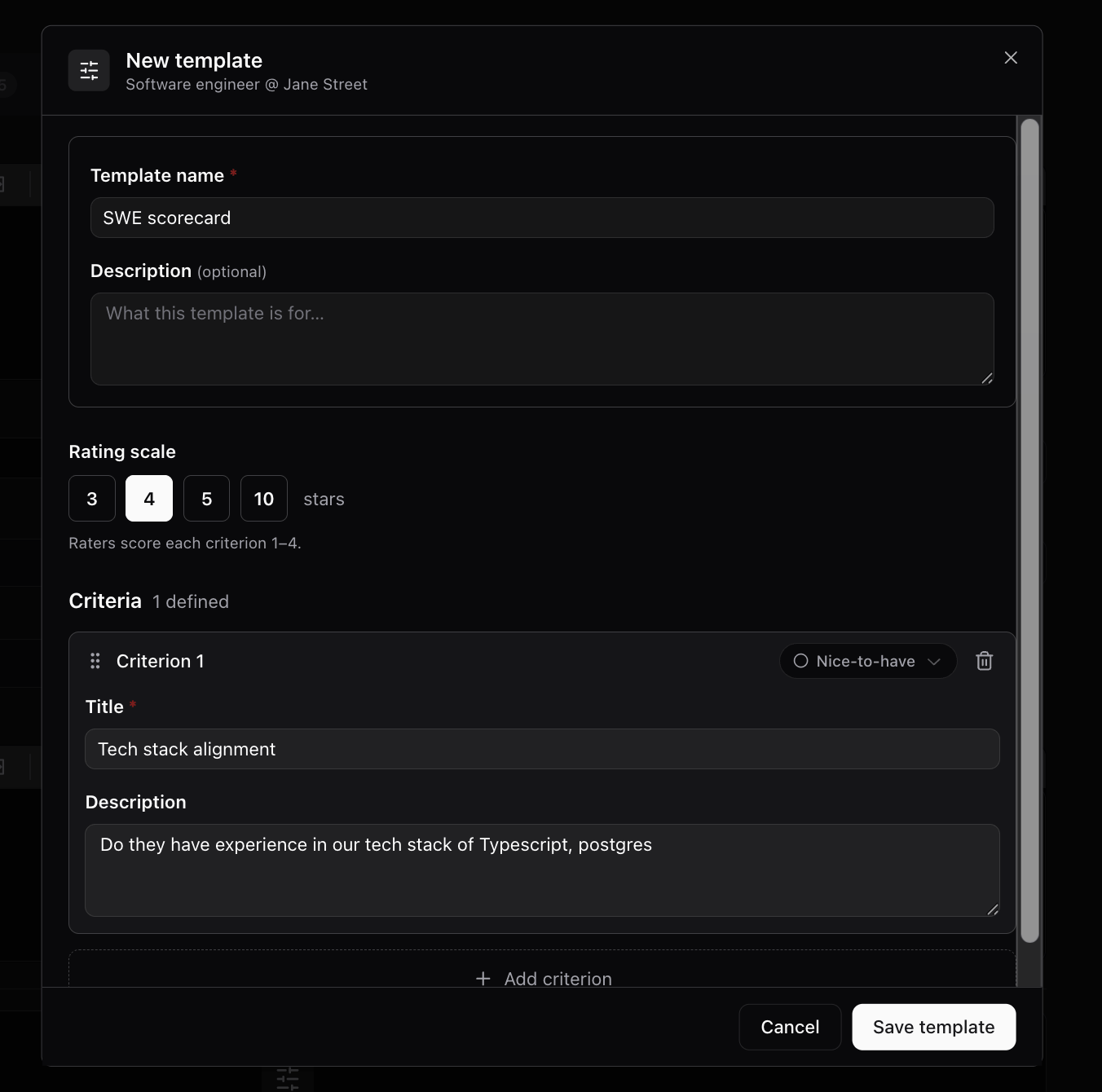
- Name the scorecard, for example:
VP Sales Scorecard - Choose a rating scale, such as
1 to 4 - Add evaluation criteria, such as:
- SaaS Sales Experience
- Startup Experience
- Leadership Experience
- Add descriptions for each criterion so reviewers know how to score candidates
- Mark each criterion as either:
- Must-have
- Nice-to-have
View Scorecards in the Pipeline
After a scorecard is added to a search, the pipeline view will automatically show scorecard-related columns. By default, you can see the candidate’s overall score or feedback status. You can also toggle on the full criteria view to see individual scorecard criteria as separate columns.Add a Scorecard for a Candidate
- Open the candidate.
- Click Scorecards tab
- Click Add Scorecard.
- Select the scorecard for the search.
- Add:
- Overall score
- Summary note
- Individual ratings for each criterion
- Notes for specific criteria, if needed
Fill a scorecard with AI
Writing notes for every criterion after an interview takes time. Fill scorecard with AI drafts the rating and notes for every criterion and the overall summary in one pass, using what is already on the candidate’s profile. Nothing is saved until you save the scorecard, so you can review and edit everything first.- Open the candidate and go to the Scorecards tab.
- Click Add scorecard and pick a template.
- Under Job context, pick the search this scorecard is for, if it is for one.
- Click Fill scorecard with AI.
- Review each rating and note, edit what you need, then click Save scorecard.
What the AI reads
- The candidate’s profile: headline, about, location, recent work experience and education.
- Recent notes and activity, with meeting notes, transcripts, interview, call and client notes weighted most. Emails, LinkedIn messages and text messages are included in shorter form. Emails that a teammate’s mailbox settings hide from you are left out.
- Resumes and cover letters on the profile.
- The search’s title, company and job description, when you pick one under Job context.
Tell the AI how to write the notes
By default, each criterion and the overall summary get 4 to 5 short sentences. To change that, write instructions in the scorecard’s descriptions, the same way you would explain it to a teammate:- The template’s Description applies to every criterion and to the overall summary. Edit it in Settings → Templates → Scorecards: stardex.com/settings?tab=templates§ion=scorecard-templates
- A criterion’s Description applies only to that criterion. When it disagrees with the template’s description, the criterion’s description wins.
- Format and length, for example “For every criterion, give 2 to 4 short bullet points and bold key metrics.”
- Sources, for example “End each bullet with where the evidence came from, such as (resume) or (interview notes, Oct 28).”
- Missing evidence, for example “If there is no evidence for a criterion, give no score and say what is missing.” The rating is then left as No score instead of a low score.
- The overall summary, for example “For the overall summary, write 3 bullets: top strength, top concern, recommendation.”
Your team sees each criterion’s description under that criterion while filling in a scorecard, so instructions written there show up for every rater. Put instructions that apply to the whole scorecard in the template’s Description instead. Clients never see template or criterion descriptions.
Review Scorecard Results
Once saved, the scorecard information appears in the pipeline. You can:- See the overall score directly in the pipeline
- Toggle criteria columns on or off
- Click into an individual scorecard cell to view details
- Switch between scorecards if multiple team members have submitted feedback
Share Scorecards with Clients
Scorecards can also be included in client share links. When editing a scorecard, enable Show scorecard on client share link. After saving, create or open a share link, and the scorecard will appear for the client.FAQ
Is there a way to remind users to complete their scorecards?
There is no dedicated “send reminder” button for scorecards, but there are a couple of ways to nudge someone:- Create a task on the candidate and assign it to the interviewer to complete their scorecard. If they have daily task reminder emails on (Settings → Notifications), they get emailed until it is done.
- @mention them in a note on the candidate. That sends them an email notification right away.
Does Fill scorecard with AI save the scorecard?
No. It only fills in the form. Review the ratings and notes, then click Save scorecard or Save draft.Can I fill just one criterion with AI?
No. It fills every criterion and the overall summary each time. Edit or clear the ones you want to write yourself before saving.Related guides
- Editing templates (email, summaries, scorecards, meeting notes)
- Client Sharable Link (Client Portal)
- Meeting recordings, transcripts, and summaries: meeting notes the AI reads when filling a scorecard