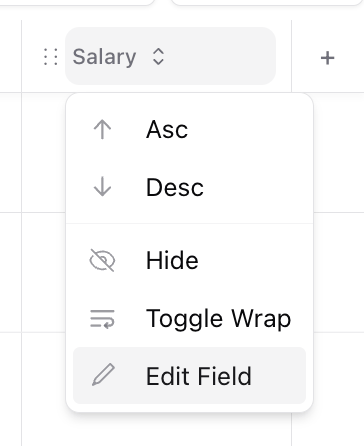
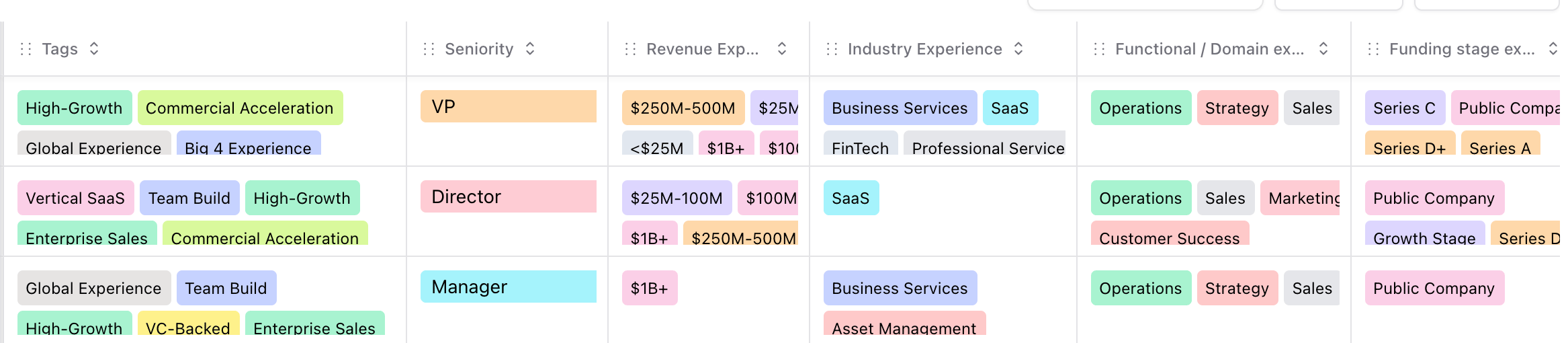
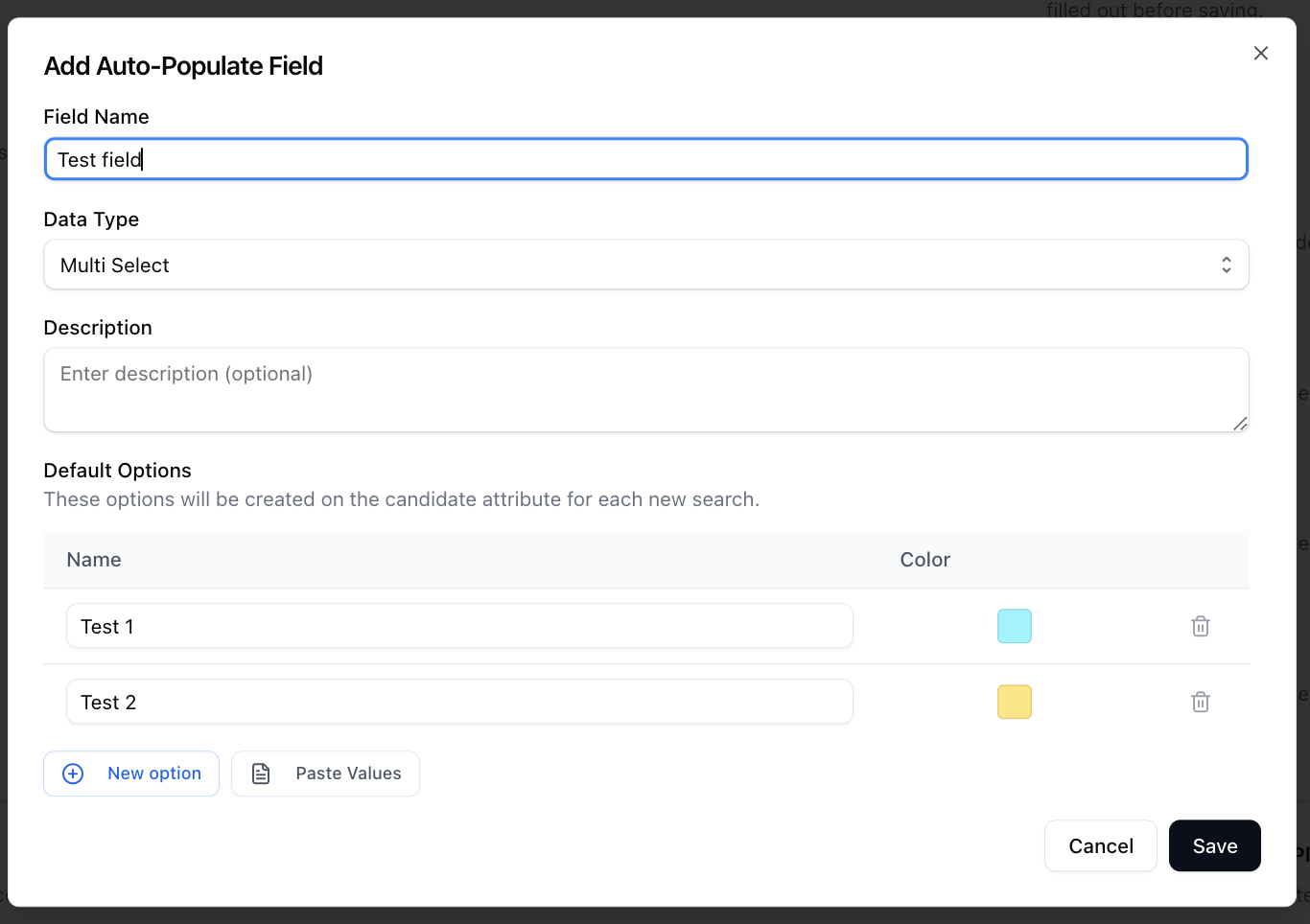
- Scroll to the right and find the + icon on the header of the supported table (candidates, jobs, deals, client contacts, companies, list).
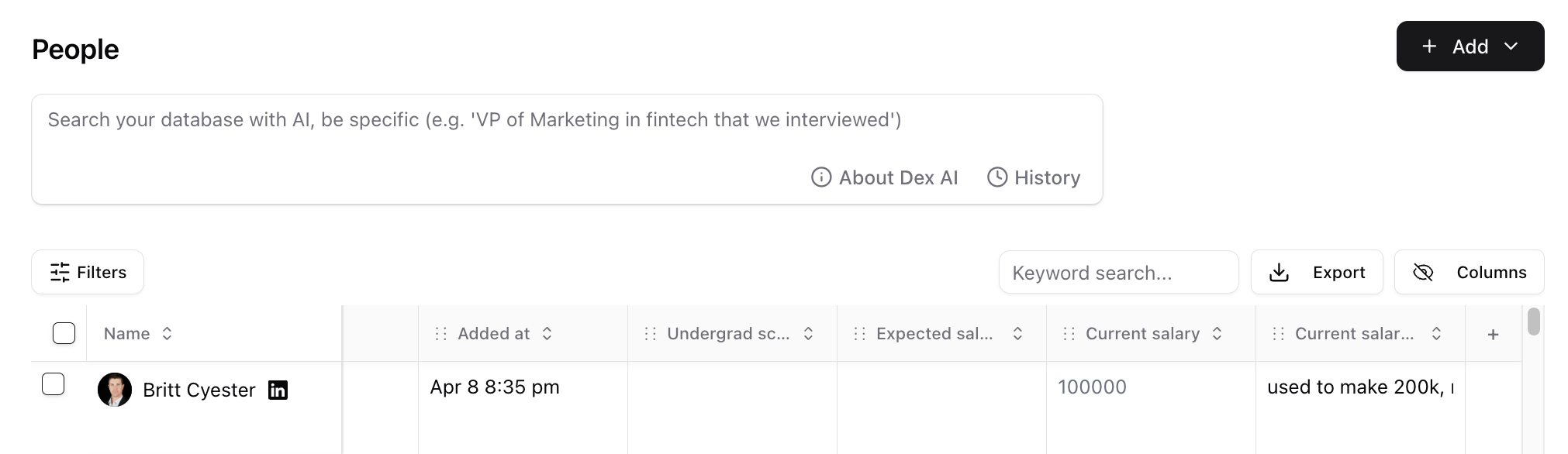
- Enter the field name, and a description. You can pick the data type (options - single choice, multi choice, text, number, data, team member). You are all set
- You can also do the same by heading to settings (only for admins) https://stardex.com/settings?tab=organization§ion=data-model and click the relevant record to add a new field.
Managing custom fields from Settings > Data Model
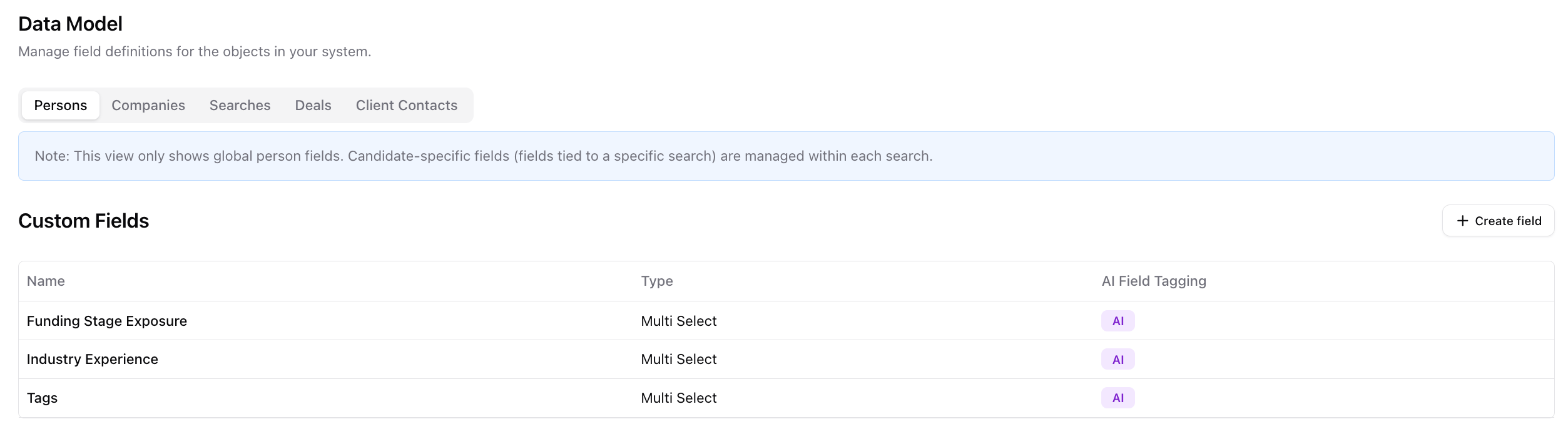
Admins can manage organization-wide custom fields from Settings → Organization → Data Model. The Data Model contains separate tabs for:- Persons
- Companies
- Jobs
- Deals
- Client Contacts
💡 The Persons tab only shows global person fields. Fields tied to a specific job or list must be managed from that job or list.
Creating a field
- Open the tab for the type of record you want to customize.
- Click Create field.
- Enter a Field Name and optional Description. Add a clear description if you plan to use AI auto-tagging.
- Select a data type:
- Options — single choice
- Options — multiple choice
- Text
- Number
- Date
- URL
- Team Member
- For single-choice and multiple-choice fields, add the available options. You can enter them individually, paste a list, or start from a commonly used template.
- For supported person fields, optionally enable Use AI to auto tag this field based on profile information.
- Click Add Custom Field.
Choose the data type carefully. A field’s data type cannot be changed after the field is created.
Editing a field
Click any field in the Custom Fields table to open it. Depending on the field type, you can:- Rename the field
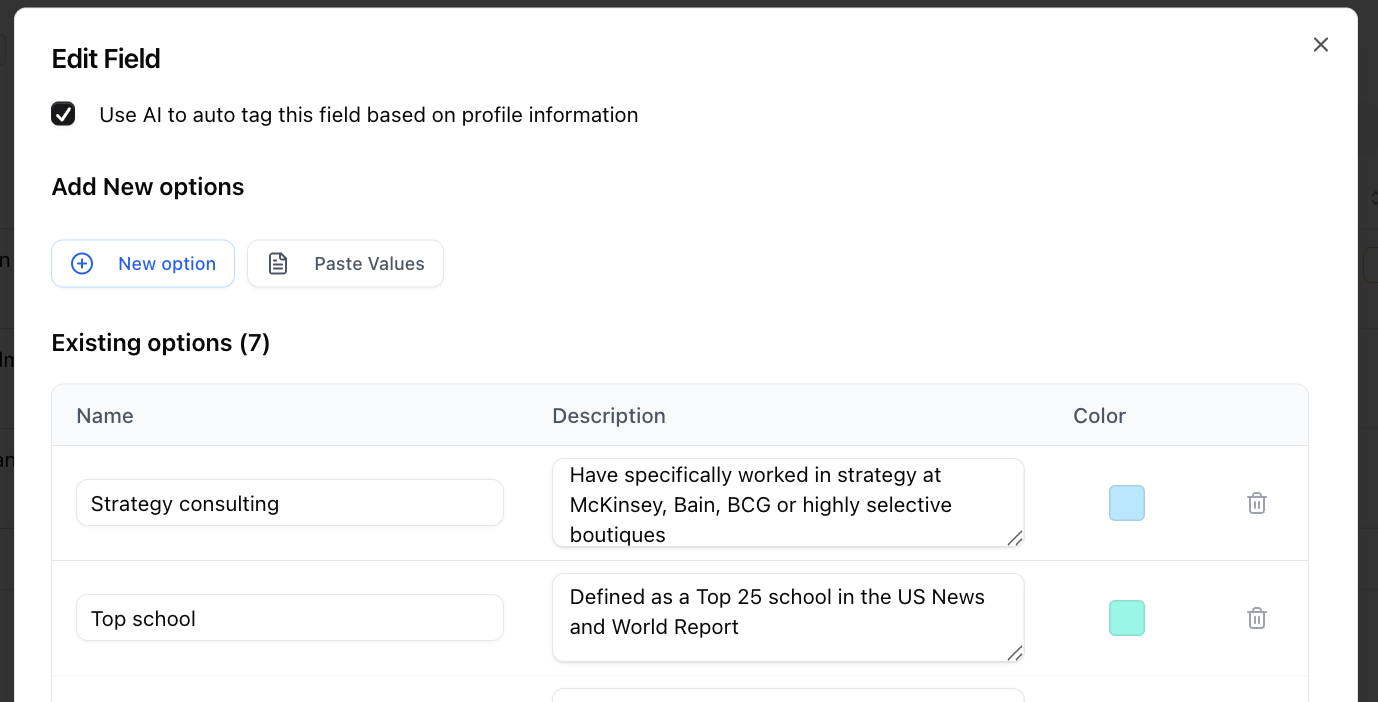
- Update its description or AI instructions
- Enable or disable AI auto-tagging
- Add, rename, recolor, or remove choice options
- Delete the field
Global, job-specific, and list-specific fields
The Data Model is for global fields:- A field created under Persons appears on all person profiles.
- A field created under Companies appears on all companies.
- The same applies to jobs, deals, and client contacts.
Setting the default column layout
Each Data Model tab includes a Default Column Layout section. Admins can use it to control how that record’s table is initially presented to teammates.- Drag columns into the preferred order.
- Mark each column as Visible or Hidden.
- Click Save layout.
- People
- Candidates in a job
New Stardex users receive the default layout automatically. Existing users keep any column layout they have already customized.To apply the latest organization default, an existing user can go to Settings → My Settings and click Restore column order.
Other Data Model controls
The Data Model also contains several record-specific settings:- Under Persons, Primary Notes controls whether the pinned primary-note editor appears on candidate profiles and in the Chrome extension.
- Under Companies, Show Companies in Sidebar controls whether Companies appears in the main navigation. Companies remain accessible by direct URL and through the command menu when this is disabled.
Permissions
Only admins can access Settings → Organization → Data Model. Your organization’s roles can separately control whether users can:- Manage global custom fields
- Manage candidate fields tied to a specific job
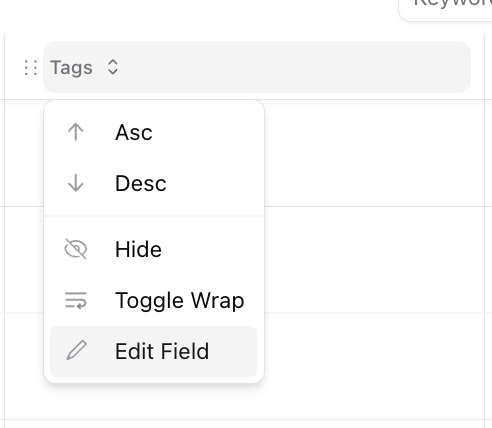
- In order to edit an existing field, you can click on the specific field in the table view, and click Edit field. Otherwise, you can also do the same from the settings data model tab to click the relevant record → relevant tag.
- If you want the custom field just for the candidates in a job, make sure you goto the job pipeline, and keep the box “Only add this field for this job (not visible to other jobs)”
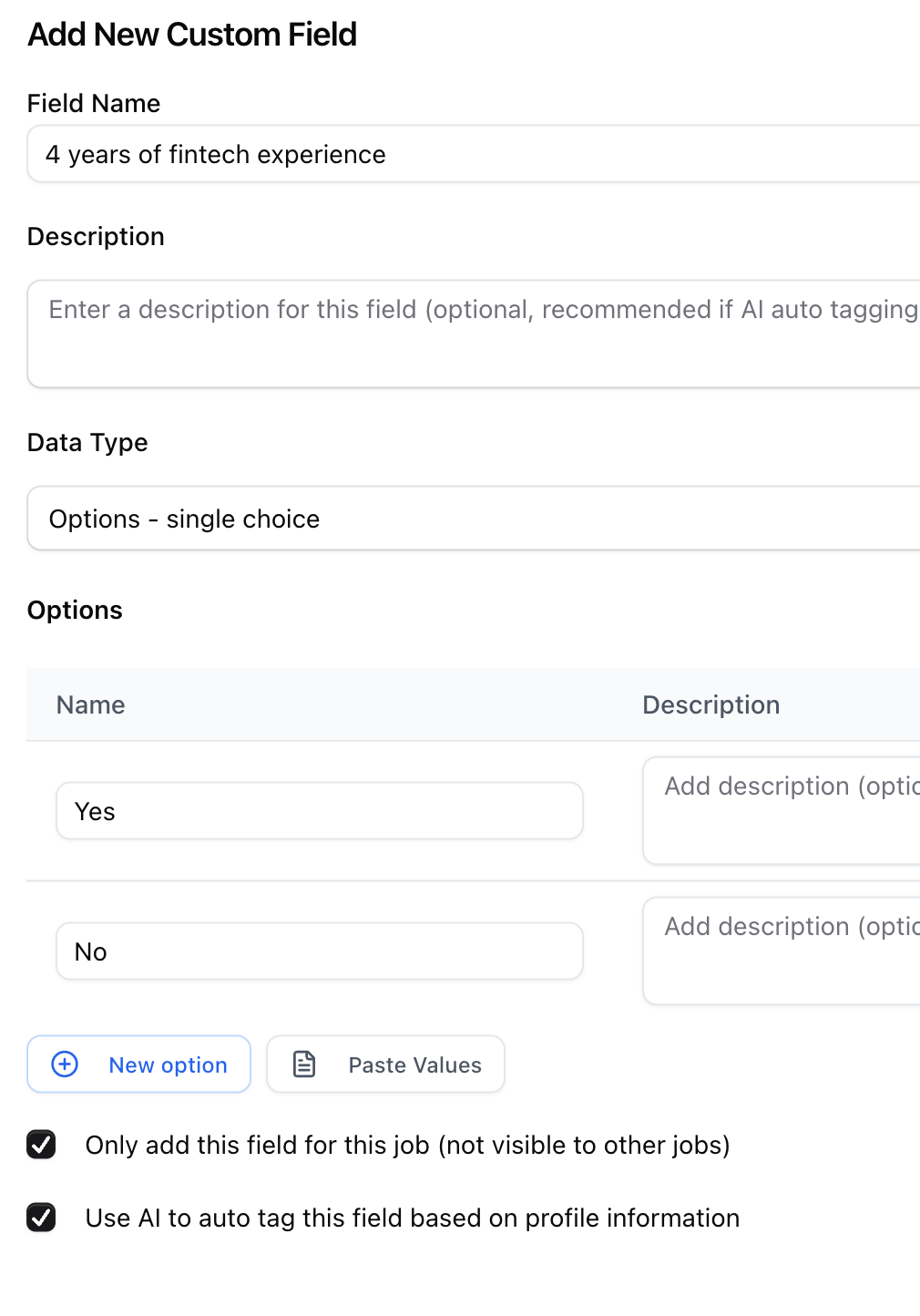
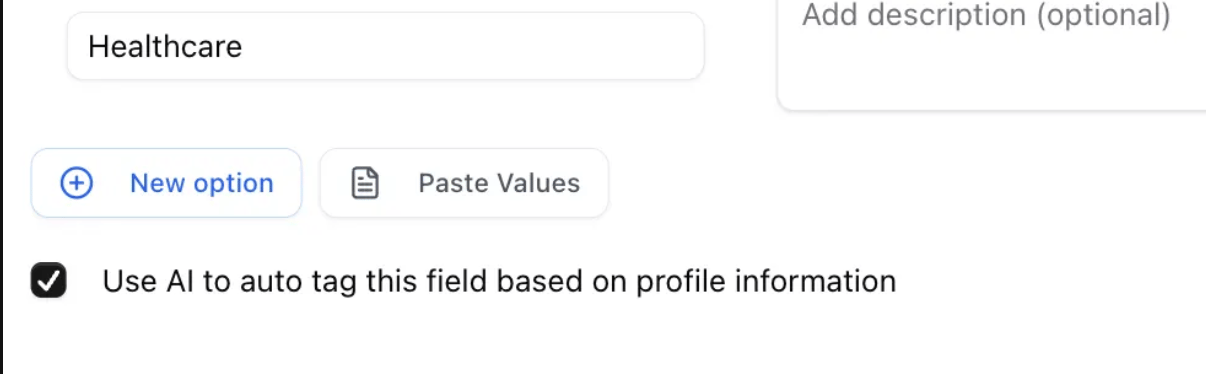
- Optionally, if you want AI to auto tag, enable the option (only available on person object)
Best Practices
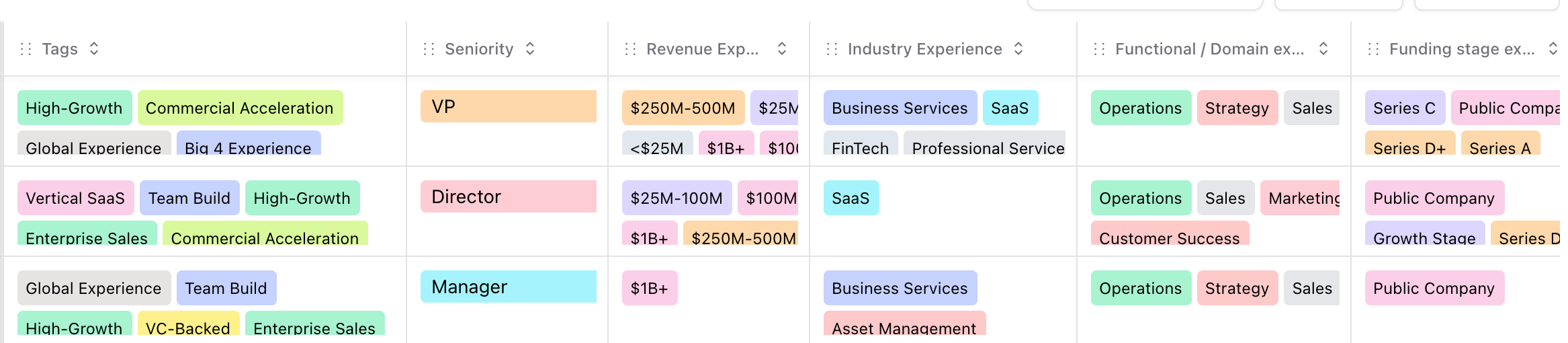
The “Tags” column
Stardex automatically creates a special “Tags” column when you create your team’s account. The Tags column is best thought of as a catch all column to put in skills / experience that your candidates may have. Here’s a few specific things about the Tags column:- It has AI auto-tagging enabled by default
- We have configured it to make it more likely to pick at least one value when a candidate is sourced into Stardex.
- Skills: This will vary on the focus of your firm but here are examples
- Eng focus: Frontend, Backend, NodeJS, React, Python, Django, etc
- GTM focus: Paid ads, Social content, Enterprise sales, SMB sales,
- Functional area: Software Engineering, Sales, Marketing, Design, etc
- Seniority level: Individual Contributor, Manager, Director, VP, C-Suite
What to avoid in the Tags column:
- Avoid putting in less than 5 tags: As mentioned above, the system is configured to pick at least one tag. If you only have 3 tags with sparse values that don’t cover all candidate types, the system may mistakenly choose an incorrect value to ensure at least one value is selected.
- Avoid putting in things that cannot be determined from the candidate’s profile when they are being sourced. For example, things like “Open to relocation” should not be used as the system has no way of telling that when
- Job or client-specific attributes: If only one client / req cares about a tag, do not add it in the Tags column. The system may incorrectly tag future candidates in other jobs with an irrelevant tag.
Job or client-specific columns
Stardex enables you to create custom columns that are only visible in a specific job. These are best used in cases where an attribute is particularly relevant to a specific job. Say, for example, that a client has specific compensation bands they want to categorize candidate’s by. This wouldn’t be relevant for other jobs, or even for your firm across all candidate records. In this case, you can still create a custom column, but create it from inside the job it’s relevant for, selecting the “Only add this field for this job” option: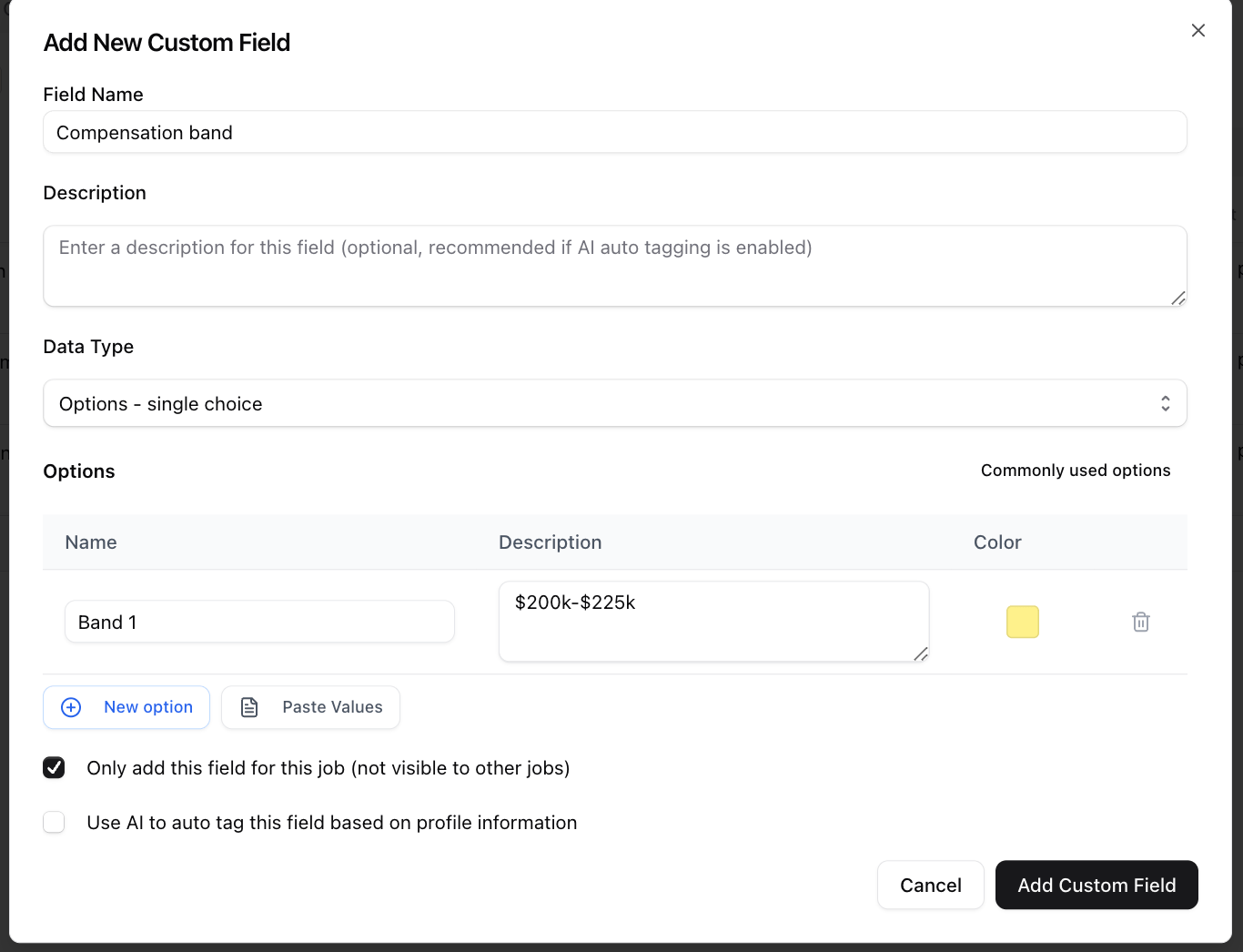
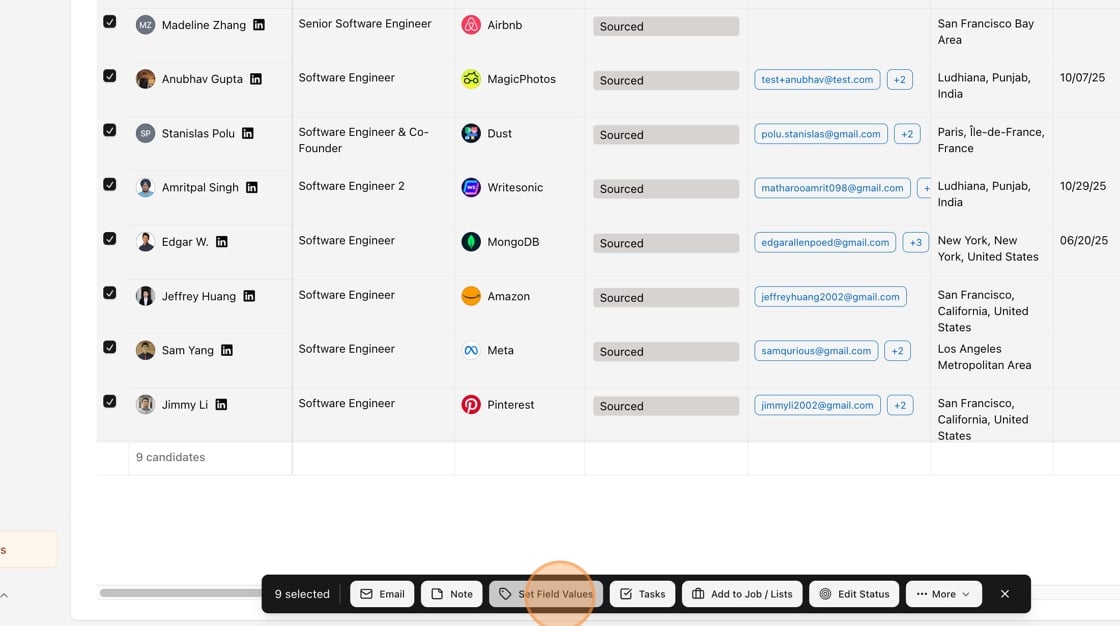
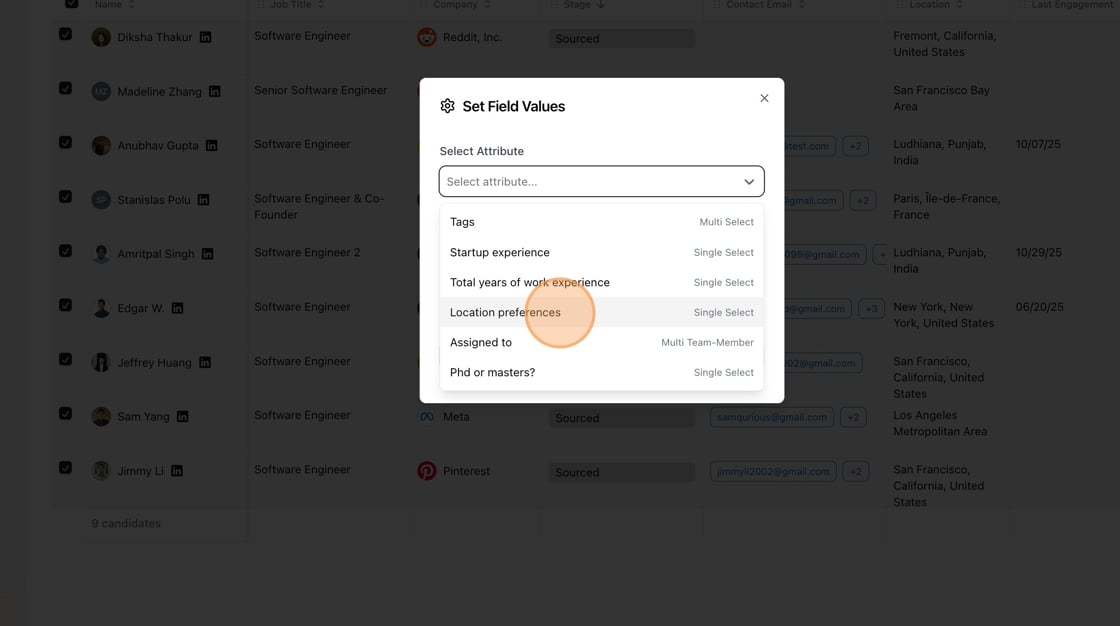
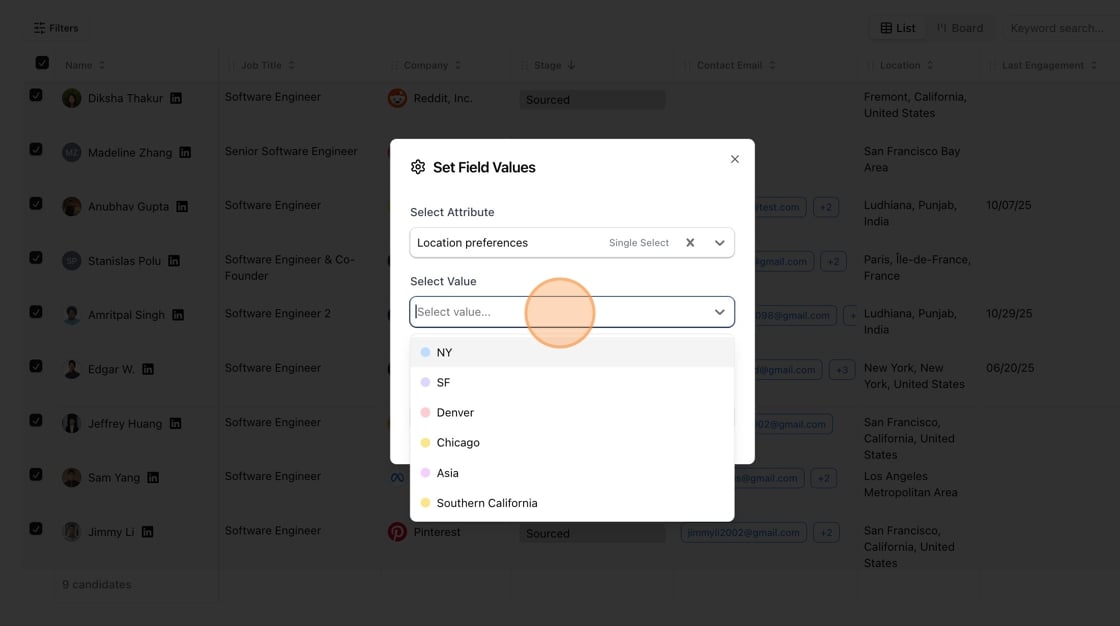
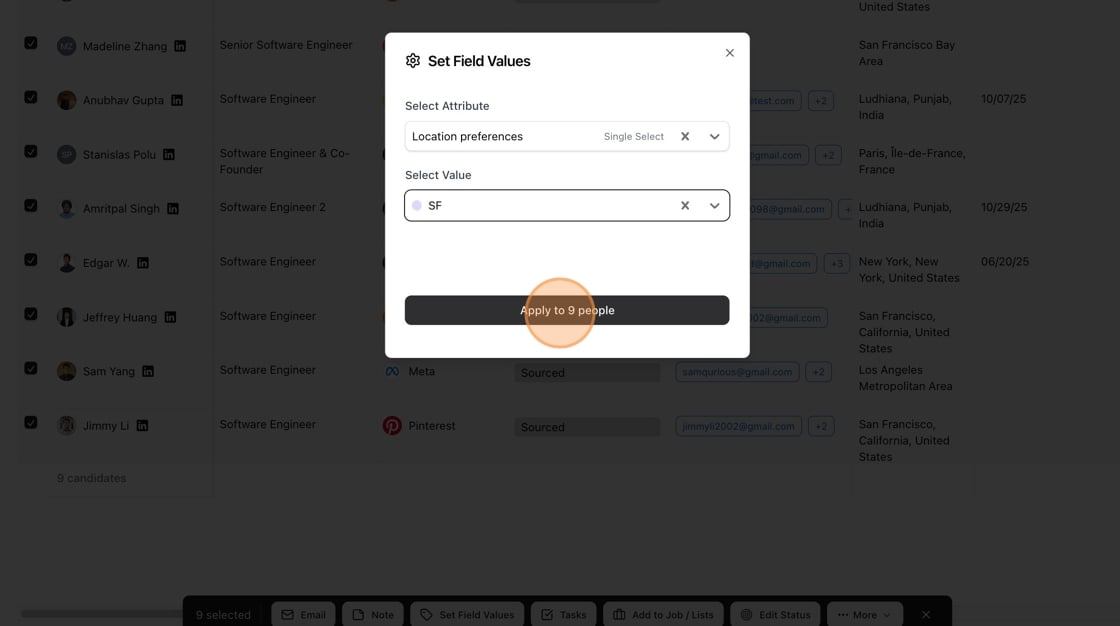
Bulk tagging custom fields
1. Select multiple or all records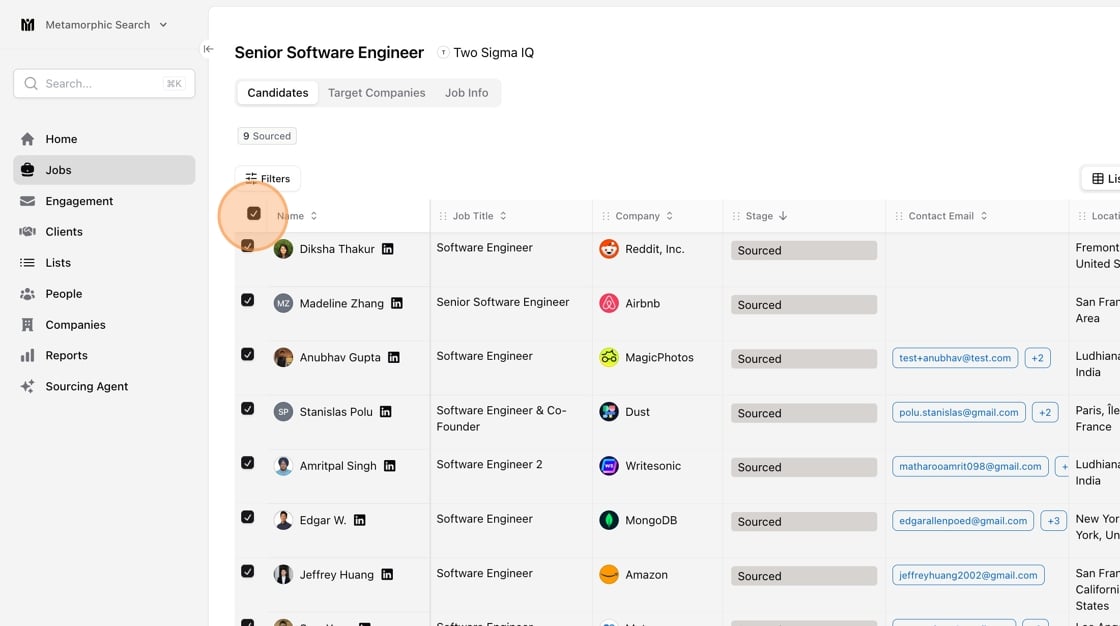
FAQs
How to add new values for the single or multiple choice? You can type in the options directly in the cell, or click Edit Field by clicking the header row of the relevant field. In the edit modal, enter the new values. You can also paste values if you have it in a sheet. For AI tagged columns, you can also edit instructions for AI to help the system make better decisions.