

Setting default column order in the Data Model
Admins can set the default table column order from Settings > Organization > Data Model. This lets your team decide which fields appear first, and which columns are visible by default, for each major data type in Stardex.What column ordering controls
Column ordering controls the default layout of tables across Stardex. In Data Model, each data type has its own column layout:- Persons
- Candidates in a job
- Companies
- Jobs
- Deals
- Client Contacts
How admins set a default column order
- Go to Settings
- Open the Organization tab
- Select Data Model
- Choose the data type you want to configure, such as Persons, Companies, Jobs, Deals, or Client Contacts
- In Default Column Layout, drag columns into the order you want
- Use the visibility controls to choose which columns should show by default
- Click Save layout
- People — used for the main People table
- Candidates in a job — used for candidate tables inside jobs
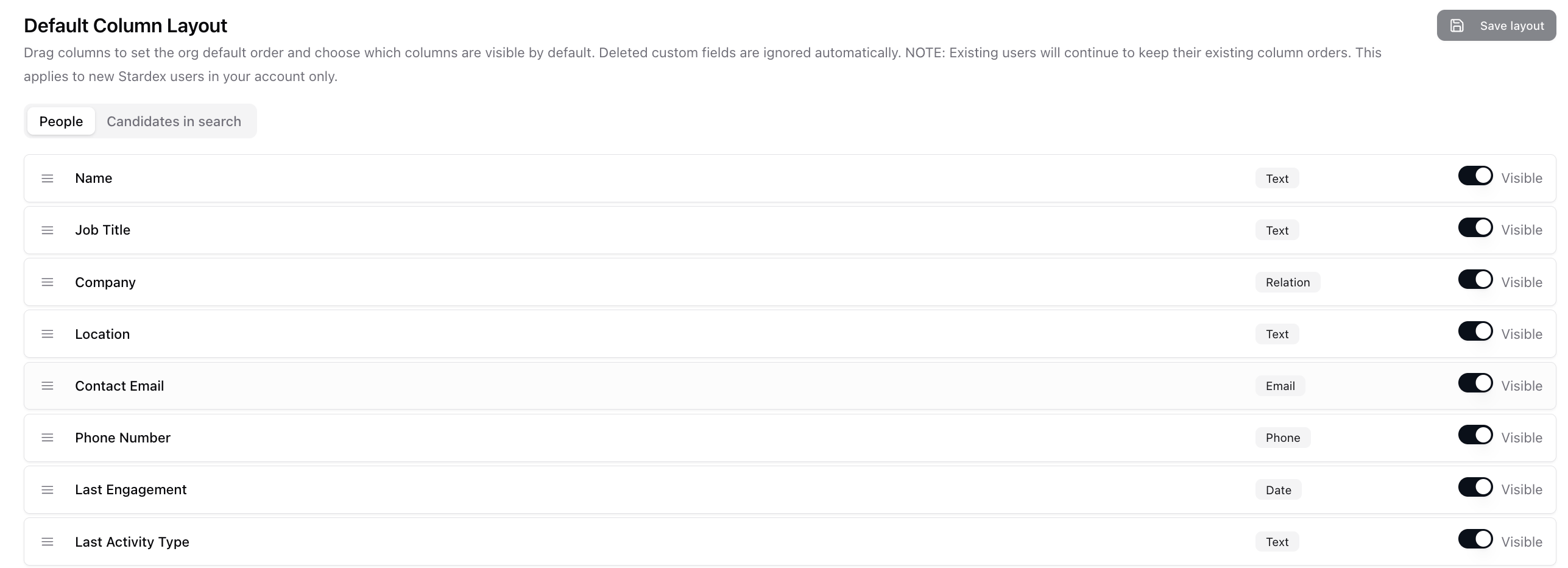
What happens after saving
Saved layouts become the organization default for that data type. New team members, or team members who have not customized their own table columns yet, will see the admin default automatically. Existing team members keep their current column layout. Stardex does this so an admin change does not unexpectedly overwrite someone’s personal workspace setup.How team members reset their column order
If a team member already has a saved personal column layout, they need to reset their column order to pick up the admin default. To reset:- Go to Settings
- Open My Settings
- Select Preferences
- Find Reset column order
- Click Reset column order
