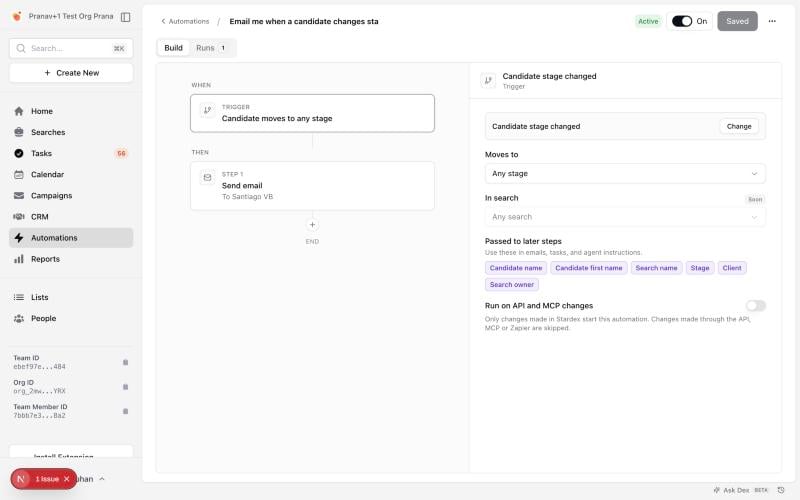
How automations work
Every automation has two parts:- A trigger: the change it waits for, for example “a candidate moves to Rejected”.
- Steps: what it does each time the trigger happens, in order, for example “wait 2 days, then email the candidate”.
Triggers
Coming soon: Candidate added to a search, New applicant, Client contact status changed, and On a schedule.
Steps
Coming soon: Agent, Slack message, and Enroll in campaign.
Adding details from the record
Emails, notes and tasks can include details from the record that started the run, such as the candidate’s name, the search name or the stage. Click Insert data in a step to add one. Each trigger only offers the details it has: a “New search created” automation has no candidate, so it can’t use the candidate’s name.Example: follow up after a rejection
Send a polite note two days after a candidate is rejected, from your own mailbox.- Trigger: Candidate stage changed, narrowed to All rejection stages.
- Step 1, Delay: 2 days.
- Step 2, Send email: to the Candidate, from your mailbox, with Include signature on. For example: “Hi
{Candidate first name}, thank you for the time you spent with us on the{Search name}search…”
Example: invoice task when a candidate is placed
Make sure every placement gets invoiced.- Trigger: Candidate stage changed, narrowed to Placed.
- Step 1, Create task: for the Search owner, due in 1 day: “Send the placement invoice for
{Candidate name}”.
Creating an automation
- Open Automations in the sidebar and click New automation.
- Pick Start from scratch. The templates listed below it show common setups and become available as their Coming soon parts are released.
- Choose the trigger and narrow it if you need to.
- Add steps with + and fill each one in.
- Click Save. A new automation is on as soon as it’s saved, and it only reacts to changes made from then on. Use the switch at the top to turn it off.
Bulk changes, API, MCP and Zapier
Most changes happen one at a time, while you work in Stardex. Some don’t. A bulk edit can move 200 candidates in one click, and a script, an AI agent or a Zap can change hundreds of records through the API in a few seconds. Each of those changes starts every automation that matches, so an automation that emails candidates on rejection would send 200 emails. Stardex adds two safeguards for this: a confirmation before large bulk changes in the app, and a setting that keeps API, MCP and Zapier changes from starting automations unless you turn it on. The short version- In Stardex: changing more than 10 records at once shows which automations will run before anything changes.
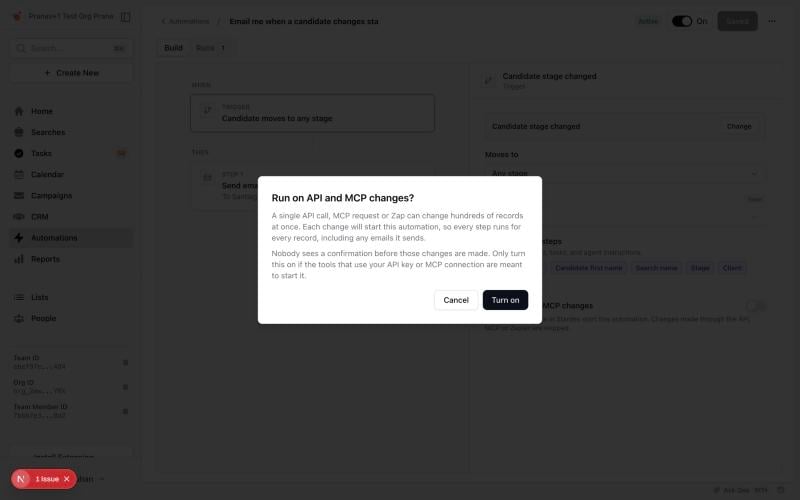
- Through the API, MCP or Zapier: changes only start automations that have Run on API and MCP changes turned on. It is off by default.
Bulk changes in Stardex
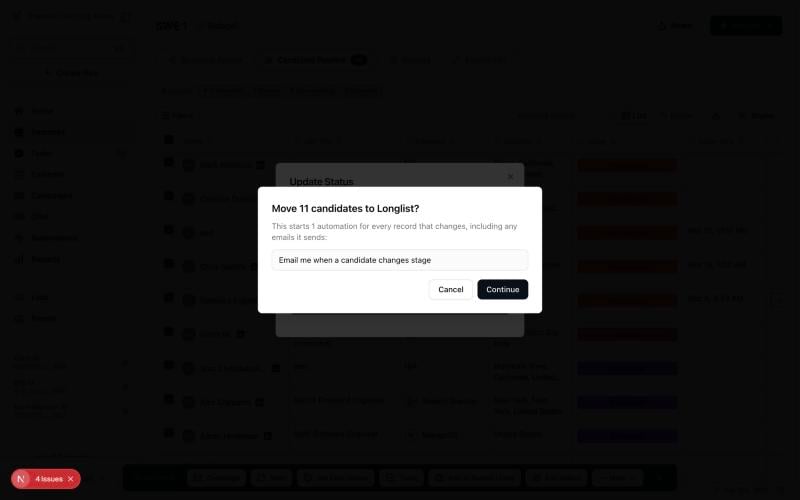
When a bulk change would move more than 10 records and start at least one automation, Stardex asks before making it. The confirmation lists every automation that will run, so you can cancel if that isn’t what you meant. Only records that actually change count. If you set 30 candidates to Rejected and 25 of them are already there, only 5 change, and nothing is asked.Where you’ll see it
- Edit status from the selection bar on candidates, searches and deals
- Mark as closed for searches
- CSV imports that move candidates already on the search to a new stage (the automations are listed in the “Overwrite existing candidate stages?” confirmation)
- Adding candidates to a sequence with a stage selected
Changes made through the API, MCP or Zapier
Changes made outside the Stardex app don’t start automations by default. This covers:- The Stardex API, used with an API key
- MCP, used by AI assistants such as Claude when they are connected to your Stardex account
- Zapier, for example a Zap that updates a candidate’s stage
Turning it on for an automation
If you want an automation to run for these changes too, for example because a Zap moves candidates and you want the automation to email them:- Open the automation and select its trigger.
- Turn on Run on API and MCP changes.
- Read the warning and choose Turn on.
- Save the automation.