

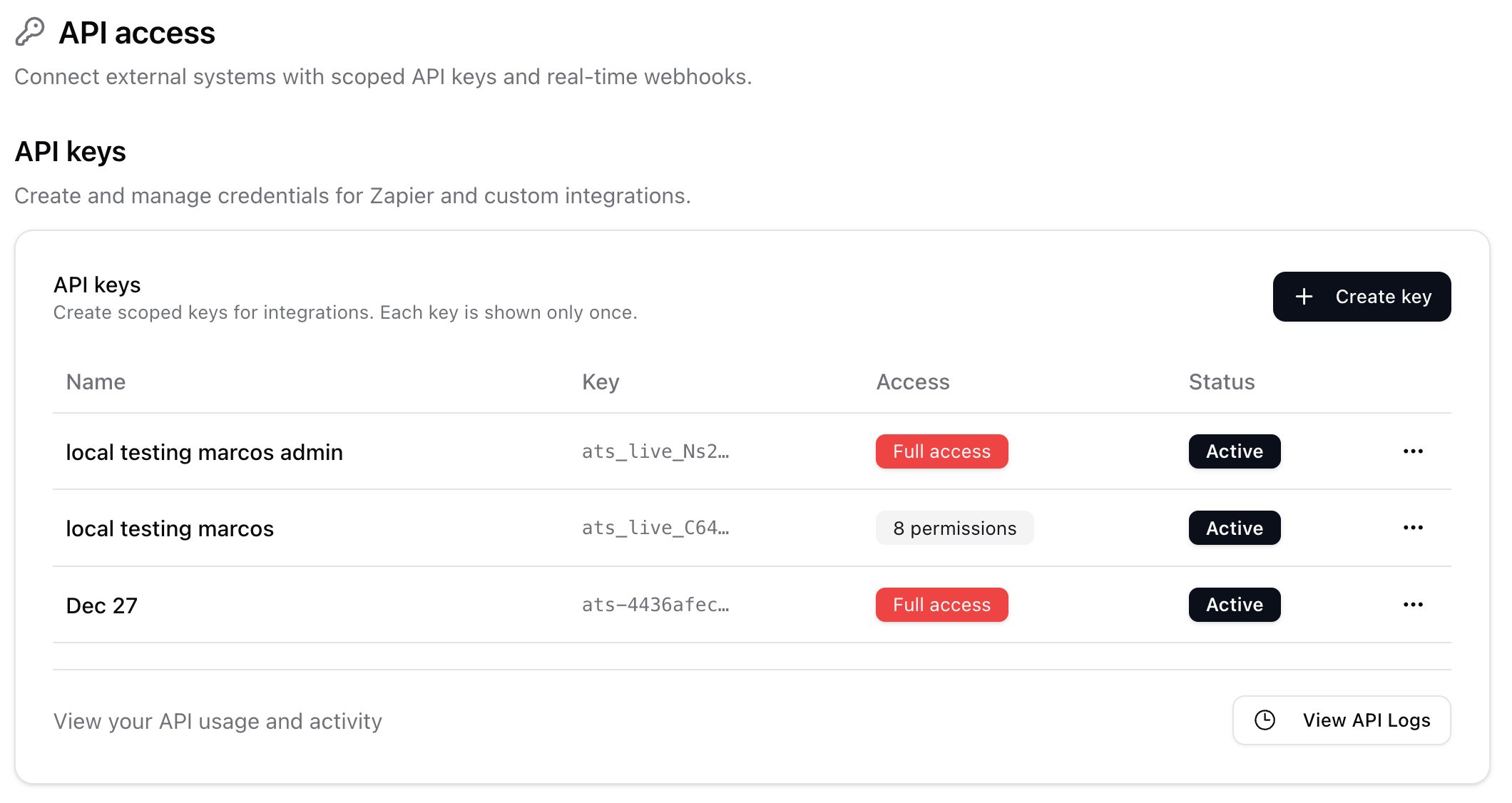
Who can manage API keys
Only organization admins can create, roll, or revoke API keys. If you don’t see these options, ask an admin in your workspace.Where to find them
Go to Settings → Email & other integrations → API access & Webhooks: stardex.com/settings?tab=email-calendar§ion=api-access Webhooks for outbound events are on this same page, below the keys. See the Webhooks guide.Creating an API key
- Click Create key.
- Give it a clear name (for example, “Zapier integration” or “Reporting dashboard”). Use a separate key for each tool so they’re easy to manage.
- Choose an access level (see below).
- (Optional) Set an expiry date.
- Click Create key.
Access levels
Choosing permissions (Custom keys)
When you pick Custom, you’ll see a grid of resources with Read, Write, and Delete columns. Tick only what the integration actually needs.- Read — view data
- Write — create and update data
- Delete — remove data
Copying and storing your key
Right after you create a key, it’s shown to you once. Copy it and store it somewhere safe — your password manager, or directly in the tool you’re connecting. For your security, the full key is never shown again. If you lose it, just roll the key to get a new one.Setting an expiry (optional)
By default, keys never expire. If you’d like a key to stop working automatically on a certain date — handy for temporary access or contractors — set an expiry date when creating it.Managing your keys
The keys table shows every key in your workspace:- Name — what you called it
- Key — the first few characters, so you can tell keys apart
- Access — a summary of its permissions (hover to see the full list)
- Status — Active, Inactive, Revoked, or Expired
Rolling and revoking keys
From the ⋯ menu on a key:- Roll key — Creates a new key with the same access and turns off the old one. Use this if a key may have been exposed, or on a regular schedule for good security hygiene. You’ll need to update your tool with the new key.
- Revoke — Turns the key off immediately and permanently. Any tool using it stops working right away. Use this when a key is no longer needed.
Already using an API key?
Your existing API key still works, so your current integrations won’t break. We recommend replacing it with a new scoped key that has only the access it needs, then revoking the old one. This gives you tighter security and clearer control over each integration.Tips
- Give each integration its own key with a clear name.
- Use the narrowest access that gets the job done — start with Read only or Integration before reaching for Custom or Admin.
- Roll keys periodically, and immediately if one may have leaked.
- Set an expiry for anything temporary.