

Your team has sourcers who don’t need to see client deals, junior recruiters who should only work candidates in their assigned jobs, external collaborators who only follow their own searches, and partners who need access to everything. Stardex uses four roles with configurable permissions so each person sees the parts of the product relevant to their work.
Configuring role permissions
The most common path through this feature is adjusting what Recruiters, Limited Recruiters, and External Users can access.- Go to Settings and open the Permissions & Access section (admins only)
- Click Role Permissions
- The table shows each permission grouped by feature area, with toggle columns for Recruiter, Limited Recruiter, and External User.
- Toggle individual permissions on or off for either role
- Click Save Changes
If you make a mistake or want to start over, click Reset to Defaults to restore the original permission set for all three roles. Click Discard to undo unsaved changes.
The four roles
Every team member is assigned one of these roles.Admin
Full access to every feature. Admins manage team members, configure organization settings, access billing, and see all data across jobs, people, companies, deals, and reports. This role cannot be restricted.Recruiter
Broad access by default. Recruiters can work with people, jobs, companies, CRM, campaigns, custom fields, and reports. Admins control exactly which of these areas Recruiters can reach through the permission toggles described above.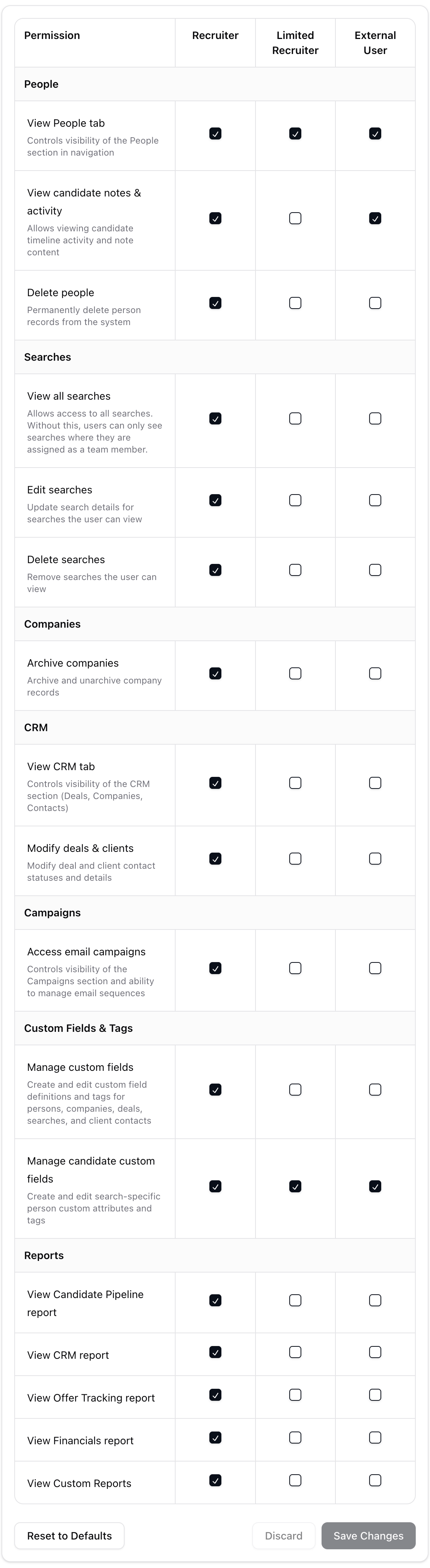
Limited Recruiter
The most restricted role. Designed for team members who only need to work with candidates in their assigned jobs. By default, Limited Recruiters can view the People tab and manage candidate-level fields. Everything else (CRM, Campaigns, Reports, company management) is off unless an admin grants it.External User
Built for outside collaborators, such as a client or portfolio-company contact, who need to follow the candidates on their searches without broader team access. External Users get the same baseline as a Limited Recruiter (viewing the People tab and managing candidate-level fields), plus the ability to view candidate notes, activity, and scorecards for the jobs they’re assigned to. Everything else stays off unless an admin grants it.Permission groups
Permissions are organized into seven groups. Each group contains one or more toggles.People
- View People tab — controls visibility of the People section in navigation
- View candidate notes & activity — view candidate timeline activity and note content
- Delete people — permanently delete person records from the system
Jobs
- View all jobs — allows access to all jobs. Without this, users can only see jobs where they are assigned as a team member
- Edit jobs — update job details for jobs the user can view
- Delete jobs — remove jobs the user can view
Companies
- Archive companies — archive and unarchive company records
CRM
- View CRM tab — controls visibility of the CRM section (Deals, Companies, Contacts)
- Modify deals & clients — modify deal and client contact statuses and details
Campaigns
- Access email campaigns — controls visibility of the Campaigns section and ability to manage email sequences
Custom Fields & Tags
- Manage custom fields — create and edit custom field definitions and tags for persons, companies, deals, jobs, and client contacts
- Manage candidate custom fields — create and edit job-specific person custom attributes and tags
Reports
Each report type is controlled individually:- View Candidate Pipeline report
- View CRM report
- View Offer Tracking report
- View Financials report
- View Custom Reports
Inviting team members
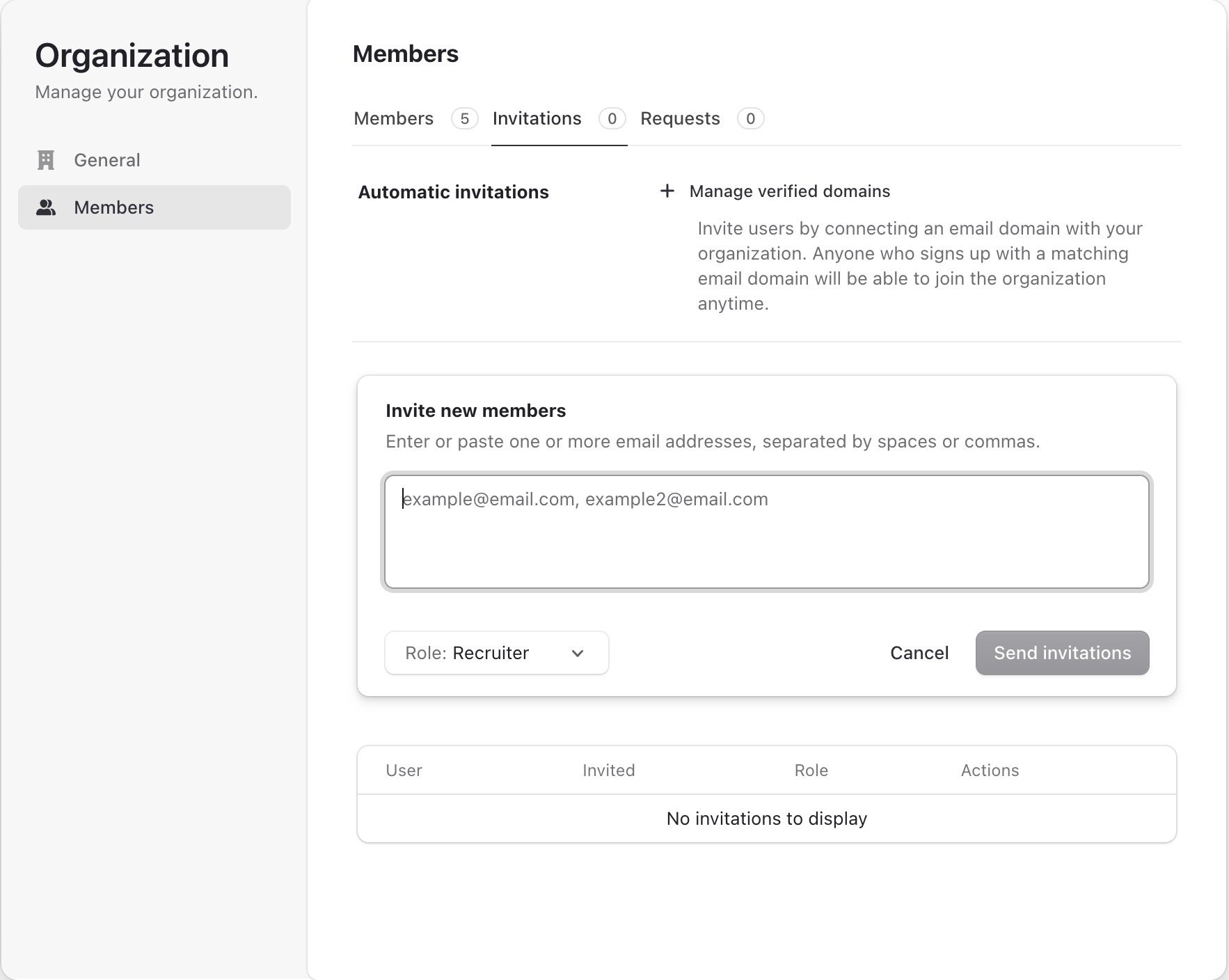
Team member invites and role assignment happen in the organization management panel.- Go to Settings and open the Members & Org Profile section (admins only)
- Click Organization Settings
- Use the invite controls to enter the new member’s email address and select their role: Admin, Recruiter, Limited Recruiter, or External User
- Send the invite
Changing a member’s role
- Go to Settings and open Members & Org Profile
- Click Organization Settings
- Find the team member and change their role from the role selector
- Their permissions update immediately based on the new role’s current permission set
Common use cases
- Small team (2–5 people) — make everyone Admin or Recruiter and skip fine-tuning permissions
- Growing team with sourcers — set sourcers as Limited Recruiters so they only see candidates in their assigned jobs, while senior recruiters get the full Recruiter role
- Restricting financial data — leave Recruiters with broad access but toggle off View Financials report so only admins see revenue numbers
- Keeping the sidebar clean — turn off View CRM tab for roles that don’t work with clients, so those sections don’t appear in their navigation
- Separate desk holders from researchers — Recruiters manage the full lifecycle, Limited Recruiters source and tag candidates without touching deals or campaigns
- Looping in a client or external partner — assign them the External User role and add them to the relevant jobs so they can follow candidate notes and scorecards on those searches, without access to CRM, campaigns, or other jobs
FAQ
Q: Can I create custom roles beyond the four? No. Stardex has four fixed roles: Admin, Recruiter, Limited Recruiter, and External User. You customize what each role can do through the permission toggles, but you cannot create new role types. Q: What happens when someone without permission tries to access a restricted page? They see an “Access restricted” message: “You don’t have permission to access this page. Contact your organization admin to request access.” Q: If I toggle off “View all jobs” for Recruiters, what can they still see? They see only jobs where they are assigned as a team member. An admin or another team member with access needs to add them to the job’s team for them to see it. Q: Do permission changes apply retroactively? Yes. When you toggle a permission off and save, every user with that role loses access immediately. There is no grace period. Q: Where do I manage the roles that appear on a job’s team (like Team Lead)? Those are job team member roles, separate from organization roles. Manage them in Settings under the Jobs section, in Job Team Roles.Key takeaway
Roles control the ceiling, permissions control the floor. Pick the role that matches the person’s scope, then adjust individual permissions if the defaults don’t fit.Related guides
- 👉 Opt-outs and Do Not Contact — compliance settings that also live under the Settings page
- 👉 Lists and how to use them — lists have their own sharing controls (Team Access) that work alongside role permissions