

Before you start
Only organization admins can create API keys in Stardex. If you don’t see the option, ask an admin in your workspace to create the key for you. Metaview needs more access than the built-in Read only or Integration templates provide, so you’ll create a Custom key with the specific permissions below.1. Create an API key in Stardex
- In Stardex, go to Settings → Email & other integrations → API access & Webhooks: stardex.com/settings?tab=email-calendar§ion=api-access.
- Click Create key.
- Give it a clear name, for example “Metaview Integration”.
- Under Access, choose Custom.
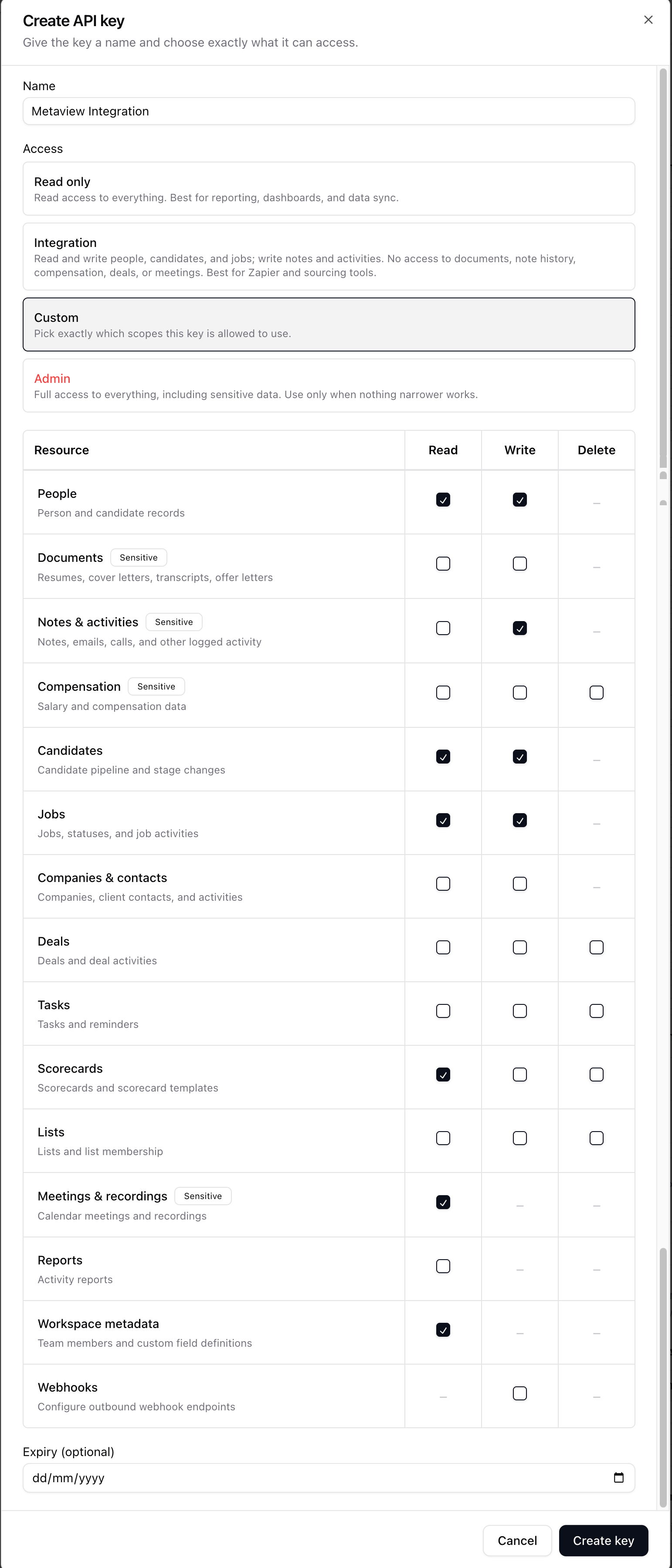
Permissions to select
Tick the following in the permissions grid, then click Create key:
Leave everything else unticked.
💡 Notes & activities and Meetings & recordings are marked Sensitive. Metaview needs these to push interview notes and sync recordings, so grant them for this integration.
2. Copy your key
Right after you create the key, Stardex shows it to you once. Copy it and keep it somewhere safe — you’ll paste it into Metaview in the next step. For your security, the full key is never shown again. If you lose it, roll the key to get a new one.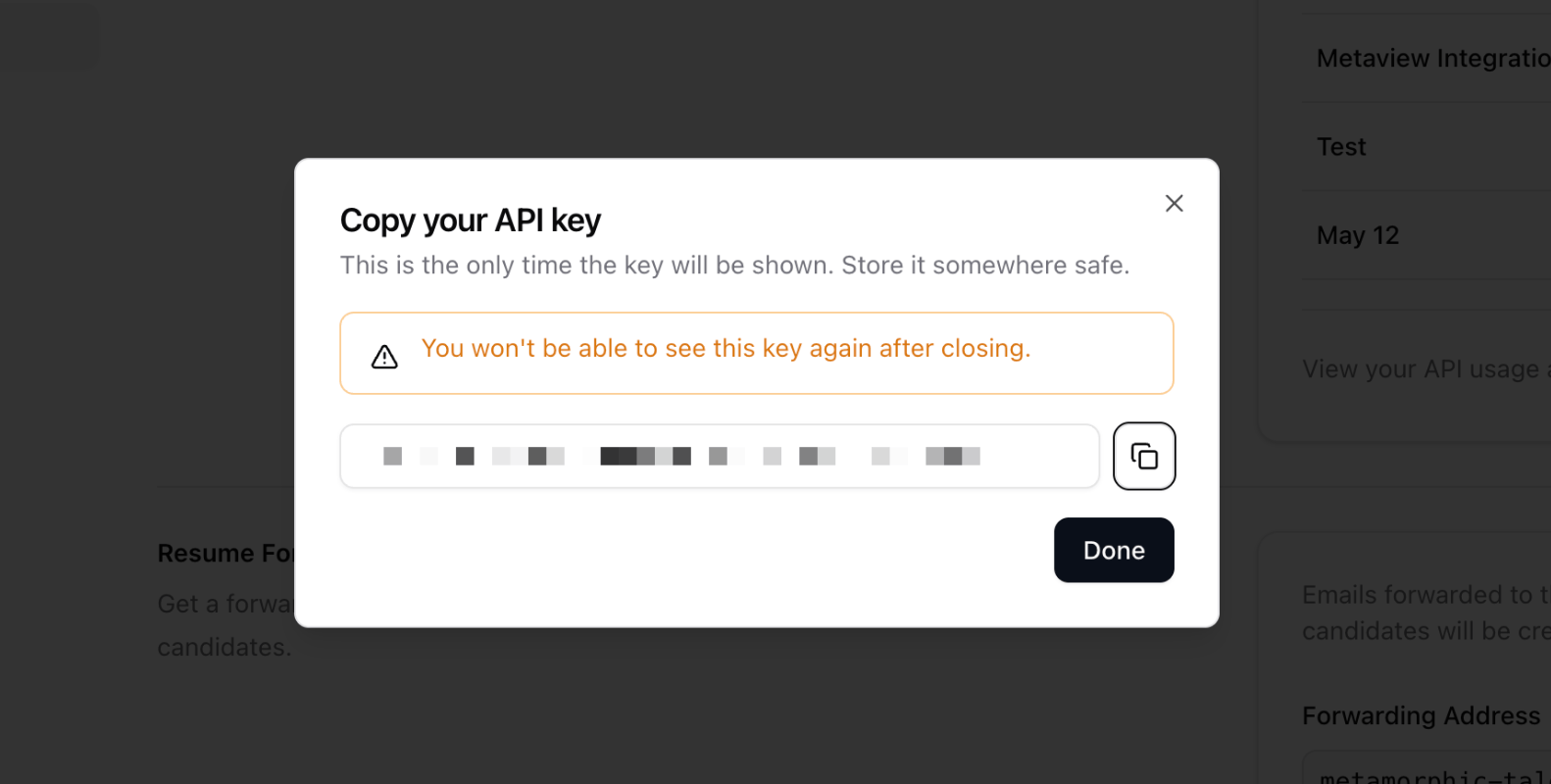
3. Connect Stardex in Metaview
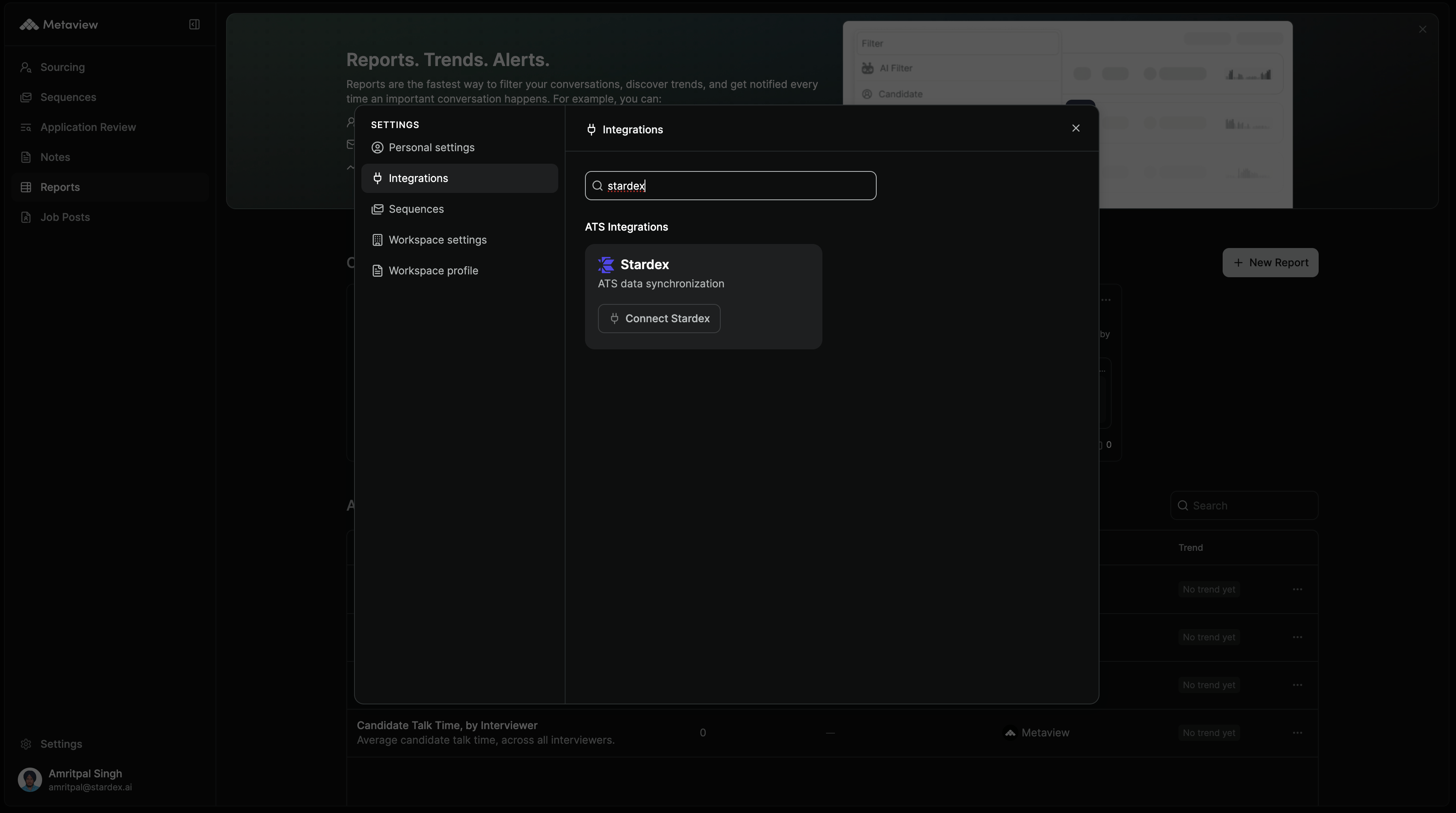
- In Metaview, open Settings → Integrations.
- Search for Stardex.
- Click Connect Stardex.
4. Paste and test your key
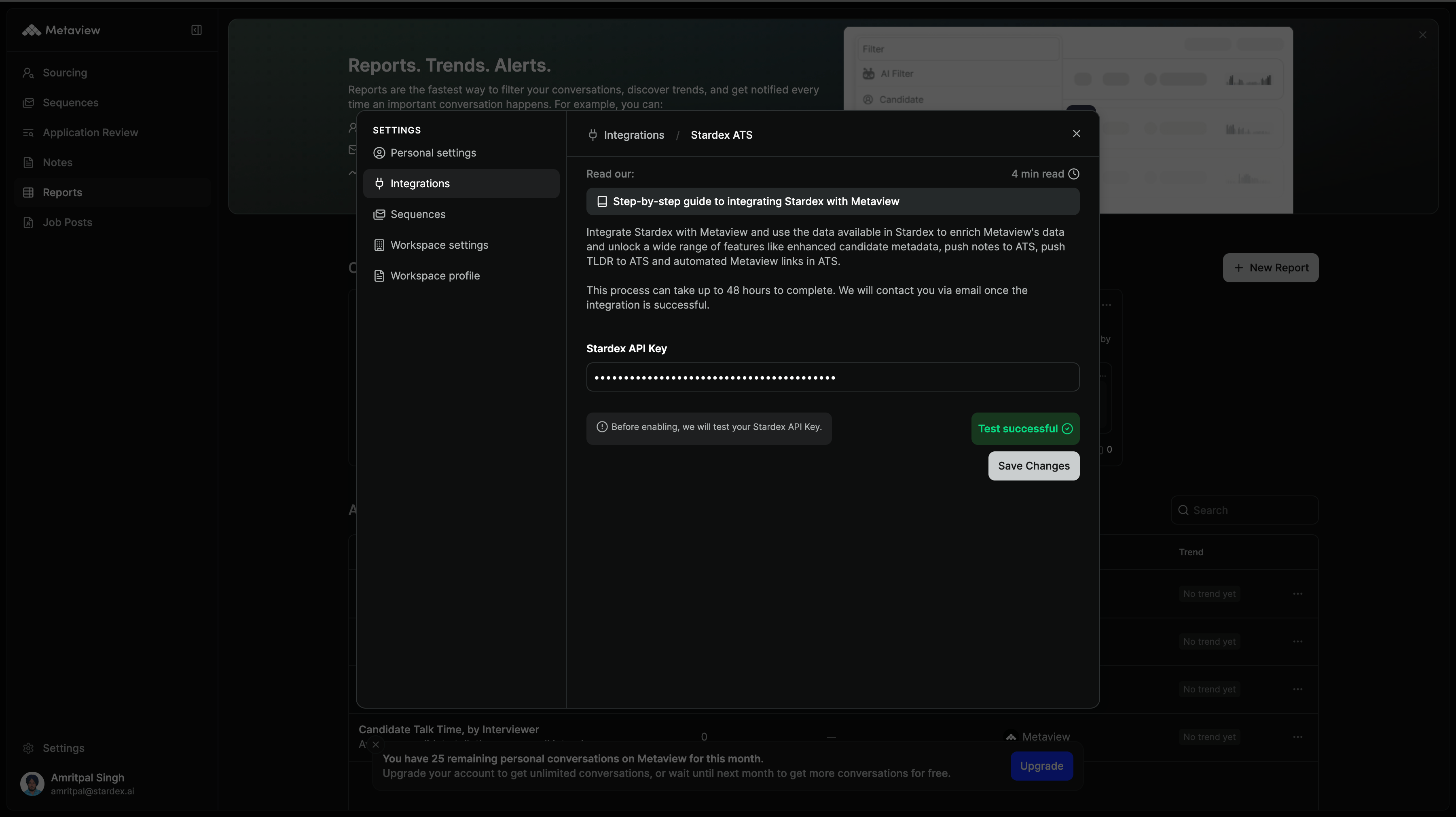
- Paste your Stardex API key into the Stardex API Key field.
- Click Test API Key.
- Once you see Test successful, click Save Changes.
5. You’re connected
Stardex now shows as Enabled in Metaview. Your data will start syncing shortly, and notes and recordings will flow onto the matching profiles in Stardex.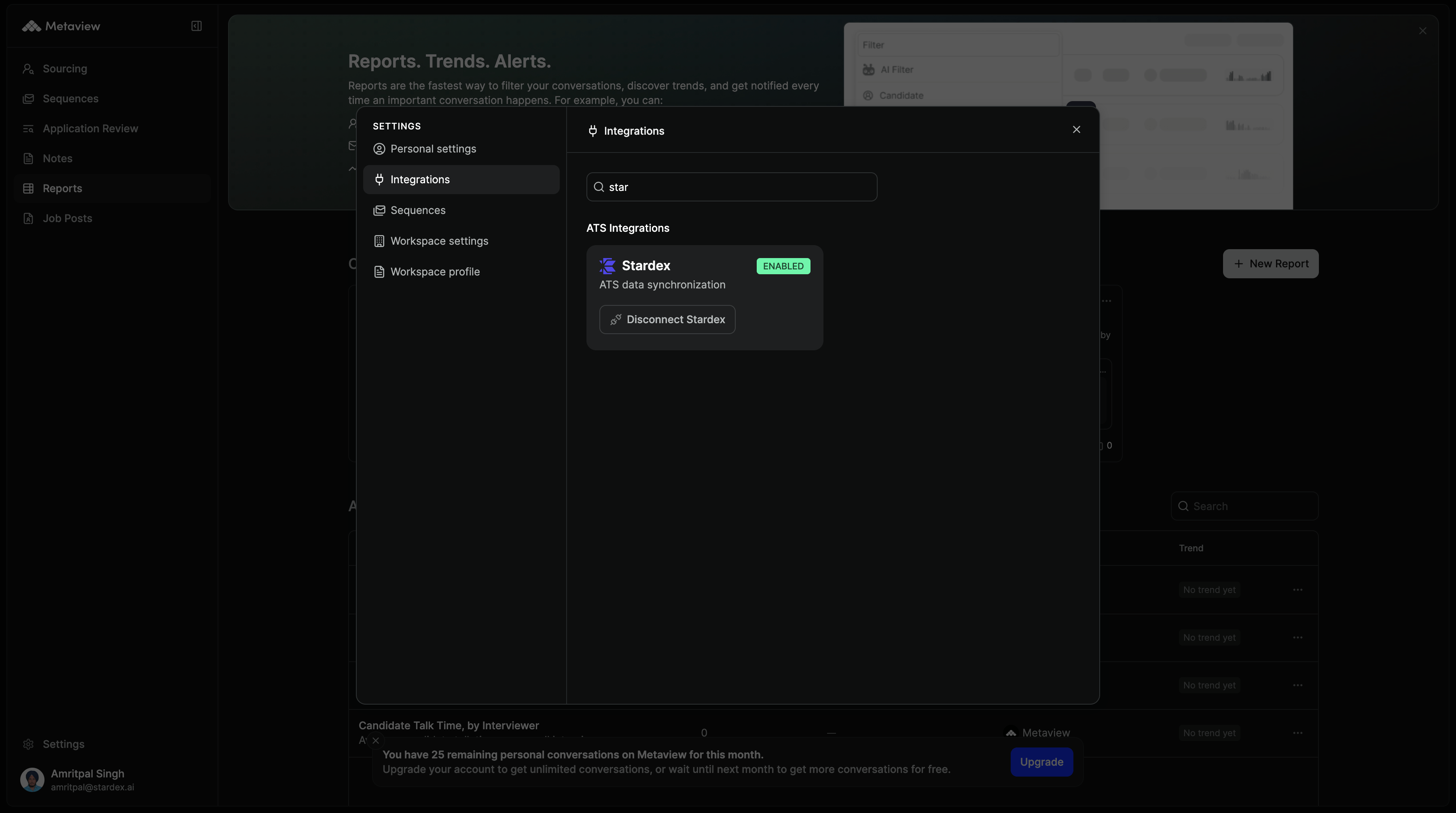
6. Turn on automatic note posting
By default, notes are pushed to Stardex only when someone clicks Send to Stardex on a conversation. To have Metaview post notes automatically after every call, an admin can enable this in Metaview:- In Metaview, go to Settings → Workspace settings.
- Scroll to the AI Notes section.
- Set Auto-post AI Notes to Stardex to Enabled.
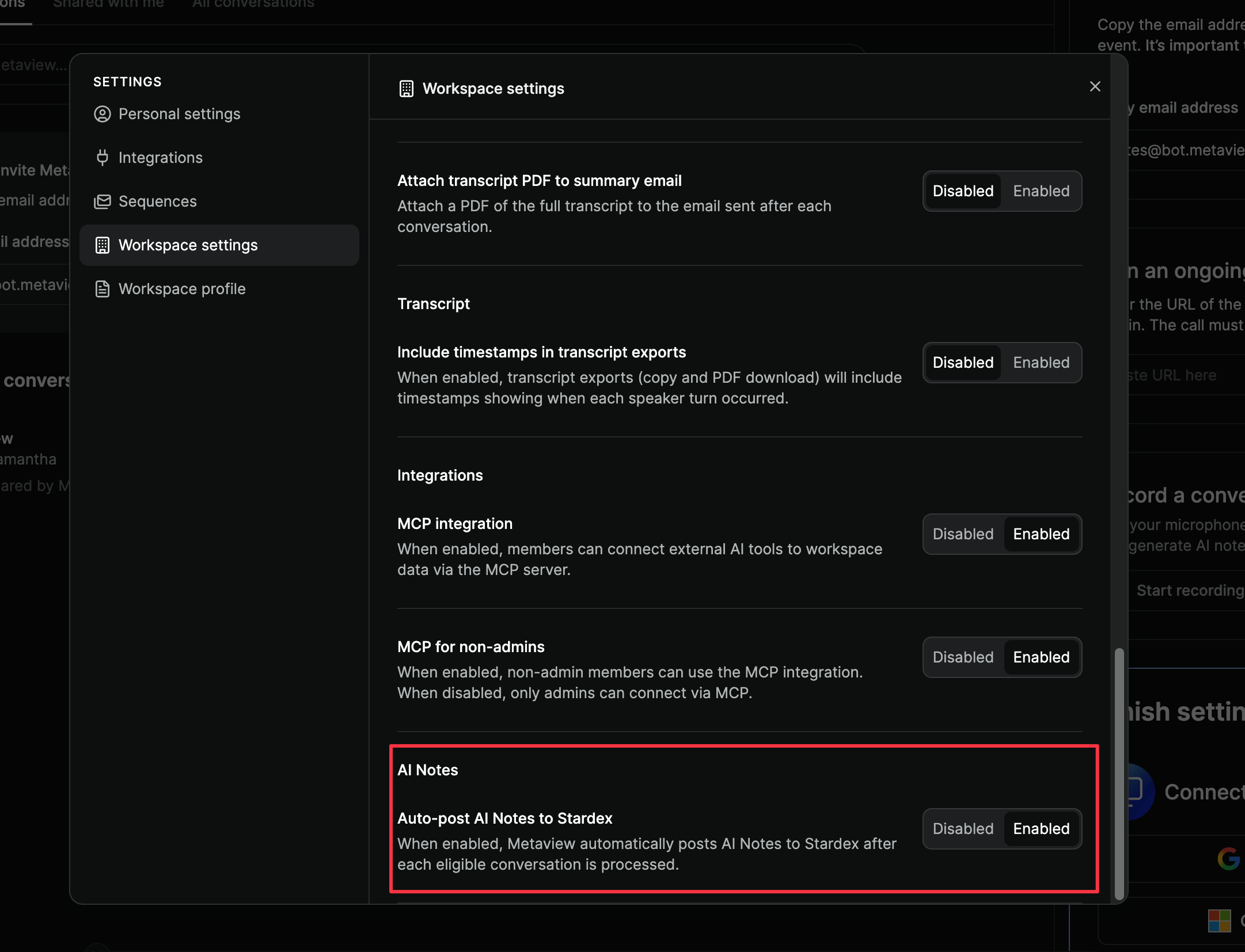
💡 This option appears only after Metaview has finished setting up the Stardex integration. Metaview emails you once the integration is successful — check for this setting after you receive that email.
💡 This setting is workspace-wide, so it applies to everyone in your Metaview workspace.
Tips
- Use a dedicated key named for Metaview so it’s easy to manage and revoke.
- Keep the access limited to the permissions listed above — no need to grant more.
- Store the key in a password manager, and roll it if you think it may have been exposed.