

💡 Granola won’t sync a note you typed yourself. Only meetings it actually recorded and summarized make it onto a candidate’s timeline.
Connecting your Personal Granola account
- Go to Settings → Email & other integrations → Notetakers: stardex.com/settings?tab=email-calendar§ion=notetaker
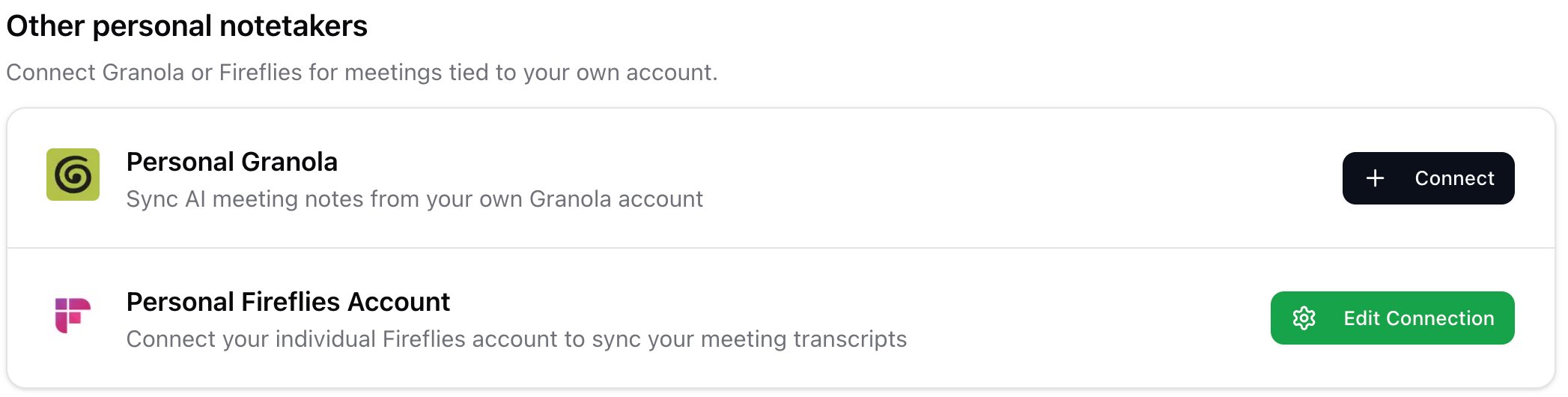
- Under Other personal notetakers, find Personal Granola and click Connect.
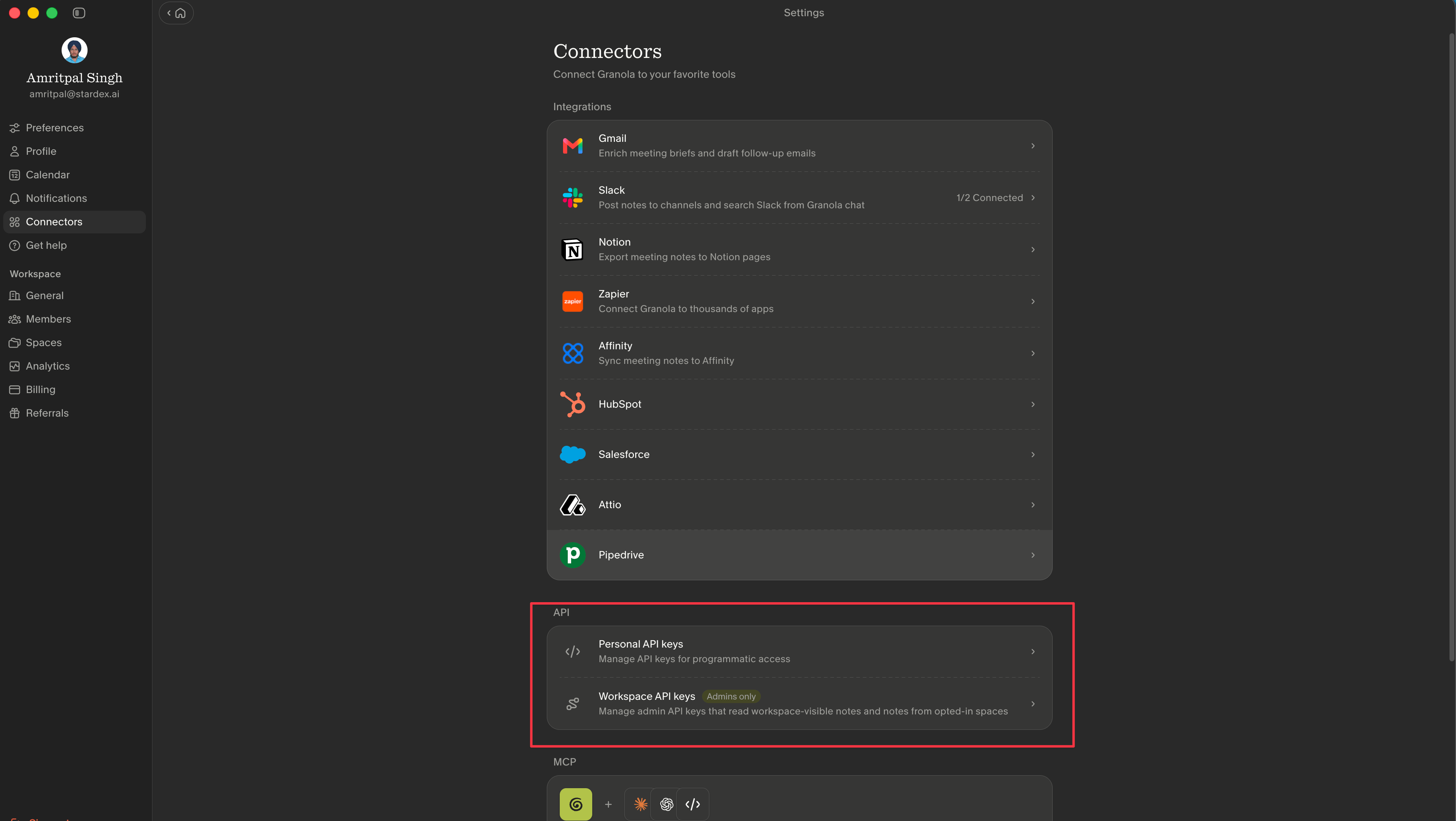
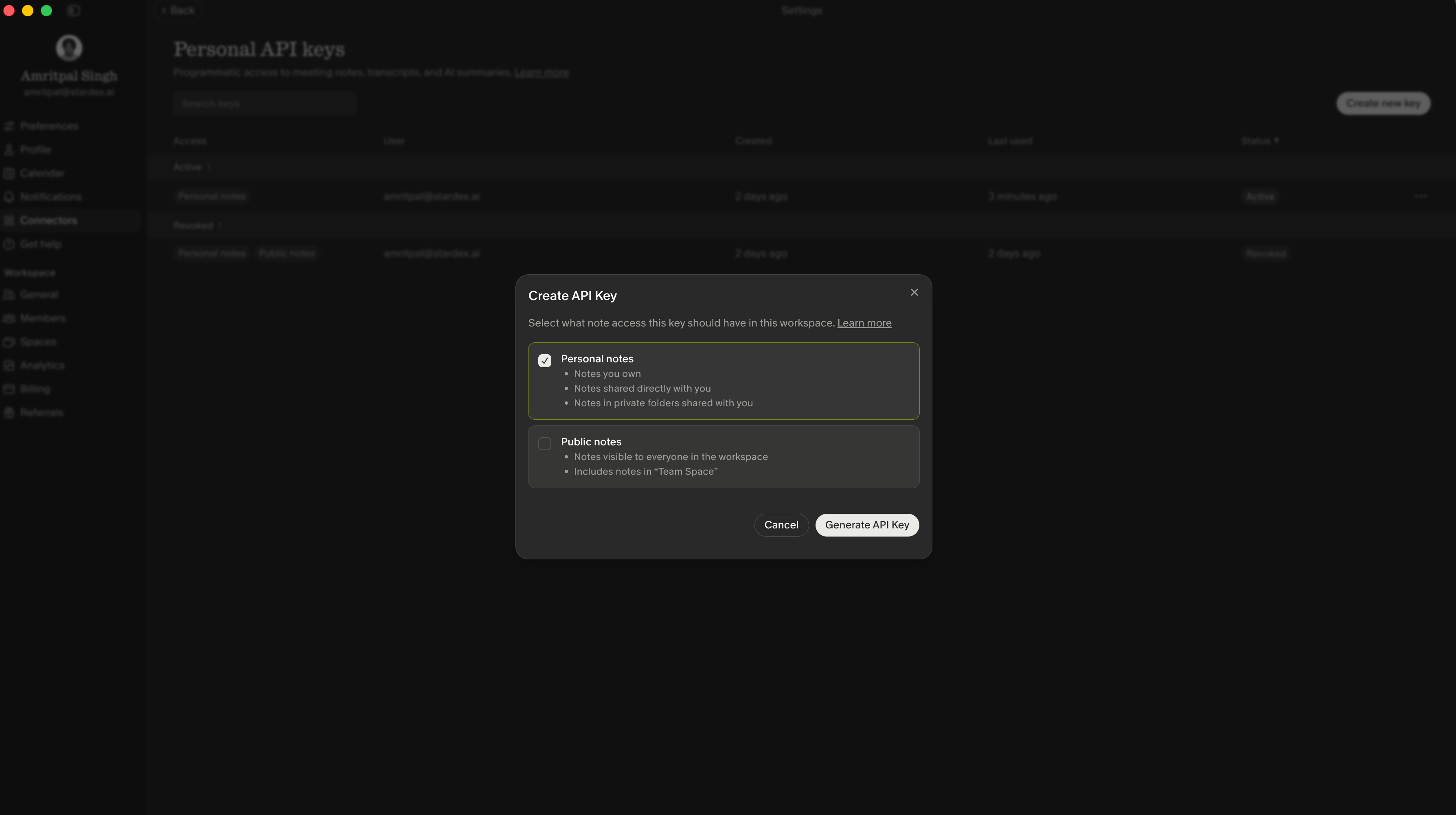
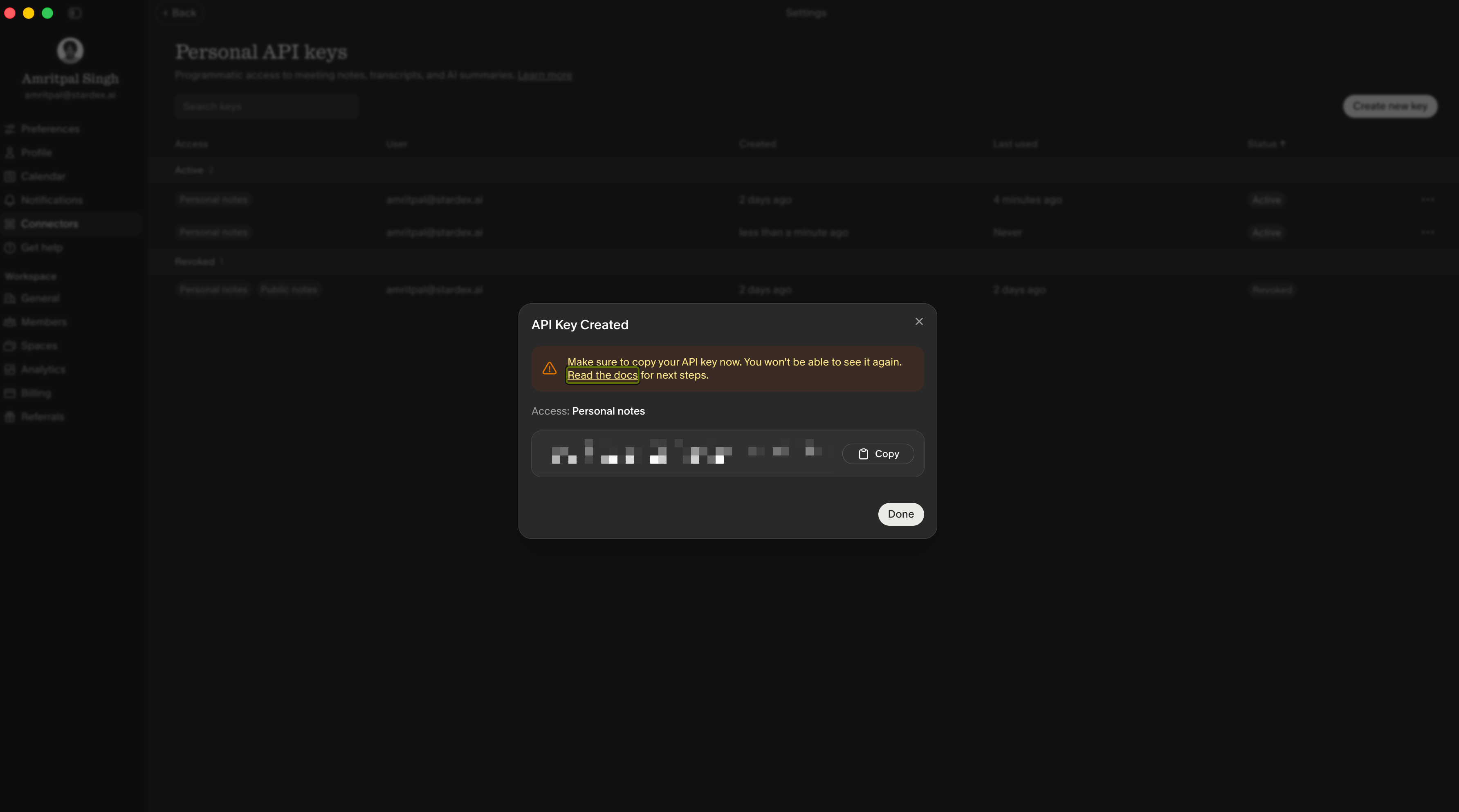
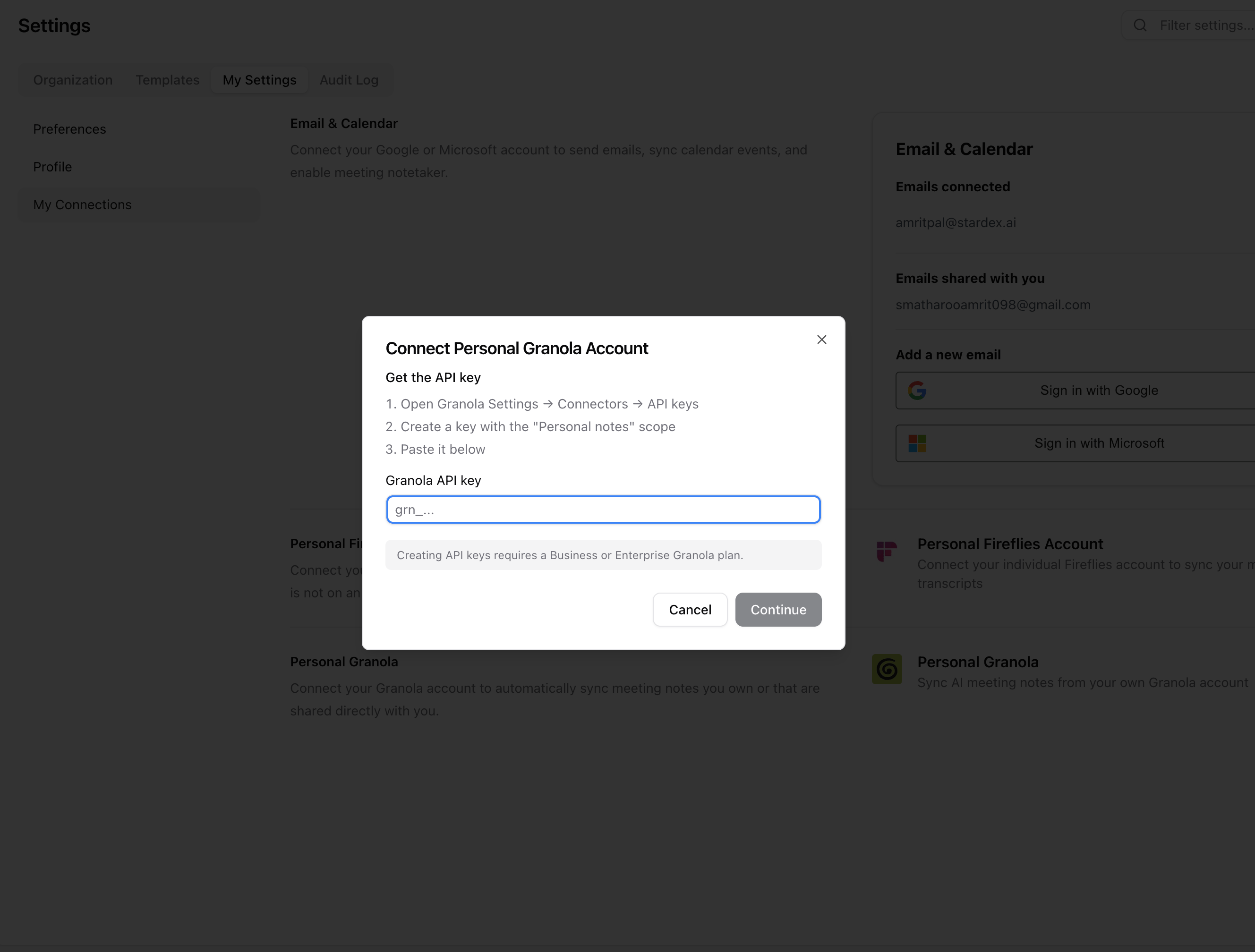
- In Granola, go to Settings → Connectors → API keys → Personal API keys, click Create new key, select the Personal notes scope, and generate the key. Creating API keys requires a Business or Enterprise Granola plan.
-
Copy the key and paste it into the Granola API key field in Stardex, then click Continue.
-
Choose which notes should sync: All my notes, or Only selected folders.
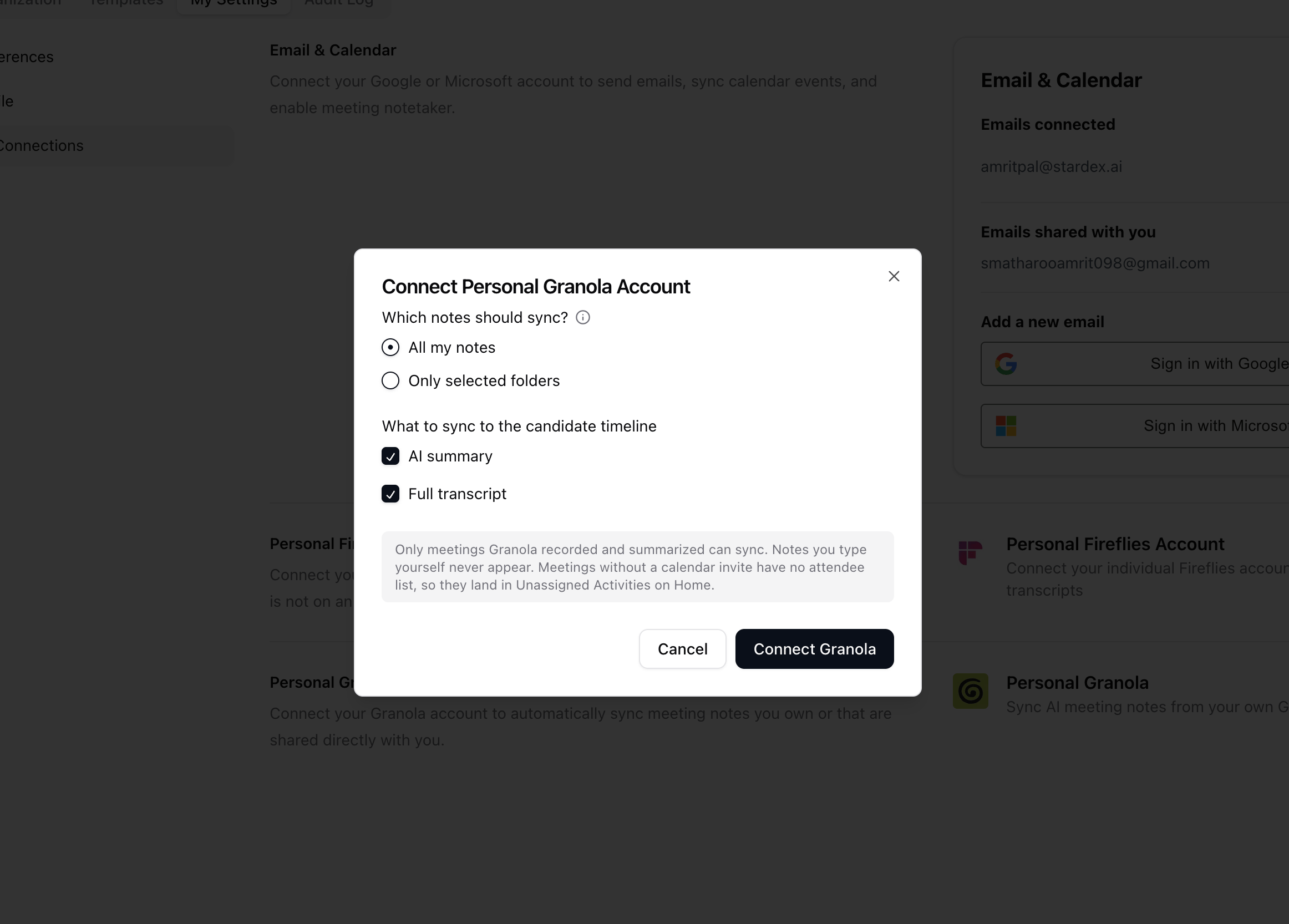
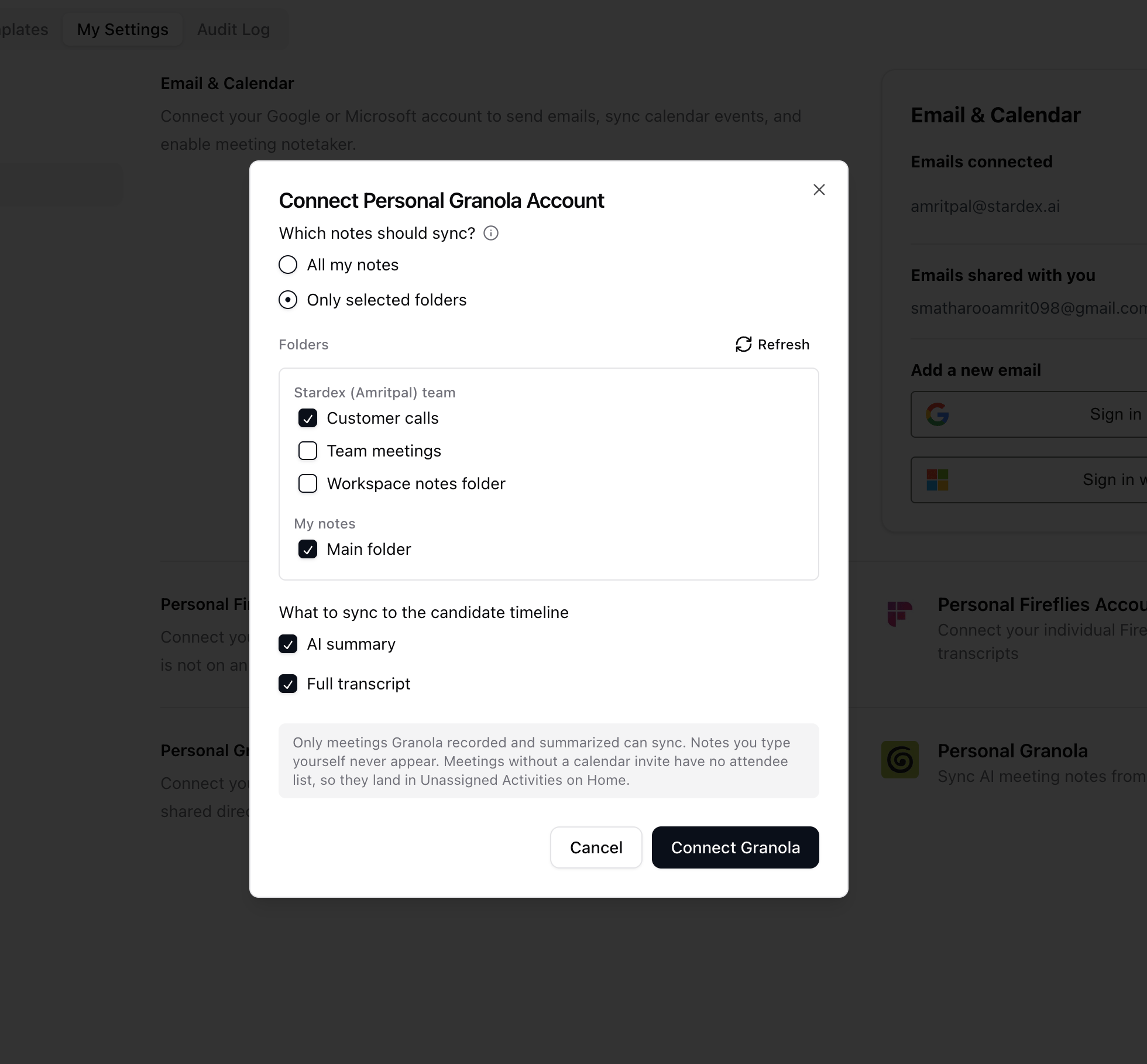
💡 Stick with All my notes unless you have a specific reason to limit syncing to certain folders. If you pick “Only selected folders” and later create a meeting note in a folder you didn’t select, it just won’t sync, with nothing telling you why. Starting broad avoids that confusion entirely.
- Choose what to sync to the candidate timeline: AI summary, Full transcript, or both. At least one must be selected.
-
Click Connect Granola.

Personal vs. Workspace Granola
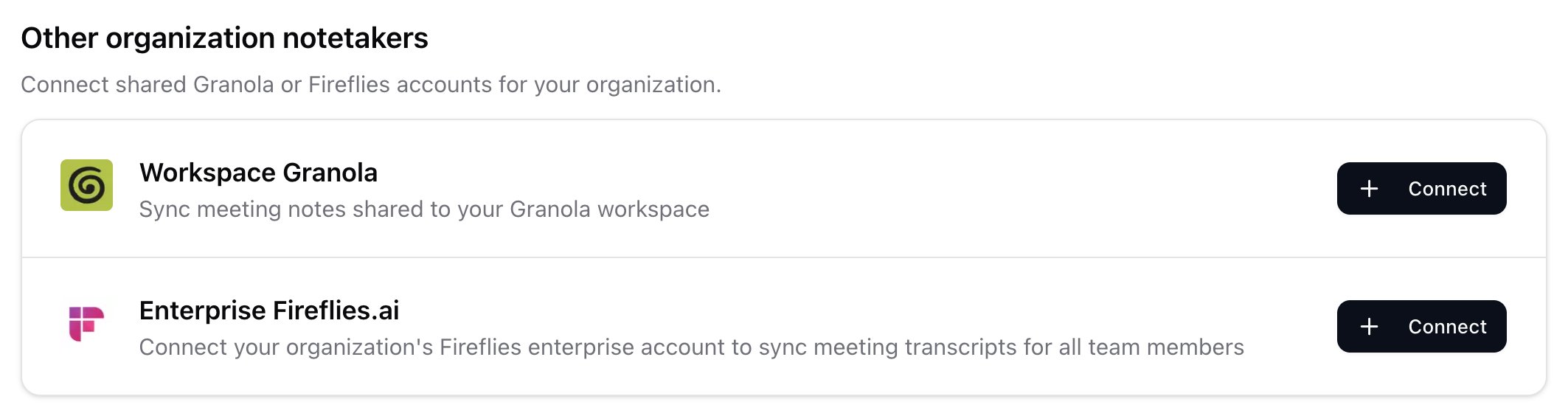
Stardex supports two separate Granola connections, and they read different notes in Granola.
To connect the workspace version, follow the same steps above, starting from Other organization notetakers on the same Notetakers page: stardex.com/settings?tab=email-calendar§ion=notetaker. Only admins will see Connect here. In Granola, the API key comes from Settings → Connectors → Workspace API keys instead of Personal API keys, and only a Granola admin can generate that key.
How synced notes show up on a candidate’s profile
- It’s not instant. After a call ends, Granola needs a few minutes to finish processing the recording and generate its summary before Stardex can pull it in. Give it a few minutes before checking the candidate’s profile.
-
Each meeting can create up to two activities: a Meeting Note (the AI summary) and a Meeting Transcript (the full transcript), whichever you left checked in “What to sync to the candidate timeline.” Both link back to the source with a View in Granola link at the top.
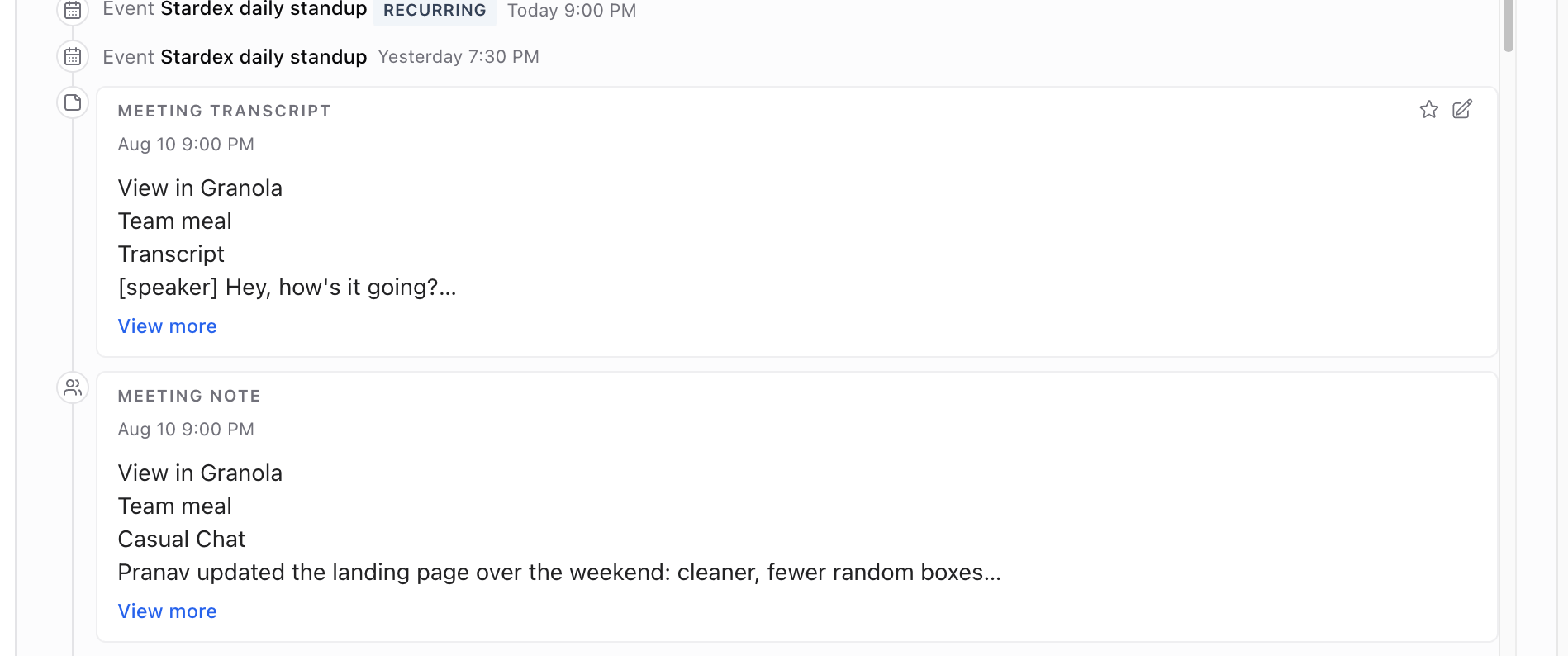
- Matching works by email first, then name. Stardex checks each meeting attendee’s email against your People and Candidates records. If there’s no email match, it falls back to matching by name.
- No match, or no attendee list? It lands in Unassigned Activities on your Home page instead of being lost, so you can manually assign it to the right person.
Reconnecting if your key stops working
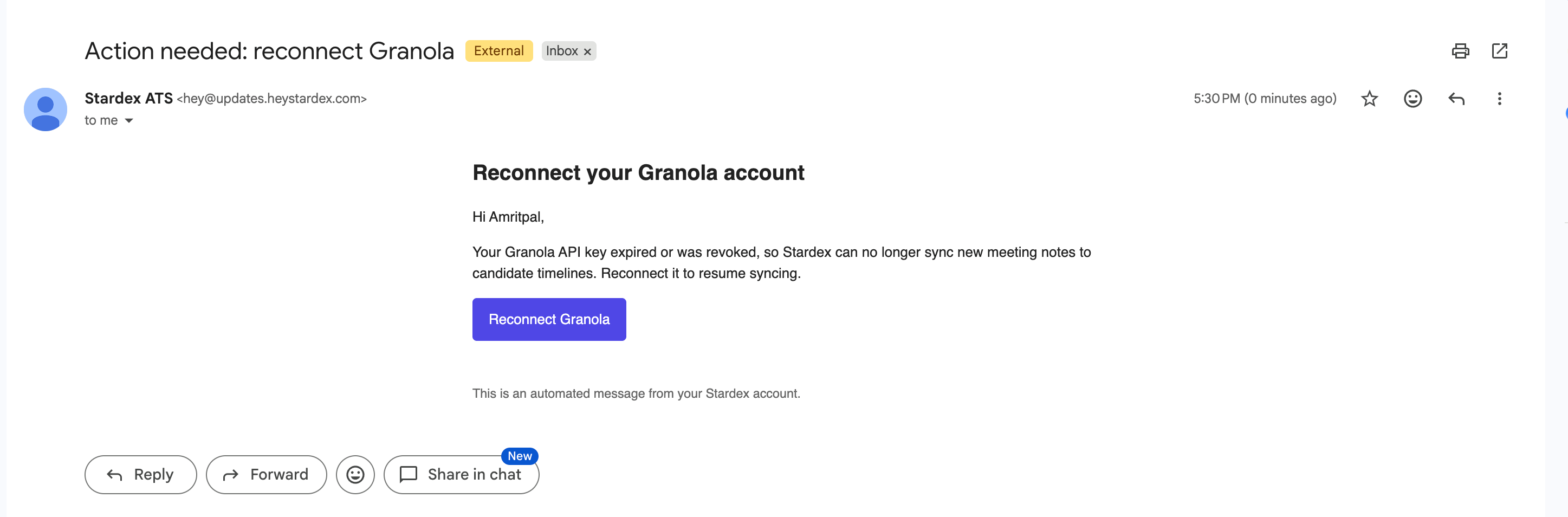
If your Personal Granola API key is revoked or expires, Stardex flags the connection with an Action needed badge and the Manage button becomes Reconnect. We also email you directly when this happens, so you don’t have to notice it yourself.
Common use cases
- Automatic call notes on candidate profiles: every screening or interview call gets logged without anyone remembering to copy it over.
- Full searchable transcripts: keep the entire conversation on the candidate’s timeline, not just a summary, so you can go back and check exact wording later.
- Team-wide visibility on shared calls: connect Workspace Granola so calls taken by anyone on the team land on the right profile, not just the notes of whoever took the call.