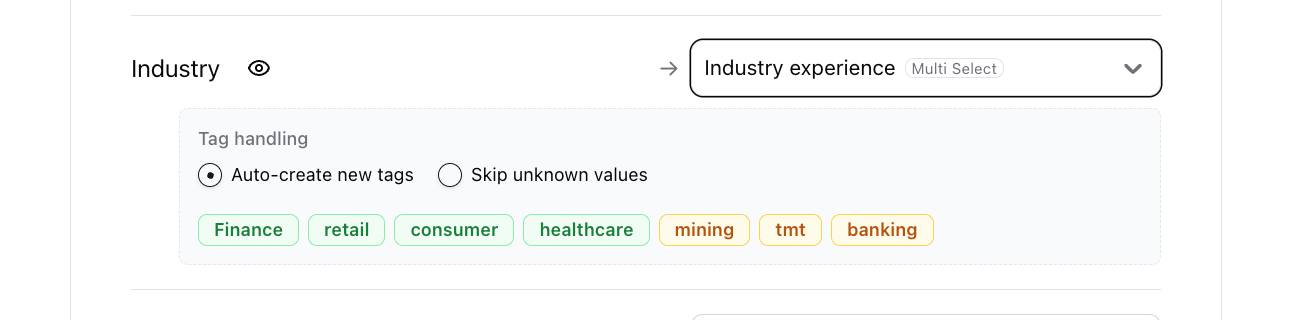
If a csv includes custom fields, you can map them as appropriate custom fields and tags. Similarly, if the csv includes a stage / status column, you can map that to a candidate status, or a client status.Additionally, for people lists: You can also add them to a job, or you can add them to a people list through this bulk importAdditionally, for companies list: You can add them as target companies for a job, as client contacts or to a company list.Resumes currently have a limit of 500 files per zip (500MB per file).
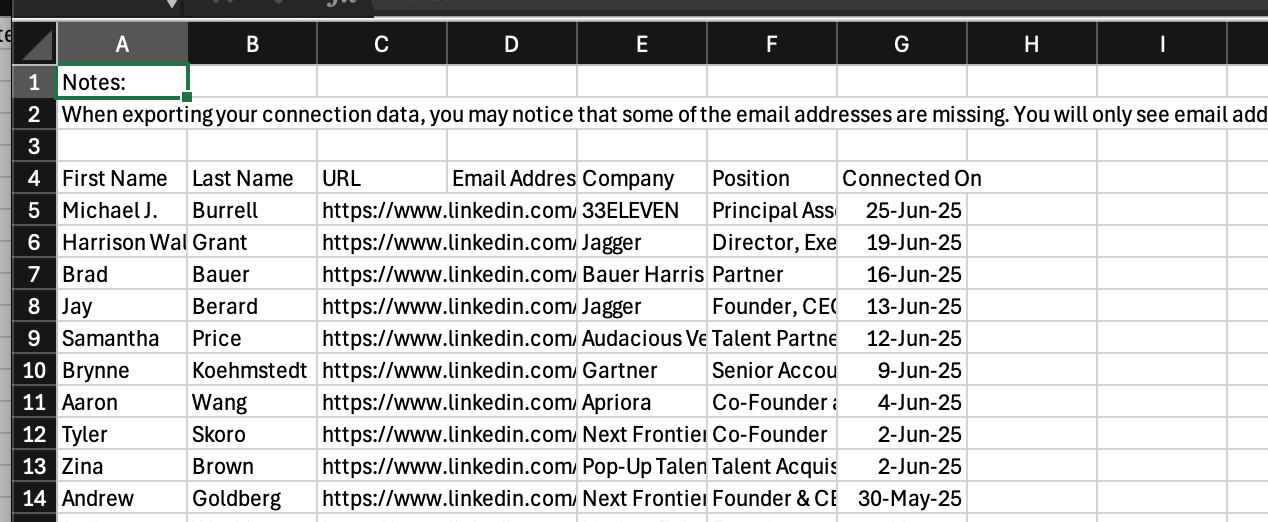
- Our uploader uses AI to handle most CSV formats, so we won’t need you to edit the column names much. Though, one thing we’ll need is to verify that the there isn’t any extra text / rows above the main data. eg. ie. If the CSV contains extra text on row 1,2 and 3. Delete those rows. Additionally, we need a column for name for it to import people properly.
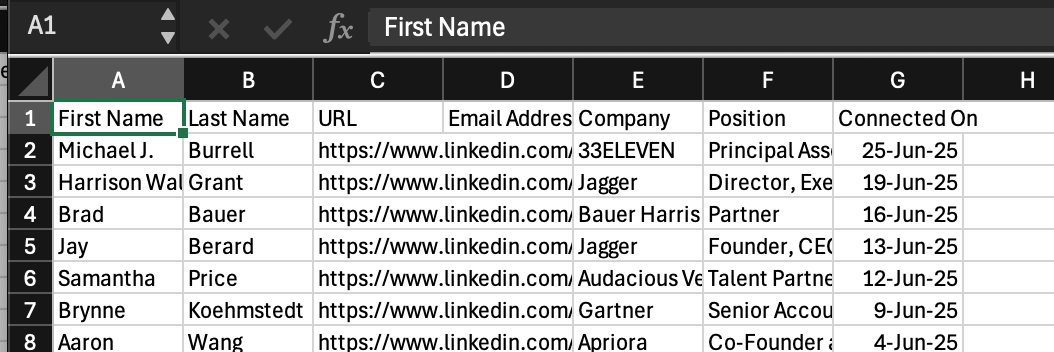
-
Head to Stardex people tab - https://stardex.com/people. Click Add People → Bulk import
If you are importing a list of companies, you can import from https://stardex.com/companies

If you are importing to a role you can goto a specific role, and then click Add Cadndiates.
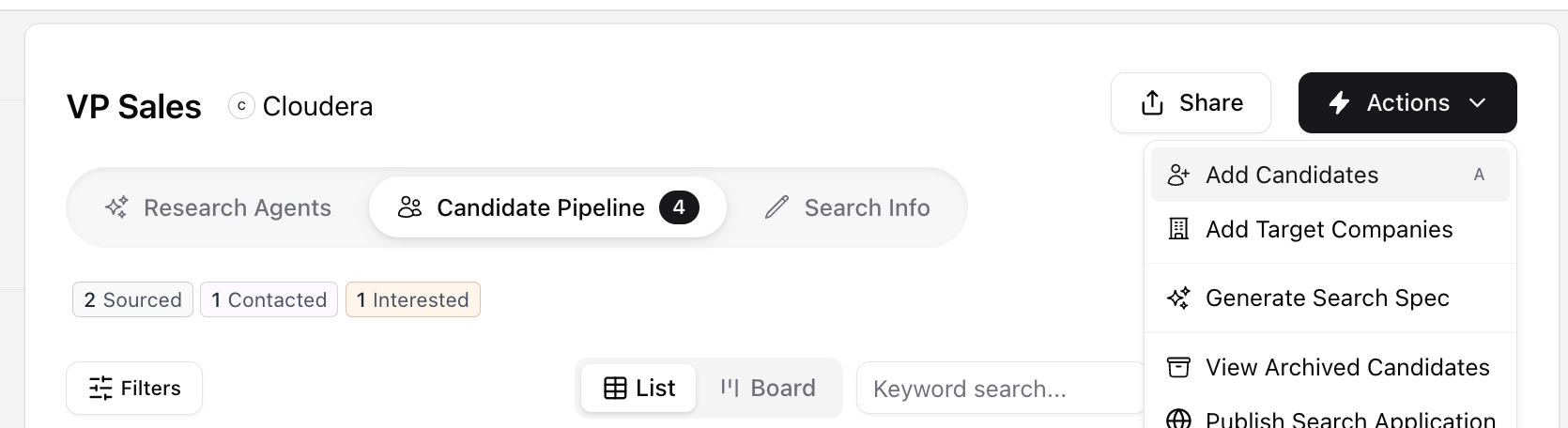
-
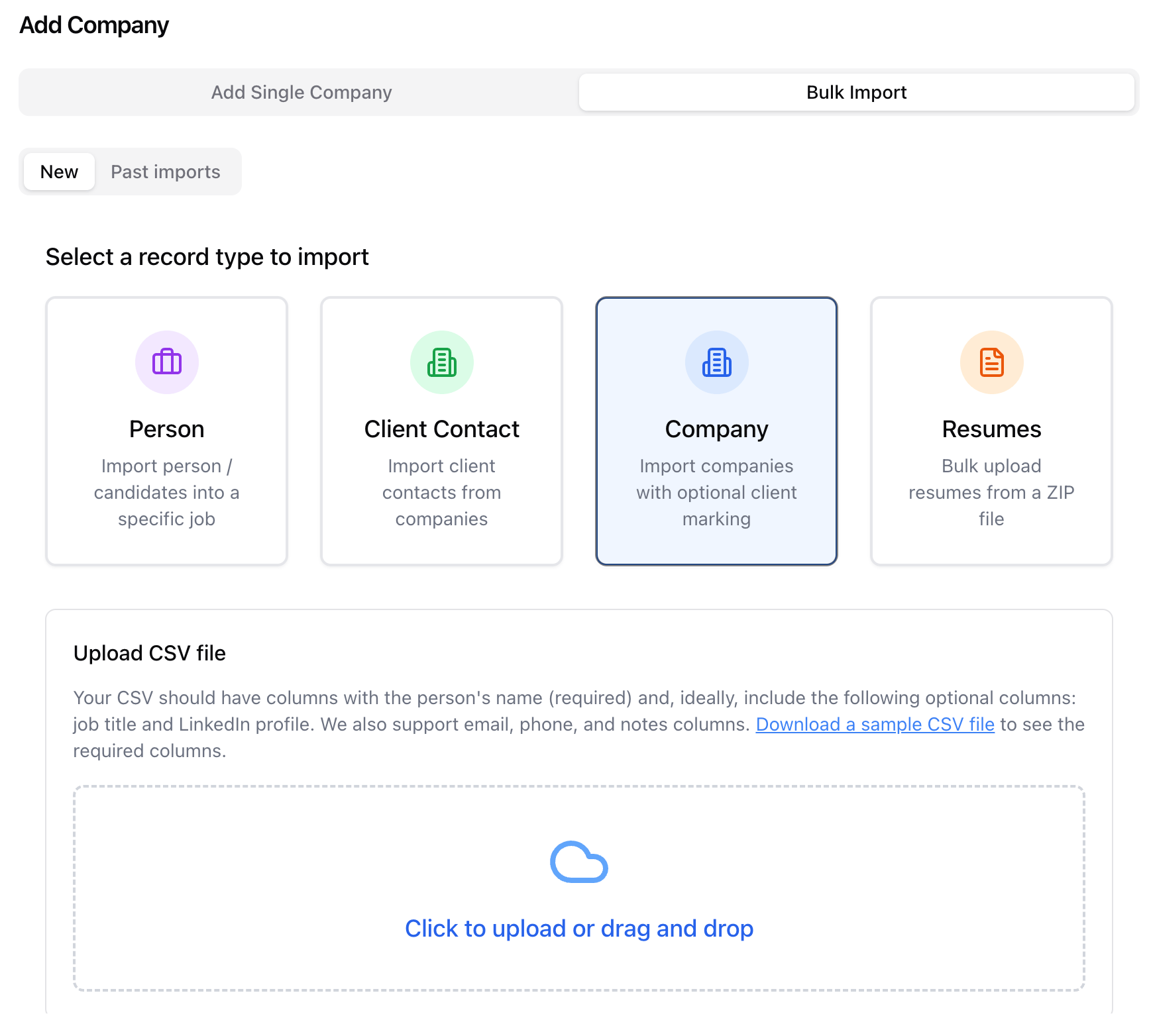
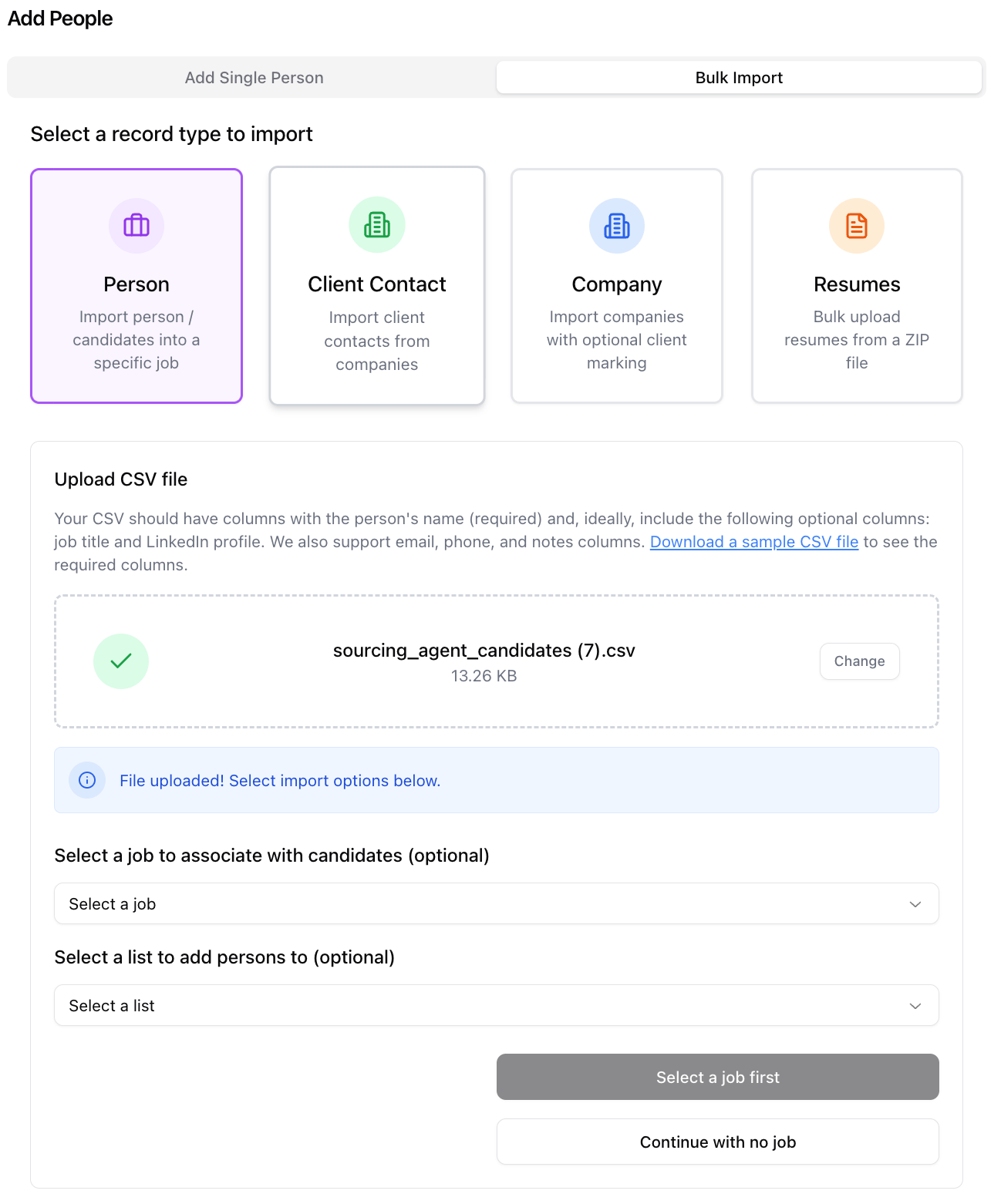
Click Bulk Import and pick the type of record you are importing
- Person: candidates assigned to a job, or just candidates in general
- If you pick person and want to connect them to a job, make sure to assign the correct job if you want.
- Client contacts - people that are clients
- Companies - list of companies that you want to track (either as a client or just a list)
- Resumes - a zip of pdf of resumes
- Person: candidates assigned to a job, or just candidates in general
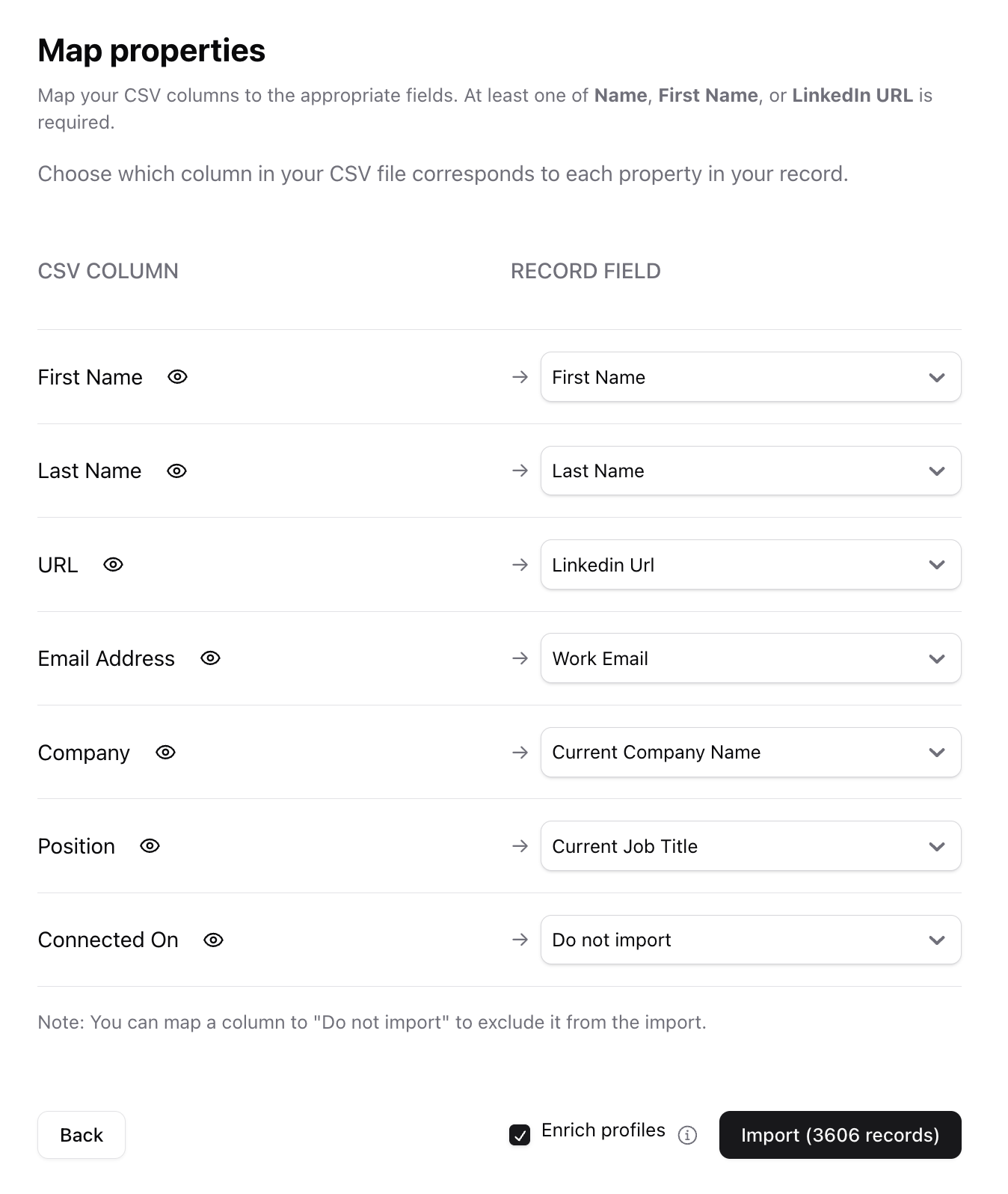
- Ensure the mapping looks as expected, and then click Import. If you are importing persons, and want to pull in their work experience, keep the enrich profiles checked as that will get the full experience
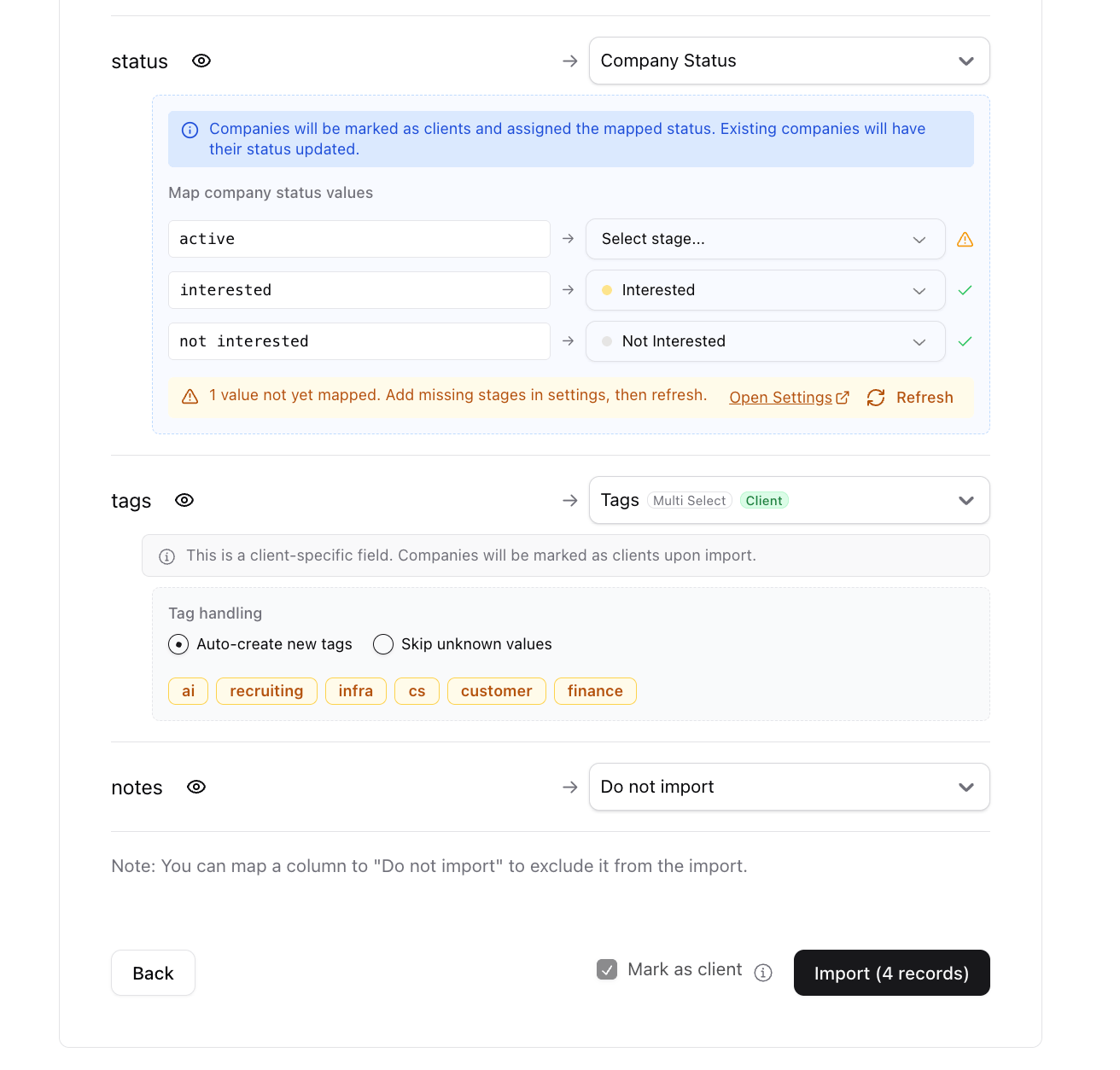
- For status fields (in candidates, client contacts or client companies), ensure you pick the right stage field and map it. See an example below:
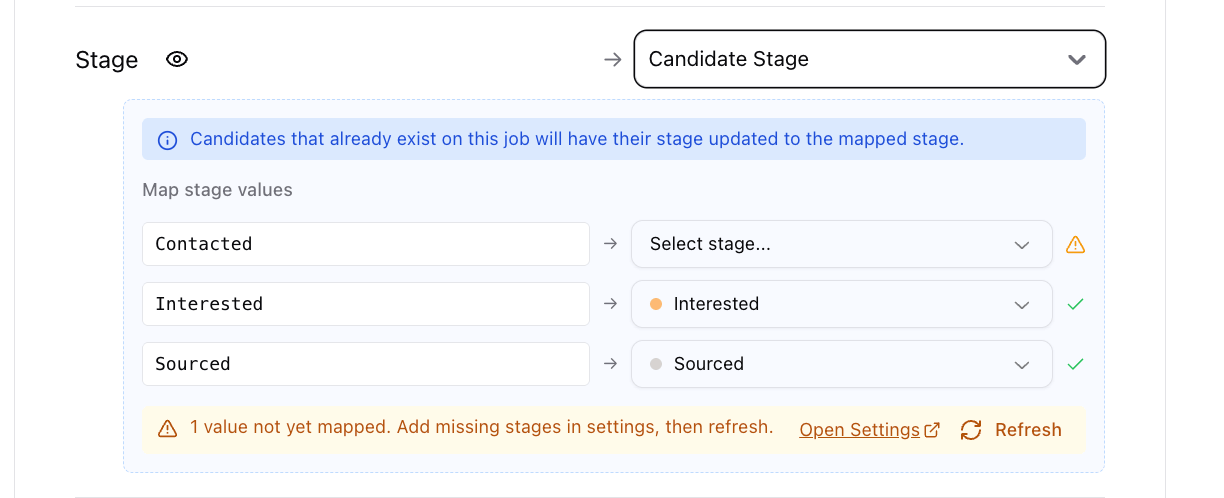
- For custom fields, you will see the option to either create new tags or skip unknown values. Pick the appropriate option.