

Finding templates
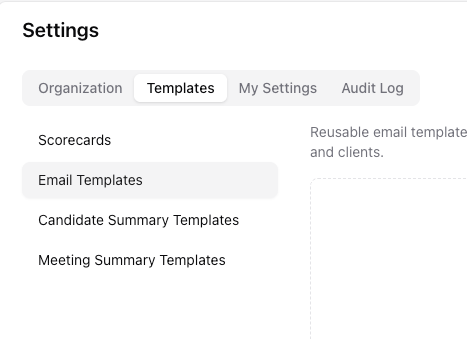
Open Settings and select Templates. The tab opens on Scorecards and has four sections in the sidebar:- Scorecards: shared interview rubrics for rating candidates.
- Email Templates: reusable outreach content for candidates and clients.
- Candidate Summary Templates: instructions and examples for the AI candidate summary generator.
- Meeting Summary Templates: instructions and examples for AI-generated summaries from recordings and transcripts.
Managing templates
Managing scorecards
Click New template to create a scorecard, or click a template name or Edit to change one. Add criteria and mark each one as Must-have or Nice-to-have, then choose the template’s Rating scale. To retire a scorecard template, open the ⋯ menu and select Archive template. Archived templates are hidden from new scorecards, while historical ratings keep the criteria that were used.Managing email templates
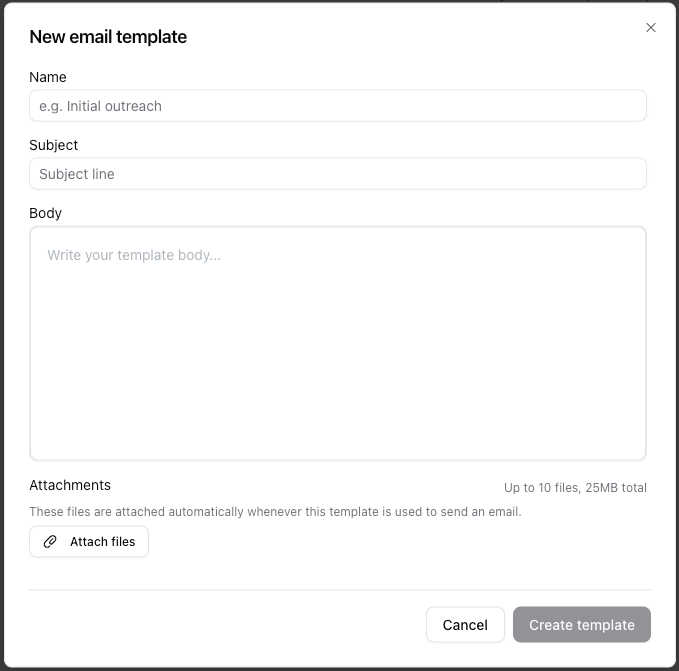
Email templates contain a Name, Subject, Body, and optional Attachments. Variables such as{{first_name}} can be used in the subject and body. Click New template to create one, or click its name or Edit to update it.
To remove an email template from the composer, open the ⋯ menu and select Delete template. Deleted templates are hidden from the email composer.
Managing candidate summary templates
Candidate summary templates guide the AI Summary Generator on a person’s profile. Each template has a Name, a Prompt instruction, and optional Example outputs. Use Add example to add an example, or remove an existing example in the editor when it no longer represents the format you want. Use New summary template to create one and Edit summary template to update one. Select Delete template from the ⋯ menu when it is no longer needed.Managing meeting summary templates
Meeting summary templates use the same prompt-and-examples approach for meeting recordings and transcripts. Create one with New meeting template or update one with Edit meeting template. To use a template automatically for new meeting summaries, open its ⋯ menu and select Set as default. The current default has a Default badge in the list. You can change the default later by setting another template as the default. When a section has more than five templates, use Search… to find one by name. Sort by: lets you order the list by Name or Updated at.Adding attachments to an email template
Use this path when you want every one-off email based on a template to include the same files, such as a company overview, job brief, or terms document.- Open Settings and select Templates.
- Select Email Templates in the sidebar.
- Click New template.
- Enter a Name and Subject. Both are required before you can save.
- Write the email in Body. Use Variables in the email composer when you need to insert recipient details into the body; you can also type variables such as
{{first_name}}in the subject or body. - Under Attachments, click Attach files and select the files you want included.
- Click Create template.
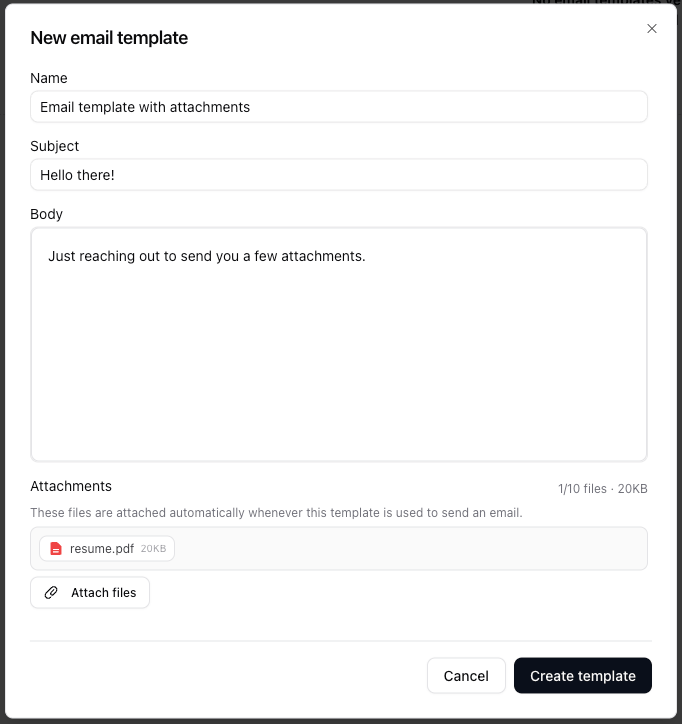
💡 Files saved with an email template are attached automatically when you use that template for a one-off email. They do not apply to campaign sequences.
Using an email template in a message
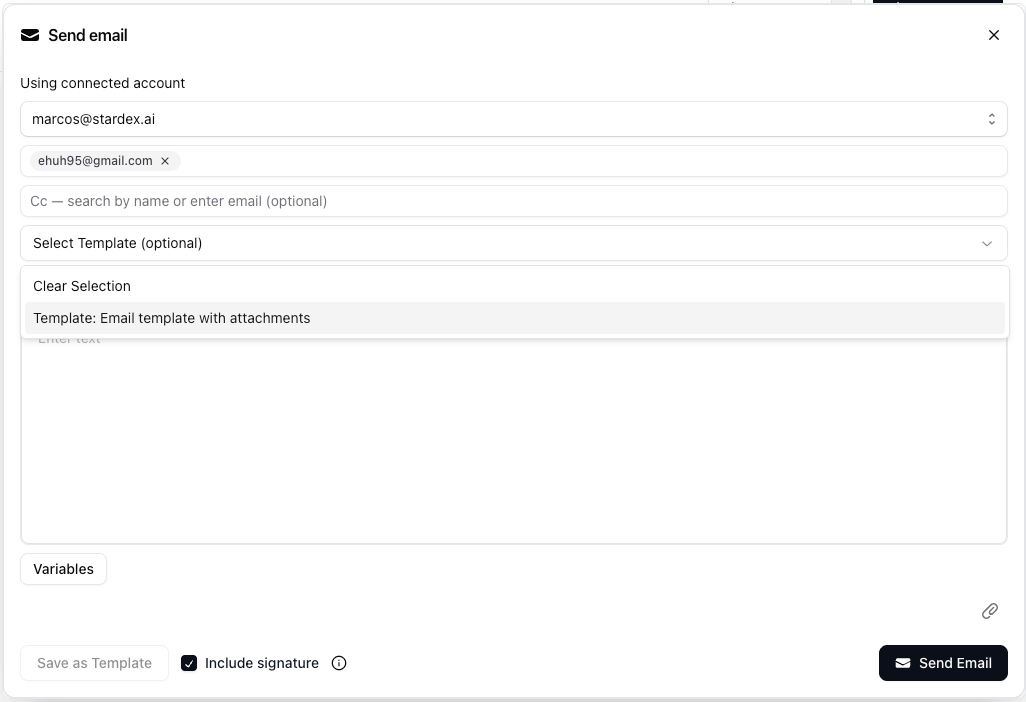
- Open a person’s profile and open the email composer.
- Open Select Template (optional).
- Choose Template: [template name].
- Review the recipient, subject, body, and attachments, then click Send Email.
Saving a draft as a reusable template
If you build an email from a person’s profile first, click Save as Template in the composer. Enter a name in Save Email Template and click Save Template. Any files attached to that draft are saved with the new template and are included the next time you use it.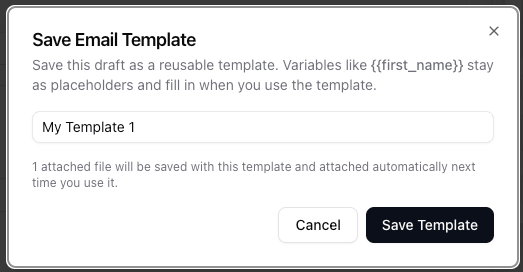
Attachment limits
- A template can have up to 10 attached files.
- The 25 MB total limit is shared by template files and any one-off files you add to the email.
- When you send, the message content and all attachments must fit within the same 25 MB limit.
- You cannot save a template or send an email while its attachments exceed the size limit.
Keeping templates useful
- Use clear, specific names, such as Executive client submission or Initial outreach - passive candidate, so teammates can find the right template quickly.
- Revisit summary and meeting Prompt instruction text and Example outputs over time. Small changes can improve the format and detail of AI-generated summaries.
- Set a meeting summary default that matches your most common meeting type, such as a client intake or candidate screen.
Common use cases
- Client introductions: include a company overview or service agreement with every introductory email.
- Role outreach: attach a job brief to an outreach template without adding it to each message manually.
- Structured interviews: give interviewers one shared scorecard with the same must-have and nice-to-have criteria.
- Client submissions: use a candidate summary template that matches a client’s preferred format.
- Consistent meeting notes: set a default meeting summary template for your team’s most common call type.