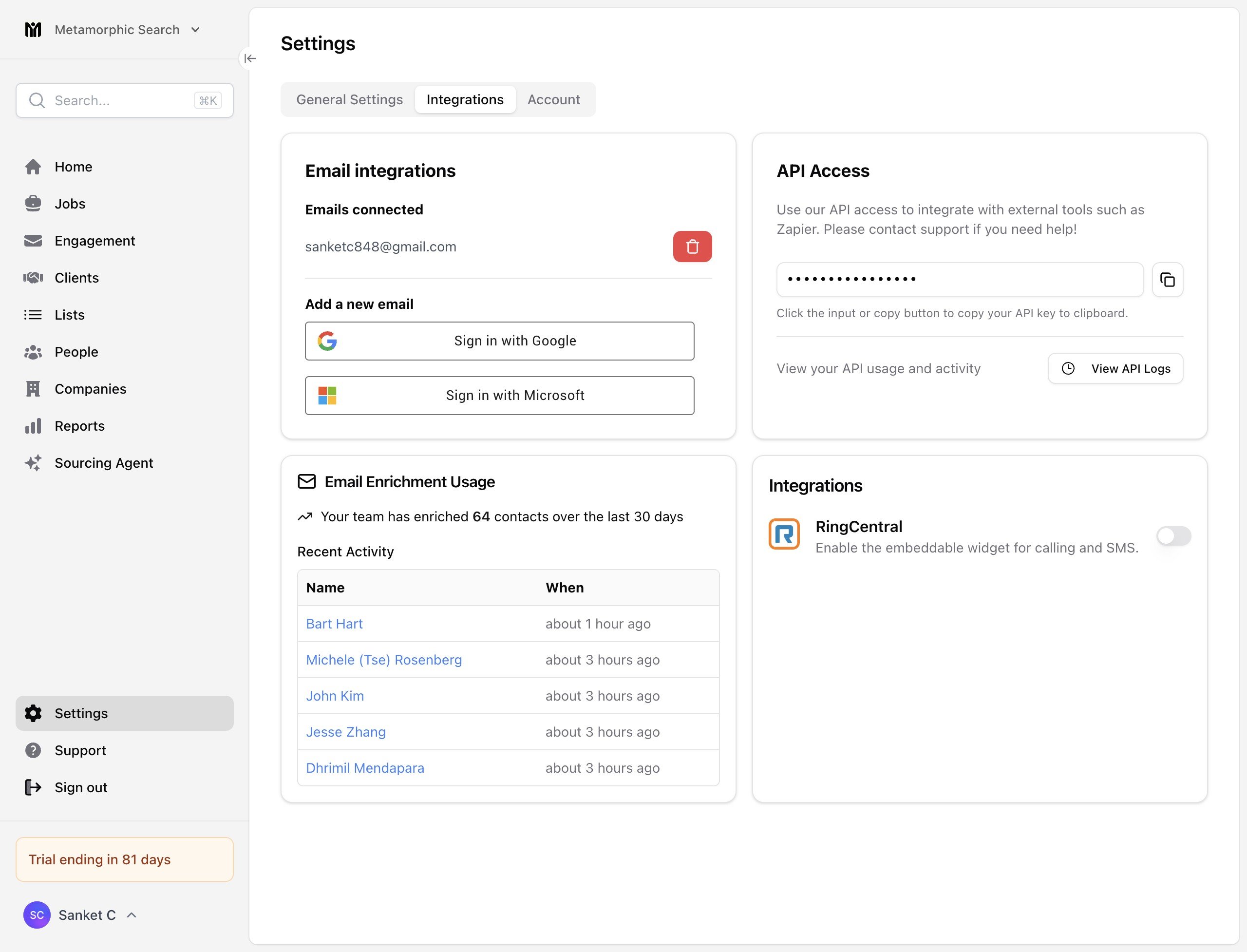
Navigate to Settings → Email & other integrations → VoIP & messaging: stardex.com/settings?tab=email-calendar&section=voip Find RingCentral, enable it, then click Authorize RingCentral. The old URL stardex.com/settings/integrations is not redirected and will not open this screen. VoIP & messaging with RingCentral and Ringover cards VoIP & messaging with RingCentral and Ringover cards Ringcentral Call Widget — screenshot 2
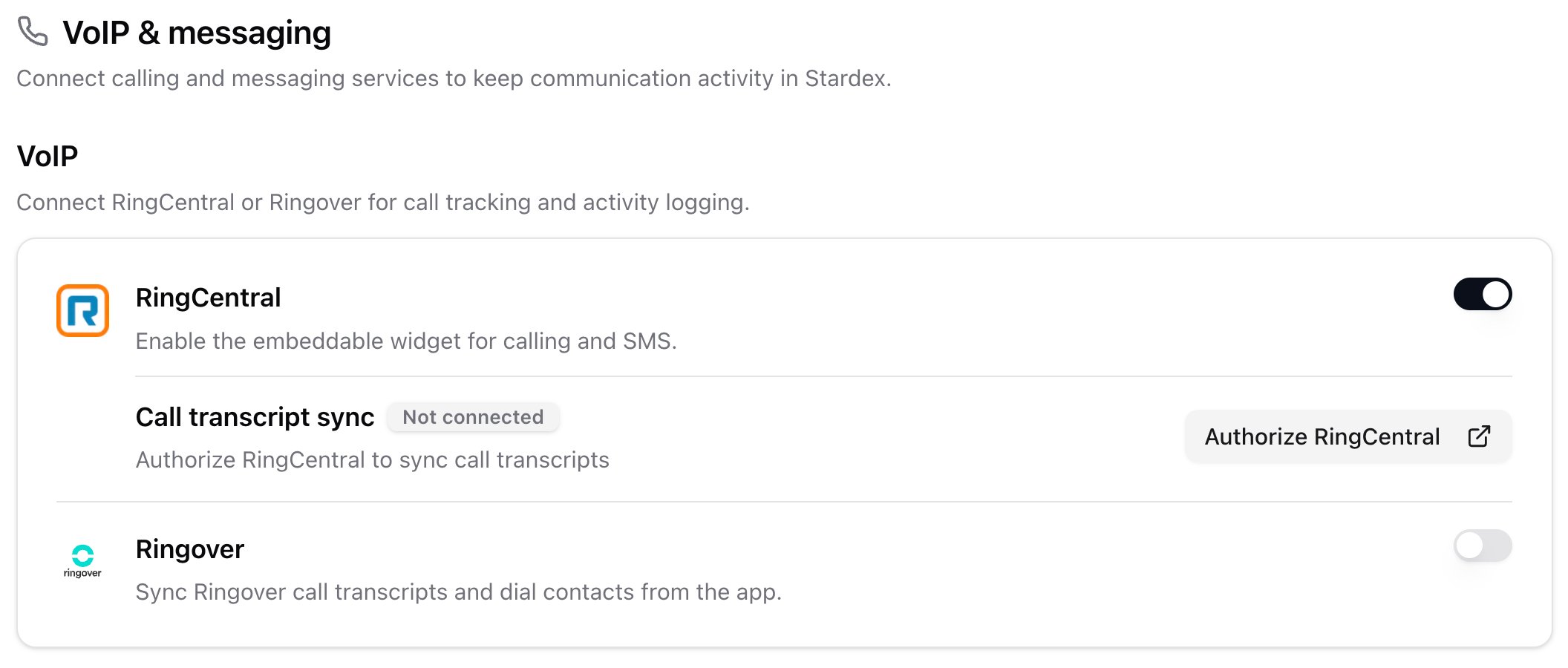
  1. Turn on the Ring Central integration
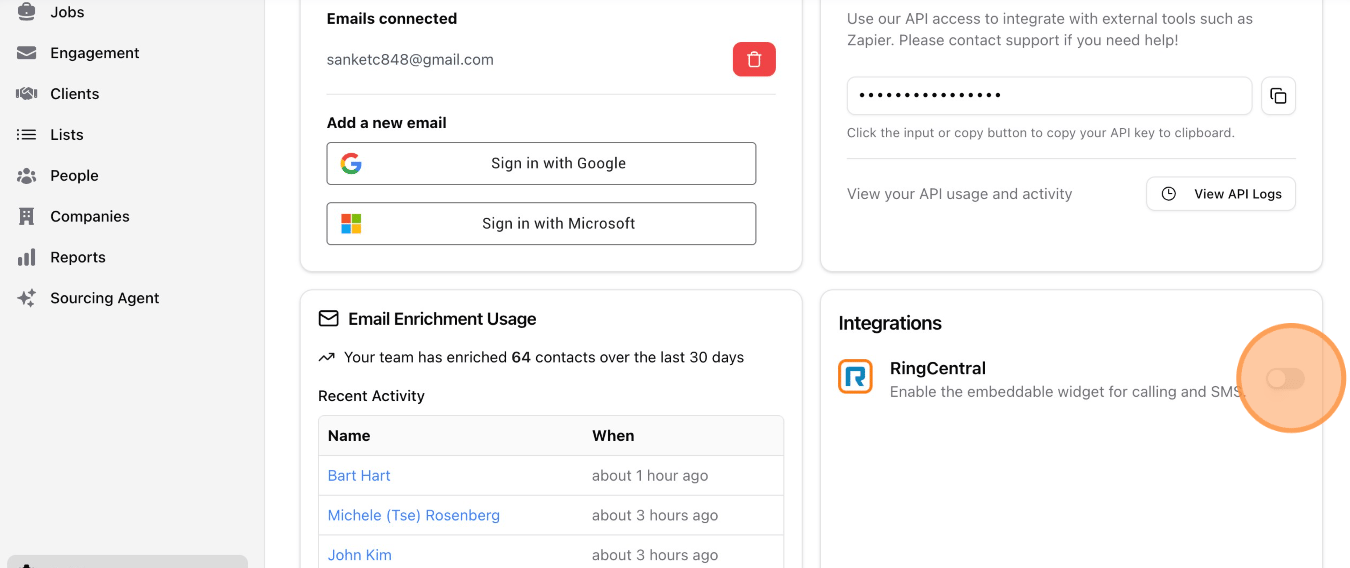
Ringcentral Call Widget — screenshot 3
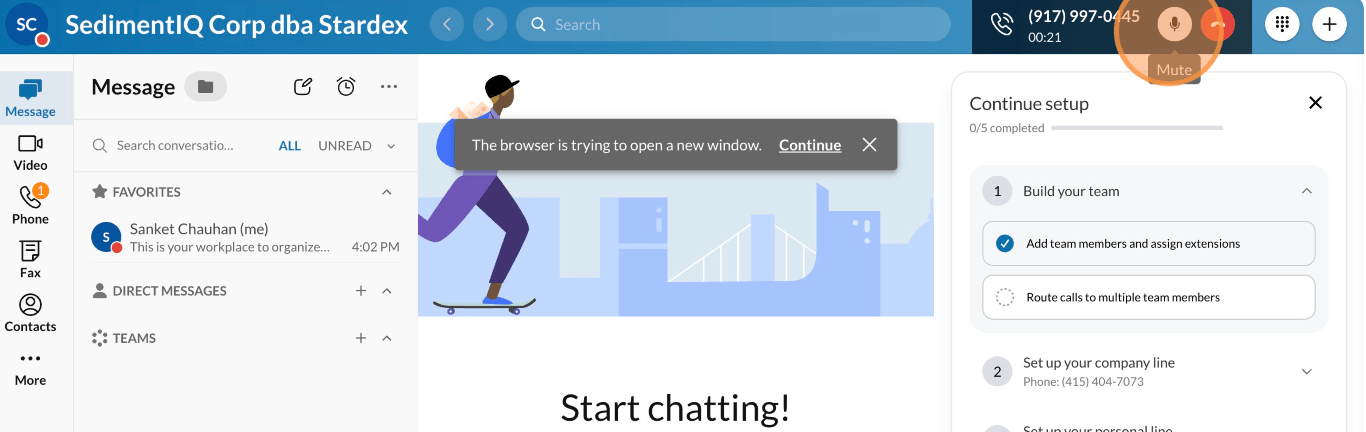
  1. Now if you see a phone number, you can hover over the blue pill to see the phone icon which will open the ring central web app or desktop app
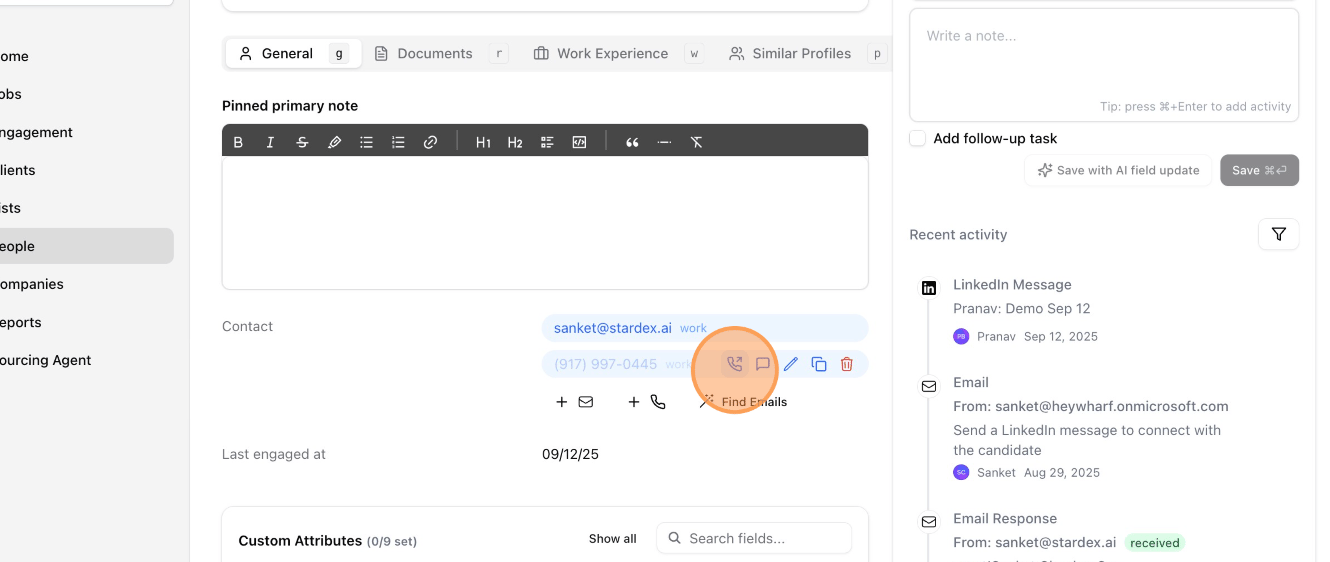
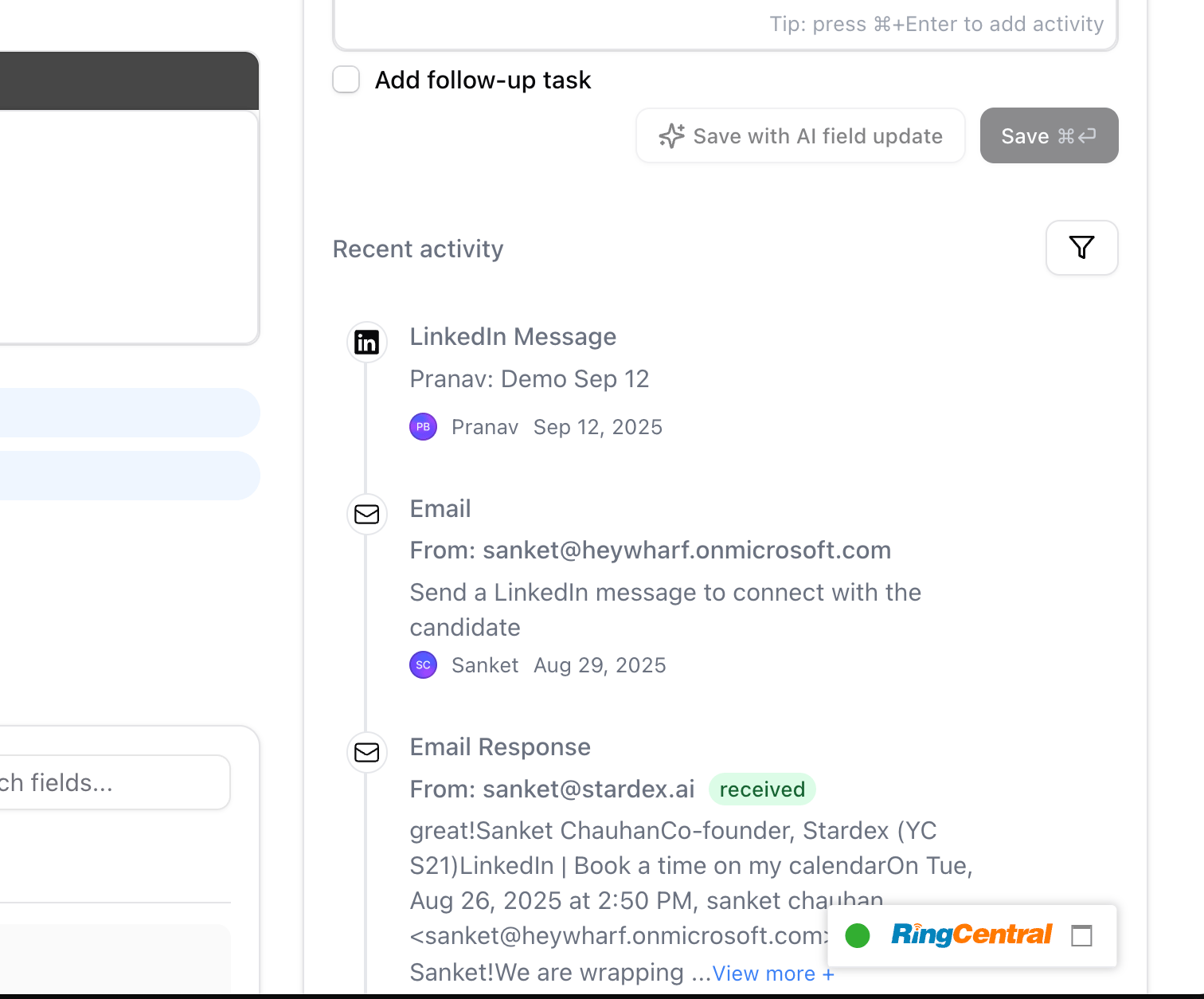
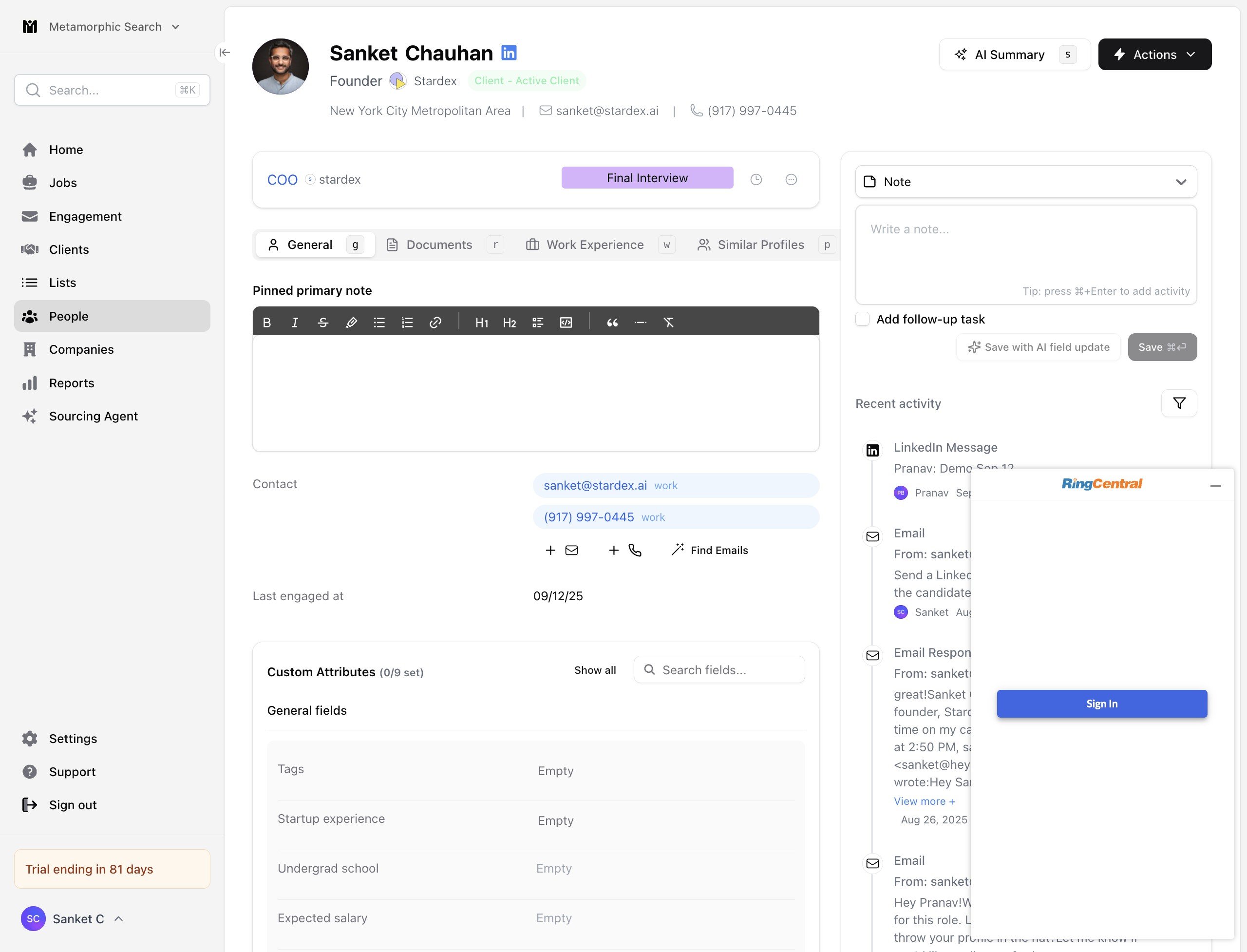
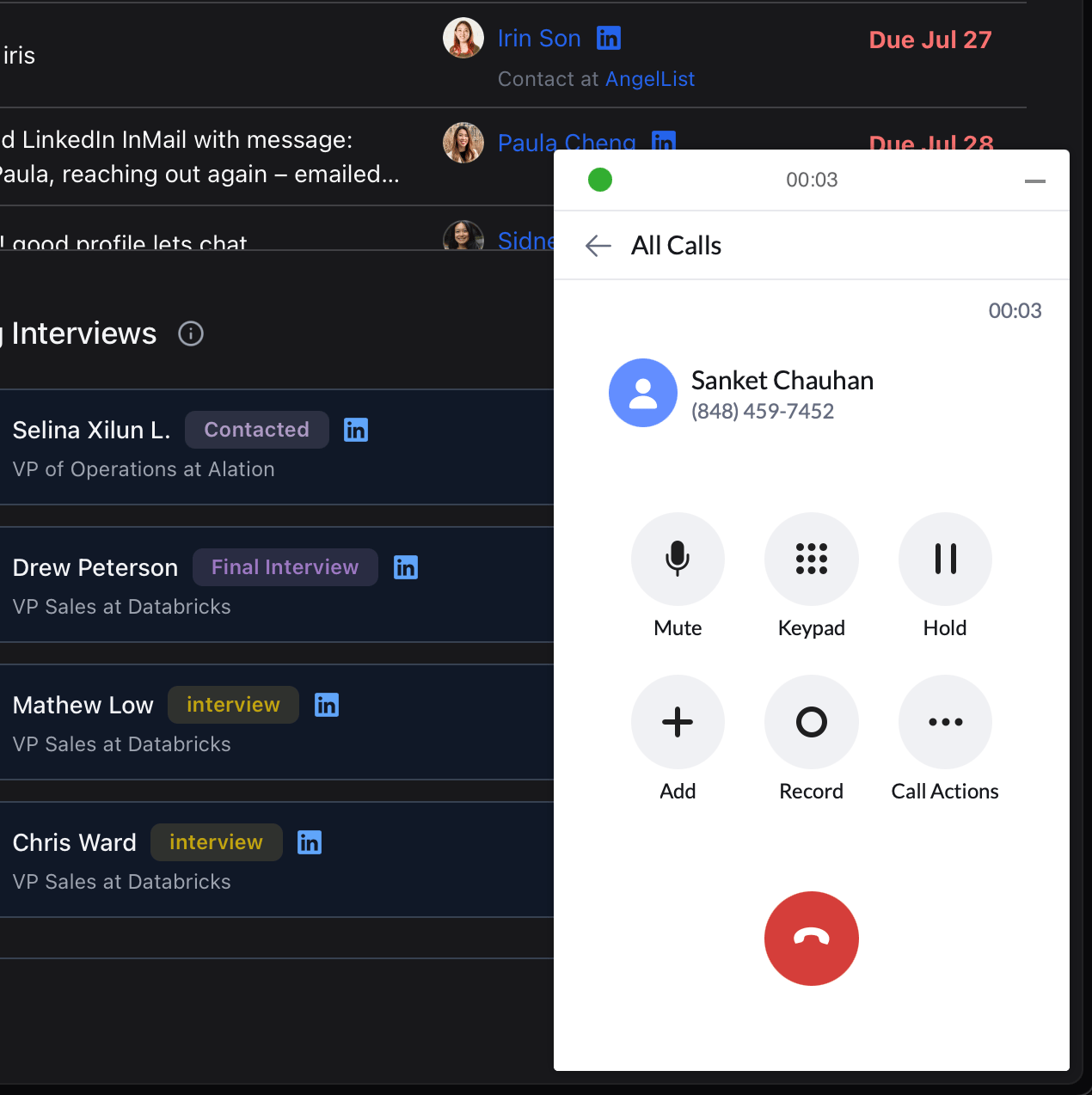
Ringcentral Call Widget — screenshot 4 Ringcentral Call Widget — screenshot 5 Alternatively, you can also call or text adhoc by refreshing the page, and finding the ring central widget on the bottom right. Ringcentral Call Widget — screenshot 6 Click Sign in Ringcentral Call Widget — screenshot 7 Follow the instructions to sign into your account, and click Authorize. Once you do that, you ll be able to make calls and text from this widget itself. Ringcentral Call Widget — screenshot 8
It is best to have the RingCentral desktop app installed so the widget can make calls from there automatically. Chrome users might experience an error, if you do let us know through support!

Using Desktop App

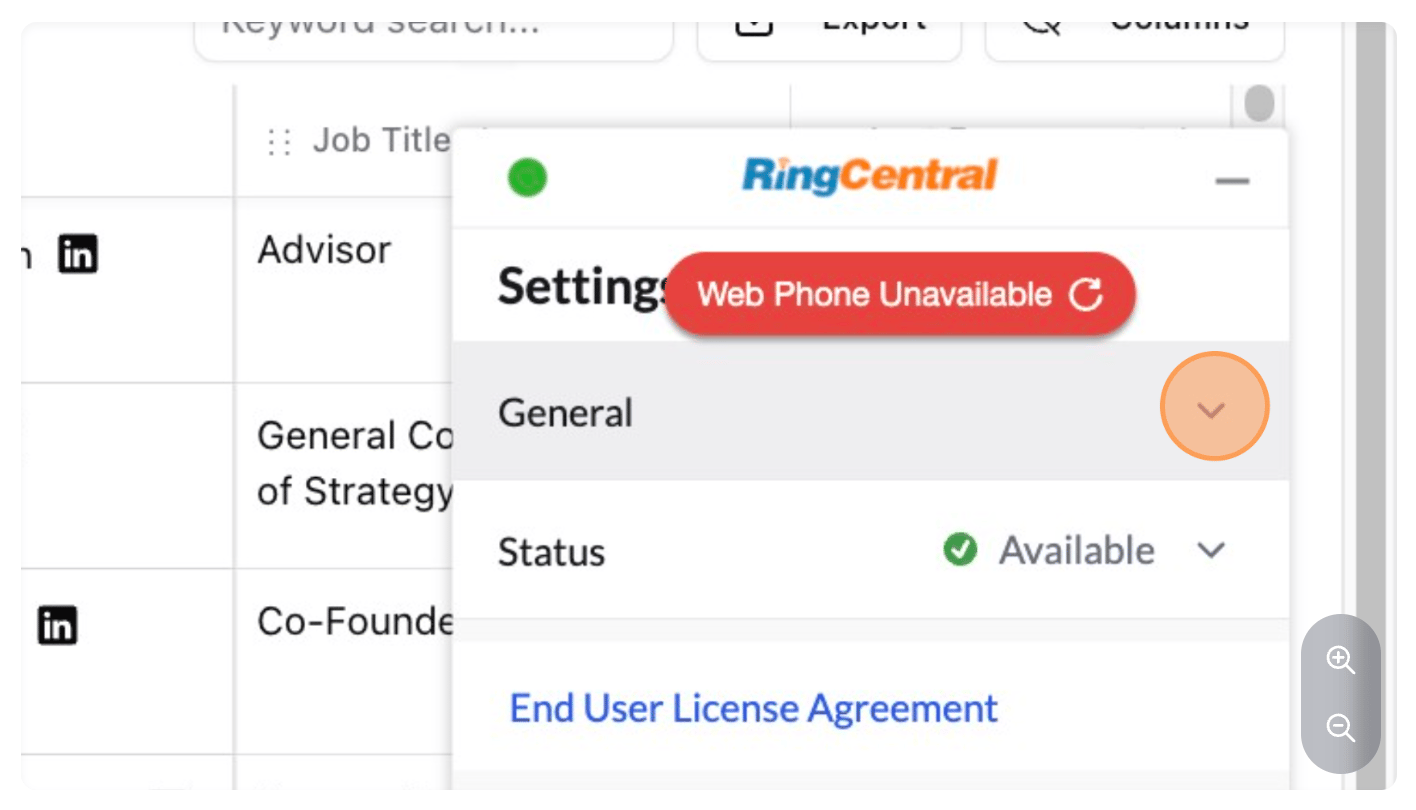
If you run into a “Web Phone Unavailable” alert in the widget, do the following to enable calling from the RingCentral Desktop App (you must have this installed):
  1. Click on Settings > General
Using Desktop App — screenshot 9
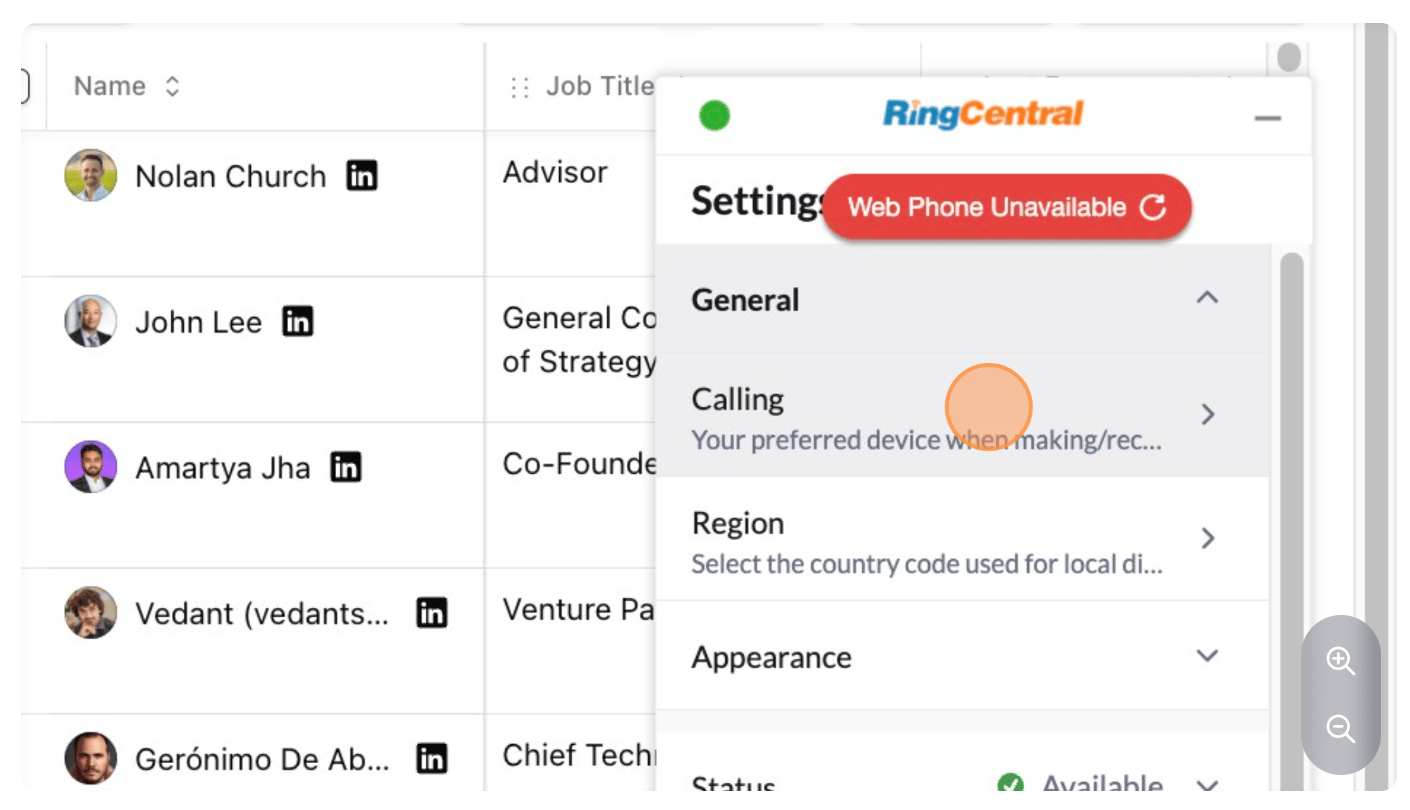
  1. Click Calling
Using Desktop App — screenshot 10
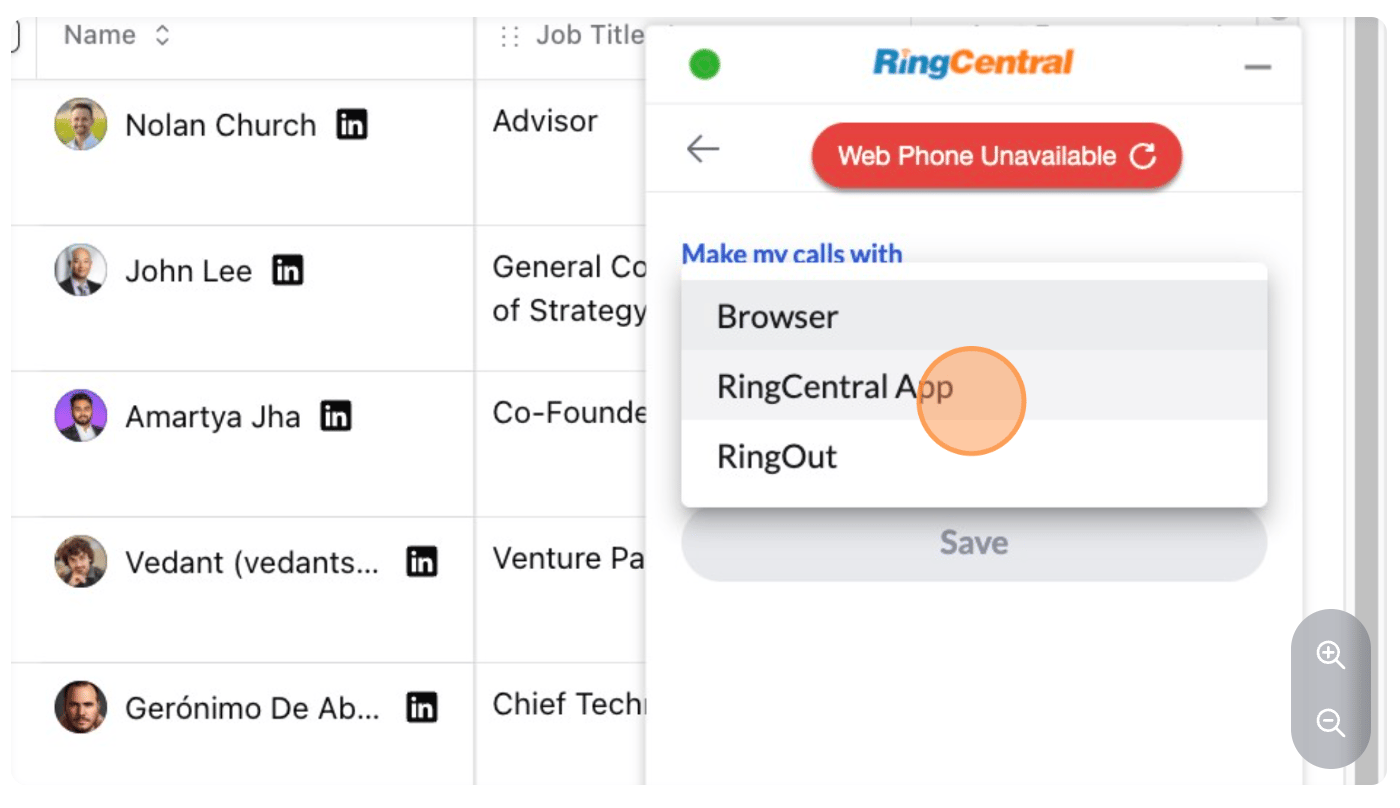
  1. Click Browser, then “Ring Central App” in the dropdown
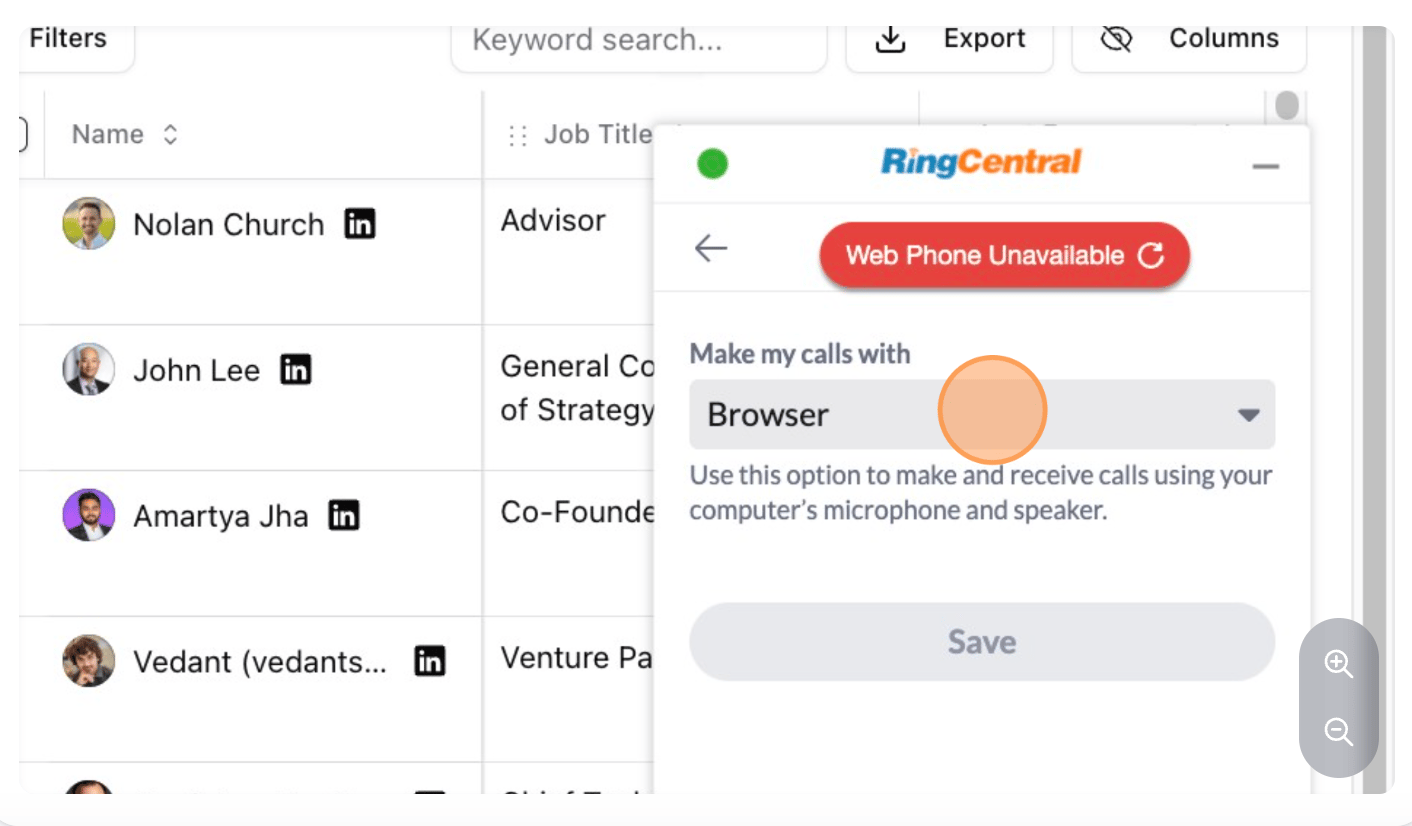
Using Desktop App — screenshot 11 Using Desktop App — screenshot 12
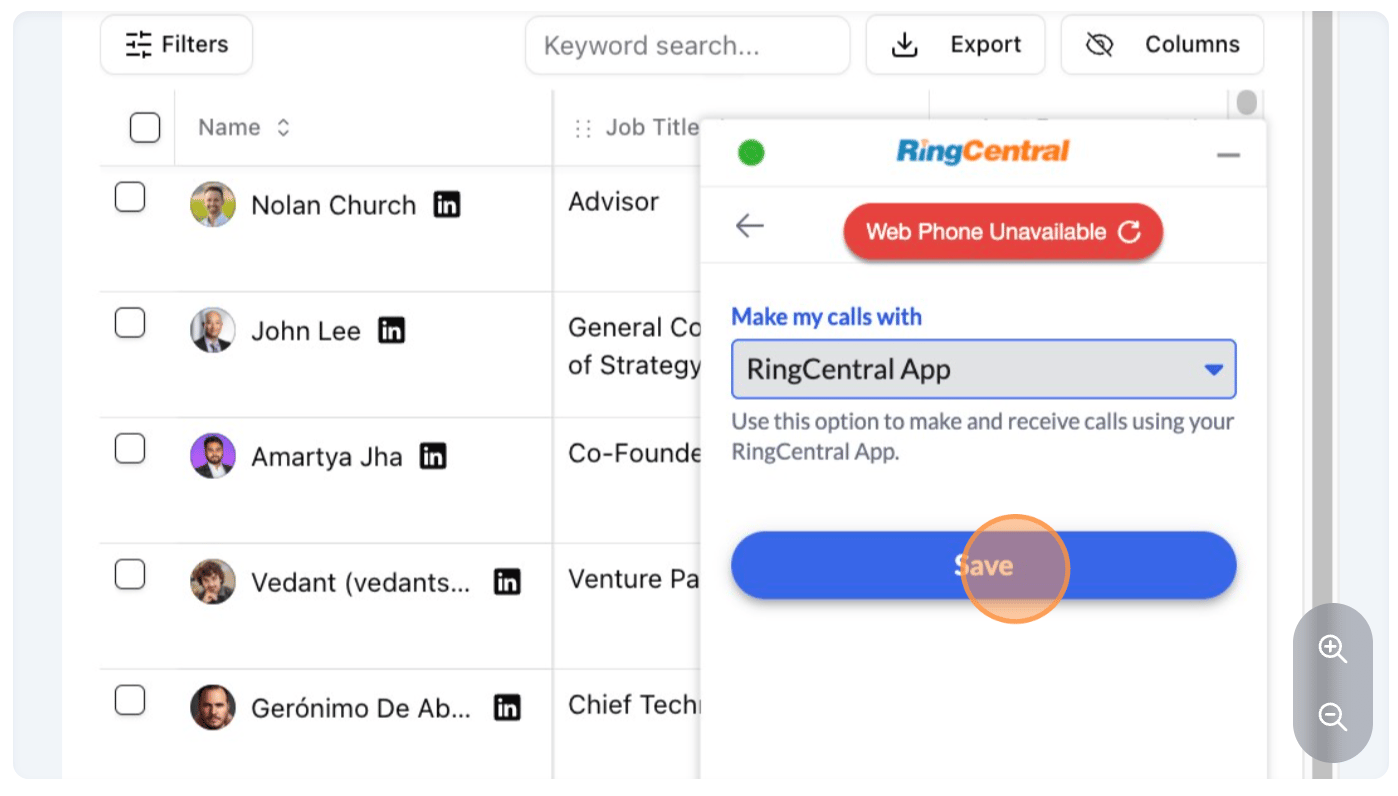
  1. Finally, click Save:
Using Desktop App — screenshot 13