

Watch the video on Loom
Most searches don’t need to be hidden. But sometimes you’re working on something sensitive — an internal hire or a client engagement under NDA. Confidential searches lock down the search and everything attached to it (notes, assessments, comp, tasks, calendar events) so only the people working on it and admins can see it. Everyone else can still find the candidates in the rest of the database; they just can’t tell the search exists.
Marking a search as confidential
- Open the search you want to lock down
- Click Actions in the top-right of the search page
- Click Mark search as confidential
- Confirm in the dialog
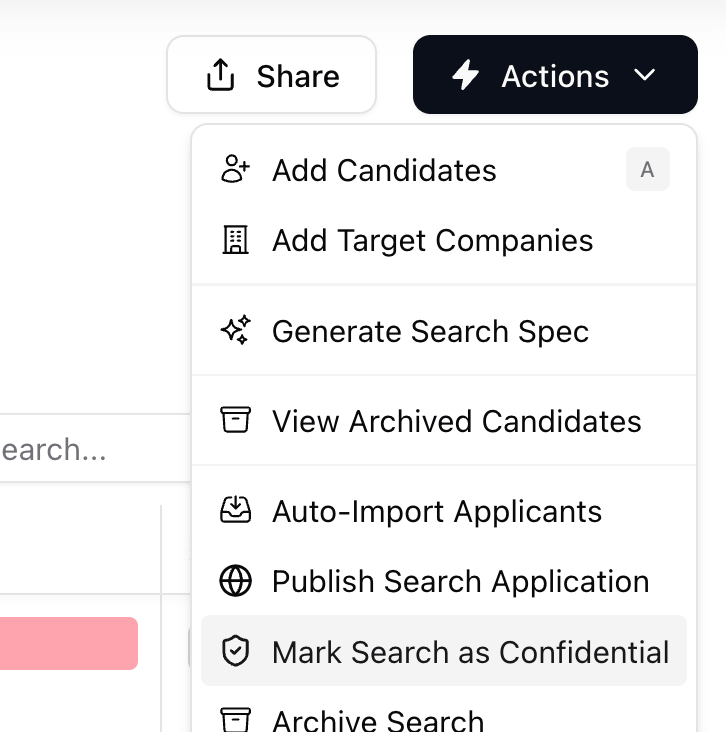
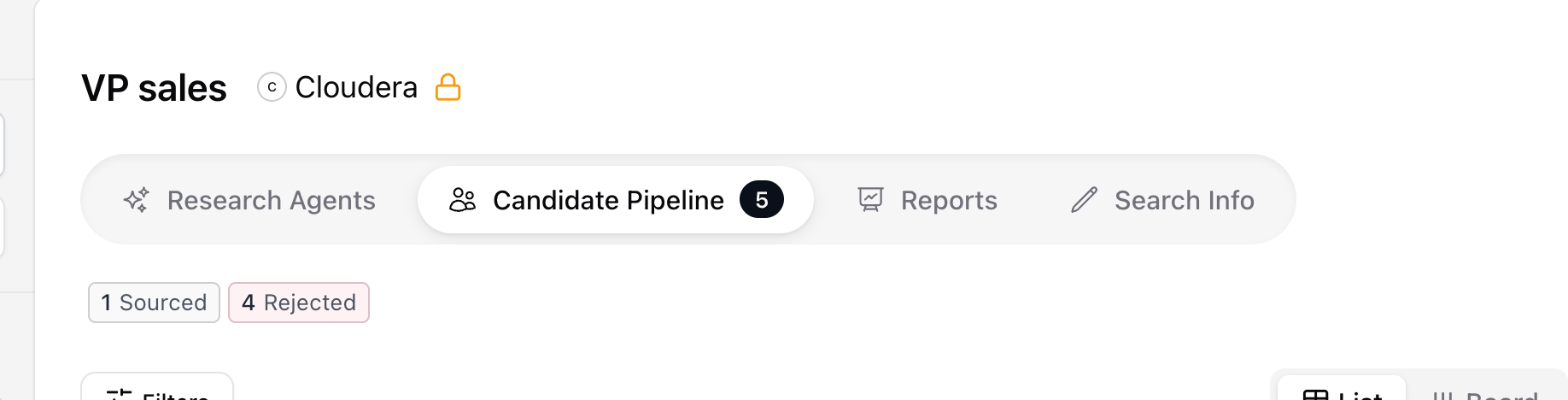
Only admins and team members with edit access on the search can toggle confidentiality. If you don’t see the option in Actions, you’re not on the search team.
Who can see a confidential search
When a search is marked confidential, visibility splits into three groups:
The important subtlety: candidates inside a confidential search are not removed from search results for other teammates. People searching the database will still find Yen Zhang (or whoever) — they just won’t see the confidential association, and they won’t see any of the confidential notes, comp, or assessments your team has added against this specific search.
This is intentional. Confidentiality is about hiding the engagement, not the person. The rest of the database stays searchable.
Adding or removing access
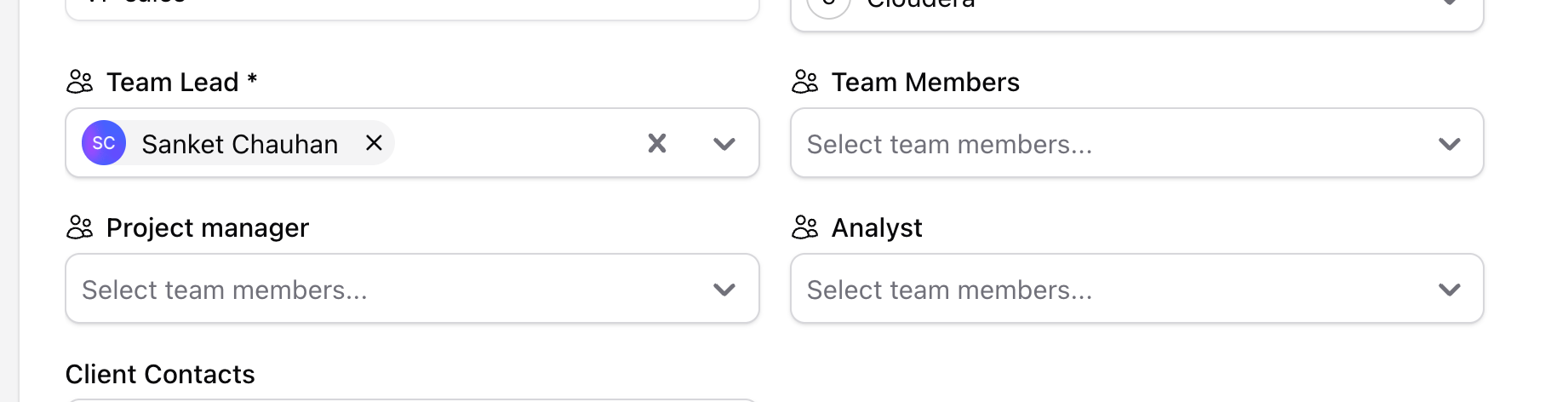
The way to grant access to a confidential search is to add someone to the search team.- Open the search
- Go to the team / members section
- Add the teammate you want to grant access to
Notes on a confidential search — read this carefully
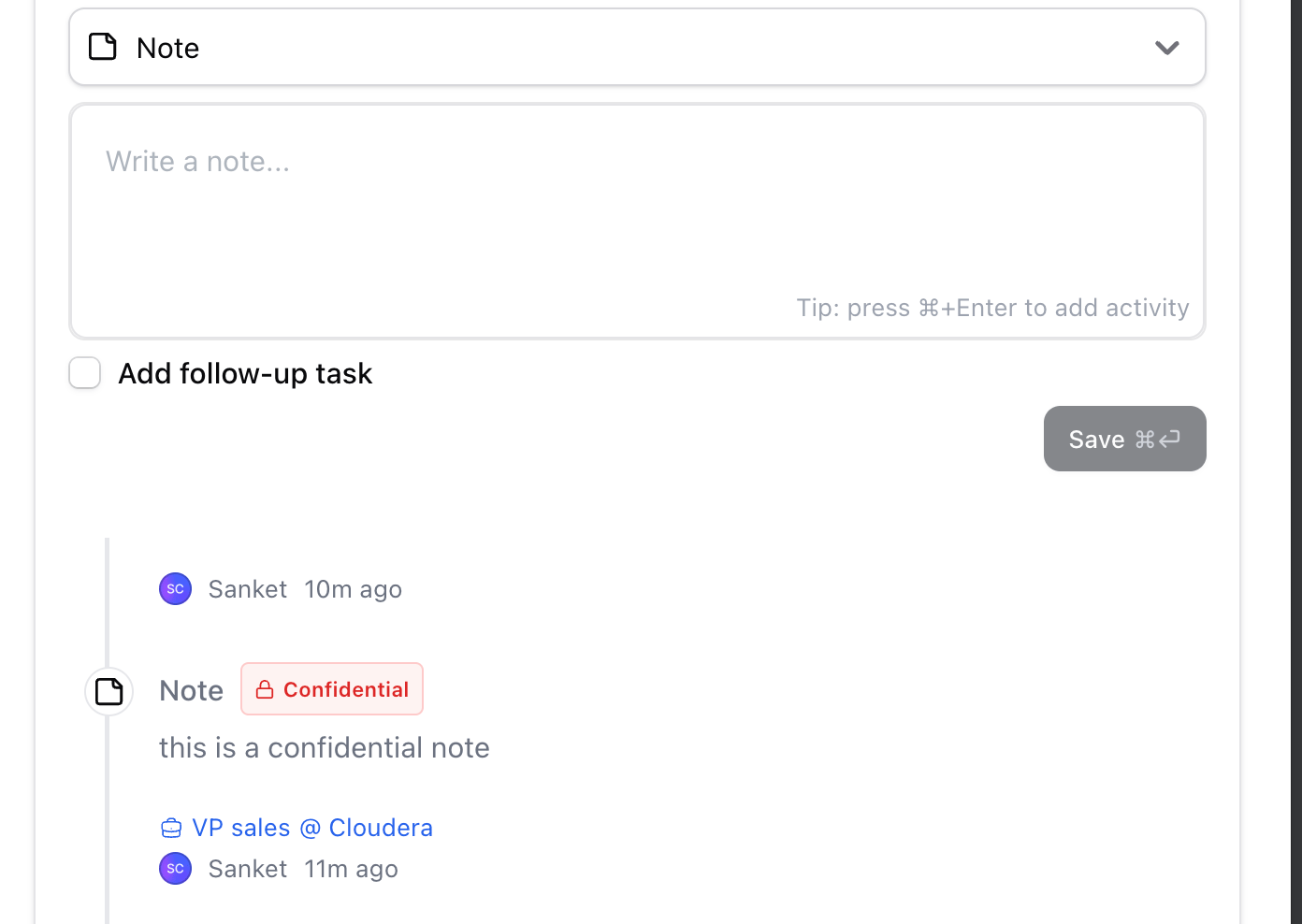
A note is only confidential if it’s attached to the confidential search. Stardex decides whether to attach it based on where you opened the profile from.Opening a profile from inside the search → confidential
- Open the confidential search
- Click into a candidate’s profile from inside that search (e.g. Yen Zhang’s row in the candidate list)
- Add your note
Opening the same profile from outside the search → not confidential
- Search for Yen Zhang from the People page (or any other entry point)
- Open her profile
- Add your note
Always confirm the Confidential badge appears on the note before you save it. If you don’t see the badge, the note isn’t confidential — it’s a plain profile note that the rest of your team can read.
Recommended workflow
When you’re working on a confidential search, always open candidate profiles from inside the search. That single habit is what guarantees notes, assessments, and comp entries you create get attached to the search and inherit confidentiality. If you opened the profile from elsewhere, close it and re-open it from inside the search before adding sensitive notes.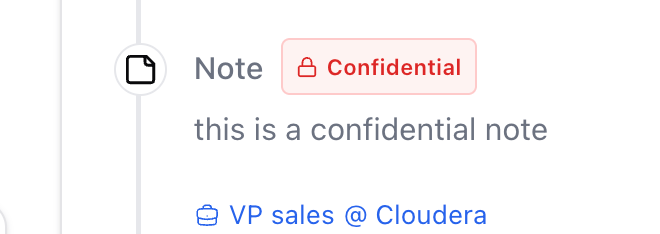
Chrome extension and confidential searches
Notes added through the Chrome extension are not attached to a search — they go on the profile directly. That means notes taken from the extension on a confidential search will not be confidential, regardless of where you are in the workflow. If you’re working on a confidential search:- Don’t take notes from the Chrome extension
- Open the candidate’s profile from inside the confidential search in the Stardex web app, then add the note there
What gets hidden vs what stays visible
When a search is confidential, the following data tied to it is hidden from anyone not on the search team or admin:- ✅ Hidden: the search itself, candidates’ association with the search, notes attached to the search, assessments, compensation entries, tasks, calendar events, candidate-level custom fields scoped to the search
- ✅ Still visible to everyone: the candidate’s profile, their work history, public notes (notes not tied to the search), their presence in other (non-confidential) searches, the rest of your database
Removing confidentiality
Click Actions → Remove search confidentiality and confirm. The lock icon disappears and the search reverts to your team’s normal visibility rules. Notes, assessments, comp, and other data that were attached to the search become visible to anyone with permission to view them. [Screenshot: Actions menu showing “Remove search confidentiality”]Common use cases
- Replacement hires — quietly searching for a successor while the incumbent is still in the role
- Executive searches — C-level and VP roles where premature disclosure damages the engagement
- Client work under NDA — engagements where even your own teammates shouldn’t know the client or the role
- Internal moves — searching for someone to replace a teammate who’s moving teams before the announcement
- Sensitive comp negotiations — keeping comp benchmarks and offer numbers locked to a small group