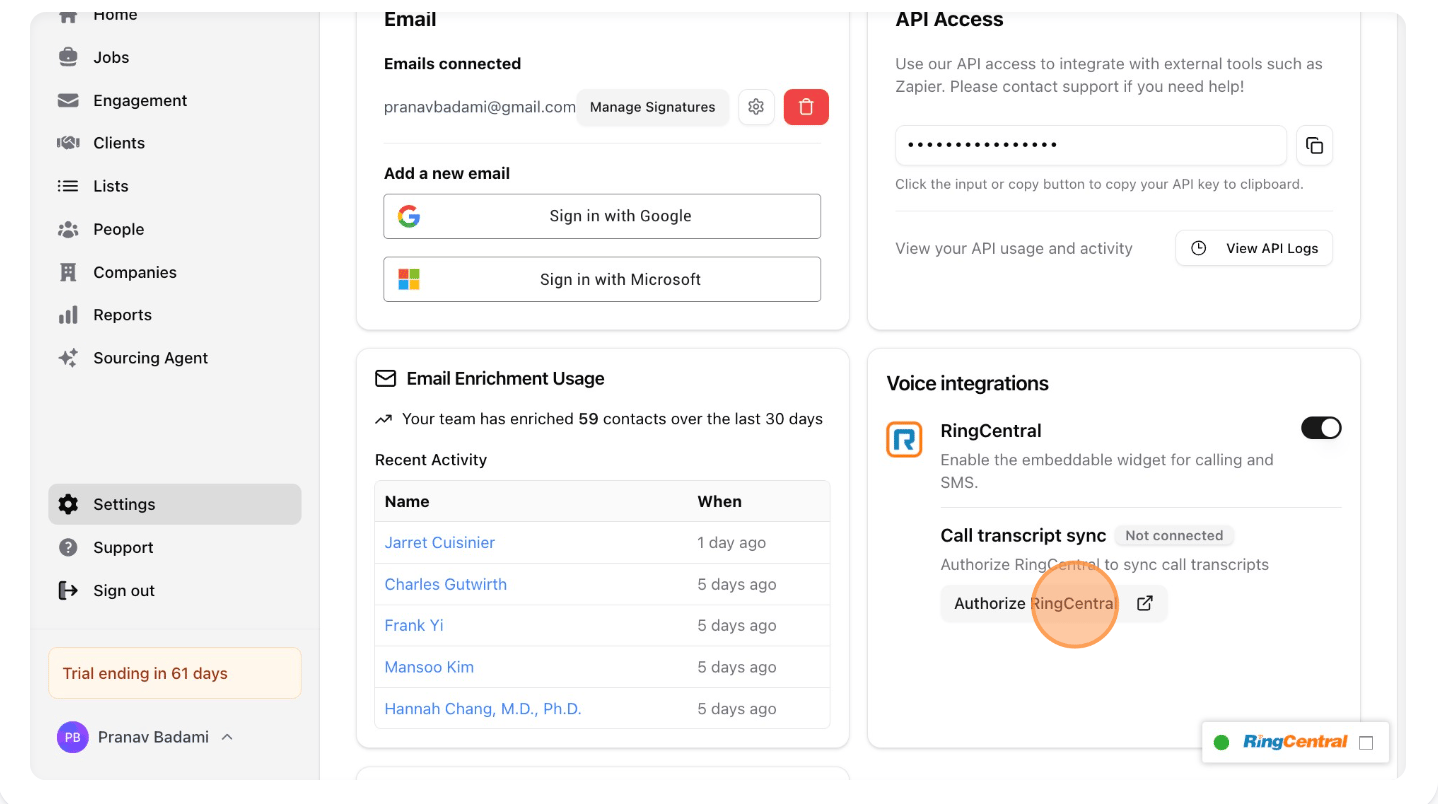
To enable automated transcripts from RingCentral to Stardex, go to Settings → Email & other integrations → VoIP & messaging: https://stardex.com/settings?tab=email-calendar&section=voip and click Authorize RingCentral. The old URL stardex.com/settings/integrations is not redirected.
In order for Stardex to store RingCentral transcripts to a candidate’s profile, the following conditions must be met:⚠️ Only a RingCentral Super Admin should connect the RingCentral account to Stardex during the OAuth authorization process.
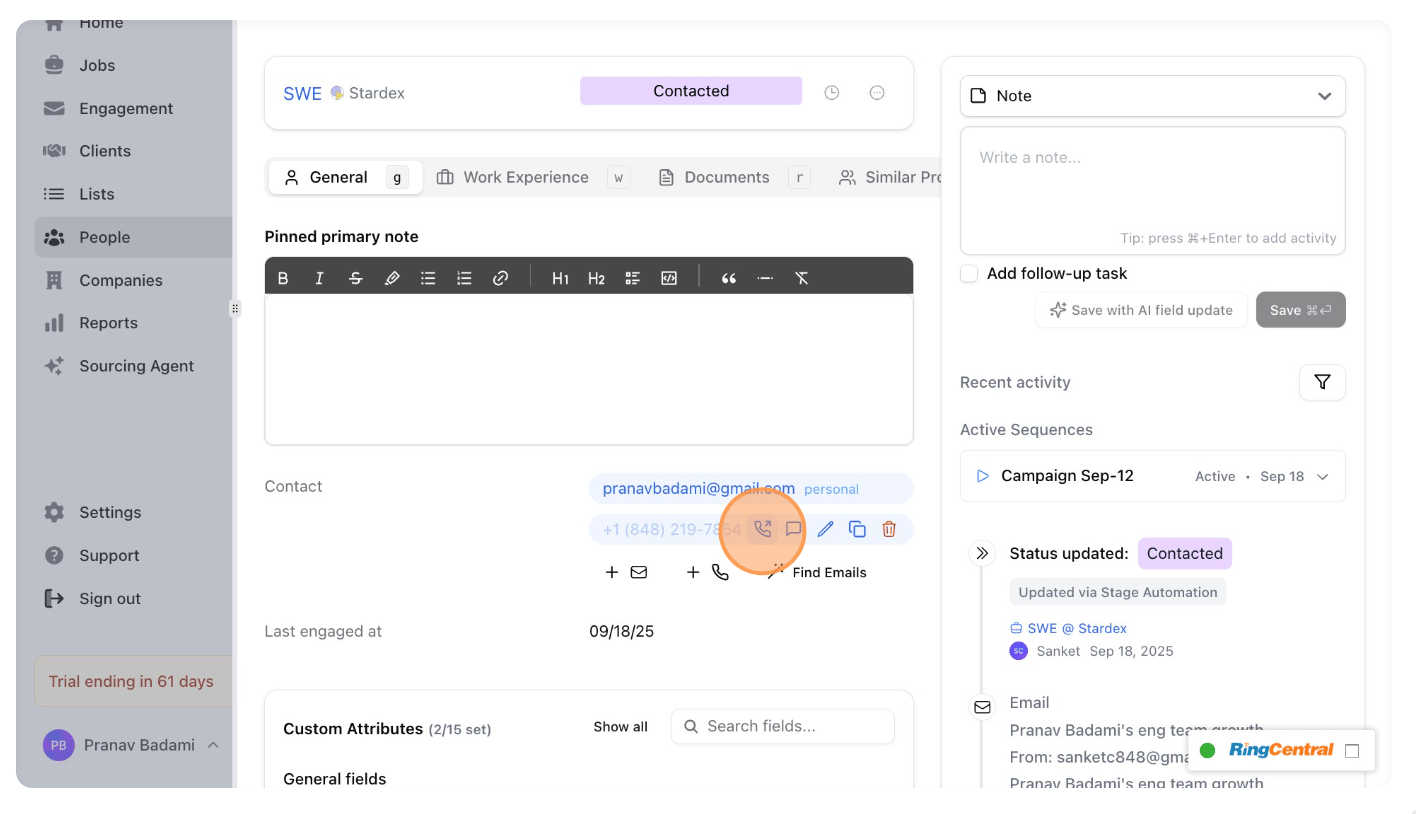
  1. The phone number you are calling must exist in the candidate’s profile under the contact information section. See below.
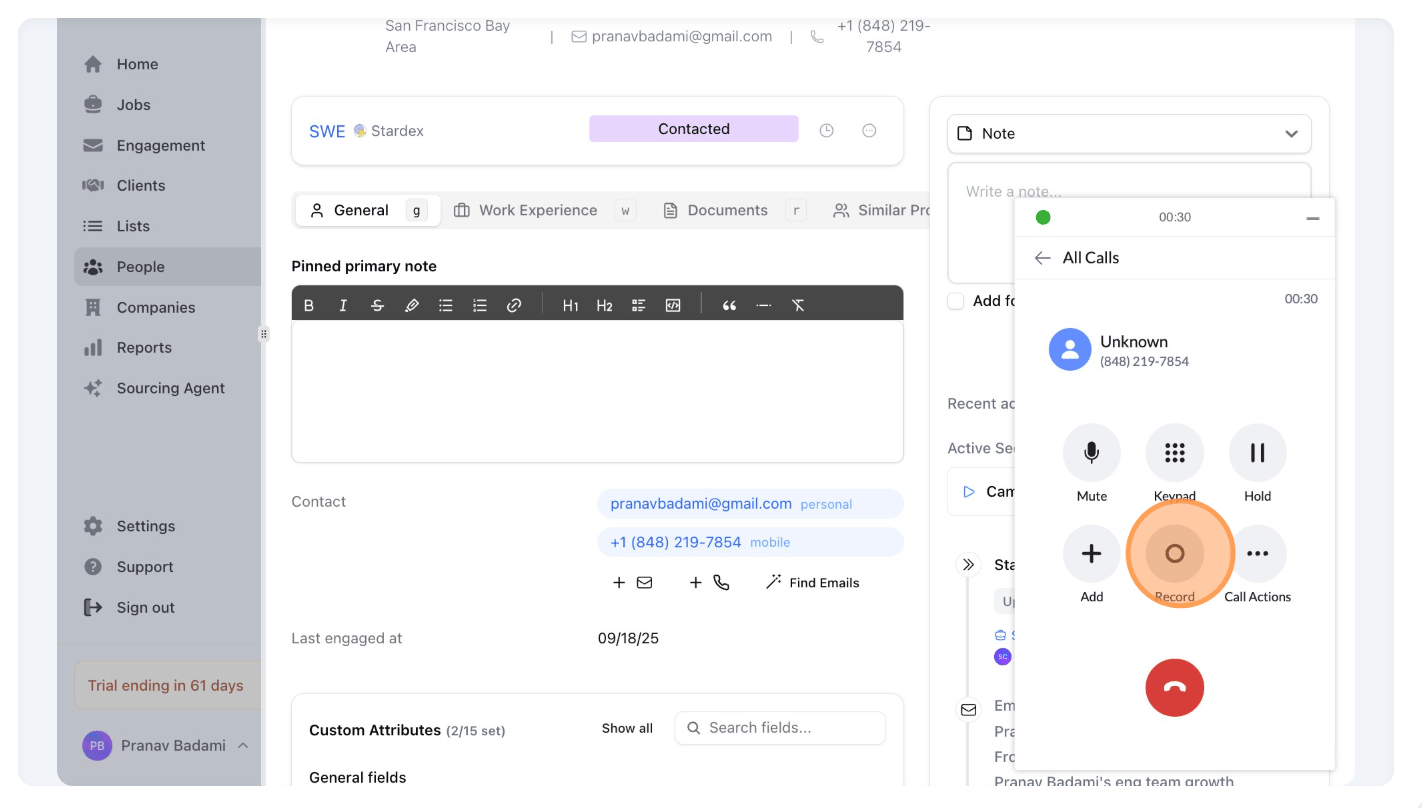
  2. The call must be recorded in RingCentral. Your plan may or may not automatically record calls. If it does not, please press Record manually. See below. Only the RingCentral Ultra and Advanced plans allow automatic call recording.
If you are on an eligible plan for auto call recording, you can follow this RingCentral guide: Turning on on-demand or automatic call recording➡️ Ensure to follow Step 10 in the guide, where you need to enable recording for all the extensions.
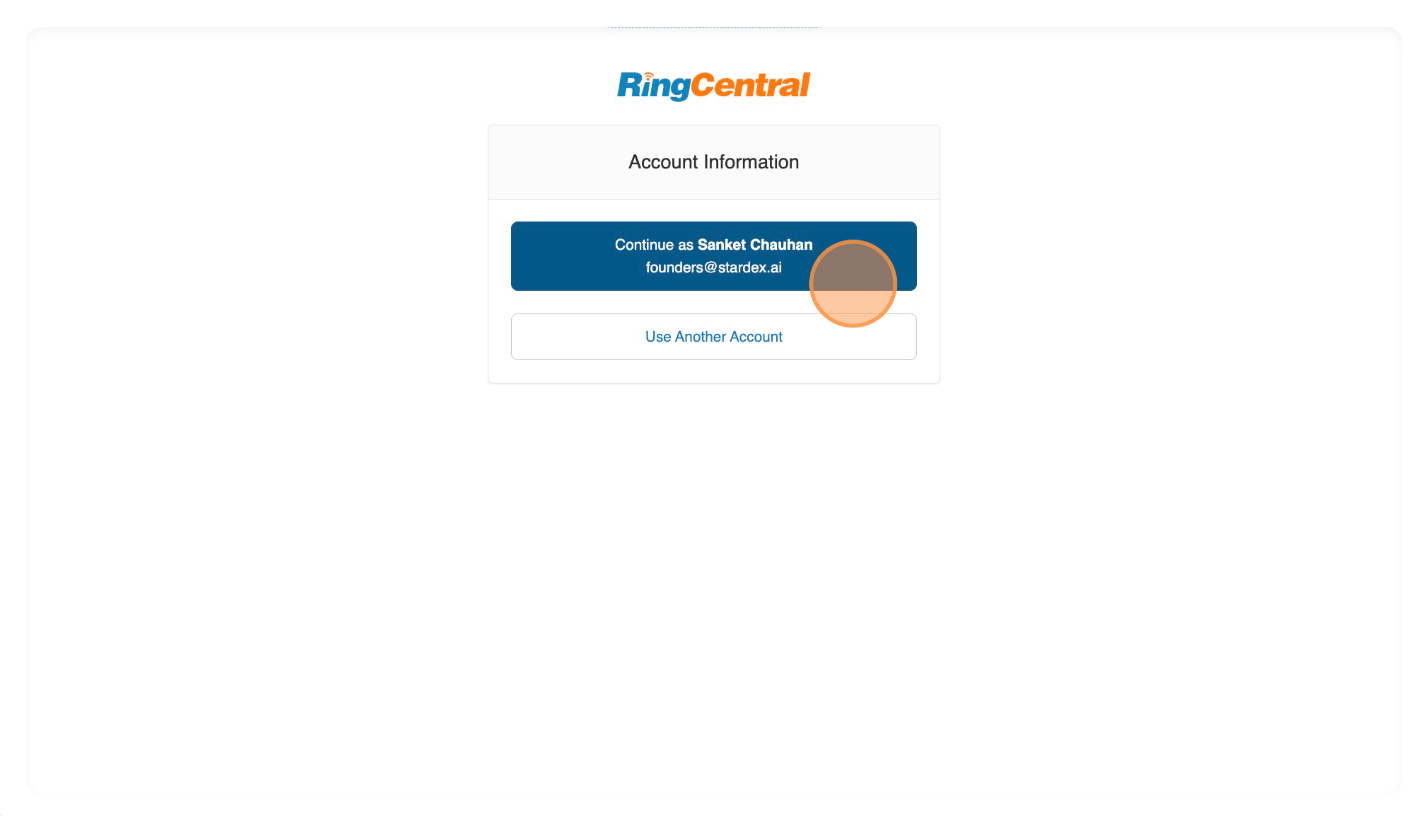
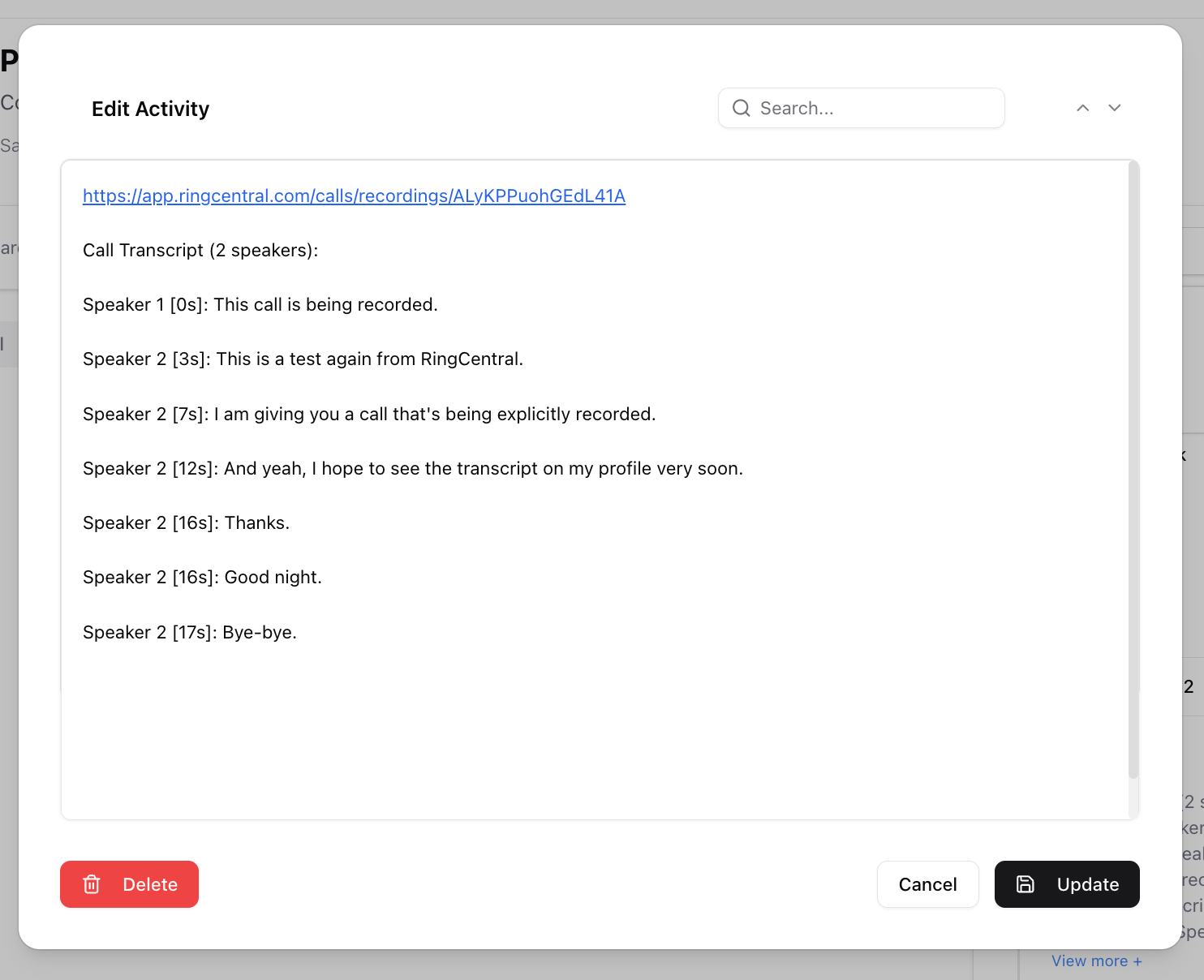
RingCentral Transcripts — screenshot 1 Then, continue through the whole RingCentral authorization flow to grant Stardex access to your account: RingCentral Transcripts — screenshot 2 To try it out, call someone on RingCentral. This can happen through Stardex, but anywhere you use RingCentral will work as long as the phone number you are calling is stored on a candidate profile in Stardex. RingCentral Transcripts — screenshot 3 While the call is ongoing, make sure that the “Record” button has been pressed so the call gets recorded. RingCentral Transcripts — screenshot 4 A couple minutes after the call ends, you will see a note activity in the person’s activity timeline with the transcribed contents of the call, along with a link to the recording! RingCentral Transcripts — screenshot 5