Overview
The Ringover integration connects your team’s Ringover phone system to Stardex, giving you:- Click-to-call — dial any phone number directly from a person’s profile
- Send SMS — compose and send text messages without leaving Stardex
- Automatic transcript sync — call transcripts are logged as activities on the matching person’s timeline
- Recording links — links to Ringover-hosted call recordings appear alongside each transcript
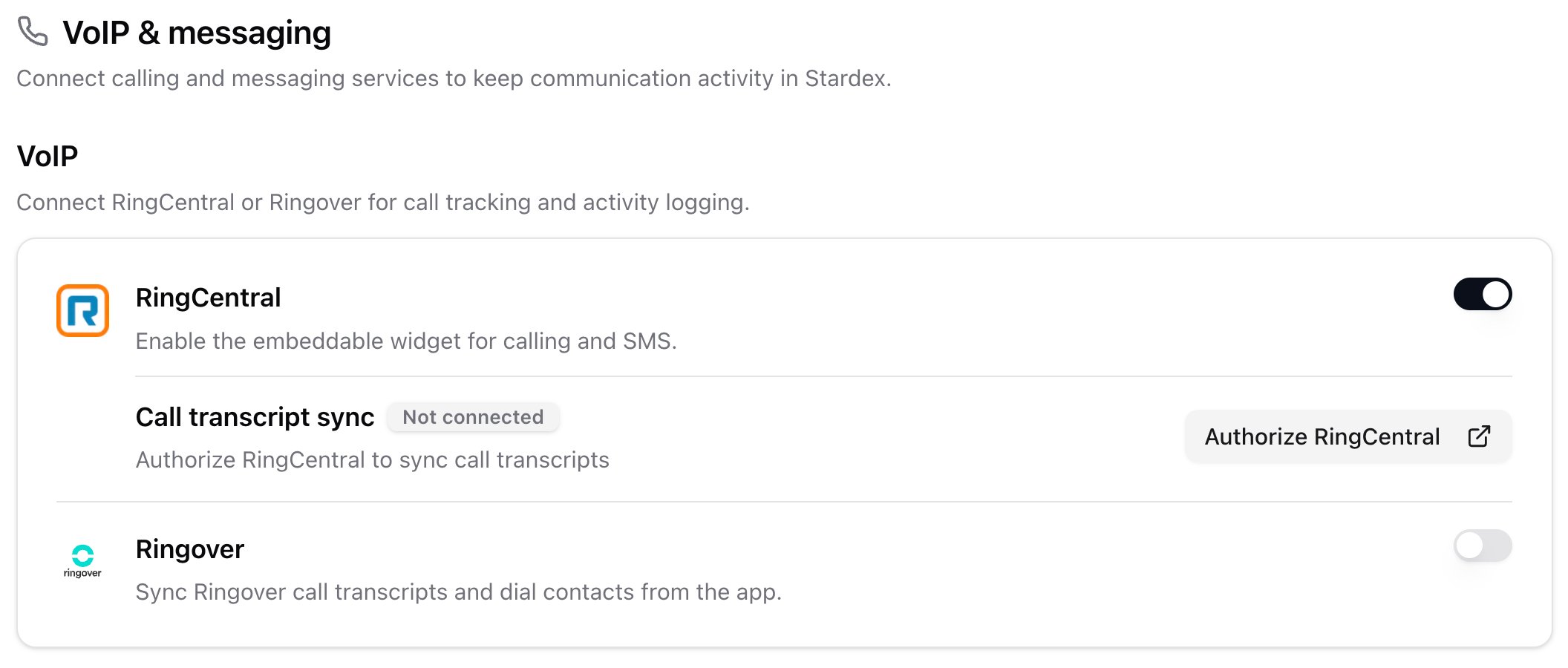
Only one voice integration (Ringover or RingCentral) can be active per team at a time. If you already use RingCentral, you’ll need to disconnect it before enabling Ringover.
Setup (Admin Only)
You’ll need admin access to both Stardex and your Ringover Dashboard. The setup takes about five minutes.Step 1 — Enable the integration
- Go to Settings → Voice Integrations in Stardex.
- Find Ringover and toggle it on.
Step 2 — Add the webhook URL in Ringover
Once enabled, Stardex shows a webhook URL. Copy it, then:- Open your Ringover Dashboard.
- Navigate to Developer → Webhooks.
- Open the Call Event section.
- Turn on Activate webhook.
- Paste the copied URL into the Transcription available field (under After-Call Work).
Step 3 — Copy your webhook key
Still in the Ringover Dashboard’s Call Event section:- Copy the Key shown at the top of the section.
- Go back to Stardex and paste it into the Webhook key field.
Step 4 — Create and add your API key
- In the Ringover Dashboard, go to Developer → API keys.
- Create a new key with the Calls Read permission.
- Copy the key and paste it into the API key field in Stardex.
Step 5 — Save & Connect
Click Save & Connect. If the credentials are valid, the status badge will change to Connected and transcript syncing begins immediately.Using the Dialer
Once the integration is active, a floating phone button appears in the bottom-right corner of every page. Click it to open the Ringover dialer.- Sign in to your Ringover account inside the dialer the first time.
- The dialer is draggable — move it anywhere on screen. Your position is remembered.
- The dialer opens automatically when you receive an incoming call.
- Click the X to minimize back to the floating phone button.
Click-to-call from a profile
- Open any person’s profile.
- Click the actions menu (or the phone icon next to a phone number).
- Select Call — the dialer opens and dials the number automatically.
Send an SMS from a profile
- Open any person’s profile.
- Click the actions menu next to a phone number.
- Select Send Text — the dialer opens with an SMS compose window.
How Transcript Sync Works
After a call ends, Ringover generates a transcript (this depends on your Ringover plan supporting transcription). Once the transcript is ready, Stardex automatically:- Receives the webhook from Ringover.
- Fetches the full transcript and call details from the Ringover API.
- Matches the external caller/callee to a person in Stardex by phone number.
- Creates a Call Note activity on the matched person’s timeline containing:
- A link to view the call in Ringover
- A link to the call recording (if available)
- Participant names (agent and contact)
- The full transcript with speaker labels and timestamps
Person matching
- If the phone number matches exactly one person in Stardex, the activity is linked to that person.
- If there are zero matches or multiple matches, the activity is saved as an unassigned activity so nothing is lost — you can manually link it later.
Idempotent processing
If Ringover sends the same webhook more than once (e.g. due to a retry), Stardex updates the existing activity rather than creating a duplicate.Important Notes
- Call recordings are linked, not stored. Stardex includes a link to the Ringover-hosted recording in the activity but does not download or store the audio file. Your recordings stay in Ringover.
- Transcription requires a compatible Ringover plan. If your Ringover plan does not include transcription, the webhook won’t fire and no activities will be created.
- Phone numbers must be on the person record. Transcript sync matches by phone number, so make sure your candidates and contacts have phone numbers saved in Stardex.
Disconnecting
To disconnect the integration:- Go to Settings → Voice Integrations.
- Click Disconnect Ringover.
- Confirm the disconnection.