

Your team uses Microsoft 365 for email, and you want to send messages and sync conversations through Stardex. When you click Sign in with Microsoft in Stardex, Microsoft checks whether your organization’s admin has approved the app. If they haven’t, you’ll see a “Need admin approval” screen and the connection fails. This guide walks your IT admin through granting that approval so every user on your Microsoft 365 tenant can connect their email to Stardex.
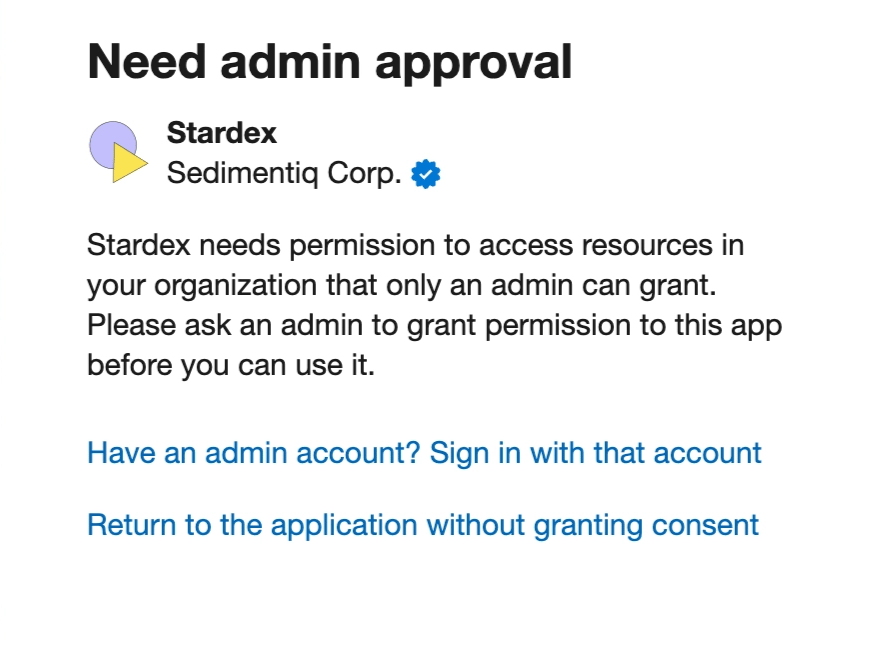
Approving Stardex in your Microsoft 365 admin center
Your Microsoft 365 admin (a Global Administrator or Application Administrator) needs to do this once. After approval, every user in the organization can connect on their own.- Sign in to the Microsoft 365 admin center with an admin account
- In the left sidebar, go to Settings > Integrated apps
- Click the Requests tab to find any pending approval request from a user who already tried to connect, or click Get apps to search for Stardex directly
- Select Stardex from the results and click Get it now
- Choose whether to deploy for specific users/groups or your entire organization, then click Next
- Review the permissions Stardex requests (email read/send and calendar access) and click Finish deployment
💡 If a user has already seen the “Need admin approval” screen, Microsoft sends an approval request email to your admins automatically. The admin can approve directly from that email without navigating to the admin center.
💡 If your organization uses Conditional Access policies or restricts third-party app consent, work with your IT team to add Stardex to the allow list. The specific steps vary by tenant configuration.
Connecting your Microsoft 365 email in Stardex
Once admin approval is in place, each team member connects their own account:- Open Stardex and go to Settings → Email & other integrations → Mailboxes: stardex.com/settings?tab=email-calendar§ion=mailboxes
- Click Connect Microsoft and finish OAuth. Calendar permission can be added later from Calendars.
- Sign in with your Microsoft 365 email address and password
- If prompted, review the permissions and click Accept
- Microsoft redirects you back to Stardex. Your email address now appears under Emails connected
If you see a “Reconnect” button next to your email address, your session has expired. Click Reconnect to re-authorize without losing any synced data.
What Stardex uses these permissions for
Stardex requests a specific set of Microsoft permissions through Nylas, its email integration provider:- Read and send email — lets Stardex sync conversations with candidates to their profiles, and send outreach or replies from your connected address
- Calendar access — lets Stardex read your calendar events so you can schedule interviews and see availability (this is optional and can be enabled separately in the email settings modal)
FAQ
Q: Who needs to perform the admin approval step? A Global Administrator or Application Administrator on your Microsoft 365 tenant. This only needs to happen once per organization. Q: Do Google Workspace users need to do this? No. Google accounts go through a standard OAuth consent screen per user. The admin approval step is specific to Microsoft 365 organizations that restrict third-party app access. Q: I clicked Sign in with Microsoft and got a “Need admin approval” error. What do I do? Forward this guide to your IT admin and ask them to complete the admin approval steps above. Once they do, try connecting again. Q: Will disconnecting and reconnecting lose my synced emails? No. Synced emails are stored in Stardex independently. Reconnecting re-establishes the link to your mailbox, and Stardex picks up where it left off. Q: Can I connect multiple Microsoft 365 accounts? Yes. Repeat the connection steps for each email address. Each connected account appears separately under Emails connected in your settings. Q: What if my organization uses Conditional Access or app governance policies? Your IT admin may need to add Stardex (or its underlying Nylas integration) to the organization’s approved applications list. The exact steps depend on your tenant’s Conditional Access configuration.Key Takeaway
Admin approval is a one-time setup for your Microsoft 365 tenant. Once your IT admin grants consent for Stardex in the Microsoft Entra admin center, every team member can connect their email from Settings → Email & other integrations → Mailboxes without any further admin involvement.Related guides
- 👉 Setting up your multi-step outreach campaign — send sequences from your connected email
- 👉 Connect your calendar and enable Stardex Notetaker — Connecting your calendar to Stardex so events are available for automation