

Setting up calendar stage automation
This is the most common path: enabling the feature and choosing which stages candidates can be advanced to.- Open Settings → Email & other integrations → Calendars: stardex.com/settings?tab=email-calendar§ion=calendars
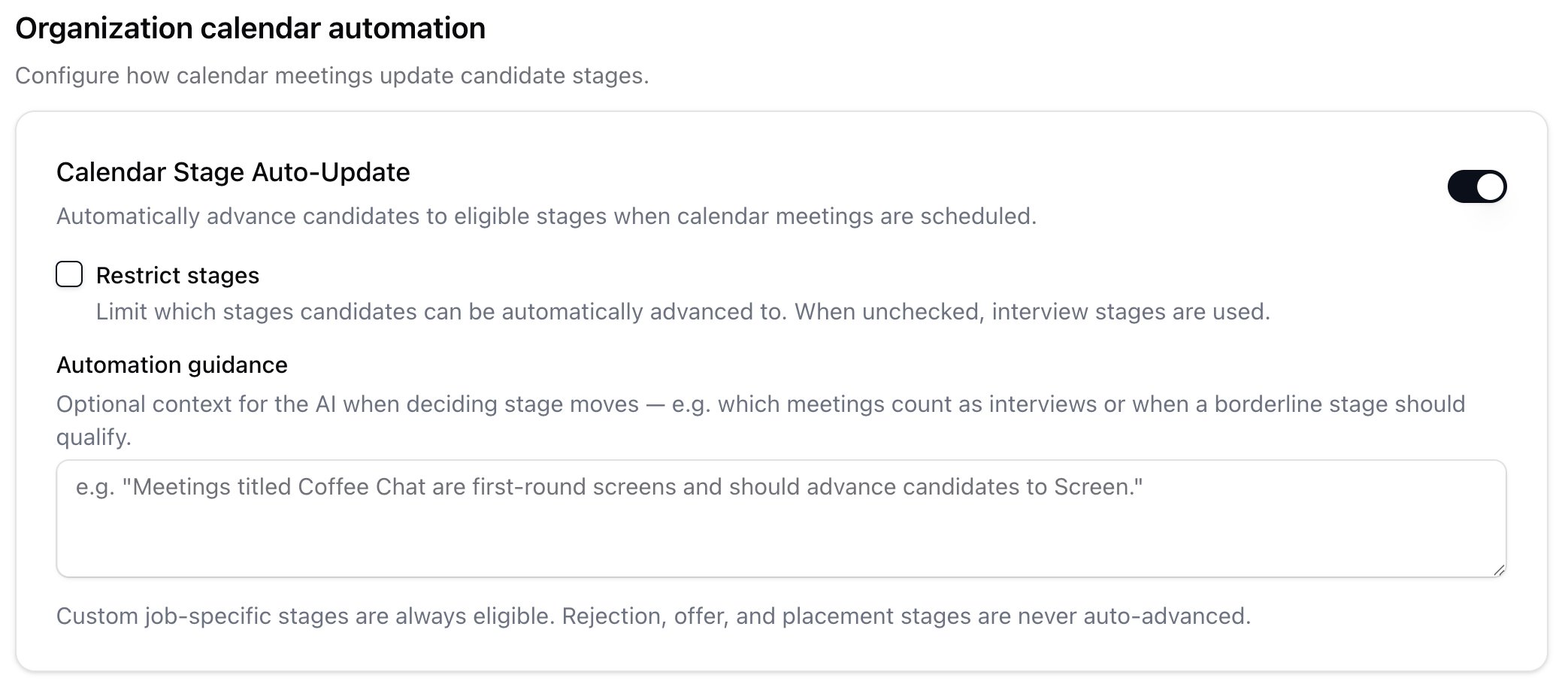
- Scroll to Calendar Stage Auto-Update (this is the organization calendar automation block)
- Toggle the switch on
- Check Restrict stages if you want to limit which stages candidates can be auto-advanced to. When unchecked, the automation defaults to interview-flagged stages only
- If you checked Restrict stages, use the multi-select dropdown to pick the specific stages candidates should be eligible for. Each stage appears with its color dot
- Optionally, add Automation guidance in the text area — plain-language instructions that help the AI interpret borderline calendar events (e.g. “Meetings titled Coffee Chat are first-round screens and should advance candidates to Screen”)
- Click away from the text area to save your guidance. All other changes save immediately on toggle or selection
How the automation works
When a calendar event involves a candidate who is tracked in a job pipeline, the system evaluates whether the meeting justifies a stage advancement. It considers:- The calendar event title and description
- The candidate’s current pipeline stage
- Which stages are ahead of the current one and permitted by your settings
- Your optional automation guidance
The automation can only move candidates forward — never backward. Rejection, offer, and placement stages are never auto-advanced. If a recruiter manually updates a candidate’s stage after the meeting was scheduled, the automation defers to the manual change.
Controlling which stages are eligible
There are two modes for determining eligible stages: Default (no restriction): Only stages explicitly tagged as interview stages in your pipeline configuration are eligible targets. Custom job-specific stages (stages you created for a particular job) are always eligible regardless of this setting. Restricted (checkbox enabled): You pick exactly which canonical stages the automation is allowed to advance candidates into. The multi-select dropdown shows all non-outcome stages (rejection, offer, and placement stages are excluded). When you first enable the restriction, it pre-selects your interview stages as a starting point.Common use cases
- High-volume recruiting teams that schedule 15+ interviews a day and need pipeline stages to reflect reality without manual updates after every meeting
- Multi-stage interview processes where candidates move through phone screen, technical screen, and onsite — each with its own calendar event
- Coordinators managing pipelines for multiple hiring managers who want the board view to stay current without chasing updates
- Teams using custom stages for specific roles (e.g. “Portfolio Review” for a design role) that should automatically trigger on the matching calendar event