

- Internal domains tell Stardex which domains belong to your team, so emails only between your team are skipped.
- Blocked emails and domains keep any email that involves a listed address or domain out of Stardex completely.
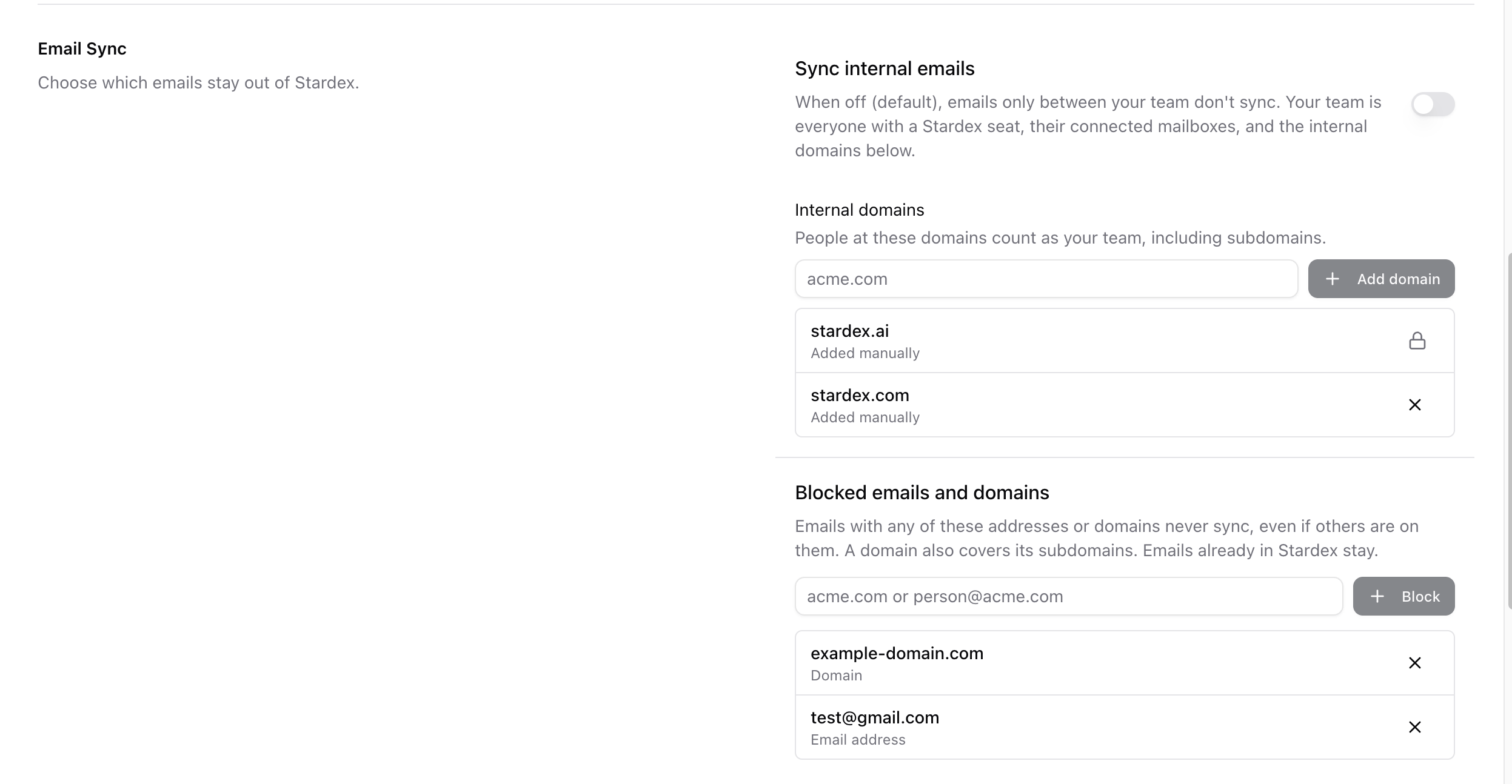
Internal domains
When Sync internal emails is off (the default), Stardex skips emails where everyone on them is on your team. Your team means everyone with a Stardex seat, the mailboxes they connected, and anyone at one of your internal domains. For example, if yourcompany.com is an internal domain:- An email from recruiter@yourcompany.com to manager@yourcompany.com is skipped.
- An email from recruiter@yourcompany.com to candidate@example.com still syncs, because someone outside your team is on it.
Add an internal domain
- Go to Settings → Organization → Compliance → Email Sync.
- Under Internal domains, enter a domain, such as yourcompany.com.
- Click Add domain.
- Confirm the change.
Personal email providers such as gmail.com cannot be added as internal domains.
Your team’s own domains are locked
A domain shows a lock when someone on your team signs in to Stardex or has a connected mailbox at that domain. It cannot be removed or blocked, so colleagues without a Stardex seat never look like outside contacts.Turn on internal email sync
Turn on Sync internal emails if you want emails between your team to sync as normal. Blocked emails and domains still apply when it is on.Blocked emails and domains
Use this list when email with a person or a whole company must never be stored in Stardex, even if other people are on it. Stardex checks the sender, recipients, CC, and BCC.- An email address, such as partner@pefund.com, blocks only that exact address, whatever the capitalization.
- A domain, such as pefund.com, blocks everyone at that domain and its subdomains.
Block a domain or email address
- Go to Settings → Organization → Compliance → Email Sync.
- Under Blocked emails and domains, enter a domain or a full email address.
- Click Block. For a domain, confirm with Block domain.
What happens when an email is blocked?
Stardex skips:- The email content and details
- Email activities on person records
- Attachments on that email
- Reply classification
Blocking covers email only. Calendar events, meeting recordings, and notes from Granola or Fireflies are not checked against this list.
Remove a rule
Admins can remove an internal domain or unblock an entry from the same page: click the remove button next to it and confirm. This affects future emails only. Skipped emails are not added back automatically. Running Import past emails on a mailbox afterwards brings in past emails for people at the unblocked domain or address, but not emails that were kept off other people’s profiles.Changes can take up to one minute to apply.