Watch the video on Loom
As you close searches with Stardex, you’ll often want to mark candidates and client companies as off-limits for future email campaigns. Stardex lets you do this manually at any time, automatically when you create searches or log placements, and it enforces these blocks everywhere outreach happens — including the Chrome extension.
Marking records manually
You can mark DNC at both the candidate and client company level.-
Candidate: On a candidate’s profile, click Actions → Mark as Do Not Contact.
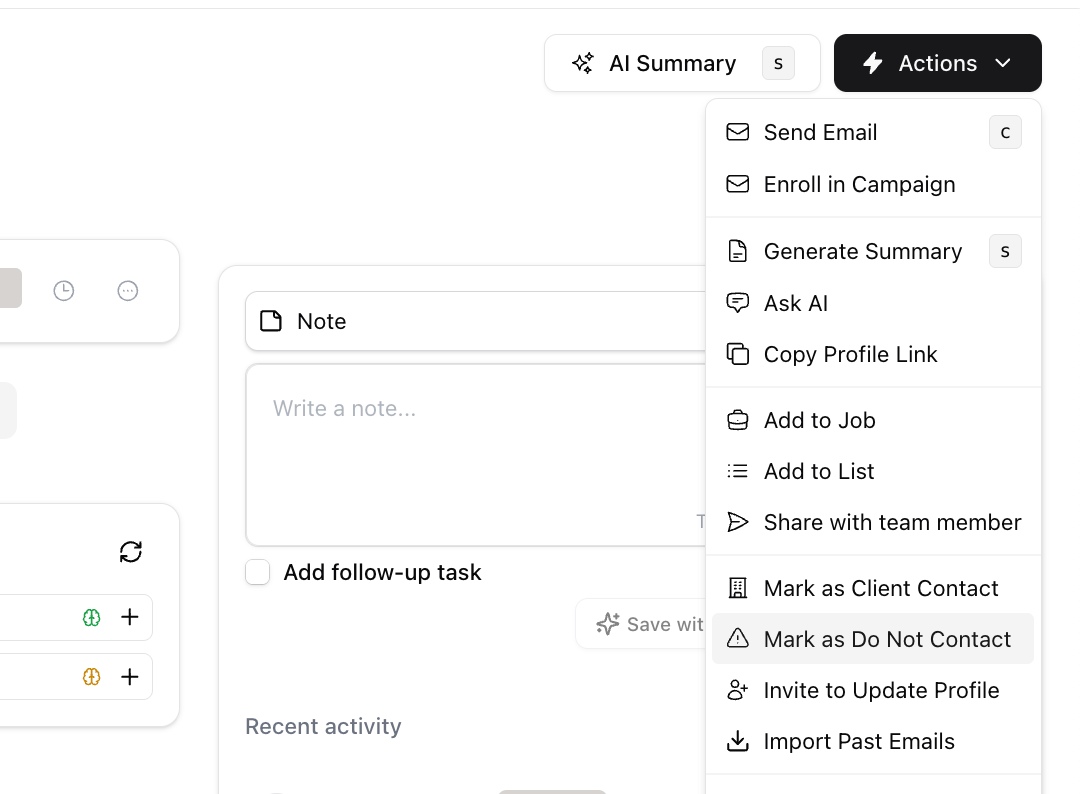
-
Client company: On a client company’s detail view, click Actions → Mark as Do Not Contact.
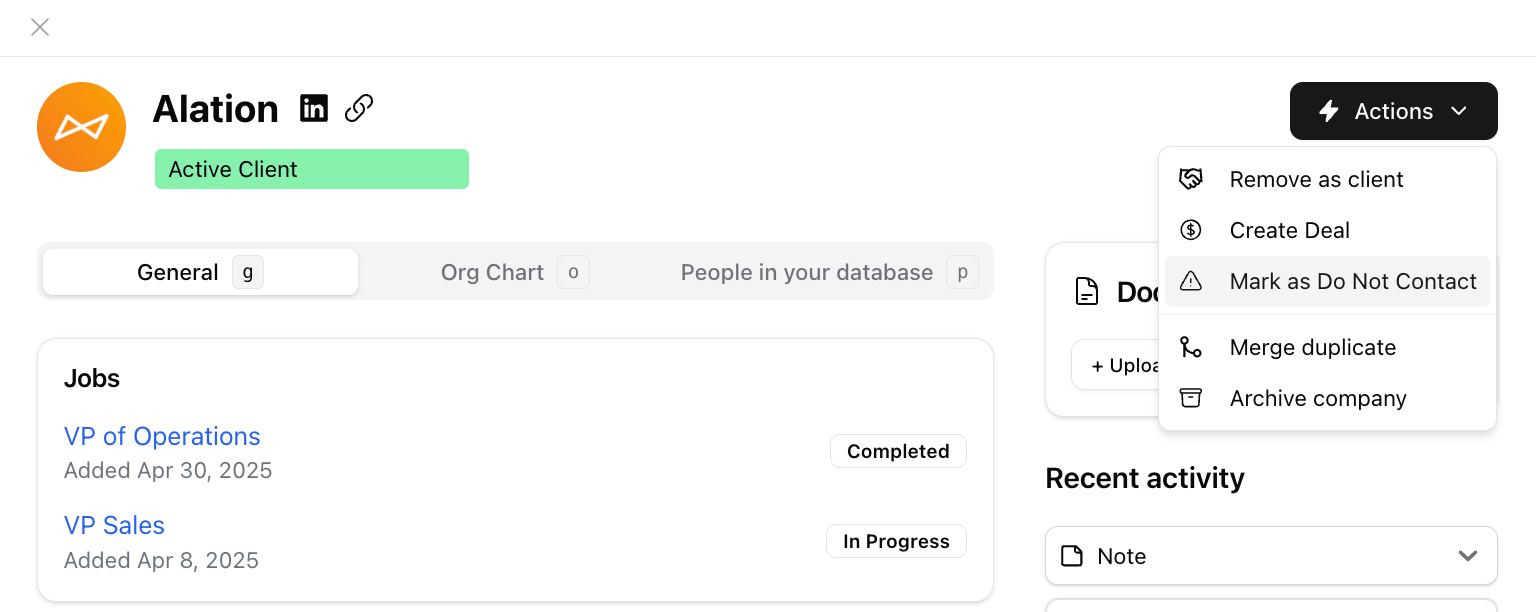
[Insert candidate Actions screenshot] [Insert company Actions screenshot]
How DNC blocks outreach
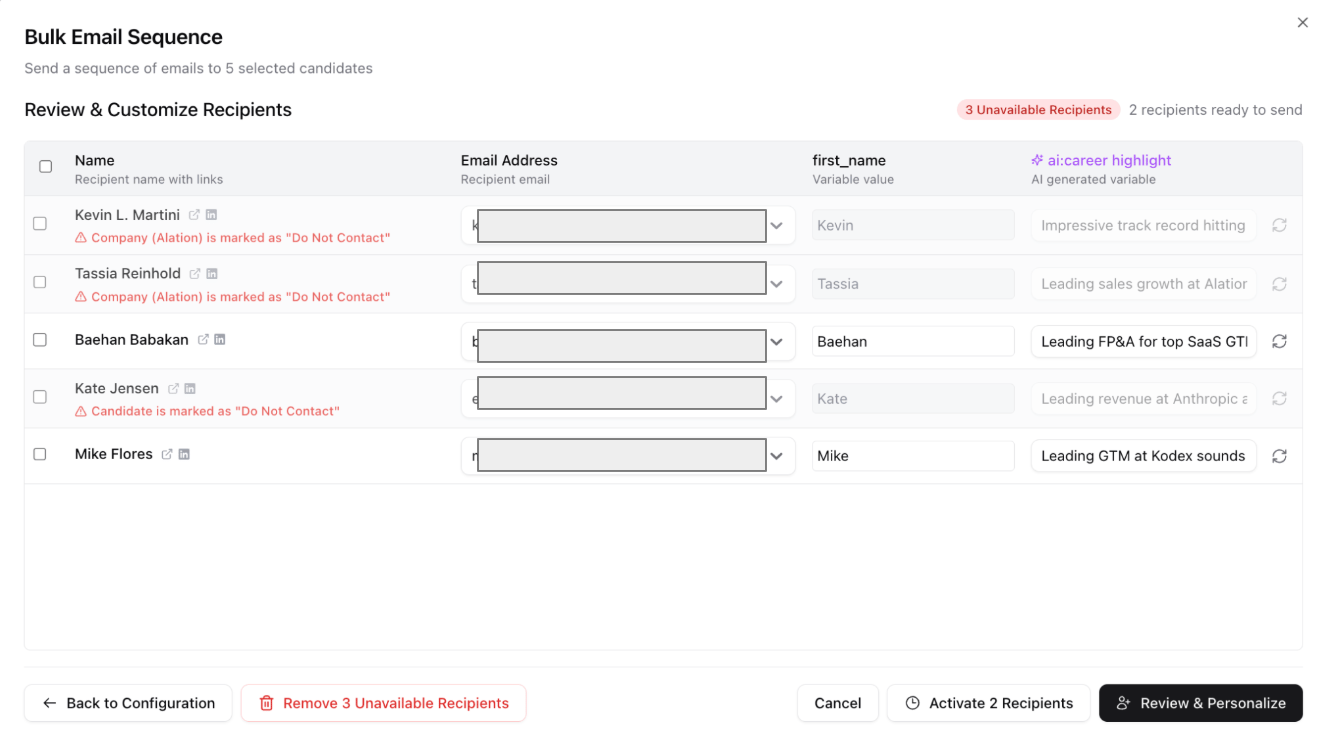
Once a record is marked, Stardex blocks outreach in every channel:- Bulk and single enrollment are blocked for any DNC candidate.
- Company-level DNC blocks anyone whose current company is marked, even if the person isn’t individually flagged.
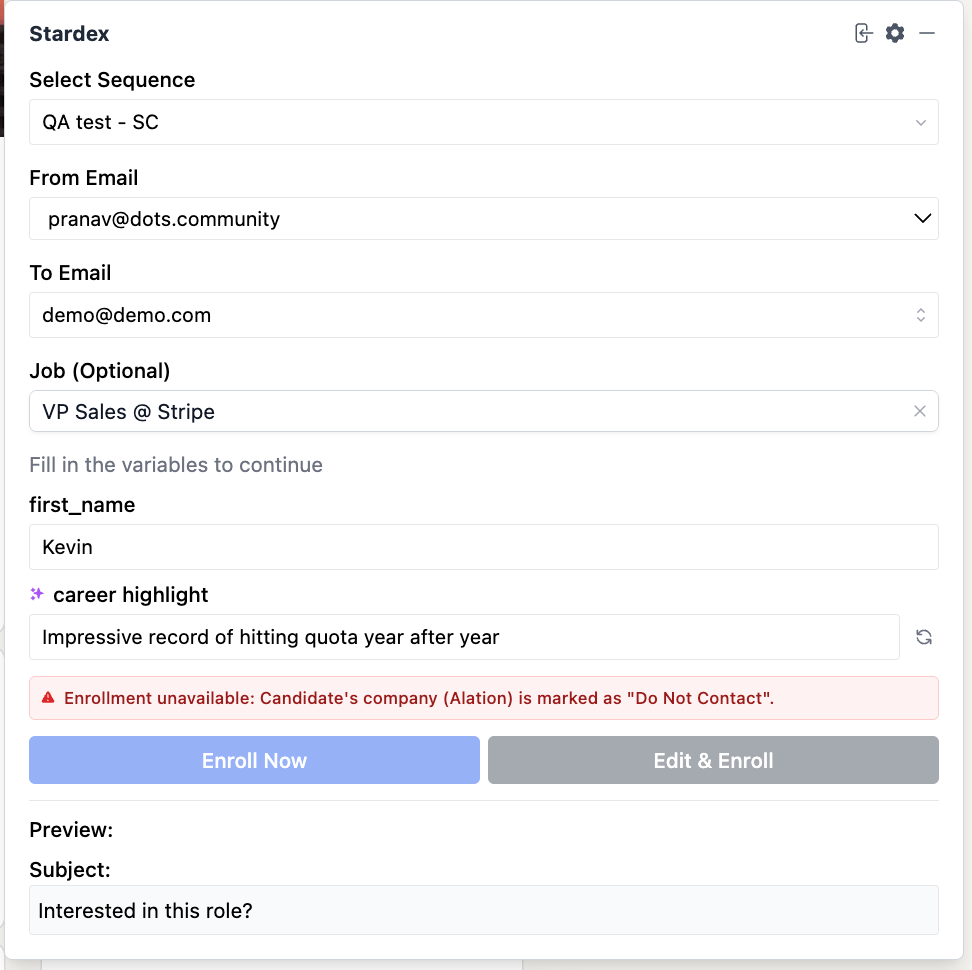
- The Chrome extension respects these blocks too — you’ll see a warning when trying to enroll a blocked candidate.
- Marking an existing candidate as DNC will cancel their active campaign enrollments (you’ll see a warning showing which campaigns are affected before you confirm).
[Insert enrollment-blocked screenshot] [Insert Chrome extension block screenshot]
Expirations
Every DNC can either expire or stay permanent:- Set number of days — the DNC automatically lifts after the chosen number of days (default is 90).
- Indefinite (forever) — no expiration is set; the record stays DNC until someone manually removes it.
Automatic DNC (Settings → Do Not Contact)
Admins can configure Stardex to automatically suggest marking the client company as DNC during key workflows. Each of these is configured independently in Settings → Do Not Contact.Enforcement toggles
- Enforce Person Do Not Contact — prevent emails to people marked DNC.
- Enforce Company Do Not Contact — prevent emails to people whose current company is marked DNC.
Auto DNC on new search/job
When enabled, creating a new search shows a pre-checked “Mark client company as Do Not Contact” option, so it’s harder to forget. You set a default number of days (or indefinite), and it can be adjusted per search.- Expiration starts: immediately, when the search is created.
Auto DNC on new placement
When enabled, logging a placement shows the same pre-checked option, with a default duration you can adjust per placement.- Expiration starts: from the candidate’s start date — not the day the placement is logged. This ensures the DNC window covers the post-placement period correctly.
Precedence rules
To avoid weakening stricter settings:- If a company already has an indefinite DNC, auto-DNC will not overwrite it — the indefinite setting wins. You’ll see a warning explaining this.
- If a company already has a DNC with a different expiration date, creating a new search/placement will update it to the new window, and you’ll be warned before it changes.