

Your candidates have work histories, your clients have accounts, and your deals are tied to organizations. Every company that appears across those records ends up in your company database automatically. The Companies page is where you browse, filter, and research those companies — and where you can discover new ones you haven’t encountered yet.
Company detail page
Companies are created automatically when you add candidates whose work history references an organization not already in your database. Each company detail page has three tabs:General
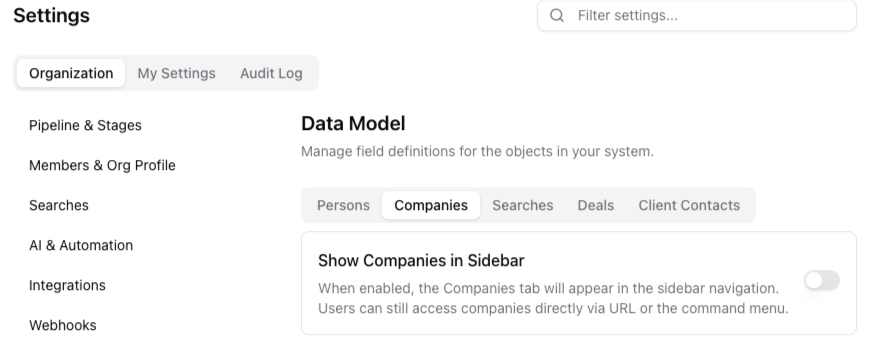
The Companies tab is hidden by default, to see it you must enable it in Settings under Organization > Data Model menu.
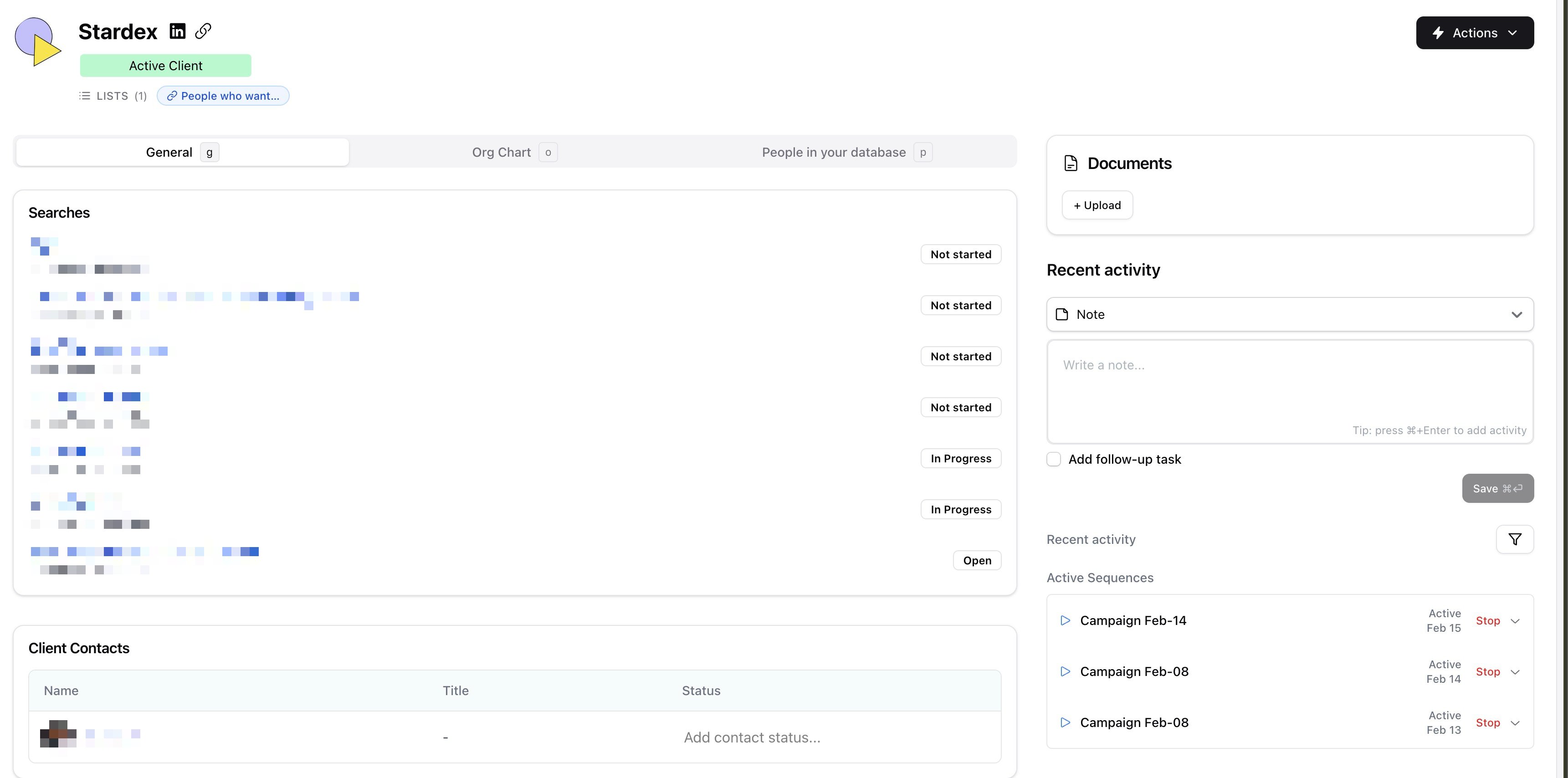
- Description, Location, Domain, Founded Year
- Company Size, Company Type, Industry
- Estimated Revenue, Monthly Website Visitors
- LinkedIn Headcount, Headcount Trend (Last 12 months), Job Openings
- Total Investment, Last Funding Round, Funding History, Investors
- Glassdoor Rating, CEO Approval
- Acquisitions, Acquired By, Added in Stardex
Org Chart
A visual representation of the company’s organizational structure when available. Shows “No organization chart available for this company” if data has not been populated.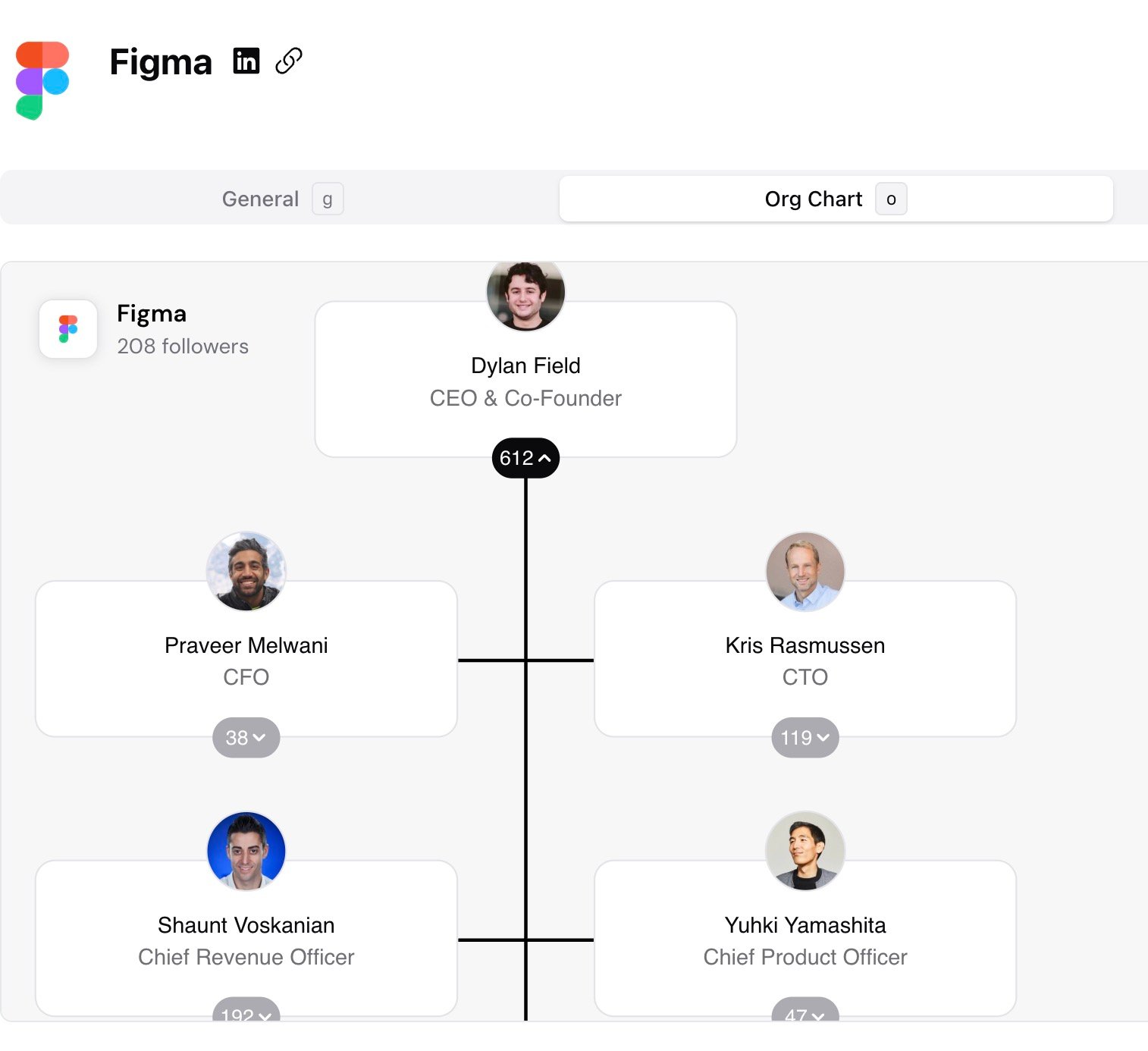
People in your database
Everyone in your database with a current or past role at this company. Use this tab to find candidates you already know at a target account, or to see which of your contacts are at a client company.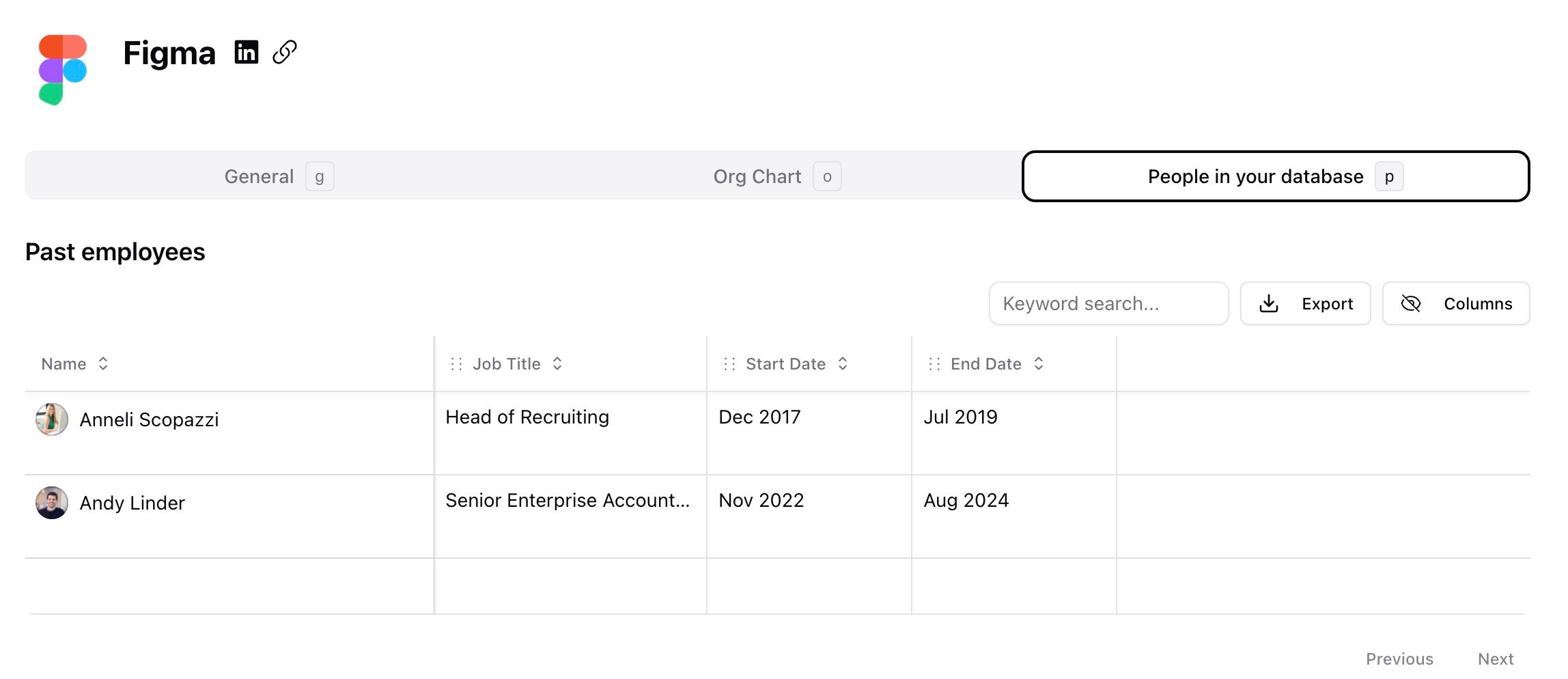
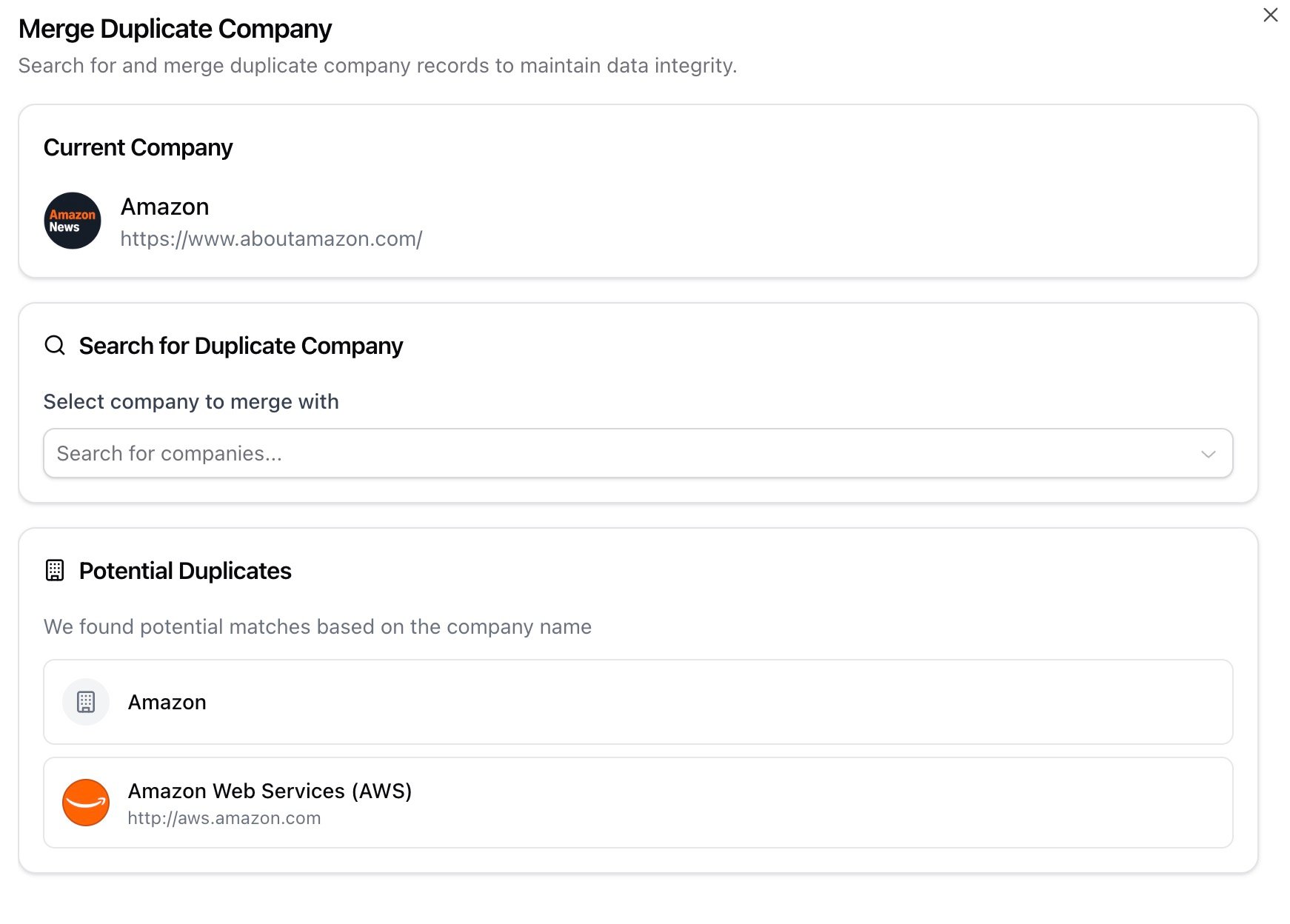
Merging duplicate companies Duplicate records appear when the same company enters your database through different candidates or imports with slightly different names. To merge them:
- Open the company you want to keep
- Click the Actions menu and select Merge duplicate
- The Merge Duplicate Company dialog opens. Stardex shows Potential Duplicates it found based on the company name
- Select the duplicate, or search for it manually using the Search for companies… field
- Click Next to review any conflicts, then click Merge Companies

Marking a company as Do Not Contact
When a client asks you to stop sourcing from a specific organization, or a non-solicitation agreement applies:- Open the company’s detail page
- Click the Actions menu and select Mark as Do Not Contact
- Optionally add a reason, then confirm
Filtering your company database
The Filters sidebar on the Companies in my database tab has these filter groups:- Company Status — filter by the company’s current status
- Keywords — type keywords and press enter to filter
- Company Owners — show companies owned by specific team members
- Company Relationships — filter by relationship type
- Lists — show companies that belong to specific lists
- Column Filters — filter by any custom attribute defined for companies
Common use cases
- Account mapping for BD — use the Research tab to find companies in a target industry or geography, export to CSV, and plan outreach
- Sourcing from specific companies — open a target company’s People in your database tab to find candidates you already know, or use the company as a sourcing anchor
- Client research — review a prospective client’s info fields (funding history, headcount trend, job openings) before a meeting
- Cleaning up data — search for companies with similar names and use Merge duplicate to consolidate records
- Tracking company relationships — use Company Owners and Company Relationships filters to see which team members own which accounts
FAQ
Q: How do companies get added automatically? When you add a candidate (manually, via import, or through the Chrome extension), Stardex checks their work history. Any company not already in your database is created as a new record. Q: How often does company data get updated? Company information is based on the data providers we use. We typically see see a data lag of 3–6 months on profiles. Q: What does “(beta)” mean on the Research tab? The Research more companies (beta) feature is live and usable but still being refined. Results quality may vary, especially for queries focused on location or company size rather than what the company does. Q: Can I export my full company list, not just research results? Yes. The Companies in my database tab has an Export menu in the toolbar with Export CSV and Export XLS options. Q: What’s the difference between the Org Chart tab and the People in your database tab?Org Chart shows a visual hierarchy of the company’s structure (when data is available). People in your database shows a flat list of every person in your Stardex database who has a current or past role at that company. Q: Can I undo a company merge? No. Merging is permanent. Review the conflict screen carefully before clicking Merge Companies.Key takeaway
Companies in my database is your existing records. Research more companies is for discovery. Use the first tab to manage what you have, and the second to find what you’re missing.Related guides
- 👉 Opt-outs and Do Not Contact — enforcement settings for company-level Do Not Contact flags
- 👉 Lists and how to use them — save a set of companies to a Company list for ongoing tracking
- 👉 Searching your database with AI — find people at specific companies using AI search