

Candidates and clients will occasionally exercise their data rights — to access what you hold on them, correct it, export it, stop hearing from you, or have their data deleted entirely. In regulated markets (GDPR, CCPA, UK GDPR), these requests carry legal weight with tight response deadlines. Stardex gives you a full compliance toolkit: a public Data Subject Request page for self-service submissions, an admin queue with GDPR deadline tracking, on-demand candidate data packet exports, Article 14 collection notices for sourced candidates, configurable retention settings, a downloadable Record of Processing Activities (ROPA), and per-person and per-company Do Not Contact flags with enforcement at send time.
Processing a Data Subject Request (DSR)
Candidates can submit five types of requests through your organization’s public DSR page. Each maps to a right under GDPR and CCPA:
Your org has 30 days under GDPR (45 days under CCPA) to respond.
How to process a request
- Go to Settings and open the Compliance section
- Click Data Subject Requests
- Find the request in the table. Each row shows the person’s Linked Person, Name, Email, LinkedIn, Request Type, Requested date, Days Open, and Status
- The Days Open column turns yellow at 20 days and red at 25 days to surface GDPR deadlines before they’re breached
- Open the Actions menu on the request and select the action for that request type:
- After fulfilling the request, click Mark as Completed
- If you cannot fulfill a request (for example, no matching record or legal hold applies), click Reject and provide a reason. The reason is emailed to the requester automatically.
💡 Unsubscribe actions are reversible — you can remove the Do Not Contact flag later from the person’s profile. Delete actions are permanent. Data Packet downloads are logged on the person record for audit purposes.
Admin notifications
When a candidate submits a new DSR through your public page, all org admins receive an email notification with a direct link to the compliance queue. This ensures no request is missed.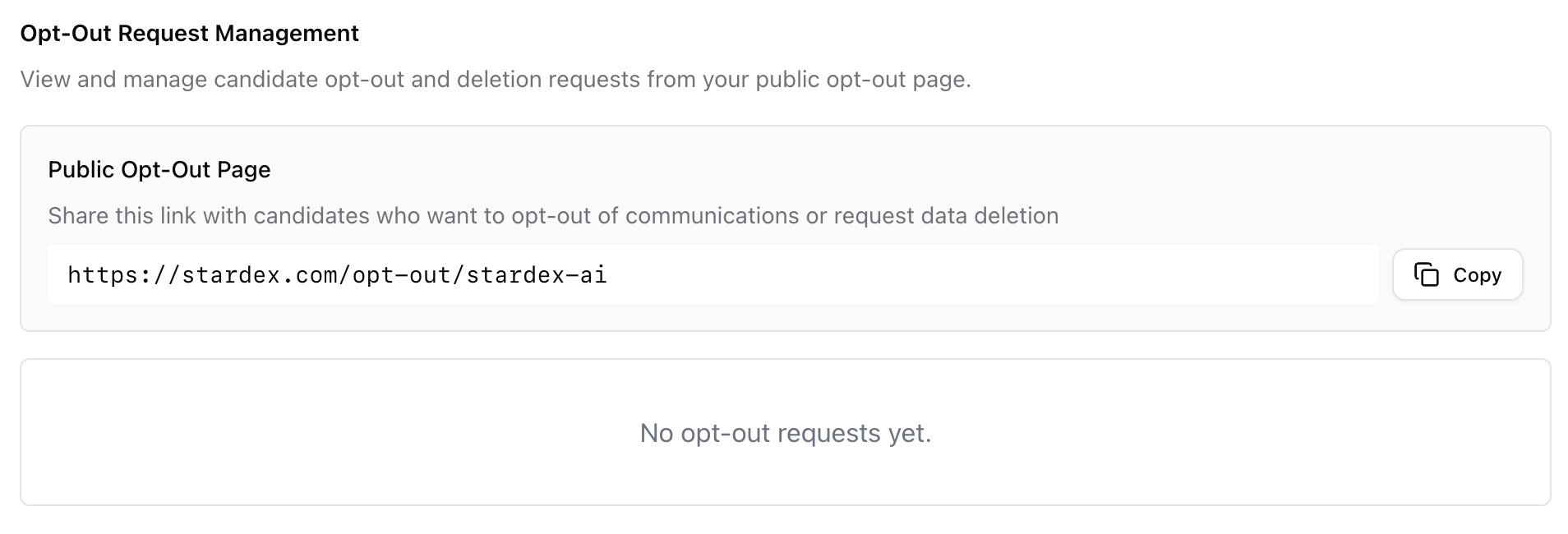
The public Data Subject Request page
Every organization has a public DSR page that requires no login. The URL follows this pattern:your-org-slug with your organization’s slug. The page is already live — no setup required.
A person visiting this page fills in at least one identifier:
- Full Name
- LinkedIn URL or Profile ID
- Access my data — get a copy of what we hold
- Correct my data — flag something to be updated
- Export my data — get a portable copy
- Unsubscribe — stop receiving communications
- Delete all my records — request deletion of all their data
Marking a person as Do Not Contact
Even without a formal opt-out request, you may want to block outreach to a specific person.- Open the person’s profile
- Click the Action menu in the header
- Select Mark as Do Not Contact
- Optionally add a reason in the Reason field and pick an Expiration Date if the restriction is temporary
- Click Mark as Do Not Contact to confirm
- A red Do Not Contact badge appears on their profile, hover card, and work experience entries
- They cannot be enrolled in any email sequence
- If enforcement is on (see below), Stardex blocks emails to them entirely
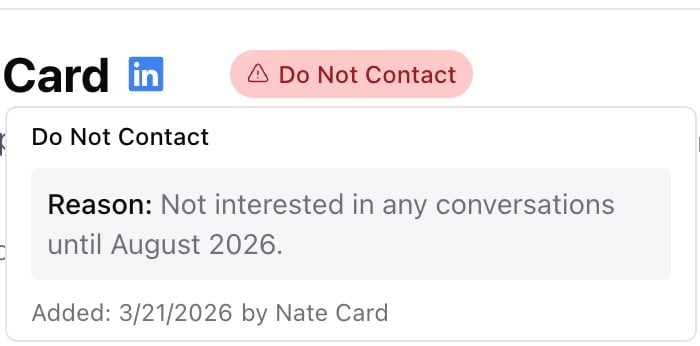
Person Do Not Contact supports an optional expiration date. When set, the flag automatically clears on that date. This is useful for temporary restrictions tied to a specific agreement or cooling-off period.
Marking a company as Do Not Contact
When a client asks you to stop sourcing from a specific organization, flag the entire company.- Open the company’s detail page
- Click the Action menu
- Select Mark as Do Not Contact
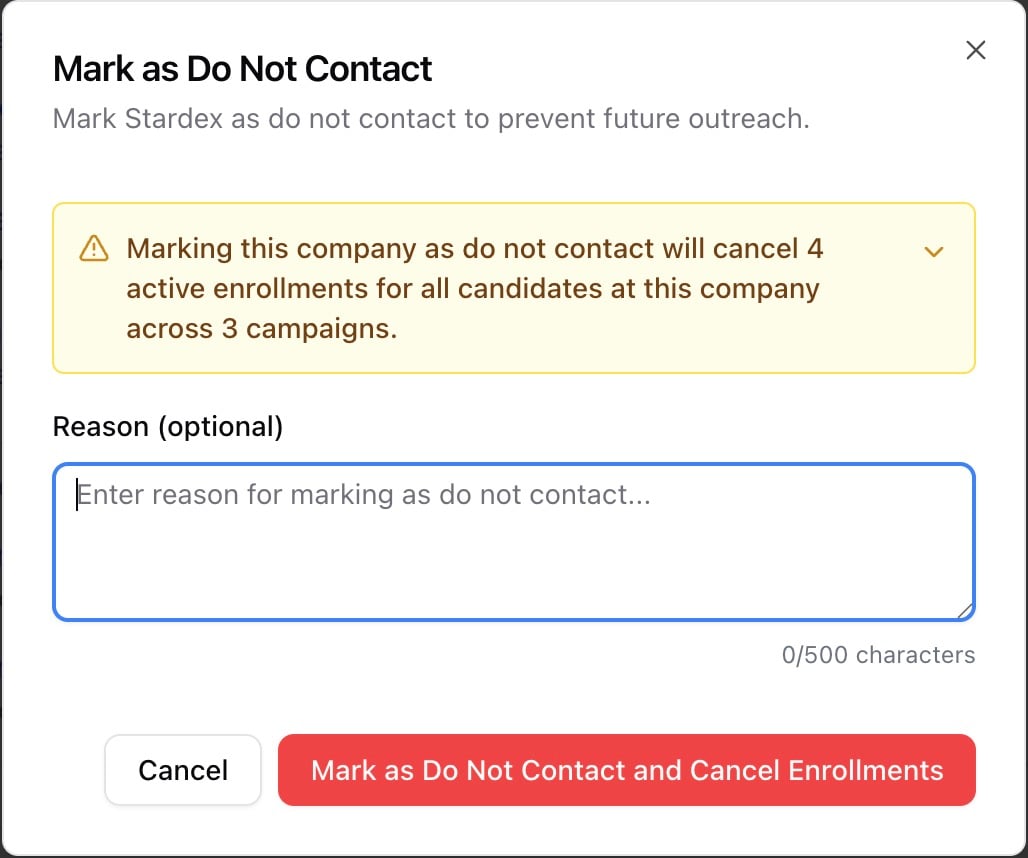
- Optionally add a reason, then confirm
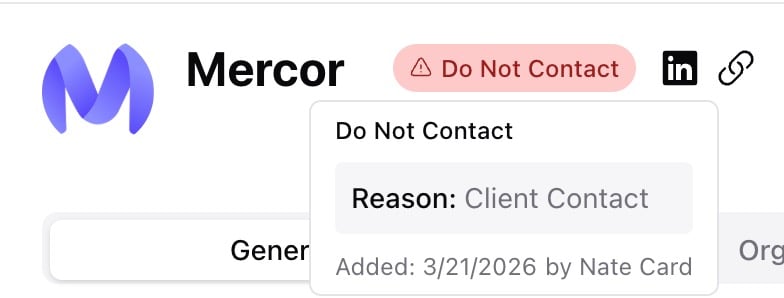
- A Do Not Contact badge appears on the company page and hover card
- People whose current company matches the flagged company show a Company Do Not Contact warning on their profile and work experience
- If company enforcement is on, Stardex blocks emails to people at that company
Enforcement settings
Admins control whether Do Not Contact flags are advisory or enforced.- Go to Settings and open the Compliance section
- Click Do Not Contact Enforcement
- Toggle the settings:
- Enforce Person Do Not Contact — when enabled, prevents sending emails to people marked as Do Not Contact
- Enforce Company Do Not Contact — when enabled, prevents sending emails to people whose current company is marked as Do Not Contact
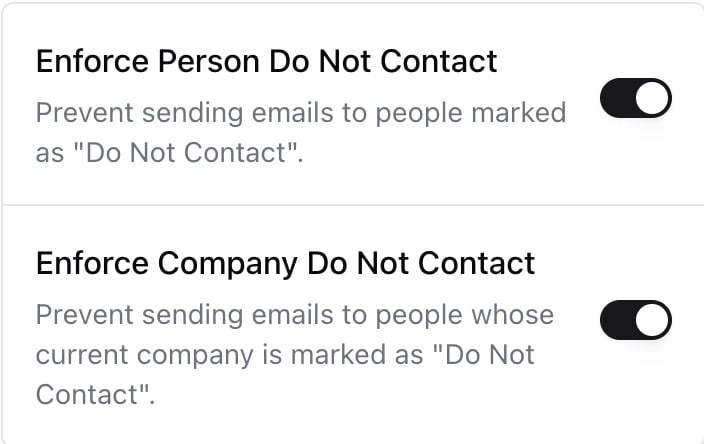
Keep both enforcement toggles on. A system-level block removes the risk of someone missing a badge and sending an email they shouldn’t.
Candidate Data Tools
The Candidate Data Tools page lets you run two compliance actions on any candidate in your database, on demand — you don’t need a formal DSR submission first. This is useful for proactive compliance (sending Article 14 notices on sourced candidates) or fulfilling DSRs that came in through other channels (email, phone).- Go to Settings and open the Compliance section
- Click Candidate Data Tools
- Search for the candidate by name
- Choose a tab: Download Data Packet or Send Article 14 Notice
Download Data Packet
Generates a ZIP file containing everything your organization holds on the selected candidate:- Contact details
- Employment history with company names
- Education with institution names
- Certifications
- Activities (emails, meetings, calls, sequence enrollments, notes)
- Job associations (every job they were considered for, with stages and outcomes)
- Article 14 notice history
- DSR history
- A human-readable PDF — use this to respond to GDPR Art. 15 (access) or CCPA Right to Know requests
- A machine-readable JSON — use this for GDPR Art. 20 (portability) or CCPA Right to Portability requests
💡 Data packets are strictly scoped to your organization. They never include data from other customer tenants, even for candidates who exist in multiple Stardex customer databases.
Send Article 14 Notice
Under GDPR Article 14, when you collect candidate data from a source other than the candidate themselves (LinkedIn, referrals, third-party enrichment), you must inform them within 30 days. This tool sends that notice. The email is pre-filled with a conversational template that includes all Article 14-required information: your organization’s identity, categories of data held, source of the data, purpose, legal basis, retention period, and a direct link to your opt-out page where they can access, correct, export, or delete their data. You can edit the customizable portion of the message before sending. The template’s required compliance fields are locked to ensure every notice remains valid. After sending, Stardex automatically:- Logs the notification in an audit table with timestamp, sender, and full message body
- Records a timeline activity on the person record showing the notice was sent
- Updates the person’s profile to reflect that Article 14 has been fulfilled
Data Retention Settings
Under GDPR’s storage limitation principle (Art. 5(1)(e)) and CCPA’s purpose limitation requirements, you need to define how long you keep candidate data and apply that policy consistently. Stardex lets your org configure retention preferences centrally.- Go to Settings and open the Compliance section
- Click Data Retention
- Configure:
- Uncontacted sourced candidates — how long to keep sourced records that never received outreach (CNIL guidance: 30 days for passive LinkedIn-sourced candidates)
- Contacted candidates — how long to keep records after the last activity
- Action on expiry — Delete (full erasure) or Anonymize (keep aggregate data for reporting, strip all personal identifiers)
- Notes — free text for documenting the policy rationale, often useful for compliance audits
💡 Until retention is configured, a banner appears on this page prompting you to set a policy. Defaults are left null intentionally — the right retention period depends on your jurisdiction and the lawful basis you rely on.When retention settings are updated, the Stardex compliance team is notified automatically so we can support you if your policy changes need to be applied to existing records.
Records of Processing (ROPA)
Under GDPR Article 30(2), processors must maintain a Record of Processing Activities per controller, available to supervisory authorities on request. As a controller using Stardex, you also need to maintain your own ROPA under Article 30(1). Stardex generates your ROPA on demand, pre-populated with:- Your organization’s name and contact details
- Stardex’s processor details and sub-processor list
- Categories of data subjects and personal data
- International transfer mechanisms (SCCs, UK Addendum, DPF)
- Your configured retention periods
- Technical and organizational security measures
How to download
- Go to Settings and open the Compliance section
- Click Records of Processing
- Click Download ROPA (PDF)
- Save the file for your compliance records. The PDF filename includes your org slug and the generation date.
Common use cases
- Candidate DSR submission — a candidate uses your public DSR page to request access, correction, export, unsubscribe, or deletion; process via the Data Subject Requests queue
- DSR submitted via email or phone — a candidate emails you asking for their data; use Candidate Data Tools to generate a data packet without needing them to use the public form
- Proactive Article 14 notices — you’ve sourced a candidate from LinkedIn; use Candidate Data Tools to send a collection notice within 30 days
- Candidate opt-out — a candidate replies asking to be removed; process through the DSR queue or flag them directly from their profile
- Non-solicitation agreements — a client contract prevents poaching from their company for a set period; mark the company as Do Not Contact
- Bad candidate experience — a candidate had a negative interaction; flag them to prevent further outreach while you sort it out
- Temporary cooling-off — set an expiration date on a person’s Do Not Contact flag so it automatically clears after the agreed period
- Compliance audits — review the DSR queue periodically, download your ROPA, and review your retention settings to ensure the policy matches what’s being applied
- GDPR supervisory authority inquiry — download your ROPA and DSR history as evidence of compliance
FAQ
Q: Where do I find the opt-out page link for my organization? Open Settings, go to Compliance, then Data Subject Requests. The link is displayed on the left side of the page and can be copied to your clipboard. Q: What happens if a person submits an opt-out request but isn’t in my database? The request still appears in your table with a Not matched status under Linked Person. You can dismiss it or note it for your records. Q: Can I set an expiration date on a company Do Not Contact? No. Expiration dates are only available for person-level Do Not Contact. To lift a company restriction, manually select Remove Do Not Contact from the company’s menu. Q: What happens to active email sequences when I mark someone as Do Not Contact? If you choose Mark as Do Not Contact and Cancel Enrollments, all active enrollments are cancelled immediately. If you choose the standard option, the flag is set but existing enrollments continue unless enforcement is on — in which case the next scheduled email will be blocked at send time. Q: Does Do Not Contact apply to emails sent outside Stardex? No. Stardex can only enforce restrictions on emails sent through its own system. Make sure your team knows that a Do Not Contact flag means no outreach through any channel. Q: How long do we have to respond to a DSR? 30 days under GDPR and UK GDPR, 45 days under CCPA. Stardex’s Days Open column turns yellow at 20 days and red at 25 days to surface GDPR deadlines before they’re breached. Under GDPR Art. 12(3), you can extend by an additional 60 days for complex requests, but must inform the candidate within the original 30 days with a reason. Q: When do I need to send an Article 14 notice? When you collect candidate data from any source other than the candidate themselves — LinkedIn profiles, referrals, third-party data enrichment, import files. The notice must be sent within 30 days of collection, or at first outreach, whichever comes first. Use Candidate Data Tools → Send Article 14 Notice to generate and send it. Q: Can I set different retention periods for different offices or job types? Not in the current version. Retention settings apply at the organization level. If you need per-office or per-jurisdiction retention policies (for example, different rules for UK vs. US candidates), contact support@stardex.ai. Q: Where is the data packet stored after I generate it? Nowhere. The ZIP is generated on-demand and streamed directly to your browser for download. Stardex does not retain a copy. The activity is logged on the person record (showing who generated it and when) so you have an audit trail, but the packet itself is only as persistent as your local file. Q: What’s the difference between a data packet and the ROPA? A data packet is everything your organization holds about one specific candidate — use it to respond to individual candidate requests. The ROPA is a description of your organization’s processing activities overall — use it for your own compliance records and to respond to supervisory authority inquiries. Both are generated on-demand in Settings → Compliance. Q: Does the Article 14 notice email count as outreach? No. It’s a compliance notification, not a marketing or sourcing message. Art. 14 notices are sent even to candidates flagged as Do Not Contact, because the legal obligation to inform supersedes the contact preference. However, the notice always includes a prominent link to your opt-out page so the candidate can immediately exercise their rights.Key takeaway
GDPR compliance isn’t a checkbox — it’s a workflow. Process DSRs within 30 days, send Article 14 notices within 30 days of sourcing, configure retention, download your ROPA annually, and turn Do Not Contact enforcement on. Stardex surfaces deadlines and automates the evidence trail; you own the decisions.Setting up GDPR compliance for your firm
If you’re new to GDPR or setting up Stardex compliance for the first time, work through these steps in order:- Configure retention (Settings → Compliance → Data Retention) — decide how long you keep sourced and contacted candidate data
- Turn on DNC enforcement (Settings → Compliance → Do Not Contact Enforcement) — keep both person and company toggles on
- Share your DSR page link — add
https://stardex.com/opt-out/your-org-slugto your email signatures, website privacy policy, and outreach sequence footers - Download your ROPA (Settings → Compliance → Records of Processing) — file it with your compliance records, update at least annually
- Send Article 14 notices for any sourced candidates you haven’t yet notified — use Candidate Data Tools to work through your sourced pool
- Review the DSR queue weekly — check for new requests and deadlines approaching the yellow/red thresholds
Related guides
- 👉 Setting up your multi-step outreach campaign — DNC-flagged contacts are automatically excluded from enrollment
- 👉 Email deliverability: Best practices — respecting opt-outs directly affects your sender reputation
- 👉 How Stardex uses AI: Security, models, and data handling — how candidate data is stored and processed