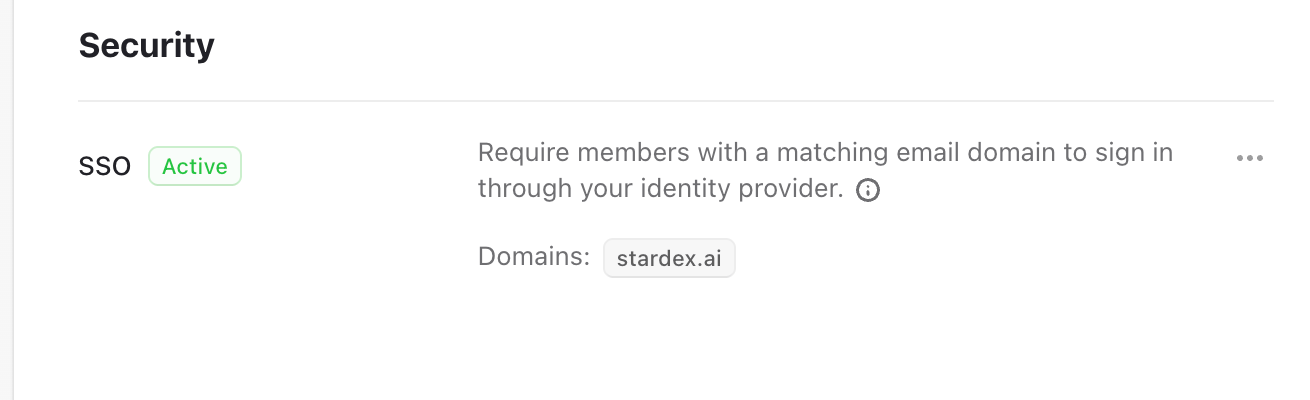
- Head to https://stardex.com/settings?tab=organization§ion=members-org-profile#/organization-security
-
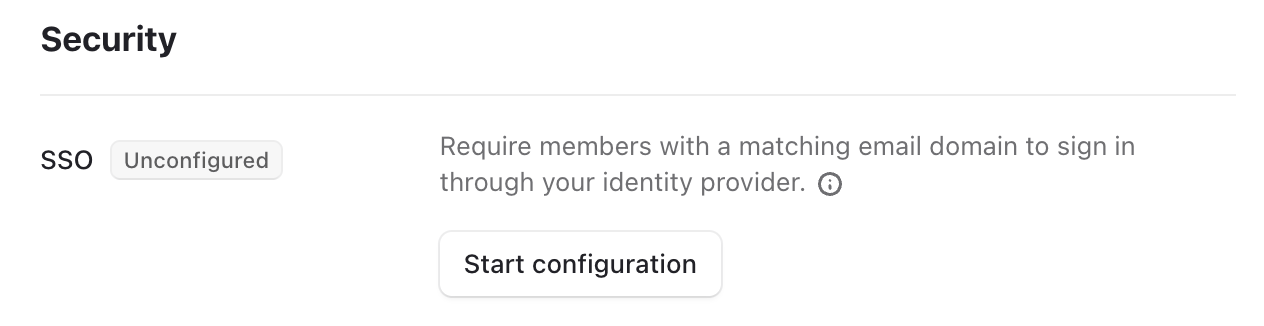
Click Start Configuration
- Enter your domain (e.g. stardex.ai )
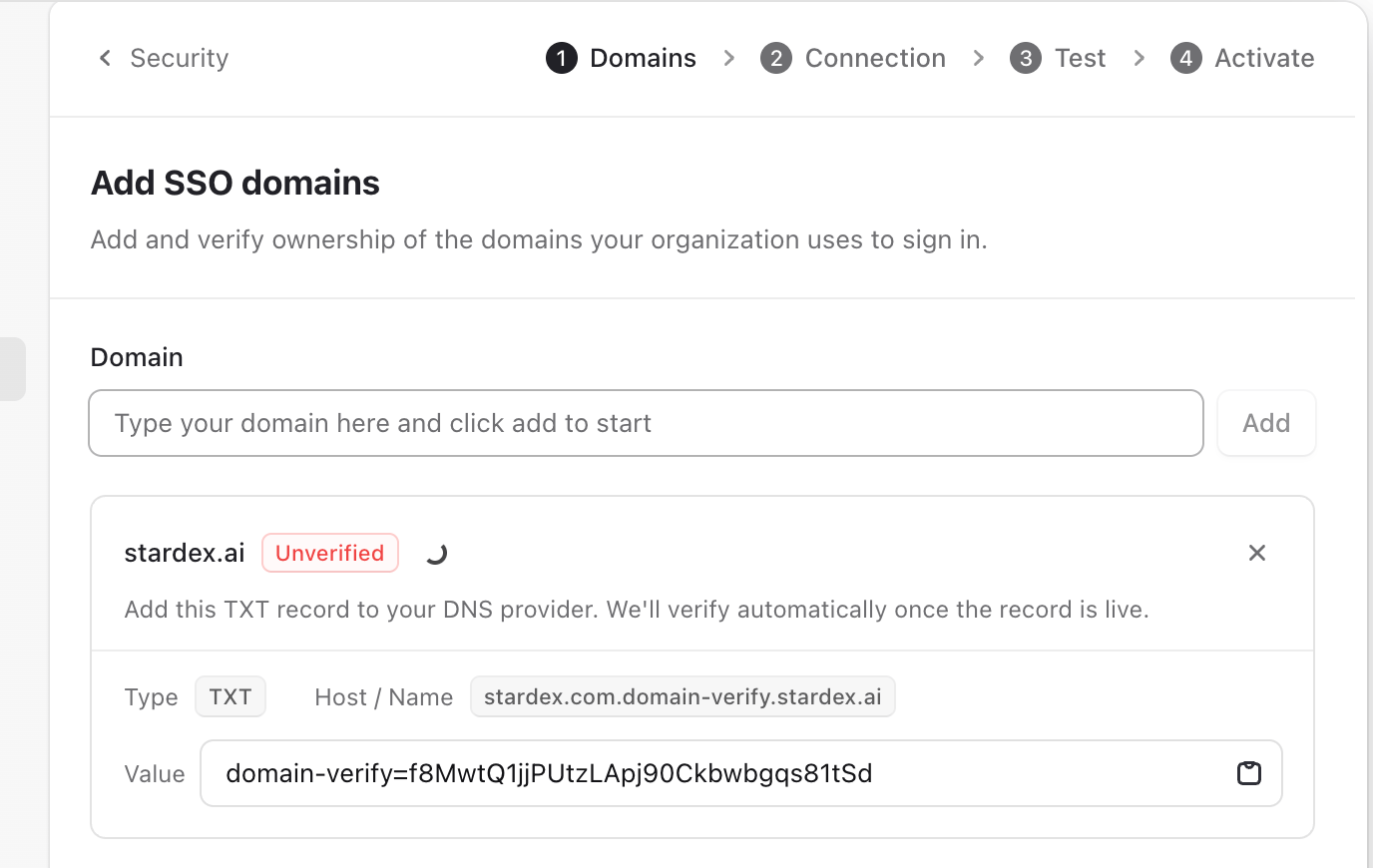
- Head to your Domain services to access your DNS setting, and add the TXT record as shown
-
Once added, it should show up as verified. This can sometimes take a few hours, but should happen in a few minutes typically.
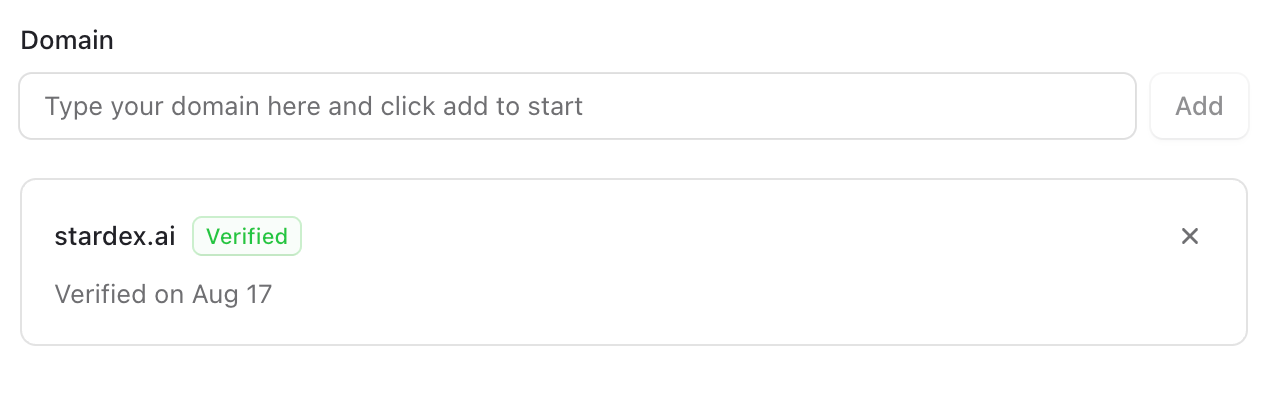
-
Pick the Identity provider: Microsoft, Okta, Google or Custom
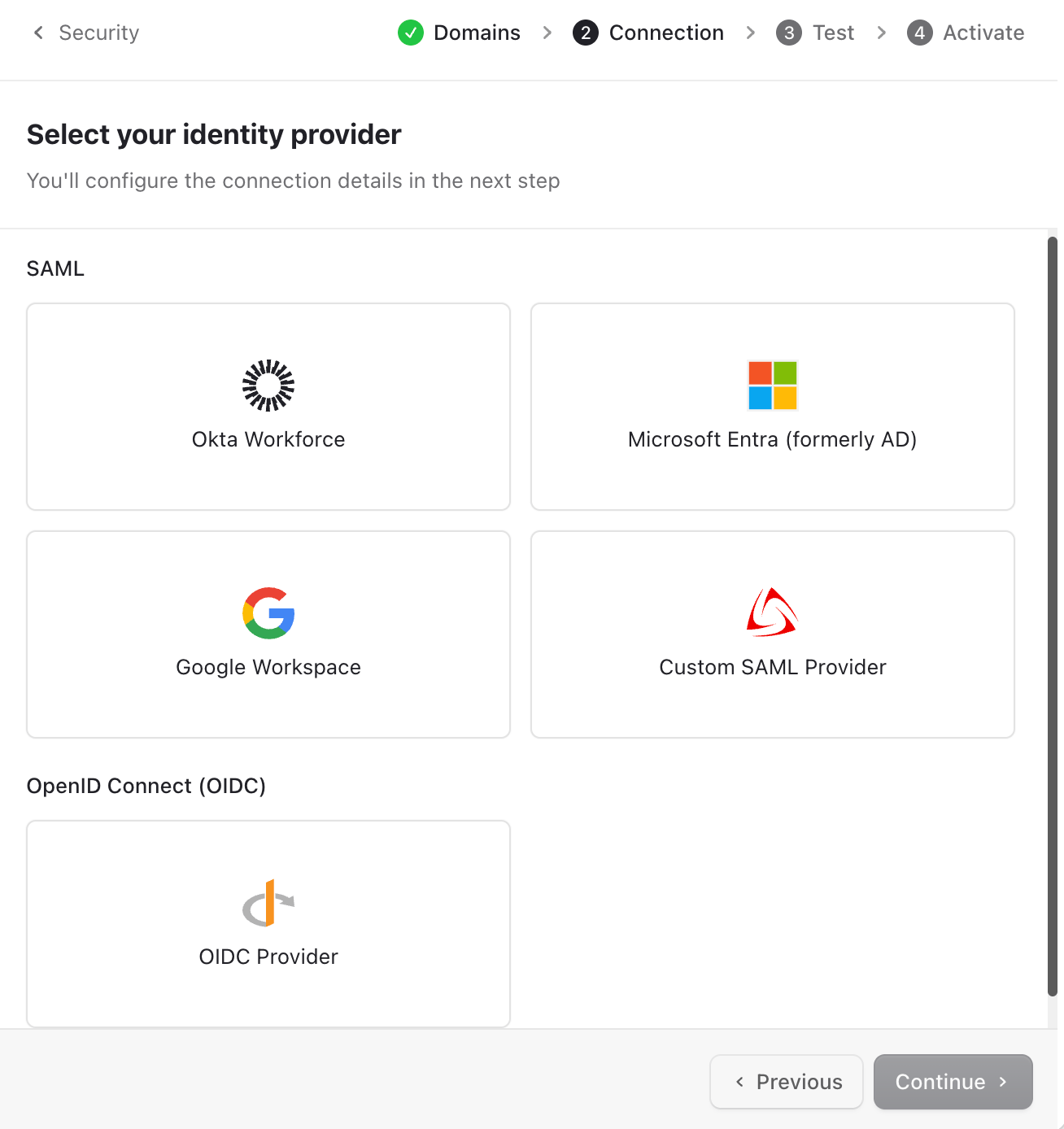
- Follow the steps in the Connection
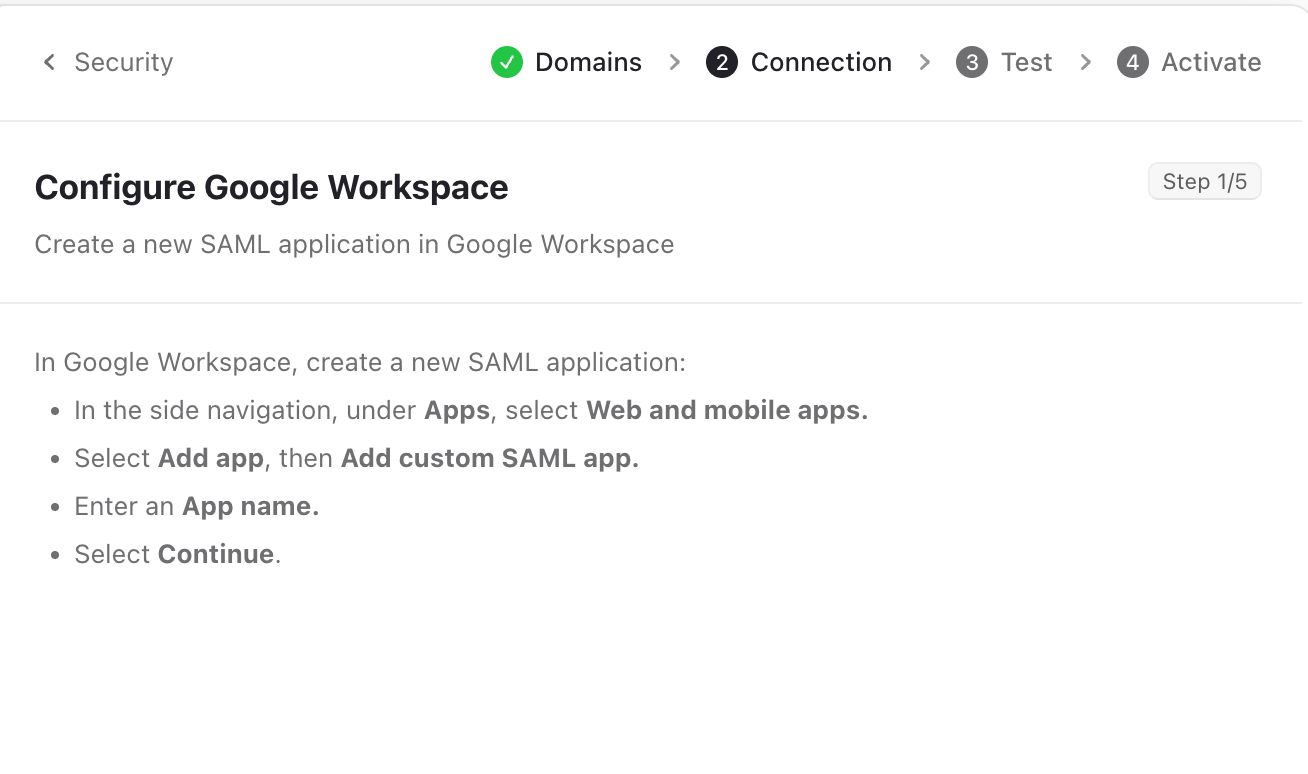
Follow the steps as mentioned based on your auth provider. We have included detailed steps for Google workspace below.
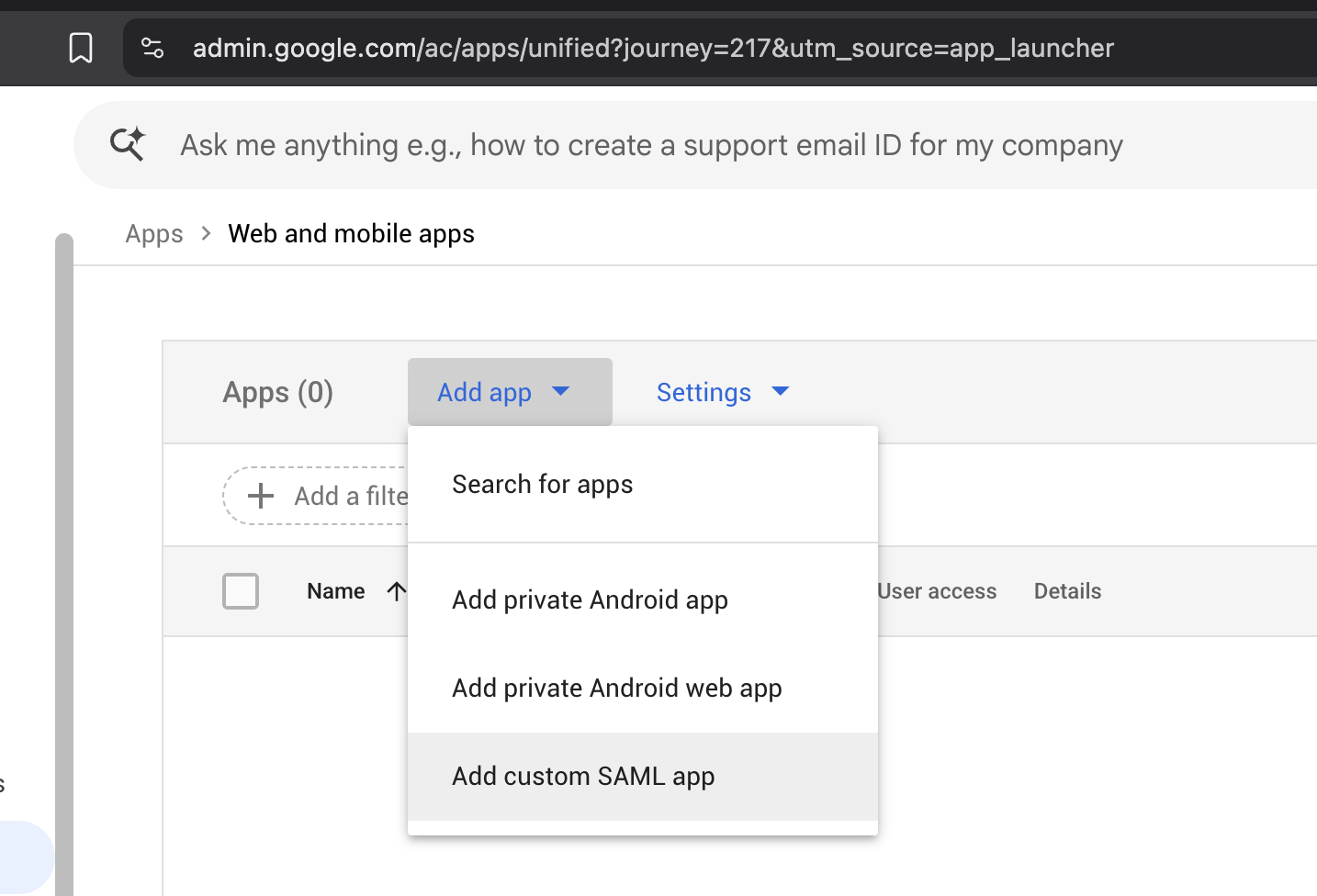
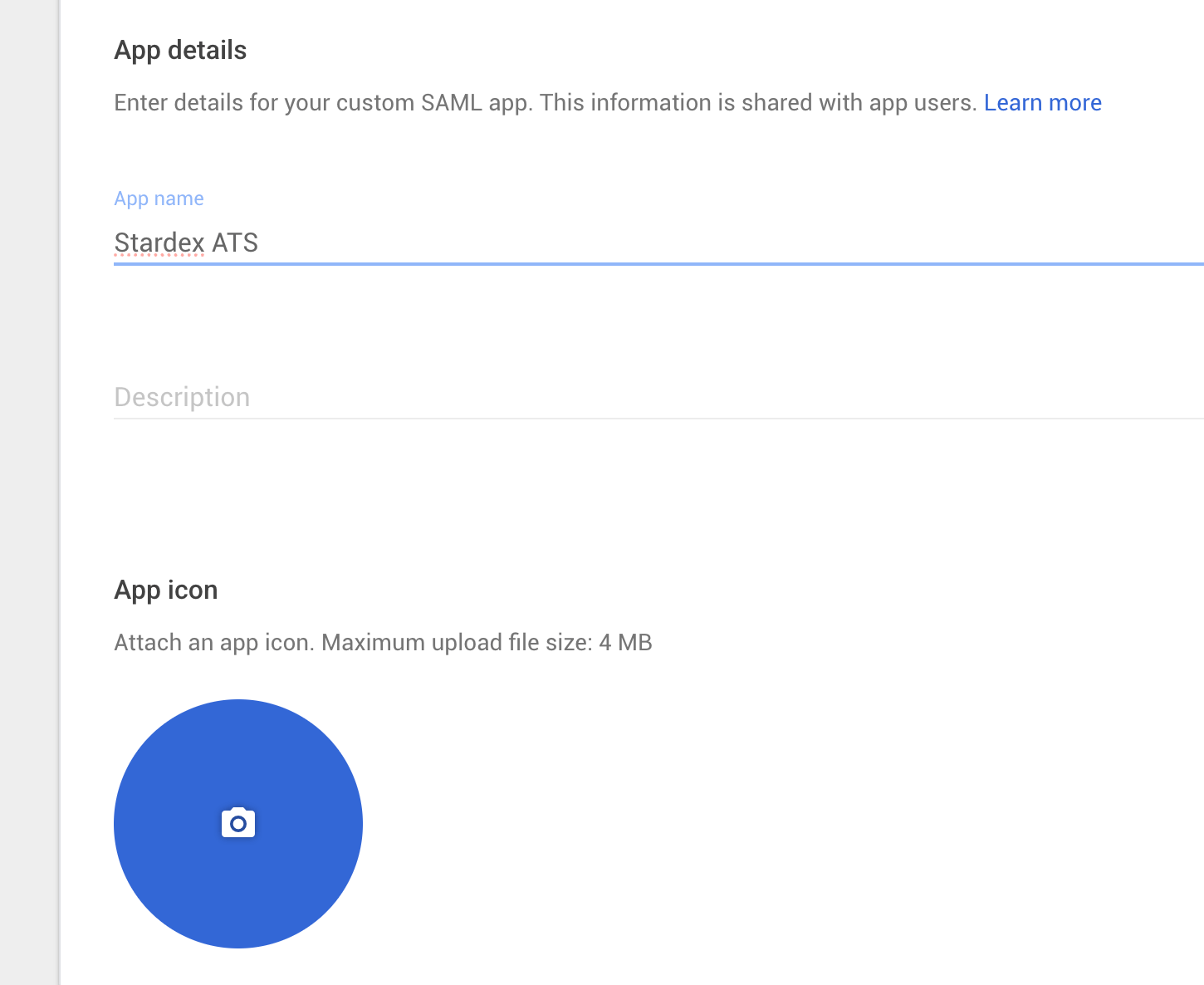
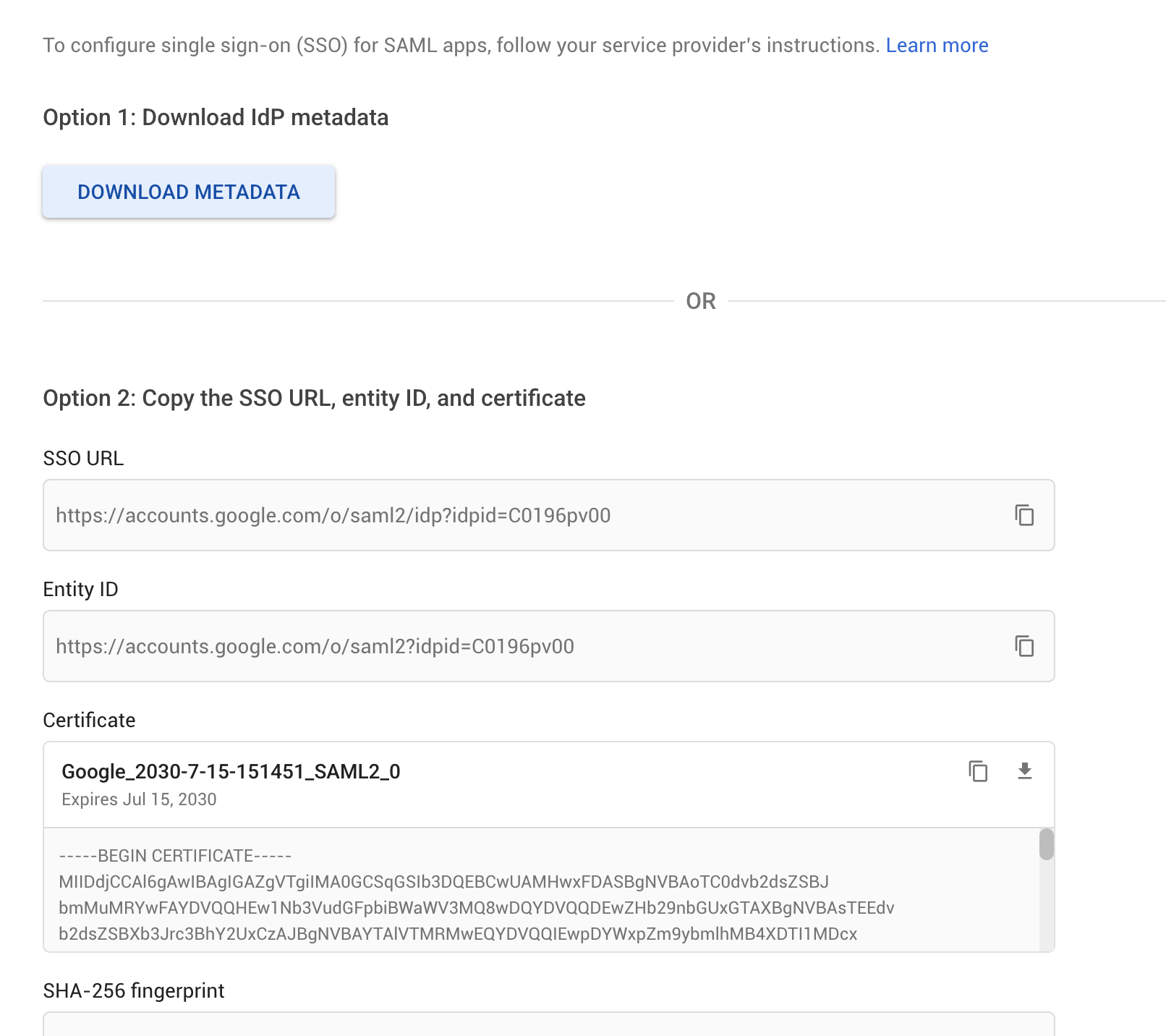
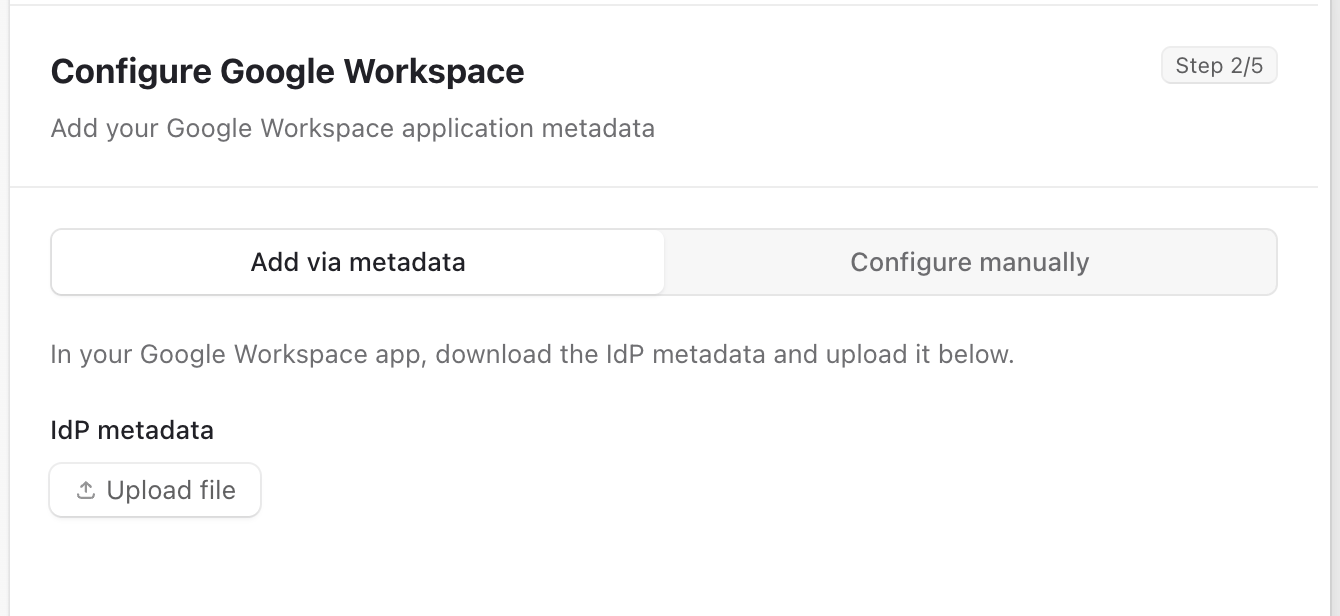
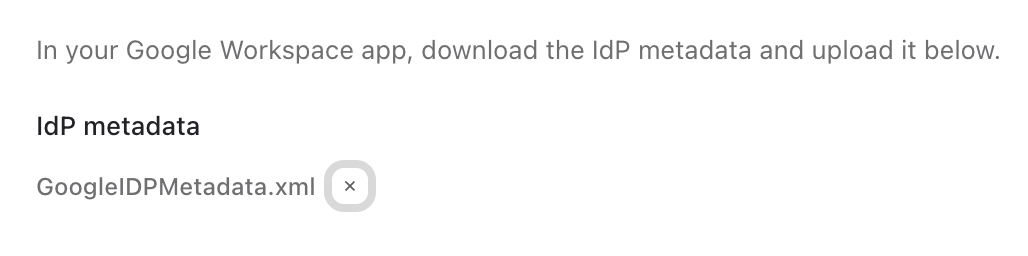
- Upload the metadata or the SSO URL as received from the workspace
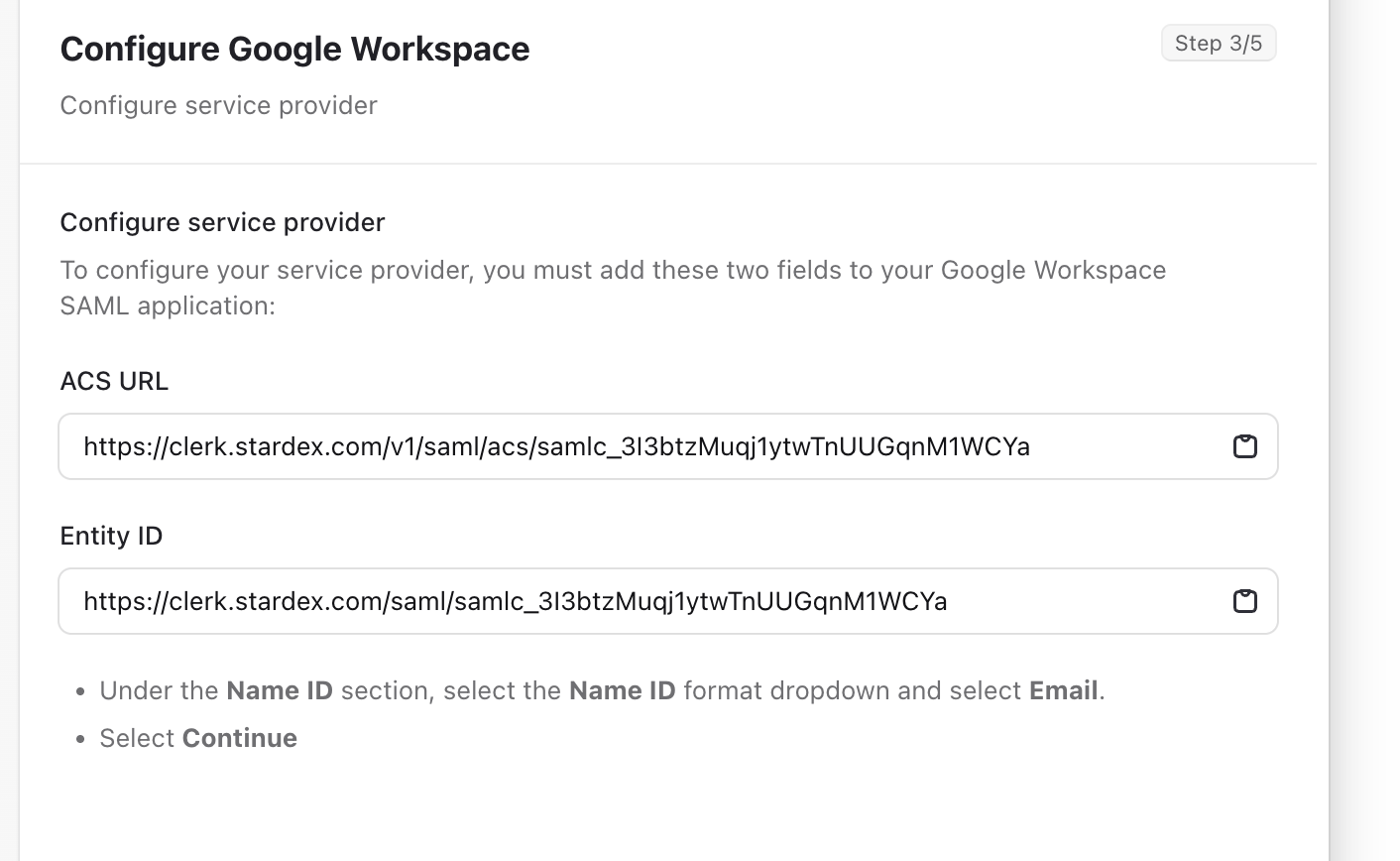
- Copy the ACS URL and Entity ID and paste into the Google Workspace. For others, follow as described
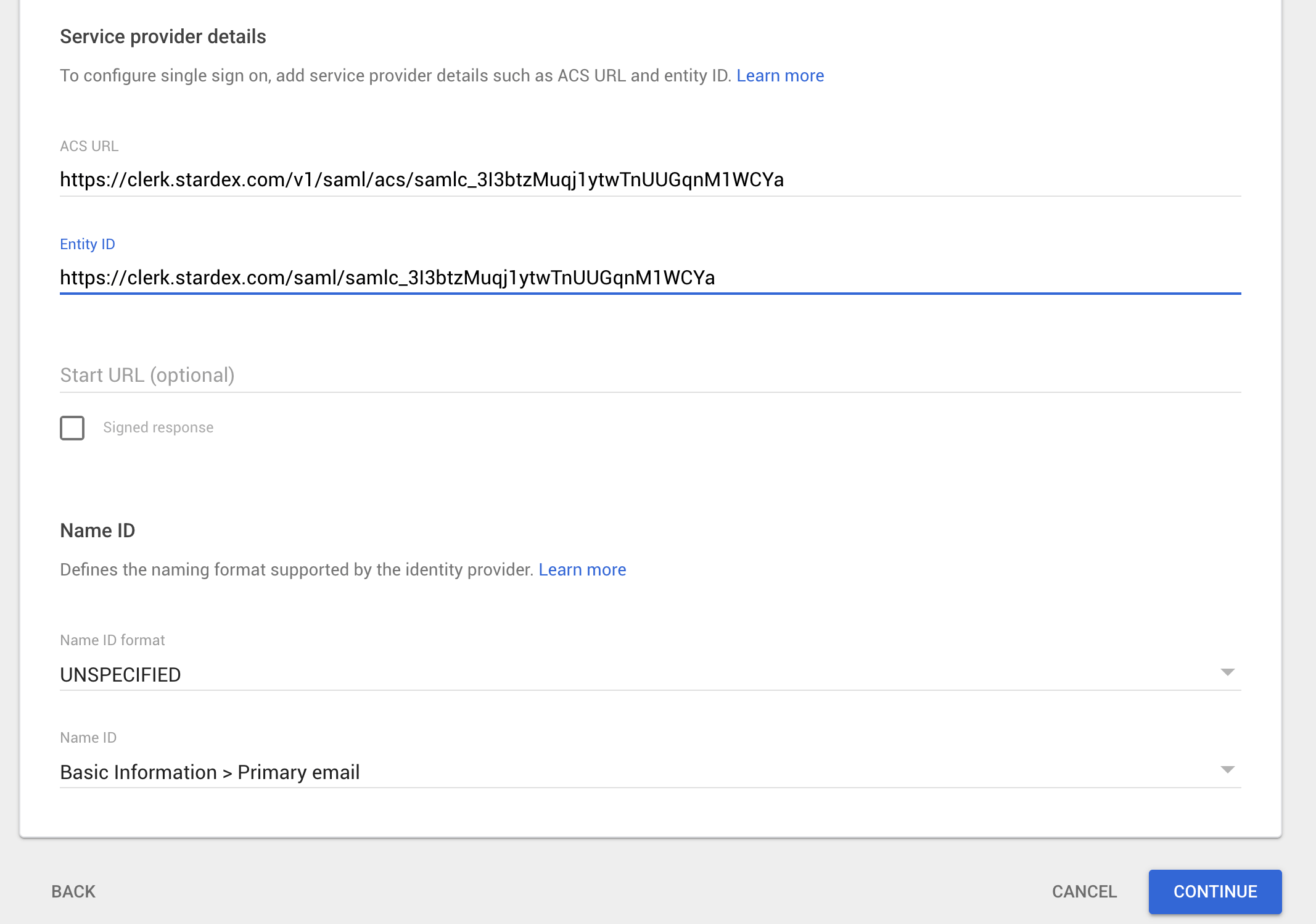
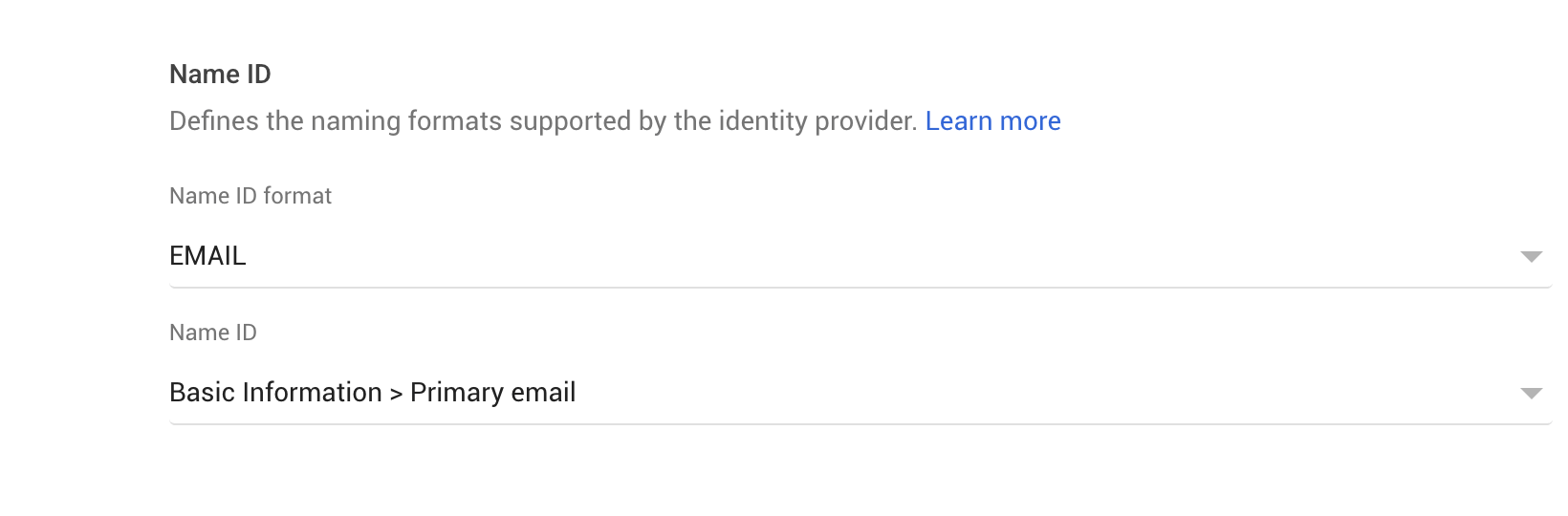
-
Add optional mapping if needed
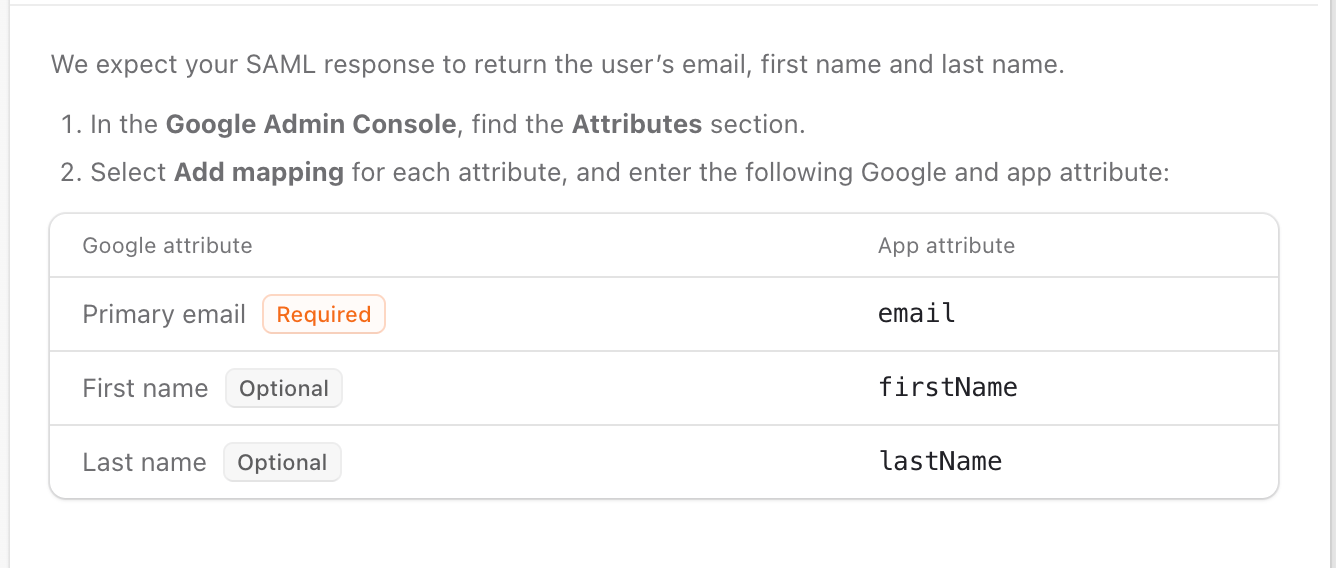
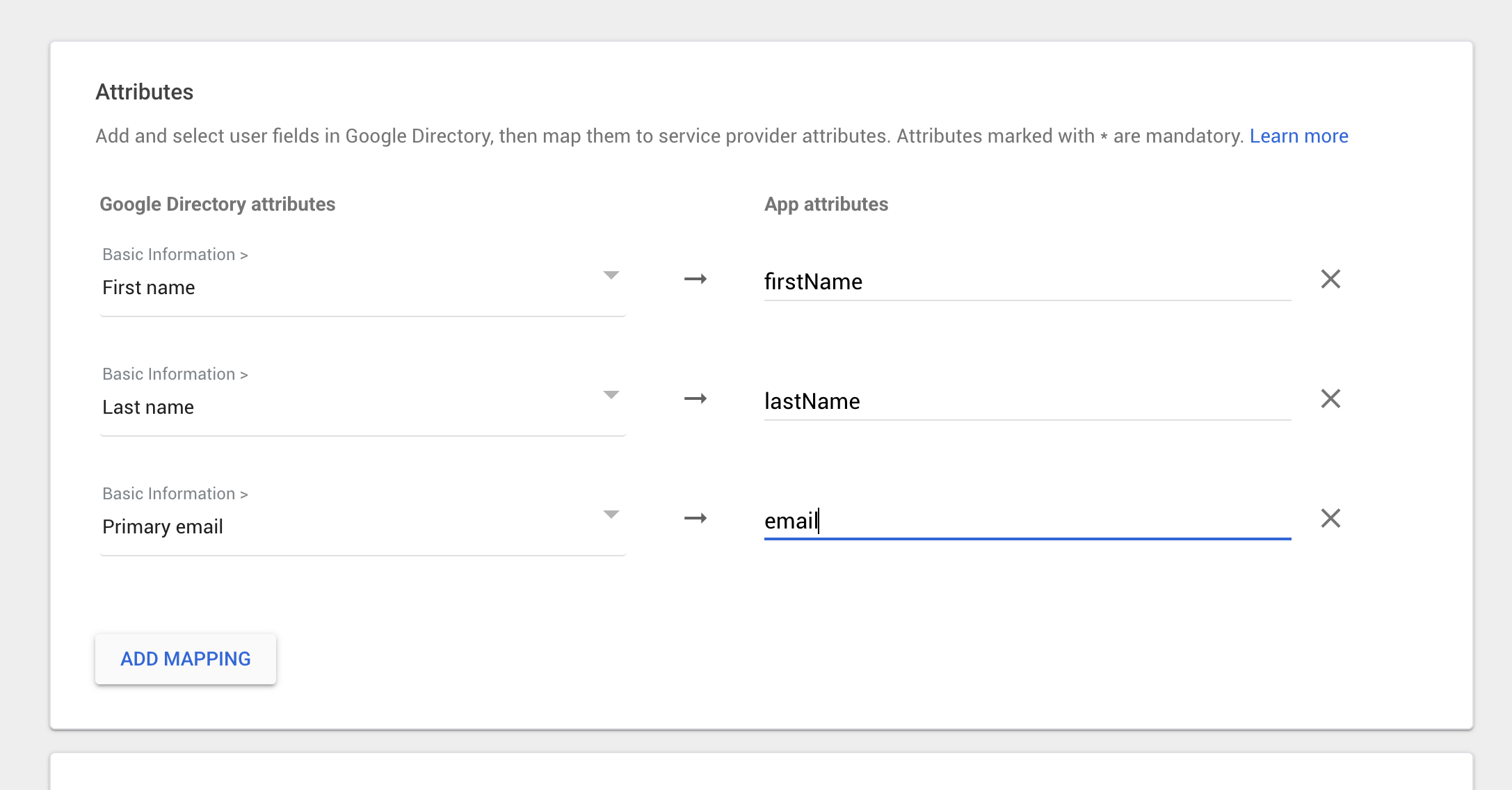
- Turn on access for everyone
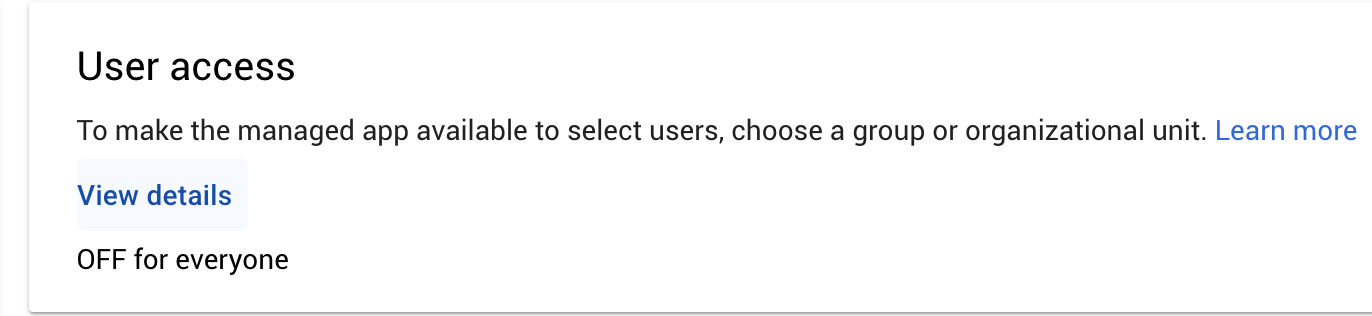
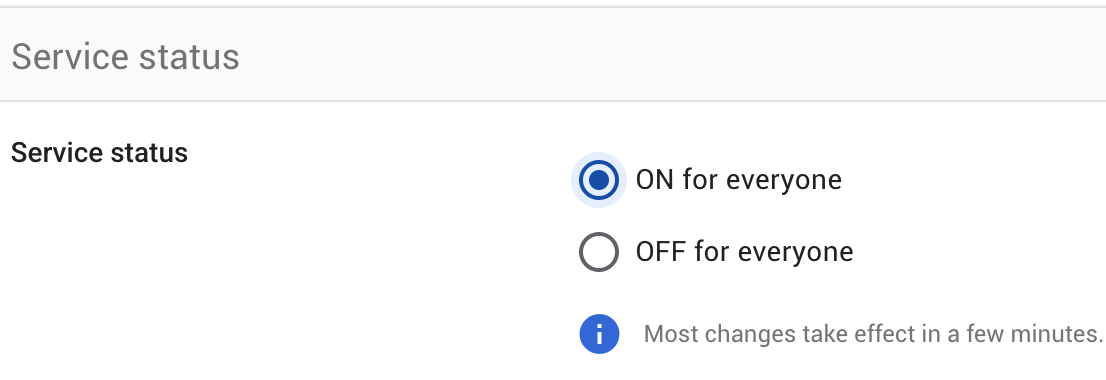
- Test. If you are running into issues, try to get the pem key and adding it manually
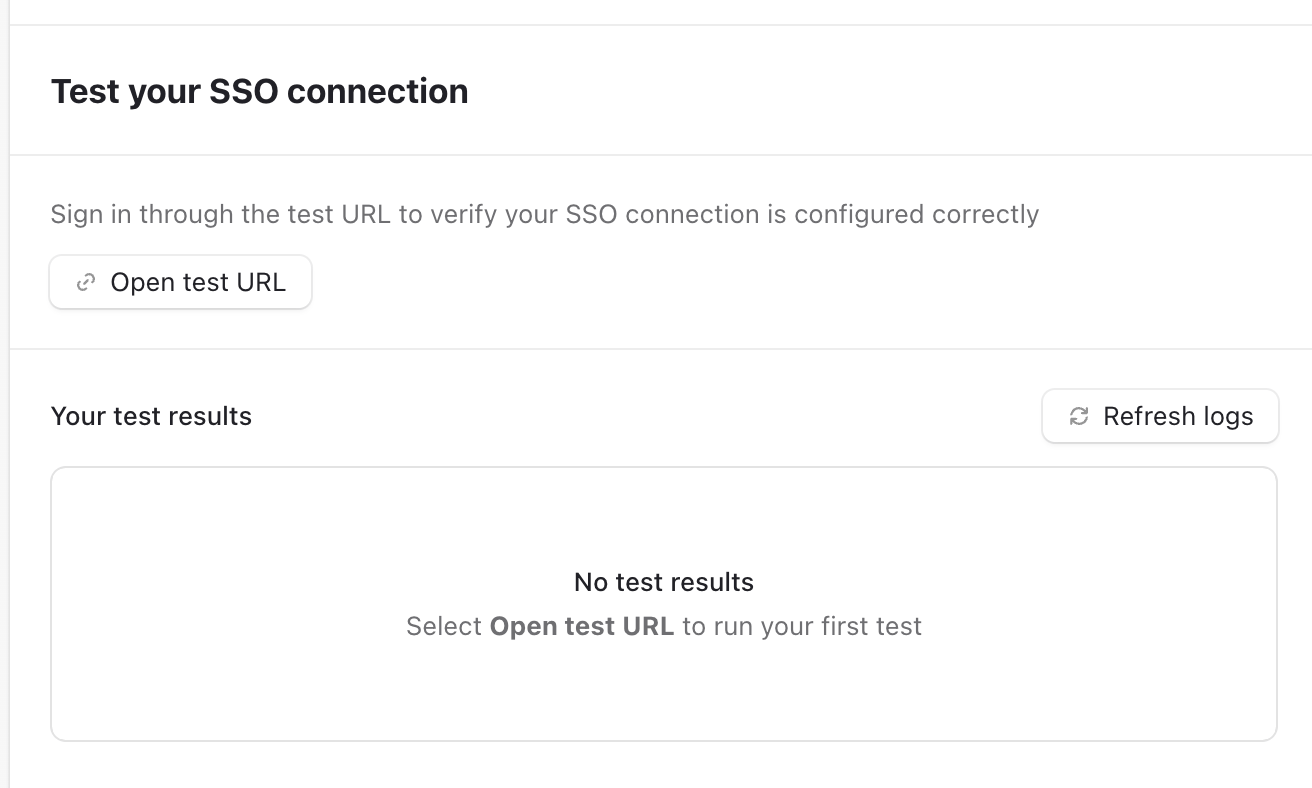
- Once tested successfully, you’ll be able to turn it on for everyone.