

Finding contact info from a person’s profile
- Open a person’s profile
- Scroll to the Contact section
- Click Find Contact Info (the wand icon button). The button only appears when the person has a LinkedIn URL saved on their profile
- While searching, the button text changes to Searching…
- When results are found, an alert shows “Found X contact details!” and the emails and phone numbers are saved to the person’s profile automatically



The person must have a LinkedIn URL saved on their profile for Find Contact Info to appear. LinkedIn profiles are the primary matching key that providers use to look up contact information. If the button is missing, add the person’s LinkedIn URL first.
Extracting contact info from a resume
If you already have a candidate’s resume on file, Stardex can read it and pull any contact details directly from the document — no external provider lookup required.- Go to the People tab and the “Add People” button
- Upload the candidate’s resume
- Stardex scans the resume and saves any emails, phone numbers and LinkedIn urls it finds directly to the person’s Contact section
How the search works
When you click Find Contact Info, Stardex runs a waterfall search across up to five data providers in sequence. It stops as soon as it finds personal email addresses, then checks remaining providers for work emails and phone numbers if needed. The providers, searched in this order:- RocketReach
- SalesQL
- People Data Labs (PDL)
- ContactOut
- Apollo
Managing contact details
Each contact detail appears as a pill-shaped badge in the Contact section, showing the value and its type (personal, work, mobile, etc.). Hover over any contact to reveal actions:- Star — mark as the preferred email or phone for that person. Sequences use the preferred email when enrolling
- Edit — change the value, switch between email/phone/social, change the subtype (personal, work, mobile, home), or mark it as bounced/invalid
- Copy — copy the value to your clipboard
- Delete — remove the contact detail
- Call or SMS — available on phone contacts (call opens your phone handler; SMS appears when RingCentral is connected)
- Email — opens the email composer for that address
Enrichment during sequence enrollment
When you enroll a person into an email sequence, Stardex checks whether they have a personal email on file. If they don’t, and the person has a LinkedIn URL, Stardex automatically runs contact enrichment before enrolling them. The email field shows “Finding email…” while this happens. For bulk enrollment, the sequence enroller identifies rows that are missing a valid email. You can enrich all of them at once from the enroller. A progress bar tracks how many have been processed (e.g., “3 / 12 completed”). Recipients who still have no email after enrichment are flagged so you can remove them or skip enrollment.
Tracking your usage
To see how many contacts your team has enriched:- Go to Settings → Organization → Data Enrichment: stardex.com/settings?tab=organization§ion=data-enrichment
- Review usage for the last 30 days

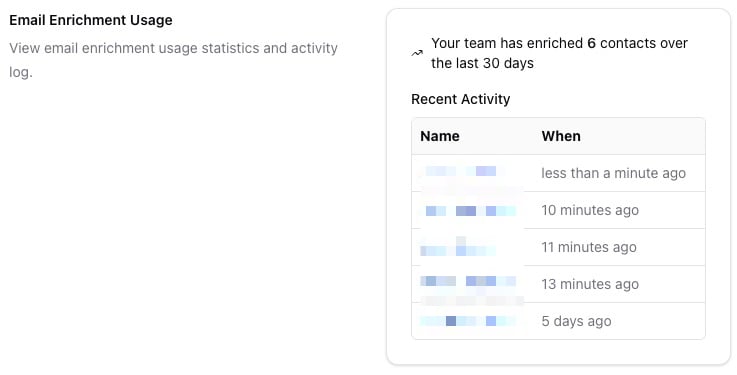
- A count reading “Your team has enriched X contacts over the last 30 days”
- A Recent Activity table listing each enriched person (linked to their profile) and when the enrichment happened
Tips for getting the best results
- Save the person’s LinkedIn URL before enriching. This is the single most important data point. Without it, the Find Contact Info button does not appear and providers cannot match the person
- Keep work history current on the profile. A current company and title help providers return the right contact information for the right person
- If enrichment returns nothing today, try again in a few weeks. Providers refresh their databases on different schedules
- Check for duplicate profiles before enriching. The same person may already have contact info on another profile. Use the merge duplicates feature to consolidate
Common use cases
- Finding personal emails for candidates sourced from LinkedIn so they can be enrolled in outreach sequences
- Looking up phone numbers for candidates you need to call about an open role
- Enriching a batch of sequence recipients who are missing email addresses, directly from the enrollment flow
- Getting work emails for client contacts at target companies
- Re-enriching a candidate weeks later after an initial attempt returned no results
FAQ
Q: Why don’t I see the Find Contact Info button? The button only appears when the person has a LinkedIn URL saved on their profile. Add their LinkedIn URL first, then the button will show up in the Contact section. Q: Which provider does Stardex use? Stardex searches up to five providers in sequence: RocketReach, SalesQL, People Data Labs, ContactOut, and Apollo. It stops early when it finds personal emails and continues checking for work emails and phone numbers from remaining providers. Q: Does enrichment happen automatically when I add someone? Adding a person from LinkedIn does not automatically run contact enrichment. It does run profile enrichment (work history, skills, etc.) if that setting is enabled. Contact enrichment requires clicking Find Contact Info on the person’s profile, or happens automatically when you enroll someone in a sequence who is missing an email. Q: What if I enrich someone and no email is found? The person won’t be enrolled in email sequences. You can add an email manually if you have one, or try enriching again later. Q: Can I enrich contacts in bulk? Bulk enrichment is available inside the sequence enrollment flow. When enrolling multiple people, the enroller identifies those missing emails and lets you enrich them all at once. There is no bulk enrichment action on the People page itself. Q: How do I know which email to use for outreach? Star the email you want Stardex to use by hovering over the contact pill and clicking the star icon. Starred contacts are treated as the preferred address for that type.Key Takeaway
Enrichment finds contact details; it does not replace your address book. Use it to fill gaps for candidates sourced from LinkedIn. For contacts you already have emails or phone numbers for, add them manually or import them. Enrichment is for the people you can see but can’t yet reach.Related guides
- 👉 Setting up your multi-step outreach campaign — use enriched emails to build sequences
- 👉 One-click sourcing via Chrome extension — add candidates from LinkedIn into Stardex, then enrich their contact info
- 👉 Email deliverability best practices — keep your email reputation healthy when using enriched addresses
- 👉 Merging duplicates — consolidate contact info across duplicate profiles