> ## Documentation Index
> Fetch the complete documentation index at: https://docs.stardex.com/llms.txt
> Use this file to discover all available pages before exploring further.
# Zapier setup
> Connect Stardex to Zapier, configure candidate and stage triggers, log activities, and maintain your connection.
Through Zapier, Stardex can integrate with 1000s of tools to add activities to your candidates.
Stardex tries to match the candidate using the data that is passed in (e.g. Name, email, linkedin url, meeting context). It will use AI if we can’t find an exact match (e.g. due to mis spellings of name in booking links). If our AI is unable to match it to a person in the database, then it will be shown as an unassigned activity on your home page. This way you can correctly associate the activity.
We have designed this to be simple, and we plan to improve this using AI so that it can match without much human intervention over time. Let us know your feedback!
**Example steps of adding new activity to stardex (your exact step will vary depending on the app you are trying to connect):**
1. You can add the Stardex Zapier app by going to this link [https://zapier.com/developer/public-invite/217677/a121df430f700c9b335635ea4d2f5eb1/](https://zapier.com/developer/public-invite/217677/a121df430f700c9b335635ea4d2f5eb1/)
1. If you have trouble accessing, let us know and we can invite your email specifically
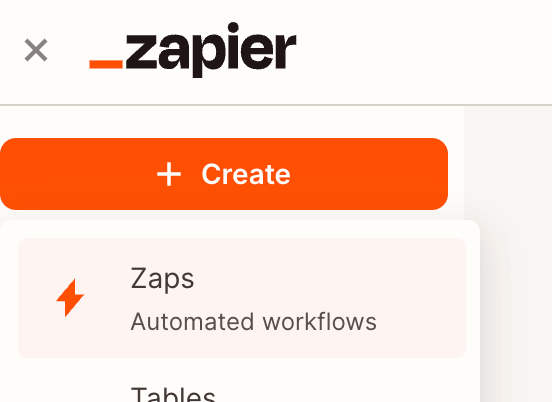
2. From the home page, Click Create → New trigger
3. Pick your desired trigger (e.g. notes from Granola, Dialpad, Fireflies, Fathom, calendar event from Google calendar). Configure it appropriately by connecting to that account
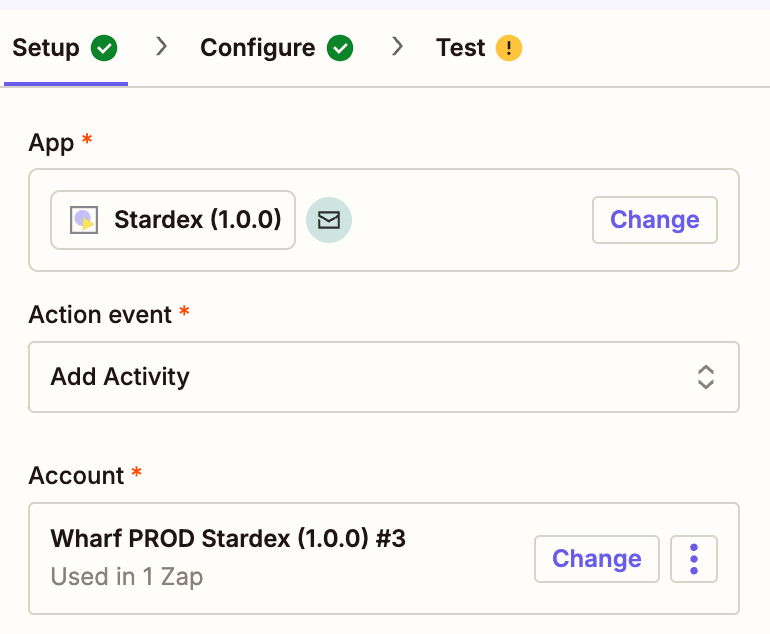
4. Pick Stardex as the action after this trigger.
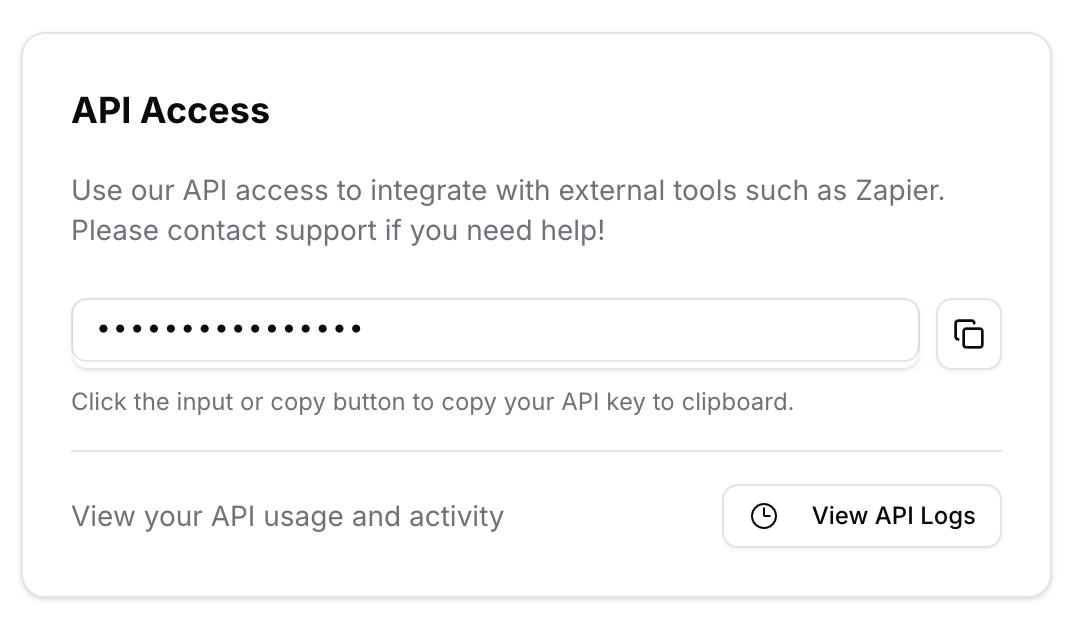
5. Pick Add Activity action from Stardex, and enter your API key. You can get it from **Settings → Email & other integrations → API access & Webhooks**: [https://stardex.com/settings?tab=email-calendar\§ion=api-access](https://stardex.com/settings?tab=email-calendar\§ion=api-access)
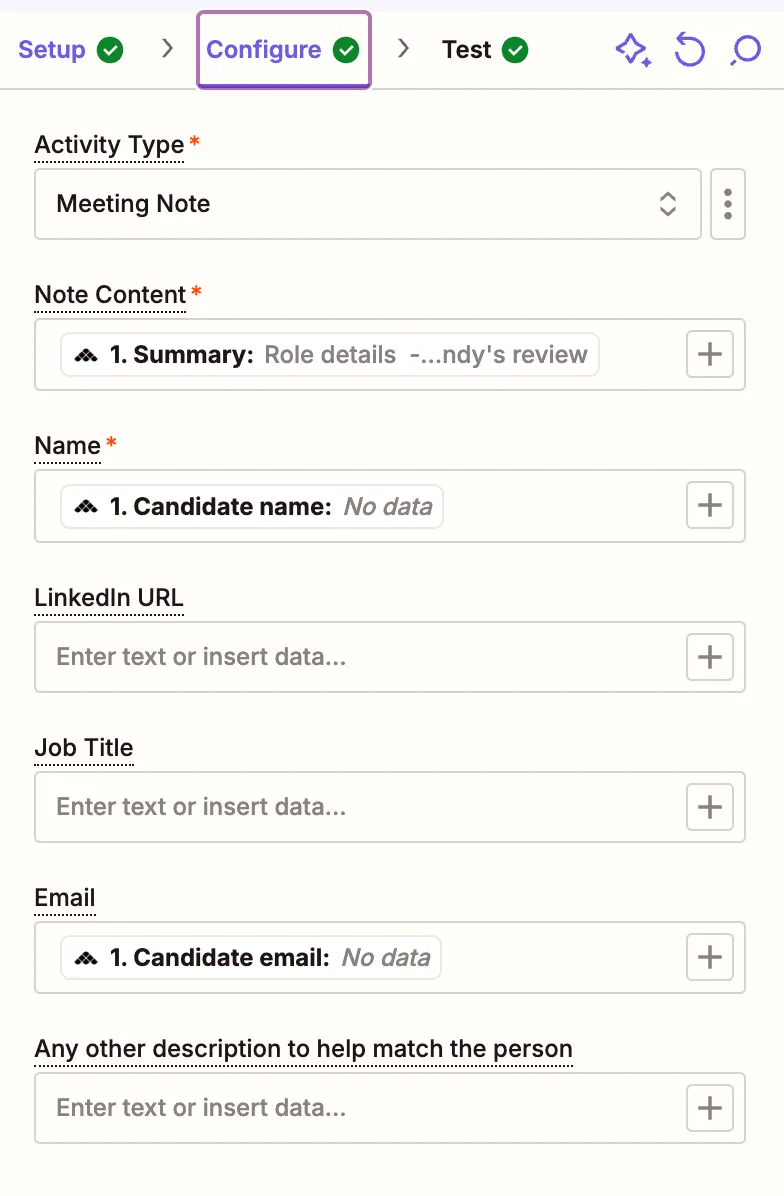 6. In the configure section, enter relevant info to help us match the candidate
1. **Activity Type:** Pick the appropriate activity type (e.g. Note, Meeting Note).
2. **Note Content**: Here you can pass the relevant note data from the zapier trigger (e.g. a summary transcript from the notetaker)
1. If you are passing in a calendar invite, you can type in “Meeting scheduled”
3. **Name:** Here, you want to pass in the candidate or client data. Some note takers will differentiate that, so pick the appropriate one. If it doesn’t, pick the closes
4. Option fields: Linkedin URL (if available), Email, Job Title
5. Any other description: anything else you want to provide that can help match this person.
The more info you can pass, the better the matching is for AI to reason over. This will make sure that misspellings won’t mean
7. Click Continue to test.
8. Publish if everything works
If you have any issues, please email us!
You will be able to see a log of activity that we have received under **Settings → Email & other integrations → API access & Webhooks**
* Trigger: New Candidate
Triggers whenever a new candidate is added to a job in Stardex. Use this to notify your team, sync data to other systems, or automate onboarding workflows.
## Configuration Options
| Field | Required | Description |
| - | - | - |
| Job | No | Select a specific job to only trigger when candidates are added to that job. Leave empty to trigger for **all jobs**. |
## Output Fields
When the trigger fires, it provides the following data that you can map to your destination:
**Candidate Info**
* `candidate_id` - Unique identifier for the candidate
* `candidate_job_status` - Current status (e.g., Sourced, Interview, Offer)
* `stardex_profile_link` - Direct link to view the candidate in Stardex
**Person Details**
* `person_full_name` - Candidate's full name
* `person_current_title` - Current job title
* `person_current_company` - Current employer
* `person_linkedin_url` - LinkedIn profile URL
* `person_linkedin_location` - Location from LinkedIn
* `person_image_url` - Profile photo URL
* `person_recruiter_url_1`, `person_recruiter_url_2` - LinkedIn Recruiter URLs
**Job Info**
* `job_id` - Job identifier
* `job_name` - Position title
* `job_company` - Company name
* `job_notes` - Notes added when candidate was sourced
**Custom Fields**
* `custom_fields` - Array of all person custom attributes with their values
* `custom_fields_text` - Formatted text version of all custom fields (great for sending to Slack/email)
All your person custom attributes (e.g., Tags, Expected Salary, Visa Status) are automatically included. You can map these individual fields to your destination.
**Other**
* `sourced_by_team_member_name` - Who added this candidate
* `resume_url` - Link to the candidate's resume (if available)
* `resume_filename` - Resume file name
* `created_at`, `updated_at` - Timestamps
***
## Example: Send Slack notification when a new candidate is added
**Steps:**
1. Create a new Zap and select **Stardex** as the trigger
2. Choose **New Candidate** as the trigger event
3. (Optional) Select a specific job to filter, or leave empty for all jobs
6. In the configure section, enter relevant info to help us match the candidate
1. **Activity Type:** Pick the appropriate activity type (e.g. Note, Meeting Note).
2. **Note Content**: Here you can pass the relevant note data from the zapier trigger (e.g. a summary transcript from the notetaker)
1. If you are passing in a calendar invite, you can type in “Meeting scheduled”
3. **Name:** Here, you want to pass in the candidate or client data. Some note takers will differentiate that, so pick the appropriate one. If it doesn’t, pick the closes
4. Option fields: Linkedin URL (if available), Email, Job Title
5. Any other description: anything else you want to provide that can help match this person.
The more info you can pass, the better the matching is for AI to reason over. This will make sure that misspellings won’t mean
7. Click Continue to test.
8. Publish if everything works
If you have any issues, please email us!
You will be able to see a log of activity that we have received under **Settings → Email & other integrations → API access & Webhooks**
* Trigger: New Candidate
Triggers whenever a new candidate is added to a job in Stardex. Use this to notify your team, sync data to other systems, or automate onboarding workflows.
## Configuration Options
| Field | Required | Description |
| - | - | - |
| Job | No | Select a specific job to only trigger when candidates are added to that job. Leave empty to trigger for **all jobs**. |
## Output Fields
When the trigger fires, it provides the following data that you can map to your destination:
**Candidate Info**
* `candidate_id` - Unique identifier for the candidate
* `candidate_job_status` - Current status (e.g., Sourced, Interview, Offer)
* `stardex_profile_link` - Direct link to view the candidate in Stardex
**Person Details**
* `person_full_name` - Candidate's full name
* `person_current_title` - Current job title
* `person_current_company` - Current employer
* `person_linkedin_url` - LinkedIn profile URL
* `person_linkedin_location` - Location from LinkedIn
* `person_image_url` - Profile photo URL
* `person_recruiter_url_1`, `person_recruiter_url_2` - LinkedIn Recruiter URLs
**Job Info**
* `job_id` - Job identifier
* `job_name` - Position title
* `job_company` - Company name
* `job_notes` - Notes added when candidate was sourced
**Custom Fields**
* `custom_fields` - Array of all person custom attributes with their values
* `custom_fields_text` - Formatted text version of all custom fields (great for sending to Slack/email)
All your person custom attributes (e.g., Tags, Expected Salary, Visa Status) are automatically included. You can map these individual fields to your destination.
**Other**
* `sourced_by_team_member_name` - Who added this candidate
* `resume_url` - Link to the candidate's resume (if available)
* `resume_filename` - Resume file name
* `created_at`, `updated_at` - Timestamps
***
## Example: Send Slack notification when a new candidate is added
**Steps:**
1. Create a new Zap and select **Stardex** as the trigger
2. Choose **New Candidate** as the trigger event
3. (Optional) Select a specific job to filter, or leave empty for all jobs
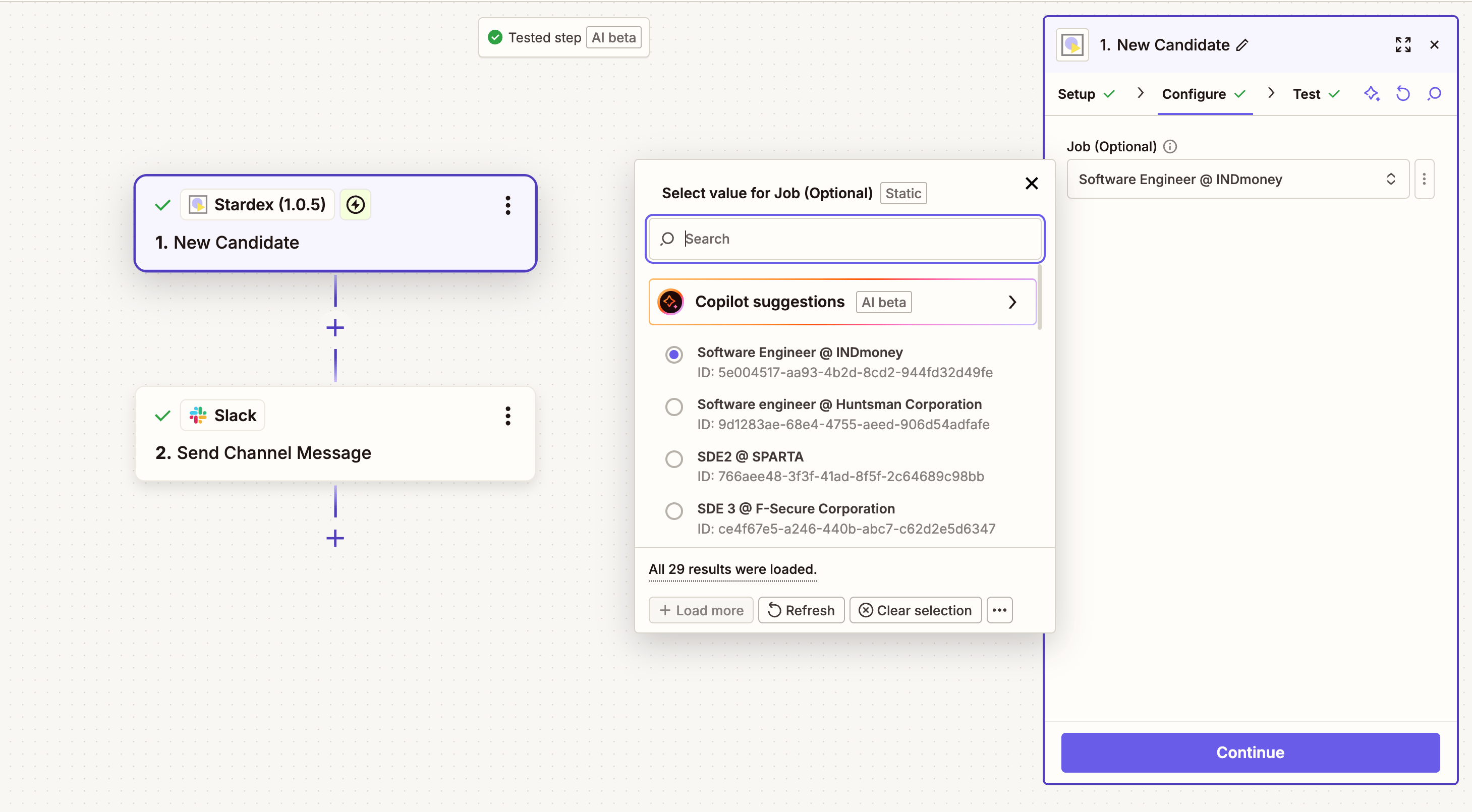 4. Test the trigger to pull sample data
5. Add **Slack** as your action and choose **Send Channel Message**
6. Configure your message using the available fields:
4. Test the trigger to pull sample data
5. Add **Slack** as your action and choose **Send Channel Message**
6. Configure your message using the available fields:
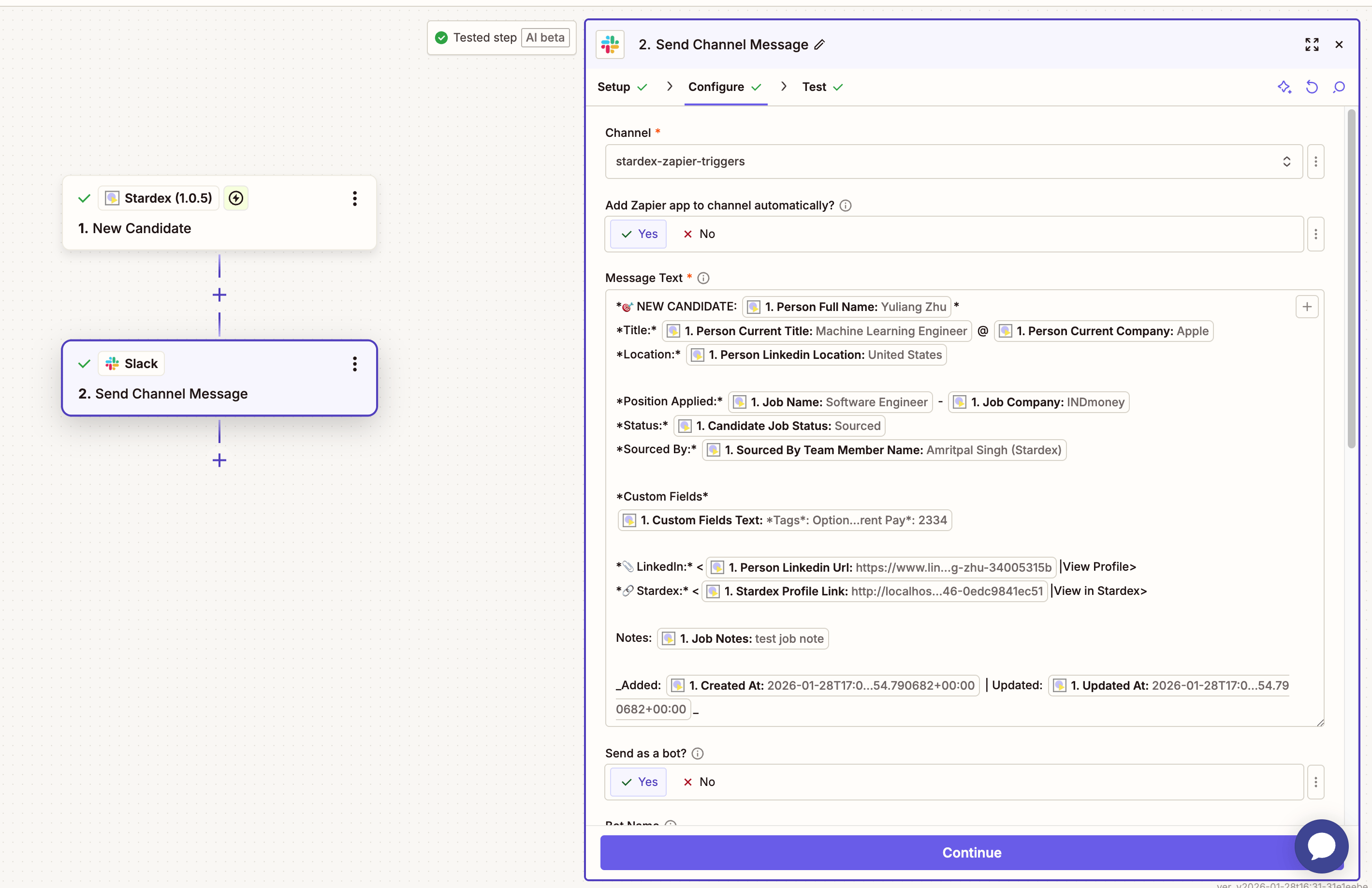 7. Test and publish your Zap
* Trigger: Stage Change
Triggers whenever a candidate's pipeline stage changes in Stardex. Use this to notify stakeholders, update external systems, or automate workflows based on hiring progress.
## Configuration Options
| Field | Required | Description |
| - | - | - |
| Pipeline Stages | No | Select specific stages to trigger only when candidates move **to** those stages (e.g., Offer, Placed). Leave empty to trigger for **all stage changes across all jobs**. |
This trigger fires for all jobs. If you select specific stages like "Offer" or "Placed", it will fire whenever any candidate across any job moves to those stages.
## Output Fields
When the trigger fires, it provides all candidate data plus stage change details:
**Stage Change Info**
* `from_stage_name` - Previous stage name (e.g., "Phone Screen")
* `to_stage_name` - New stage name (e.g., "Offer")
* `stage_changed_at` - When the stage was changed
* `stage_changed_by_team_member_name` - Who moved the candidate
* `stage_changed_by_team_member_id` - Team member identifier
**Candidate Info**
* `candidate_id` - Unique identifier for the candidate
* `candidate_job_status` - Current status
* `stardex_profile_link` - Direct link to view the candidate in Stardex
**Person Details**
* `person_full_name` - Candidate's full name
* `person_current_title` - Current job title
* `person_current_company` - Current employer
* `person_linkedin_url` - LinkedIn profile URL
* `person_linkedin_location` - Location from LinkedIn
* `person_image_url` - Profile photo URL
**Job Info**
* `job_id` - Job identifier
* `job_name` - Position title
* `job_company` - Company name
* `job_notes` - Notes on the candidate
**Custom Fields**
* `custom_fields` - Array of all person custom attributes
* `custom_fields_text` - Formatted text version of all custom fields
**Other**
* `sourced_by_team_member_name` - Who originally sourced this candidate
* `resume_url`, `resume_filename` - Resume details
* `created_at`, `updated_at` - Timestamps
***
## Example: Send Slack notification when candidate reaches Offer stage
**Steps:**
1. Create a new Zap and select **Stardex** as the trigger
2. Choose **Candidate Stage Changed** as the trigger event
3. Select the stages you want to track (e.g., "Offer", "Placed")
7. Test and publish your Zap
* Trigger: Stage Change
Triggers whenever a candidate's pipeline stage changes in Stardex. Use this to notify stakeholders, update external systems, or automate workflows based on hiring progress.
## Configuration Options
| Field | Required | Description |
| - | - | - |
| Pipeline Stages | No | Select specific stages to trigger only when candidates move **to** those stages (e.g., Offer, Placed). Leave empty to trigger for **all stage changes across all jobs**. |
This trigger fires for all jobs. If you select specific stages like "Offer" or "Placed", it will fire whenever any candidate across any job moves to those stages.
## Output Fields
When the trigger fires, it provides all candidate data plus stage change details:
**Stage Change Info**
* `from_stage_name` - Previous stage name (e.g., "Phone Screen")
* `to_stage_name` - New stage name (e.g., "Offer")
* `stage_changed_at` - When the stage was changed
* `stage_changed_by_team_member_name` - Who moved the candidate
* `stage_changed_by_team_member_id` - Team member identifier
**Candidate Info**
* `candidate_id` - Unique identifier for the candidate
* `candidate_job_status` - Current status
* `stardex_profile_link` - Direct link to view the candidate in Stardex
**Person Details**
* `person_full_name` - Candidate's full name
* `person_current_title` - Current job title
* `person_current_company` - Current employer
* `person_linkedin_url` - LinkedIn profile URL
* `person_linkedin_location` - Location from LinkedIn
* `person_image_url` - Profile photo URL
**Job Info**
* `job_id` - Job identifier
* `job_name` - Position title
* `job_company` - Company name
* `job_notes` - Notes on the candidate
**Custom Fields**
* `custom_fields` - Array of all person custom attributes
* `custom_fields_text` - Formatted text version of all custom fields
**Other**
* `sourced_by_team_member_name` - Who originally sourced this candidate
* `resume_url`, `resume_filename` - Resume details
* `created_at`, `updated_at` - Timestamps
***
## Example: Send Slack notification when candidate reaches Offer stage
**Steps:**
1. Create a new Zap and select **Stardex** as the trigger
2. Choose **Candidate Stage Changed** as the trigger event
3. Select the stages you want to track (e.g., "Offer", "Placed")
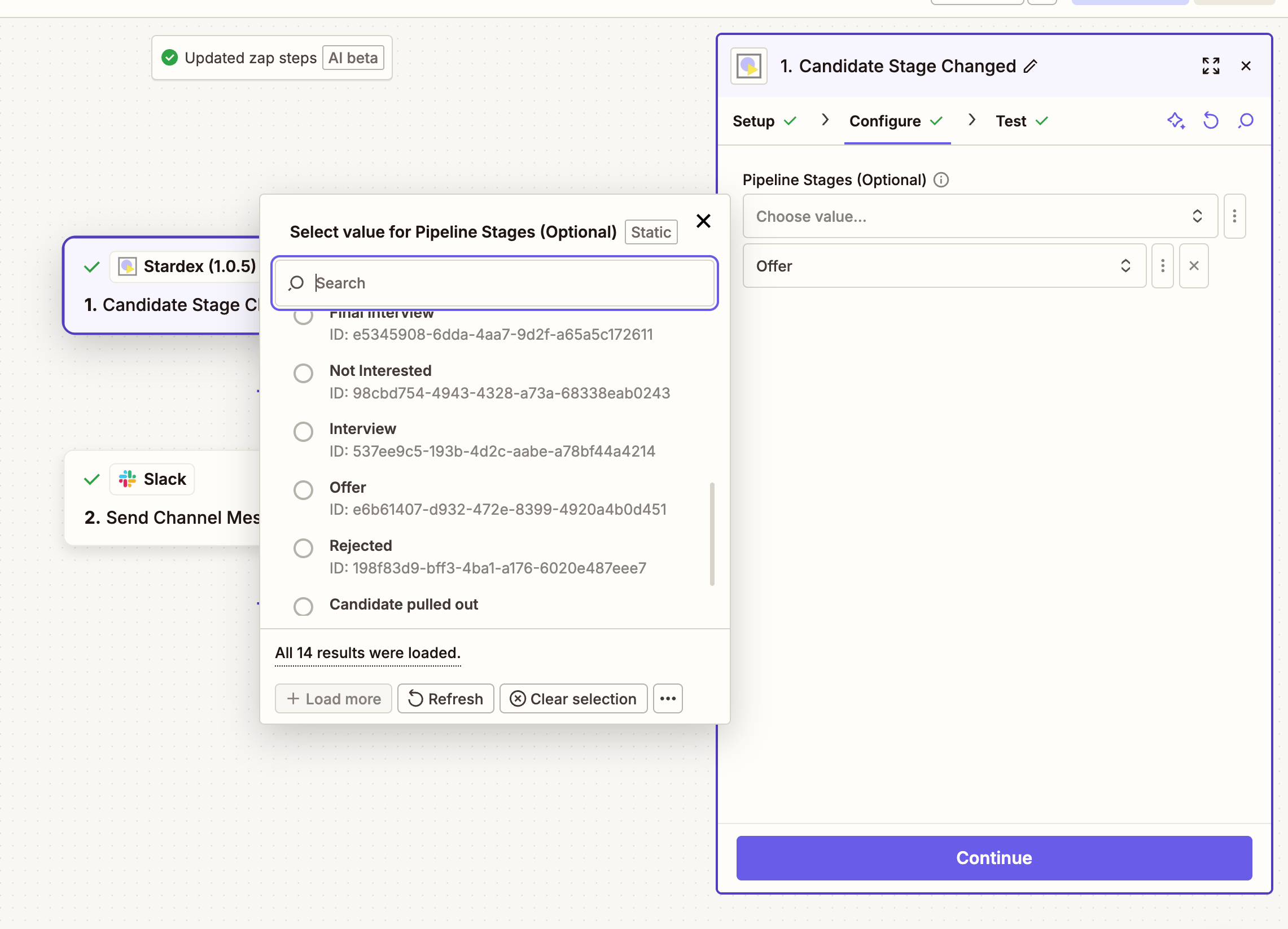 4. Test the trigger to pull sample data
5. Add **Slack** as your action and choose **Send Channel Message**
6. Configure your message using the available fields:
4. Test the trigger to pull sample data
5. Add **Slack** as your action and choose **Send Channel Message**
6. Configure your message using the available fields:
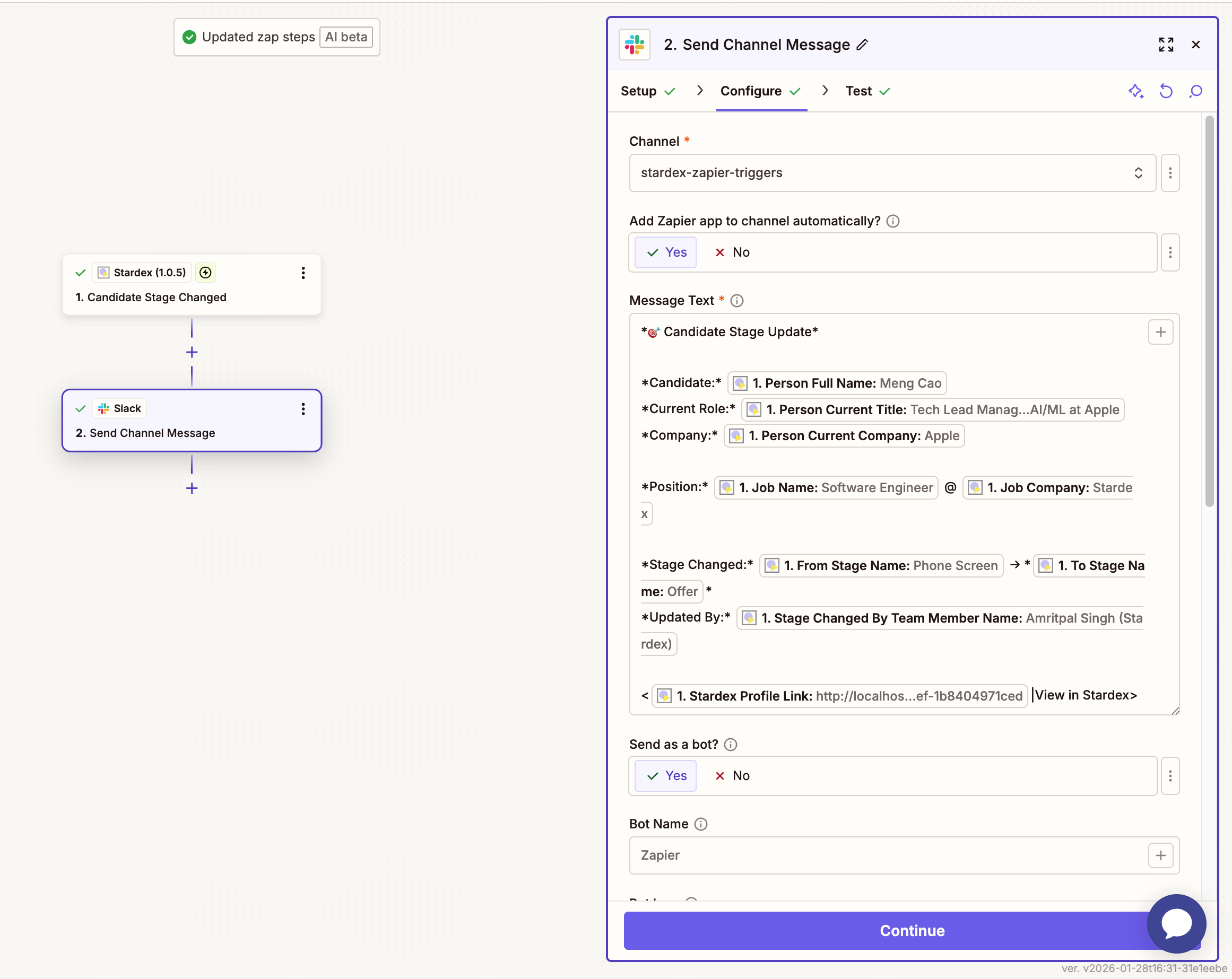 7. Test and publish your Zap
## Example with Metaview
We have a native integration now so we recommend using it instead:
[https://support.metaview.ai/integrations/ats-integrations/stardex](https://support.metaview.ai/integrations/ats-integrations/stardex)
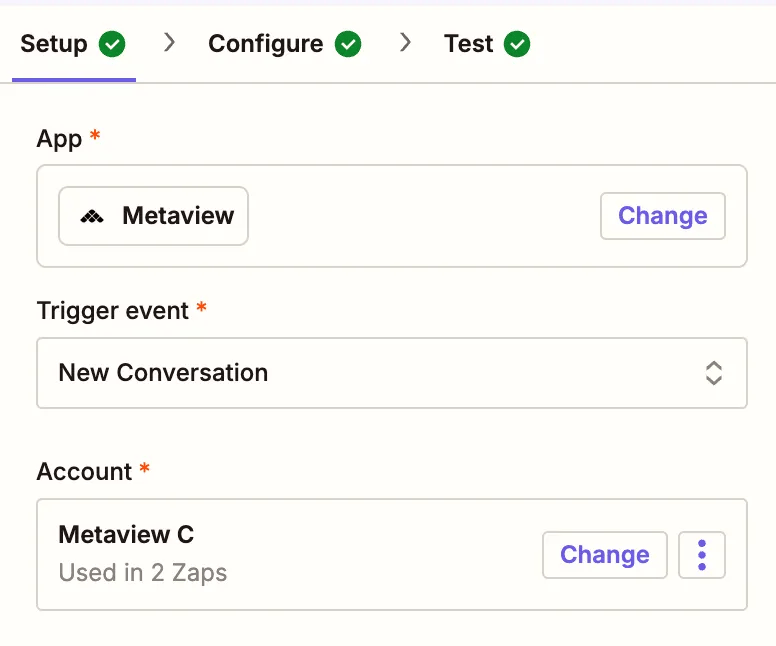
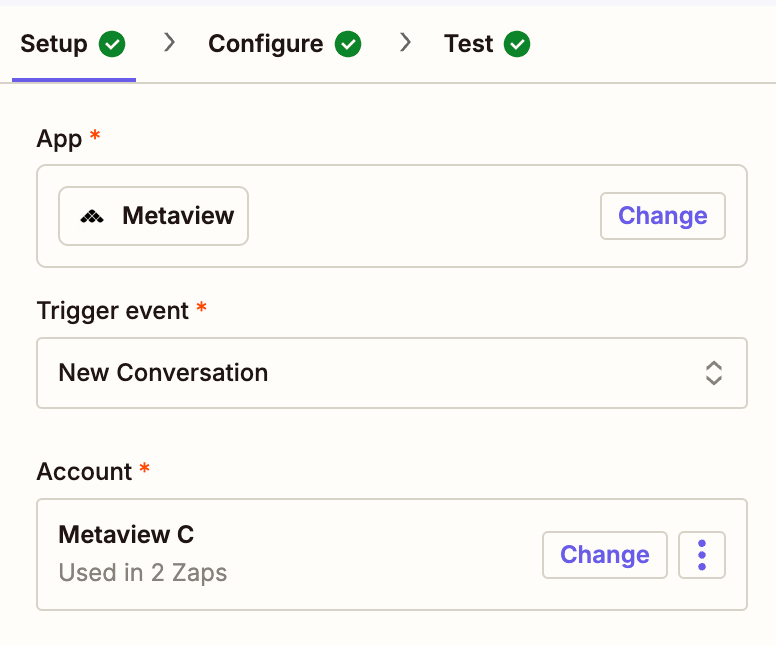
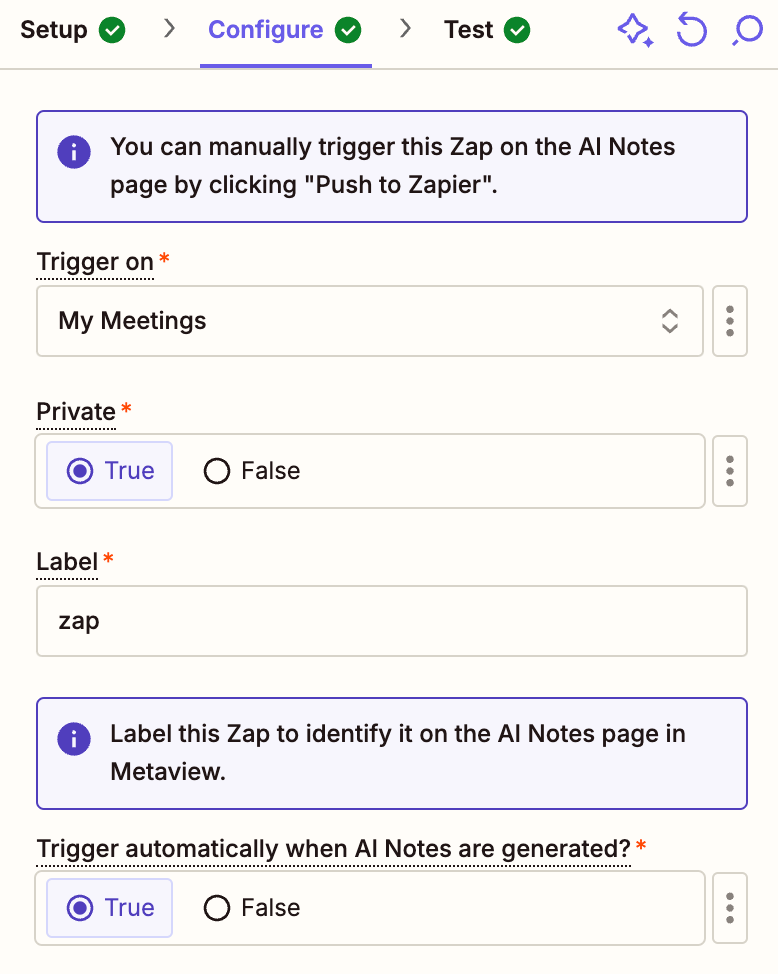
1. Pick New Conversation trigger from Metaview, enter your Metaview API key (you can obtain from their settings page) and configure it as below. Make sure to test it
7. Test and publish your Zap
## Example with Metaview
We have a native integration now so we recommend using it instead:
[https://support.metaview.ai/integrations/ats-integrations/stardex](https://support.metaview.ai/integrations/ats-integrations/stardex)
1. Pick New Conversation trigger from Metaview, enter your Metaview API key (you can obtain from their settings page) and configure it as below. Make sure to test it
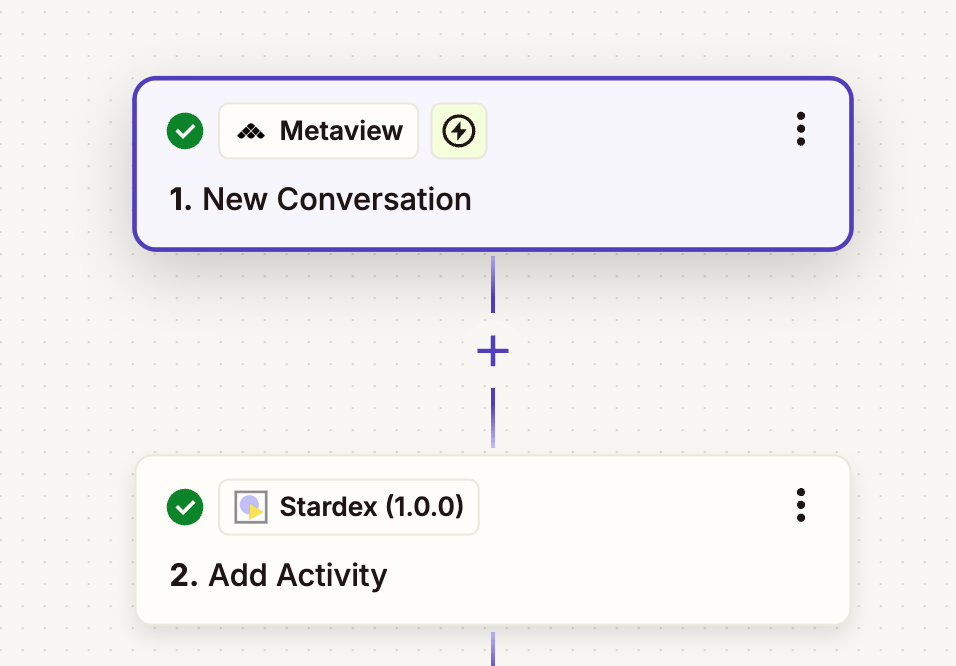 2. Pick Add Activity action from Stardex, and enter your API key. You can get it from **Settings → Email & other integrations → API access & Webhooks**: [https://stardex.com/settings?tab=email-calendar\§ion=api-access](https://stardex.com/settings?tab=email-calendar\§ion=api-access)
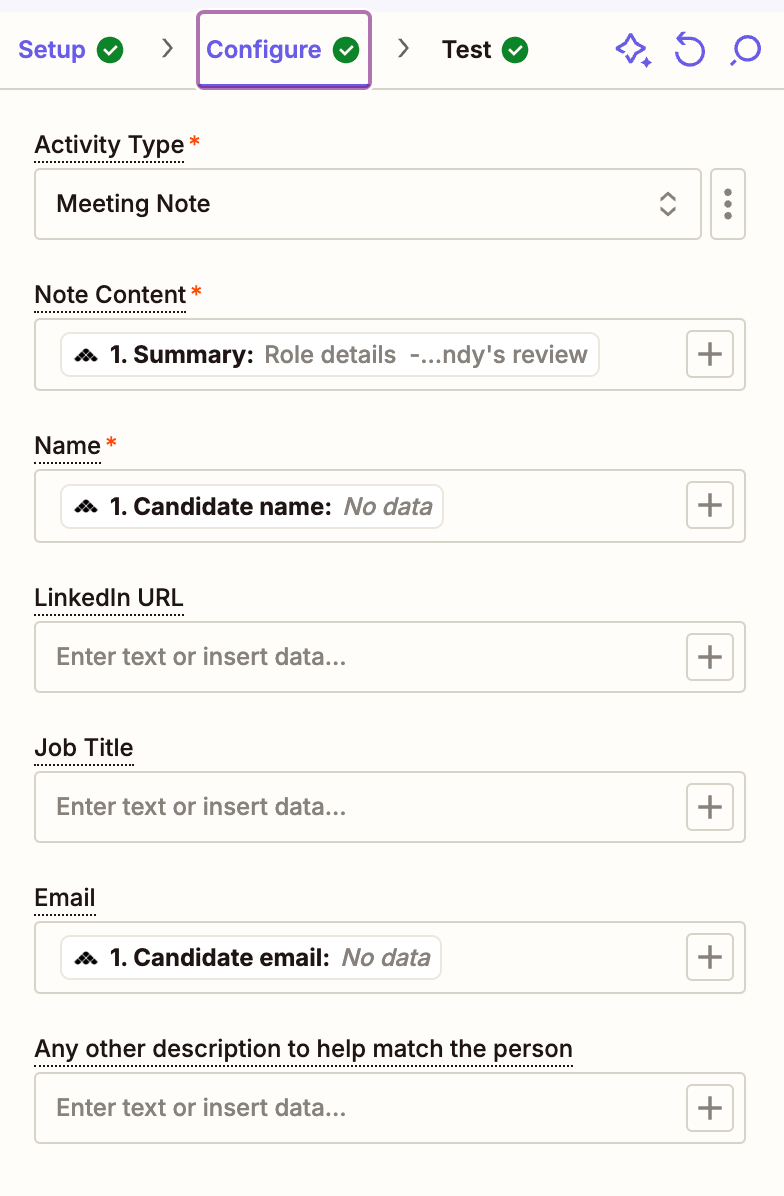 3. In the configure section, enter relevant info to help us match the candidate
1. **Activity Type:** Pick the appropriate activity type (e.g. Note, Meeting Note).
2. **Note Content**: Here you can pass the relevant note data from the zapier trigger (e.g. a summary transcript from the notetaker)
3. **Name:** Here, you want to pass in the candidate or client data. Some note takers will differentiate that, so pick the appropriate one. If it doesn’t, pick the closes
4. Option fields: Linkedin URL (if available), Email, Job Title
5. Any other description: anything else you want to provide that can help match this person.
The more info you can pass, the better the matching is for AI to reason over. This will make sure that misspellings won’t mean
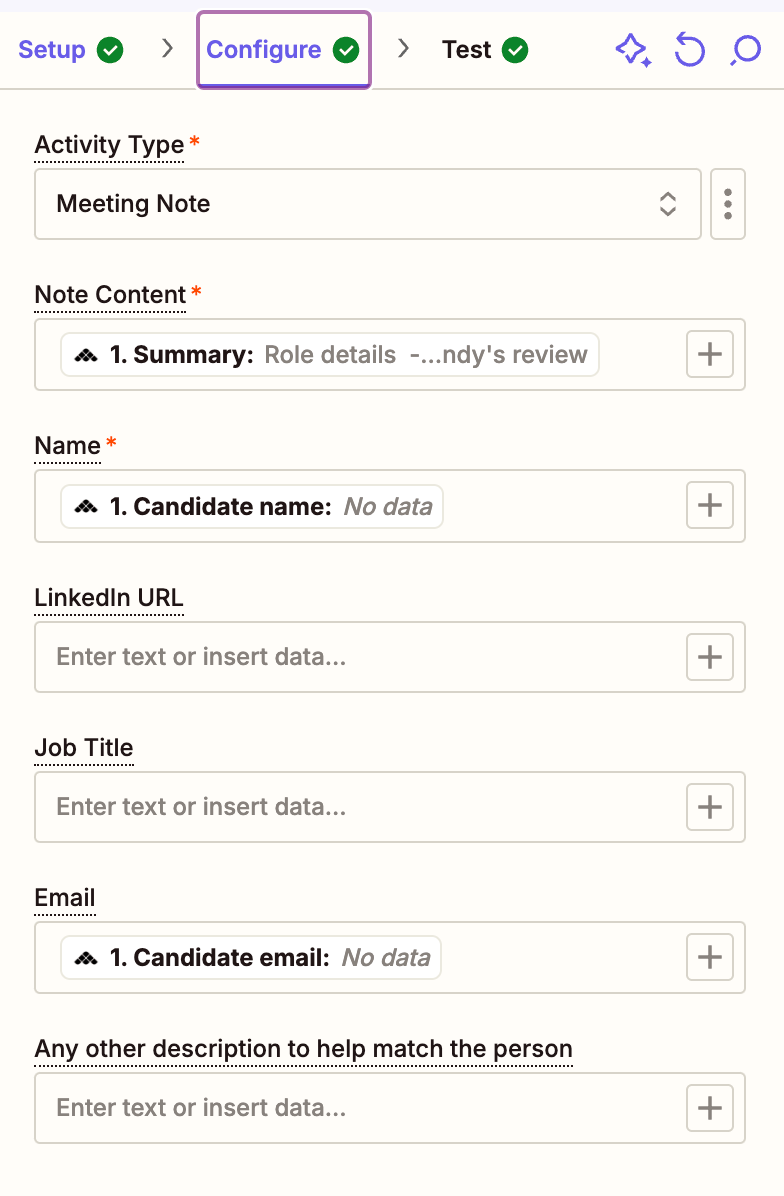
3. In the configure section, enter relevant info to help us match the candidate
1. **Activity Type:** Pick the appropriate activity type (e.g. Note, Meeting Note).
2. **Note Content**: Here you can pass the relevant note data from the zapier trigger (e.g. a summary transcript from the notetaker)
3. **Name:** Here, you want to pass in the candidate or client data. Some note takers will differentiate that, so pick the appropriate one. If it doesn’t, pick the closes
4. Option fields: Linkedin URL (if available), Email, Job Title
5. Any other description: anything else you want to provide that can help match this person.
The more info you can pass, the better the matching is for AI to reason over. This will make sure that misspellings won’t mean
 4. Click Continue to test.
5. Publish if everything works
## Example with Granola
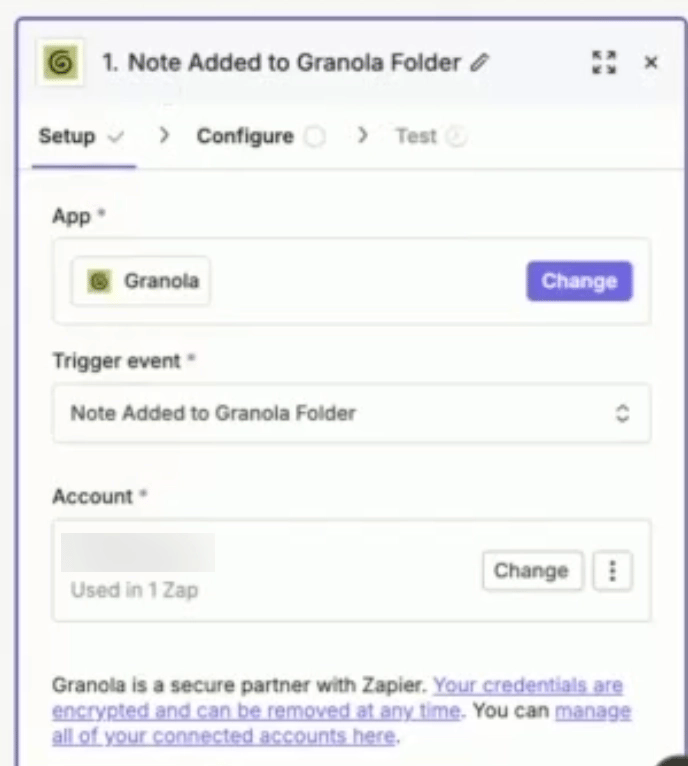
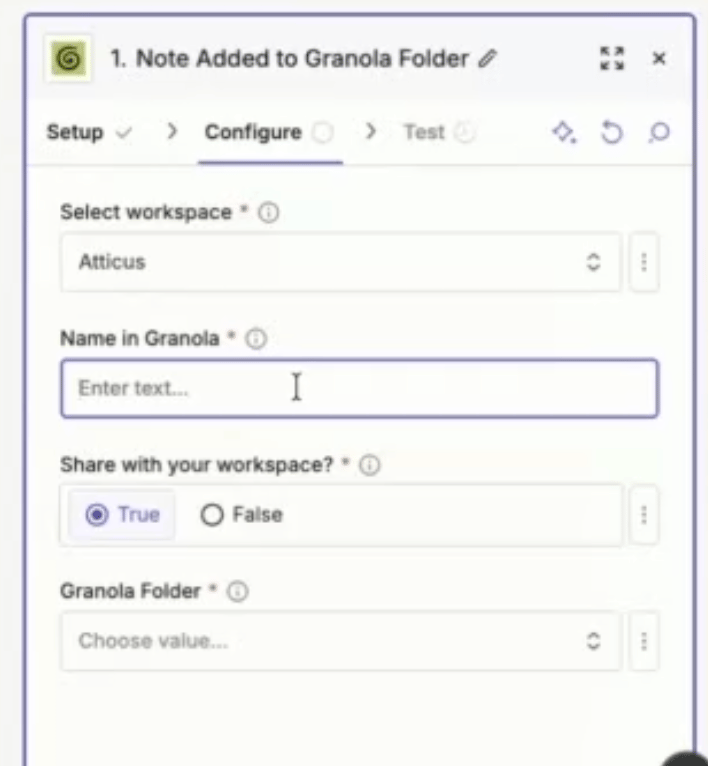
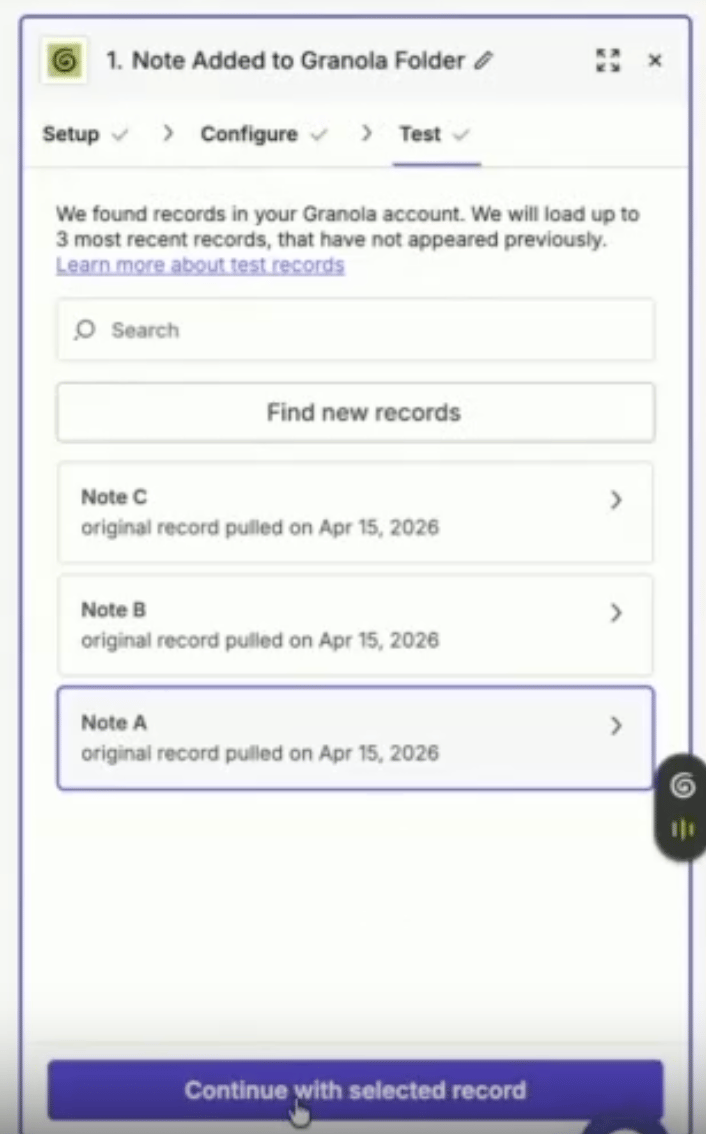
1. Pick **Note Added to Granola Folder** as the trigger event, connect your Granola account by signing in, and configure it as below. Make sure to test it. This trigger will fire every time a new note/transcript is added to a selected folder in Granola.
4. Click Continue to test.
5. Publish if everything works
## Example with Granola
1. Pick **Note Added to Granola Folder** as the trigger event, connect your Granola account by signing in, and configure it as below. Make sure to test it. This trigger will fire every time a new note/transcript is added to a selected folder in Granola.
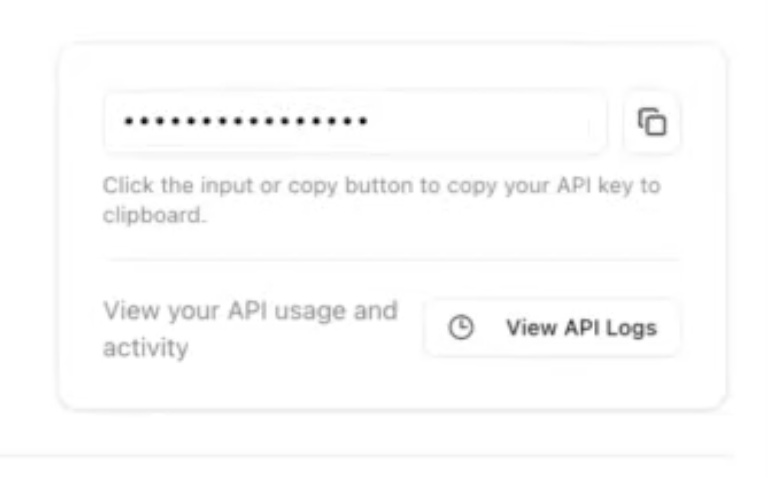
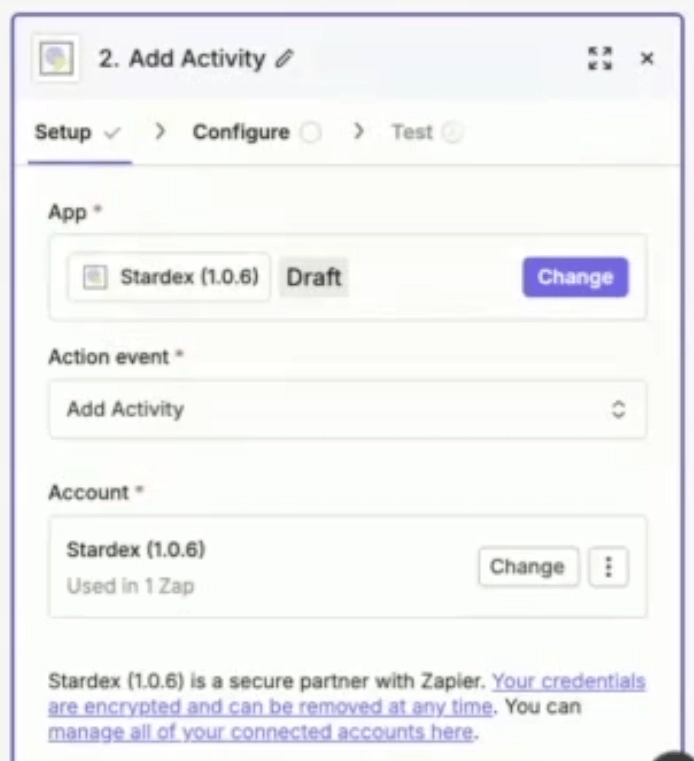
 2. Pick **Add Activity** action from Stardex, and enter your API key. You can get it from **Settings → Email & other integrations → API access & Webhooks**: [https://stardex.com/settings?tab=email-calendar\§ion=api-access](https://stardex.com/settings?tab=email-calendar\§ion=api-access)
 3. In the configure section, enter relevant info to help us match the candidate.
1. **Activity Type:** Pick the appropriate activity type (e.g. Meeting Note).
2. **Note Content:** Pass the relevant note data from the Granola trigger. We recommend using **Enhanced Notes** (clean summary) instead of raw transcript if available.
3. **Name:** Pass in the candidate or client data. If Granola doesn’t clearly separate this, use the meeting title or closest identifier.
4. Option fields: LinkedIn URL (if available), Email, Job Title
5. Any other description: anything else you want to provide that can help match this person.
3. In the configure section, enter relevant info to help us match the candidate.
1. **Activity Type:** Pick the appropriate activity type (e.g. Meeting Note).
2. **Note Content:** Pass the relevant note data from the Granola trigger. We recommend using **Enhanced Notes** (clean summary) instead of raw transcript if available.
3. **Name:** Pass in the candidate or client data. If Granola doesn’t clearly separate this, use the meeting title or closest identifier.
4. Option fields: LinkedIn URL (if available), Email, Job Title
5. Any other description: anything else you want to provide that can help match this person.
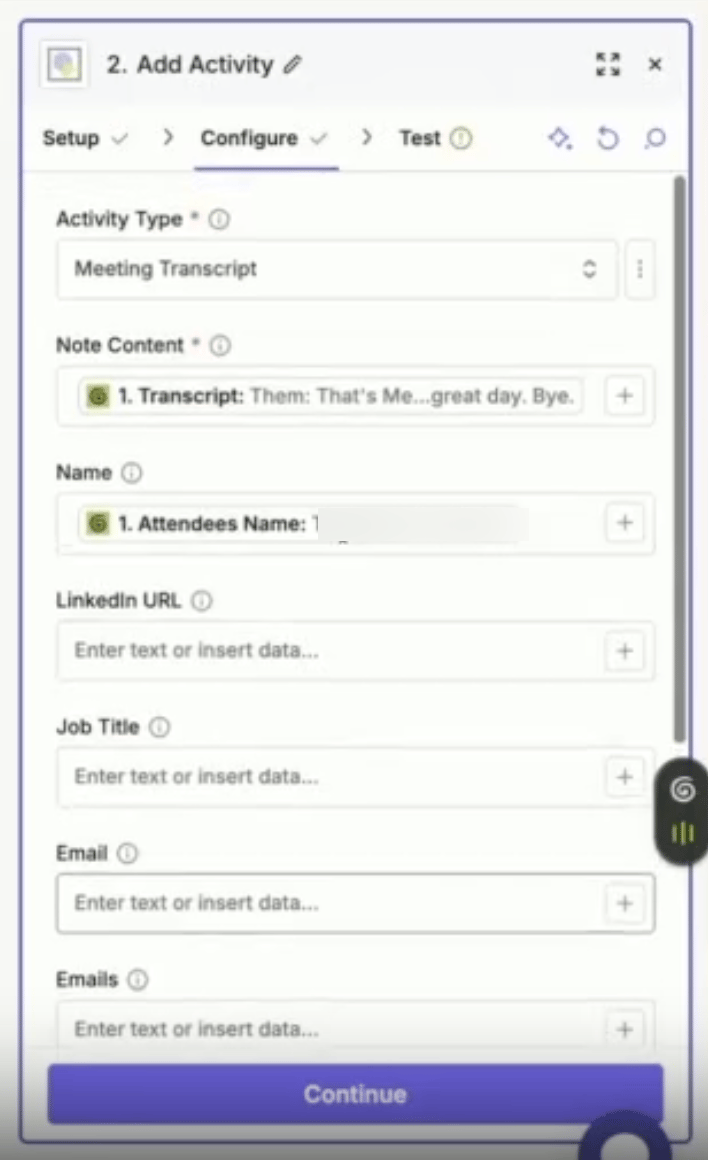 The more info you can pass, the better the matching is. This helps Stardex correctly attach notes even if names are incomplete or slightly misspelled.
4. Click **Continue** to test.
5. Publish if everything works.
## Example with Google Calendar
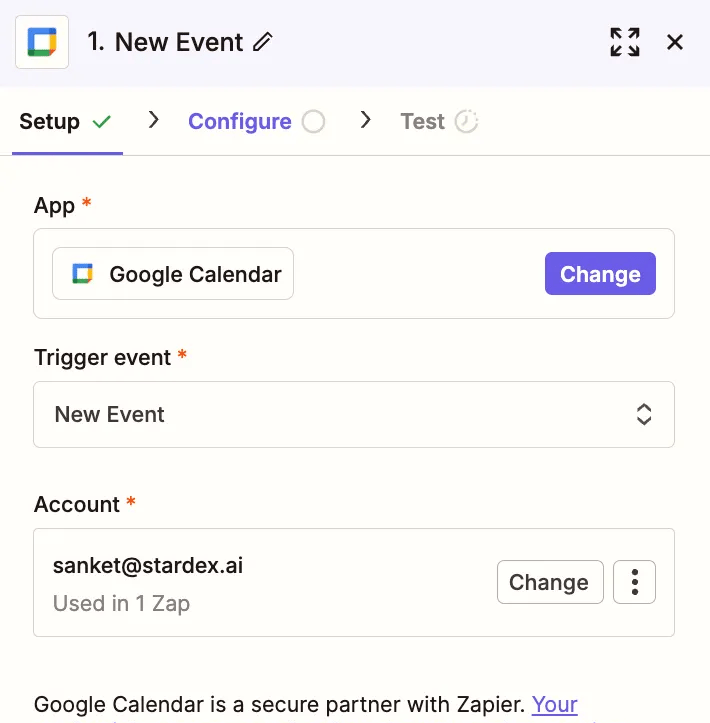
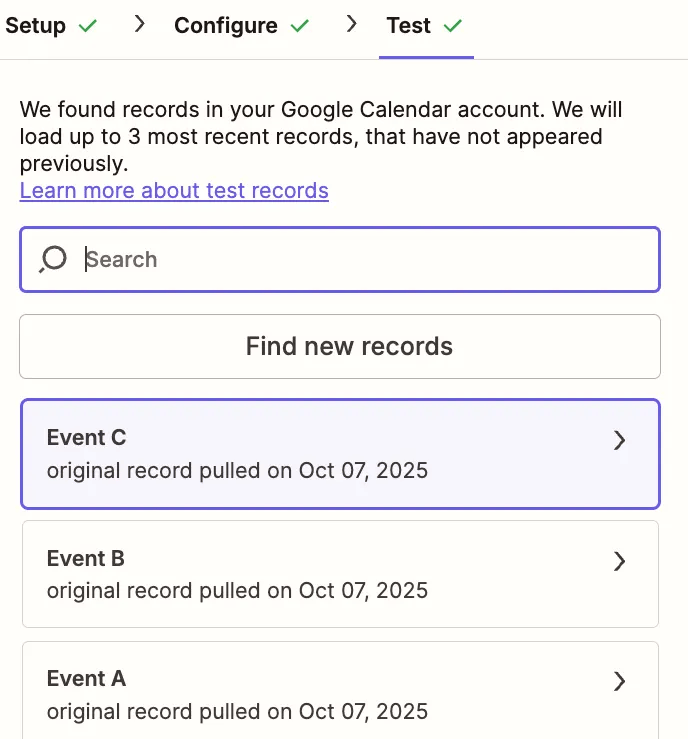
1. Find the google calendar Trigger and then Pick New Event as a trigger. Pick the right calendar on the next screen. Test the trigger to pick a sample recent event.
The more info you can pass, the better the matching is. This helps Stardex correctly attach notes even if names are incomplete or slightly misspelled.
4. Click **Continue** to test.
5. Publish if everything works.
## Example with Google Calendar
1. Find the google calendar Trigger and then Pick New Event as a trigger. Pick the right calendar on the next screen. Test the trigger to pick a sample recent event.
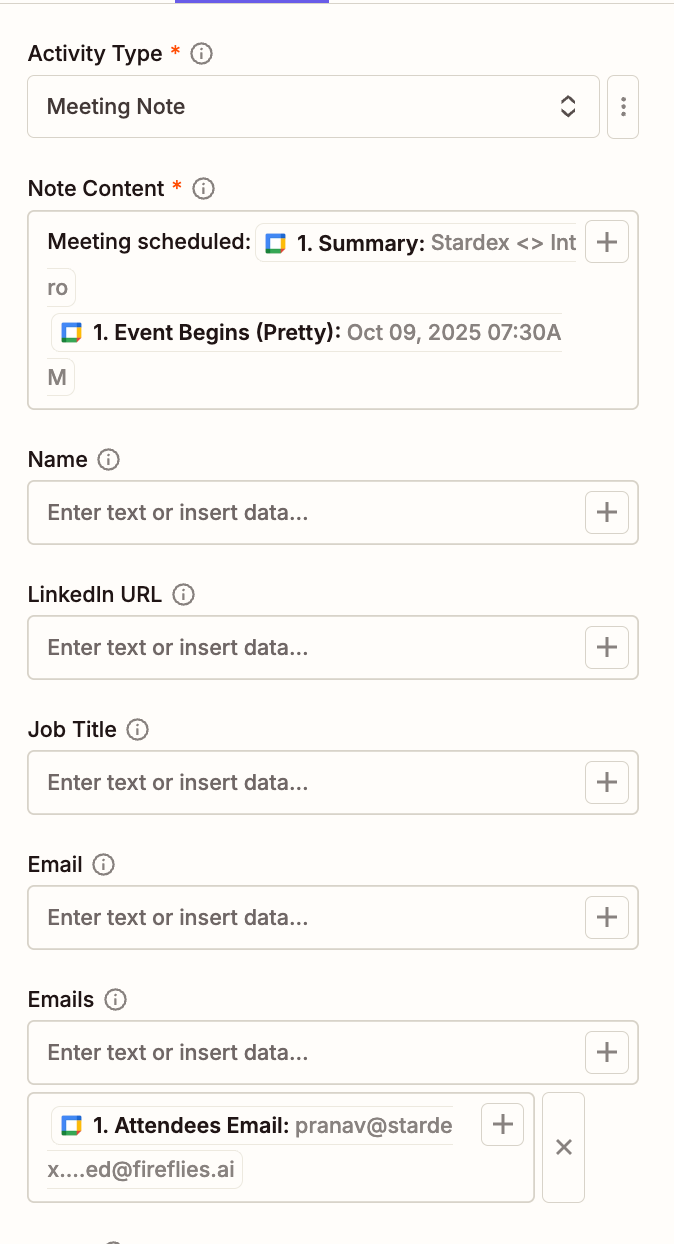
 2. Add Stardex add activity action. Add appropriate Note Content, and then under Emails, add Google’s attendee emails.
 ## Example with Dialpad (experimental)
## Logging Dialpad Call Activity into Stardex via Zapier
Automatically push call data from Dialpad into Stardex as candidate or contact activities — no manual logging required. When a call ends in Dialpad, Zapier fires and creates an activity record on the matching person in Stardex.
***
## Before You Start
Make sure you have:
* A **Dialpad Pro or Enterprise** plan (required for the Zapier integration)
* A **Zapier account** (any plan works)
* Access to the **Stardex Zapier app** — join via this invite link: [https://zapier.com/developer/public-invite/217677/a121df430f700c9b335635ea4d2f5eb1/](https://zapier.com/developer/public-invite/217677/a121df430f700c9b335635ea4d2f5eb1/)
* Your **Stardex API key** — find it at [stardex.com/settings?tab=email-calendar\§ion=api-access](https://stardex.com/settings?tab=email-calendar\§ion=api-access)
***
## Step 1 — Create a New Zap
1. Log into [Zapier](https://zapier.com/) and click **Create → New Zap**
2. Name your Zap something like `Dialpad Call Ended → Stardex Activity`
***
## Step 2 — Set Up the Dialpad Trigger
1. In the **Trigger** step, search for and select **Dialpad**
2. For the trigger event, choose **Call State Changed**
> This is Dialpad's primary trigger for call activity. It fires whenever a call changes state — you'll filter it down to `call_ended` in the next step.
3. Click **Sign in to Dialpad** and authenticate via OAuth. When prompted about the sandbox option, select **False** (unless you're testing in a sandbox environment), then click **Yes, Continue** and **Allow**
4. Once connected, configure the trigger options:
* **Call States:** Select `call_ended` — this fires once a call completes
* **Scope:** Choose `Company` to capture all calls, or narrow to a specific **Department** or **Main Line** if you only want calls from certain numbers
* **Sandbox:** Set to `False`
5. Click **Continue**, then **Test Trigger** to pull a sample call record
> **Tip — Missed Calls:** Dialpad doesn't have a dedicated "missed call" trigger. To capture missed calls, select `call_ended` as the state and add a **Filter** step after the trigger where `date_connected` is empty/null.
> **Tip — Call Dispositions:** If your team sets call dispositions in Dialpad, you can also use the `call_disposition` state to trigger off those events specifically.
***
## Step 3 — (Optional) Add a Filter
If you want to log only certain calls — for example, only outbound calls or only calls over a certain duration — add a **Filter** step between the trigger and action:
1. Click the **+** icon between trigger and action
2. Select **Filter by Zapier**
3. Set your condition, e.g.:
* `Direction` → `(Text) Exactly matches` → `outbound`
* Or `Duration` → `(Number) Greater than` → `30` (seconds) to skip very short/accidental calls
***
## Step 4 — Set Up the Stardex Action
1. In the **Action** step, search for and select **Stardex**
2. Choose **Add Activity** as the action event
3. Enter your **Stardex API key** when prompted (from [stardex.com/settings?tab=email-calendar\§ion=api-access](https://stardex.com/settings?tab=email-calendar\§ion=api-access))
***
## Step 5 — Configure the Activity Fields
This is the most important step. Map Dialpad's call data to Stardex's fields so the activity gets attached to the right person.
| Stardex Field | What to Map | Notes |
| - | - | - |
| **Activity Type** | `call_note` | Use `call_note` for logged calls |
| **Note Content** | Build a summary using Dialpad fields | See template below |
| **Name** | `Contact Name` from Dialpad | The person you called |
| **Email** | `Contact Email` from Dialpad | If available — improves matching |
| **LinkedIn URL** | Leave blank | Dialpad won't have this |
| **Any Other Description** | `Direction`, `Duration`, `To Number` | More context = better AI matching |
### Suggested Note Content Template
In the **Note Content** field, use Zapier's field mapper to build a message like:
```
Dialpad call - {{direction}} call with {{contact_name}}
Duration: {{duration}} seconds
Date: {{date_connected}}
Number: {{to_number}}
```
Map each `{{field}}` to the corresponding Dialpad output field from your trigger test. This gives Stardex enough context to create a clean, readable activity log.
> **On matching:** Stardex will try to find the person using the name, email, or other identifiers you pass. If it can't find an exact match, it uses AI to resolve near-matches (e.g. name variations). If it still can't match, the activity shows up as **unassigned** on your home page so you can manually link it. The more fields you fill in, the more reliably it matches automatically.
***
## Step 6 — Test and Publish
1. Click **Continue** then **Test action** — Stardex will attempt to create a test activity
2. Check your Stardex home page or the person's activity feed to confirm the activity appeared
3. If everything looks right, click **Publish Zap**
***
## Logging Full Call Transcripts (Separate Zap)
The `call_ended` Zap above logs call metadata — who called, duration, direction — but **not** the transcript text. To push Dialpad's AI transcript into Stardex, you need a separate Zap. This is worth setting up if you want the full conversation searchable on a person's activity timeline.
> **Important:** The `transcription` call state in Dialpad's Zapier trigger is for **voicemail** transcriptions only — not AI call transcripts. Getting the actual call transcript requires one extra step via Dialpad's API.
### Option A — Full AI Transcript (`meeting_transcript`)
Use this if you want the complete verbatim, speaker-labeled transcript in Stardex.
**Trigger setup**
1. Create a new Zap and name it `Dialpad Call Transcript → Stardex`
2. Set the trigger to **Dialpad → Call State Changed**
3. Set **Call States** to `call_transcription` — this fires when Dialpad's AI transcript is ready after a call ends (separate from and slightly later than `call_ended`)
4. Configure Scope and authenticate the same way as the call note Zap
**Fetch the transcript text**
The `call_transcription` trigger fires with a `call_id` but does not include the transcript content inline. You need a second step to retrieve it:
1. Add a new action: **Dialpad → API Request**
2. Set method to `GET`
3. Set the URL to `https://dialpad.com/api/v2/transcripts/` and append the `call_id` field from the trigger
4. Authenticate with your Dialpad API key
This returns the full transcript with speaker labels and timestamps.
**Stardex action**
Add a **Stardex → Add Activity** step and configure:
| Stardex Field | What to Map |
| - | - |
| **Activity Type** | `meeting_transcript` |
| **Note Content** | Transcript text from the API Request response |
| **Name** | `Contact Name` from the trigger |
| **Email** | `Contact Email` from the trigger |
### Option B — AI Recap Summary (`call_note`)
Use this if you prefer a short summary with action items rather than the full transcript — less noise, easier to skim.
1. Set **Call States** to `recap_summary` in the trigger — this fires when Dialpad's AI Recap is generated
2. The recap content is included directly in the trigger payload (no extra API call needed)
3. In Stardex, use **Activity Type** `call_note` or `meeting_note` and map the recap text to **Note Content**
> **Which should I use?** For a recruiting CRM context, the AI Recap (Option B) is usually more practical — it gives you action items and a summary without storing walls of verbatim text on every contact. Use Option A if you need the full transcript for compliance, coaching, or detailed review purposes.
***
## Verifying It's Working
After publishing, you can monitor incoming activity at:
**Settings → Email & other integrations → API access & Webhooks**
This shows a log of every activity Stardex has received via Zapier, including whether it was matched to a person or flagged as unassigned.
***
## Troubleshooting
**Activity shows as unassigned**
Pass more identifying fields — email is the most reliable match signal. If Dialpad doesn't always include a contact email, check whether your Dialpad contacts have emails populated.
**Zap firing twice per call**
This is a known Dialpad behavior for Department or Contact Center calls — two records fire per state change (one for the department, one for the agent). Add a Zapier Filter to keep only the record where `target_type` equals `user` (the agent leg).
**Not seeing calls from a specific line**
Check your Scope setting in the trigger — if you selected a specific Department or Main Line, only calls to that number will fire.
**Dialpad trigger not available**
Confirm you're on a Dialpad Pro or Enterprise Connect plan, or a Dialpad Sell/Support license. The Zapier integration is not available on lower-tier plans.
**`call_transcription` trigger fires but API Request returns empty**
Transcription must be enabled on your Dialpad line for AI transcripts to generate. Check under Admin Settings → the relevant Department or line → Dialpad AI → confirm "Enable Dialpad AI" is on. Also note the transcript may take 1–2 minutes after call end to be available — if you hit the API too quickly, add a **Delay by Zapier** step (2–3 minutes) before the API Request action.
***
## What Gets Logged in Stardex
Depending on which Zaps you set up, you can push three levels of detail from Dialpad into a person's activity timeline:
| Zap | Activity Type | What's Stored |
| - | - | - |
| `call_ended` | `call_note` | Direction, duration, date, contact name/number |
| `recap_summary` | `call_note` / `meeting_note` | AI-generated summary + action items |
| `call_transcription` | `meeting_transcript` | Full verbatim transcript with speaker labels |
All three appear alongside notes from other sources (Metaview, Granola, manual entries), giving you a complete picture of touchpoints with every contact. Most teams run the `call_ended` Zap for all calls and the `recap_summary` Zap for a richer log — the full transcript Zap is optional depending on your needs.
## Example with Calendly
TBD
## Updating to the latest Stardex app version
We regularly release updates to the Stardex app on Zapier with new features and fixes. Updating is self-serve — since you already joined via our invite link, you already have access to every version we've released, so there's no need to request a new invite.
1. Open the Zap that uses Stardex and click on the Stardex step.
2. In the **Setup** tab, click **Change** next to **App**.
## Example with Dialpad (experimental)
## Logging Dialpad Call Activity into Stardex via Zapier
Automatically push call data from Dialpad into Stardex as candidate or contact activities — no manual logging required. When a call ends in Dialpad, Zapier fires and creates an activity record on the matching person in Stardex.
***
## Before You Start
Make sure you have:
* A **Dialpad Pro or Enterprise** plan (required for the Zapier integration)
* A **Zapier account** (any plan works)
* Access to the **Stardex Zapier app** — join via this invite link: [https://zapier.com/developer/public-invite/217677/a121df430f700c9b335635ea4d2f5eb1/](https://zapier.com/developer/public-invite/217677/a121df430f700c9b335635ea4d2f5eb1/)
* Your **Stardex API key** — find it at [stardex.com/settings?tab=email-calendar\§ion=api-access](https://stardex.com/settings?tab=email-calendar\§ion=api-access)
***
## Step 1 — Create a New Zap
1. Log into [Zapier](https://zapier.com/) and click **Create → New Zap**
2. Name your Zap something like `Dialpad Call Ended → Stardex Activity`
***
## Step 2 — Set Up the Dialpad Trigger
1. In the **Trigger** step, search for and select **Dialpad**
2. For the trigger event, choose **Call State Changed**
> This is Dialpad's primary trigger for call activity. It fires whenever a call changes state — you'll filter it down to `call_ended` in the next step.
3. Click **Sign in to Dialpad** and authenticate via OAuth. When prompted about the sandbox option, select **False** (unless you're testing in a sandbox environment), then click **Yes, Continue** and **Allow**
4. Once connected, configure the trigger options:
* **Call States:** Select `call_ended` — this fires once a call completes
* **Scope:** Choose `Company` to capture all calls, or narrow to a specific **Department** or **Main Line** if you only want calls from certain numbers
* **Sandbox:** Set to `False`
5. Click **Continue**, then **Test Trigger** to pull a sample call record
> **Tip — Missed Calls:** Dialpad doesn't have a dedicated "missed call" trigger. To capture missed calls, select `call_ended` as the state and add a **Filter** step after the trigger where `date_connected` is empty/null.
> **Tip — Call Dispositions:** If your team sets call dispositions in Dialpad, you can also use the `call_disposition` state to trigger off those events specifically.
***
## Step 3 — (Optional) Add a Filter
If you want to log only certain calls — for example, only outbound calls or only calls over a certain duration — add a **Filter** step between the trigger and action:
1. Click the **+** icon between trigger and action
2. Select **Filter by Zapier**
3. Set your condition, e.g.:
* `Direction` → `(Text) Exactly matches` → `outbound`
* Or `Duration` → `(Number) Greater than` → `30` (seconds) to skip very short/accidental calls
***
## Step 4 — Set Up the Stardex Action
1. In the **Action** step, search for and select **Stardex**
2. Choose **Add Activity** as the action event
3. Enter your **Stardex API key** when prompted (from [stardex.com/settings?tab=email-calendar\§ion=api-access](https://stardex.com/settings?tab=email-calendar\§ion=api-access))
***
## Step 5 — Configure the Activity Fields
This is the most important step. Map Dialpad's call data to Stardex's fields so the activity gets attached to the right person.
| Stardex Field | What to Map | Notes |
| - | - | - |
| **Activity Type** | `call_note` | Use `call_note` for logged calls |
| **Note Content** | Build a summary using Dialpad fields | See template below |
| **Name** | `Contact Name` from Dialpad | The person you called |
| **Email** | `Contact Email` from Dialpad | If available — improves matching |
| **LinkedIn URL** | Leave blank | Dialpad won't have this |
| **Any Other Description** | `Direction`, `Duration`, `To Number` | More context = better AI matching |
### Suggested Note Content Template
In the **Note Content** field, use Zapier's field mapper to build a message like:
```
Dialpad call - {{direction}} call with {{contact_name}}
Duration: {{duration}} seconds
Date: {{date_connected}}
Number: {{to_number}}
```
Map each `{{field}}` to the corresponding Dialpad output field from your trigger test. This gives Stardex enough context to create a clean, readable activity log.
> **On matching:** Stardex will try to find the person using the name, email, or other identifiers you pass. If it can't find an exact match, it uses AI to resolve near-matches (e.g. name variations). If it still can't match, the activity shows up as **unassigned** on your home page so you can manually link it. The more fields you fill in, the more reliably it matches automatically.
***
## Step 6 — Test and Publish
1. Click **Continue** then **Test action** — Stardex will attempt to create a test activity
2. Check your Stardex home page or the person's activity feed to confirm the activity appeared
3. If everything looks right, click **Publish Zap**
***
## Logging Full Call Transcripts (Separate Zap)
The `call_ended` Zap above logs call metadata — who called, duration, direction — but **not** the transcript text. To push Dialpad's AI transcript into Stardex, you need a separate Zap. This is worth setting up if you want the full conversation searchable on a person's activity timeline.
> **Important:** The `transcription` call state in Dialpad's Zapier trigger is for **voicemail** transcriptions only — not AI call transcripts. Getting the actual call transcript requires one extra step via Dialpad's API.
### Option A — Full AI Transcript (`meeting_transcript`)
Use this if you want the complete verbatim, speaker-labeled transcript in Stardex.
**Trigger setup**
1. Create a new Zap and name it `Dialpad Call Transcript → Stardex`
2. Set the trigger to **Dialpad → Call State Changed**
3. Set **Call States** to `call_transcription` — this fires when Dialpad's AI transcript is ready after a call ends (separate from and slightly later than `call_ended`)
4. Configure Scope and authenticate the same way as the call note Zap
**Fetch the transcript text**
The `call_transcription` trigger fires with a `call_id` but does not include the transcript content inline. You need a second step to retrieve it:
1. Add a new action: **Dialpad → API Request**
2. Set method to `GET`
3. Set the URL to `https://dialpad.com/api/v2/transcripts/` and append the `call_id` field from the trigger
4. Authenticate with your Dialpad API key
This returns the full transcript with speaker labels and timestamps.
**Stardex action**
Add a **Stardex → Add Activity** step and configure:
| Stardex Field | What to Map |
| - | - |
| **Activity Type** | `meeting_transcript` |
| **Note Content** | Transcript text from the API Request response |
| **Name** | `Contact Name` from the trigger |
| **Email** | `Contact Email` from the trigger |
### Option B — AI Recap Summary (`call_note`)
Use this if you prefer a short summary with action items rather than the full transcript — less noise, easier to skim.
1. Set **Call States** to `recap_summary` in the trigger — this fires when Dialpad's AI Recap is generated
2. The recap content is included directly in the trigger payload (no extra API call needed)
3. In Stardex, use **Activity Type** `call_note` or `meeting_note` and map the recap text to **Note Content**
> **Which should I use?** For a recruiting CRM context, the AI Recap (Option B) is usually more practical — it gives you action items and a summary without storing walls of verbatim text on every contact. Use Option A if you need the full transcript for compliance, coaching, or detailed review purposes.
***
## Verifying It's Working
After publishing, you can monitor incoming activity at:
**Settings → Email & other integrations → API access & Webhooks**
This shows a log of every activity Stardex has received via Zapier, including whether it was matched to a person or flagged as unassigned.
***
## Troubleshooting
**Activity shows as unassigned**
Pass more identifying fields — email is the most reliable match signal. If Dialpad doesn't always include a contact email, check whether your Dialpad contacts have emails populated.
**Zap firing twice per call**
This is a known Dialpad behavior for Department or Contact Center calls — two records fire per state change (one for the department, one for the agent). Add a Zapier Filter to keep only the record where `target_type` equals `user` (the agent leg).
**Not seeing calls from a specific line**
Check your Scope setting in the trigger — if you selected a specific Department or Main Line, only calls to that number will fire.
**Dialpad trigger not available**
Confirm you're on a Dialpad Pro or Enterprise Connect plan, or a Dialpad Sell/Support license. The Zapier integration is not available on lower-tier plans.
**`call_transcription` trigger fires but API Request returns empty**
Transcription must be enabled on your Dialpad line for AI transcripts to generate. Check under Admin Settings → the relevant Department or line → Dialpad AI → confirm "Enable Dialpad AI" is on. Also note the transcript may take 1–2 minutes after call end to be available — if you hit the API too quickly, add a **Delay by Zapier** step (2–3 minutes) before the API Request action.
***
## What Gets Logged in Stardex
Depending on which Zaps you set up, you can push three levels of detail from Dialpad into a person's activity timeline:
| Zap | Activity Type | What's Stored |
| - | - | - |
| `call_ended` | `call_note` | Direction, duration, date, contact name/number |
| `recap_summary` | `call_note` / `meeting_note` | AI-generated summary + action items |
| `call_transcription` | `meeting_transcript` | Full verbatim transcript with speaker labels |
All three appear alongside notes from other sources (Metaview, Granola, manual entries), giving you a complete picture of touchpoints with every contact. Most teams run the `call_ended` Zap for all calls and the `recap_summary` Zap for a richer log — the full transcript Zap is optional depending on your needs.
## Example with Calendly
TBD
## Updating to the latest Stardex app version
We regularly release updates to the Stardex app on Zapier with new features and fixes. Updating is self-serve — since you already joined via our invite link, you already have access to every version we've released, so there's no need to request a new invite.
1. Open the Zap that uses Stardex and click on the Stardex step.
2. In the **Setup** tab, click **Change** next to **App**.
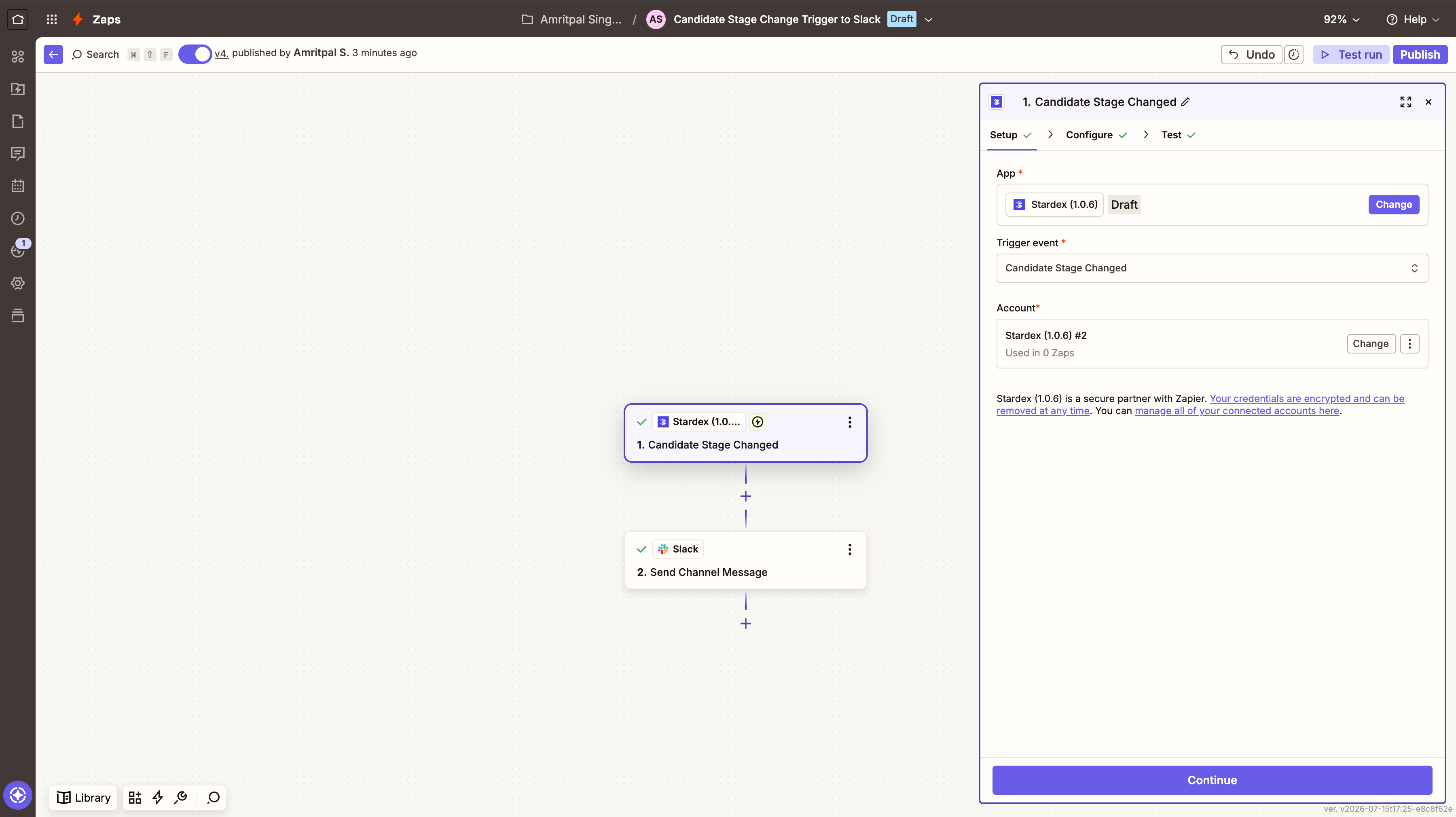
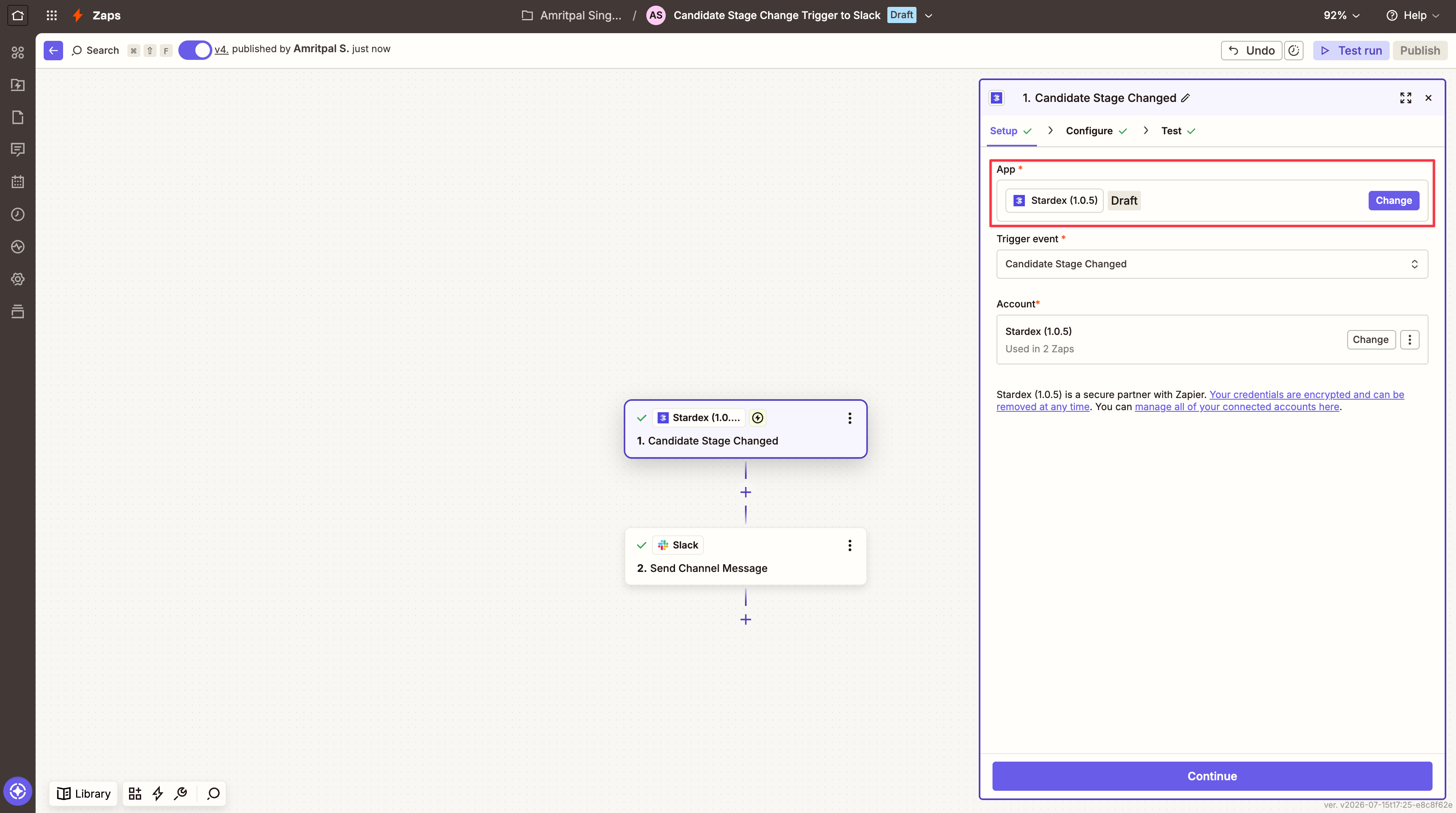 3. Search for **Stardex** and select it **without** a version number next to it — that's always the latest version.
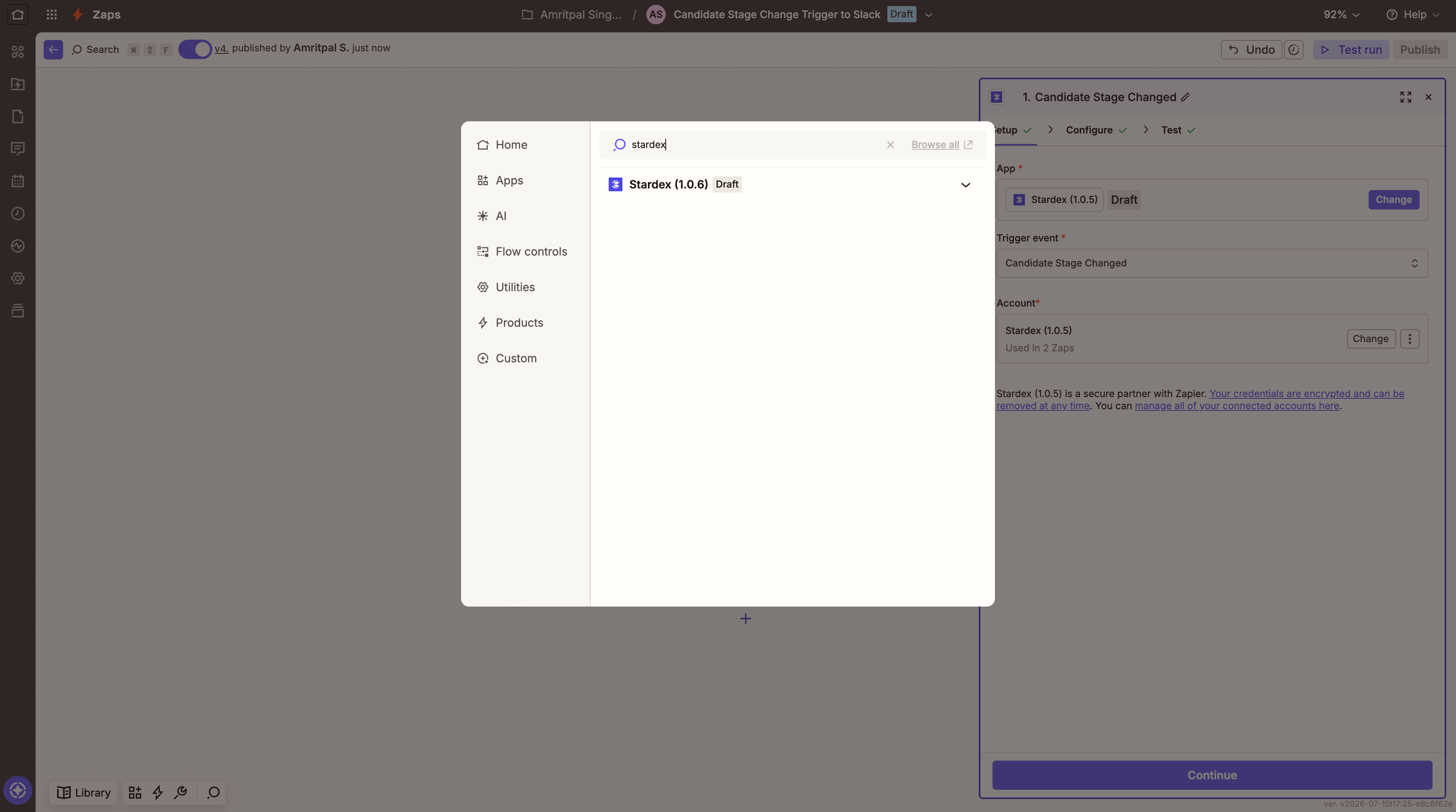 4. Zapier may ask you to update the connected **Account** to match the new version. Click **Change** next to **Account** and pick a connection on the latest version.
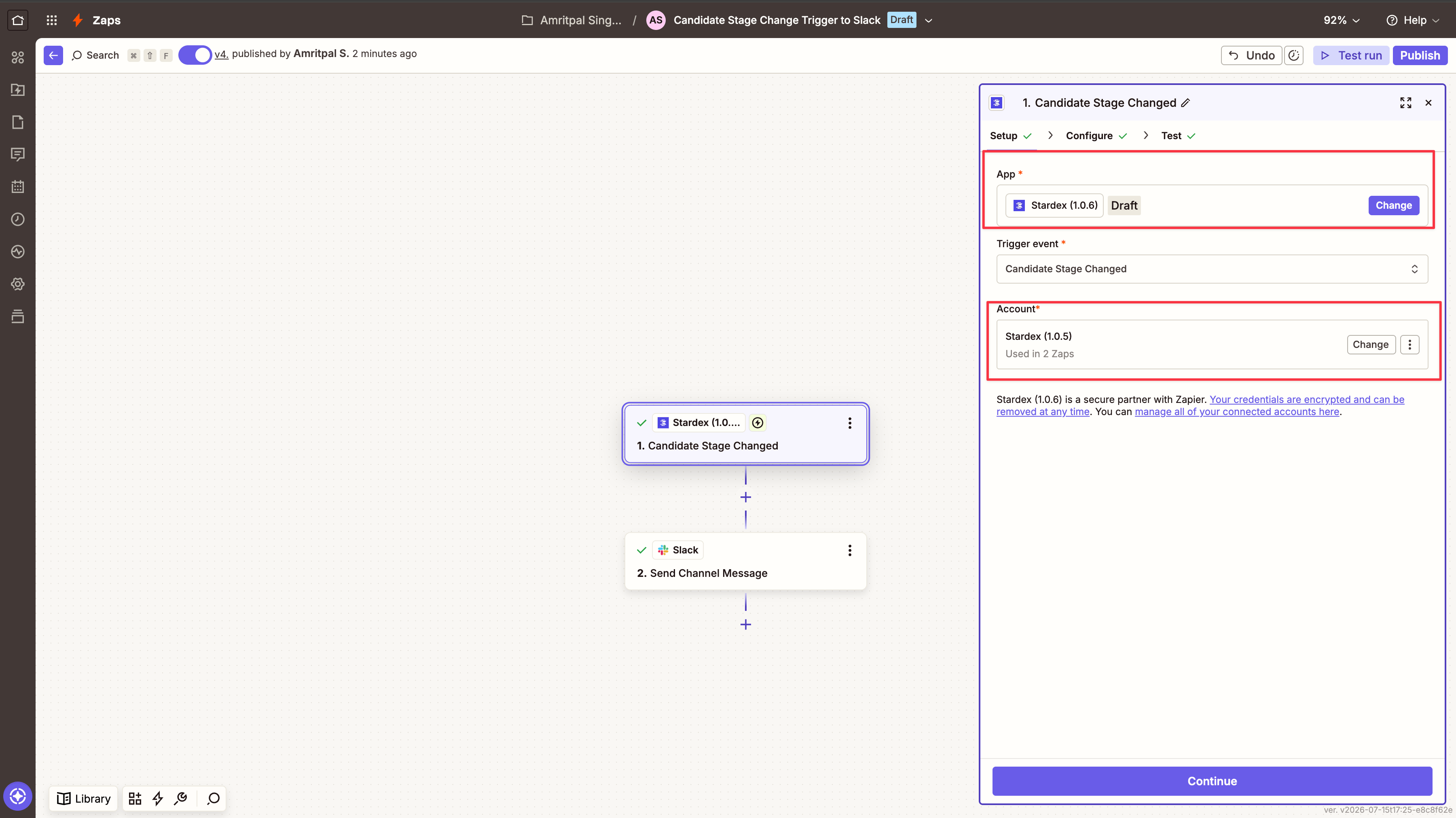 5. Go to the **Test** tab, re-test the step to confirm it still works, then click **Publish**.
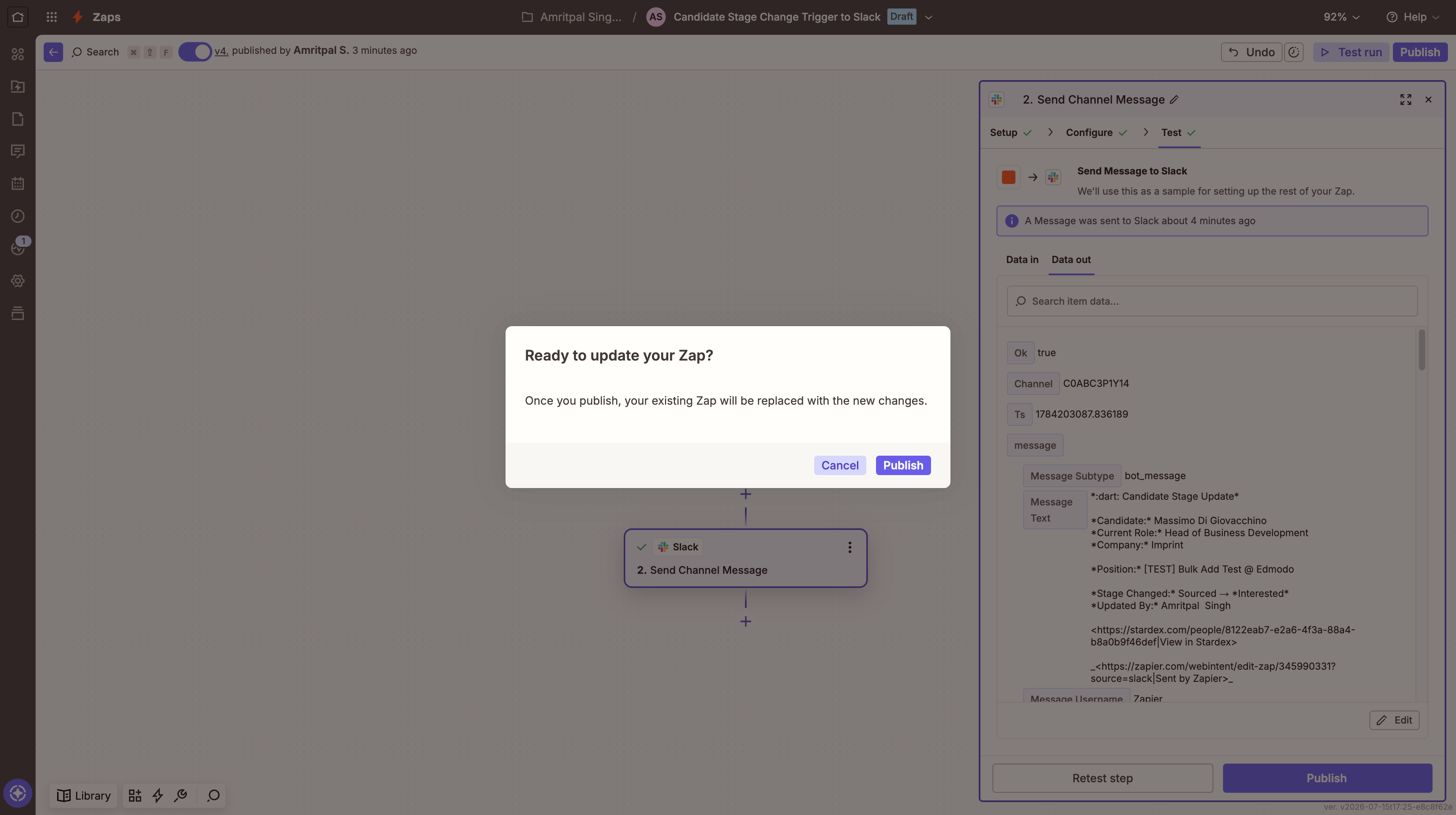 Your Zap is now running on the latest version.
> 💡Repeat this for each Zap that uses Stardex — every Zap keeps its own app version until you update it individually.
## Reconnecting with a new API key
You only need this if your existing connection stops working — for example, if your Stardex API key was rolled or revoked and Zapier can no longer authenticate with it. If your current connection still works, you can skip this.
1. In the Stardex step, click **Change** next to **Account**, then click **+ Connect a new account**.
Your Zap is now running on the latest version.
> 💡Repeat this for each Zap that uses Stardex — every Zap keeps its own app version until you update it individually.
## Reconnecting with a new API key
You only need this if your existing connection stops working — for example, if your Stardex API key was rolled or revoked and Zapier can no longer authenticate with it. If your current connection still works, you can skip this.
1. In the Stardex step, click **Change** next to **Account**, then click **+ Connect a new account**.
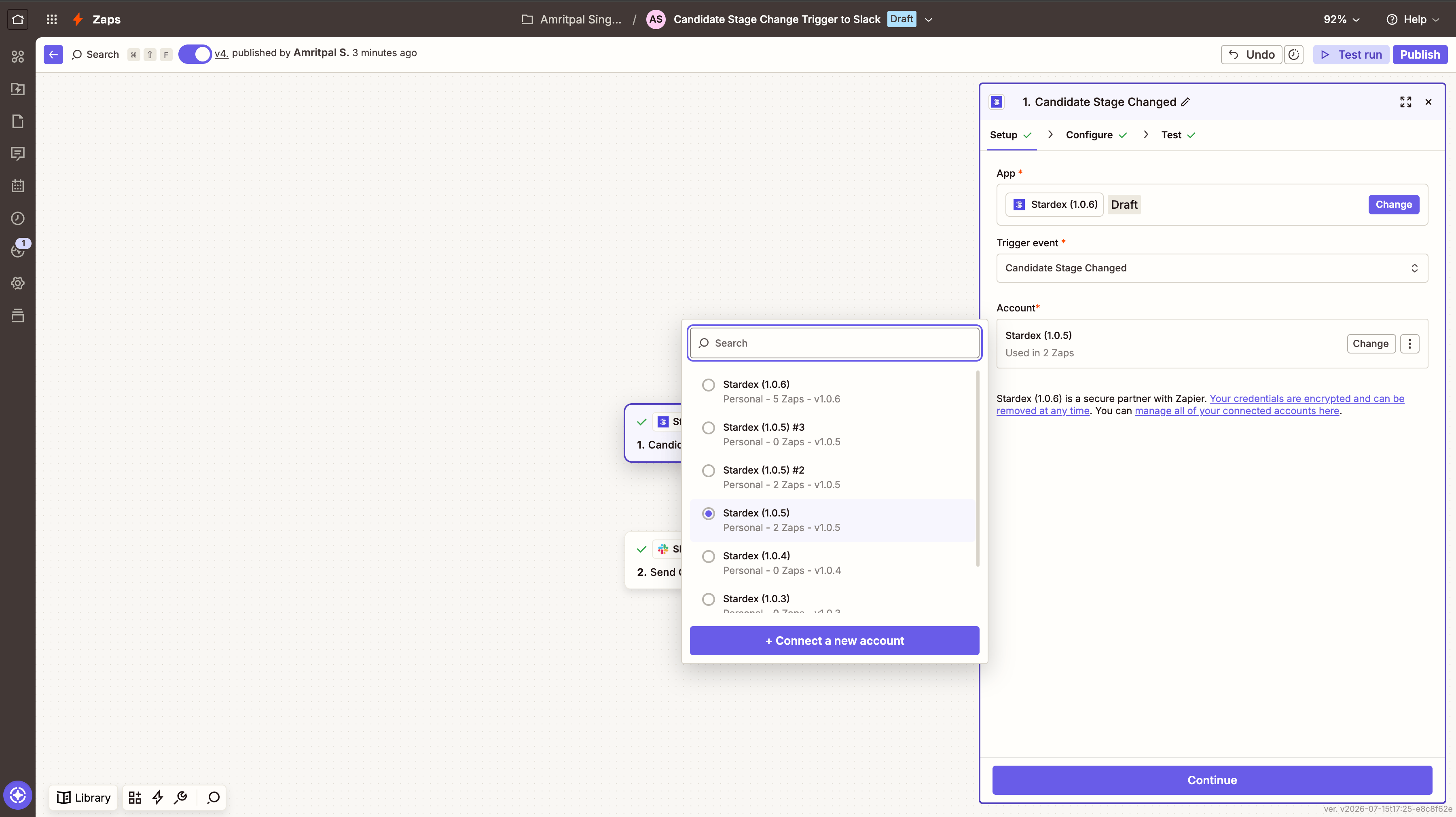 2. Grab a fresh API key from **Settings → Email & other integrations → API access & Webhooks** in Stardex ([stardex.com/settings?tab=email-calendar\§ion=api-access](https://stardex.com/settings?tab=email-calendar\§ion=api-access)), paste it into the **API Key** field, and click **Connect**.
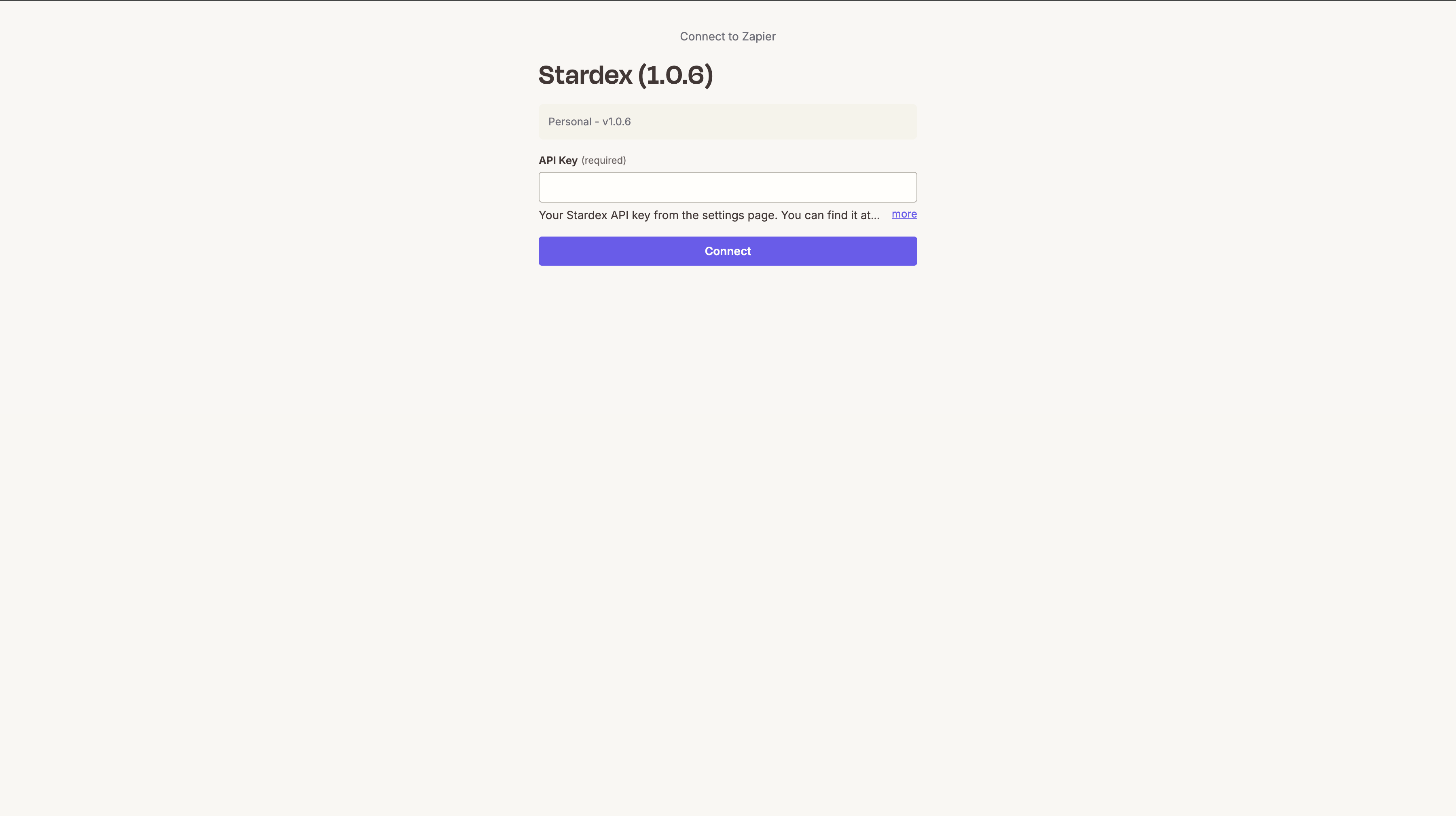 3. Select this new connection as the **Account** for your Zap step, then test and publish.
 This documentation is built and hosted on [Mintlify](https://mintlify.com), a developer documentation platform.