> ## Documentation Index
> Fetch the complete documentation index at: https://docs.stardex.com/llms.txt
> Use this file to discover all available pages before exploring further.
# Your Home page: what's on your dashboard
> Review active jobs, candidates, tasks, upcoming interviews, and unassigned activities from your Home page.
***
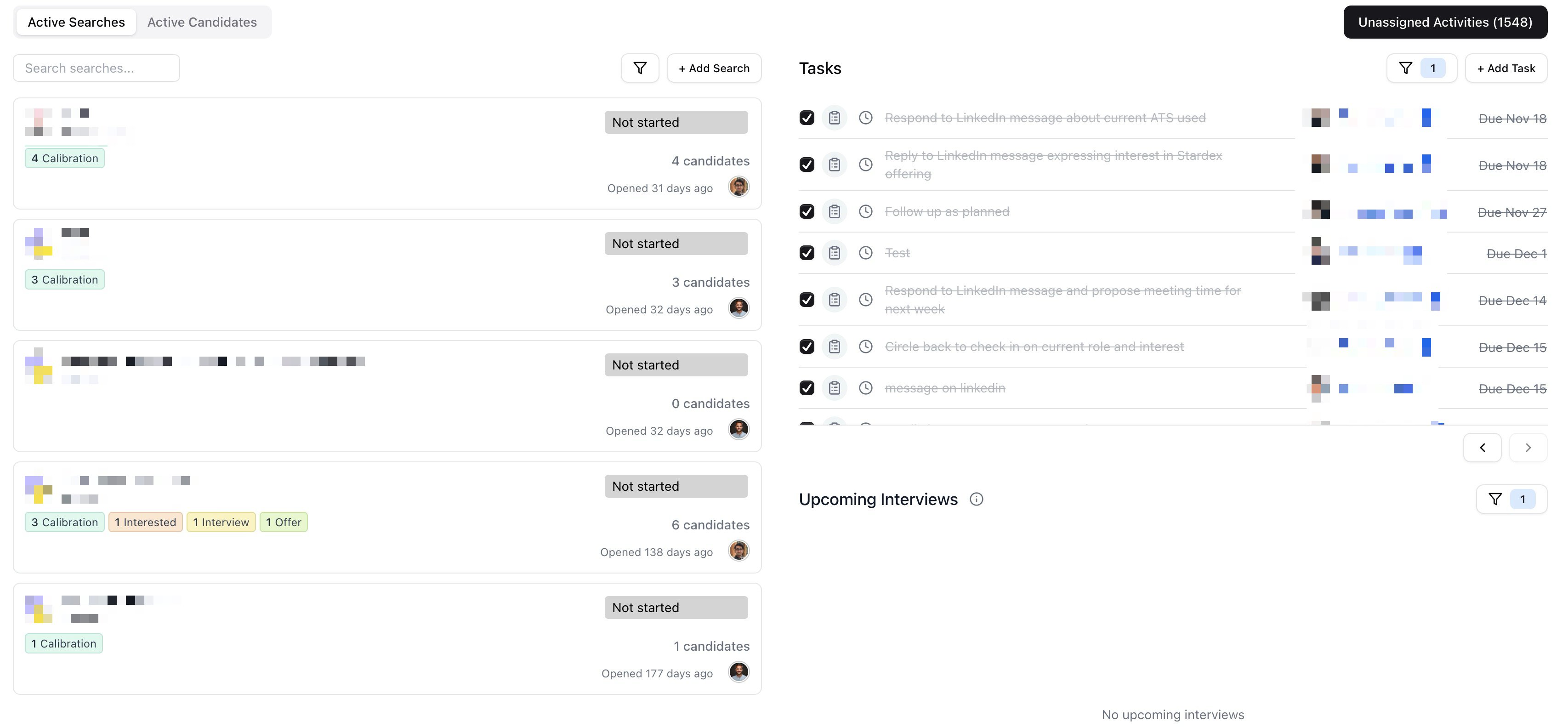
You have tasks due, interviews scheduled, candidates going stale, and jobs at different stages of progress. Checking each of these in separate pages means you start the day clicking around instead of working. The Home page collects your tasks, upcoming interviews, active jobs, and active candidates into a single screen so you can triage in a couple of minutes.
## Checking your tasks and interviews, then scanning candidates
1. Open the **Home** page (click **Home** in the sidebar or press **G H**)
2. On the right side, review your **Tasks** list — tasks are sorted by due date, with overdue items at the top. Check the box on any task to mark it done without leaving the page
3. Below Tasks, check **Upcoming Interviews** for today's and this week's scheduled interviews. Click a candidate's name to open their profile and prep
4. On the left side, click the **Active Candidates** tab to scan for candidates who haven't had recent activity across your jobs
5. Click any candidate, job, or task to jump directly to its detail page
 ***
## Layout
The Home page is split into two sides.
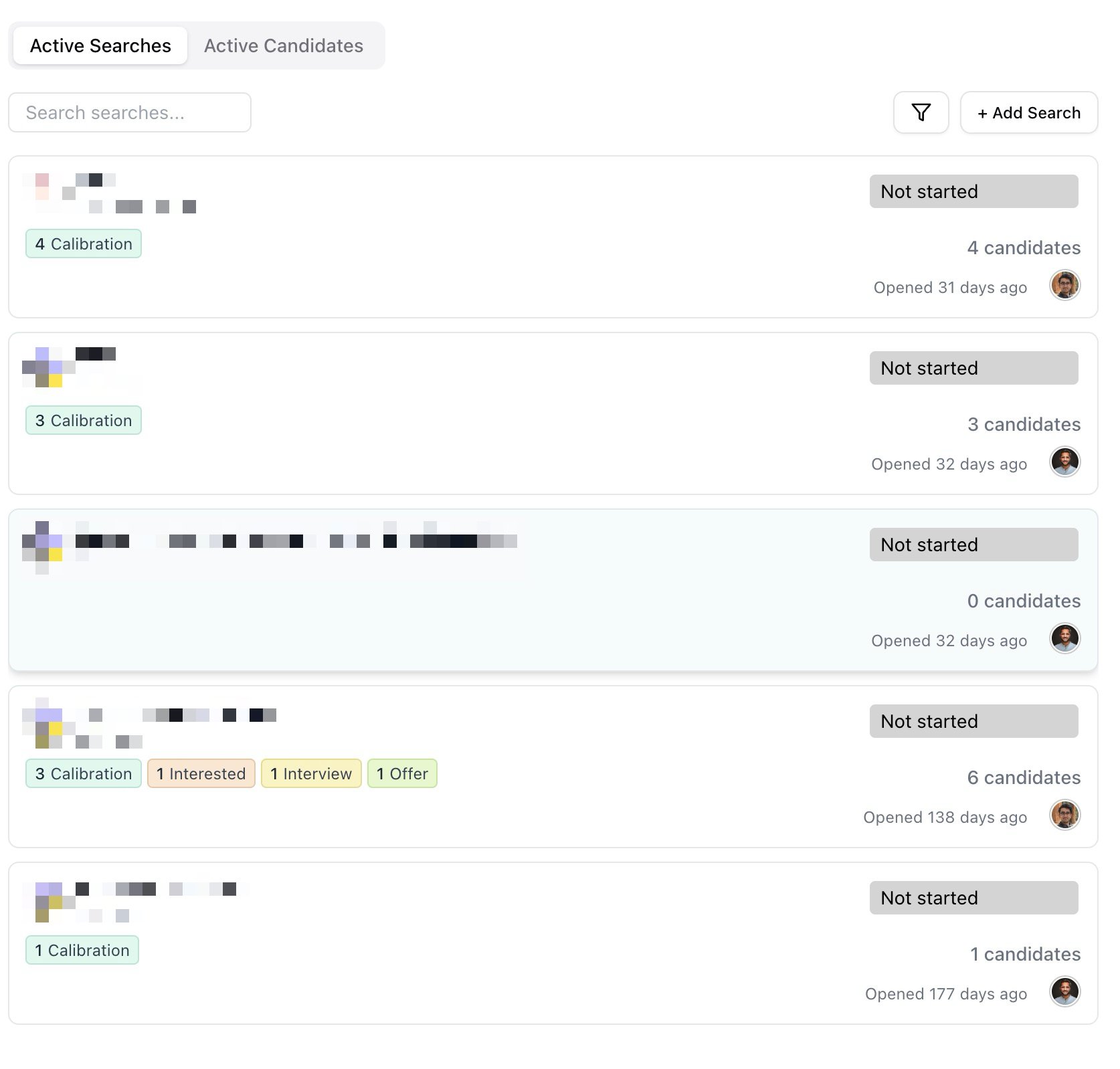
### Left side — jobs and active candidates
Two tabs at the top:
* The first tab shows your active jobs. The label matches your organization's custom job name (e.g., **Active Jobs**, **Active Searches**, **Active Projects**)
* **Active Candidates** shows candidates currently in play across all your non-archived jobs in a compact list
The tab you last used is saved and will be selected the next time you open the Home page.
***
## Layout
The Home page is split into two sides.
### Left side — jobs and active candidates
Two tabs at the top:
* The first tab shows your active jobs. The label matches your organization's custom job name (e.g., **Active Jobs**, **Active Searches**, **Active Projects**)
* **Active Candidates** shows candidates currently in play across all your non-archived jobs in a compact list
The tab you last used is saved and will be selected the next time you open the Home page.
 ### Right side — tasks and upcoming interviews
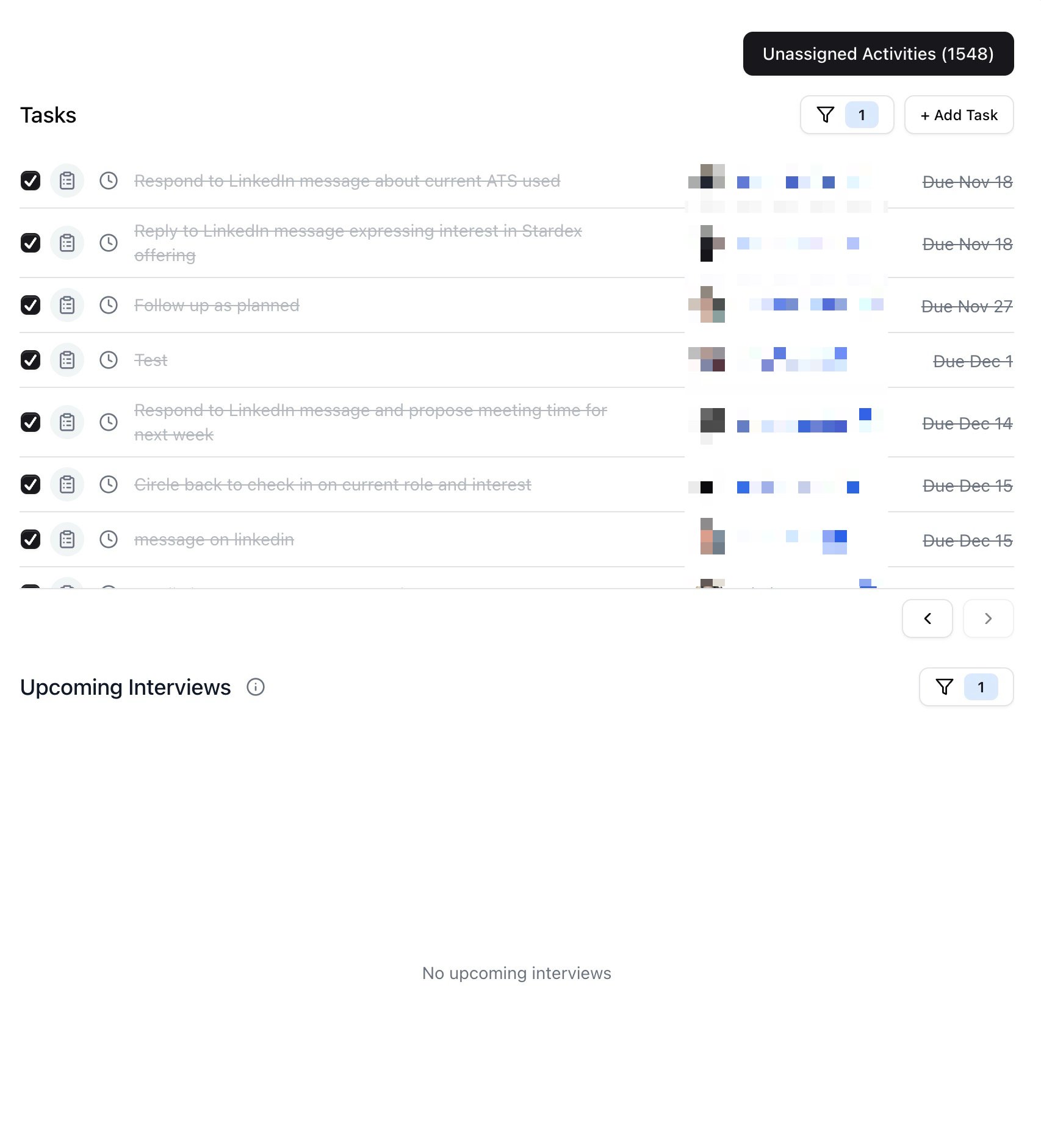
**Tasks** and **Upcoming Interviews** are stacked vertically on the right, each taking half the available space. Both sections are always visible regardless of which tab is selected on the left.
### Right side — tasks and upcoming interviews
**Tasks** and **Upcoming Interviews** are stacked vertically on the right, each taking half the available space. Both sections are always visible regardless of which tab is selected on the left.
 ***
## Tasks
The **Tasks** heading opens the full **Tasks** page. On the Home page you get a compact view with these controls:
* **+ Add Task** — opens the **Create New Task** dialog
* **Hide Completed** / **Show Completed** — toggle visibility of completed tasks
* **List**, **Month**, **Week** — switch between view modes
* **Filter** — opens a popover with filters for **Task Owners**, **Candidate Owners**, **Associated with** (All Tasks, Client Tasks, Job Tasks, Person Tasks, Deal Tasks), **Type** (Text, LinkedIn Message, LinkedIn Connection, Call, Other), and a search field (**Search by task title...**)
* **Undo** — appears after completing a task, lets you reverse it
Each task row shows a checkbox, the task content, the linked entity (person, company, deal), and the due date. Click the checkbox to complete a task. Click the task itself to open its detail view.
When no tasks match your current filters, the section shows "No tasks out of X tasks match your current filters."
***
## Upcoming Interviews
Shows candidates who are in interview-related pipeline stages within a configurable date range. The dates shown are stage dates — when a candidate was moved into that stage.
Filters are available in a popover:
* **Filter Type** — choose **Days Before/After** (set a number of days before and after today, 0–30) or **Specific Dates** (pick a date range)
* **Owners** — filter by **Job Owners** and/or **Candidate Owners**
The current range is shown as "Showing from \[date] to \[date]" above the results. Click a candidate's name to open their profile. Click the date to update the stage date.
When no interviews match, the section shows "No upcoming interviews."
For a pipeline stage to appear in Upcoming Interviews, it must have the **Interview** checkbox enabled. Configure this in **Settings** under **Candidate Stages** — each stage has an **Interview** toggle that controls whether candidates in that stage count as having an upcoming interview.
***
## Unassigned Activities (admins only)
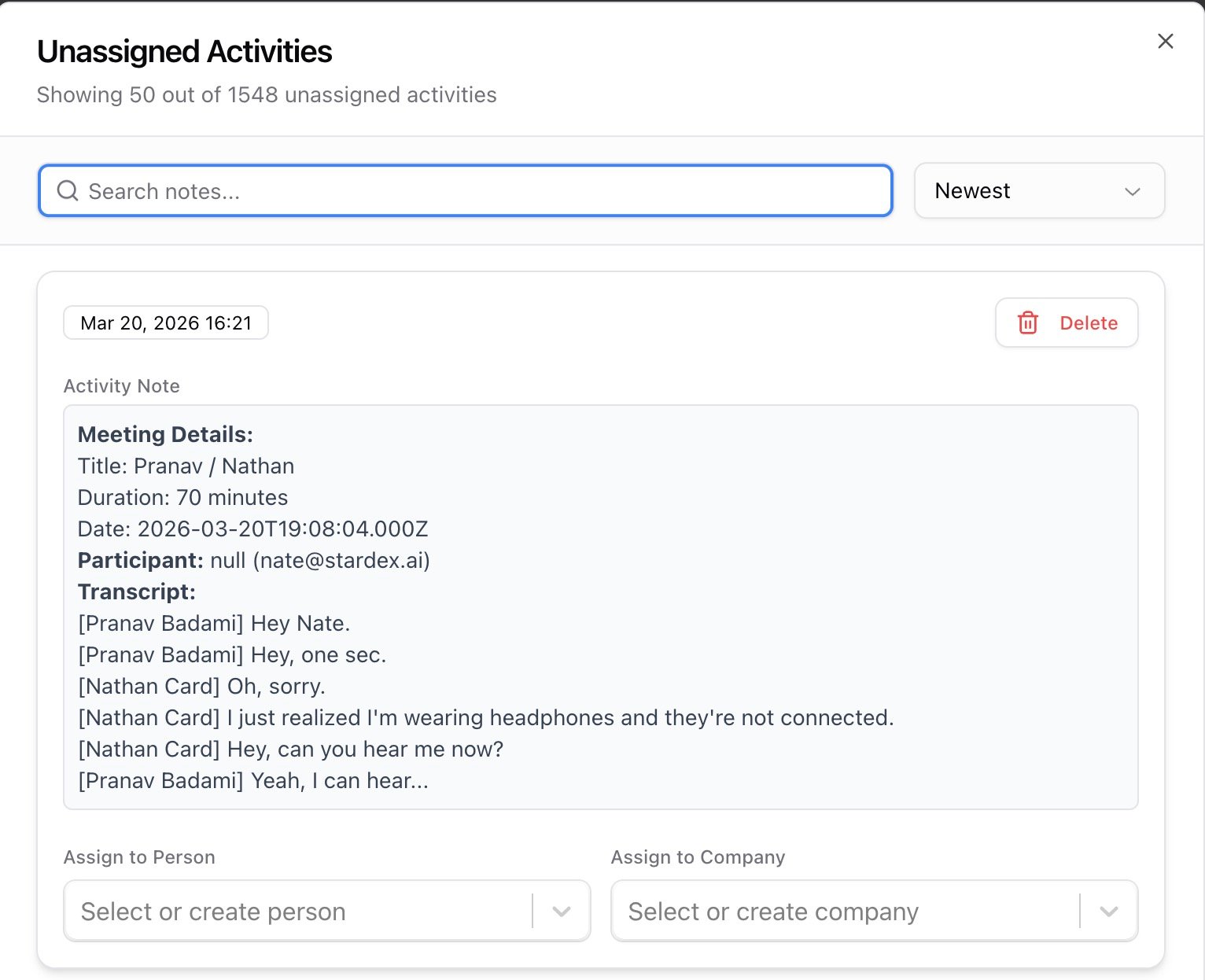
Admins see an **Unassigned Activities** button in the header row, with a count badge showing the total. Click it to open a dialog listing activities (emails, notes) that are not linked to any person record.
Inside the dialog:
* Search with **Search notes...**
* Sort by **Newest** or **Oldest**
* Each activity card has options to **Assign to Person**, **Assign to Company**, or **Delete**
This catches inbound emails or notes that arrived without being matched to a record — things that might otherwise go unnoticed.
***
## Tasks
The **Tasks** heading opens the full **Tasks** page. On the Home page you get a compact view with these controls:
* **+ Add Task** — opens the **Create New Task** dialog
* **Hide Completed** / **Show Completed** — toggle visibility of completed tasks
* **List**, **Month**, **Week** — switch between view modes
* **Filter** — opens a popover with filters for **Task Owners**, **Candidate Owners**, **Associated with** (All Tasks, Client Tasks, Job Tasks, Person Tasks, Deal Tasks), **Type** (Text, LinkedIn Message, LinkedIn Connection, Call, Other), and a search field (**Search by task title...**)
* **Undo** — appears after completing a task, lets you reverse it
Each task row shows a checkbox, the task content, the linked entity (person, company, deal), and the due date. Click the checkbox to complete a task. Click the task itself to open its detail view.
When no tasks match your current filters, the section shows "No tasks out of X tasks match your current filters."
***
## Upcoming Interviews
Shows candidates who are in interview-related pipeline stages within a configurable date range. The dates shown are stage dates — when a candidate was moved into that stage.
Filters are available in a popover:
* **Filter Type** — choose **Days Before/After** (set a number of days before and after today, 0–30) or **Specific Dates** (pick a date range)
* **Owners** — filter by **Job Owners** and/or **Candidate Owners**
The current range is shown as "Showing from \[date] to \[date]" above the results. Click a candidate's name to open their profile. Click the date to update the stage date.
When no interviews match, the section shows "No upcoming interviews."
For a pipeline stage to appear in Upcoming Interviews, it must have the **Interview** checkbox enabled. Configure this in **Settings** under **Candidate Stages** — each stage has an **Interview** toggle that controls whether candidates in that stage count as having an upcoming interview.
***
## Unassigned Activities (admins only)
Admins see an **Unassigned Activities** button in the header row, with a count badge showing the total. Click it to open a dialog listing activities (emails, notes) that are not linked to any person record.
Inside the dialog:
* Search with **Search notes...**
* Sort by **Newest** or **Oldest**
* Each activity card has options to **Assign to Person**, **Assign to Company**, or **Delete**
This catches inbound emails or notes that arrived without being matched to a record — things that might otherwise go unnoticed.
 ***
## Creating new records from Home
The **Create New** button in the sidebar opens a menu with six options:
| Create New… | Keyboard Shortcut |
| - | - |
| Person | N + P |
| Company | N + C |
| Job | N + J |
| Deal | N + D |
| List | N + L |
The keyboard shortcuts work from any page, not just Home.
***
## Common use cases
* Morning triage — check Tasks for anything overdue, scan Upcoming Interviews for the day's calls, then flip to Active Candidates to catch stale pipelines
* Pre-meeting prep — filter Upcoming Interviews to today, click into each candidate's profile to review their history before the call
* Manager check-in — use Task filters to see a team member's outstanding tasks, then switch to Active Candidates filtered by their jobs
* Cleaning up inbound — admins open Unassigned Activities to assign orphaned emails and notes to the right person or company records
* Weekly planning — switch Tasks to **Week** view mode to see what's coming up across the next several days
***
## FAQ
**Q: Why don't I see Unassigned Activities?**
Only admins see this section. If you need access, ask your organization admin to update your role. See the [Roles, permissions, and team setup](/help-center/user-roles-permissions-and-team-setup) guide.
**Q: Why is a candidate missing from Upcoming Interviews?**
Two common reasons: the pipeline stage they're in does not have the **Interview** checkbox enabled in **Settings > Candidate Stages**, or the stage date falls outside your selected date range.
**Q: Do my filter and tab settings persist?**
Yes. Both the active tab (jobs vs. Active Candidates) and all filter selections are saved per organization and team in your browser. They persist between sessions.
**Q: Can I complete a task from the Home page?**
Yes. Click the checkbox on any task row to mark it done. An **Undo** button appears briefly if you need to reverse it.
**Q: What does the first tab's label depend on?**
Your organization's custom job name setting. If your team calls jobs "Searches," the tab reads **Active Searches**. If it's "Projects," the tab reads **Active Projects**.
***
## Key takeaway
**The Home page is your daily starting point. Tasks and interviews on the right tell you what needs attention now. Jobs and Active Candidates on the left tell you where your pipeline stands. Start here, then click into whatever needs work.**
***
## Related guides
* 👉 [Tasks](/help-center/tasks-staying-on-top-of-your-to-dos) — full task management beyond the compact Home view
* 👉 [Active Candidates](/help-center/active-candidates-tracking-candidates-across-all-your-jobs) — the full-page Active Candidates view with additional filtering and Board mode
* 👉 [Roles, permissions, and team setup](/help-center/user-roles-permissions-and-team-setup) — how role assignments affect what you see on the Home page
This documentation is built and hosted on [Mintlify](https://mintlify.com), a developer documentation platform.
***
## Creating new records from Home
The **Create New** button in the sidebar opens a menu with six options:
| Create New… | Keyboard Shortcut |
| - | - |
| Person | N + P |
| Company | N + C |
| Job | N + J |
| Deal | N + D |
| List | N + L |
The keyboard shortcuts work from any page, not just Home.
***
## Common use cases
* Morning triage — check Tasks for anything overdue, scan Upcoming Interviews for the day's calls, then flip to Active Candidates to catch stale pipelines
* Pre-meeting prep — filter Upcoming Interviews to today, click into each candidate's profile to review their history before the call
* Manager check-in — use Task filters to see a team member's outstanding tasks, then switch to Active Candidates filtered by their jobs
* Cleaning up inbound — admins open Unassigned Activities to assign orphaned emails and notes to the right person or company records
* Weekly planning — switch Tasks to **Week** view mode to see what's coming up across the next several days
***
## FAQ
**Q: Why don't I see Unassigned Activities?**
Only admins see this section. If you need access, ask your organization admin to update your role. See the [Roles, permissions, and team setup](/help-center/user-roles-permissions-and-team-setup) guide.
**Q: Why is a candidate missing from Upcoming Interviews?**
Two common reasons: the pipeline stage they're in does not have the **Interview** checkbox enabled in **Settings > Candidate Stages**, or the stage date falls outside your selected date range.
**Q: Do my filter and tab settings persist?**
Yes. Both the active tab (jobs vs. Active Candidates) and all filter selections are saved per organization and team in your browser. They persist between sessions.
**Q: Can I complete a task from the Home page?**
Yes. Click the checkbox on any task row to mark it done. An **Undo** button appears briefly if you need to reverse it.
**Q: What does the first tab's label depend on?**
Your organization's custom job name setting. If your team calls jobs "Searches," the tab reads **Active Searches**. If it's "Projects," the tab reads **Active Projects**.
***
## Key takeaway
**The Home page is your daily starting point. Tasks and interviews on the right tell you what needs attention now. Jobs and Active Candidates on the left tell you where your pipeline stands. Start here, then click into whatever needs work.**
***
## Related guides
* 👉 [Tasks](/help-center/tasks-staying-on-top-of-your-to-dos) — full task management beyond the compact Home view
* 👉 [Active Candidates](/help-center/active-candidates-tracking-candidates-across-all-your-jobs) — the full-page Active Candidates view with additional filtering and Board mode
* 👉 [Roles, permissions, and team setup](/help-center/user-roles-permissions-and-team-setup) — how role assignments affect what you see on the Home page
This documentation is built and hosted on [Mintlify](https://mintlify.com), a developer documentation platform.