> ## Documentation Index
> Fetch the complete documentation index at: https://docs.stardex.com/llms.txt
> Use this file to discover all available pages before exploring further.
# WhatsApp Integration
> Connect WhatsApp and sync conversations to matching candidate and client contact activities.
If you already message candidates and clients on WhatsApp, those conversations usually live only on your phone. Connecting WhatsApp to Stardex logs 1:1 text chats onto the right person's timeline automatically, so the rest of your team can see the thread without anyone forwarding screenshots.
WhatsApp is a **paid add-on** and is currently in **Beta**. Stardex has to enable it for your organization. Anyone on the team can then connect their own WhatsApp from **Settings → Email & other integrations → VoIP & messaging**. If you do not see WhatsApp there, ask Stardex support to turn it on for your workspace.
Stardex never sends WhatsApp messages. Connecting only imports conversations from your phone. You still message people in WhatsApp itself.
***
## Connecting your WhatsApp account
1. Go to **Settings → Email & other integrations → VoIP & messaging**: [stardex.com/settings?tab=email-calendar\§ion=voip](https://stardex.com/settings?tab=email-calendar\§ion=voip)
2. Find **WhatsApp** and click **Connect**.
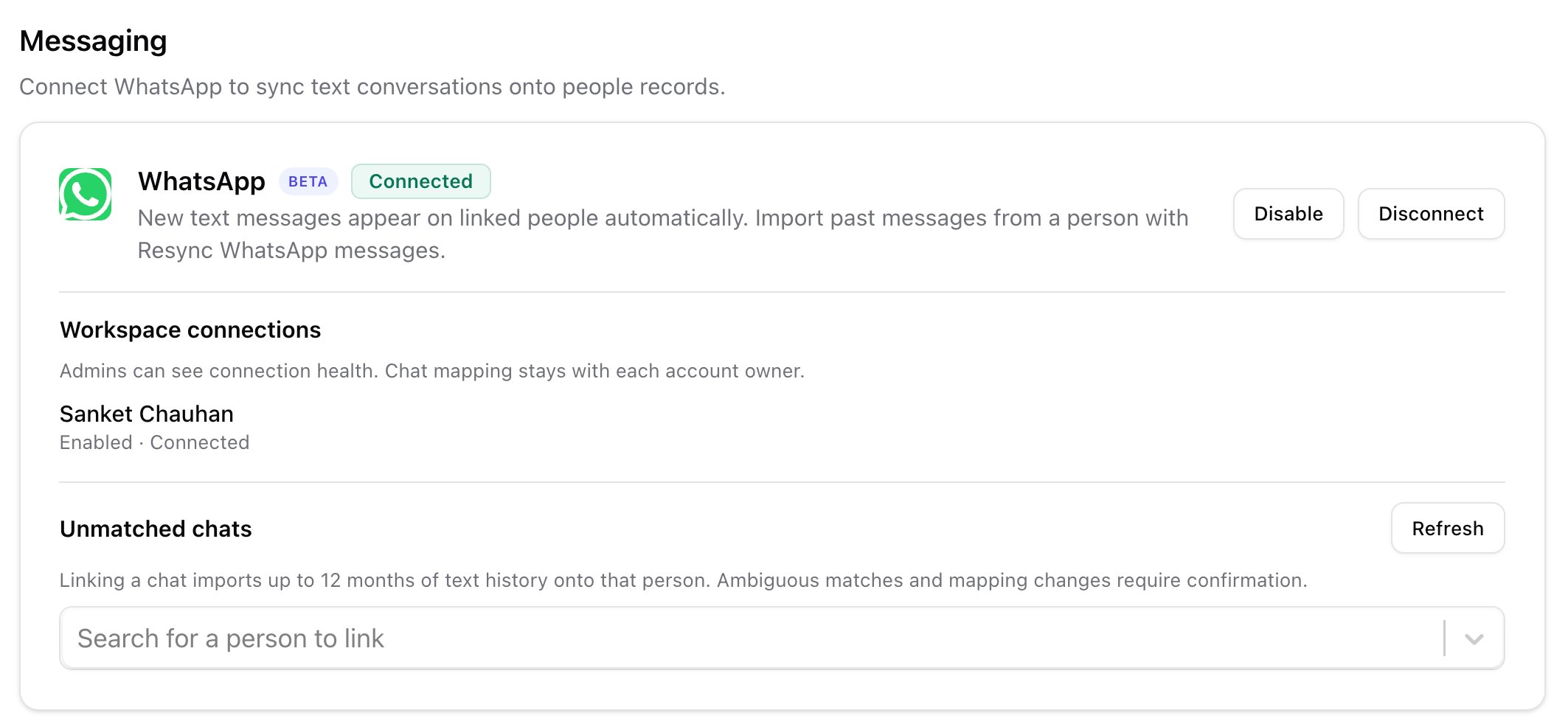 WhatsApp card on VoIP & messaging with Connect
1. A browser window opens with a **QR code**. On your phone, open WhatsApp, go to **Settings → Linked devices → Link a device**, and scan the QR code. The code expires after a few minutes; if it times out, go back to Stardex and click **Connect** again.
WhatsApp card on VoIP & messaging with Connect
1. A browser window opens with a **QR code**. On your phone, open WhatsApp, go to **Settings → Linked devices → Link a device**, and scan the QR code. The code expires after a few minutes; if it times out, go back to Stardex and click **Connect** again.
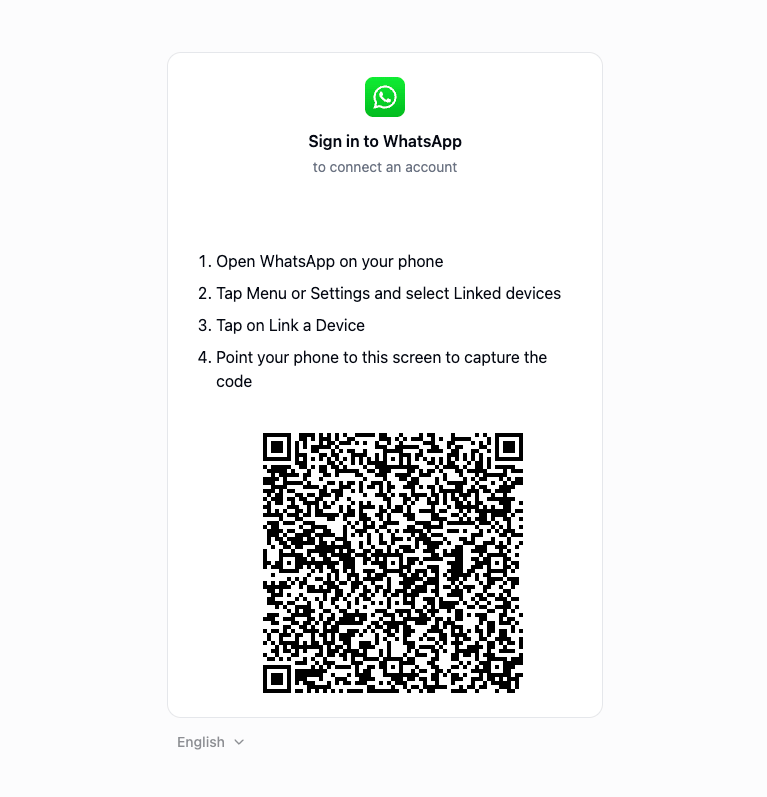 WhatsApp QR code in the link-a-device window
1. After a successful scan you can close that window. Stardex keeps linking in the background and returns you to VoIP & messaging. You should see a **Connected** badge (you may briefly see **Connecting** or **Importing** first).
Connecting does **not** dump your entire chat history onto every person. New text messages start syncing. To pull older messages onto a specific person, use **Resync WhatsApp messages** on their profile.
***
## What syncs (and what does not)
| Syncs | Does not sync |
| - | - |
| 1:1 text messages you send and receive | Messages Stardex sends on your behalf (sending is not supported) |
| New messages, once the chat is linked to a person | Group chats |
| Up to **12 months** of text history when you resync or manually link a chat | Photos, videos, voice notes, stickers, documents, polls, locations, or other media-only messages |
| Deleted messages, shown as **Deleted in WhatsApp** | Message edits after they were sent |
A text message that also has an attachment still syncs the **text**. Media-only messages are skipped.
***
## Unmatched chats
If Stardex cannot match a WhatsApp thread to a person, it shows up under **Unmatched chats** on the same VoIP & messaging page. Only the person who connected that WhatsApp account sees this list. Link the chat to the right person from there.
WhatsApp QR code in the link-a-device window
1. After a successful scan you can close that window. Stardex keeps linking in the background and returns you to VoIP & messaging. You should see a **Connected** badge (you may briefly see **Connecting** or **Importing** first).
Connecting does **not** dump your entire chat history onto every person. New text messages start syncing. To pull older messages onto a specific person, use **Resync WhatsApp messages** on their profile.
***
## What syncs (and what does not)
| Syncs | Does not sync |
| - | - |
| 1:1 text messages you send and receive | Messages Stardex sends on your behalf (sending is not supported) |
| New messages, once the chat is linked to a person | Group chats |
| Up to **12 months** of text history when you resync or manually link a chat | Photos, videos, voice notes, stickers, documents, polls, locations, or other media-only messages |
| Deleted messages, shown as **Deleted in WhatsApp** | Message edits after they were sent |
A text message that also has an attachment still syncs the **text**. Media-only messages are skipped.
***
## Unmatched chats
If Stardex cannot match a WhatsApp thread to a person, it shows up under **Unmatched chats** on the same VoIP & messaging page. Only the person who connected that WhatsApp account sees this list. Link the chat to the right person from there.
 Unmatched chats on VoIP & messaging
***
## Resync a candidate
Connecting WhatsApp only starts **live** sync. Past texts do not land on a candidate until you ask Stardex to pull them. That action is **Resync WhatsApp messages** on the candidate's profile.
Unmatched chats on VoIP & messaging
***
## Resync a candidate
Connecting WhatsApp only starts **live** sync. Past texts do not land on a candidate until you ask Stardex to pull them. That action is **Resync WhatsApp messages** on the candidate's profile.
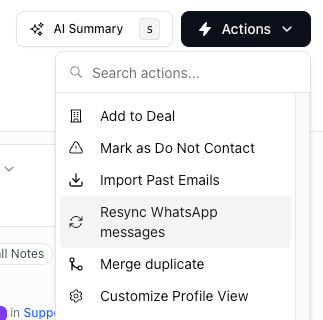 Resync WhatsApp messages on a person profile
Use it when:
* You just connected WhatsApp and want an existing thread on the profile
* You know you have older messages with this candidate that are not on the timeline yet
* A live message arrived but history looks incomplete
### How to resync
1. Open the candidate in Stardex.
2. Open the **actions** menu.
3. Click **Resync WhatsApp messages**. The item only appears when WhatsApp is connected in this workspace.
4. You should see **WhatsApp resync started** — Messages will appear on the timeline as they import. Leave the profile open or come back in a few minutes; a long thread is not instant.
Resync looks up this candidate's phone in your connected WhatsApp, links the 1:1 chat if it can, and imports up to **12 months** of text. You can run it more than once; it refreshes history rather than duplicating messages.
### What you need first
* WhatsApp is **Connected** in VoIP & messaging (not Disabled, and not waiting on Reconnect)
* The candidate has a **phone number** with the country code
* That number is the one they use on WhatsApp
* You actually have a 1:1 WhatsApp chat with them
* The number is **unique** in your workspace, or the chat is already linked to this candidate
### If resync does not start
Stardex tells you why instead of failing silently:
| What you see | What to do |
| - | - |
| **No phone number** — add a phone number to this person before syncing | Add the WhatsApp number (with country code) on the candidate, then resync again |
| **No WhatsApp chat found** — your connected account has no conversation with this number | Confirm you are chatting with them on the WhatsApp you connected, and that the number matches |
| **Phone number shared** — the number also belongs to another person | WhatsApp will not auto-link a shared number. Give each person a unique number, or link the chat by hand from **Unmatched chats** |
| **WhatsApp chat linked elsewhere** — the chat is already on another person | Open that other profile, or relink the chat from **Unmatched chats** if it was assigned to the wrong person |
| **WhatsApp chat needs review** — the number on this chat changed | Go to **Unmatched chats** in VoIP & messaging, confirm the mapping, then resync |
| **No WhatsApp thread linked** — a chat was found but is not linked to this person | Link it from **Unmatched chats**, then resync if history is still missing |
| **Reconnect WhatsApp** — authorization was lost | Scan a new QR code in VoIP & messaging, then come back and resync |
***
## Related guides
* [Email & other integrations](/help-center/email-other-integrations)
* [Ringcentral Call Widget](/help-center/ringcentral-call-widget)
This documentation is built and hosted on [Mintlify](https://mintlify.com), a developer documentation platform.
Resync WhatsApp messages on a person profile
Use it when:
* You just connected WhatsApp and want an existing thread on the profile
* You know you have older messages with this candidate that are not on the timeline yet
* A live message arrived but history looks incomplete
### How to resync
1. Open the candidate in Stardex.
2. Open the **actions** menu.
3. Click **Resync WhatsApp messages**. The item only appears when WhatsApp is connected in this workspace.
4. You should see **WhatsApp resync started** — Messages will appear on the timeline as they import. Leave the profile open or come back in a few minutes; a long thread is not instant.
Resync looks up this candidate's phone in your connected WhatsApp, links the 1:1 chat if it can, and imports up to **12 months** of text. You can run it more than once; it refreshes history rather than duplicating messages.
### What you need first
* WhatsApp is **Connected** in VoIP & messaging (not Disabled, and not waiting on Reconnect)
* The candidate has a **phone number** with the country code
* That number is the one they use on WhatsApp
* You actually have a 1:1 WhatsApp chat with them
* The number is **unique** in your workspace, or the chat is already linked to this candidate
### If resync does not start
Stardex tells you why instead of failing silently:
| What you see | What to do |
| - | - |
| **No phone number** — add a phone number to this person before syncing | Add the WhatsApp number (with country code) on the candidate, then resync again |
| **No WhatsApp chat found** — your connected account has no conversation with this number | Confirm you are chatting with them on the WhatsApp you connected, and that the number matches |
| **Phone number shared** — the number also belongs to another person | WhatsApp will not auto-link a shared number. Give each person a unique number, or link the chat by hand from **Unmatched chats** |
| **WhatsApp chat linked elsewhere** — the chat is already on another person | Open that other profile, or relink the chat from **Unmatched chats** if it was assigned to the wrong person |
| **WhatsApp chat needs review** — the number on this chat changed | Go to **Unmatched chats** in VoIP & messaging, confirm the mapping, then resync |
| **No WhatsApp thread linked** — a chat was found but is not linked to this person | Link it from **Unmatched chats**, then resync if history is still missing |
| **Reconnect WhatsApp** — authorization was lost | Scan a new QR code in VoIP & messaging, then come back and resync |
***
## Related guides
* [Email & other integrations](/help-center/email-other-integrations)
* [Ringcentral Call Widget](/help-center/ringcentral-call-widget)
This documentation is built and hosted on [Mintlify](https://mintlify.com), a developer documentation platform.