> ## Documentation Index
> Fetch the complete documentation index at: https://docs.stardex.com/llms.txt
> Use this file to discover all available pages before exploring further.
# Tracking upcoming interviews
> Track upcoming candidate interviews, plan follow-ups, and review your team’s interview schedule.
Stardex allows you to set interview dates for candidates in the pipeline, and then see it in the home screen
Use cases:
* Use it to see who spoke to client recently and follow up with them
* Use it to plan ahead in terms of following up with the client, as well as prepping the candidates
* Admins can have a overall visibility with this
Goto your set
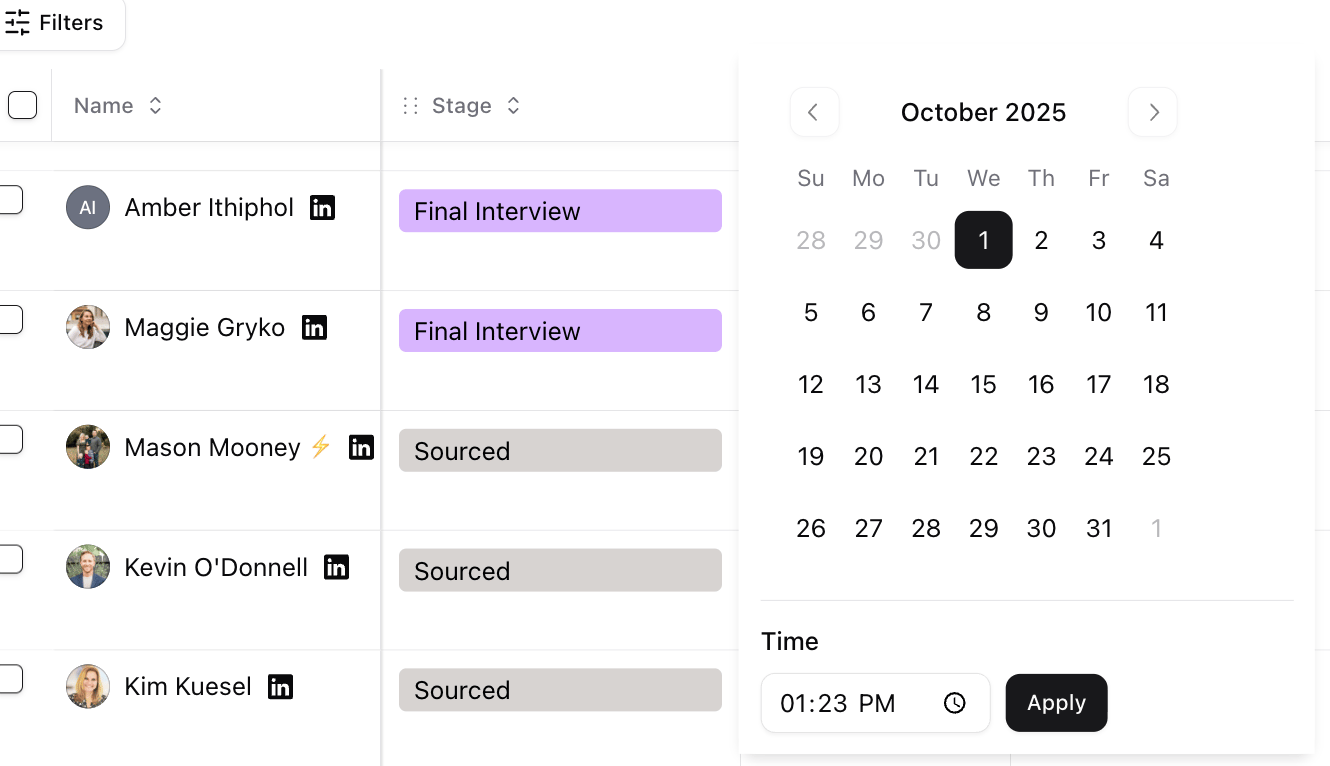
When you change the stage of a candidate, it will update the stage date to today’s date. You can overwrite that date.
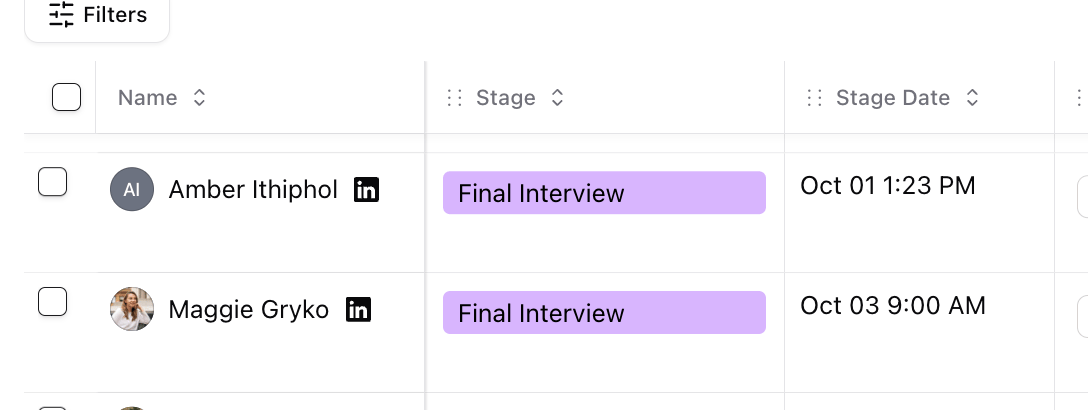 Find the Stage Date column. If it’s hidden, click Columns on top right to control the visibility. When you click on the stage date cell, it will allow you to update the date and time.
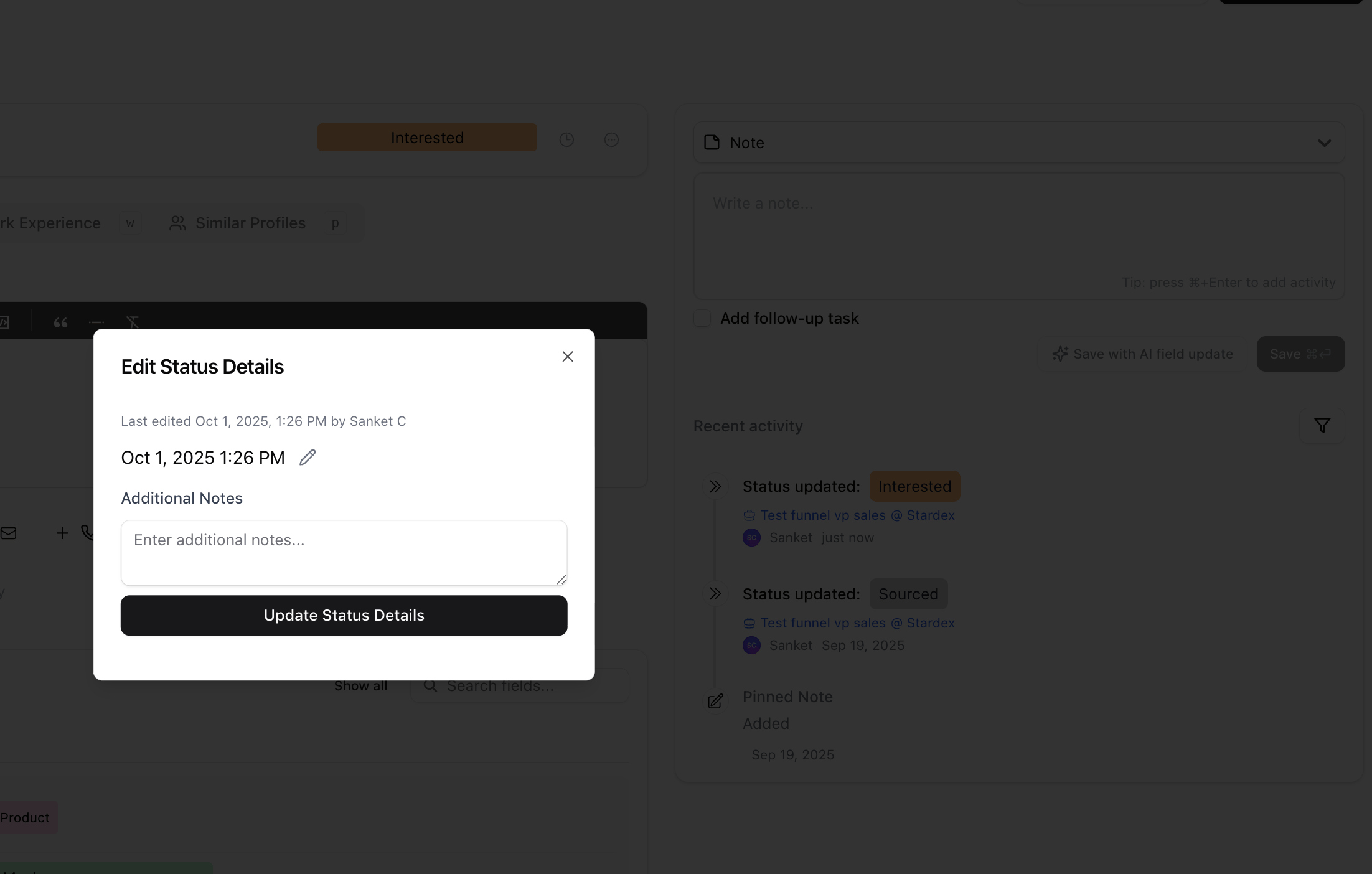
 You can also update the stage date by clicking on the specific Status updated activity in the Recent activity section of the candidate
 ### Home screen section
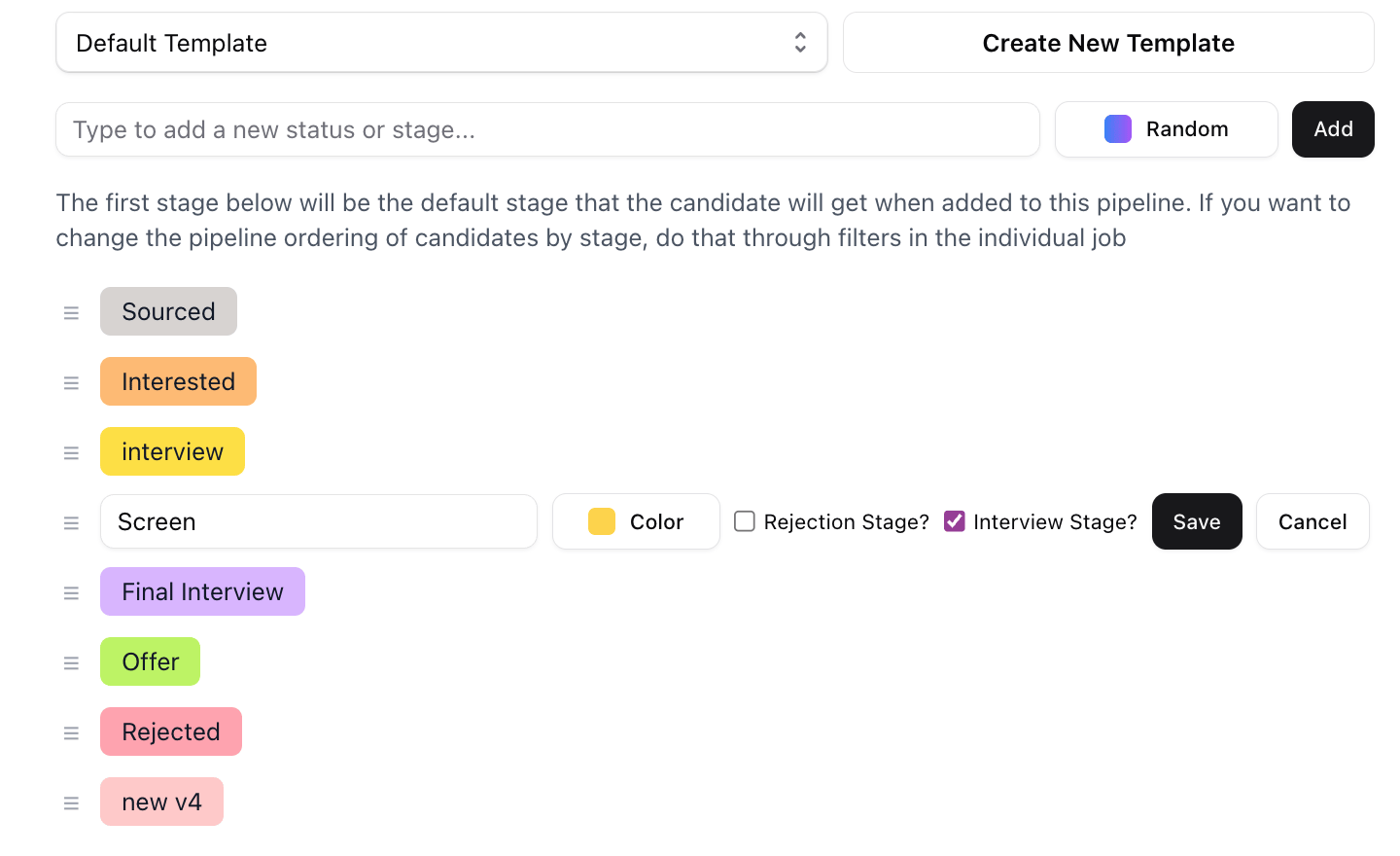
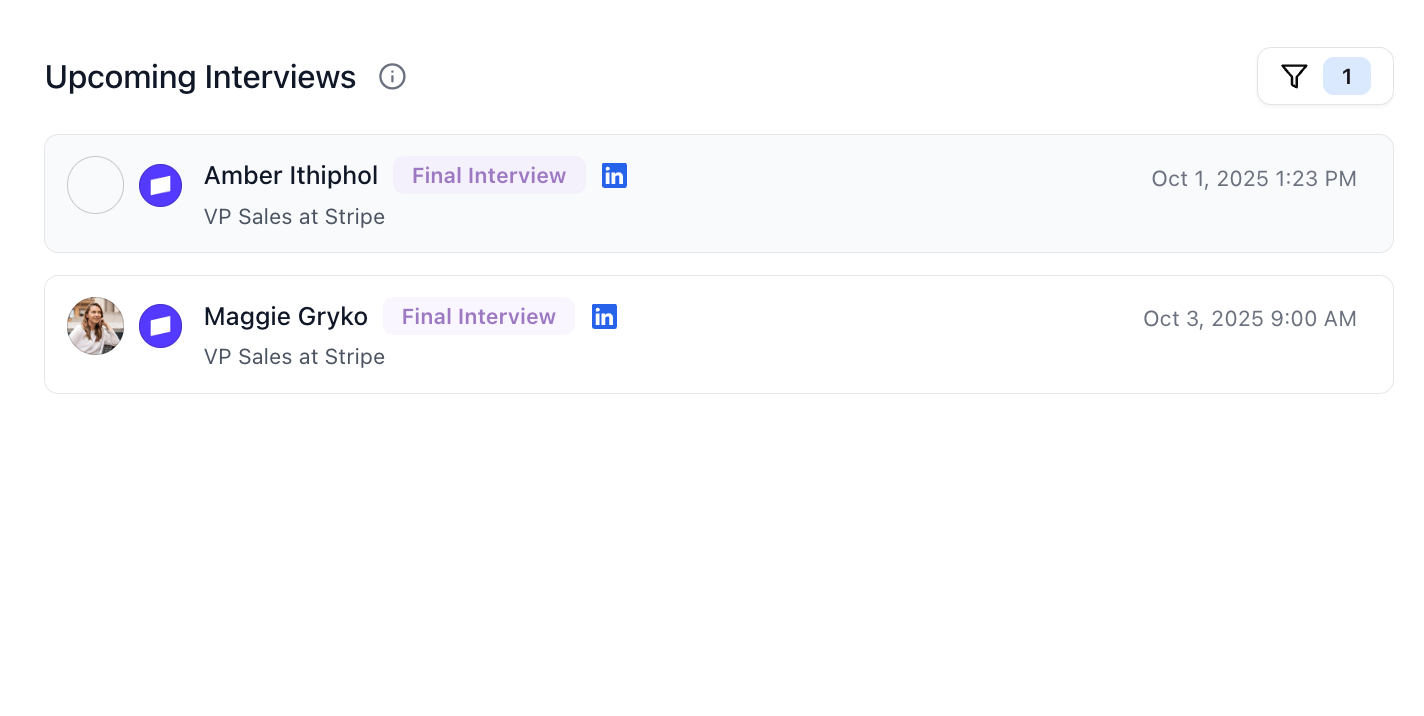 Your home screen shows stages that you deem are interview stage. This is customizable as every firm will have different names for what they want to track as an “interview stage”
You can modify this by going to your settings page, and then clicking the specific stages that you want to show or hide. Uncheck the ones that you don’t want to see there, and that won’t show on the home screen going forward.
Your home screen shows stages that you deem are interview stage. This is customizable as every firm will have different names for what they want to track as an “interview stage”
You can modify this by going to your settings page, and then clicking the specific stages that you want to show or hide. Uncheck the ones that you don’t want to see there, and that won’t show on the home screen going forward.
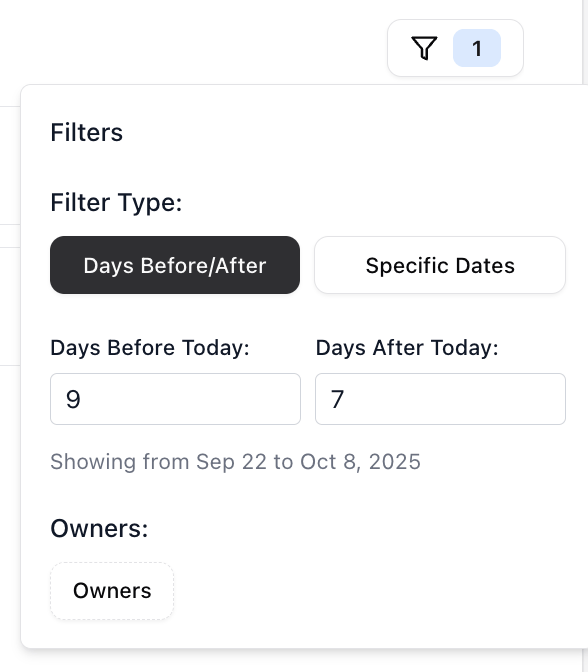
 You can further filter the upcoming interview section by clicking the Funnel icon, and putting in the time frame you want to look over, as well as the team member that assigned that.
 This documentation is built and hosted on [Mintlify](https://mintlify.com), a developer documentation platform.