> ## Documentation Index
> Fetch the complete documentation index at: https://docs.stardex.com/llms.txt
> Use this file to discover all available pages before exploring further.
# Stardex 101 Guide
> Set up Stardex, source candidates, manage pipelines, connect email, and learn the shortcuts for daily work.
* **Prefer Video Walkthrough?**
Here’s a 7 min video to walk through the key features if you prefer a video. Scroll down for tactical step by step guides to get you setup.
[Watch the video on Loom](https://www.loom.com/share/2f00b25cac1c4af1ab18c5518c8eef43)
When you have your account ready follow the steps that are listed below your onboarding guide as well:
1. **Chrome Extension**: Install Stardex’s chrome extensions through the [Chrome webstore here](https://chromewebstore.google.com/detail/stardex-the-agentic-ats/ihohomhghmgdcdokancjpanonnmohcnn?authuser=0\&hl=en). You will use this to add candidates or companies from Linkedin to Stardex.
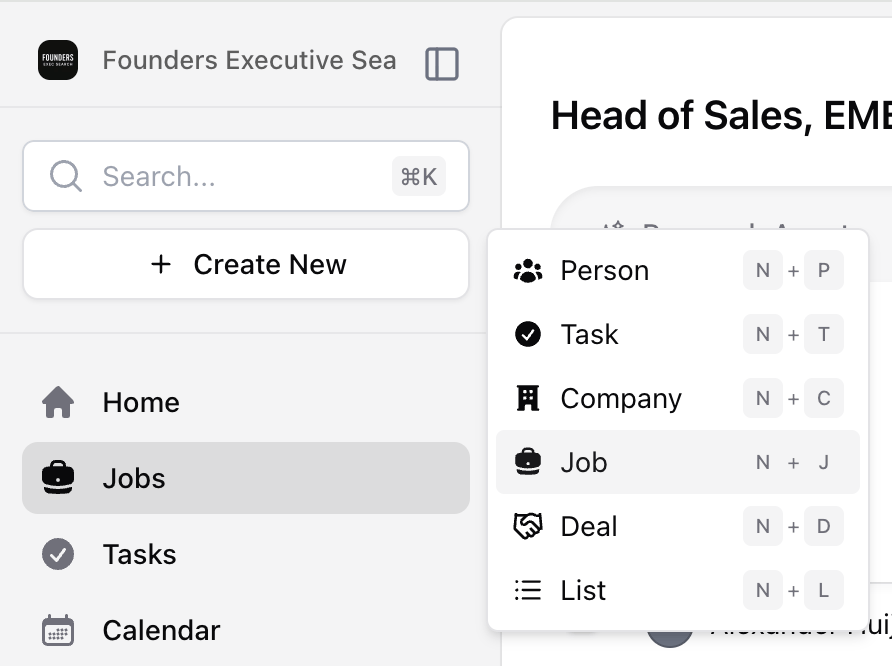
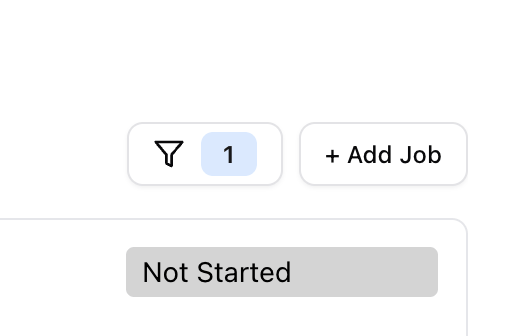
2. **Create a sample job:** Create a Sample Job through the jobs page or home page by clicking “Add Job” (we will delete this job at the end).
1. Find the New Job option from the sidebar (Create New) or Home page under Active Jobs
2. Enter a description with rough Must haves and nice to haves. This will ensure that you see a list of best fits from your database
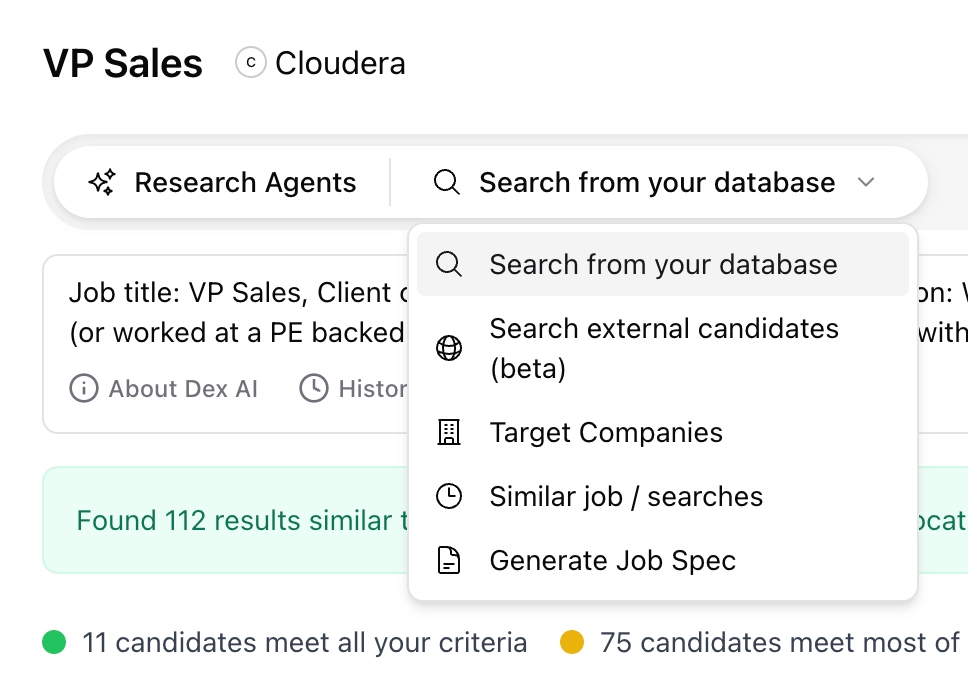
 3. **AI Database search:** Review the results of the first Research Agent “Search from your database” once the Sample Job is created. Feel free to tweak the criteria to get better results.
 4. **Add candidates to jobs:** When you see the results, select a few candidates, and add them to the job. Add a candidate from Linkedin through the extension as well.
5. **Toggle pipeline view:** Switch to Candidate Pipeline in the Sample Job. Toggle between Board view and List view.
6. **Summary Generator:** Open up someone’s profile, and press S, or click the AI Summary button. This will generate a summary on that individual account for all recent notes. You can also add your own template to improve the summary in your voice.
7. **\[Optional] Create a AI custom field for your jobs:** This can be helpful to tag candidates in a specific job (e.g. does this candidate have 3 yrs of retail exp)
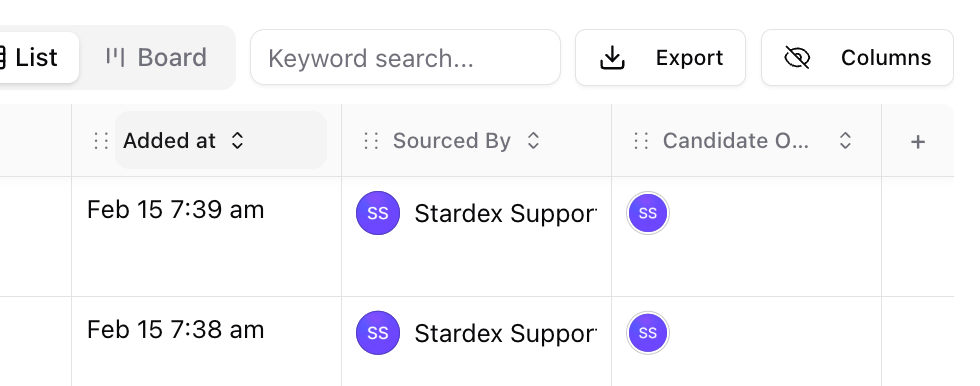
1. Switch to the Table view in the candidate pipeline. Scroll to the right to find a + icon to add a new Custom Field.
2. Add the name of the field (e.g. “3 yrs of retail exp”). Add Yes or No option (under Commonly used). Ensure AI tagging is on. This will auto tag existing candidates and new candidates that are added to this job.
3. Note: Only job owners can add custom fields to the candidates in a given job they own. Admins can add custom fields to other records. More info on [Custom fields](/help-center/custom-fields)
8. **\[Optional] Create a share link: Click Share button on top right to create a private link that you can share with the client. [Client Sharable Link (Client Portal)](/help-center/client-sharable-link-client-portal)**
9. **\[Optional]** **Lists**: Lists are records of companies or persons. Use this when want to create a list of companies or persons that aren’t associated with a job (e.g. rockstar marketers, upcoming startups, etc). Create one from the [list page](https://stardex.com/lists), or through bulk actions
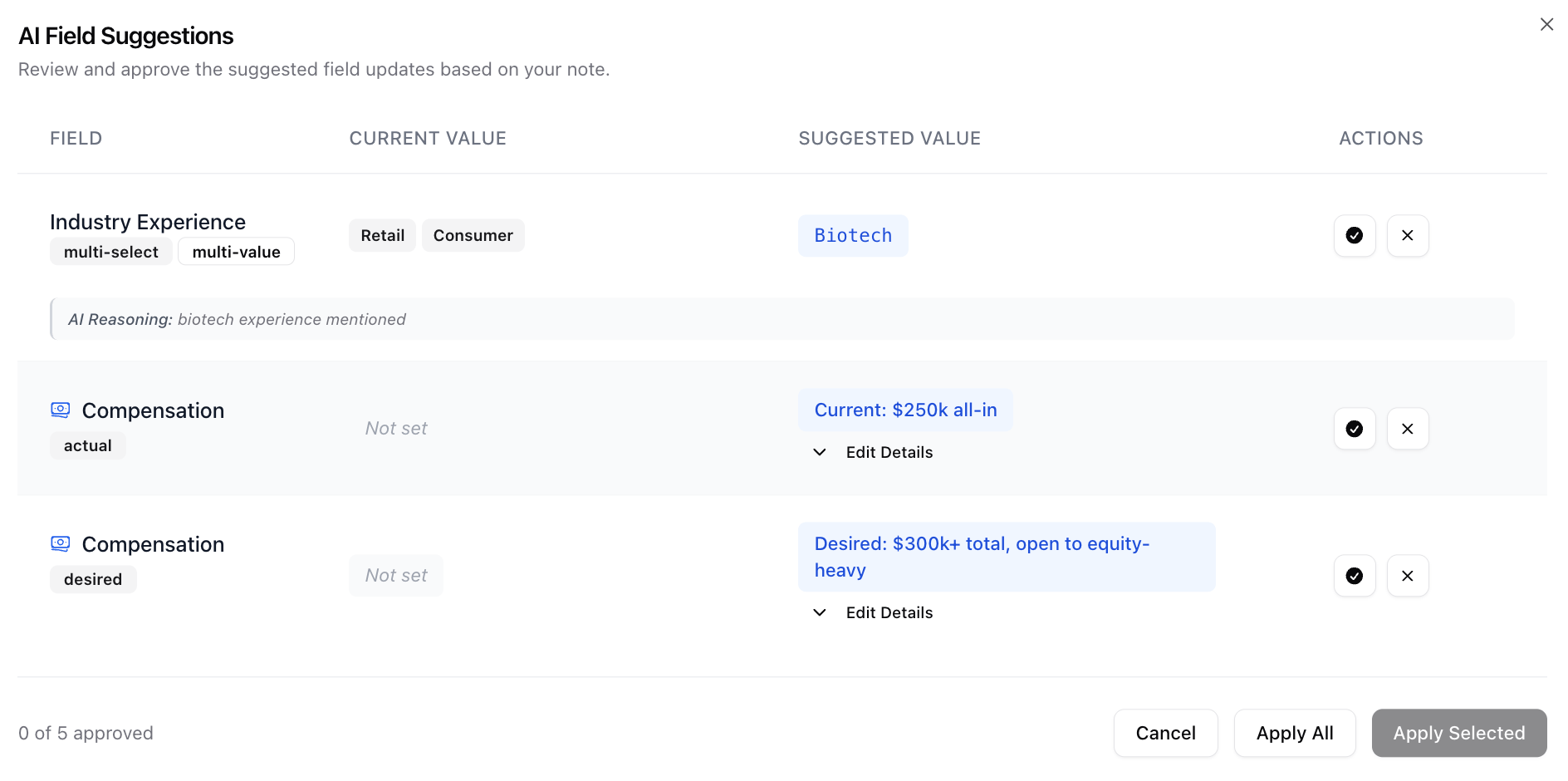
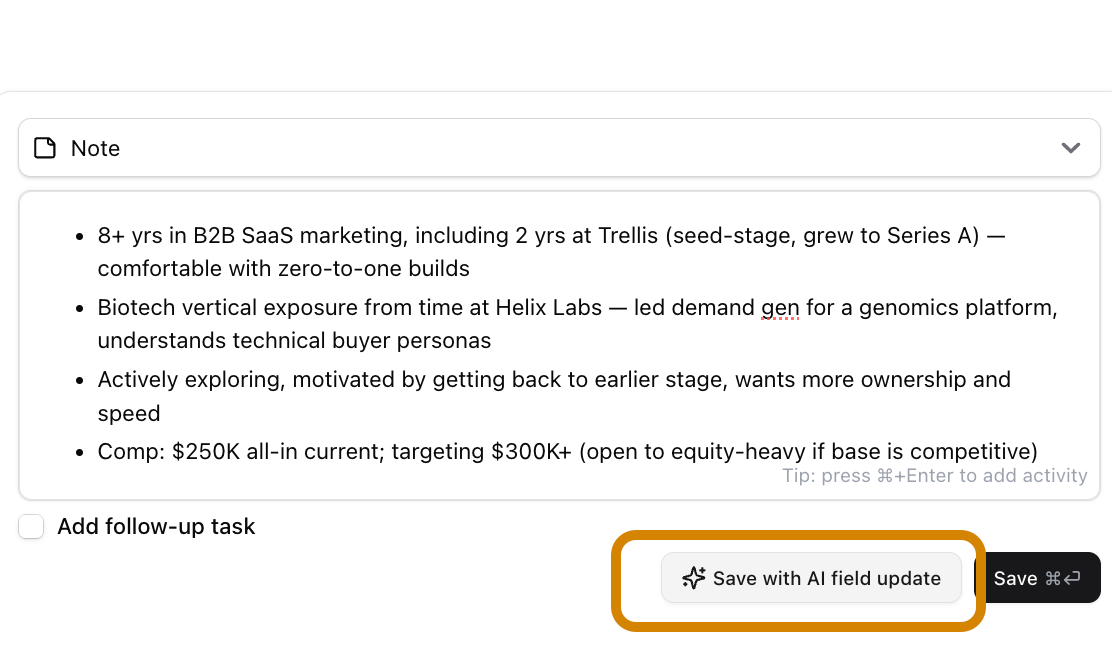
10. **\[Optional] AI Tagging on compensation:** Enter a new note on a person that mentions compensation in free form text (can be a transcript too), and click Save with AI. This will show a modal to approve suggested updates that leverages AI to update your database without you having to do that (e.g. compensation details, or tags if you have defined tags).
4. **Add candidates to jobs:** When you see the results, select a few candidates, and add them to the job. Add a candidate from Linkedin through the extension as well.
5. **Toggle pipeline view:** Switch to Candidate Pipeline in the Sample Job. Toggle between Board view and List view.
6. **Summary Generator:** Open up someone’s profile, and press S, or click the AI Summary button. This will generate a summary on that individual account for all recent notes. You can also add your own template to improve the summary in your voice.
7. **\[Optional] Create a AI custom field for your jobs:** This can be helpful to tag candidates in a specific job (e.g. does this candidate have 3 yrs of retail exp)
1. Switch to the Table view in the candidate pipeline. Scroll to the right to find a + icon to add a new Custom Field.
2. Add the name of the field (e.g. “3 yrs of retail exp”). Add Yes or No option (under Commonly used). Ensure AI tagging is on. This will auto tag existing candidates and new candidates that are added to this job.
3. Note: Only job owners can add custom fields to the candidates in a given job they own. Admins can add custom fields to other records. More info on [Custom fields](/help-center/custom-fields)
8. **\[Optional] Create a share link: Click Share button on top right to create a private link that you can share with the client. [Client Sharable Link (Client Portal)](/help-center/client-sharable-link-client-portal)**
9. **\[Optional]** **Lists**: Lists are records of companies or persons. Use this when want to create a list of companies or persons that aren’t associated with a job (e.g. rockstar marketers, upcoming startups, etc). Create one from the [list page](https://stardex.com/lists), or through bulk actions
10. **\[Optional] AI Tagging on compensation:** Enter a new note on a person that mentions compensation in free form text (can be a transcript too), and click Save with AI. This will show a modal to approve suggested updates that leverages AI to update your database without you having to do that (e.g. compensation details, or tags if you have defined tags).
 **Setting up email for campaigns and communication tracking:**
You can optionally use Stardex to send emails to candidates in bulk. You can set up campaigns which auto follow up if they don’t respond. If they respond, it will stop following up. Stardex also tracks candidate communications over email automatically.
1. Connect your email under **Settings → Email & other integrations → Mailboxes**: [https://stardex.com/settings?tab=email-calendar\§ion=mailboxes](https://stardex.com/settings?tab=email-calendar\§ion=mailboxes)
**Setting up email for campaigns and communication tracking:**
You can optionally use Stardex to send emails to candidates in bulk. You can set up campaigns which auto follow up if they don’t respond. If they respond, it will stop following up. Stardex also tracks candidate communications over email automatically.
1. Connect your email under **Settings → Email & other integrations → Mailboxes**: [https://stardex.com/settings?tab=email-calendar\§ion=mailboxes](https://stardex.com/settings?tab=email-calendar\§ion=mailboxes)
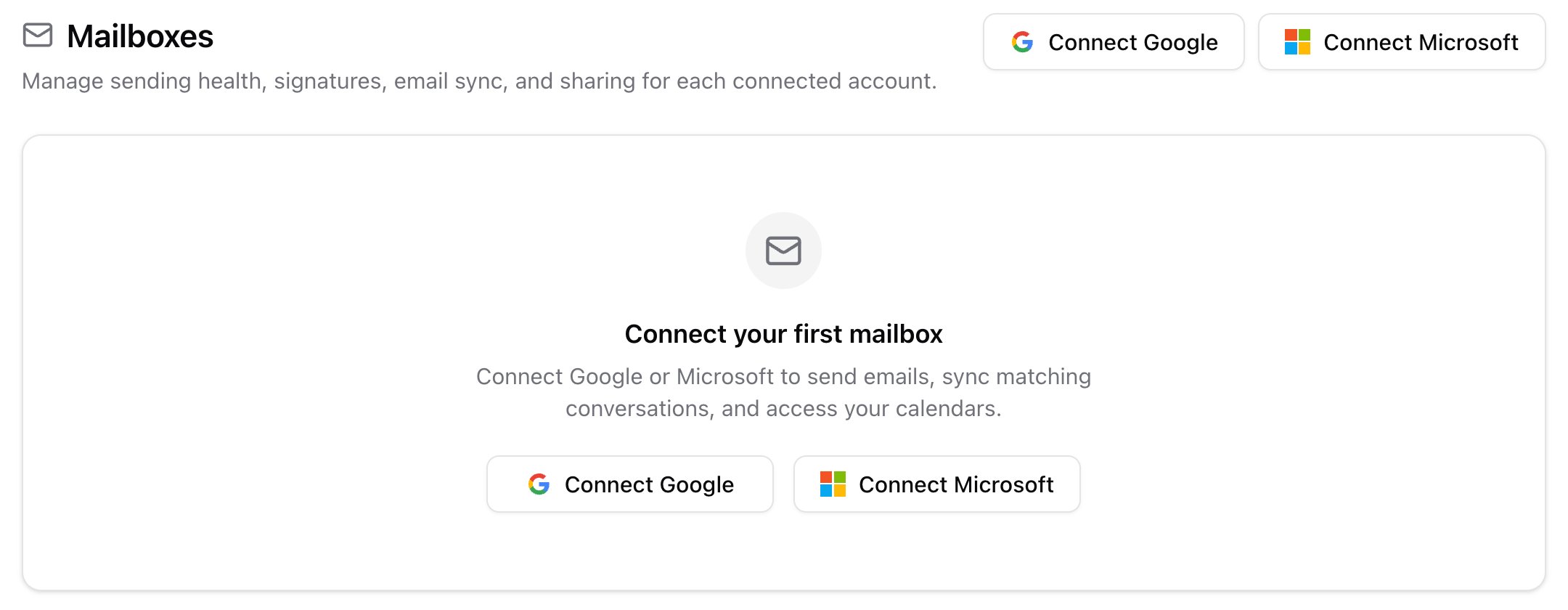 Mailboxes empty state with Connect Google and Connect Microsoft
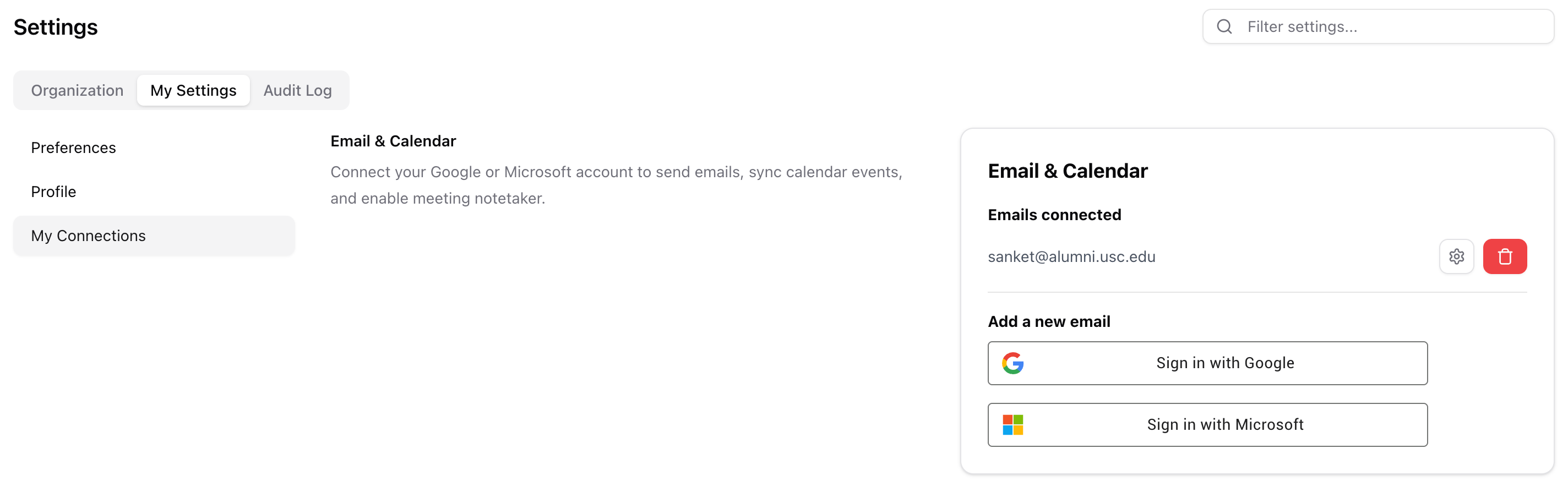 1. Click Sign in with Google. You should see a successful connection message
2. Goto Campaigns, and create a new campaign (from Scratch or use AI)
3. Review the campaign. While AI is helpful as a start, we recommend everyone to review and change the email in your own voice. More info in [Setting up your multi-step outreach campaign](/help-center/setting-up-your-multi-step-outreach-campaign)
4. You can also bulk enroll candidates. [Bulk emailing candidates or clients](/help-center/bulk-emailing-candidates-or-clients)
If you want to learn more about what permissions Stardex has for your email, or importing your email signatures, check out this doc [Email syncing](/help-center/email-and-calendar-syncing)
**Becoming faster at Stardex:**
1. Leverage Command bar when you can. Trigger it open by CMD + K (or CTRL+K), and you can enter anyone’s name, email, phone, company name, job name or settings.
2. You can press also use command menu to type in to find a relevant candidate (e.g. VP operations with strategy experience).
3. You can move around different sections of the app by pressing key G followed by H (for home), J (for jobs), C (for calendar). A (for campaigns). Anywhere in the app press ? keyboard to see other keyboard shortcuts.
4. Use Stardex within Claude or ChatGPT when on the move. [Claude connector](/help-center/claude-connector)
If you are admin, you’d like to check out the following guides as well:
1. **Custom fields**: Stardex is highly customizable and we recommend team admins to set up relevant custom fields that will help you structure your database effectively. Here’s more info [Custom fields](/help-center/custom-fields)
2. **Customizing Statuses**: Customize the candidate pipeline status, job status and client status if you like by going to [](http://i/)settings. [Customize job pipeline stages](/help-center/customize-job-pipeline-stages)
3. **Adding / Removing Members:** Manage members from the [settings](/help-center/adding-removing-team-members-to-your-account)
4. **Notetaker integrations**: We integrate with Fireflies, Quil and Ringcentral natively. If you are using another note taker (e.g. Metaview), you can leverage Zapier to set it up [Zapier setup](/help-center/zapier-setup)
5. **Import your linkedin connections:** When setting it up, it might be useful to request an export of your linkedin connection and bulk import so the AI search can go through your network too. [Link here](/help-center/importing-your-linkedin-connections)
6. **Import data in bulk:** You can use our self-serve bulk import to import candidate or client lists. [Bulk import candidates](/help-center/bulk-import-candidates-clients-companies-resumes)
7. **Setting up a job board:** If you would like to have a careers page to list your active searches, follow the guide here [Making a job public](/help-center/making-a-job-public)
8. [Do not contact:](/help-center/do-not-contact-off-limits-lists) Mark candidates or companies as do not contact to prevent others from reaching out to them
9. [Merging Duplicates:](/help-center/merging-duplicates) We have built Stardex to avoid duplicates by enforcing unique linkedin urls both for candidates and companies / client records. Though, occasionally you will run into duplicates. Typically, this happens when a record was created without a linkedin url (or due to migration where your older system didn’t enforce this).
Need help, or questions? Reach out to us through the Live chat, [support@stardex.ai](mailto:support@stardex.ai) or through the Slack channel for quick support.
This documentation is built and hosted on [Mintlify](https://mintlify.com), a developer documentation platform.
1. Click Sign in with Google. You should see a successful connection message
2. Goto Campaigns, and create a new campaign (from Scratch or use AI)
3. Review the campaign. While AI is helpful as a start, we recommend everyone to review and change the email in your own voice. More info in [Setting up your multi-step outreach campaign](/help-center/setting-up-your-multi-step-outreach-campaign)
4. You can also bulk enroll candidates. [Bulk emailing candidates or clients](/help-center/bulk-emailing-candidates-or-clients)
If you want to learn more about what permissions Stardex has for your email, or importing your email signatures, check out this doc [Email syncing](/help-center/email-and-calendar-syncing)
**Becoming faster at Stardex:**
1. Leverage Command bar when you can. Trigger it open by CMD + K (or CTRL+K), and you can enter anyone’s name, email, phone, company name, job name or settings.
2. You can press also use command menu to type in to find a relevant candidate (e.g. VP operations with strategy experience).
3. You can move around different sections of the app by pressing key G followed by H (for home), J (for jobs), C (for calendar). A (for campaigns). Anywhere in the app press ? keyboard to see other keyboard shortcuts.
4. Use Stardex within Claude or ChatGPT when on the move. [Claude connector](/help-center/claude-connector)
If you are admin, you’d like to check out the following guides as well:
1. **Custom fields**: Stardex is highly customizable and we recommend team admins to set up relevant custom fields that will help you structure your database effectively. Here’s more info [Custom fields](/help-center/custom-fields)
2. **Customizing Statuses**: Customize the candidate pipeline status, job status and client status if you like by going to [](http://i/)settings. [Customize job pipeline stages](/help-center/customize-job-pipeline-stages)
3. **Adding / Removing Members:** Manage members from the [settings](/help-center/adding-removing-team-members-to-your-account)
4. **Notetaker integrations**: We integrate with Fireflies, Quil and Ringcentral natively. If you are using another note taker (e.g. Metaview), you can leverage Zapier to set it up [Zapier setup](/help-center/zapier-setup)
5. **Import your linkedin connections:** When setting it up, it might be useful to request an export of your linkedin connection and bulk import so the AI search can go through your network too. [Link here](/help-center/importing-your-linkedin-connections)
6. **Import data in bulk:** You can use our self-serve bulk import to import candidate or client lists. [Bulk import candidates](/help-center/bulk-import-candidates-clients-companies-resumes)
7. **Setting up a job board:** If you would like to have a careers page to list your active searches, follow the guide here [Making a job public](/help-center/making-a-job-public)
8. [Do not contact:](/help-center/do-not-contact-off-limits-lists) Mark candidates or companies as do not contact to prevent others from reaching out to them
9. [Merging Duplicates:](/help-center/merging-duplicates) We have built Stardex to avoid duplicates by enforcing unique linkedin urls both for candidates and companies / client records. Though, occasionally you will run into duplicates. Typically, this happens when a record was created without a linkedin url (or due to migration where your older system didn’t enforce this).
Need help, or questions? Reach out to us through the Live chat, [support@stardex.ai](mailto:support@stardex.ai) or through the Slack channel for quick support.
This documentation is built and hosted on [Mintlify](https://mintlify.com), a developer documentation platform.