> ## Documentation Index
> Fetch the complete documentation index at: https://docs.stardex.com/llms.txt
> Use this file to discover all available pages before exploring further.

# Single Sign On

> Configure single sign-on for Stardex through your organization’s authentication provider.

SSO is available on custom plans. Please reach out to support in order to opt-in.  You will need access to your DNS setting in order to complete this.

1. Head to [https://stardex.com/settings?tab=organization\&section=members-org-profile#/organization-security](https://stardex.com/settings?tab=organization\&section=members-org-profile#/organization-security)

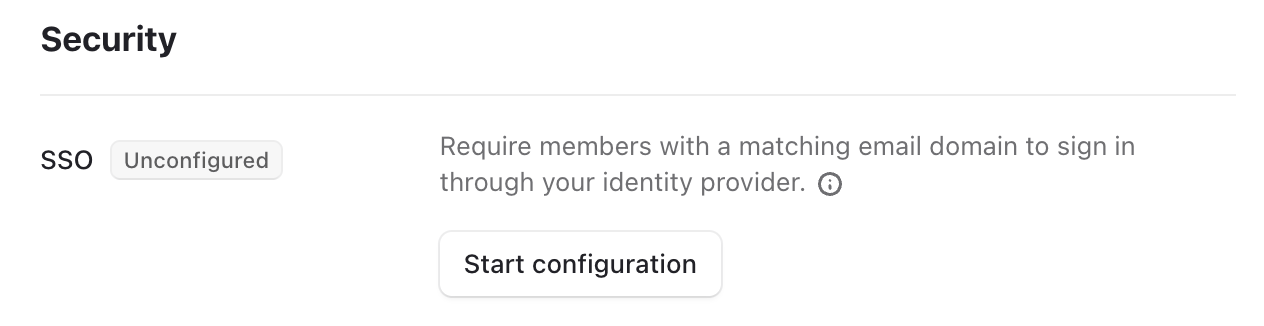
2. Click Start Configuration
   <img src="https://mintcdn.com/stardex/Iw_OaphCHDTu5uKO/images/help-center/single-sign-on/image.png?fit=max&auto=format&n=Iw_OaphCHDTu5uKO&q=85&s=aaf3ece39e5cda8eb97b0976af432fb9" alt="Single Sign On — screenshot 1" width="1264" height="326" data-path="images/help-center/single-sign-on/image.png" />

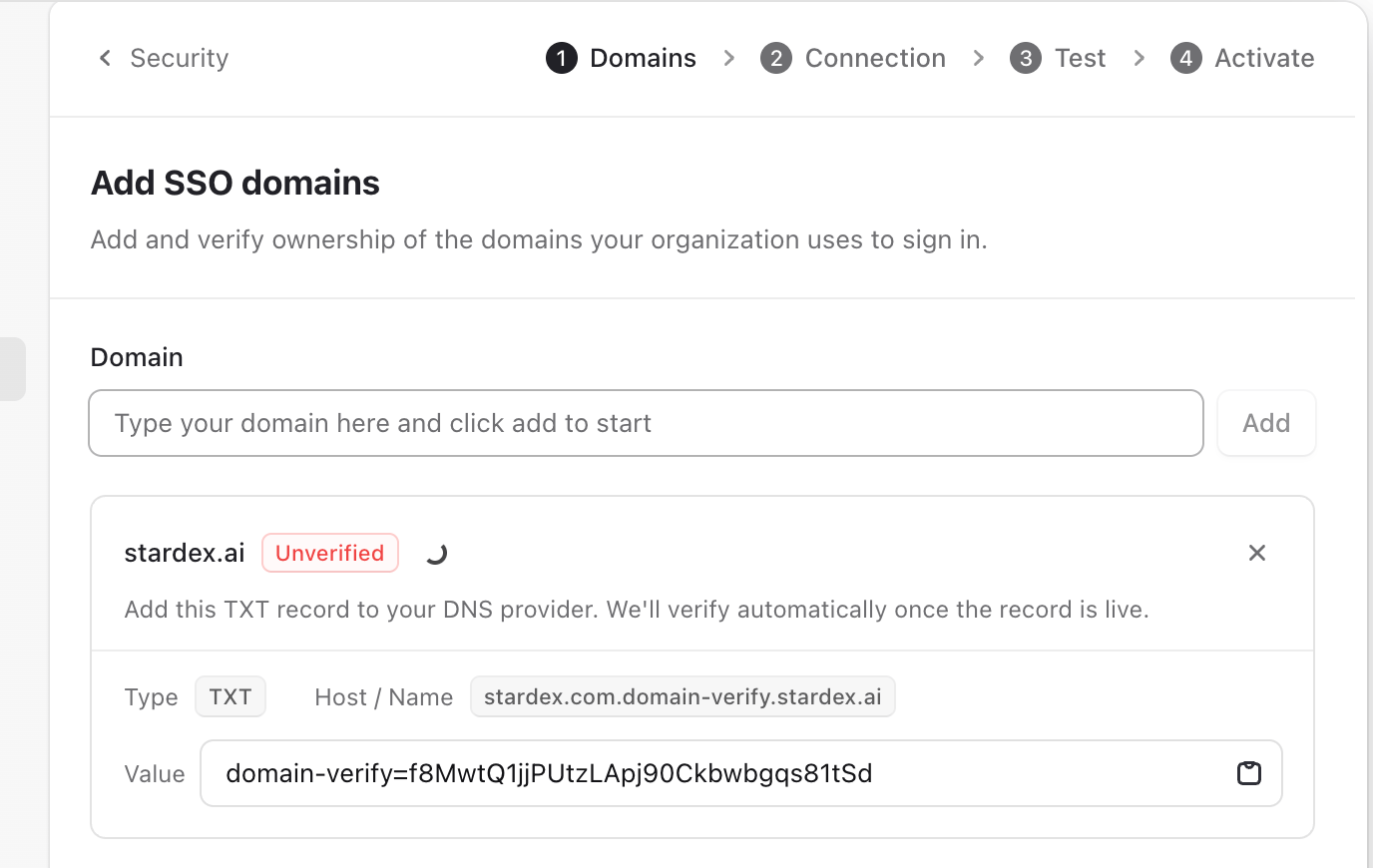
3. Enter your domain (e.g. [stardex.ai](http://stardex.ai) )
<img src="https://mintcdn.com/stardex/Iw_OaphCHDTu5uKO/images/help-center/single-sign-on/image-1.png?fit=max&auto=format&n=Iw_OaphCHDTu5uKO&q=85&s=ab4a9591130a47b9123404b29be53496" alt="Single Sign On — screenshot 2" width="1376" height="870" data-path="images/help-center/single-sign-on/image-1.png" />

4. Head to your Domain services to access your DNS setting, and add the TXT record as shown

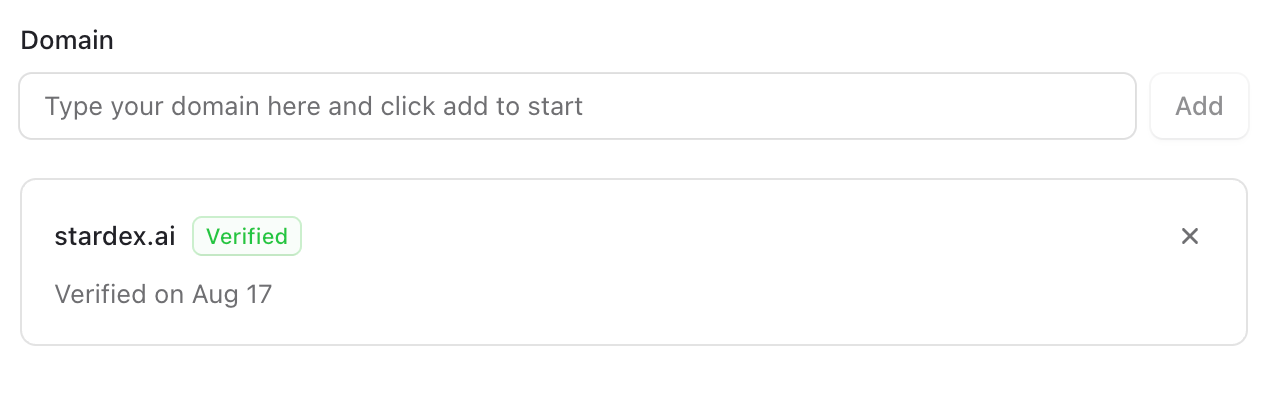
5. Once added, it should show up as verified. This can sometimes take a few hours, but should happen in a few minutes typically.
   <img src="https://mintcdn.com/stardex/Iw_OaphCHDTu5uKO/images/help-center/single-sign-on/image-2.png?fit=max&auto=format&n=Iw_OaphCHDTu5uKO&q=85&s=bb8df2466474ea81018bac07235976a0" alt="Single Sign On — screenshot 3" width="1280" height="398" data-path="images/help-center/single-sign-on/image-2.png" />

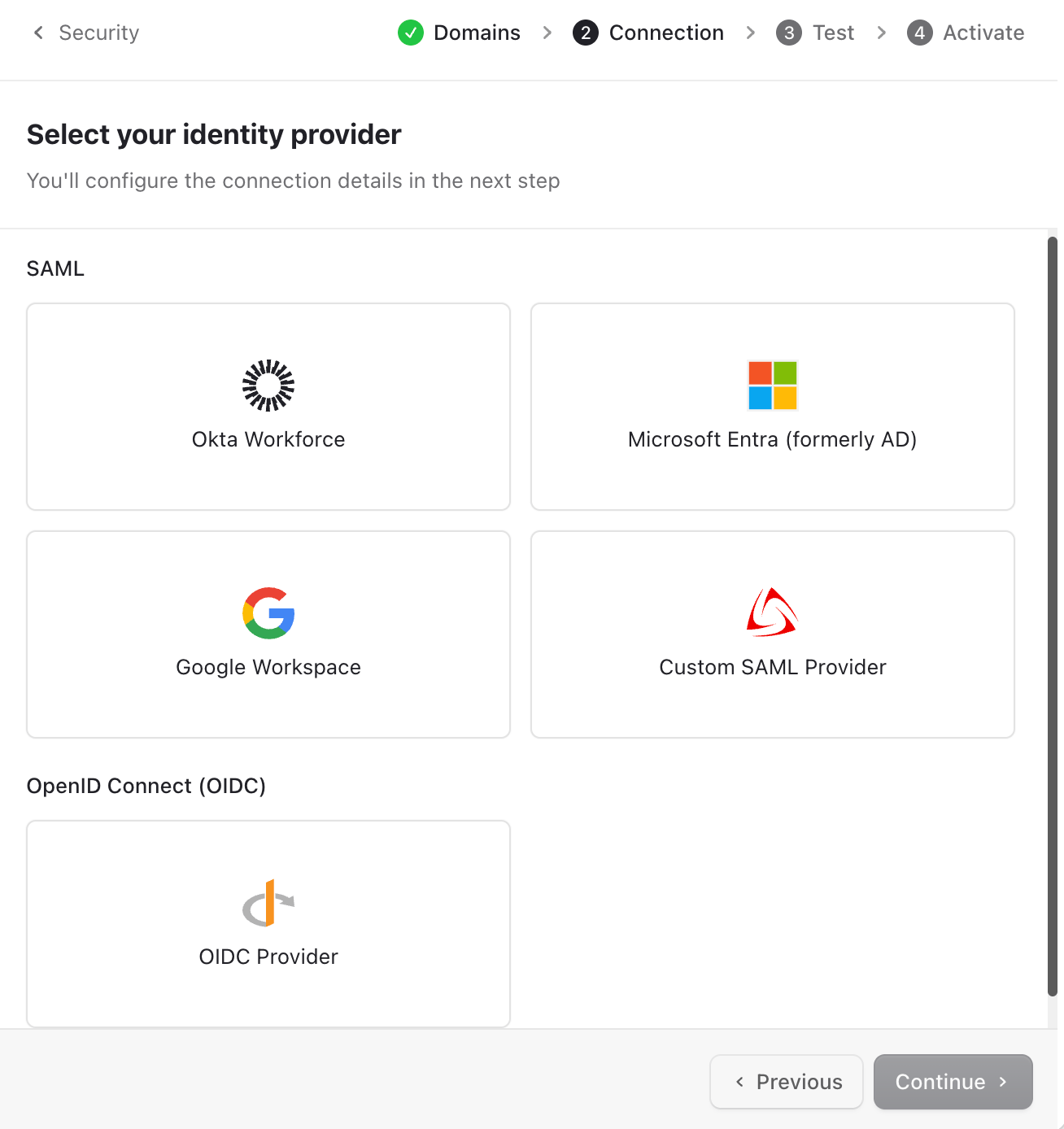
6. Pick the Identity provider: Microsoft, Okta, Google or Custom
   <img src="https://mintcdn.com/stardex/Iw_OaphCHDTu5uKO/images/help-center/single-sign-on/image-3.png?fit=max&auto=format&n=Iw_OaphCHDTu5uKO&q=85&s=e6944fedb643304c1e848beae49e5057" alt="Single Sign On — screenshot 4" width="1308" height="1388" data-path="images/help-center/single-sign-on/image-3.png" />

7. Follow the steps in the Connection

<img src="https://mintcdn.com/stardex/Iw_OaphCHDTu5uKO/images/help-center/single-sign-on/image-4.png?fit=max&auto=format&n=Iw_OaphCHDTu5uKO&q=85&s=79599b32f71d6190da37e06407360290" alt="Single Sign On — screenshot 5" width="1308" height="774" data-path="images/help-center/single-sign-on/image-4.png" />

<Note>
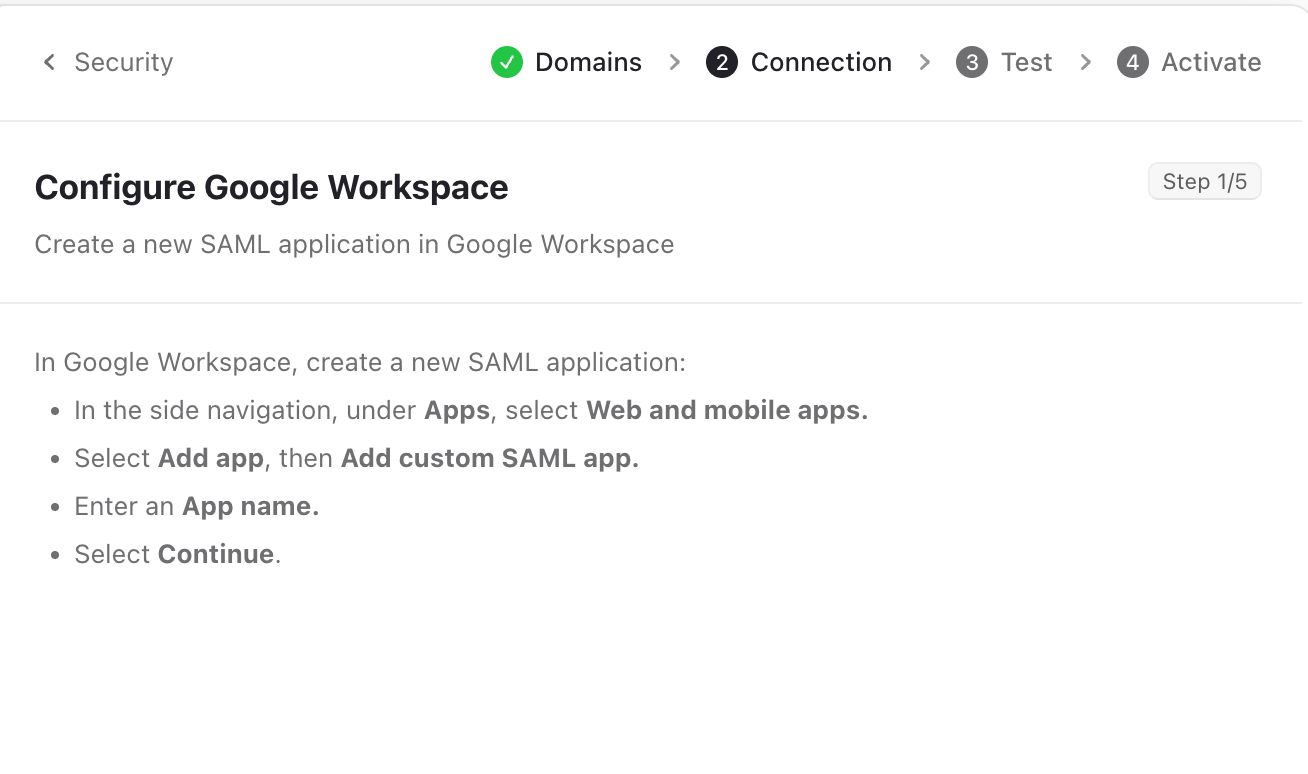
  Follow the steps as mentioned based on your auth provider. We have included detailed steps for Google workspace below.
</Note>

For Google

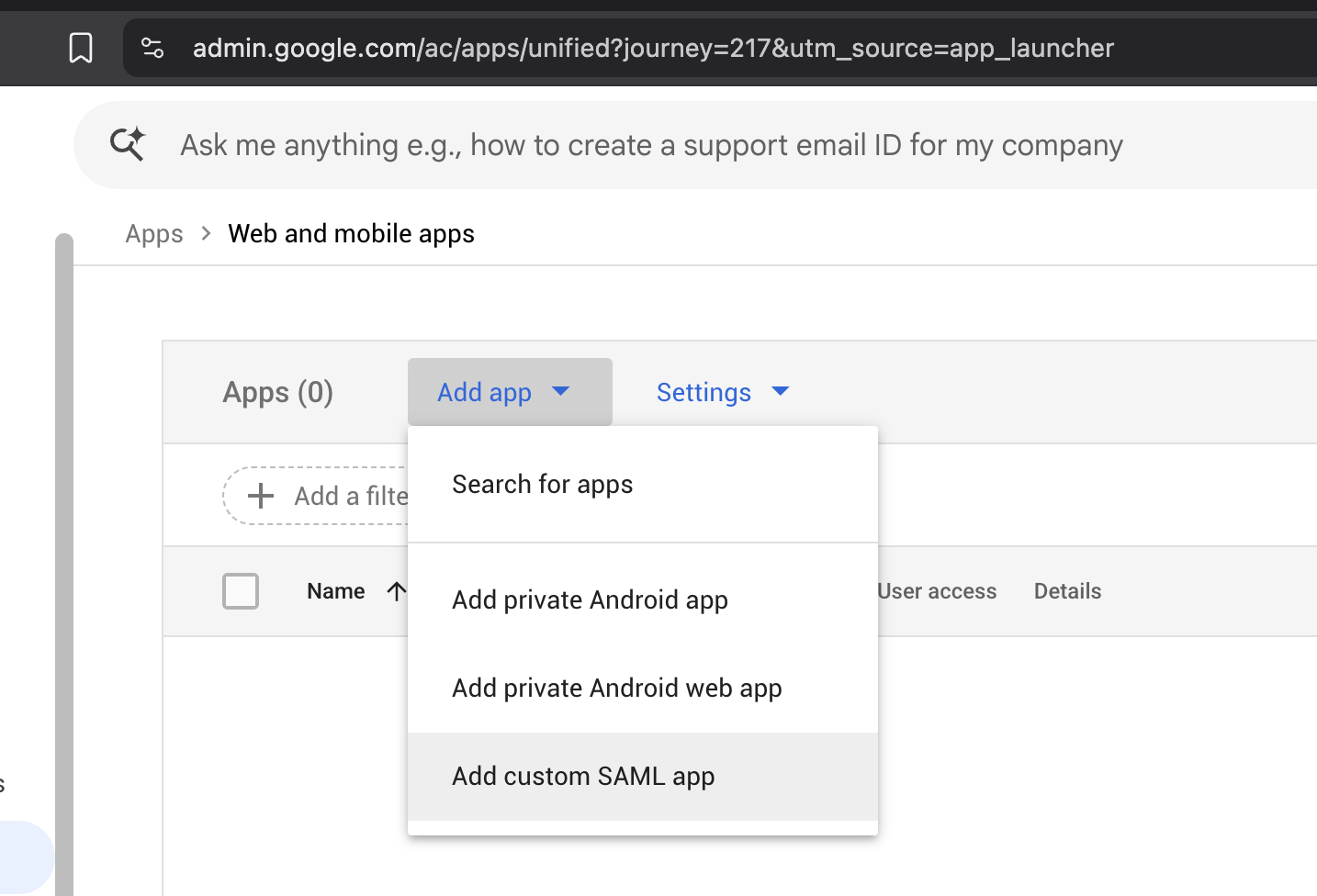
1. head to [https://admin.google.com/ac/apps/unified?journey=217\&utm\_source=app\_launcher](https://admin.google.com/ac/apps/unified?journey=217\&utm_source=app_launcher)
<img src="https://mintcdn.com/stardex/Iw_OaphCHDTu5uKO/images/help-center/single-sign-on/image-5.png?fit=max&auto=format&n=Iw_OaphCHDTu5uKO&q=85&s=daa59745ad0e7d38fae2630ecb79bc4f" alt="Single Sign On — screenshot 6" width="1434" height="976" data-path="images/help-center/single-sign-on/image-5.png" />

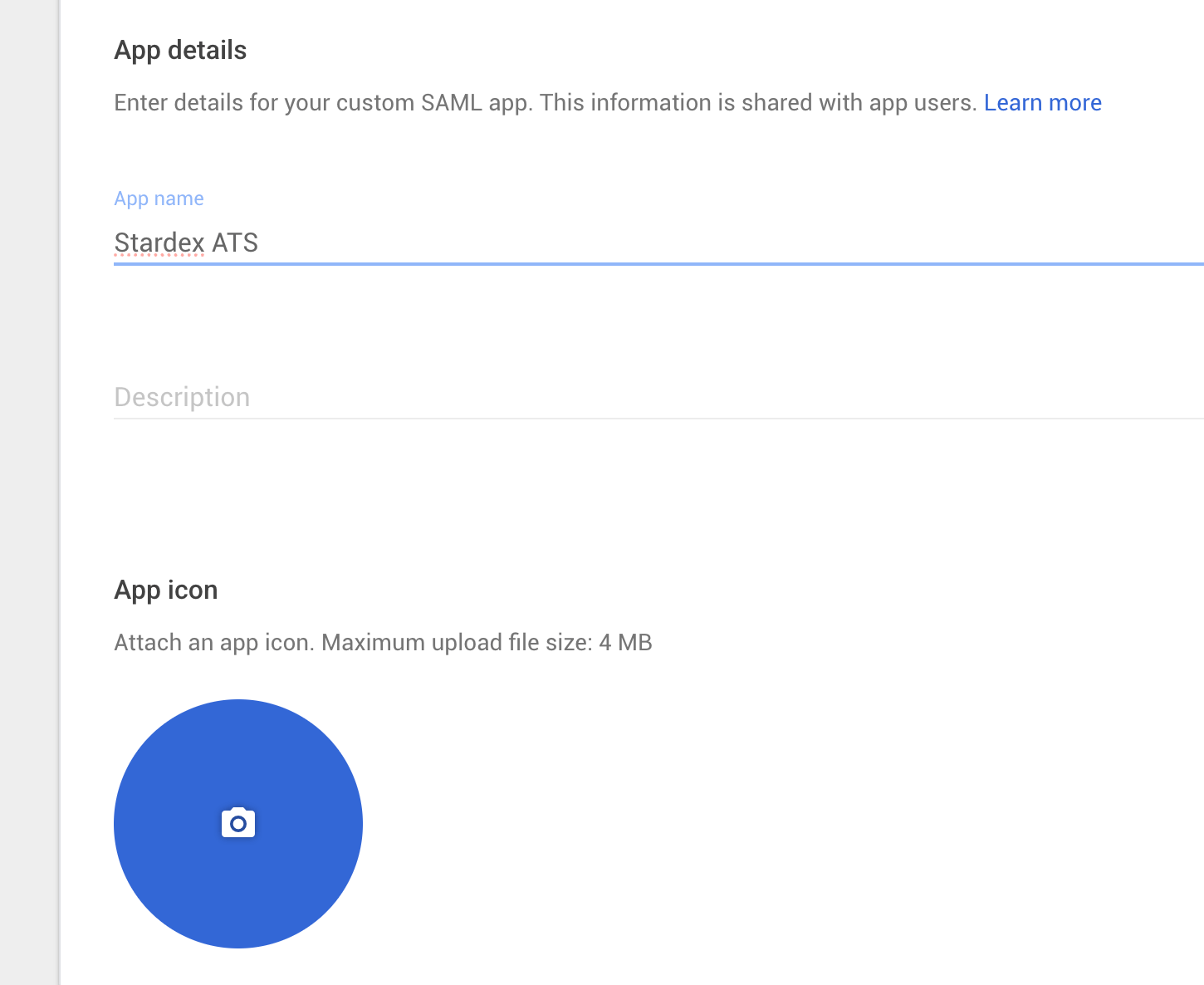
b. Enter app details

<img src="https://mintcdn.com/stardex/Iw_OaphCHDTu5uKO/images/help-center/single-sign-on/image-6.png?fit=max&auto=format&n=Iw_OaphCHDTu5uKO&q=85&s=26dac0b8c700d915655355aaccdfe8f4" alt="Single Sign On — screenshot 7" width="1450" height="1186" data-path="images/help-center/single-sign-on/image-6.png" />

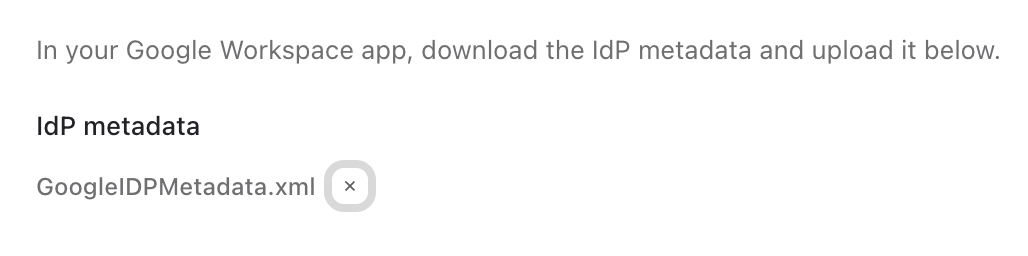
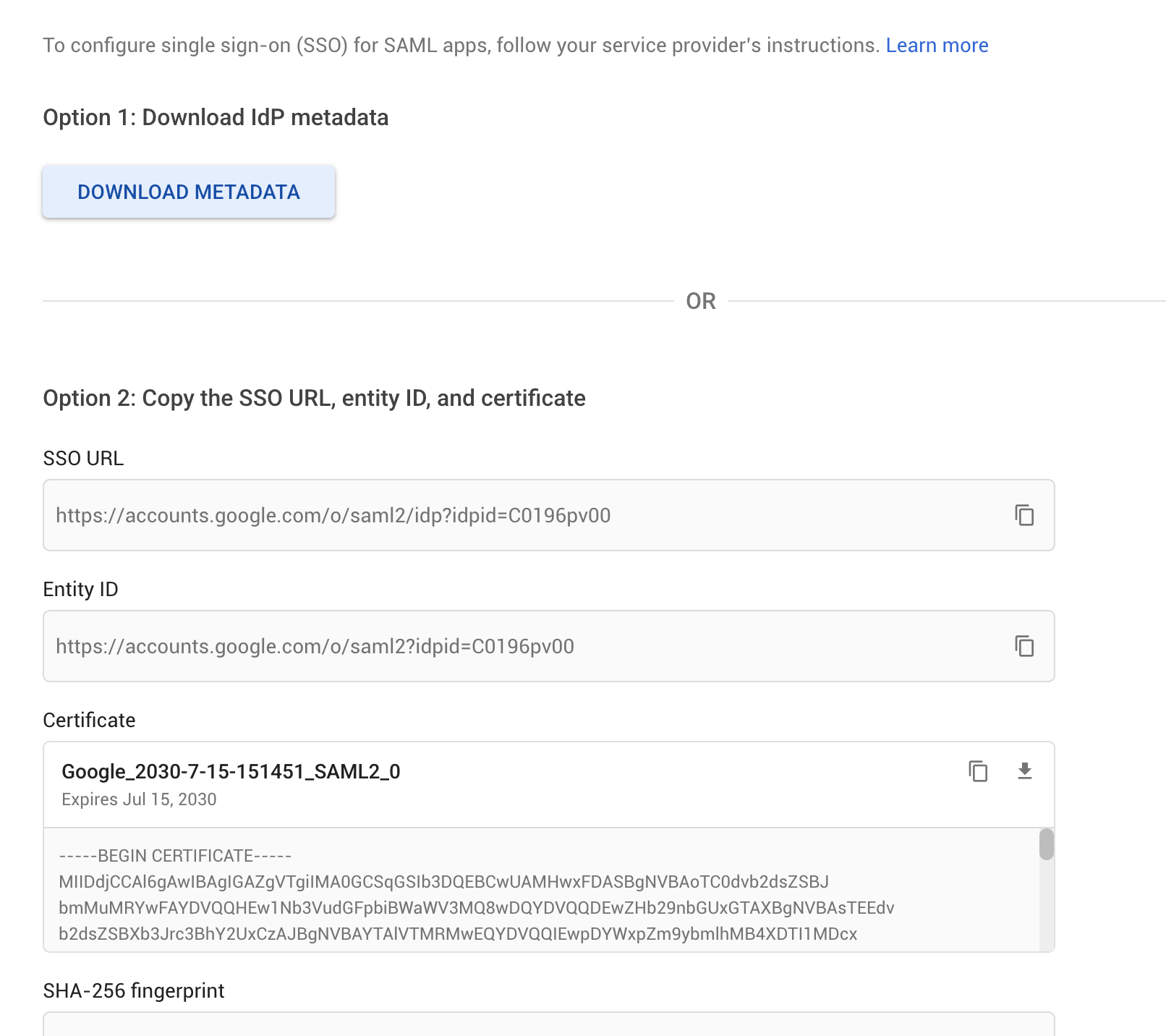
c. Download the Metadata and then upload it in Stardex
<img src="https://mintcdn.com/stardex/Iw_OaphCHDTu5uKO/images/help-center/single-sign-on/image-7.png?fit=max&auto=format&n=Iw_OaphCHDTu5uKO&q=85&s=03b03b71855e7e797dab05ca88601ab9" alt="Single Sign On — screenshot 8" width="1612" height="1432" data-path="images/help-center/single-sign-on/image-7.png" />

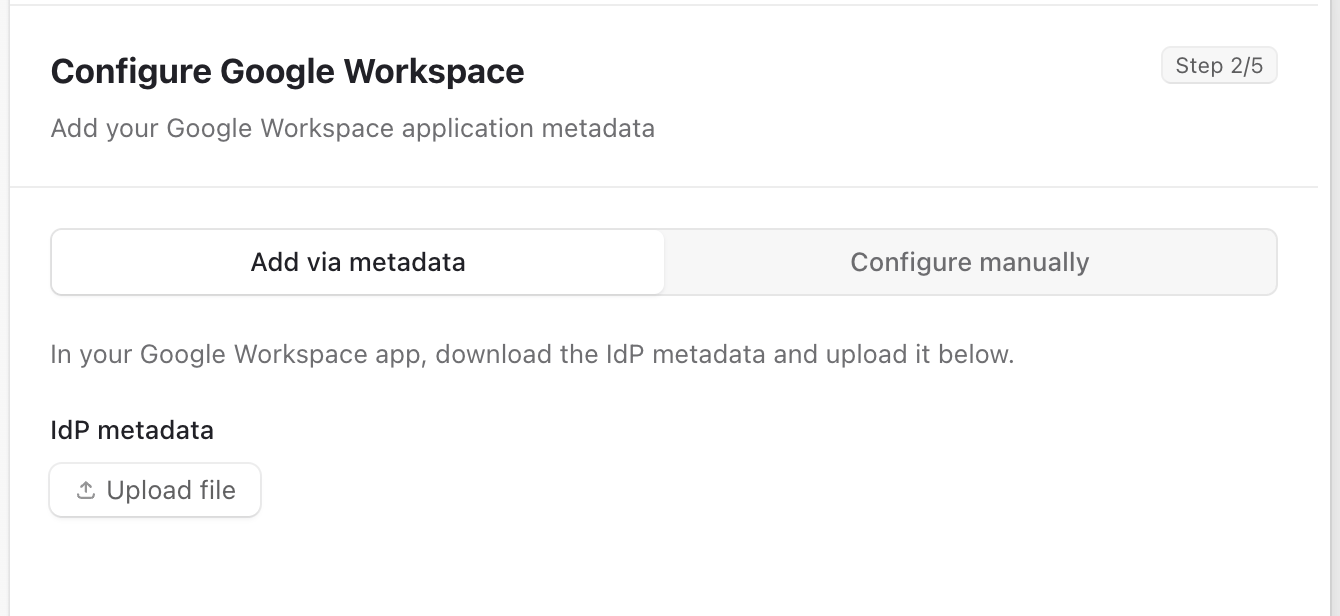
1. Upload the metadata or the SSO URL as received from the workspace
<img src="https://mintcdn.com/stardex/Iw_OaphCHDTu5uKO/images/help-center/single-sign-on/image-8.png?fit=max&auto=format&n=Iw_OaphCHDTu5uKO&q=85&s=f07c7bfa2c241ec2919d78d0b4c6f75c" alt="Single Sign On — screenshot 9" width="1340" height="616" data-path="images/help-center/single-sign-on/image-8.png" />

<img src="https://mintcdn.com/stardex/Iw_OaphCHDTu5uKO/images/help-center/single-sign-on/image-9.png?fit=max&auto=format&n=Iw_OaphCHDTu5uKO&q=85&s=24d27e4bbf980a72f53f47390c0a6579" alt="Single Sign On — screenshot 10" width="1028" height="256" data-path="images/help-center/single-sign-on/image-9.png" />

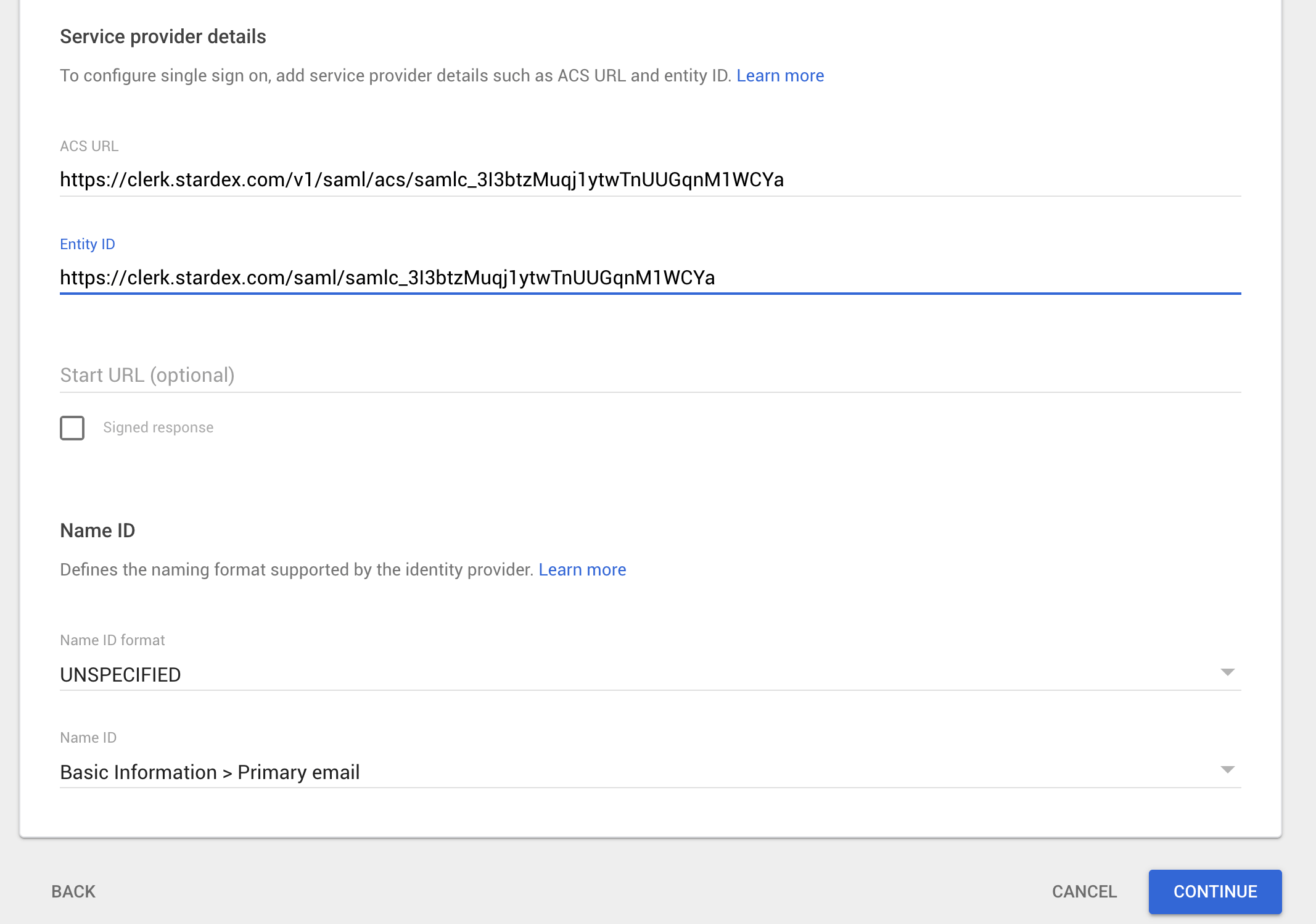
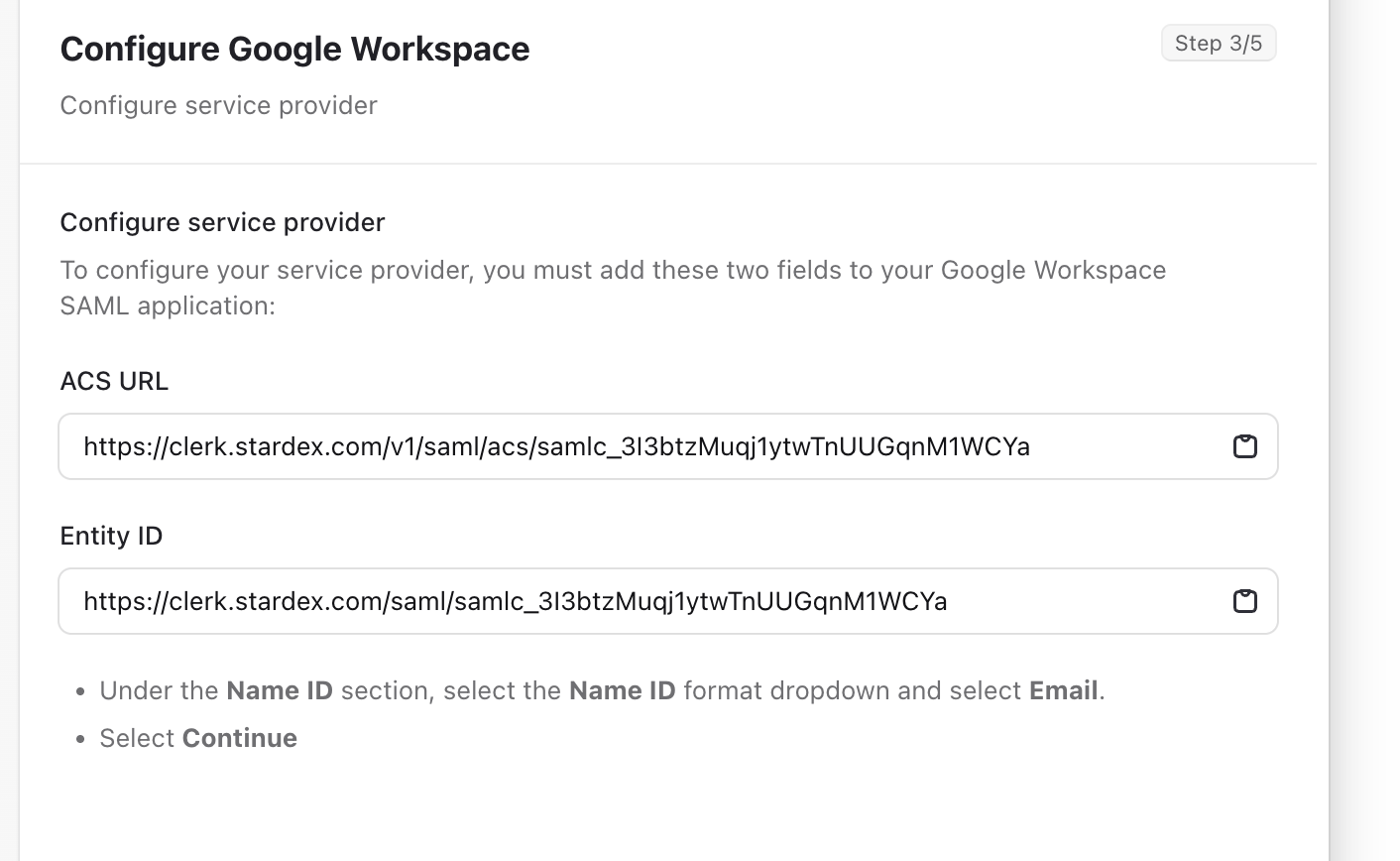
2. Copy the ACS URL and Entity ID and paste into the Google Workspace. For others, follow as described
<img src="https://mintcdn.com/stardex/Iw_OaphCHDTu5uKO/images/help-center/single-sign-on/image-10.png?fit=max&auto=format&n=Iw_OaphCHDTu5uKO&q=85&s=b89d1a5f800d73ea4eeba0a5ef1f4101" alt="Single Sign On — screenshot 11" width="1412" height="868" data-path="images/help-center/single-sign-on/image-10.png" />

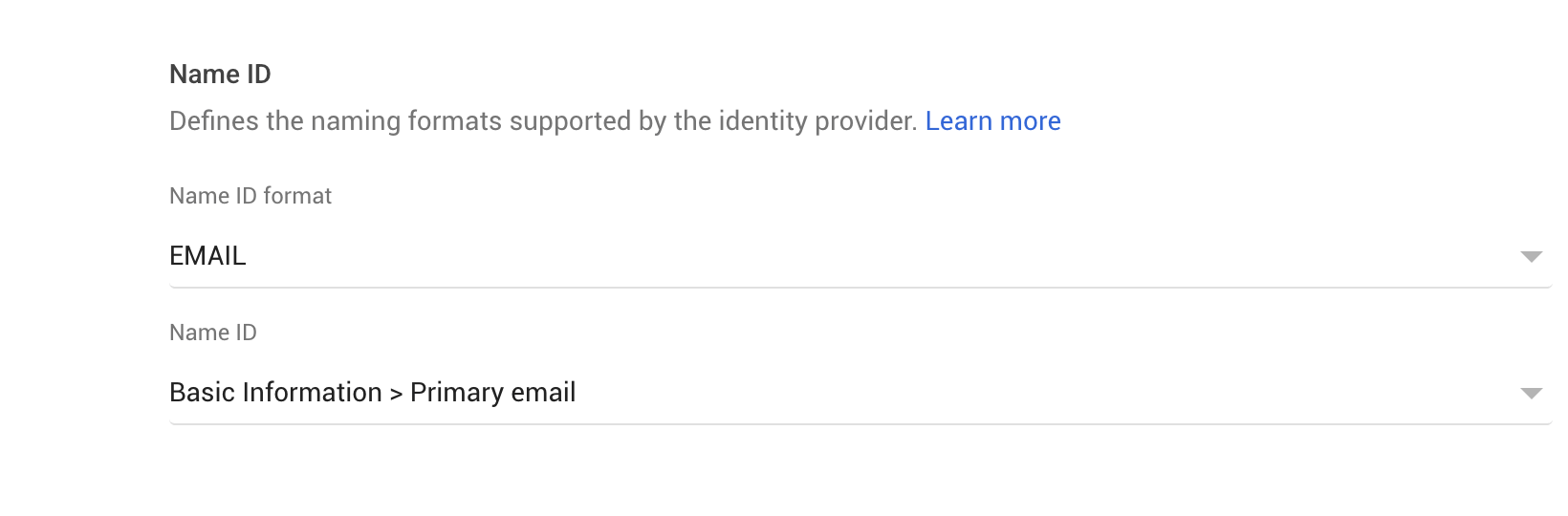
Pick Name ID format as Email

<img src="https://mintcdn.com/stardex/Iw_OaphCHDTu5uKO/images/help-center/single-sign-on/image-11.png?fit=max&auto=format&n=Iw_OaphCHDTu5uKO&q=85&s=1e301fef552c7c63fb582cf95ca1214d" alt="Single Sign On — screenshot 12" width="2134" height="1498" data-path="images/help-center/single-sign-on/image-11.png" />

<img src="https://mintcdn.com/stardex/Iw_OaphCHDTu5uKO/images/help-center/single-sign-on/image-12.png?fit=max&auto=format&n=Iw_OaphCHDTu5uKO&q=85&s=83e3a32c69eae367c79fa178a0594ef6" alt="Single Sign On — screenshot 13" width="1640" height="540" data-path="images/help-center/single-sign-on/image-12.png" />

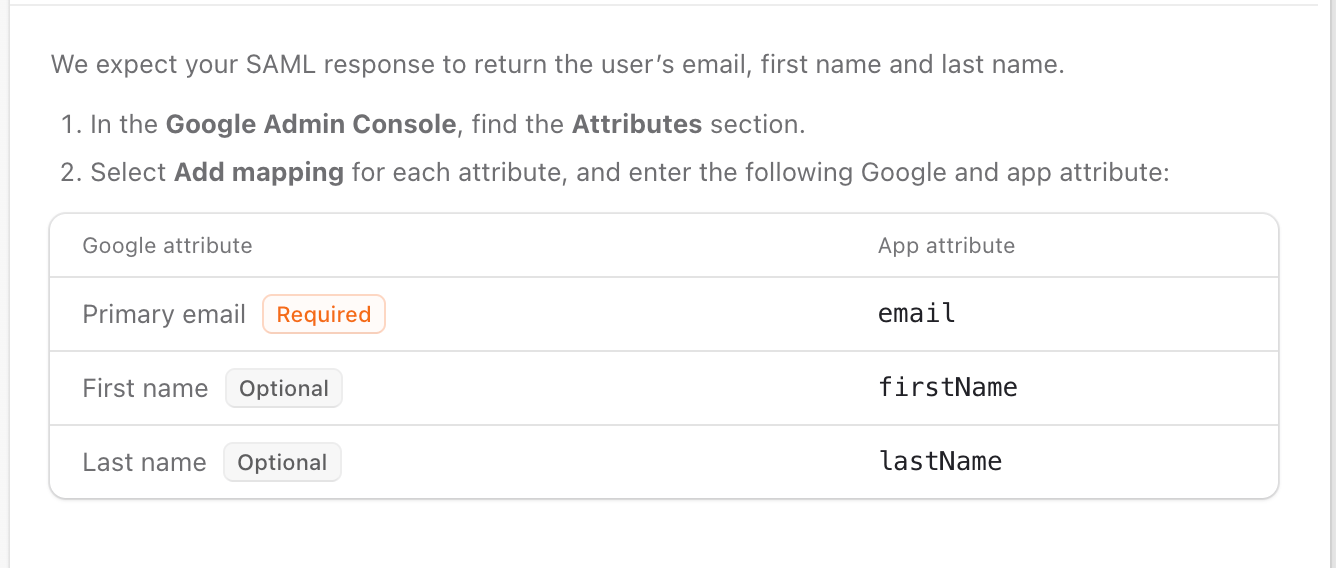
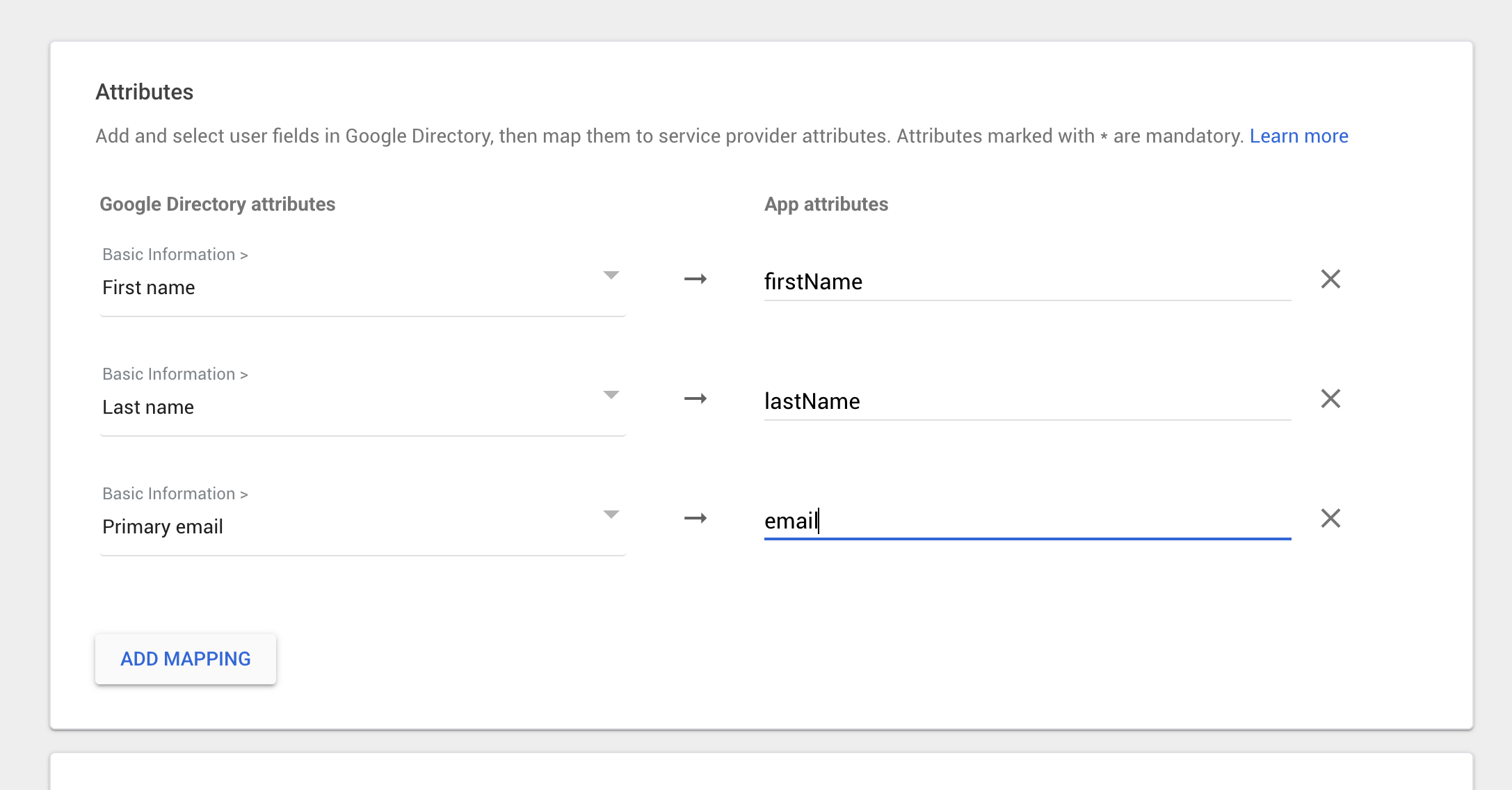
1. Add optional mapping if needed

   <img src="https://mintcdn.com/stardex/Iw_OaphCHDTu5uKO/images/help-center/single-sign-on/image-13.png?fit=max&auto=format&n=Iw_OaphCHDTu5uKO&q=85&s=298691b8ed97c28f2592e2ca4c26da14" alt="Single Sign On — screenshot 14" width="1336" height="568" data-path="images/help-center/single-sign-on/image-13.png" />

<img src="https://mintcdn.com/stardex/Iw_OaphCHDTu5uKO/images/help-center/single-sign-on/image-14.png?fit=max&auto=format&n=Iw_OaphCHDTu5uKO&q=85&s=2aba22fefadc292397baec06cf4d24e4" alt="Single Sign On — screenshot 15" width="2174" height="1136" data-path="images/help-center/single-sign-on/image-14.png" />

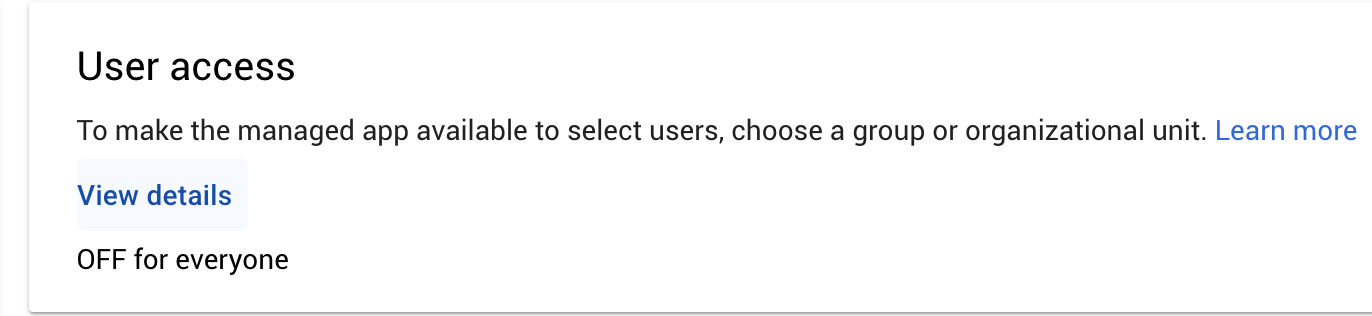
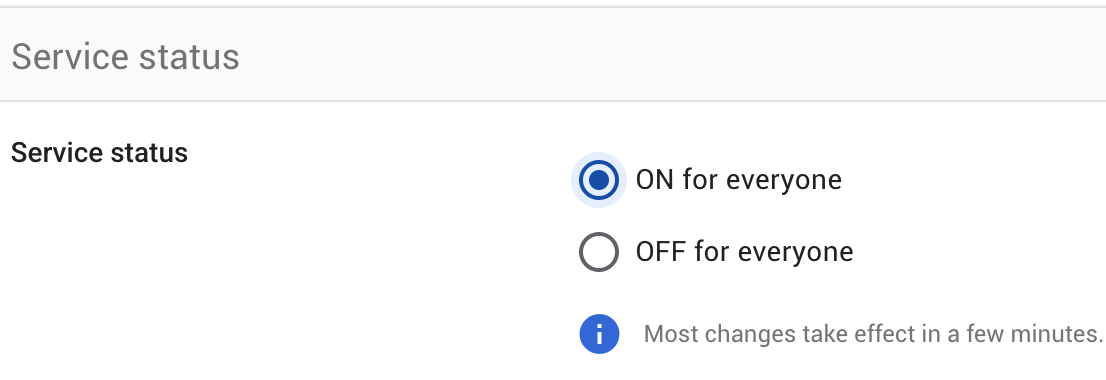
2. Turn on access for everyone

<img src="https://mintcdn.com/stardex/Iw_OaphCHDTu5uKO/images/help-center/single-sign-on/image-15.png?fit=max&auto=format&n=Iw_OaphCHDTu5uKO&q=85&s=83f4b92a11907816f8c1fb5eb741bef4" alt="Single Sign On — screenshot 16" width="1372" height="316" data-path="images/help-center/single-sign-on/image-15.png" />

<img src="https://mintcdn.com/stardex/Iw_OaphCHDTu5uKO/images/help-center/single-sign-on/image-16.png?fit=max&auto=format&n=Iw_OaphCHDTu5uKO&q=85&s=e9444d2ec1ebae514395983470d600e7" alt="Single Sign On — screenshot 17" width="1106" height="380" data-path="images/help-center/single-sign-on/image-16.png" />

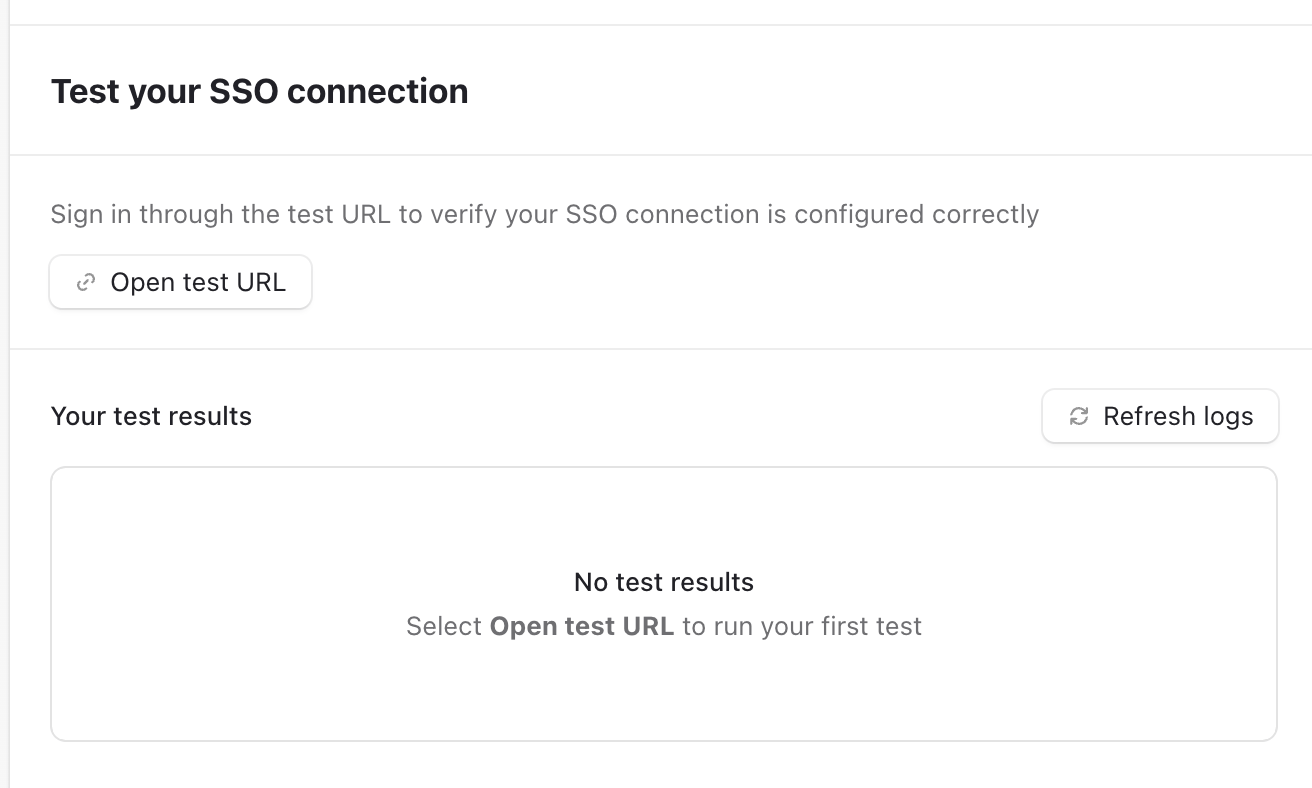
3. Test. If you are running into issues, try to get the pem key and adding it manually
<img src="https://mintcdn.com/stardex/Iw_OaphCHDTu5uKO/images/help-center/single-sign-on/image-17.png?fit=max&auto=format&n=Iw_OaphCHDTu5uKO&q=85&s=a81e9d0550c84ba540b646df8b3420f7" alt="Single Sign On — screenshot 18" width="1312" height="788" data-path="images/help-center/single-sign-on/image-17.png" />

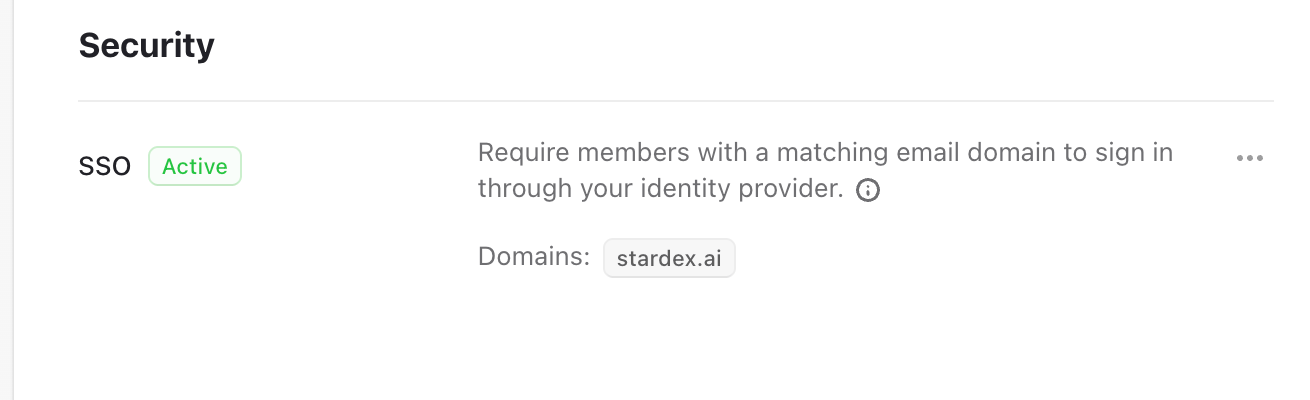
4. Once tested successfully, you’ll be able to turn it on for everyone.
<img src="https://mintcdn.com/stardex/Iw_OaphCHDTu5uKO/images/help-center/single-sign-on/image-18.png?fit=max&auto=format&n=Iw_OaphCHDTu5uKO&q=85&s=e9ebf84d6c18f883274c7b3fd40b1714" alt="Single Sign On — screenshot 19" width="1310" height="400" data-path="images/help-center/single-sign-on/image-18.png" />


This documentation is built and hosted on [Mintlify](https://mintlify.com), a developer documentation platform.