> ## Documentation Index
> Fetch the complete documentation index at: https://docs.stardex.com/llms.txt
> Use this file to discover all available pages before exploring further.
# Setting up your multi-step outreach campaign
> Build an outreach campaign with email and manual steps, then enroll candidates and manage follow-ups.
Prior to enrolling candidates in a campaign, please connect your Google or Microsoft email to Stardex in [Settings → Email & other integrations → Mailboxes](https://stardex.com/settings?tab=email-calendar\§ion=mailboxes)
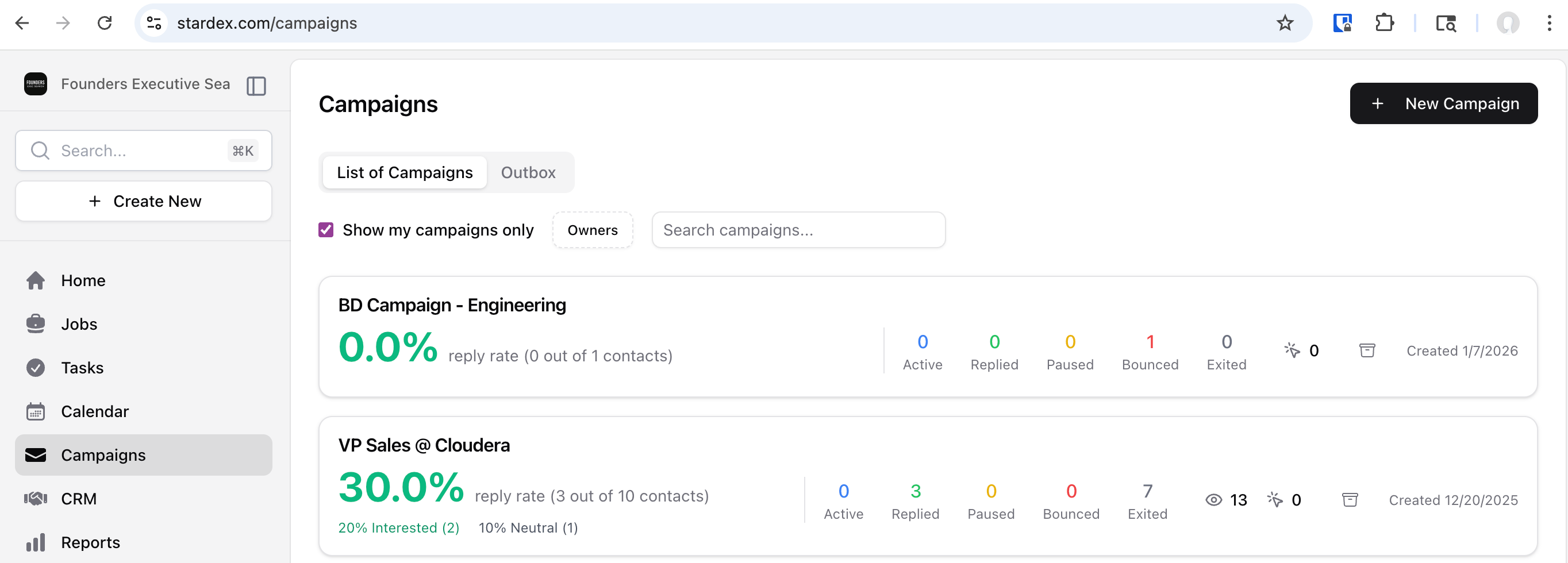
1. Navigate to [https://stardex.com/campaigns](https://stardex.com/campaigns)
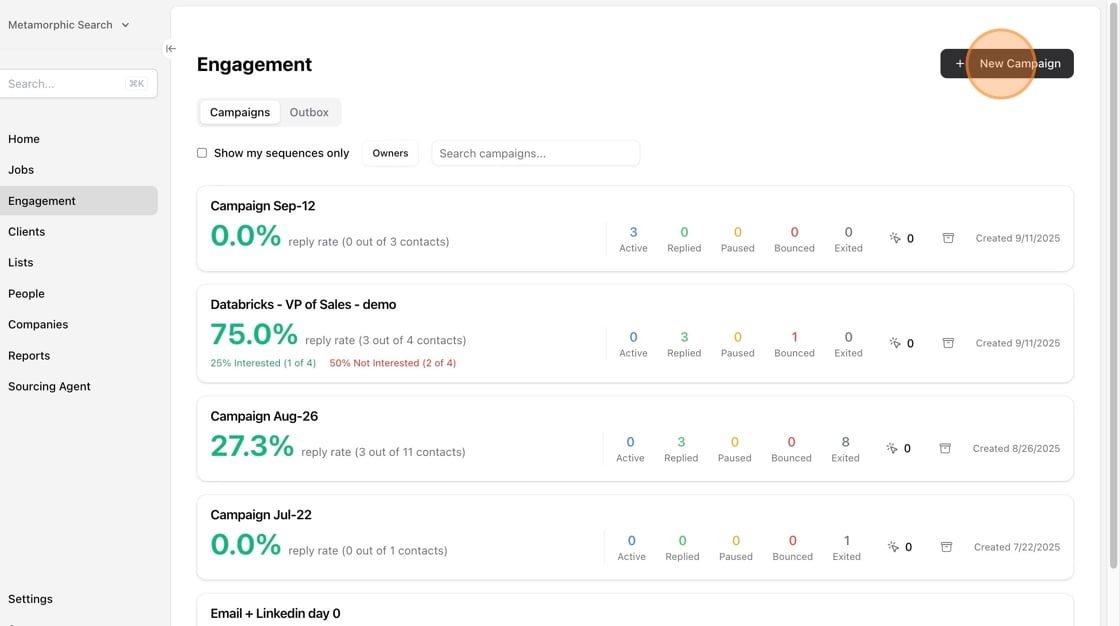
 2. Click "New Campaign"
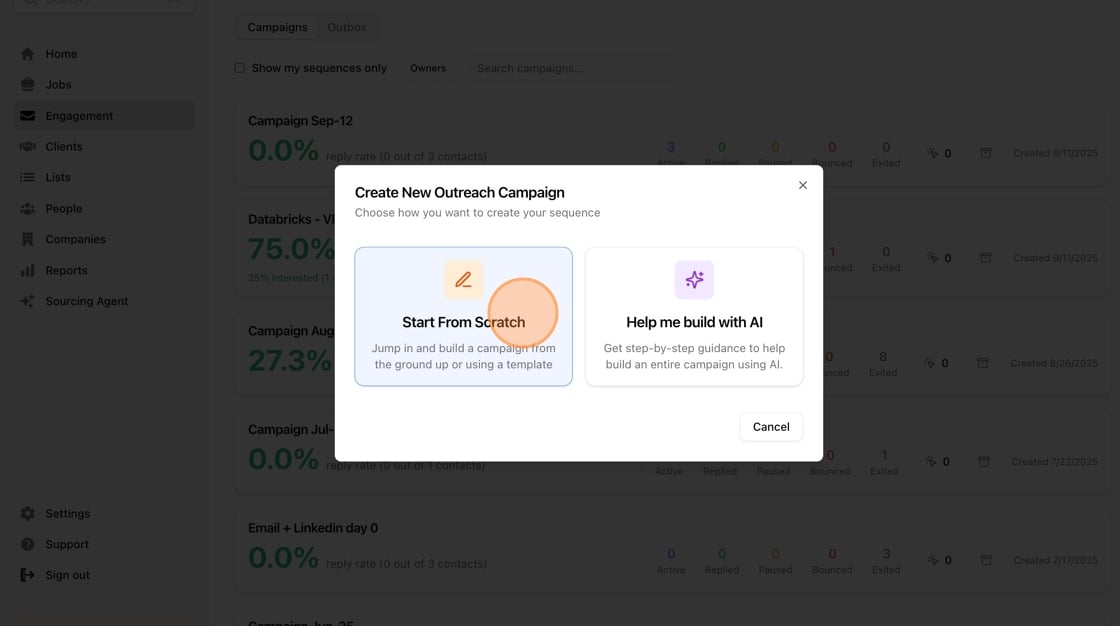
 3. Click "Start From Scratch" or "Help me build with AI"
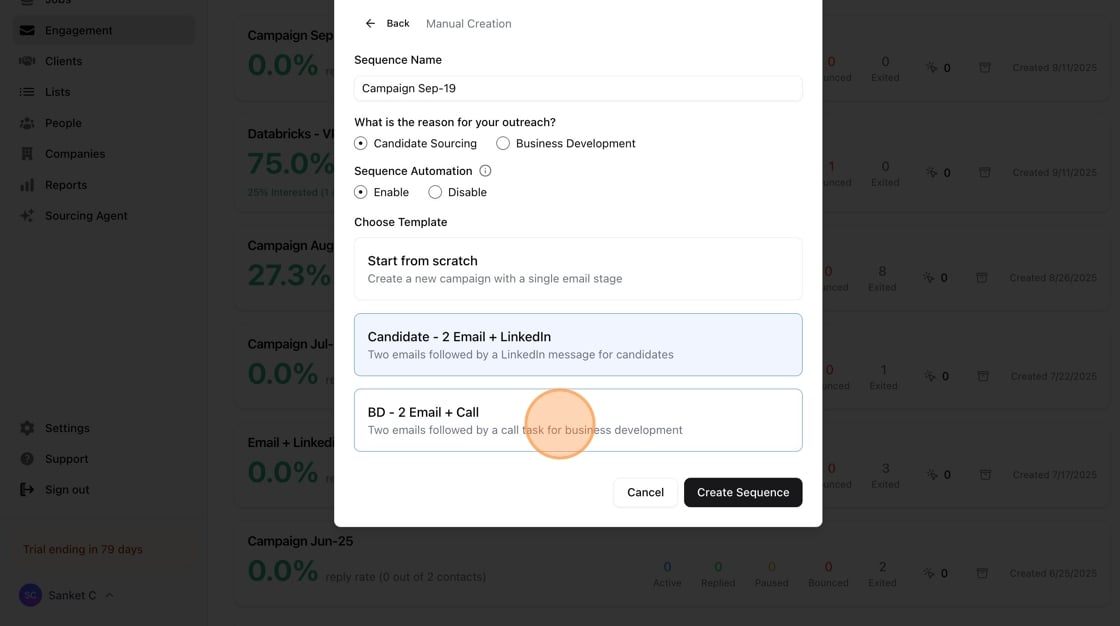
 4. If you picked Start from Scratch, you can pick one of the templates or use a blank template.
 5. If you want to use AI to build the campaign, pick the reason of outreach as well as the channels you would like to add.
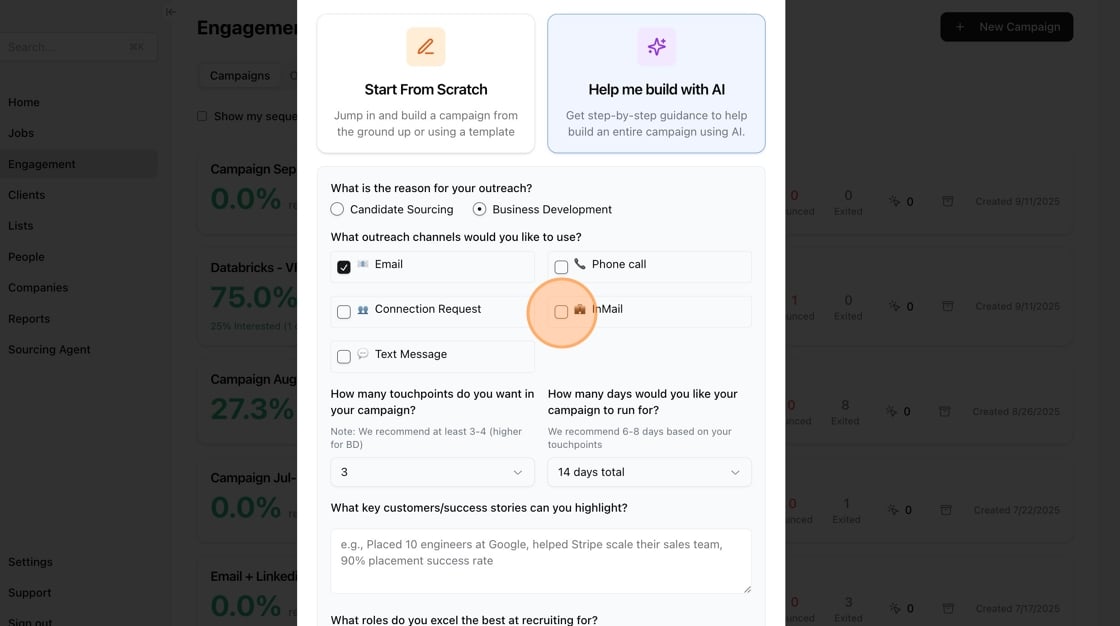 6. Enter more information that will help AI generate the best copy.
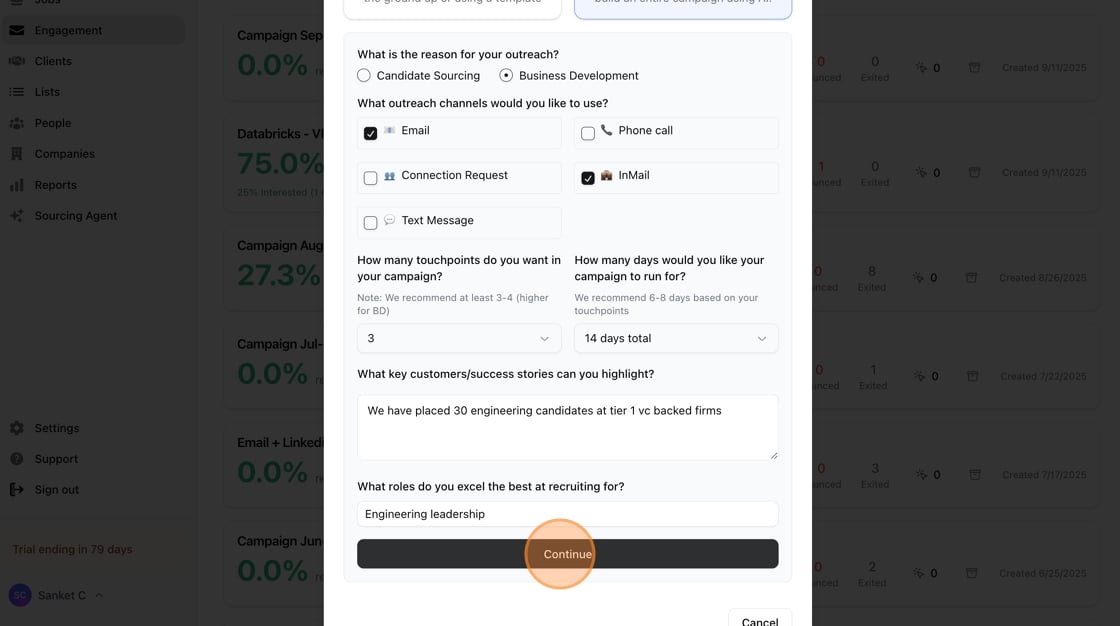
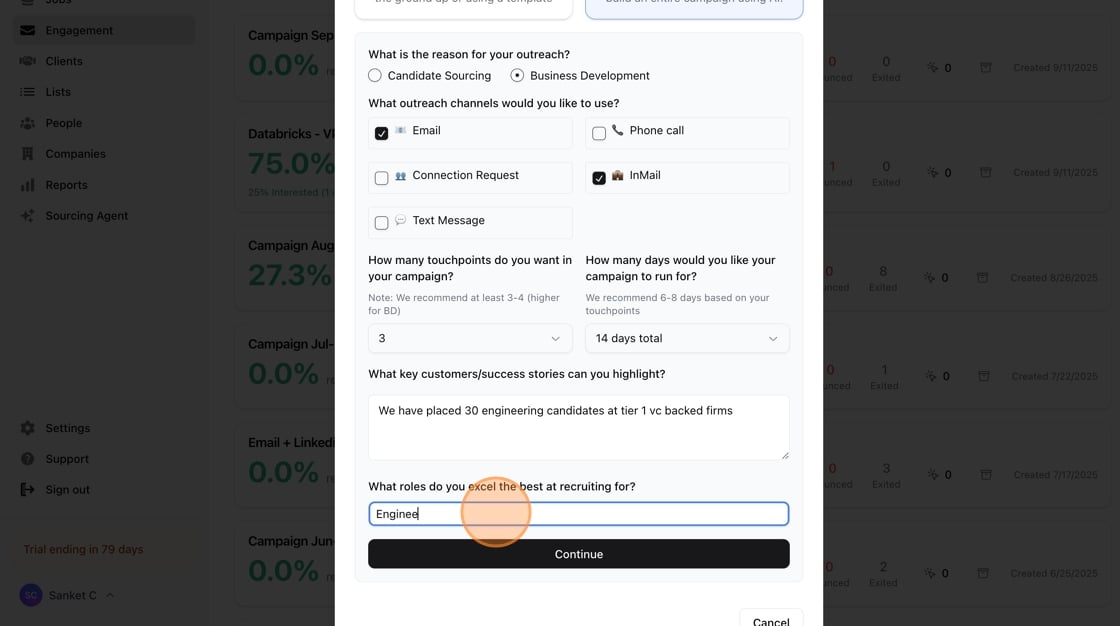 7. Click "Continue"
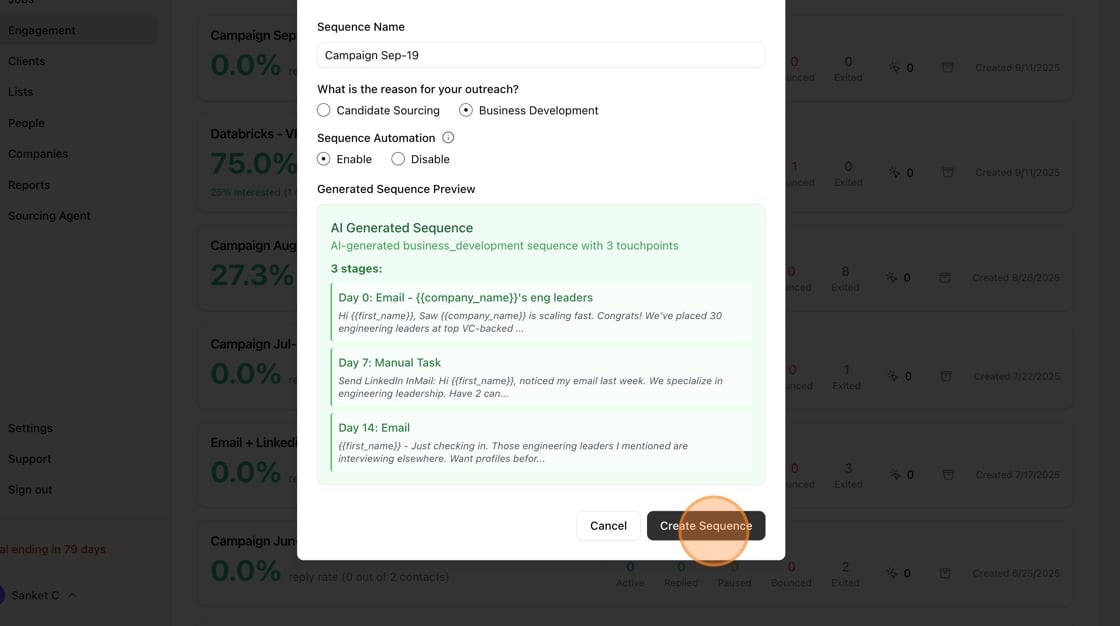
 8. You will see the generated campaign. You can Create Campaign.
 9. Edit your campaign. You can insert custom variables using "Insert variables"
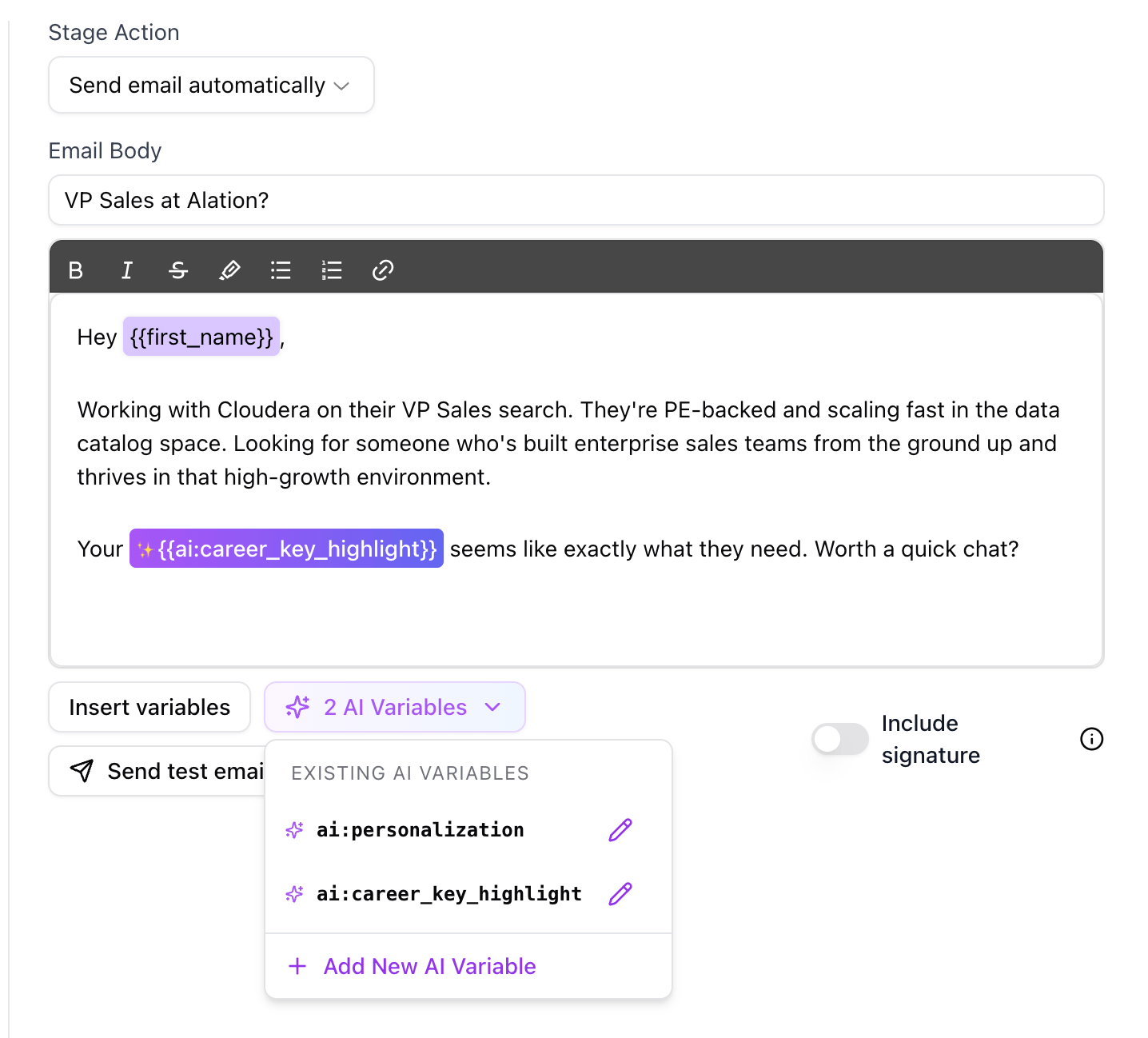
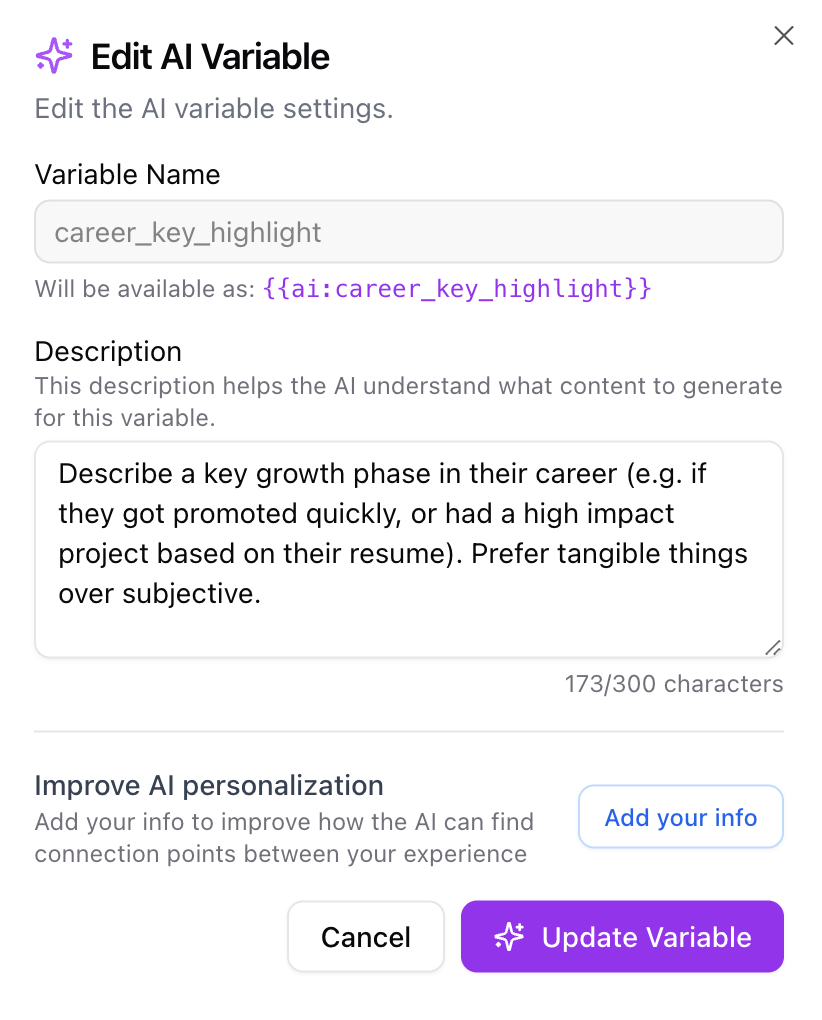
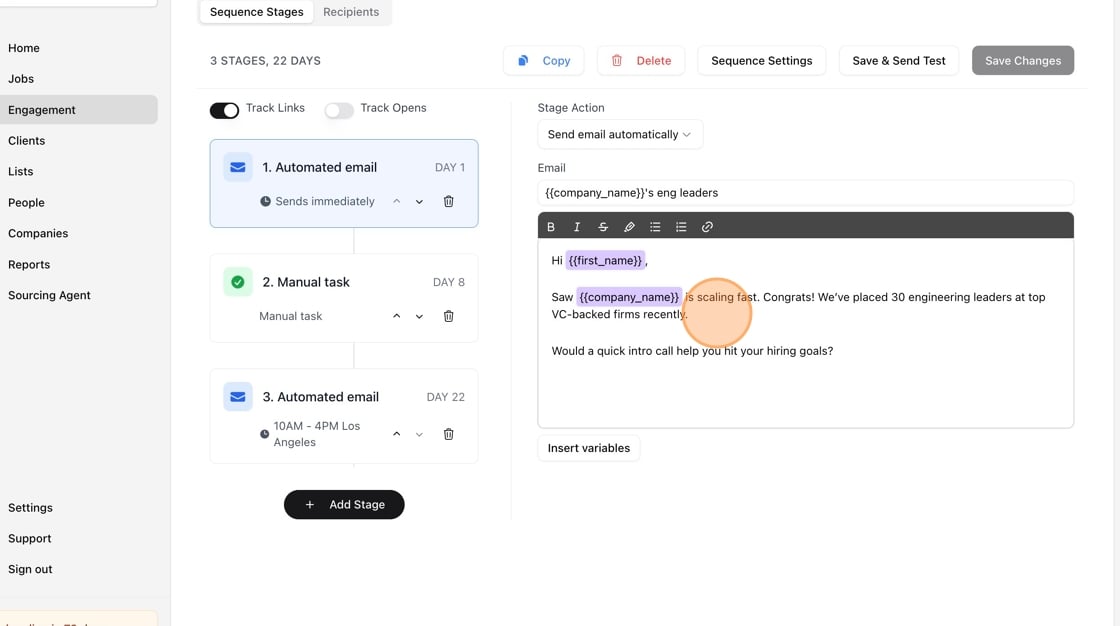 If you'd like to add something specific, you can use curly braces to make that a variable. E.g. {{personalization_line}} will then prompt you to enter something personal when you are enrolling a user. You can also insert AI personalization variables E.g. {{ai:career_growth_highlight}} More info here → [AI variables](/help-center/ai-variables)
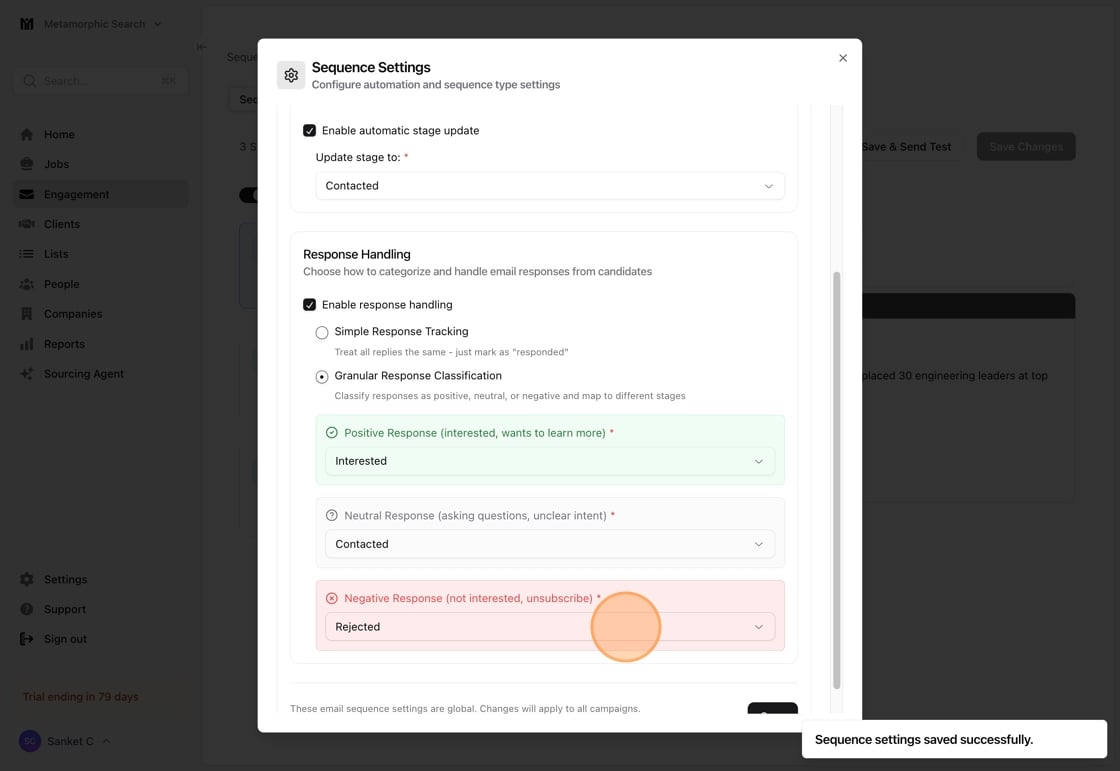
 1. You can click Campaign settings to toggle stage automation.
> Stage automation can help you auto update stages based on their response. We use AI to detect whether they are interested or not, and accordingly you can tell Stardex what stage you would like it to update the candidate in a job, or a client in the CRM.
1. You can click Campaign settings to toggle stage automation.
> Stage automation can help you auto update stages based on their response. We use AI to detect whether they are interested or not, and accordingly you can tell Stardex what stage you would like it to update the candidate in a job, or a client in the CRM.
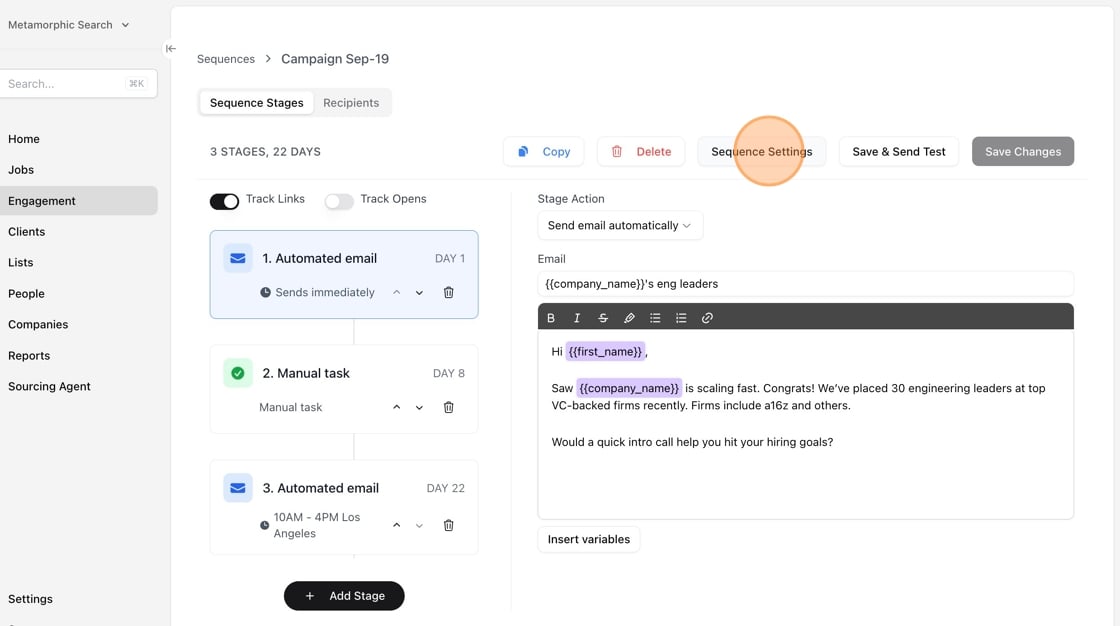 2. Once it looks good, you can click Save
 Enroll someone from the linkedin through the chrome extension by clicking Actions on top right, or the individual profile. You can also bulk enroll a list or all candidates in a job ([Bulk emailing candidates or clients](/help-center/bulk-emailing-candidates-or-clients))
If you want to schedule the first email / step to go out at a later time / date, click **Enroll Later** and pick the appropriate time.
#### FAQ
* What does ‘Exited’ mean?
* Exited means the user went through the entire Campaign sequence.
* Once a candidate has exited the Campaign, is there a way to add them back in?
* No, once a user has gone through the Campaign sequence, there isn’t a way to add them back in.
* If I add additional stages to the Campaign, will it apply to existing users and ones who have Exited?
* No. Changes to your Campaign apply only going forward. Users already in the Campaign sequence will continue based on how the Campaign was set up when they were initially enrolled.
* Can I change a user’s email address once they’re in the Campaign sequence?
* No, once someone is enrolled in an active Campaign, you can't change their email address. If you need to change their email address, the cleanest path is to stop that enrollment and re-enroll with the correct address from the Recipients tab — without pausing the whole campaign for everyone else.
## Related guides
* 👉 [Blocking Campaign Progression on Task Completion](/help-center/blocking-campaign-progression-on-task-completion), to pause a manual step until its task is marked done
This documentation is built and hosted on [Mintlify](https://mintlify.com), a developer documentation platform.
Enroll someone from the linkedin through the chrome extension by clicking Actions on top right, or the individual profile. You can also bulk enroll a list or all candidates in a job ([Bulk emailing candidates or clients](/help-center/bulk-emailing-candidates-or-clients))
If you want to schedule the first email / step to go out at a later time / date, click **Enroll Later** and pick the appropriate time.
#### FAQ
* What does ‘Exited’ mean?
* Exited means the user went through the entire Campaign sequence.
* Once a candidate has exited the Campaign, is there a way to add them back in?
* No, once a user has gone through the Campaign sequence, there isn’t a way to add them back in.
* If I add additional stages to the Campaign, will it apply to existing users and ones who have Exited?
* No. Changes to your Campaign apply only going forward. Users already in the Campaign sequence will continue based on how the Campaign was set up when they were initially enrolled.
* Can I change a user’s email address once they’re in the Campaign sequence?
* No, once someone is enrolled in an active Campaign, you can't change their email address. If you need to change their email address, the cleanest path is to stop that enrollment and re-enroll with the correct address from the Recipients tab — without pausing the whole campaign for everyone else.
## Related guides
* 👉 [Blocking Campaign Progression on Task Completion](/help-center/blocking-campaign-progression-on-task-completion), to pause a manual step until its task is marked done
This documentation is built and hosted on [Mintlify](https://mintlify.com), a developer documentation platform.