> ## Documentation Index
> Fetch the complete documentation index at: https://docs.stardex.com/llms.txt
> Use this file to discover all available pages before exploring further.
# Searching your database with AI
> Find candidates with natural-language criteria, refine search results, and save searches for reuse.
## **Searching with AI**
***
Your database has the people you need for most roles. The problem is finding them. Keyword search only matches exact text, so a candidate whose resume says "revenue operations" won't show up when you search "sales ops." Stardex AI search reads profiles the way you would and returns people who fit what you described, even when the phrasing doesn't match.
## **Two search modes**
Stardex has two AI search modes. Both live in the same search bar.
**AI search** (press Enter) returns ranked results in a few seconds. Good for short queries: a name you half-remember, a title-and-company combo, a quick scan for a skill set.
AI search pulls from resumes, work history, skills, and notes on a profile, including compensation notes and internal context. Everything attached to a person is fair game.
**Deep research** (press ⌘+Enter / Ctrl+Enter) takes about a minute. It generates editable search criteria from your query, then reviews each candidate against those criteria one by one. Use this when you need reasoning per candidate, not just a ranked list.
***
## **Search from inside a job (hero path)**
Running AI search inside a job gives the best results because the job description provides context the AI can use: required skills, seniority, location preferences, must-haves vs nice-to-haves.
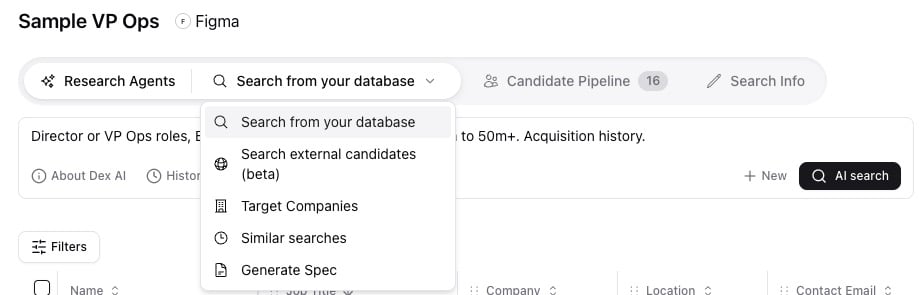
1. Open a job and click **Research Agents** in the tab bar
2. The default mode is **Search from your database**. Confirm this is selected in the dropdown
3. Type a description of the person you're looking for in the search text area. Write in plain English:
* "Senior backend engineers with distributed systems experience"
* "Marketing leaders who have scaled a B2B SaaS team past 20 people"
* "Ruby on Rails engineers in Austin with startup experience"
4. Press **Enter** for a fast AI search, or **⌘+Enter** for deep research
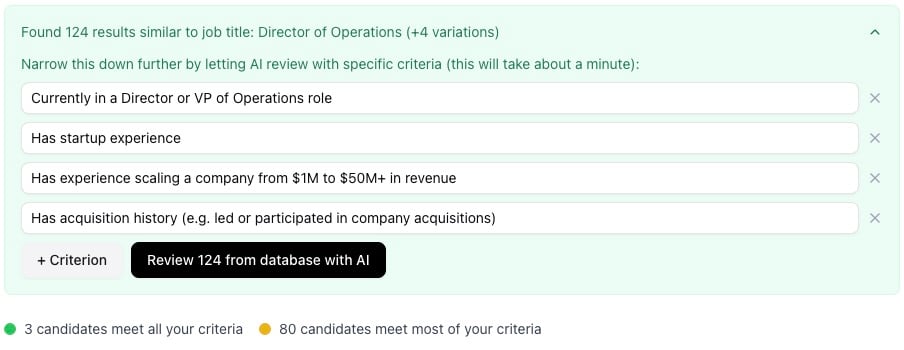
5. If you ran deep research, a green criteria panel appears with the generated criteria. Edit, remove, or add criteria in the input fields, then click **Review \[N] from database with AI** to evaluate the matched candidates
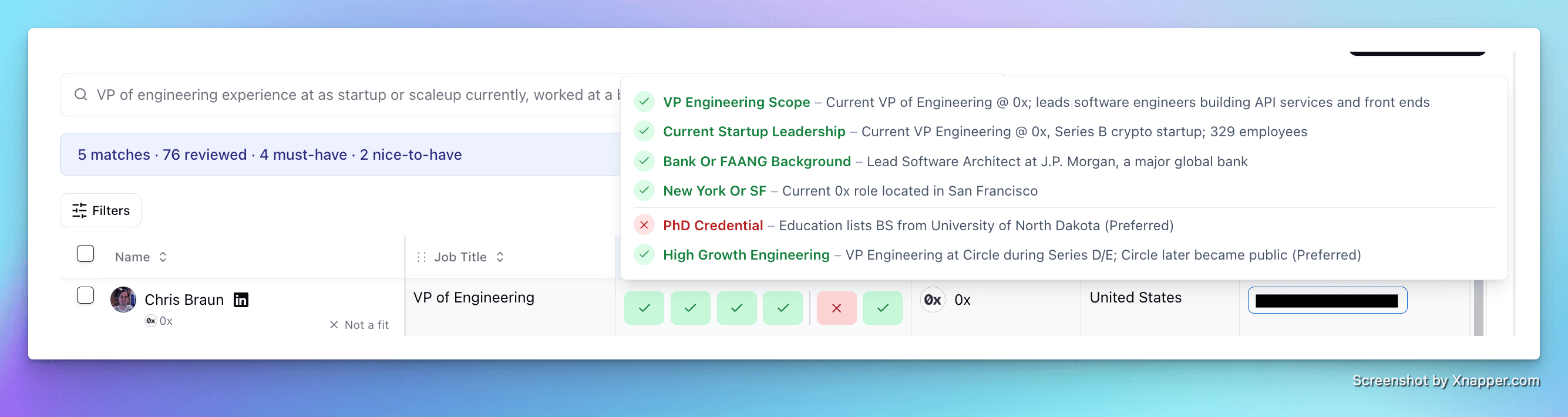
 After deep research finishes, the results table shows which criteria each candidate met or missed. Green dots mean all criteria satisfied; yellow means most.
 ***
## **Search from the People page**
You can also search without a job. This is useful for building lists, checking past candidates, or exploring before a role is formally opened.
1. Go to the **People** page (keyboard shortcut: **G** then **P**)
2. Type your query in the AI search text area at the top
3. Press **Enter** or **⌘+Enter** as above
Searches from the People page are saved under **History** (the clock icon in the search bar). Click any previous search to reload its criteria and results, or click **New** (the plus icon) to start fresh.
***
## **Search external candidates**
When your database doesn't have enough matches, search outside it.
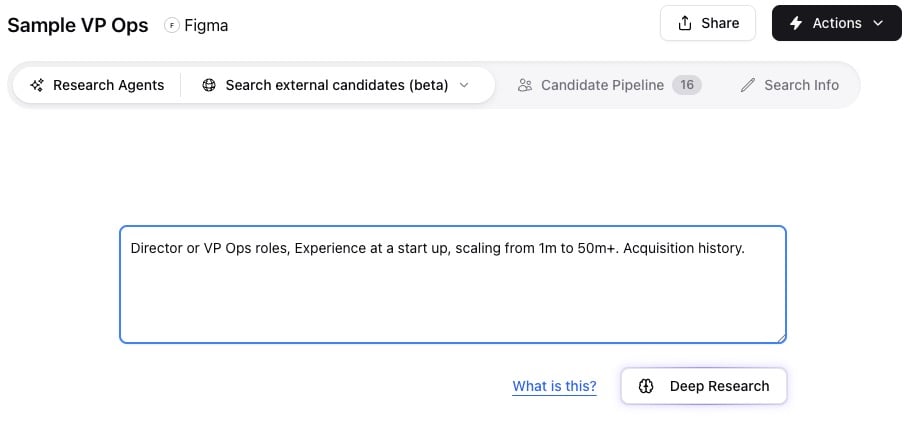
1. From **Research Agents** inside a job, open the dropdown and select **Search external candidates (beta)**
2. Review the external results
3. Add candidates directly to the job from the results
***
## **Search from the People page**
You can also search without a job. This is useful for building lists, checking past candidates, or exploring before a role is formally opened.
1. Go to the **People** page (keyboard shortcut: **G** then **P**)
2. Type your query in the AI search text area at the top
3. Press **Enter** or **⌘+Enter** as above
Searches from the People page are saved under **History** (the clock icon in the search bar). Click any previous search to reload its criteria and results, or click **New** (the plus icon) to start fresh.
***
## **Search external candidates**
When your database doesn't have enough matches, search outside it.
1. From **Research Agents** inside a job, open the dropdown and select **Search external candidates (beta)**
2. Review the external results
3. Add candidates directly to the job from the results
 ***
## **Saved searches**
Inside a job, every search is saved automatically. Reopen the job, go to **Research Agents**, and previous searches appear in the sidebar. Click one to reload it.
From the People page, click **History** to see past searches.
***
## **Tips for better results**
* **✅ Do:** Be specific about seniority and scope: "3+ years closing enterprise deals” or “mentions closing deals over \$500k in value” beats something generic like "sales experience".
* **✅ Do:** Name the company stage or type: "early-stage startup" or "Fortune 500" narrows results in useful ways. If you can specify funding stages seen (for example, “has sales leadership experience at Series B - Series D startup” that’s even better)
* **✅ Do:** Mention specific verticals or industries that the candidate should have experience in. For example, “cybersecurity sales background” or “healthcare / insuretech background preferred” is helpful.
* **✅ Do:** State location / geography requirements up front. You can mention regions, commute times, and open to relocation.
* **❌ Avoid:** over-relying on soft skills like “great communicator”, “rockstar”, those are hard to glean from a candidate’s profile and notes unless they’re very explicitly mentioned. This could also lead to more self-promoters in your results mix.
* **❌ Avoid:** vague qualifiers like “good logos”. This may mean something different to your firm than others and is hard for AI to get right.
* Do: Provide specific companies you’re looking for the candidate to have worked at or some more precise qualifier, like “growth-stage startups backed by Tier 1 VCs”
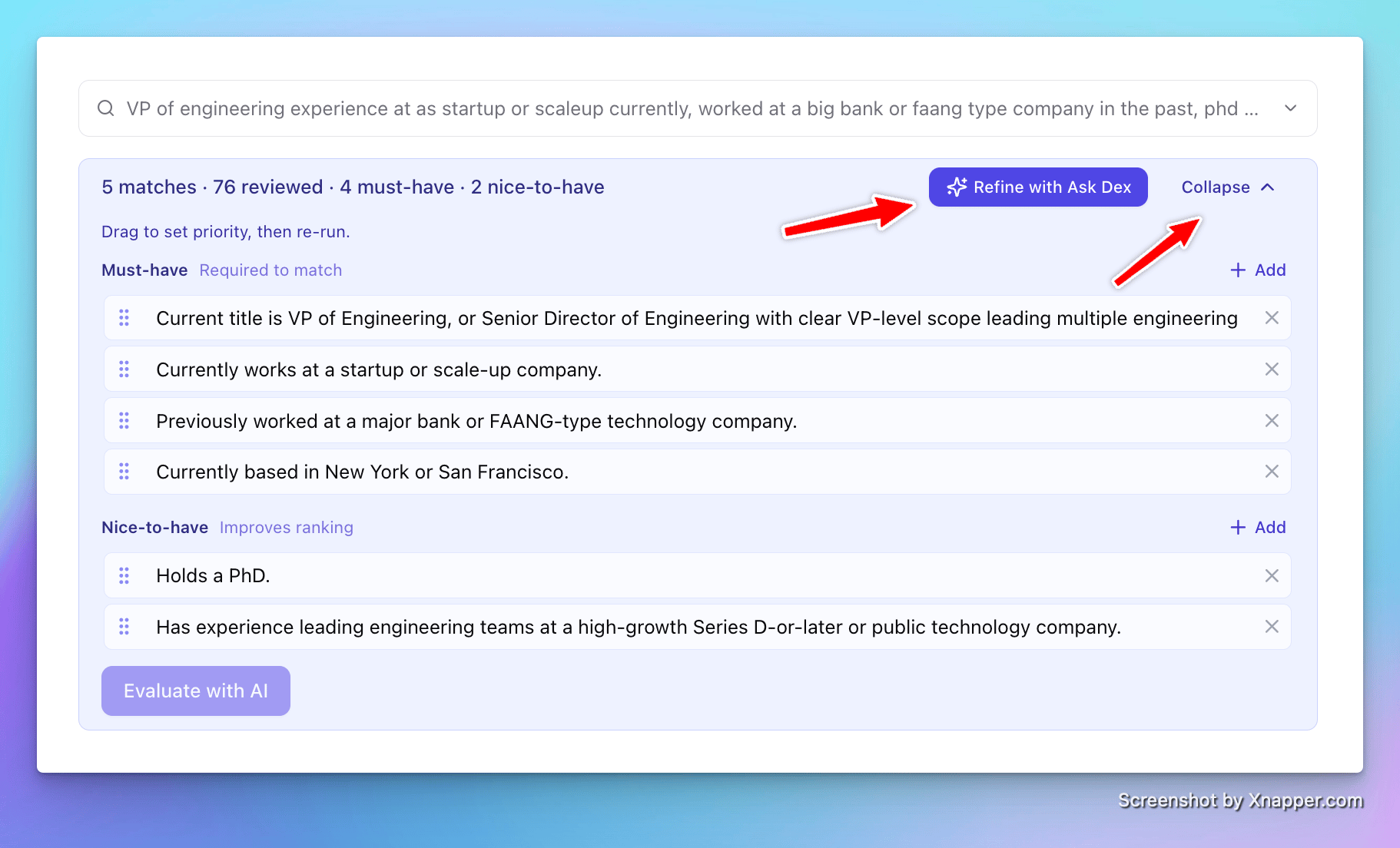
* **✅ Do:** Click “Refine with Ask Dex” and provide feedback to Dex so it can rerun searches for you. Also, click “Show criteria” and manually edit those if you want to roll up your sleeves!\\
***
## **Saved searches**
Inside a job, every search is saved automatically. Reopen the job, go to **Research Agents**, and previous searches appear in the sidebar. Click one to reload it.
From the People page, click **History** to see past searches.
***
## **Tips for better results**
* **✅ Do:** Be specific about seniority and scope: "3+ years closing enterprise deals” or “mentions closing deals over \$500k in value” beats something generic like "sales experience".
* **✅ Do:** Name the company stage or type: "early-stage startup" or "Fortune 500" narrows results in useful ways. If you can specify funding stages seen (for example, “has sales leadership experience at Series B - Series D startup” that’s even better)
* **✅ Do:** Mention specific verticals or industries that the candidate should have experience in. For example, “cybersecurity sales background” or “healthcare / insuretech background preferred” is helpful.
* **✅ Do:** State location / geography requirements up front. You can mention regions, commute times, and open to relocation.
* **❌ Avoid:** over-relying on soft skills like “great communicator”, “rockstar”, those are hard to glean from a candidate’s profile and notes unless they’re very explicitly mentioned. This could also lead to more self-promoters in your results mix.
* **❌ Avoid:** vague qualifiers like “good logos”. This may mean something different to your firm than others and is hard for AI to get right.
* Do: Provide specific companies you’re looking for the candidate to have worked at or some more precise qualifier, like “growth-stage startups backed by Tier 1 VCs”
* **✅ Do:** Click “Refine with Ask Dex” and provide feedback to Dex so it can rerun searches for you. Also, click “Show criteria” and manually edit those if you want to roll up your sleeves!\\
 * **❌ Avoid:** Judging candidates immediately based off seeing them in the table and seeing their current company! They may be at a startup and have super relevant experience at their past job, which won’t be visible in the table.
* **✅ Do:** Hover over a candidate’s Evaluation to see why Dex thinks they’re a good fit! This will explain why Stardex thinks they’re a good fit.
* **❌ Avoid:** Judging candidates immediately based off seeing them in the table and seeing their current company! They may be at a startup and have super relevant experience at their past job, which won’t be visible in the table.
* **✅ Do:** Hover over a candidate’s Evaluation to see why Dex thinks they’re a good fit! This will explain why Stardex thinks they’re a good fit.
 ## Good Examples:
* VP of Sales, 3+ years of cybersecurity, leadership experience at Series B to Series D startup, has seen 20-100M revenue journey, based in LA
* Director or Head of engineering, deeptech background in aersopace, defense, etc. Led teams of 10+ engineers, based on the East Coast
* CMO or VP marekting with consumer healthcare spike, ideally comes from brand like Rho, Hims, Capsule or similar, based in SF or open to relo, has experience scaling marketing at companies backed by Tier 1 VCs
***
## **Common use cases**
* Filling a new role: describe the ideal candidate from the job spec, let deep research review the database
* Revisiting silver medalists: search for strong candidates from a past role who didn't get an offer
* Building a talent pool: run a search, add the best results to a list for future outreach
* Quick lookups: find someone by combining a partial name with their company or title
* Client shortlists: search against a job, review the top results, share before formally adding to the pipeline
***
## **FAQ**
**Q: What's the difference between Enter and ⌘+Enter?** Enter runs a fast search and returns ranked results. ⌘+Enter runs deep research, which generates criteria and evaluates each candidate individually. Deep research takes about a minute.
**Q: How many candidates does deep research evaluate?** Up to 200 from the initial result set. If your fast search finds more than 200, the top 200 by relevance are reviewed.
**Q: Can I search without a job?** Yes, from the People page. Those searches are saved under History and aren't tied to a job.
**Q: Are my searches visible to teammates?** Searches inside a job are visible to anyone who can access that job. Searches from the People page are yours only.
**Q: Why are my results poor?** Short, vague queries produce vague results. Add seniority, industry, company type, or years of experience. If searching inside a job, make sure the job description has specific requirements.
***
## **Key Takeaway**
**Filters work when you know the exact values. AI search works when you can describe the person but can't reduce them to a set of dropdowns. Use both.**
***
## **Related guides**
* 👉 [Lists and how to use them](/help-center/lists-organizing-candidates-and-companies) — save search results into a reusable list
* 👉 [Custom fields](/help-center/custom-fields) — tag candidates with attributes for easier filtering alongside AI search
* 👉 [Sourcing agent](/help-center/sourcing-agent) — for deeper research beyond your database
* 👉 [One-click sourcing via Chrome extension](/help-center/one-click-sourcing-via-chrome-extension) — add candidates from LinkedIn
This documentation is built and hosted on [Mintlify](https://mintlify.com), a developer documentation platform.
## Good Examples:
* VP of Sales, 3+ years of cybersecurity, leadership experience at Series B to Series D startup, has seen 20-100M revenue journey, based in LA
* Director or Head of engineering, deeptech background in aersopace, defense, etc. Led teams of 10+ engineers, based on the East Coast
* CMO or VP marekting with consumer healthcare spike, ideally comes from brand like Rho, Hims, Capsule or similar, based in SF or open to relo, has experience scaling marketing at companies backed by Tier 1 VCs
***
## **Common use cases**
* Filling a new role: describe the ideal candidate from the job spec, let deep research review the database
* Revisiting silver medalists: search for strong candidates from a past role who didn't get an offer
* Building a talent pool: run a search, add the best results to a list for future outreach
* Quick lookups: find someone by combining a partial name with their company or title
* Client shortlists: search against a job, review the top results, share before formally adding to the pipeline
***
## **FAQ**
**Q: What's the difference between Enter and ⌘+Enter?** Enter runs a fast search and returns ranked results. ⌘+Enter runs deep research, which generates criteria and evaluates each candidate individually. Deep research takes about a minute.
**Q: How many candidates does deep research evaluate?** Up to 200 from the initial result set. If your fast search finds more than 200, the top 200 by relevance are reviewed.
**Q: Can I search without a job?** Yes, from the People page. Those searches are saved under History and aren't tied to a job.
**Q: Are my searches visible to teammates?** Searches inside a job are visible to anyone who can access that job. Searches from the People page are yours only.
**Q: Why are my results poor?** Short, vague queries produce vague results. Add seniority, industry, company type, or years of experience. If searching inside a job, make sure the job description has specific requirements.
***
## **Key Takeaway**
**Filters work when you know the exact values. AI search works when you can describe the person but can't reduce them to a set of dropdowns. Use both.**
***
## **Related guides**
* 👉 [Lists and how to use them](/help-center/lists-organizing-candidates-and-companies) — save search results into a reusable list
* 👉 [Custom fields](/help-center/custom-fields) — tag candidates with attributes for easier filtering alongside AI search
* 👉 [Sourcing agent](/help-center/sourcing-agent) — for deeper research beyond your database
* 👉 [One-click sourcing via Chrome extension](/help-center/one-click-sourcing-via-chrome-extension) — add candidates from LinkedIn
This documentation is built and hosted on [Mintlify](https://mintlify.com), a developer documentation platform.