> ## Documentation Index
> Fetch the complete documentation index at: https://docs.stardex.com/llms.txt
> Use this file to discover all available pages before exploring further.
# Scorecards
> Create structured interview scorecards, review candidate ratings, and share results with clients.
Scorecards let your team evaluate candidates against a consistent set of criteria for a specific search.
[Watch the video on Loom](https://www.loom.com/share/dec84fd11e1e4c4e897b531d762b3934)
## Add a Scorecard to a Search
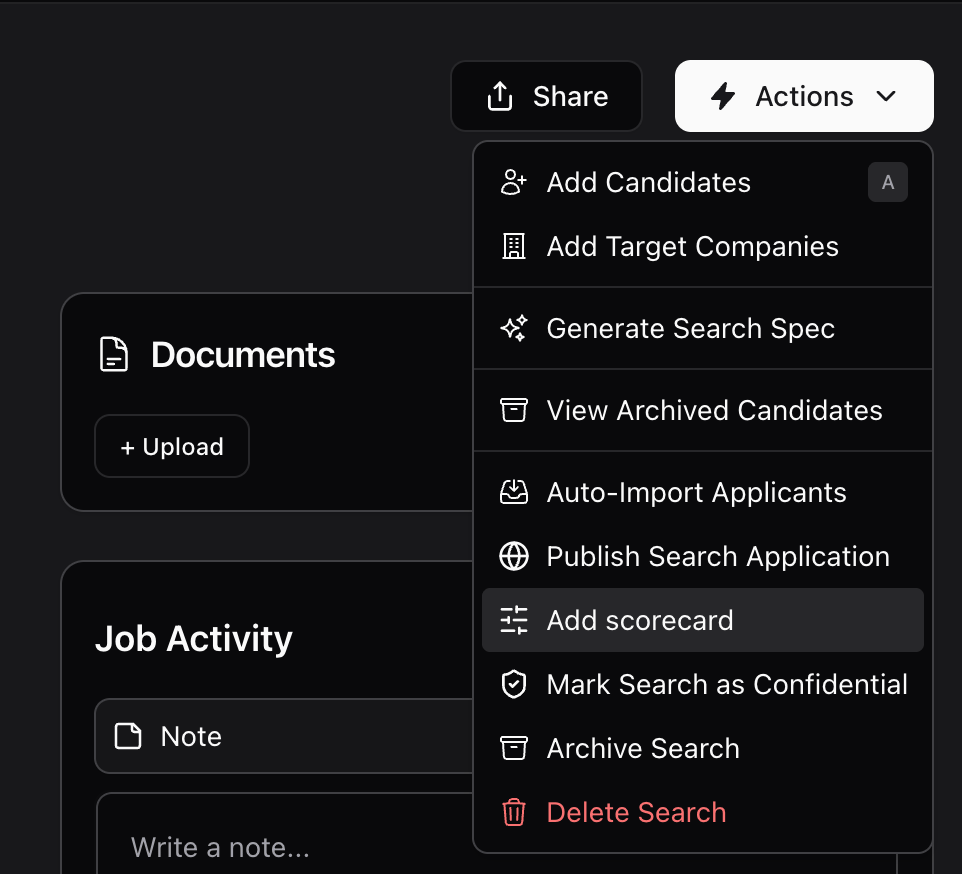
1. Open the search.
2. Click **Actions**.
3. Select **Add Scorecard**.
4. Choose either:
* **Create a new assessment**
* **Use an existing assessment**
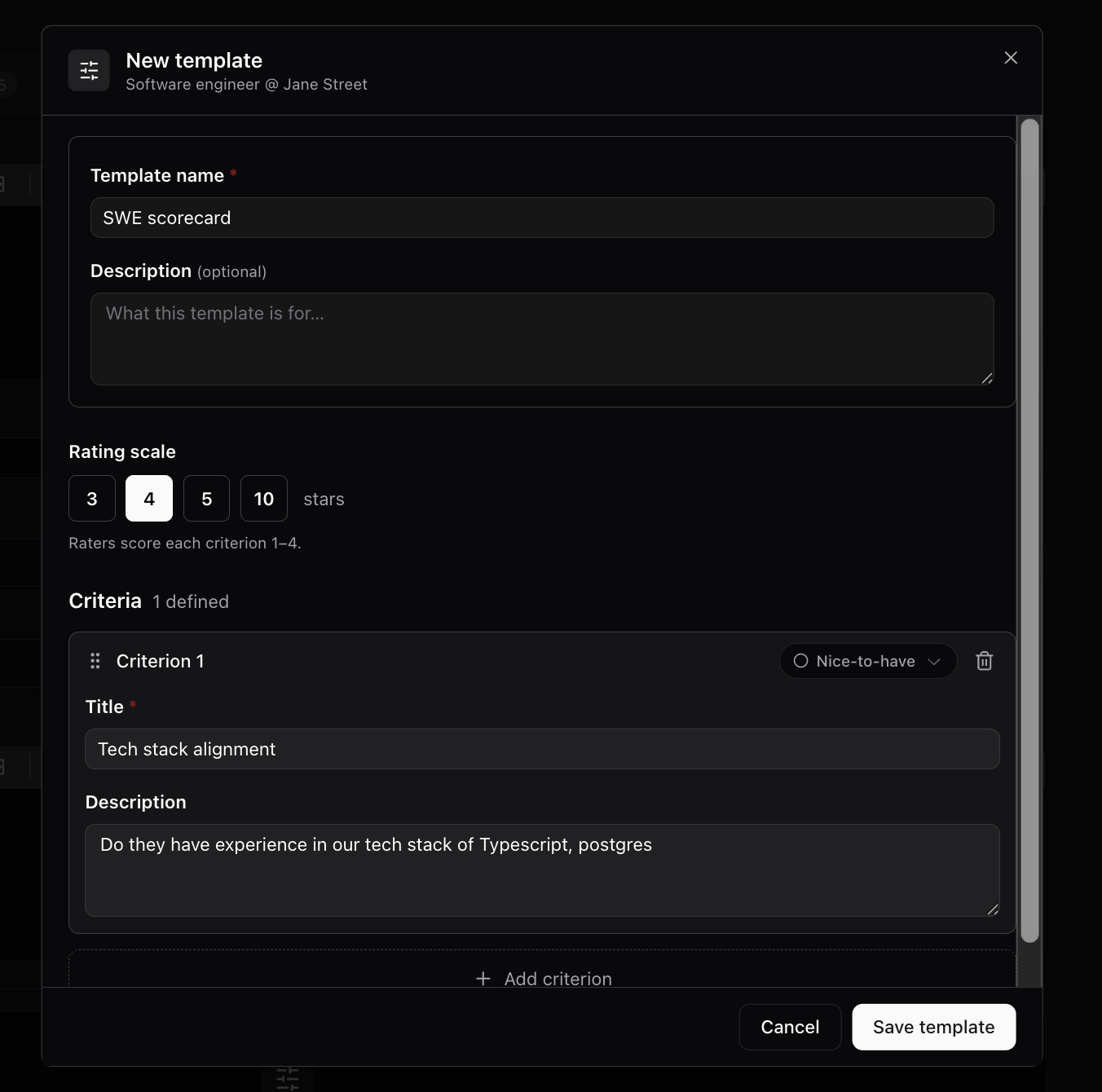
 When creating a new scorecard, you can:
* Name the scorecard, for example: `VP Sales Scorecard`
* Choose a rating scale, such as `1 to 4`
* Add evaluation criteria, such as:
* SaaS Sales Experience
* Startup Experience
* Leadership Experience
* Add descriptions for each criterion so reviewers know how to score candidates
* Mark each criterion as either:
* **Must-have**
* **Nice-to-have**
Once finished, click **Save Template**.
When creating a new scorecard, you can:
* Name the scorecard, for example: `VP Sales Scorecard`
* Choose a rating scale, such as `1 to 4`
* Add evaluation criteria, such as:
* SaaS Sales Experience
* Startup Experience
* Leadership Experience
* Add descriptions for each criterion so reviewers know how to score candidates
* Mark each criterion as either:
* **Must-have**
* **Nice-to-have**
Once finished, click **Save Template**.
 ## View Scorecards in the Pipeline
After a scorecard is added to a search, the pipeline view will automatically show scorecard-related columns.
By default, you can see the candidate’s overall score or feedback status.
You can also toggle on the full criteria view to see individual scorecard criteria as separate columns.
## Add a Scorecard for a Candidate
1. Open the candidate.
2. Click **Scorecards tab**
3. Click **Add Scorecard**.
4. Select the scorecard for the search.
5. Add:
* Overall score
* Summary note
* Individual ratings for each criterion
* Notes for specific criteria, if needed
Click **Save Scorecard** when done.
## Review Scorecard Results
Once saved, the scorecard information appears in the pipeline.
You can:
* See the overall score directly in the pipeline
* Toggle criteria columns on or off
* Click into an individual scorecard cell to view details
* Switch between scorecards if multiple team members have submitted feedback
## Share Scorecards with Clients
Scorecards can also be included in client share links.
When editing a scorecard, enable **Show scorecard on client share link**.
After saving, create or open a share link, and the scorecard will appear for the client.
#### FAQ
**Q: Is there a way to remind users to complete their Scorecards?** There's no dedicated "send reminder" button for scorecards right now — but here are a couple of ways to nudge someone:
* Create a task on the candidate and assign it to the interviewer to complete their scorecard. If they have daily task reminder emails on (Settings > Notifications), they'll get emailed until it's done.
* @mention them in a note on the candidate — that sends them an email notification right away.
This documentation is built and hosted on [Mintlify](https://mintlify.com), a developer documentation platform.
## View Scorecards in the Pipeline
After a scorecard is added to a search, the pipeline view will automatically show scorecard-related columns.
By default, you can see the candidate’s overall score or feedback status.
You can also toggle on the full criteria view to see individual scorecard criteria as separate columns.
## Add a Scorecard for a Candidate
1. Open the candidate.
2. Click **Scorecards tab**
3. Click **Add Scorecard**.
4. Select the scorecard for the search.
5. Add:
* Overall score
* Summary note
* Individual ratings for each criterion
* Notes for specific criteria, if needed
Click **Save Scorecard** when done.
## Review Scorecard Results
Once saved, the scorecard information appears in the pipeline.
You can:
* See the overall score directly in the pipeline
* Toggle criteria columns on or off
* Click into an individual scorecard cell to view details
* Switch between scorecards if multiple team members have submitted feedback
## Share Scorecards with Clients
Scorecards can also be included in client share links.
When editing a scorecard, enable **Show scorecard on client share link**.
After saving, create or open a share link, and the scorecard will appear for the client.
#### FAQ
**Q: Is there a way to remind users to complete their Scorecards?** There's no dedicated "send reminder" button for scorecards right now — but here are a couple of ways to nudge someone:
* Create a task on the candidate and assign it to the interviewer to complete their scorecard. If they have daily task reminder emails on (Settings > Notifications), they'll get emailed until it's done.
* @mention them in a note on the candidate — that sends them an email notification right away.
This documentation is built and hosted on [Mintlify](https://mintlify.com), a developer documentation platform.