> ## Documentation Index
> Fetch the complete documentation index at: https://docs.stardex.com/llms.txt
> Use this file to discover all available pages before exploring further.
# Resume Forwarding & Email Intake
> Forward emails and resumes into Stardex and use the email assistant to act on your instructions.
Every team in Stardex gets its own forwarding email address. Forward a resume to it and a candidate is created automatically, no copying and pasting. The same address also saves the forwarded email and logs it on the right person's profile, and for enabled workspaces it can act on a short instruction you add, like creating a deal or tagging a search.
Here's how to find your address and everything it can do.
This page is **admin only**. Recruiters still forward to the address; they just cannot copy it from Settings unless an admin shares it.
## Finding your forwarding address
1. Open **Settings → Email & other integrations → Email intake**: [stardex.com/settings?tab=email-calendar\§ion=email-intake](https://stardex.com/settings?tab=email-calendar\§ion=email-intake)
2. Find the **Resume Forwarding** section.
3. Click the **Forwarding Address** (it looks like `your-team@inbox.stardex.ai`) to copy it.
Forward emails to this address, or save it as a contact so it's easy to reach.
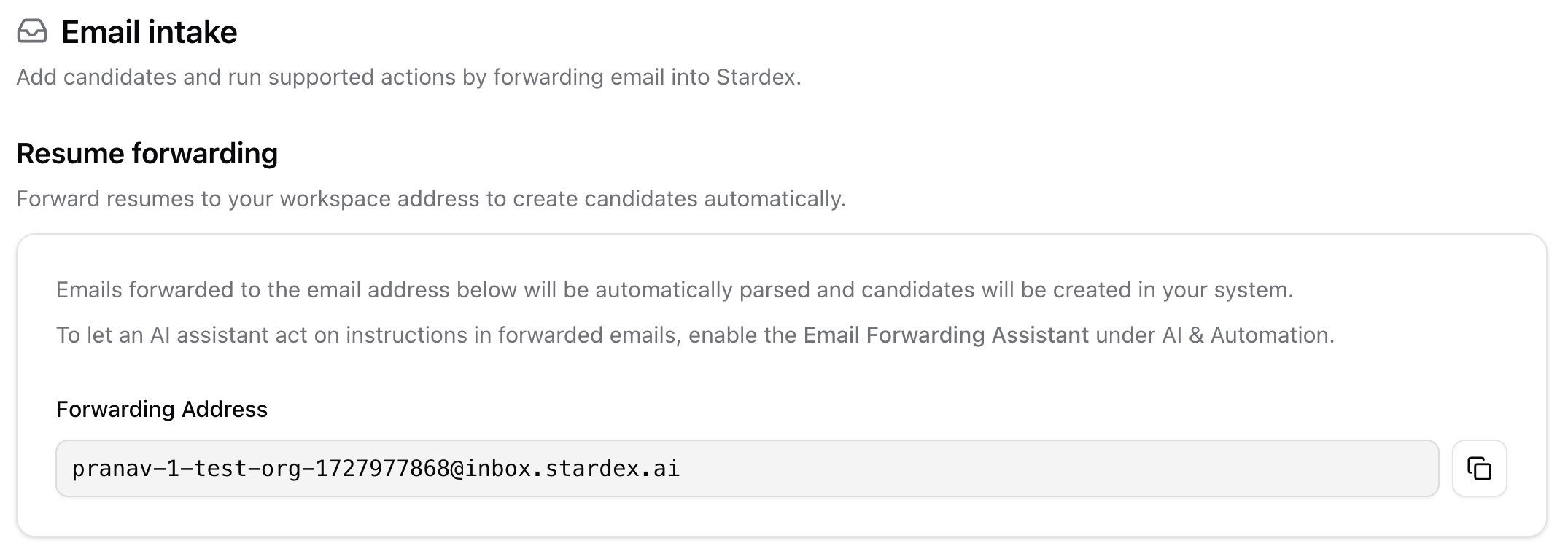 Email intake Resume Forwarding section
## What happens when you forward an email
Every email you forward to your address is handled automatically:
* **Resumes become candidates.** Attach a resume and Stardex parses it and creates or updates that candidate in your system.
* **The email is saved and logged** on the matching person's profile, so the conversation lives on their timeline.
* **Other attachments** like documents and spreadsheets are stored on the person's profile too.
This works for every forwarded email, with no setup needed.
To log an email on the right person, forward the original message so the candidate's or client's email address is still included. Stardex reads the original sender, not you as the forwarder.
## Turning on the assistant
Acting on written instructions is off by default. An admin can turn it on in **Settings → Email & other integrations → Email intake → Email Forwarding Assistant**. Saving resumes, storing attachments, and logging emails all work with or without it.
Email intake Resume Forwarding section
## What happens when you forward an email
Every email you forward to your address is handled automatically:
* **Resumes become candidates.** Attach a resume and Stardex parses it and creates or updates that candidate in your system.
* **The email is saved and logged** on the matching person's profile, so the conversation lives on their timeline.
* **Other attachments** like documents and spreadsheets are stored on the person's profile too.
This works for every forwarded email, with no setup needed.
To log an email on the right person, forward the original message so the candidate's or client's email address is still included. Stardex reads the original sender, not you as the forwarder.
## Turning on the assistant
Acting on written instructions is off by default. An admin can turn it on in **Settings → Email & other integrations → Email intake → Email Forwarding Assistant**. Saving resumes, storing attachments, and logging emails all work with or without it.
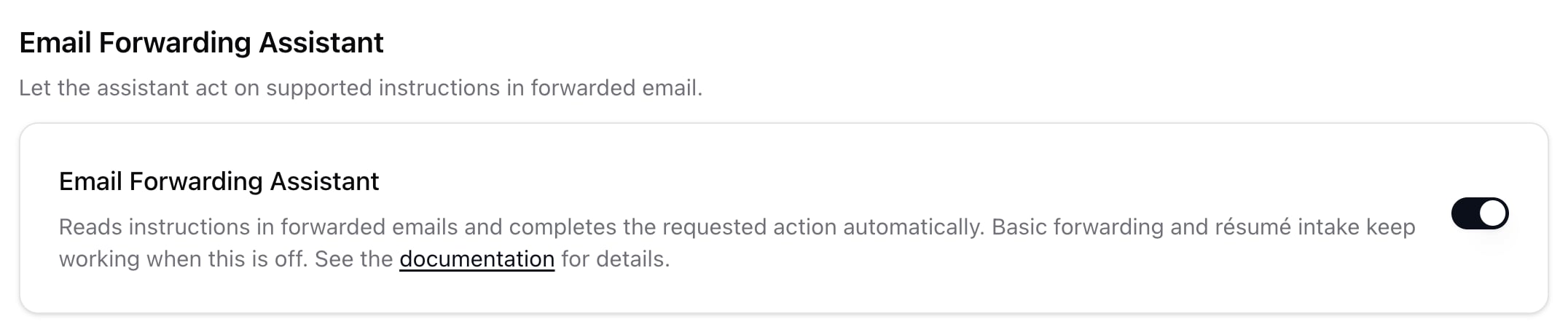 Email Forwarding Assistant toggle on Email intake
## Acting on your instructions
Once it's on, add a short note at the very top of the email before forwarding, and Stardex will act on it. Today it can:
* **Log the email on a specific person** — for example, *“Log this on Jane Doe.”*
* **Tag an email to a search** — for example, *“Tag this to the Head of Engineering search.”*
* **Save an attachment on a person** — for example, *“Save the attached file under Jane Doe.”*
* **Create a deal** — for example, *“Create a deal from this — Acme VP Engineering search, 20% fee.”*
* **Add to an existing deal** — for example, *“Add this to the Acme deal.”*
When you create a deal, Stardex matches the client company for you, or adds it if it's new. Search tagging applies when the person is already a candidate on that search. Just write the note naturally. If you don't add a note, Stardex simply saves and logs the email as usual.
Only people on your team can trigger these actions. Emails from candidates or clients are still saved and logged, but they can never create or change your records.
Even without a note, if a forwarded email's sender isn't in your CRM but their name matches exactly one person, Stardex logs it on that person.
## When Stardex needs your input
Sometimes a request can't be finished automatically, for example when more than one company, deal, or search matches the name, the person or file can't be matched, or a new deal is missing key details. When that happens, Stardex emails you back with:
* what it already did, such as logging the email on the profile,
* what still needs your attention, and
* a link to finish it in Stardex.
The email is always saved first, so nothing is ever lost while you follow up.
## Tips
* Forward from the email address on your Stardex account so Stardex recognizes you.
* Put your instruction at the very top, above the forwarded message.
* The more specific your note, the more Stardex can do on its own. For a new deal, include the company name and fee.
* For simple filing, no note is needed. Just forward it and it lands on the right profile.
Acting on written instructions is available once the Email Forwarding Assistant is on. An admin can enable it in Settings → Email & other integrations → Email intake, or reach out to your Stardex contact for help.
This documentation is built and hosted on [Mintlify](https://mintlify.com), a developer documentation platform.
Email Forwarding Assistant toggle on Email intake
## Acting on your instructions
Once it's on, add a short note at the very top of the email before forwarding, and Stardex will act on it. Today it can:
* **Log the email on a specific person** — for example, *“Log this on Jane Doe.”*
* **Tag an email to a search** — for example, *“Tag this to the Head of Engineering search.”*
* **Save an attachment on a person** — for example, *“Save the attached file under Jane Doe.”*
* **Create a deal** — for example, *“Create a deal from this — Acme VP Engineering search, 20% fee.”*
* **Add to an existing deal** — for example, *“Add this to the Acme deal.”*
When you create a deal, Stardex matches the client company for you, or adds it if it's new. Search tagging applies when the person is already a candidate on that search. Just write the note naturally. If you don't add a note, Stardex simply saves and logs the email as usual.
Only people on your team can trigger these actions. Emails from candidates or clients are still saved and logged, but they can never create or change your records.
Even without a note, if a forwarded email's sender isn't in your CRM but their name matches exactly one person, Stardex logs it on that person.
## When Stardex needs your input
Sometimes a request can't be finished automatically, for example when more than one company, deal, or search matches the name, the person or file can't be matched, or a new deal is missing key details. When that happens, Stardex emails you back with:
* what it already did, such as logging the email on the profile,
* what still needs your attention, and
* a link to finish it in Stardex.
The email is always saved first, so nothing is ever lost while you follow up.
## Tips
* Forward from the email address on your Stardex account so Stardex recognizes you.
* Put your instruction at the very top, above the forwarded message.
* The more specific your note, the more Stardex can do on its own. For a new deal, include the company name and fee.
* For simple filing, no note is needed. Just forward it and it lands on the right profile.
Acting on written instructions is available once the Email Forwarding Assistant is on. An admin can enable it in Settings → Email & other integrations → Email intake, or reach out to your Stardex contact for help.
This documentation is built and hosted on [Mintlify](https://mintlify.com), a developer documentation platform.