> ## Documentation Index
> Fetch the complete documentation index at: https://docs.stardex.com/llms.txt
> Use this file to discover all available pages before exploring further.
# Placement Fee Tracking & Commissions
> Track placement fees, retainers, payment installments, commission splits, and revenue forecasts.
Stardex gives recruiting firms a system for tracking fees, retainer schedules, placements, and team commissions. Whether you run contingent, retained, or a mix of both, the system adapts to how your firm works without requiring any upfront configuration.
 This guide covers two core areas:
1. **Job-level fee management** — retainers, placements, and commission splits on each search
2. **Firm-wide fee tracking** — a centralized report to monitor billing across all your searches
***
## Key concepts
### Fee events
Every billing item in Stardex is a **fee event**. There are two types:
* **Retainer / Milestone** — scheduled payments tied to a retainer agreement (e.g., three equal installments)
* **Placement** — the fee earned when a candidate is placed
All fee events live in one place and share a common set of statuses: **Pending**, **Invoiced**, **Paid**, and **Cancelled**. You can rename these or add custom statuses in Settings.
### Fee statuses
Each fee event has a payment status that drives your revenue calculations:
| Status type | What it means | How it’s counted |
| - | - | - |
| Pending | Not yet invoiced | Projected revenue |
| Invoiced | Invoice sent, awaiting payment | Outstanding / AR |
| Paid | Payment received | Collected revenue |
| Cancelled | Voided or written off | Excluded from totals |
This guide covers two core areas:
1. **Job-level fee management** — retainers, placements, and commission splits on each search
2. **Firm-wide fee tracking** — a centralized report to monitor billing across all your searches
***
## Key concepts
### Fee events
Every billing item in Stardex is a **fee event**. There are two types:
* **Retainer / Milestone** — scheduled payments tied to a retainer agreement (e.g., three equal installments)
* **Placement** — the fee earned when a candidate is placed
All fee events live in one place and share a common set of statuses: **Pending**, **Invoiced**, **Paid**, and **Cancelled**. You can rename these or add custom statuses in Settings.
### Fee statuses
Each fee event has a payment status that drives your revenue calculations:
| Status type | What it means | How it’s counted |
| - | - | - |
| Pending | Not yet invoiced | Projected revenue |
| Invoiced | Invoice sent, awaiting payment | Outstanding / AR |
| Paid | Payment received | Collected revenue |
| Cancelled | Voided or written off | Excluded from totals |
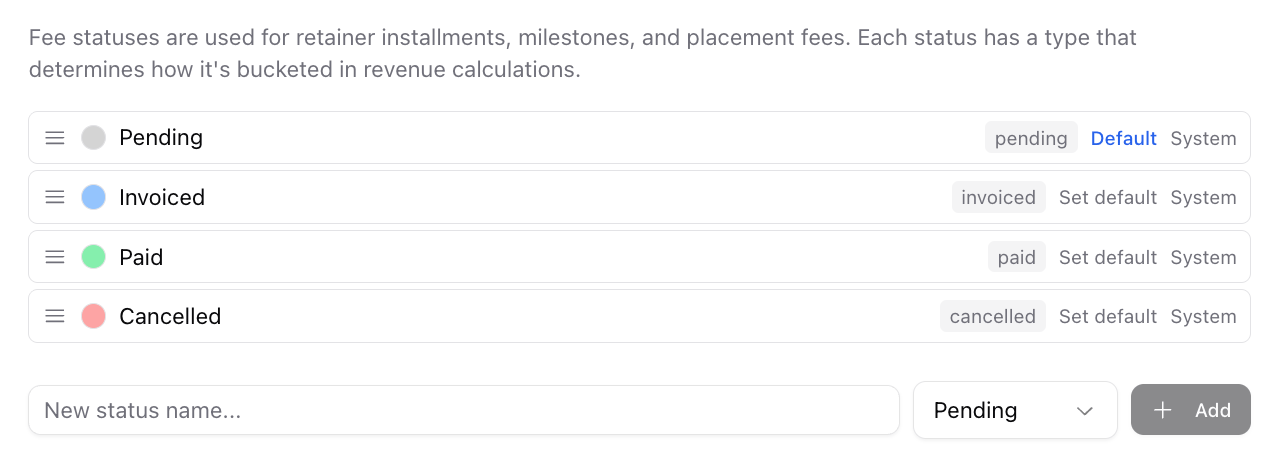 You can customize status names and colors in **Settings > Pipeline & Stages > Fee Statuses (** [https://stardex.com/settings?tab=organization](https://stardex.com/settings?tab=organization)) . The four system statuses can be renamed but not deleted. You can add more for tracking.
### Firm commission
When logging a placement, you can set a **firm commission percentage** — the portion of the fee that the firm keeps before splitting the remainder among team members.
* If your org has only one team member, it defaults to **0%** (you keep everything)
* Otherwise, it defaults to your org’s setting (configurable in **Settings > Default Firm Commission**)
* You can always override it per placement
* This value is remembered across sessions
***
## Setting up your searches
### Retained searches
For retained engagements, you add a **retainer** to the job. This defines the fee structure and payment schedule upfront.
You can customize status names and colors in **Settings > Pipeline & Stages > Fee Statuses (** [https://stardex.com/settings?tab=organization](https://stardex.com/settings?tab=organization)) . The four system statuses can be renamed but not deleted. You can add more for tracking.
### Firm commission
When logging a placement, you can set a **firm commission percentage** — the portion of the fee that the firm keeps before splitting the remainder among team members.
* If your org has only one team member, it defaults to **0%** (you keep everything)
* Otherwise, it defaults to your org’s setting (configurable in **Settings > Default Firm Commission**)
* You can always override it per placement
* This value is remembered across sessions
***
## Setting up your searches
### Retained searches
For retained engagements, you add a **retainer** to the job. This defines the fee structure and payment schedule upfront.
 ### Contingent searches (no retainer)
For contingent work, you don’t need to set up anything special. When a candidate is placed, you log a placement directly from the job’s **Fees and Placements** section. The fee is calculated at that time.
### Creating a retainer
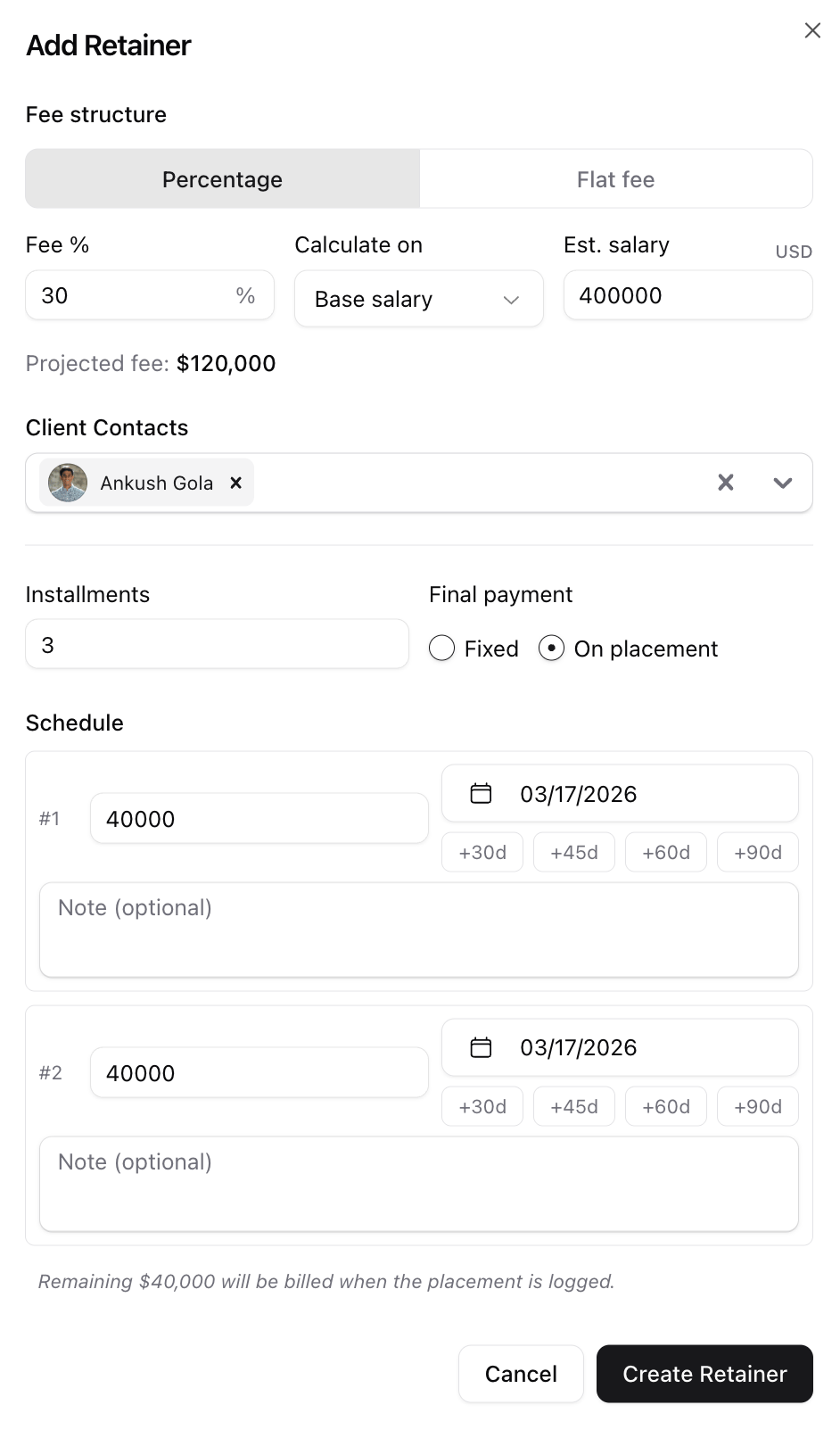
1. Navigate to the job’s info tab
2. In the **Fees and Placements** card, click **+ Add Retainer**
3. Choose the fee structure:
* **Percentage** — set the fee %, whether it’s calculated on base salary or total comp, and the estimated compensation. The projected fee is calculated automatically.
* **Flat fee** — enter the total projected fee directly.
4. Set the **number of installments** (e.g., 3)
5. Choose the **final payment** type:
* **Fixed** — all installments have set amounts and dates
* **On placement** — the final payment is billed when the candidate is placed. Only the upfront installments are scheduled; the remaining amount is billed as part of the placement.
6. For each installment, set the **amount**, **expected date**, and an optional **note**
7. Select **client contacts** — these default from the job’s contacts but can be changed
8. Click **Create Retainer**
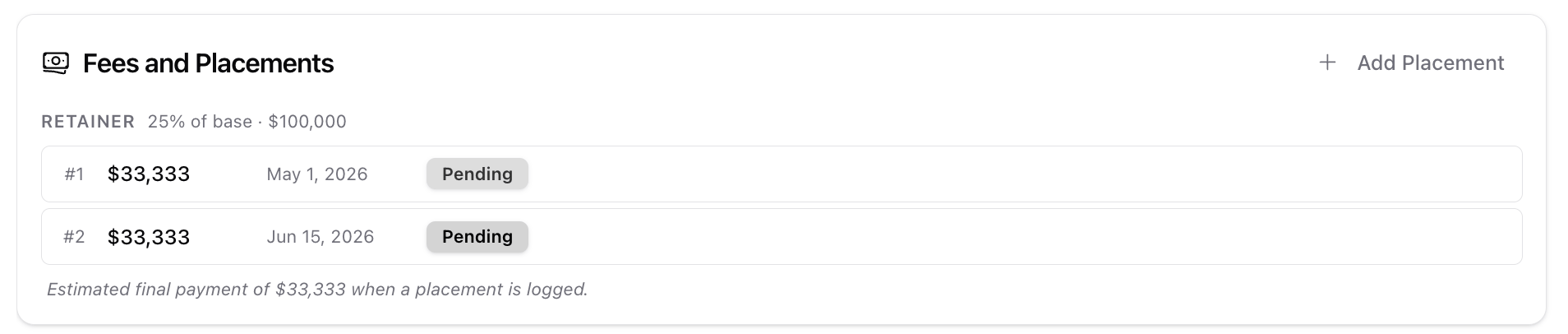
The retainer installments appear as fee events in the Fees and Placements section on the job, each with their own payment status that you can update inline.
If you chose “On placement” as the final payment type, you’ll see a note below the installments:
> *Estimated final payment of \$X when a placement is logged.*
### Contingent searches (no retainer)
For contingent work, you don’t need to set up anything special. When a candidate is placed, you log a placement directly from the job’s **Fees and Placements** section. The fee is calculated at that time.
### Creating a retainer
1. Navigate to the job’s info tab
2. In the **Fees and Placements** card, click **+ Add Retainer**
3. Choose the fee structure:
* **Percentage** — set the fee %, whether it’s calculated on base salary or total comp, and the estimated compensation. The projected fee is calculated automatically.
* **Flat fee** — enter the total projected fee directly.
4. Set the **number of installments** (e.g., 3)
5. Choose the **final payment** type:
* **Fixed** — all installments have set amounts and dates
* **On placement** — the final payment is billed when the candidate is placed. Only the upfront installments are scheduled; the remaining amount is billed as part of the placement.
6. For each installment, set the **amount**, **expected date**, and an optional **note**
7. Select **client contacts** — these default from the job’s contacts but can be changed
8. Click **Create Retainer**
The retainer installments appear as fee events in the Fees and Placements section on the job, each with their own payment status that you can update inline.
If you chose “On placement” as the final payment type, you’ll see a note below the installments:
> *Estimated final payment of \$X when a placement is logged.*
 ### Currency
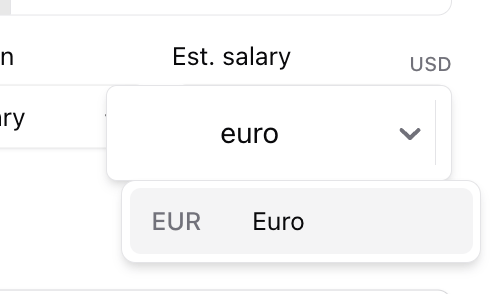
Both retainer and placement forms default to the job’s currency. You can change the currency by clicking the **currency code** (e.g., “USD”) that appears next to the compensation field label. This opens a currency selector.
### Currency
Both retainer and placement forms default to the job’s currency. You can change the currency by clicking the **currency code** (e.g., “USD”) that appears next to the compensation field label. This opens a currency selector.
 ***
## Logging a placement
When a candidate is placed, you create a placement fee event. There are several ways to trigger this:
### From the Fees and Placements section
1. On the job’s info tab, click **+ Add Placement** in the Fees and Placements card header
2. Select the candidate, set dates, fee structure, and commission splits
3. Click **Log Placement**
### From a pipeline stage change
If you’ve configured a pipeline stage as a **Placement stage** (in Settings > Candidate Stage Templates), moving a candidate to that stage automatically opens the placement form with that candidate pre-selected.
Similarly, moving a candidate to an **Offer stage** opens the offer creation form.
### From an offer acceptance
When an offer’s status is changed to one marked as **Accepted** (configurable in Settings > Offer Statuses), the system prompts you to log a placement with the offer’s details pre-filled.
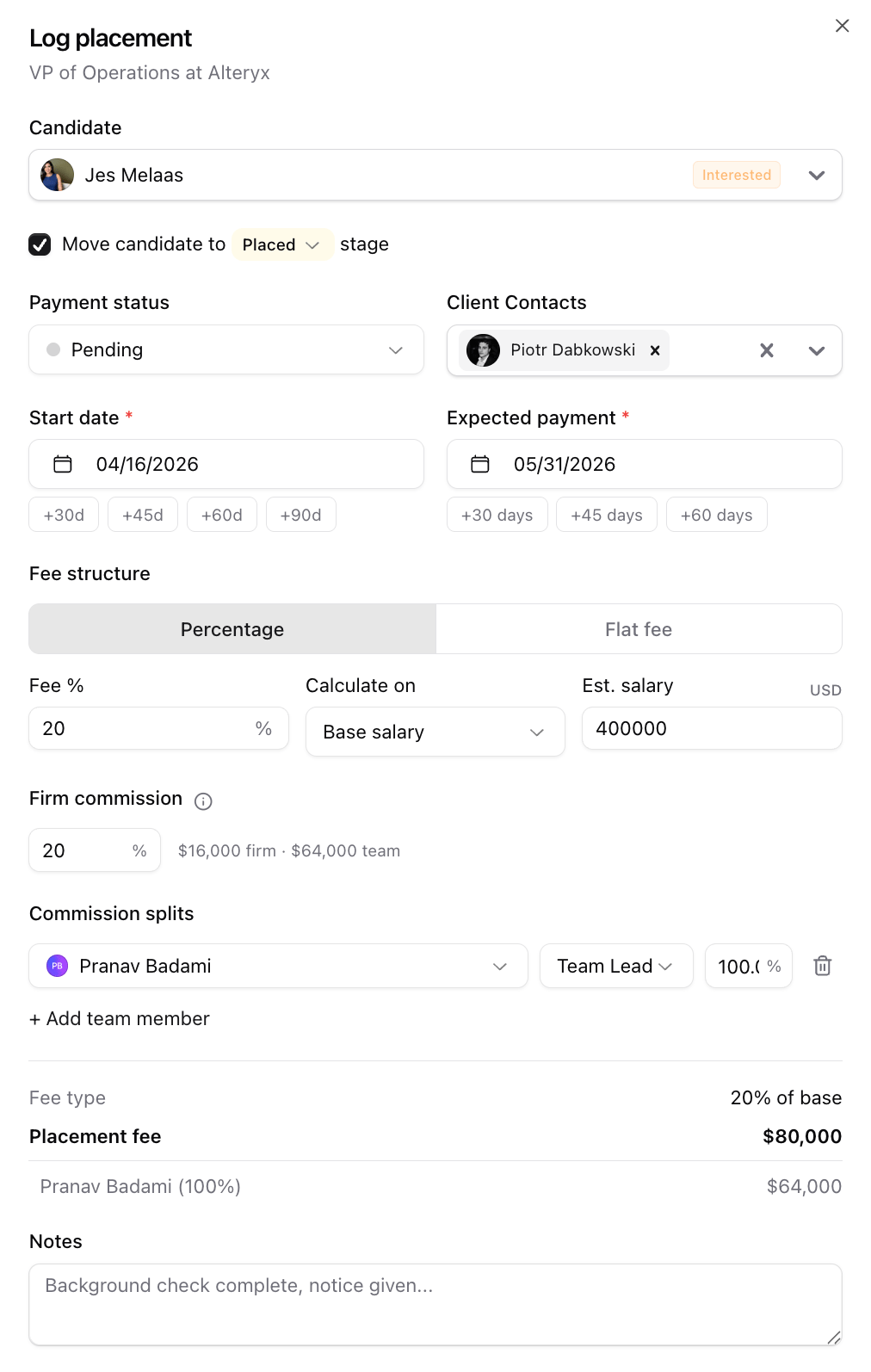
### What the placement form includes
The placement form captures everything needed for billing and commission tracking:
**Candidate selection**
* Searchable dropdown showing all candidates on the job
* Each candidate shows their current **pipeline stage** and **offer status** (if they have one)
* Candidates who already have a placement are excluded
* Candidates with offers appear first; rejected candidates appear last
**Stage management**
* A checkbox to **move the candidate to a specific pipeline stage** (defaults to the Placed stage)
* Only shown when the candidate isn’t already in that stage
* You can select any stage from the dropdown
**Payment details**
* **Payment status** — defaults to Pending, changeable to any fee status
* **Client contacts** — pre-filled from the offer (if one exists) or from the job’s contacts
**Dates**
* **Start date** (required) — with +30/+60/+90 day quick buttons
* **Expected payment date** (required) — with +30/+45/+60 day quick buttons relative to the start date
**Fee structure**
* Toggle between **Percentage** and **Flat fee**
* For percentage: **Fee %**, **Calculate on** (base salary or total comp), and **Est. salary/total comp**
* Currency can be changed by clicking the currency code next to the field label
* When a candidate has an existing offer, their compensation data auto-fills and updates when you switch between “Base salary” and “Total comp”
**Offer details**
* If the selected candidate has an offer, a collapsible **Offer details** card appears showing base, bonus, relocation, total comp, start date, and offer status
* Compensation from the offer automatically populates the fee calculation fields
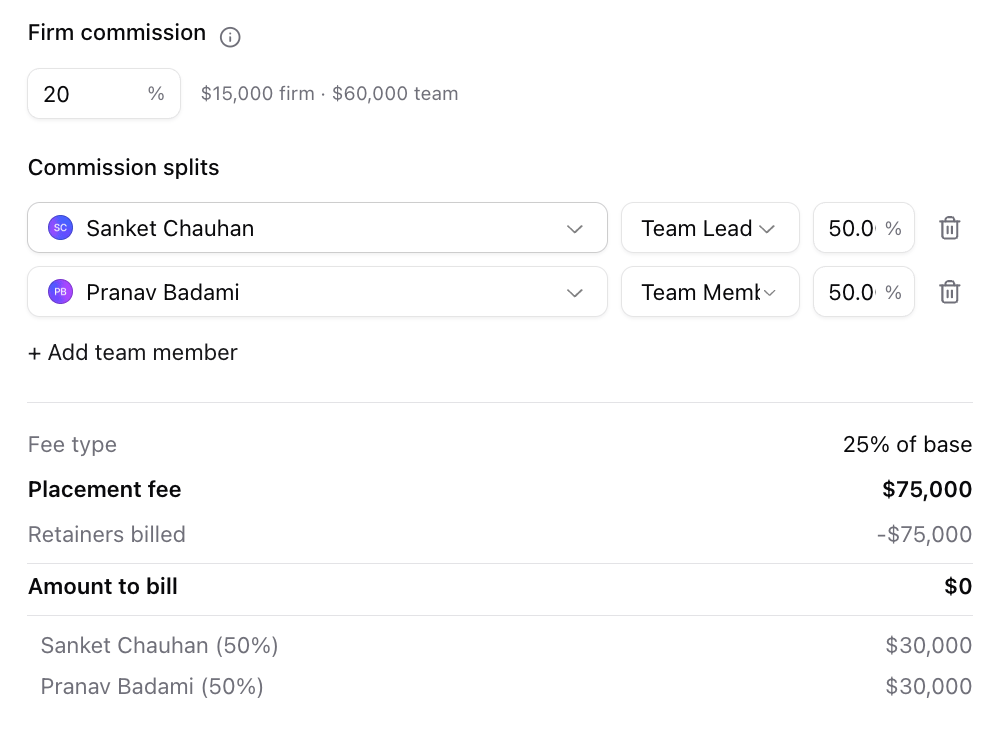
**Firm commission**
* Set the percentage the firm keeps
* Shows the firm amount and team pool in real time
* Defaults to 0% for solo orgs, or your org’s default commission setting
**Commission splits**
* Pre-filled from the job’s team members with equal percentages
* Each row has a team member dropdown, a role dropdown (from your configured job team member roles), and a percentage
* Split amounts are calculated on the **team commission pool** (total fee minus firm commission)
* Percentages must sum to 100%
**Fee summary**
* Shows placement fee, retainers billed (if applicable), amount to bill, and per-member commission breakdown
* For retained searches: the retainer deduction is shown clearly
**Auto-created offer**
* If the candidate doesn’t have an offer, one is automatically created with “Accepted” status, compensation details, and the selected client contacts
**Admin lock**
* Once submitted, placements can only be edited by admins
***
## Logging a placement
When a candidate is placed, you create a placement fee event. There are several ways to trigger this:
### From the Fees and Placements section
1. On the job’s info tab, click **+ Add Placement** in the Fees and Placements card header
2. Select the candidate, set dates, fee structure, and commission splits
3. Click **Log Placement**
### From a pipeline stage change
If you’ve configured a pipeline stage as a **Placement stage** (in Settings > Candidate Stage Templates), moving a candidate to that stage automatically opens the placement form with that candidate pre-selected.
Similarly, moving a candidate to an **Offer stage** opens the offer creation form.
### From an offer acceptance
When an offer’s status is changed to one marked as **Accepted** (configurable in Settings > Offer Statuses), the system prompts you to log a placement with the offer’s details pre-filled.
### What the placement form includes
The placement form captures everything needed for billing and commission tracking:
**Candidate selection**
* Searchable dropdown showing all candidates on the job
* Each candidate shows their current **pipeline stage** and **offer status** (if they have one)
* Candidates who already have a placement are excluded
* Candidates with offers appear first; rejected candidates appear last
**Stage management**
* A checkbox to **move the candidate to a specific pipeline stage** (defaults to the Placed stage)
* Only shown when the candidate isn’t already in that stage
* You can select any stage from the dropdown
**Payment details**
* **Payment status** — defaults to Pending, changeable to any fee status
* **Client contacts** — pre-filled from the offer (if one exists) or from the job’s contacts
**Dates**
* **Start date** (required) — with +30/+60/+90 day quick buttons
* **Expected payment date** (required) — with +30/+45/+60 day quick buttons relative to the start date
**Fee structure**
* Toggle between **Percentage** and **Flat fee**
* For percentage: **Fee %**, **Calculate on** (base salary or total comp), and **Est. salary/total comp**
* Currency can be changed by clicking the currency code next to the field label
* When a candidate has an existing offer, their compensation data auto-fills and updates when you switch between “Base salary” and “Total comp”
**Offer details**
* If the selected candidate has an offer, a collapsible **Offer details** card appears showing base, bonus, relocation, total comp, start date, and offer status
* Compensation from the offer automatically populates the fee calculation fields
**Firm commission**
* Set the percentage the firm keeps
* Shows the firm amount and team pool in real time
* Defaults to 0% for solo orgs, or your org’s default commission setting
**Commission splits**
* Pre-filled from the job’s team members with equal percentages
* Each row has a team member dropdown, a role dropdown (from your configured job team member roles), and a percentage
* Split amounts are calculated on the **team commission pool** (total fee minus firm commission)
* Percentages must sum to 100%
**Fee summary**
* Shows placement fee, retainers billed (if applicable), amount to bill, and per-member commission breakdown
* For retained searches: the retainer deduction is shown clearly
**Auto-created offer**
* If the candidate doesn’t have an offer, one is automatically created with “Accepted” status, compensation details, and the selected client contacts
**Admin lock**
* Once submitted, placements can only be edited by admins
 ***
## Offers and the placement workflow
Stardex supports two workflows for placements:
### Direct placement (contingent firms)
Log a placement directly without creating an offer first. The system auto-creates an accepted offer record behind the scenes for tracking purposes.
### Offer-first workflow (retained and formal processes)
1. Create an offer on the job (with compensation, dates, team members, client contacts)
2. When the offer is accepted (status changed to an “Accepted” type), the system prompts you to log a placement
3. The placement form pre-fills from the offer data
### Configuring offer statuses
Go to **Settings > Search Offer Statuses** to manage your offer statuses. Each status has a **behavior** that controls system actions:
| Behavior | What it triggers |
| - | - |
| **Pending** | Default state — no action |
| **Accepted** | Opens the placement logging form; sets accepted date |
| **Rejected** | No automated action |
| **Rescinded** | No automated action |
You can rename statuses (e.g., “Offer Signed” instead of “Accepted”) while keeping the behavior. Only one status can be set to “Accepted” at a time.
***
## Pipeline stage triggers
Configure which pipeline stages trigger modals in **Settings > Candidate Stage Templates**. Each stage can be marked with one or more of these behaviors:
| Stage type | What happens when a candidate is moved to it |
| - | - |
| **Rejection** | Opens the rejection reason modal |
| **Interview** | Marks the stage for interview tracking |
| **Offer** | Opens the offer creation form with the candidate pre-selected |
| **Placement** | Opens the placement logging form with the candidate pre-selected |
These triggers work from both the pipeline board (drag and drop) and the stage dropdown in table view.
***
## Viewing fees on a job
The **Fees and Placements** card on the job info tab shows all fee activity for that search:
### Retainer section
When a retainer exists, this section shows:
* Fee structure summary (e.g., “20% of base · \$40,000”)
* Each installment with amount, expected date, and payment status
* For “on placement” retainers: the estimated remaining amount
* Payment status badges are **clickable** — click to change status directly (Pending → Invoiced → Paid)
### Placements section
Each placement shows:
* Candidate name and avatar
* Total fee and start date
* Payment status (clickable to update)
* Expand to see commission split details with per-member amounts
* Payment date and notes (when available)
### Progress tracking
If the job has more than one opening, the placements section shows progress: “2 of 5 openings filled.”
***
## Fee Tracking report
The **Fee Tracking** tab in Reports gives you a firm-wide view of all fee events across every search.
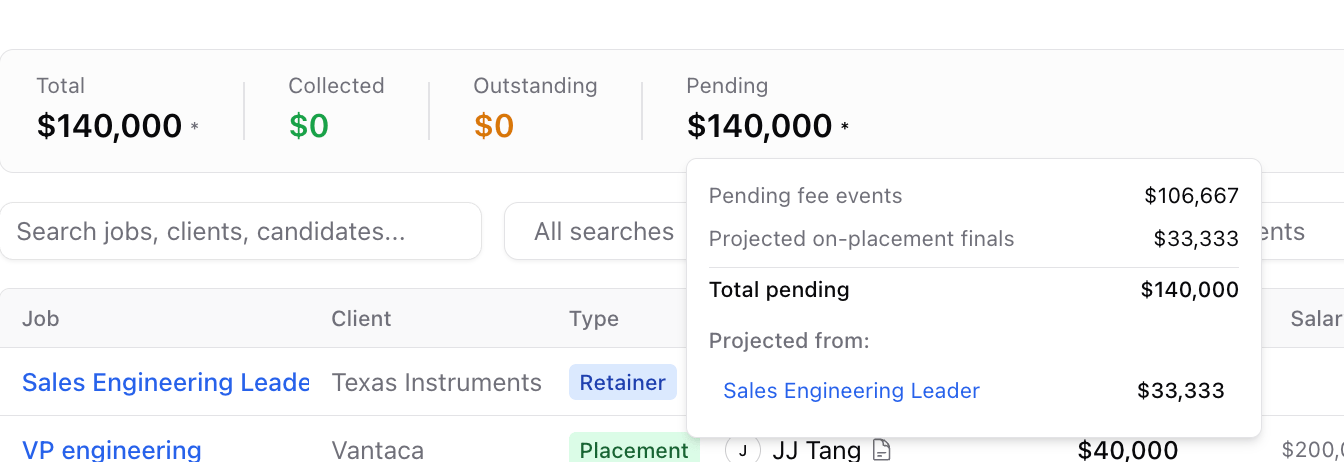
### Summary bar
At the top, four metrics summarize your billing:
* **Total** — all fee event amounts plus projected on-placement retainer finals
* **Collected** — fee events marked as Paid
* **Outstanding** — fee events marked as Invoiced
* **Pending** — fee events marked as Pending plus projected amounts
When projected amounts from “on placement” retainers are included, an asterisk (\*) appears. Click it to see a popover with:
* Which searches contribute to the projection
* How much has been billed vs. projected for each
* Click any search name to navigate to it
### Filters
The report supports multiple filters that can be combined:
* **Search** — text search across job names, clients, candidates, and notes
* **Jobs** — multi-select to filter by specific searches
* **Team members** — filter by who has commission splits on the fee event
* **Clients** — filter by client company
* **Type** — Retainer, Milestone, or Placement
* **Status** — filter by payment status
* **Time period** — quick presets (30d, 3m, 6m, YTD, Last year) or custom date range, filtering on expected payment date
### Table columns
| Column | Description |
| - | - |
| Job | Search name — click to navigate to the job |
| Client | Company name — hover for company details, click to navigate |
| Type | Retainer/Milestone/Placement badge — click to navigate to the job info tab |
| Candidate | Name with avatar — hover for person details, click to navigate to person page. Document icon links to the associated offer. |
| Amount | Billable amount for this fee event |
| Salary | Compensation from the fee event or linked offer |
| Expected | Expected payment date |
| Start | Candidate start date (placement events) |
| Extended | Offer extended date (from linked offer) |
| Status | Payment status — click the badge to change it inline |
| Contacts | Client contacts associated with the placement or retainer — hover for person details |
| Team | Avatar stack of team members with commission splits |
| Note | Fee event notes |
### Inline status updates
Click any status badge in the table to change it. When marking a fee event as **Paid**, the payment date is automatically set to today.
### Navigation
Fee tracking rows are linked to their source data:
* **Placement type badge** → navigates to the job info tab with the placement highlighted
* **Retainer type badge** → navigates to the job info tab
* **Candidate name** → navigates to the person page
* **Job name** → navigates to the job
* **Client name** → navigates to the company page
* **Offer icon** (next to candidate) → navigates to the job info tab with the offer highlighted
***
## How totals are calculated
### Fee event totals
The summary bar sums the `amount` field from all non-cancelled fee events:
* For **retainer/milestone** events: the installment amount
* For **placement** events: the billable amount (total fee minus any retainer installments already billed)
***
## Offers and the placement workflow
Stardex supports two workflows for placements:
### Direct placement (contingent firms)
Log a placement directly without creating an offer first. The system auto-creates an accepted offer record behind the scenes for tracking purposes.
### Offer-first workflow (retained and formal processes)
1. Create an offer on the job (with compensation, dates, team members, client contacts)
2. When the offer is accepted (status changed to an “Accepted” type), the system prompts you to log a placement
3. The placement form pre-fills from the offer data
### Configuring offer statuses
Go to **Settings > Search Offer Statuses** to manage your offer statuses. Each status has a **behavior** that controls system actions:
| Behavior | What it triggers |
| - | - |
| **Pending** | Default state — no action |
| **Accepted** | Opens the placement logging form; sets accepted date |
| **Rejected** | No automated action |
| **Rescinded** | No automated action |
You can rename statuses (e.g., “Offer Signed” instead of “Accepted”) while keeping the behavior. Only one status can be set to “Accepted” at a time.
***
## Pipeline stage triggers
Configure which pipeline stages trigger modals in **Settings > Candidate Stage Templates**. Each stage can be marked with one or more of these behaviors:
| Stage type | What happens when a candidate is moved to it |
| - | - |
| **Rejection** | Opens the rejection reason modal |
| **Interview** | Marks the stage for interview tracking |
| **Offer** | Opens the offer creation form with the candidate pre-selected |
| **Placement** | Opens the placement logging form with the candidate pre-selected |
These triggers work from both the pipeline board (drag and drop) and the stage dropdown in table view.
***
## Viewing fees on a job
The **Fees and Placements** card on the job info tab shows all fee activity for that search:
### Retainer section
When a retainer exists, this section shows:
* Fee structure summary (e.g., “20% of base · \$40,000”)
* Each installment with amount, expected date, and payment status
* For “on placement” retainers: the estimated remaining amount
* Payment status badges are **clickable** — click to change status directly (Pending → Invoiced → Paid)
### Placements section
Each placement shows:
* Candidate name and avatar
* Total fee and start date
* Payment status (clickable to update)
* Expand to see commission split details with per-member amounts
* Payment date and notes (when available)
### Progress tracking
If the job has more than one opening, the placements section shows progress: “2 of 5 openings filled.”
***
## Fee Tracking report
The **Fee Tracking** tab in Reports gives you a firm-wide view of all fee events across every search.
### Summary bar
At the top, four metrics summarize your billing:
* **Total** — all fee event amounts plus projected on-placement retainer finals
* **Collected** — fee events marked as Paid
* **Outstanding** — fee events marked as Invoiced
* **Pending** — fee events marked as Pending plus projected amounts
When projected amounts from “on placement” retainers are included, an asterisk (\*) appears. Click it to see a popover with:
* Which searches contribute to the projection
* How much has been billed vs. projected for each
* Click any search name to navigate to it
### Filters
The report supports multiple filters that can be combined:
* **Search** — text search across job names, clients, candidates, and notes
* **Jobs** — multi-select to filter by specific searches
* **Team members** — filter by who has commission splits on the fee event
* **Clients** — filter by client company
* **Type** — Retainer, Milestone, or Placement
* **Status** — filter by payment status
* **Time period** — quick presets (30d, 3m, 6m, YTD, Last year) or custom date range, filtering on expected payment date
### Table columns
| Column | Description |
| - | - |
| Job | Search name — click to navigate to the job |
| Client | Company name — hover for company details, click to navigate |
| Type | Retainer/Milestone/Placement badge — click to navigate to the job info tab |
| Candidate | Name with avatar — hover for person details, click to navigate to person page. Document icon links to the associated offer. |
| Amount | Billable amount for this fee event |
| Salary | Compensation from the fee event or linked offer |
| Expected | Expected payment date |
| Start | Candidate start date (placement events) |
| Extended | Offer extended date (from linked offer) |
| Status | Payment status — click the badge to change it inline |
| Contacts | Client contacts associated with the placement or retainer — hover for person details |
| Team | Avatar stack of team members with commission splits |
| Note | Fee event notes |
### Inline status updates
Click any status badge in the table to change it. When marking a fee event as **Paid**, the payment date is automatically set to today.
### Navigation
Fee tracking rows are linked to their source data:
* **Placement type badge** → navigates to the job info tab with the placement highlighted
* **Retainer type badge** → navigates to the job info tab
* **Candidate name** → navigates to the person page
* **Job name** → navigates to the job
* **Client name** → navigates to the company page
* **Offer icon** (next to candidate) → navigates to the job info tab with the offer highlighted
***
## How totals are calculated
### Fee event totals
The summary bar sums the `amount` field from all non-cancelled fee events:
* For **retainer/milestone** events: the installment amount
* For **placement** events: the billable amount (total fee minus any retainer installments already billed)
 ### Projected on-placement finals
For retainers with “on placement” final payment type that haven’t had a placement logged yet, the system calculates:
> Remaining = Retainer projected fee − Sum of installment amounts
This projected amount is added to the **Total** and **Pending** figures, with a clear indicator showing the breakdown by job.
### Commission calculations
Commission splits on placements are calculated as:
1. **Total fee** = the full engagement value (percentage × compensation, or flat fee amount)
2. **Firm commission** = total fee × firm commission %
3. **Team commission pool** = total fee − firm commission
4. **Per-member split** = team commission pool × member’s split percentage
For retained searches, the total fee already includes the retainer value — the retainer installments were advance payments against the same total.
***
## Settings reference
| Setting | Location | What it controls |
| - | - | - |
| Default Firm Commission | Settings > Organization > Jobs | Default firm commission % for new placements |
| Fee Statuses | Settings > Organization > Fee Statuses | Customize billing status names, colors, and types |
| Offer Statuses | Settings > Pipeline > Search Offer Statuses | Configure offer status behaviors (accepted, rejected, etc.) |
| Candidate Stage Templates | Settings > Pipeline > Candidate Stage Templates | Mark stages as Offer, Placement, Rejection, or Interview triggers |
| Job Team Member Roles | Settings > Organization > Jobs | Configure roles available in commission split dropdowns |
***
## Quick reference
### Contingent placement (no retainer)
1. Navigate to the job’s info tab
2. Click **+ Add Placement**
3. Select candidate, set fee structure, splits, and dates
4. Click **Log Placement**
### Retained search with installments
1. Navigate to the job’s info tab
2. Click **+ Add Retainer** — set fee structure, installments, and schedule
3. Update installment statuses as payments are received (click the status badge)
4. When ready, click **+ Add Placement** — retainer amounts are automatically deducted
5. View everything in the Fee Tracking report
### Updating a fee event status
Click the colored status badge on any fee event (on the job info tab or in the Fee Tracking report) to change it. Select the new status from the dropdown. Payment date is set automatically when marking as Paid.
This documentation is built and hosted on [Mintlify](https://mintlify.com), a developer documentation platform.
### Projected on-placement finals
For retainers with “on placement” final payment type that haven’t had a placement logged yet, the system calculates:
> Remaining = Retainer projected fee − Sum of installment amounts
This projected amount is added to the **Total** and **Pending** figures, with a clear indicator showing the breakdown by job.
### Commission calculations
Commission splits on placements are calculated as:
1. **Total fee** = the full engagement value (percentage × compensation, or flat fee amount)
2. **Firm commission** = total fee × firm commission %
3. **Team commission pool** = total fee − firm commission
4. **Per-member split** = team commission pool × member’s split percentage
For retained searches, the total fee already includes the retainer value — the retainer installments were advance payments against the same total.
***
## Settings reference
| Setting | Location | What it controls |
| - | - | - |
| Default Firm Commission | Settings > Organization > Jobs | Default firm commission % for new placements |
| Fee Statuses | Settings > Organization > Fee Statuses | Customize billing status names, colors, and types |
| Offer Statuses | Settings > Pipeline > Search Offer Statuses | Configure offer status behaviors (accepted, rejected, etc.) |
| Candidate Stage Templates | Settings > Pipeline > Candidate Stage Templates | Mark stages as Offer, Placement, Rejection, or Interview triggers |
| Job Team Member Roles | Settings > Organization > Jobs | Configure roles available in commission split dropdowns |
***
## Quick reference
### Contingent placement (no retainer)
1. Navigate to the job’s info tab
2. Click **+ Add Placement**
3. Select candidate, set fee structure, splits, and dates
4. Click **Log Placement**
### Retained search with installments
1. Navigate to the job’s info tab
2. Click **+ Add Retainer** — set fee structure, installments, and schedule
3. Update installment statuses as payments are received (click the status badge)
4. When ready, click **+ Add Placement** — retainer amounts are automatically deducted
5. View everything in the Fee Tracking report
### Updating a fee event status
Click the colored status badge on any fee event (on the job info tab or in the Fee Tracking report) to change it. Select the new status from the dropdown. Payment date is set automatically when marking as Paid.
This documentation is built and hosted on [Mintlify](https://mintlify.com), a developer documentation platform.