> ## Documentation Index
> Fetch the complete documentation index at: https://docs.stardex.com/llms.txt
> Use this file to discover all available pages before exploring further.
# Meeting recordings, transcripts, and summaries
> Find, review, summarize, download, and share meeting recordings and transcripts.
You just finished a 45-minute interview and need to write up notes while everything is still fresh. But you've got another call in 10 minutes. Sound familiar?
When you have the Stardex notetaker enabled (see [here](/help-center/connect-your-calendar-and-enable-stardex-notetaker)), your meetings are automatically recorded, transcribed, and summarized. Admins enable Stardex Notetaker from **Settings → Email & other integrations → Notetakers** (gear). Then each person turns it on per calendar. This guide covers what happens after the recording — how to find, review, and share your recordings.
## Finding your recordings
1. Click **Calendar** in the sidebar
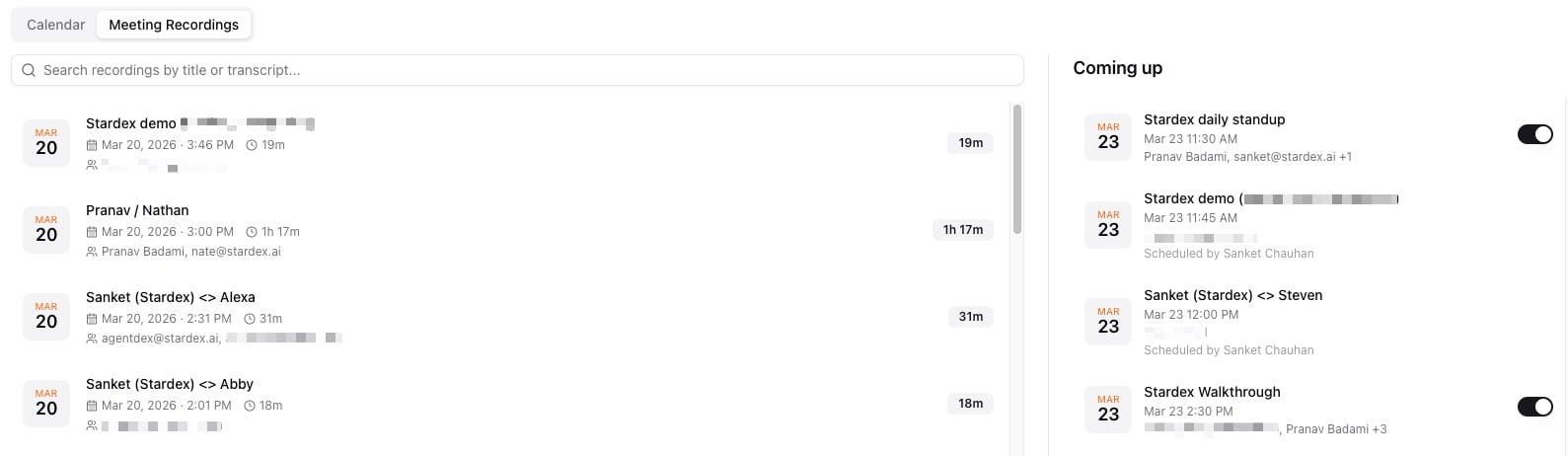
2. You will see a tab at the top that has **Calendar** and **Meeting Recordings**, select **Meeting Recordings**
3. Then this is broken down two sections:
* **Recent recordings** where you will see all of the meetings that have already been recorded and processed
* **Coming up** this contains all upcoming meetings on your Teams calendar where the notetaker bot is scheduled to join
Each recording shows the meeting title, date, duration, and who attended.
 ***
## Viewing a recording
Click on any recording to open the detail view. Here's what you'll find:
### Video playback
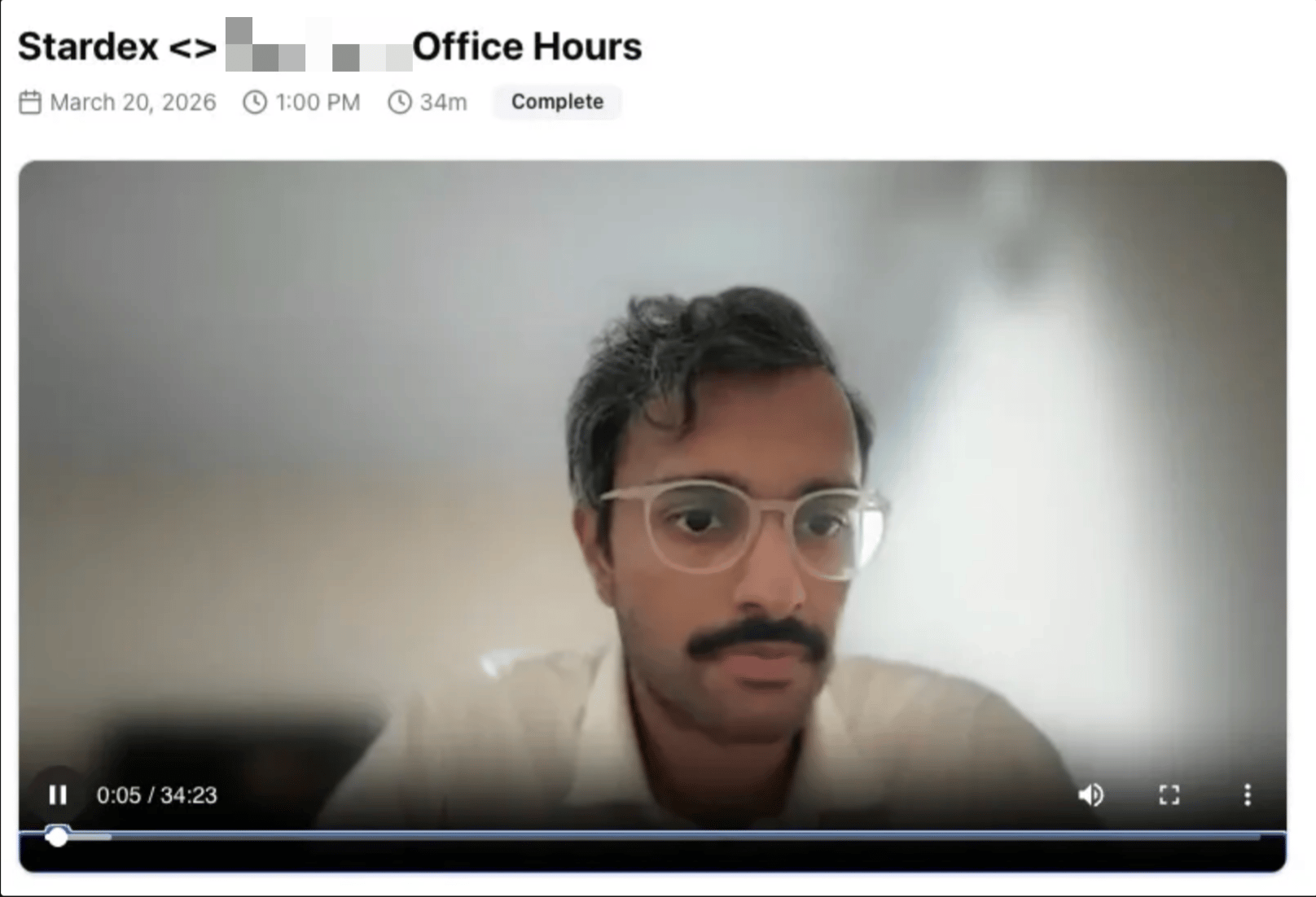
The full meeting recording. You can play, pause, skip around — standard video controls.
### Transcript
A text transcript of the entire meeting, broken down by speaker. The transcript is **searchable** — use the search bar to find specific topics or keywords that came up.
### Attendees
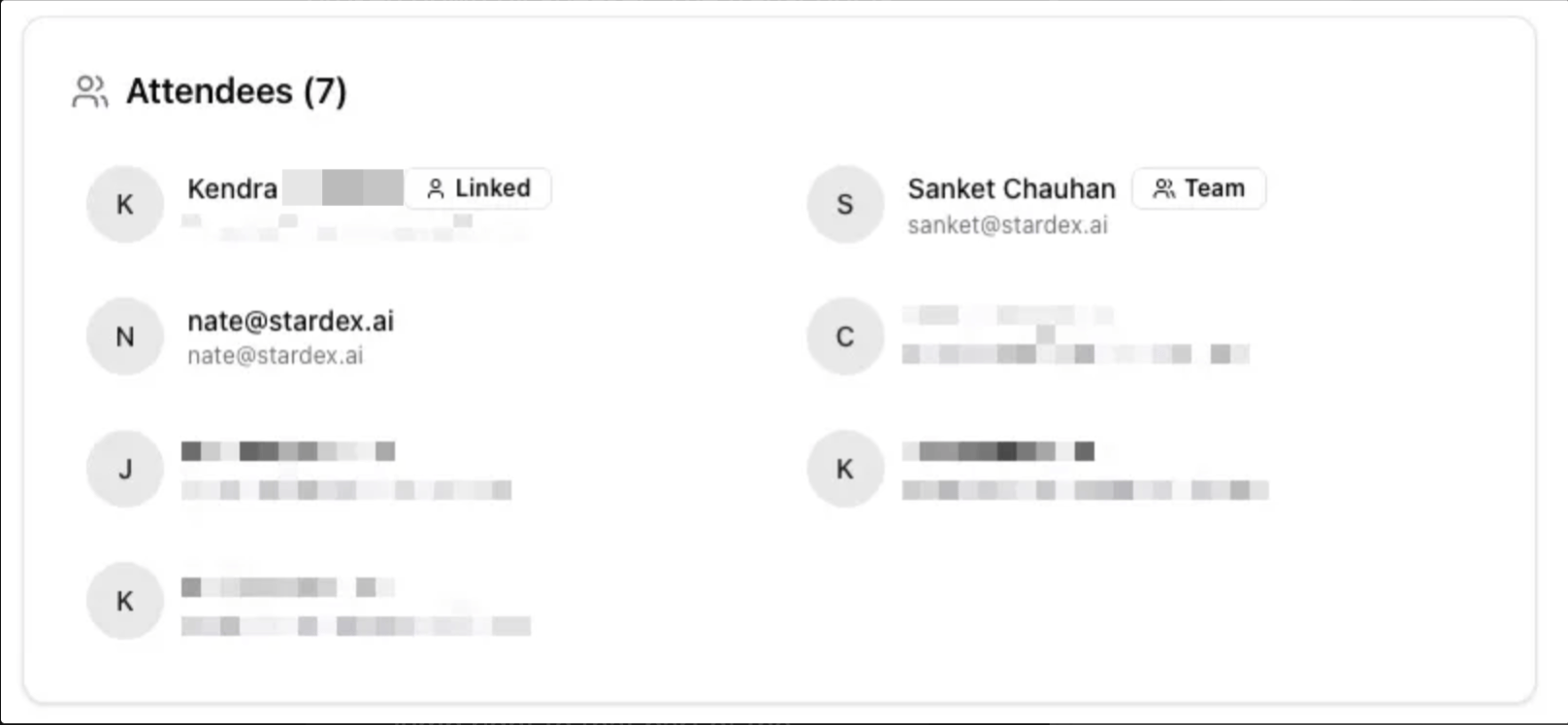
A list of everyone on the call. If attendees match people in your Stardex database, they'll be linked — so you can jump to their profile directly from the recording.
The transcript is a great way to quickly find a specific moment. Search for a keyword like "compensation" or "start date" to jump right to that part of the conversation.
***
## Viewing a recording
Click on any recording to open the detail view. Here's what you'll find:
### Video playback
The full meeting recording. You can play, pause, skip around — standard video controls.
### Transcript
A text transcript of the entire meeting, broken down by speaker. The transcript is **searchable** — use the search bar to find specific topics or keywords that came up.
### Attendees
A list of everyone on the call. If attendees match people in your Stardex database, they'll be linked — so you can jump to their profile directly from the recording.
The transcript is a great way to quickly find a specific moment. Search for a keyword like "compensation" or "start date" to jump right to that part of the conversation.
 ***
## AI meeting summaries
This is the real time-saver. After a recording is processed, Stardex can generate a summary of the key points.
### Viewing the summary
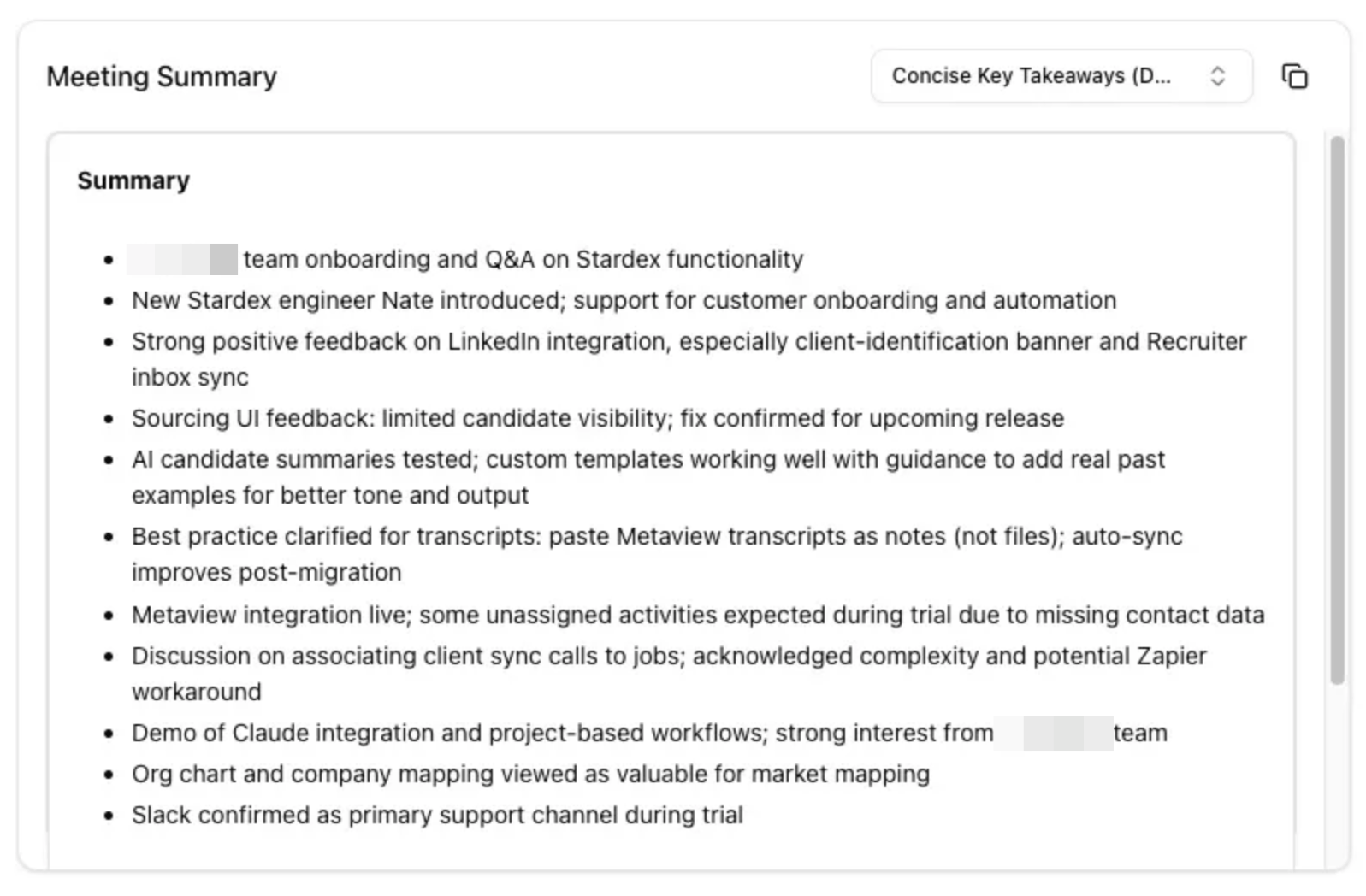
Scroll down on the recording detail page to find the **Meeting Summary** section. The summary highlights the most important takeaways from the conversation.
### Regenerating a summary
If the summary doesn't capture what you need, or if you want a different style:
1. Click **Regenerate Summary**
2. Pick a different summary template if available
3. The summary will be rebuilt from the transcript
Summary templates let you customize what kind of output you get — for example, a structured interview debrief vs. a general meeting notes format.
***
## AI meeting summaries
This is the real time-saver. After a recording is processed, Stardex can generate a summary of the key points.
### Viewing the summary
Scroll down on the recording detail page to find the **Meeting Summary** section. The summary highlights the most important takeaways from the conversation.
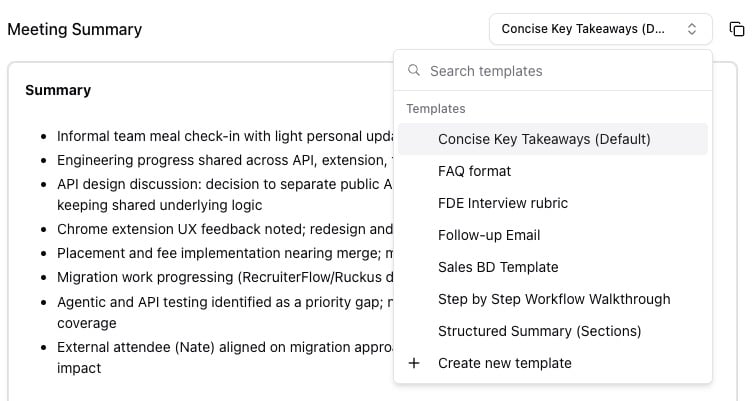
### Regenerating a summary
If the summary doesn't capture what you need, or if you want a different style:
1. Click **Regenerate Summary**
2. Pick a different summary template if available
3. The summary will be rebuilt from the transcript
Summary templates let you customize what kind of output you get — for example, a structured interview debrief vs. a general meeting notes format.
 ***
## Sharing recordings
Need to share a recording with a teammate who wasn't on the call, or with a client?
1. On the recording detail page, click the **Action** button then the **Share** button
2. This generates a **shareable link** that anyone can access (no Stardex account required)
3. The shared page includes the video, transcript, and summary
### Downloading the transcript
Click the **Download** or **Copy** option on the transcript to save it for your notes, email it to a hiring manager, or paste it into your debrief.
***
## Sharing recordings
Need to share a recording with a teammate who wasn't on the call, or with a client?
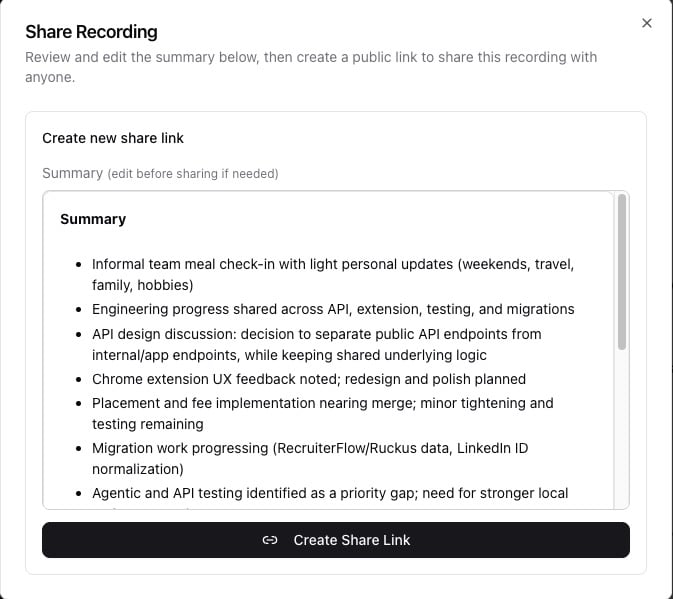
1. On the recording detail page, click the **Action** button then the **Share** button
2. This generates a **shareable link** that anyone can access (no Stardex account required)
3. The shared page includes the video, transcript, and summary
### Downloading the transcript
Click the **Download** or **Copy** option on the transcript to save it for your notes, email it to a hiring manager, or paste it into your debrief.
 ***
## Managing the notetaker for upcoming meetings
From the **Coming up** section on the Recordings page, you can control which meetings the notetaker will join.
* **Toggle the bot on/off** for individual meetings — if you have a personal meeting you don't want recorded, just turn it off for that one
* The notetaker respects your calendar settings — it only joins meetings on calendars you've opted in
If you want the notetaker on all external meetings but not internal ones, you can configure keyword-based rules. Check the notetaker settings under **Settings → Email & other integrations → Notetakers**.
***
## Managing the notetaker for upcoming meetings
From the **Coming up** section on the Recordings page, you can control which meetings the notetaker will join.
* **Toggle the bot on/off** for individual meetings — if you have a personal meeting you don't want recorded, just turn it off for that one
* The notetaker respects your calendar settings — it only joins meetings on calendars you've opted in
If you want the notetaker on all external meetings but not internal ones, you can configure keyword-based rules. Check the notetaker settings under **Settings → Email & other integrations → Notetakers**.
 ***
## Where recordings show up
Recordings are linked to the people who attended. So if you recorded an interview with a candidate:
* The recording appears on the **candidate's profile** under their activity timeline
* Anyone on your team can access it from there
* It's also in the main **Recordings** page
***
## Common questions
**Q: Can I delete a recording?**
Yes — use the options menu on the recording detail page.
**Q: How long does it take for a recording to be processed?**
Usually a few minutes after the meeting ends. The transcript and summary will appear once processing is complete.
**Q: Does the notetaker work with all video platforms?**
It works with Google Meet, Zoom, and Microsoft Teams. The bot joins as a participant, so attendees will see it listed in the call.
**Q: Will people know they're being recorded?**
Yes — the notetaker joins as a visible participant and most video platforms show a recording indicator. Always make sure attendees are aware.
***
## Related guides
* 👉 [Connect your calendar and enable Stardex notetaker](/help-center/connect-your-calendar-and-enable-stardex-notetaker) — set up the notetaker
* 👉 [Email and calendar syncing](/help-center/email-and-calendar-syncing) — connect your calendar
* 👉 [Fireflies integration](/help-center/fireflies) — if you use Fireflies for transcription instead
This documentation is built and hosted on [Mintlify](https://mintlify.com), a developer documentation platform.
***
## Where recordings show up
Recordings are linked to the people who attended. So if you recorded an interview with a candidate:
* The recording appears on the **candidate's profile** under their activity timeline
* Anyone on your team can access it from there
* It's also in the main **Recordings** page
***
## Common questions
**Q: Can I delete a recording?**
Yes — use the options menu on the recording detail page.
**Q: How long does it take for a recording to be processed?**
Usually a few minutes after the meeting ends. The transcript and summary will appear once processing is complete.
**Q: Does the notetaker work with all video platforms?**
It works with Google Meet, Zoom, and Microsoft Teams. The bot joins as a participant, so attendees will see it listed in the call.
**Q: Will people know they're being recorded?**
Yes — the notetaker joins as a visible participant and most video platforms show a recording indicator. Always make sure attendees are aware.
***
## Related guides
* 👉 [Connect your calendar and enable Stardex notetaker](/help-center/connect-your-calendar-and-enable-stardex-notetaker) — set up the notetaker
* 👉 [Email and calendar syncing](/help-center/email-and-calendar-syncing) — connect your calendar
* 👉 [Fireflies integration](/help-center/fireflies) — if you use Fireflies for transcription instead
This documentation is built and hosted on [Mintlify](https://mintlify.com), a developer documentation platform.