> ## Documentation Index
> Fetch the complete documentation index at: https://docs.stardex.com/llms.txt
> Use this file to discover all available pages before exploring further.
# Making a job public
> Publish a job on your careers page and make it available to external applicants.
You can make jobs publicly accessible at jobs.stardex.com/yourorgname. Here’s a quick video that walks through the steps:
[Watch the video on Loom](https://www.loom.com/share/f9c0a55ac7f64c5593fdbf199dd16614)
Steps:
1. Click Actions on a job you want to make public
2. Click Publish Job Application
3. Share the link!
If you’d like to show the list of jobs on your own website, you can use RSS feeds. Steps below:
1. Make a job public using the steps in the video
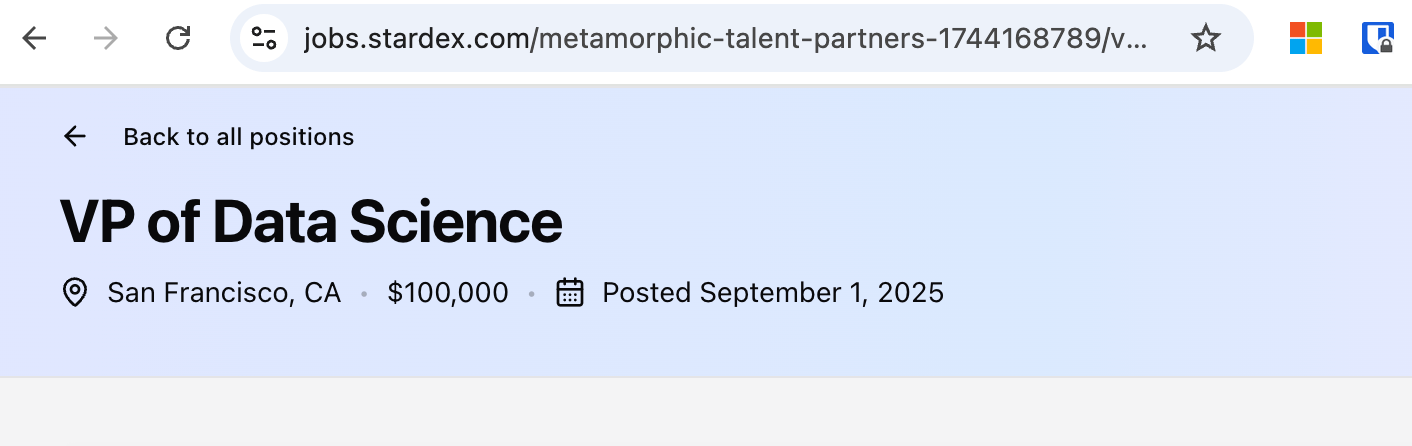
2. Once a job is public, goto the job url. Click Back to all positions on top right to see the main job page. This is your organization’s job page listing all the public jobs.
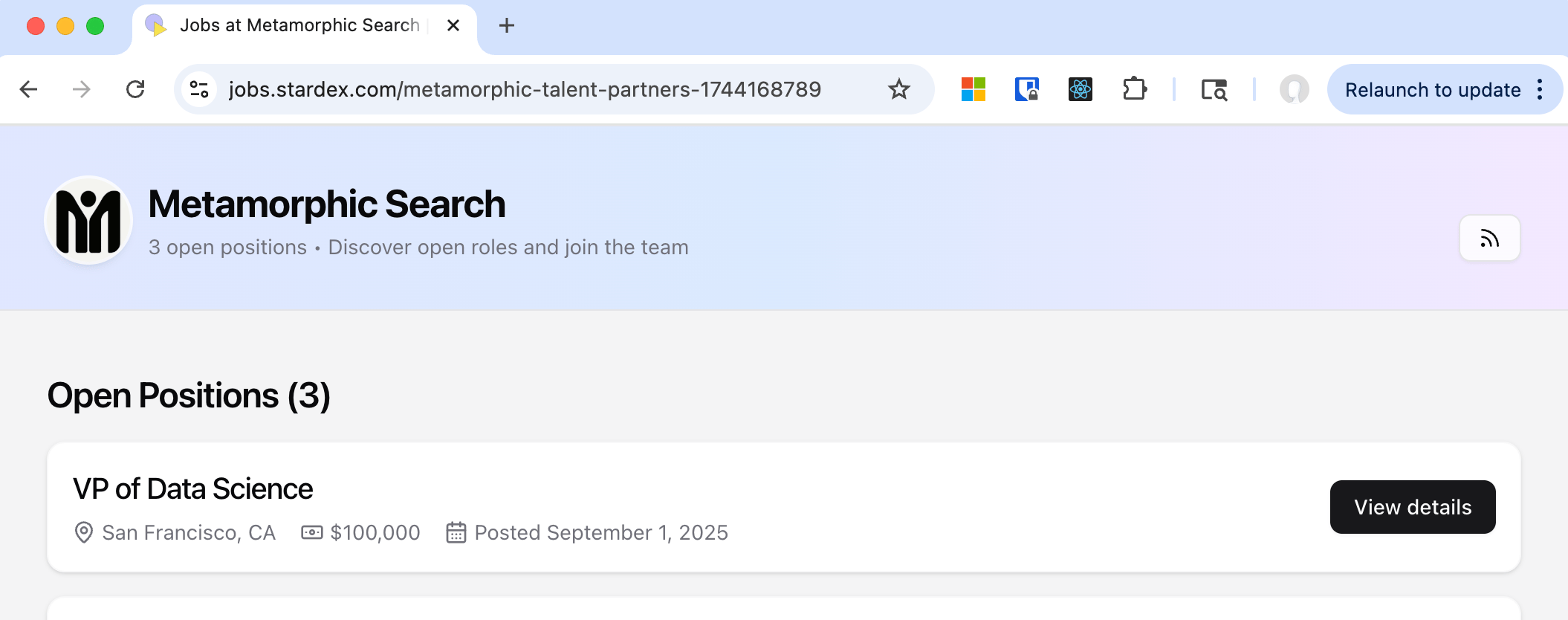
 3. Click the RSS Icon on the top right. It’ll be of format [https://jobs.stardex.com/yourOrgName/rss.xml](https://jobs.stardex.com/yourOrgName/rss.xml)
example url: [https://jobs.stardex.com/metamorphic-talent-partners-1744168789/rss.xml](https://jobs.stardex.com/metamorphic-talent-partners-1744168789/rss.xml)
3. Click the RSS Icon on the top right. It’ll be of format [https://jobs.stardex.com/yourOrgName/rss.xml](https://jobs.stardex.com/yourOrgName/rss.xml)
example url: [https://jobs.stardex.com/metamorphic-talent-partners-1744168789/rss.xml](https://jobs.stardex.com/metamorphic-talent-partners-1744168789/rss.xml)
 1. You can use this to send it to your website developer who can integrate that into your website. If you are using tools like wordpress, there are plugins that can easily take this url to properly show this on your website with almost no coding changes.
If you want to hide a job (e.g. after a job is closed), you can do so by making it private.
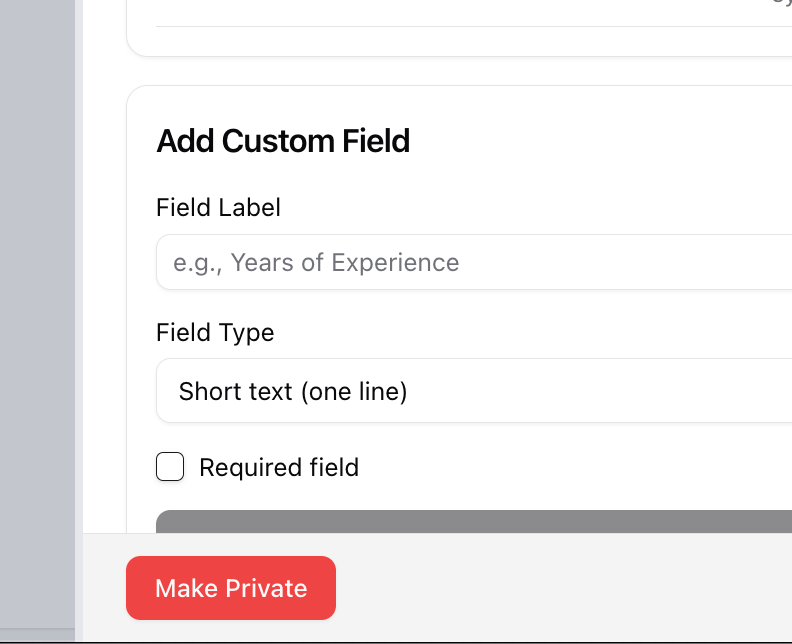
1. Click Job application is Live button, and in the sidepanel that shows up click “Make Private”
1. You can use this to send it to your website developer who can integrate that into your website. If you are using tools like wordpress, there are plugins that can easily take this url to properly show this on your website with almost no coding changes.
If you want to hide a job (e.g. after a job is closed), you can do so by making it private.
1. Click Job application is Live button, and in the sidepanel that shows up click “Make Private”

 See [Job board customization](/help-center/job-board-customization) for options to customize the job board.
This documentation is built and hosted on [Mintlify](https://mintlify.com), a developer documentation platform.
See [Job board customization](/help-center/job-board-customization) for options to customize the job board.
This documentation is built and hosted on [Mintlify](https://mintlify.com), a developer documentation platform.