> ## Documentation Index
> Fetch the complete documentation index at: https://docs.stardex.com/llms.txt
> Use this file to discover all available pages before exploring further.
# Importing your LinkedIn connections
> Export your LinkedIn connections and import them into Stardex for sourcing and AI search.
Stardex provides a natural language search interface on top of your linkedin connections. It can go deeper into their work experience as well.
We first need to import the linkedin connections. You will need to download a backup of your linkedin connections, and then use our bulk importer to import the profiles.
1. Head to [https://www.linkedin.com/mypreferences/d/download-my-data](https://www.linkedin.com/mypreferences/d/download-my-data). Click Download larger data archive, and click Request Archive
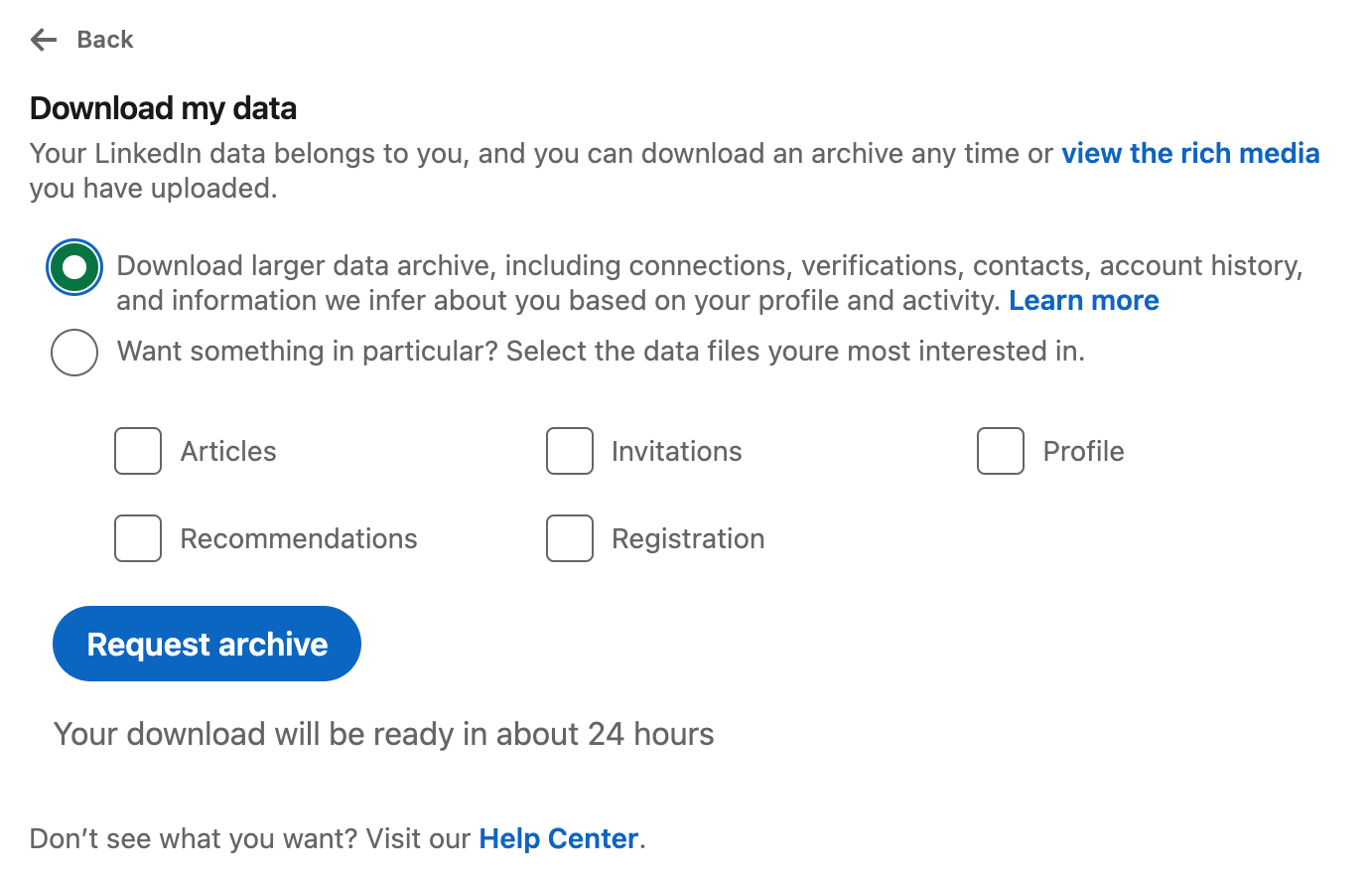 2. When you get the archive, there should be a connections csv file. Open that.
3. If the CSV contains extra text on row 1,2 and 3. Delete those rows.
2. When you get the archive, there should be a connections csv file. Open that.
3. If the CSV contains extra text on row 1,2 and 3. Delete those rows.
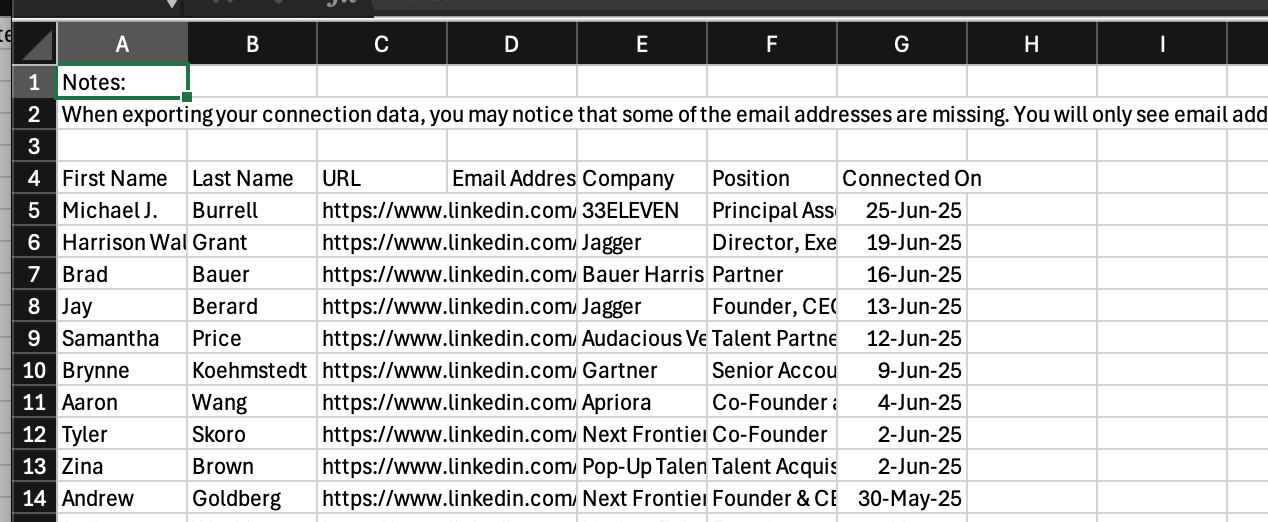 this way, the first row is the header row
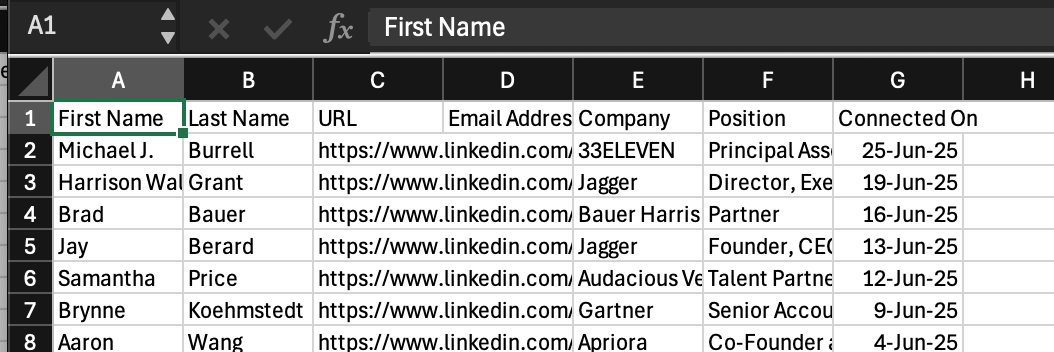 Ensure you save it as a CSV. Uploading an XLSX or PDF won’t work with bulk uploader here.
1. Head to Stardex people tab - [https://stardex.com/people](https://stardex.com/people). Click Add → Bulk import
Ensure you save it as a CSV. Uploading an XLSX or PDF won’t work with bulk uploader here.
1. Head to Stardex people tab - [https://stardex.com/people](https://stardex.com/people). Click Add → Bulk import
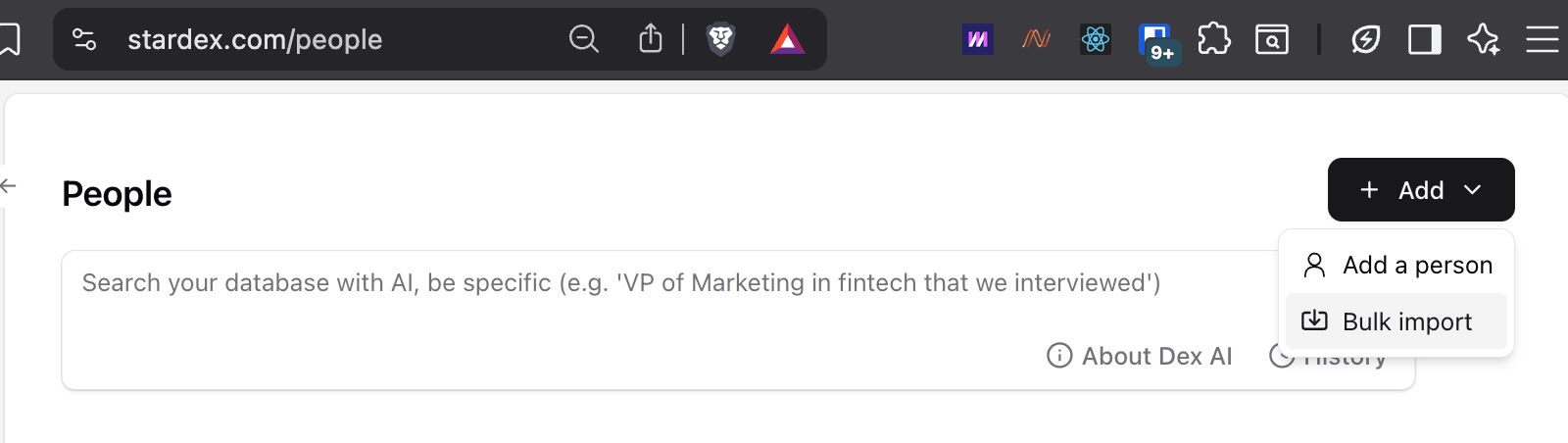 2. Upload the file, and click Continue with no job
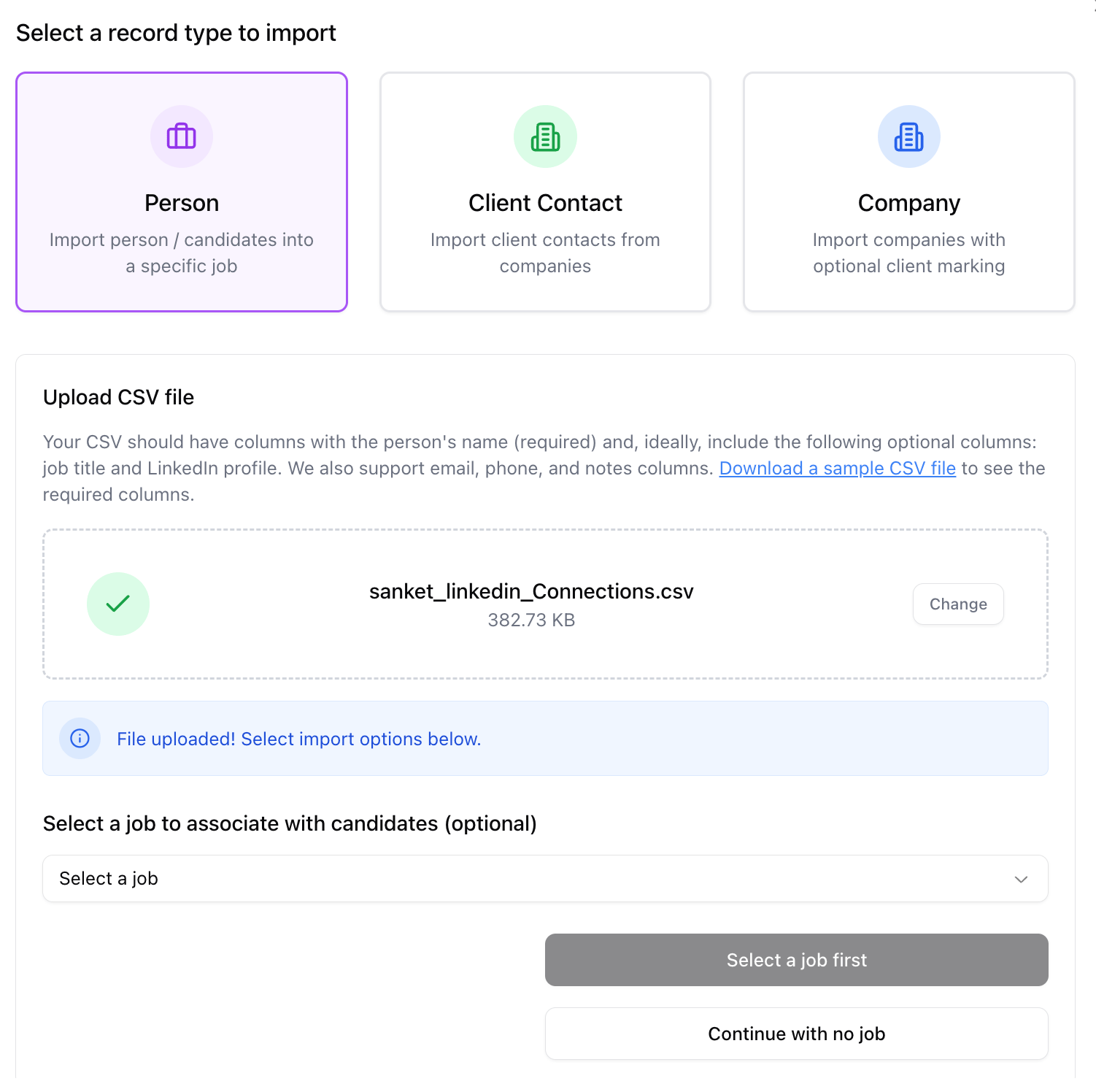 3. Ensure the mapping looks as expected, and then click Import. For linkedin connection imports, you won’t be charged the cost, so keep the boxed check. You can click Continue with enrichment in the modal. You won’t be charged more
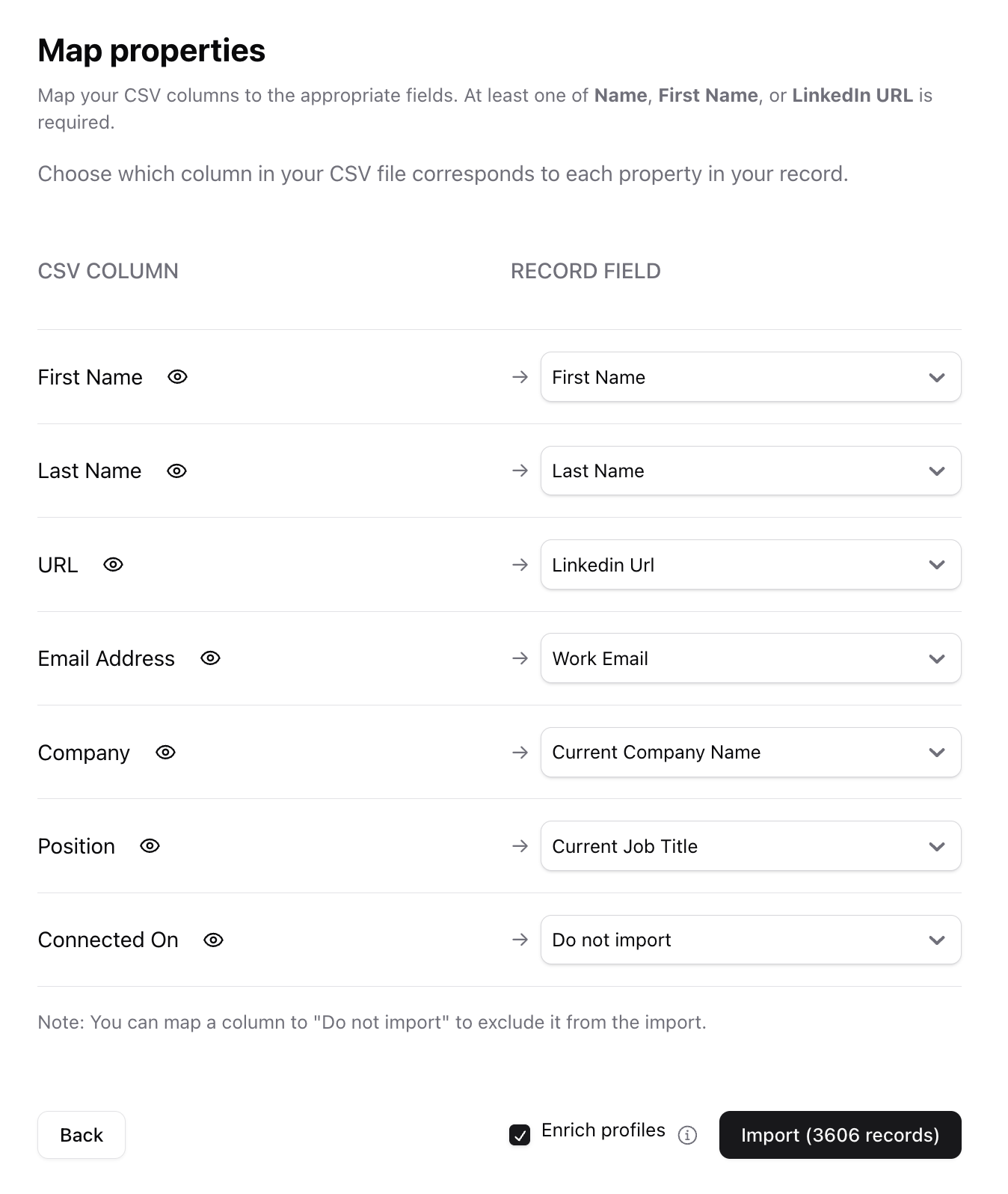 Depending on the size of your connection list, it can take anywhere from 5 to 20 mins to fully finish.
This documentation is built and hosted on [Mintlify](https://mintlify.com), a developer documentation platform.
Depending on the size of your connection list, it can take anywhere from 5 to 20 mins to fully finish.
This documentation is built and hosted on [Mintlify](https://mintlify.com), a developer documentation platform.