> ## Documentation Index
> Fetch the complete documentation index at: https://docs.stardex.com/llms.txt
> Use this file to discover all available pages before exploring further.
# Fireflies
> Connect Fireflies to sync meeting notes and transcripts to matching candidate and contact profiles.
Stardex has a native integration with Fireflies to sync transcripts from meetings across all your organization as long as that contact is in Stardex
Meeting notes from Fireflies are connected to an individual (and not a company for now). So it will automatically assign to candidates or client contacts when their email address matches an attendee email from the meeting.
For client notes, notes won't automatically appear as activities on the client company detail page - that requires manual input for now. We plan to add a feature where client company activities will automatically pull in notes from all client contacts who work at that company.
1. Go to **Settings → Email & other integrations → Notetakers**: [https://stardex.com/settings?tab=email-calendar\§ion=notetaker](https://stardex.com/settings?tab=email-calendar\§ion=notetaker)
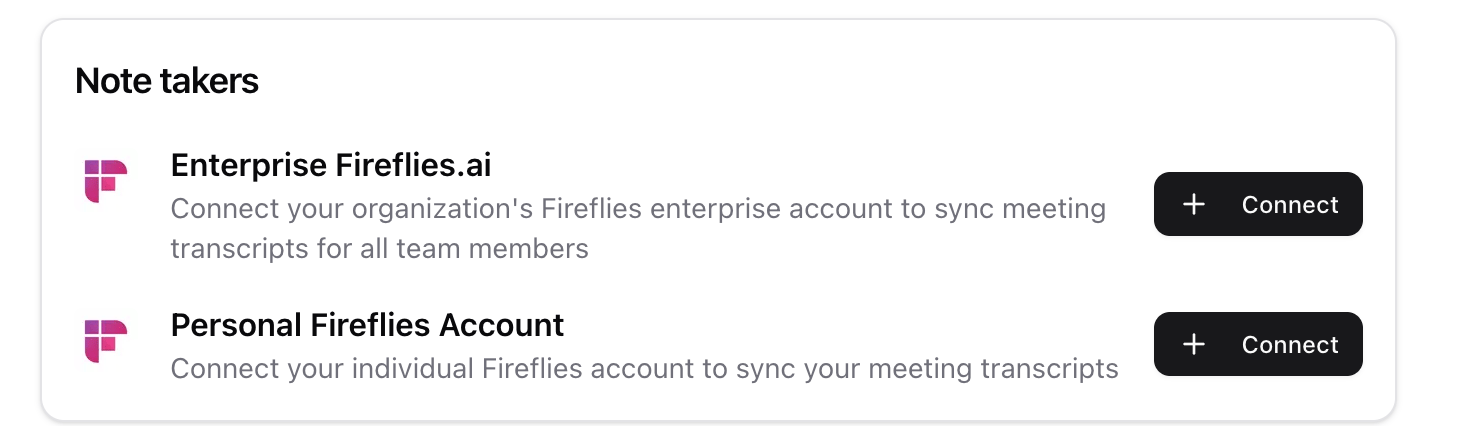
If you are on Fireflies Enterprise, an admin can connect **Other organization notetakers → Enterprise [Fireflies.ai](http://Fireflies.ai)** on the same Notetakers page. The old URL `stardex.com/settings/integrations` is not redirected.
1. Under Notetakers find the one that says “Personal Fireflies Account”. Pick this option even if you are on the business plan. If you are on the enterprise plan, then you can pick the Enterprise Fireflies
Fireflies doesn’t send transcripts of all team members unless you are on the enterprise account. A workaround for team and business plan users is is to have each team member connect Fireflies account individually.
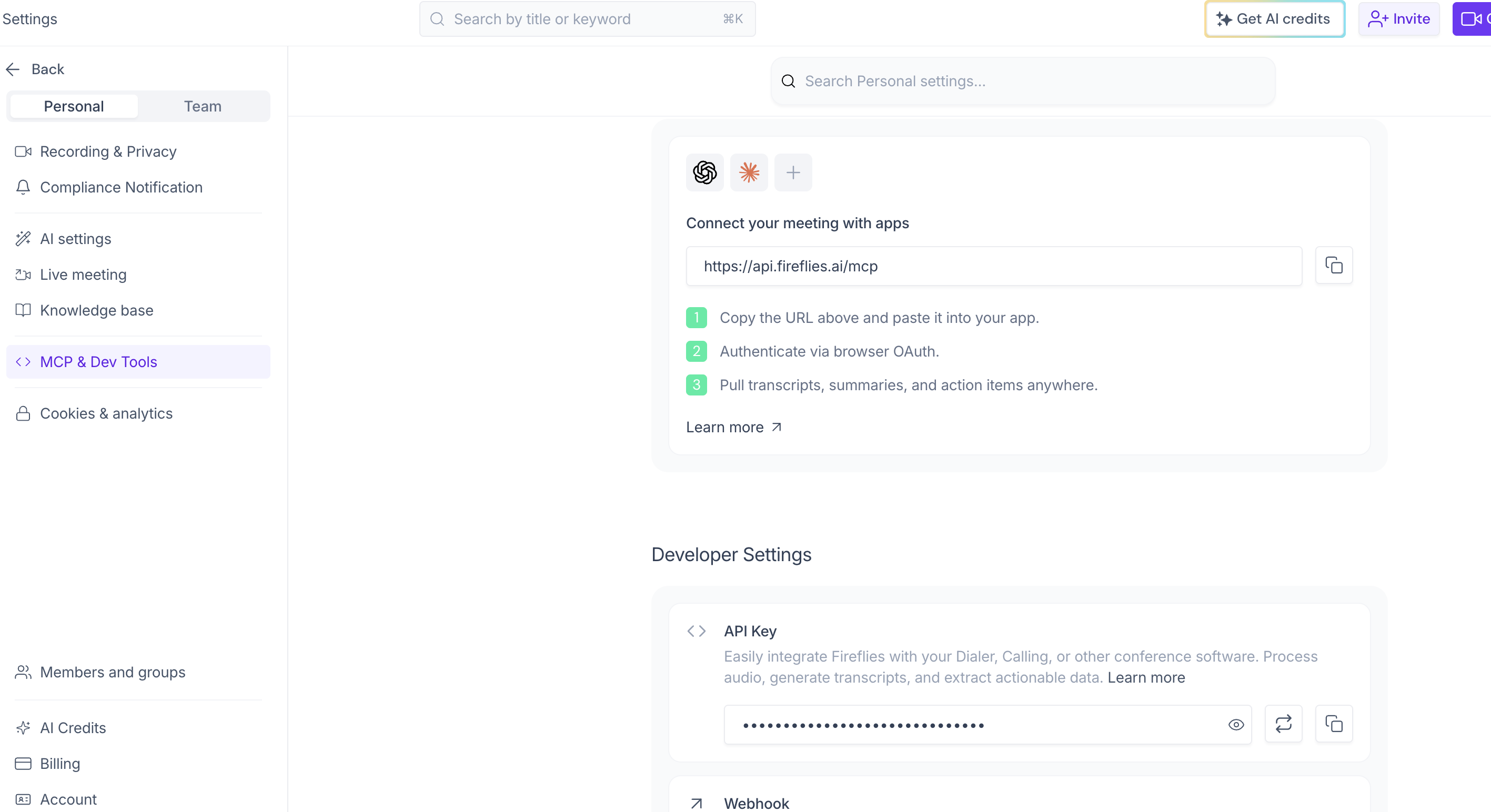
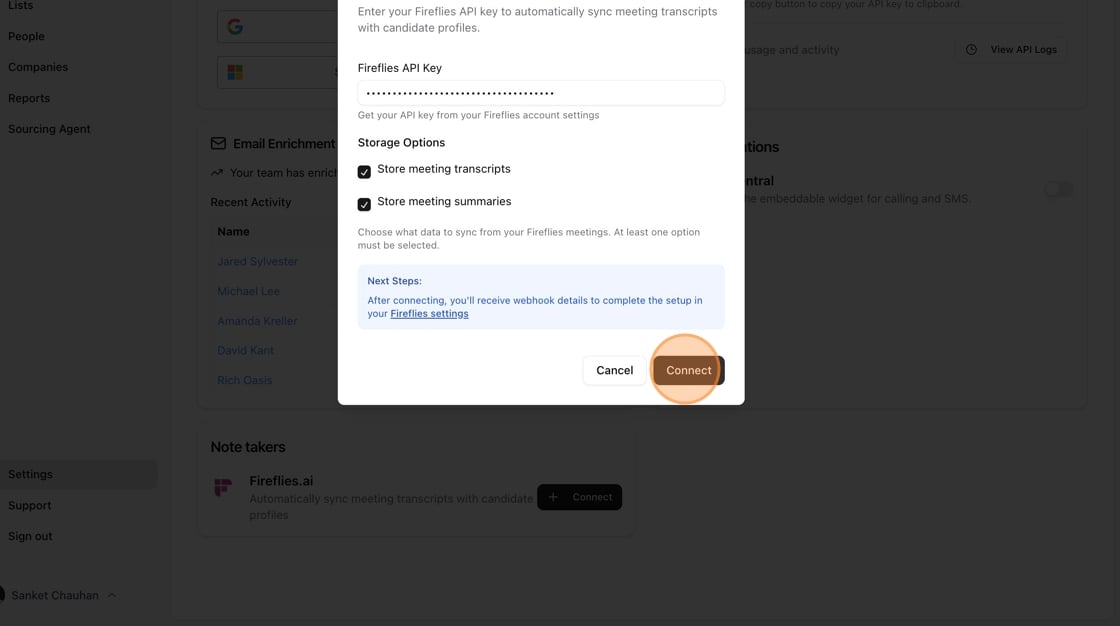
 1. Goto your Fireflies settings ([https://app.fireflies.ai/settings/developer-settings](https://app.fireflies.ai/settings/developer-settings) ) and obtain the API key to paste under Fireflies API key.
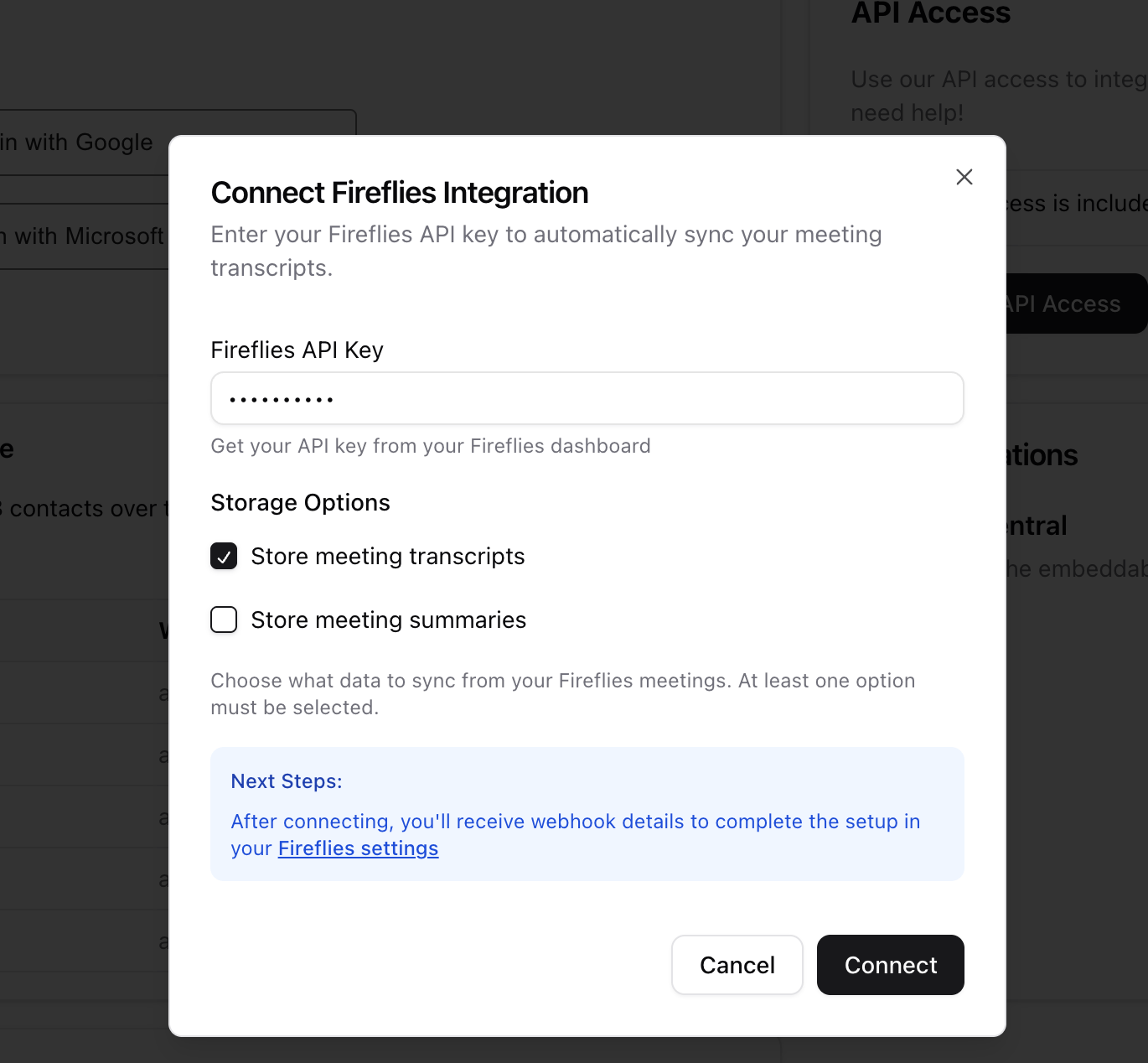
 2. By default it will store meeting transcript. But if you prefer to store the summaries instead of the transcript, then enable that. Note: this will be the fireflies summary.
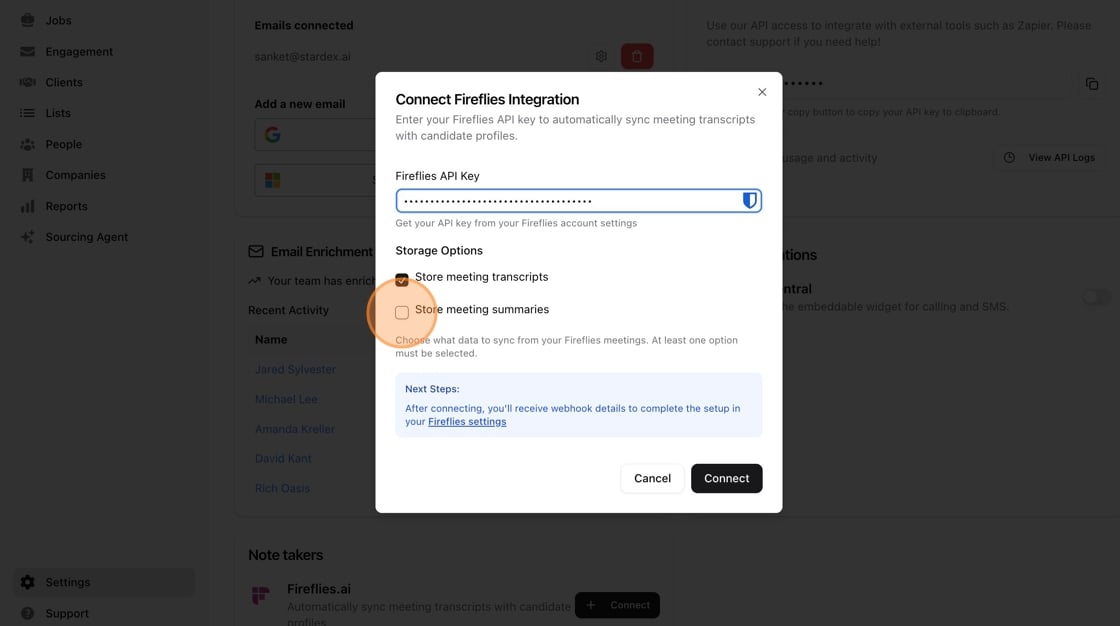 6 Click "Connect"
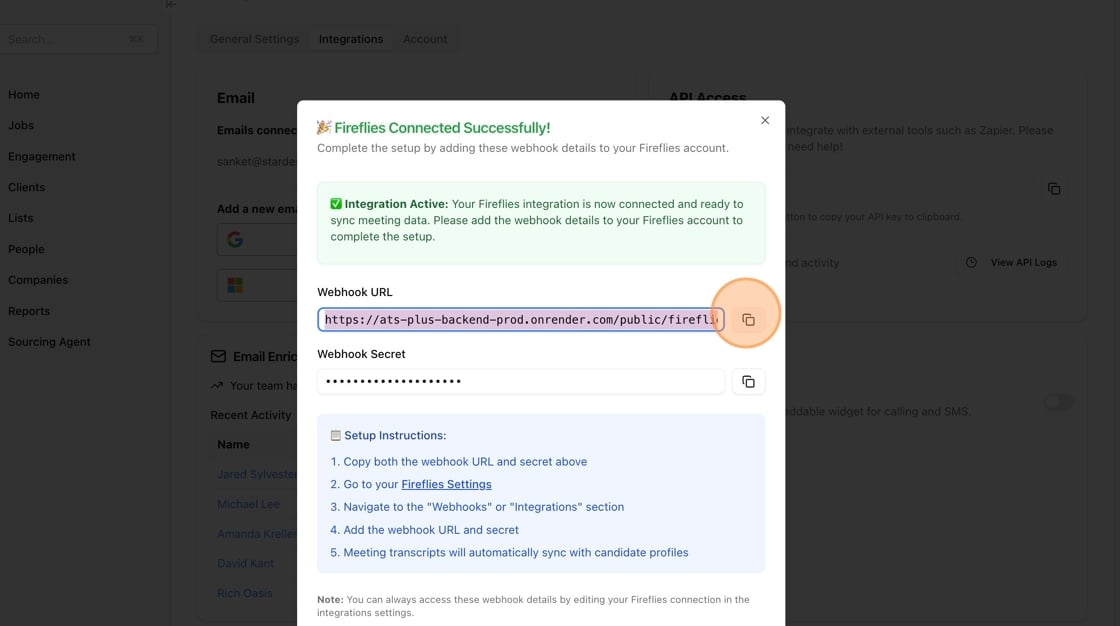
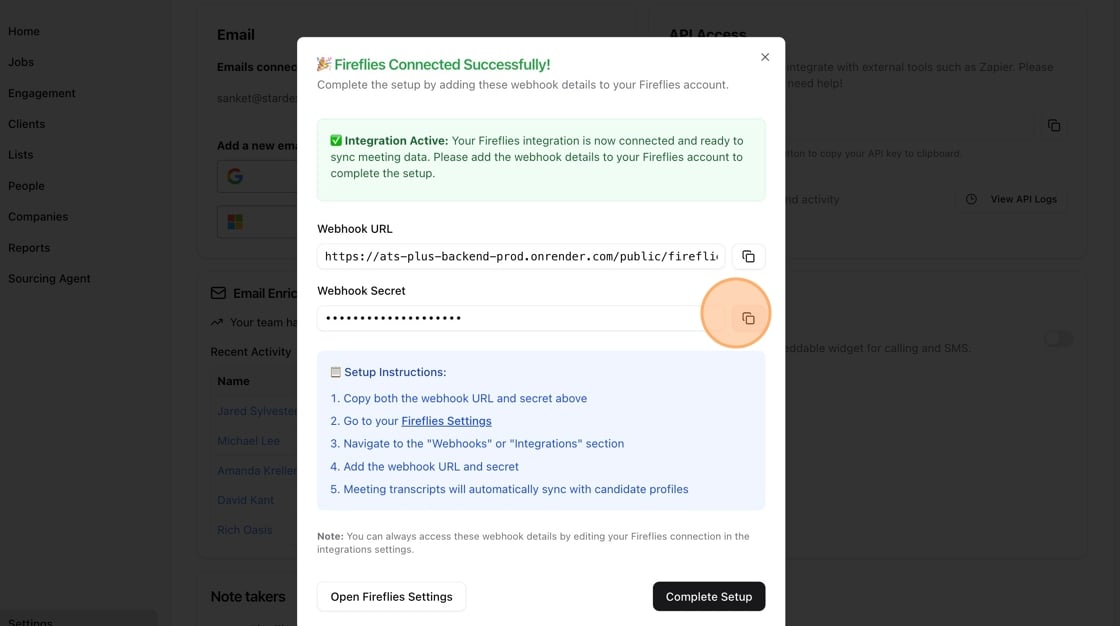
 1. You will see a connection successful. Now we need to make sure that fireflies can send over the right information when a meeting is completed. To do that, copy the webhook URL and secret one by one and paste int he settings.
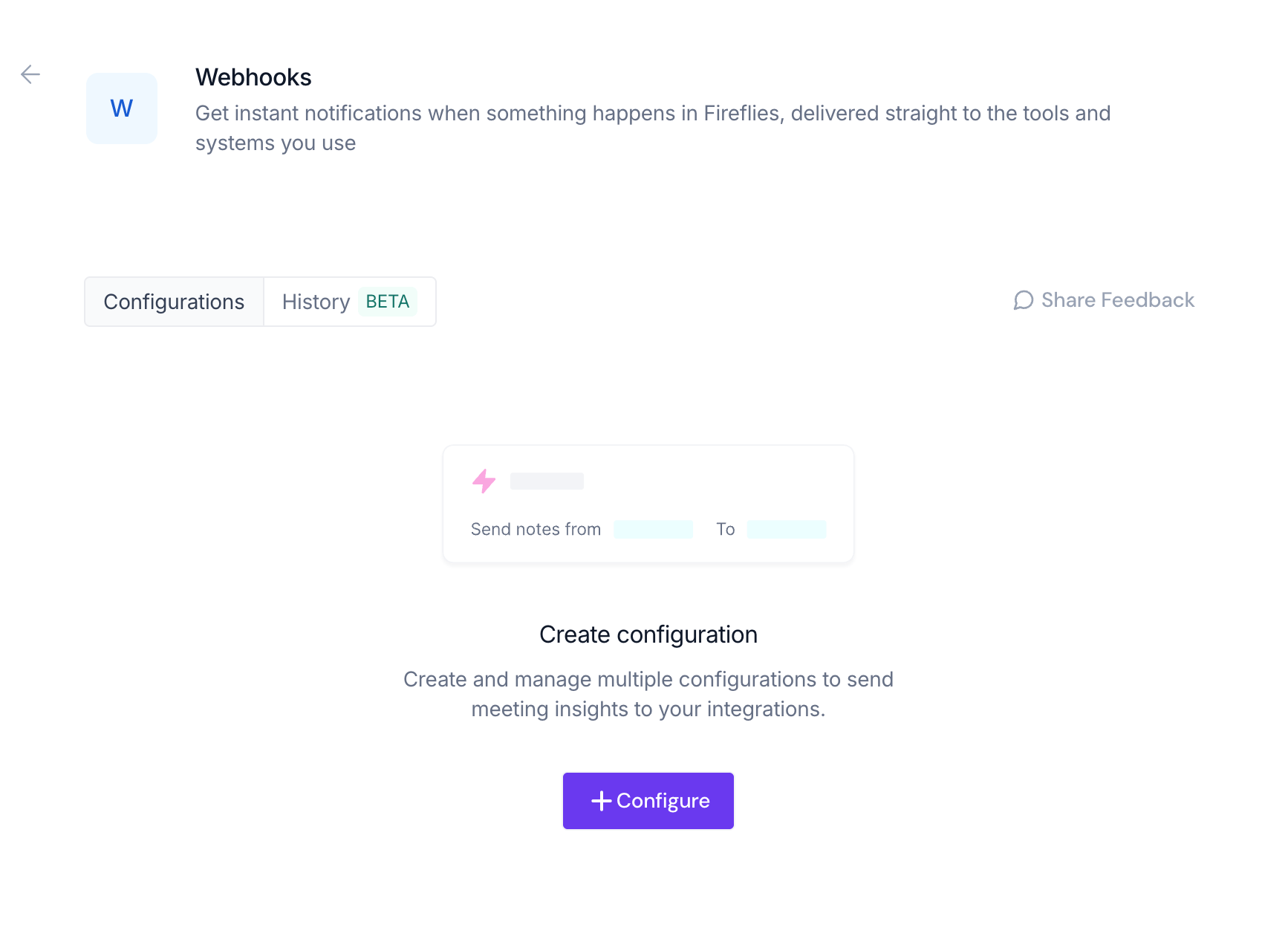
 2. Switch to Fireflies settings tab and goto their webhooks section (View Configuration) or direct link - [https://app.fireflies.ai/integrations/api/webhook](https://app.fireflies.ai/integrations/api/webhook)
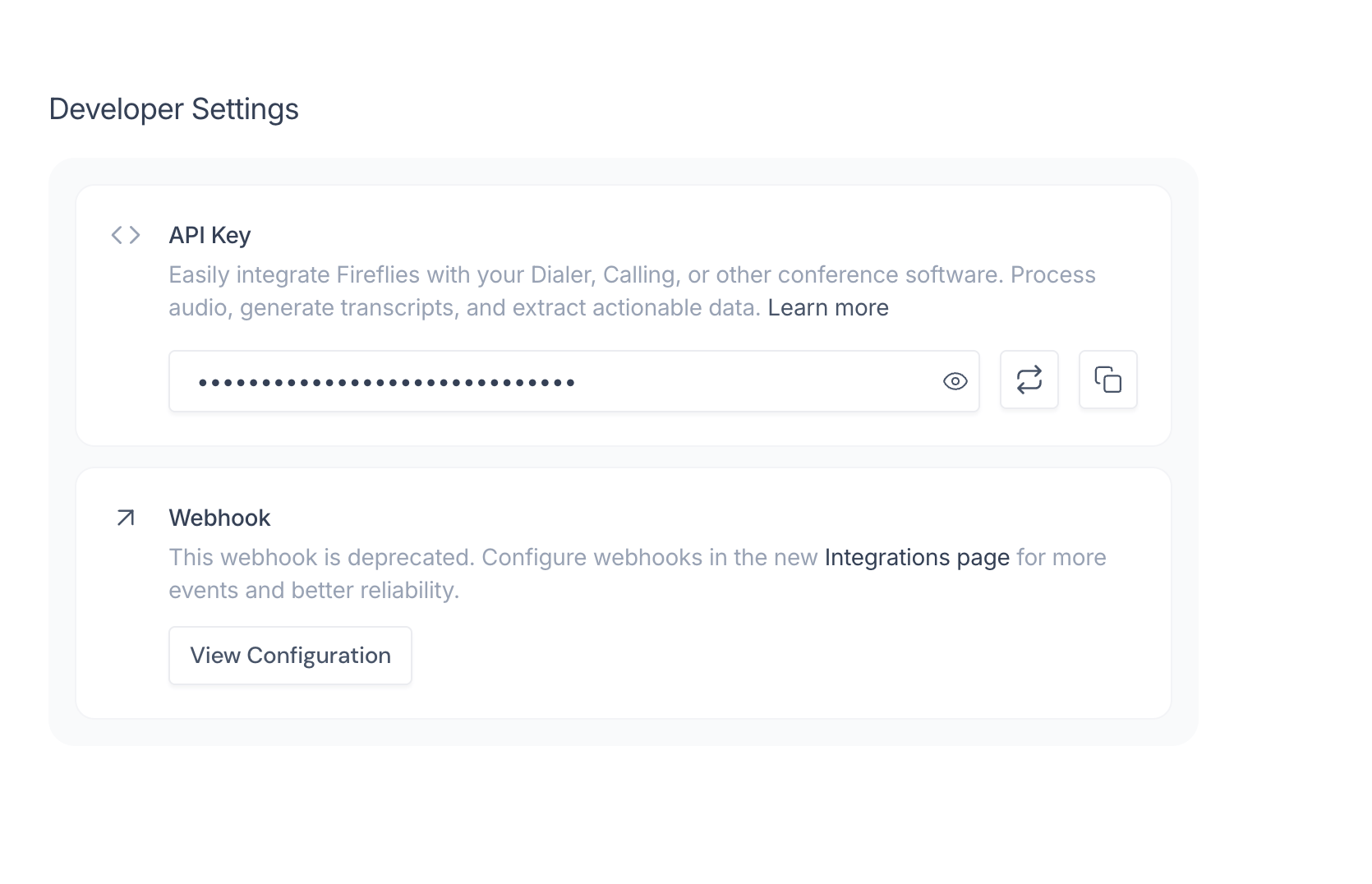
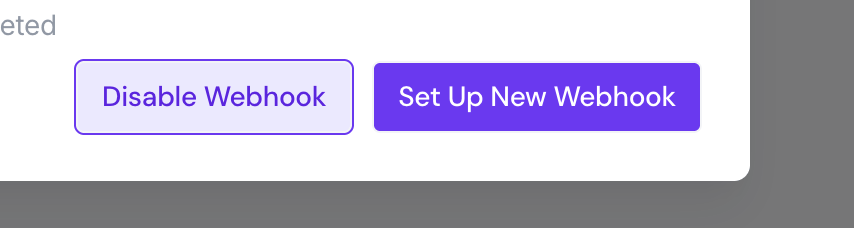 3. You will see a page below, Click Configuration
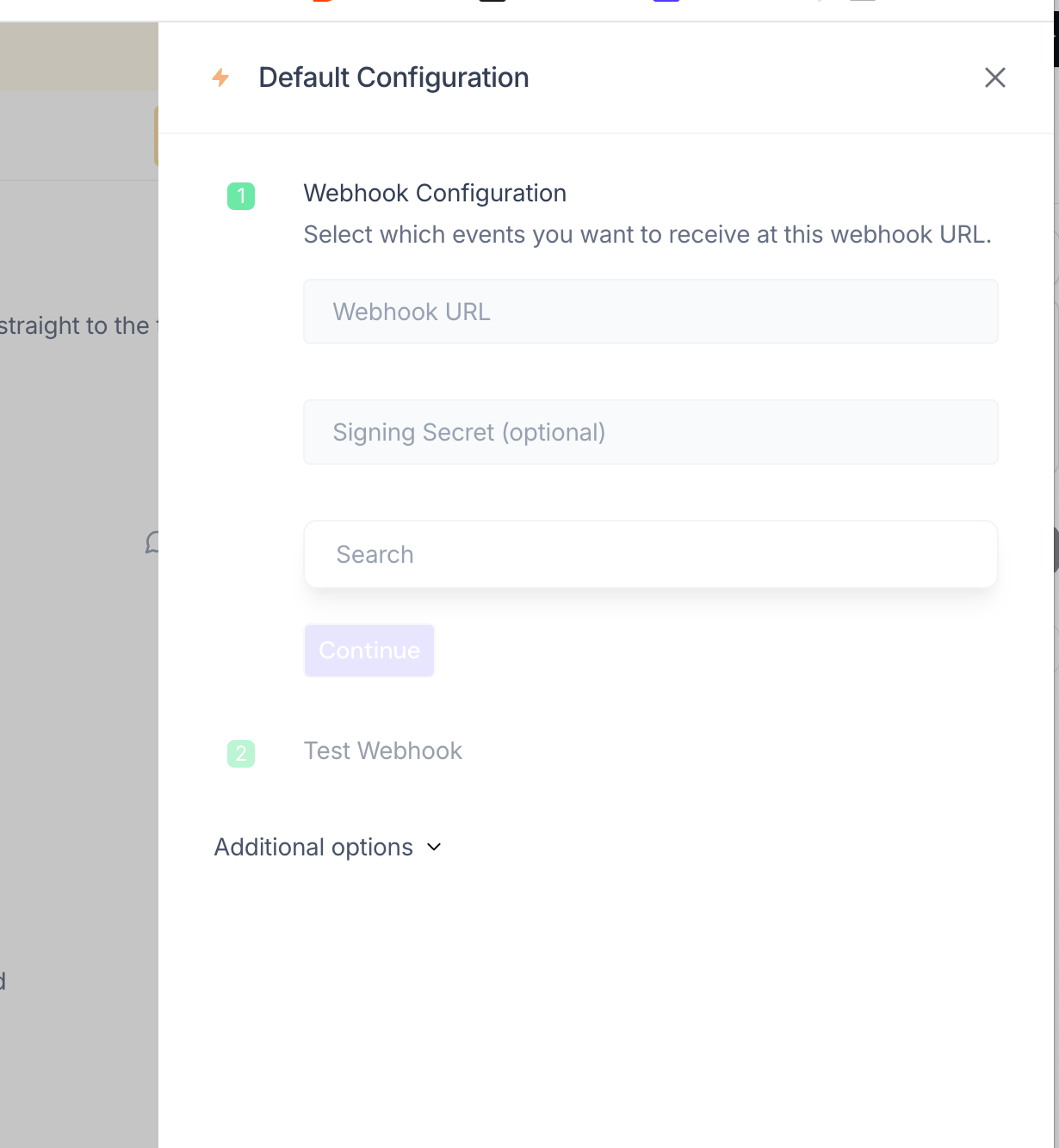
 4. Copy the Webhook URL and Signing Secret from the Stardex tab into the screen below in Fireflies. Click Save.
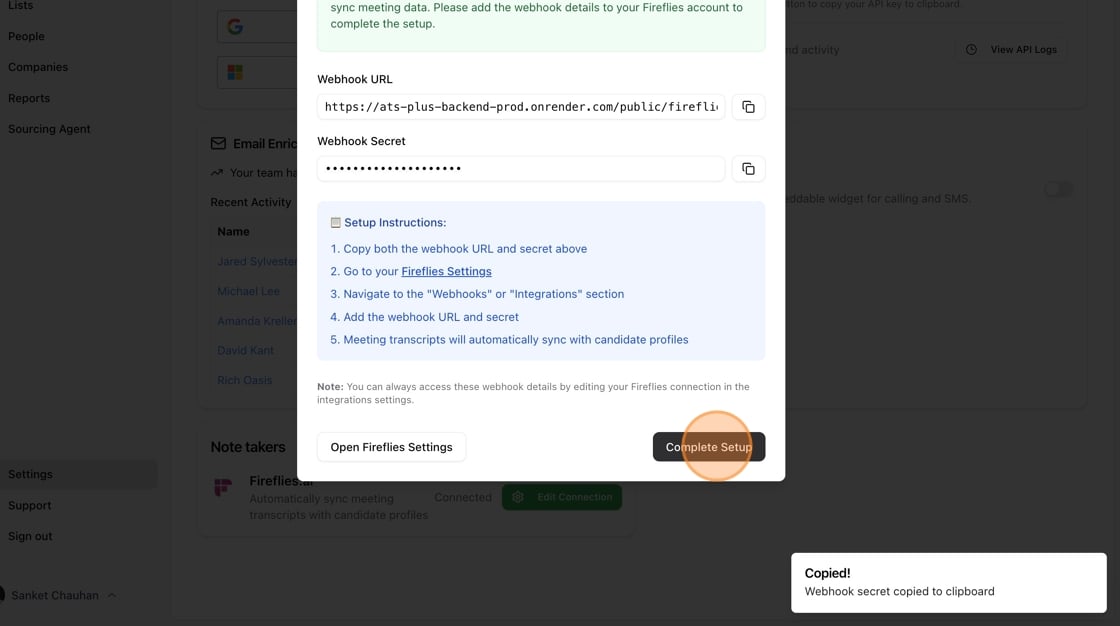
 Click "Complete Setup" and you are done!
 This documentation is built and hosted on [Mintlify](https://mintlify.com), a developer documentation platform.