> ## Documentation Index
> Fetch the complete documentation index at: https://docs.stardex.com/llms.txt
> Use this file to discover all available pages before exploring further.
# Extension settings
> Install the Stardex extension and configure auto-opening, auto-clicking, and LinkedIn message syncing.
The Chrome extension has two kinds of settings: ones inside the extension on LinkedIn, and ones inside Stardex.
***
## Stop the panel from opening on every LinkedIn page
By default, Stardex opens on LinkedIn. You can turn that off **in the extension**, not in Stardex Settings.
Find the **gear** on the extension, and turn off the setting. This is per user.
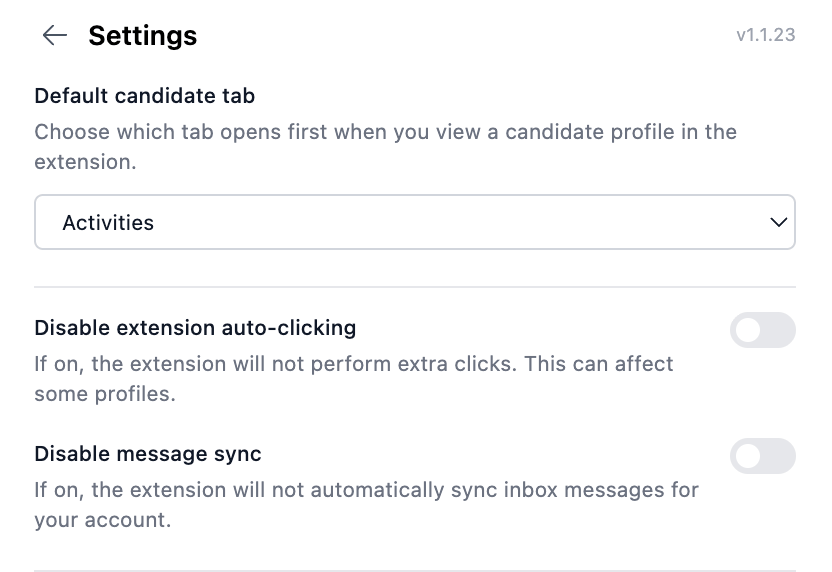 Chrome extension gear for auto-open
***
## Install the extension from Stardex
You can also install (or confirm install) from **Settings → My Settings → Browser Extension**: [stardex.com/settings?tab=my-settings\§ion=browser-extension](https://stardex.com/settings?tab=my-settings\§ion=browser-extension)
If it is already detected, you will see **Extension installed**. Otherwise there is an install button to the Chrome Web Store.
Chrome extension gear for auto-open
***
## Install the extension from Stardex
You can also install (or confirm install) from **Settings → My Settings → Browser Extension**: [stardex.com/settings?tab=my-settings\§ion=browser-extension](https://stardex.com/settings?tab=my-settings\§ion=browser-extension)
If it is already detected, you will see **Extension installed**. Otherwise there is an install button to the Chrome Web Store.
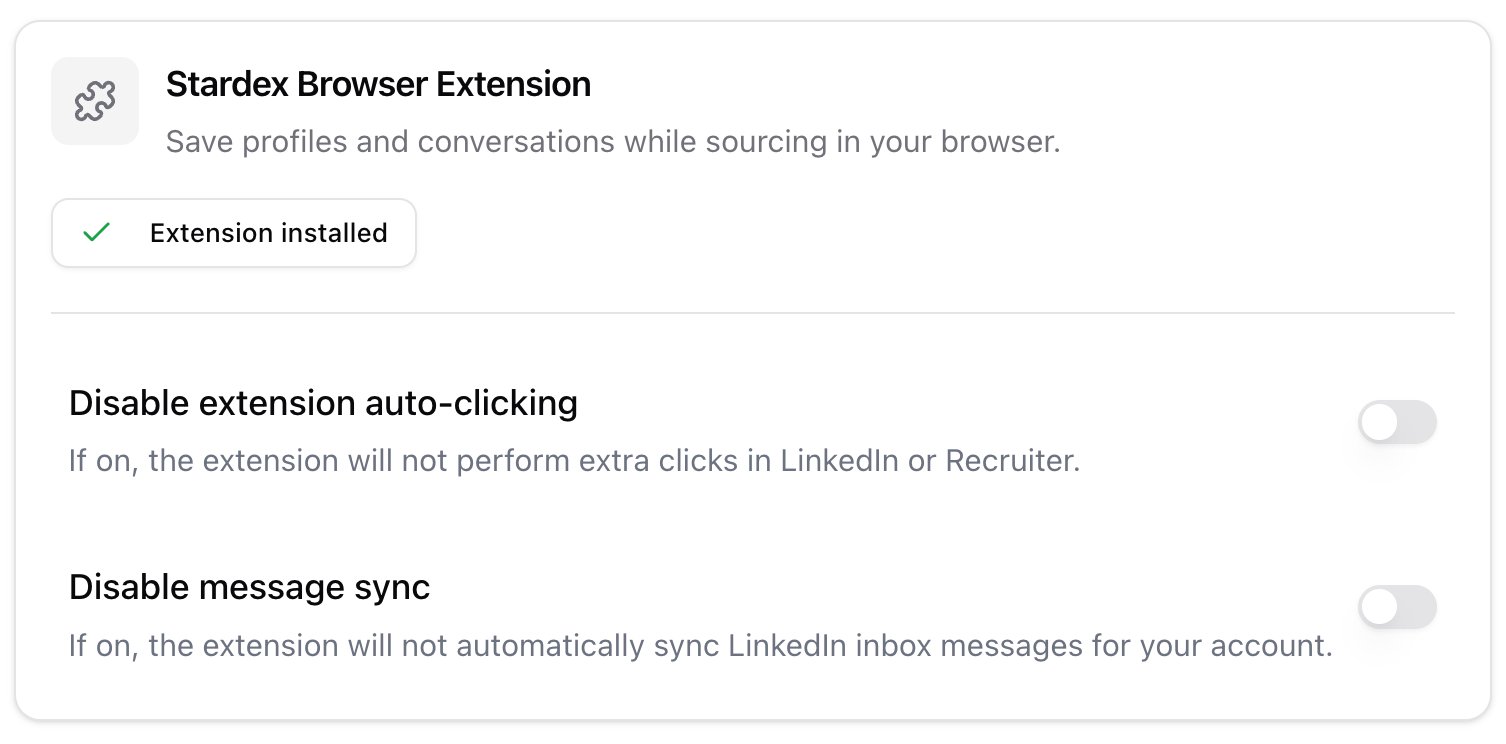 Browser Extension install and toggles
***
## Disable auto-clicking
If you do not want Stardex to click through a LinkedIn profile to capture more than the top of the page, turn on **Disable extension auto-clicking**.
This lives in **Settings → My Settings → Browser Extension**. If the toggle is locked, an admin has turned auto-clicking off for the whole workspace under **Settings → Organization → Compliance → Chrome Extension Settings**: [stardex.com/settings?tab=organization\§ion=compliance](https://stardex.com/settings?tab=organization\§ion=compliance)
Browser Extension install and toggles
***
## Disable auto-clicking
If you do not want Stardex to click through a LinkedIn profile to capture more than the top of the page, turn on **Disable extension auto-clicking**.
This lives in **Settings → My Settings → Browser Extension**. If the toggle is locked, an admin has turned auto-clicking off for the whole workspace under **Settings → Organization → Compliance → Chrome Extension Settings**: [stardex.com/settings?tab=organization\§ion=compliance](https://stardex.com/settings?tab=organization\§ion=compliance)
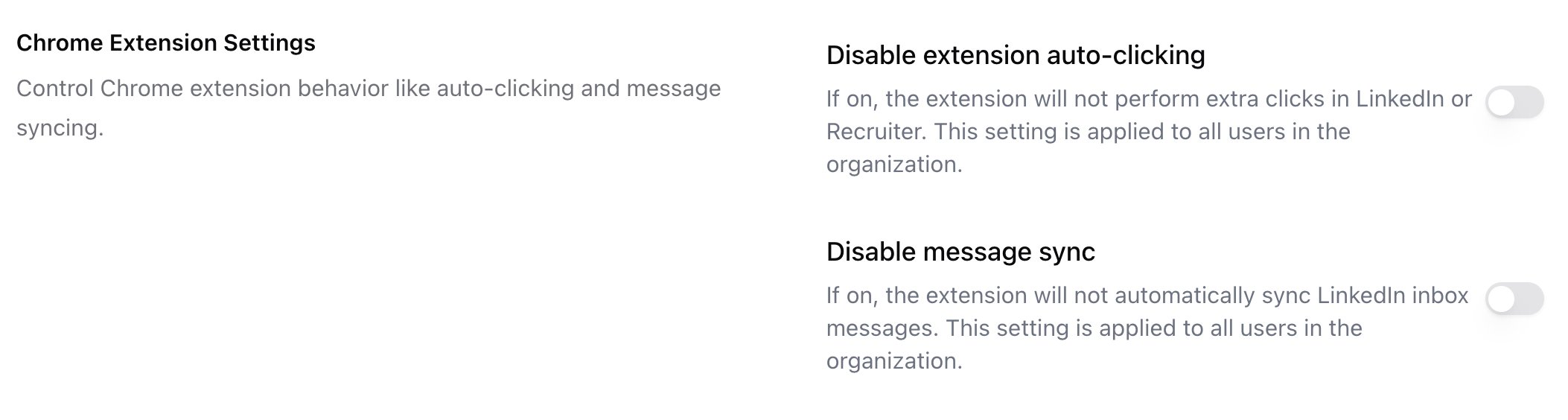 Org Compliance Chrome Extension Settings
When auto-clicking is off, only the top of the experience is stored.
***
## Disable LinkedIn message sync
If you do not want the extension to auto-sync LinkedIn inbox messages into Stardex, turn on **Disable message sync** on the same Browser Extension page.
Admins can lock this off for everyone from Organization → Compliance → Chrome Extension Settings. See also [Syncing LinkedIn Messages into Stardex](/help-center/syncing-linkedin-messages-into-stardex).
***
## Related guides
* [One-click sourcing via Chrome extension](/help-center/one-click-sourcing-via-chrome-extension)
* [Syncing LinkedIn Messages into Stardex](/help-center/syncing-linkedin-messages-into-stardex)
* [Email & other integrations](/help-center/email-other-integrations)
This documentation is built and hosted on [Mintlify](https://mintlify.com), a developer documentation platform.
Org Compliance Chrome Extension Settings
When auto-clicking is off, only the top of the experience is stored.
***
## Disable LinkedIn message sync
If you do not want the extension to auto-sync LinkedIn inbox messages into Stardex, turn on **Disable message sync** on the same Browser Extension page.
Admins can lock this off for everyone from Organization → Compliance → Chrome Extension Settings. See also [Syncing LinkedIn Messages into Stardex](/help-center/syncing-linkedin-messages-into-stardex).
***
## Related guides
* [One-click sourcing via Chrome extension](/help-center/one-click-sourcing-via-chrome-extension)
* [Syncing LinkedIn Messages into Stardex](/help-center/syncing-linkedin-messages-into-stardex)
* [Email & other integrations](/help-center/email-other-integrations)
This documentation is built and hosted on [Mintlify](https://mintlify.com), a developer documentation platform.