> ## Documentation Index
> Fetch the complete documentation index at: https://docs.stardex.com/llms.txt
> Use this file to discover all available pages before exploring further.
# Email & other integrations
> Find mailbox, calendar, notetaker, voice, messaging, email intake, API, and webhook settings in one place.
This is the hub for connecting work tools to Stardex: your mailbox, calendar, notetakers, resume forwarding, API keys, ChatGPT / Claude, and VoIP or WhatsApp.
Everything used to live in a few different Settings screens. It is now one tab.
Go to **Settings → Email & other integrations**: [stardex.com/settings?tab=email-calendar\§ion=overview](https://stardex.com/settings?tab=email-calendar\§ion=overview)
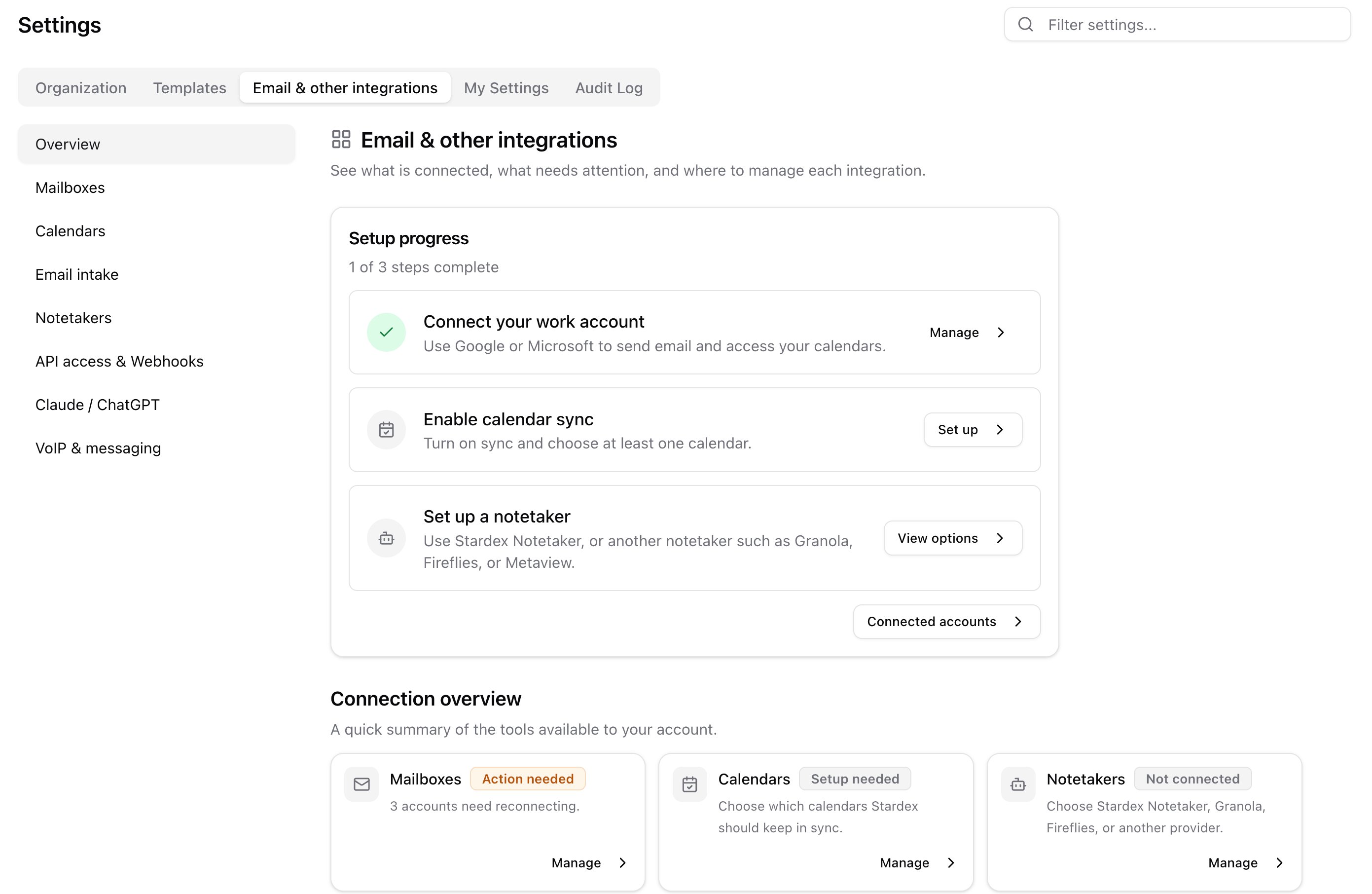 Settings header with Email & other integrations selected
**Who sees what**
* Everyone can connect their own mailbox, calendar, personal notetakers, ChatGPT / Claude, and WhatsApp (once Stardex has enabled WhatsApp for your organization).
* Admins also see **Email intake**, **API access & Webhooks**, and RingCentral / Ringover under **VoIP & messaging**.
* Organization settings (pipeline, members, billing, compliance) still live under the **Organization** tab.
***
## First-time setup
Open **Overview**. Stardex walks you through three steps:
1. **Connect your work account** — Google or Microsoft. This is the mailbox you send from.
2. **Enable calendar sync** — pick which calendars Stardex can see, so meetings and the notetaker work.
3. **Set up a notetaker** — Stardex Notetaker, Granola, or Fireflies.
Each row is **Connect**, **Set up**, or **Manage** once it is done.
Settings header with Email & other integrations selected
**Who sees what**
* Everyone can connect their own mailbox, calendar, personal notetakers, ChatGPT / Claude, and WhatsApp (once Stardex has enabled WhatsApp for your organization).
* Admins also see **Email intake**, **API access & Webhooks**, and RingCentral / Ringover under **VoIP & messaging**.
* Organization settings (pipeline, members, billing, compliance) still live under the **Organization** tab.
***
## First-time setup
Open **Overview**. Stardex walks you through three steps:
1. **Connect your work account** — Google or Microsoft. This is the mailbox you send from.
2. **Enable calendar sync** — pick which calendars Stardex can see, so meetings and the notetaker work.
3. **Set up a notetaker** — Stardex Notetaker, Granola, or Fireflies.
Each row is **Connect**, **Set up**, or **Manage** once it is done.
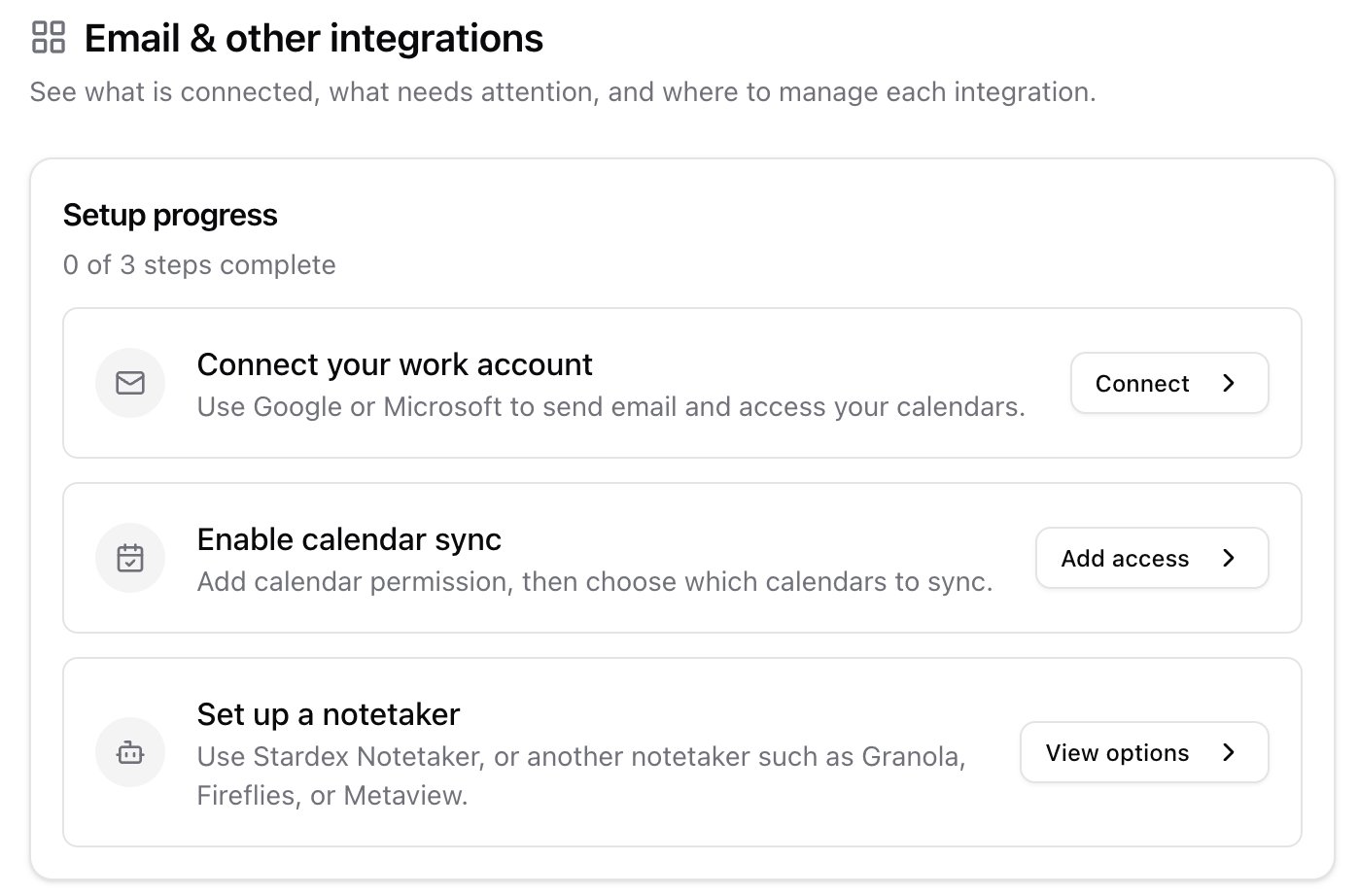 Overview setup progress with the three incomplete steps
When those are done, Overview switches to **Connected accounts**. Each row shows whether email, calendar, and a notetaker are working for that inbox.
Overview setup progress with the three incomplete steps
When those are done, Overview switches to **Connected accounts**. Each row shows whether email, calendar, and a notetaker are working for that inbox.
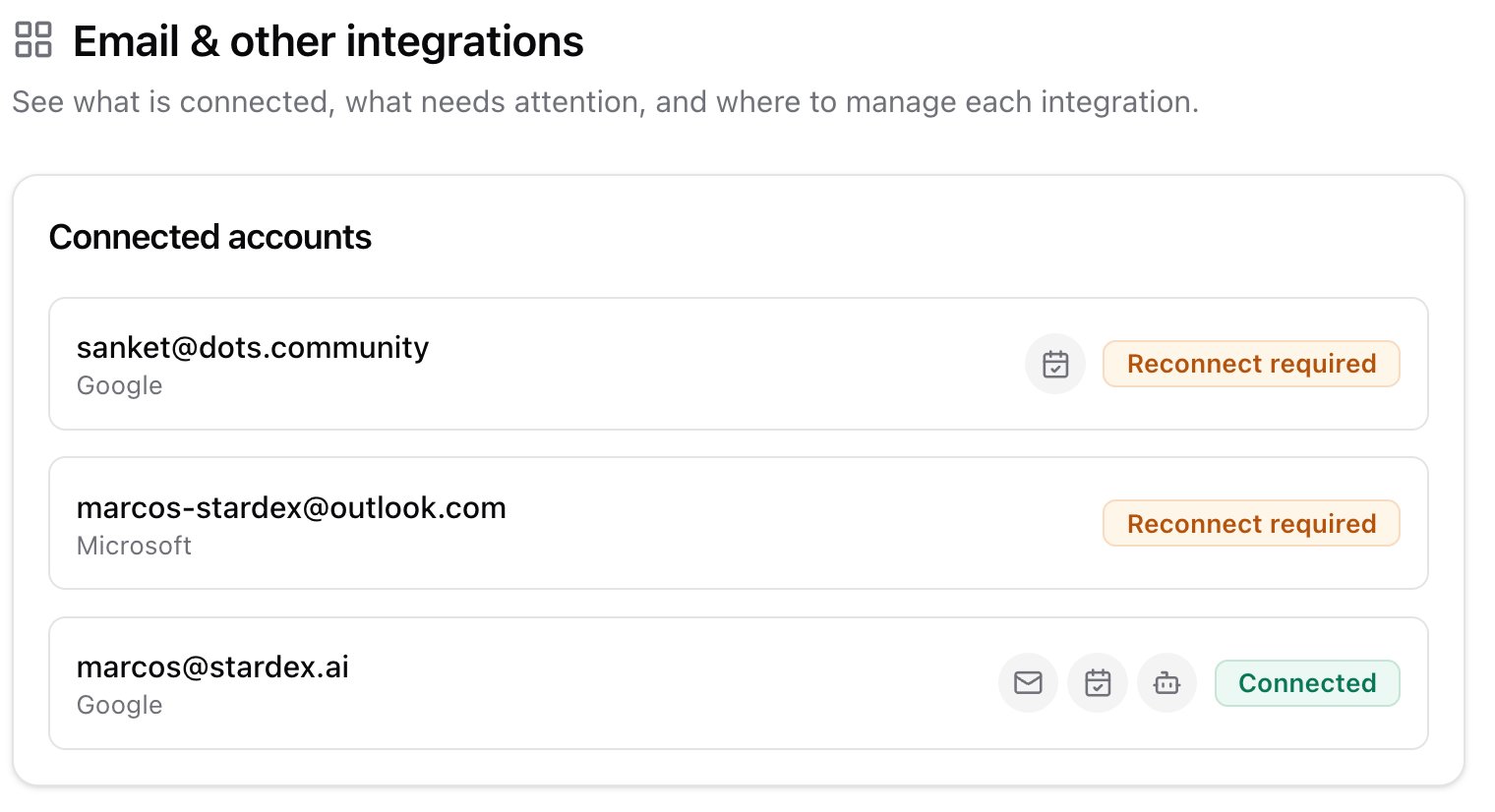 Overview connected accounts with email / calendar / notetaker icons
Below that, **Connection overview** cards jump you to each section.
Overview connected accounts with email / calendar / notetaker icons
Below that, **Connection overview** cards jump you to each section.
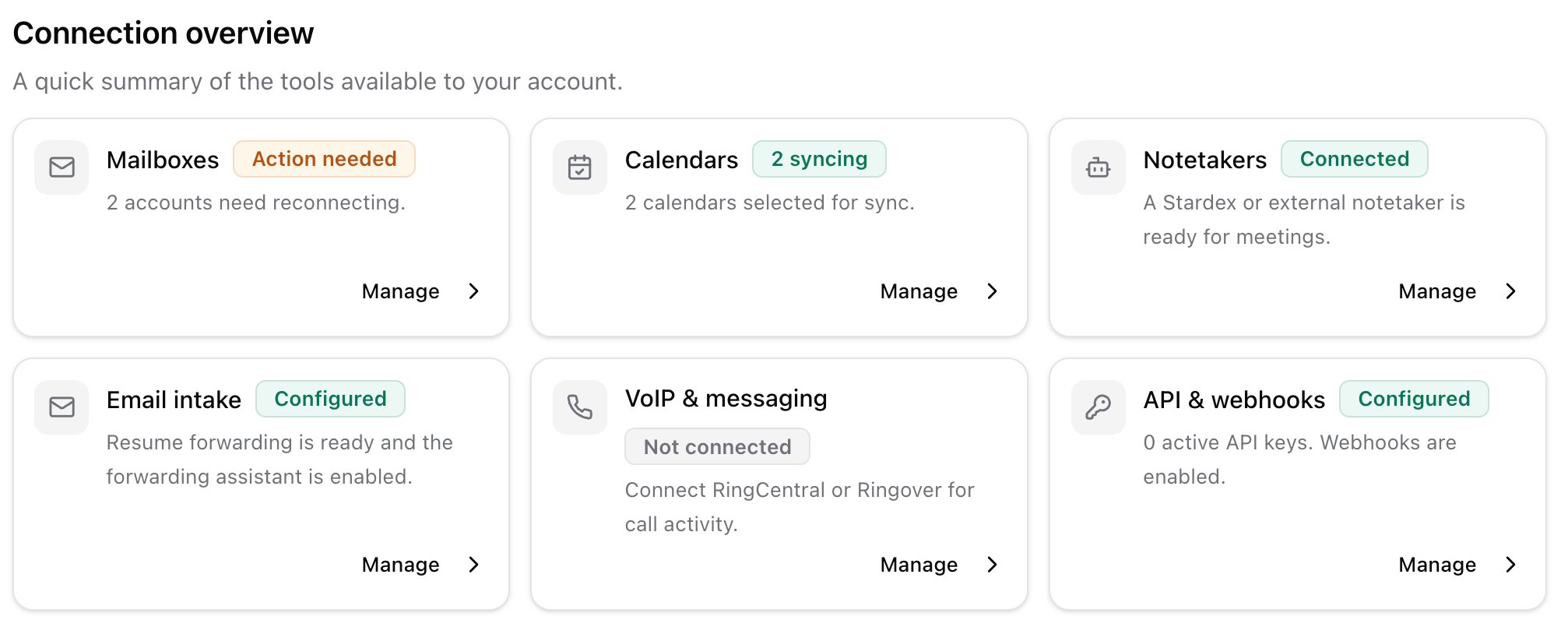 Overview connection cards including admin cards for Email intake, VoIP, API
***
## What’s in this tab
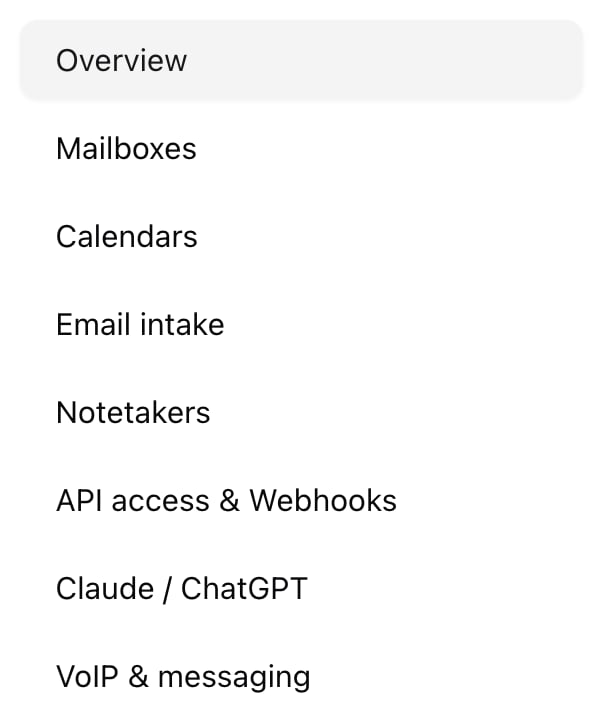
Use the left sidebar, or the cards on Overview.
**Mailboxes** — Connect Google or Microsoft. Manage sending health, signatures, email sync, and sharing a mailbox with a teammate. Details: [Email and calendar syncing](/help-center/email-and-calendar-syncing), [Connecting Multiple Mailboxes](/help-center/connecting-multiple-mailboxes).
**Calendars** — Turn calendar sync on, pick calendars, set meeting defaults. Admins also set Calendar Stage Automation here.
**Email intake** (admins) — Your team forwarding address (`your-team@inbox.stardex.ai`) and the Email Forwarding Assistant.
**Notetakers** — Stardex Notetaker, plus Granola and Fireflies (personal for everyone, workspace / enterprise for admins).
**API access & Webhooks** (admins) — API keys and Svix webhooks.
**Claude / ChatGPT** — Copy the Stardex MCP URL, or jump into ChatGPT / Claude with it filled in.
**VoIP & messaging** — Admins connect RingCentral or Ringover. Anyone can connect their own WhatsApp once Stardex has enabled that add-on for your organization.
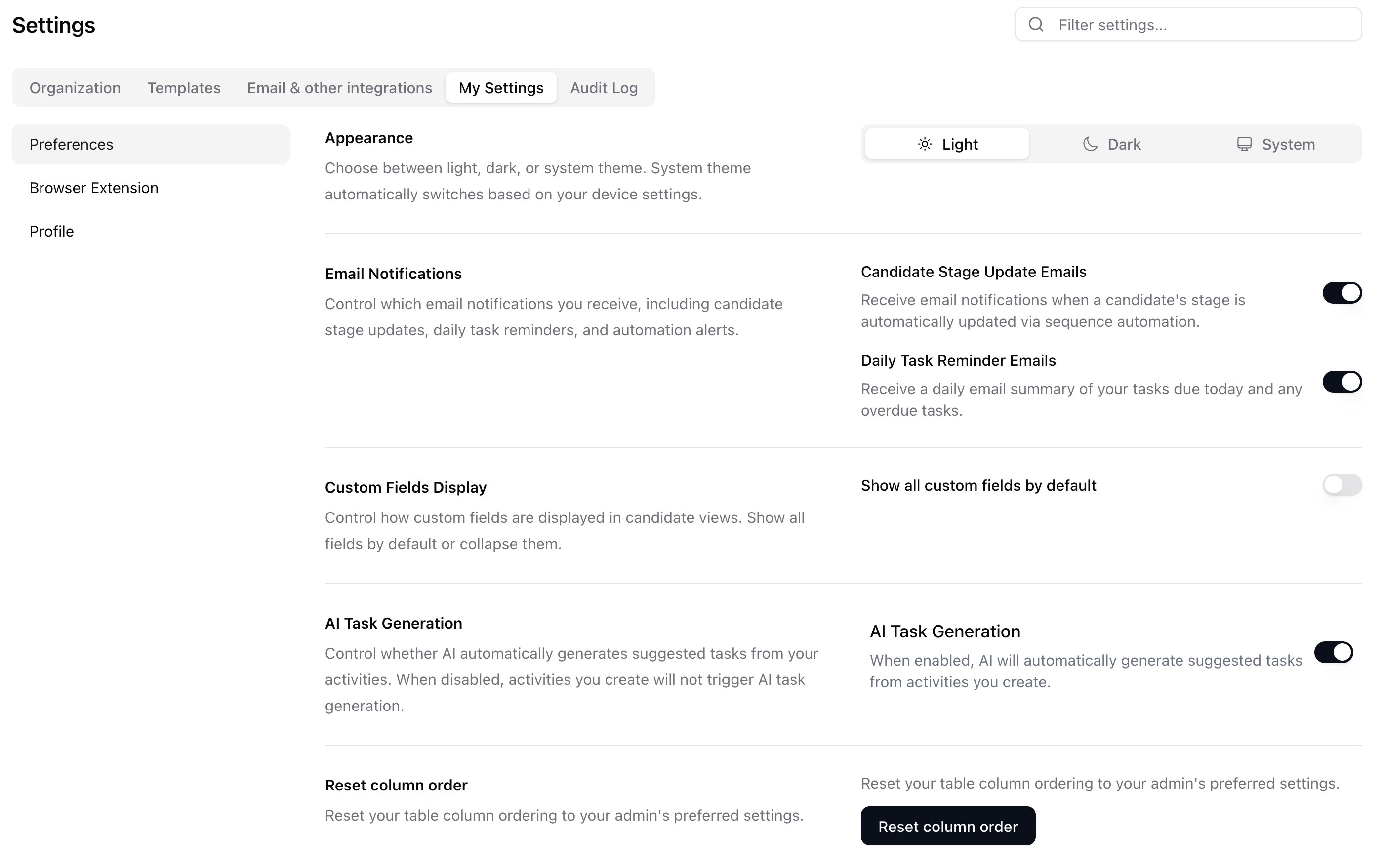
Theme, notifications, and your login profile still live under **My Settings**.
Overview connection cards including admin cards for Email intake, VoIP, API
***
## What’s in this tab
Use the left sidebar, or the cards on Overview.
**Mailboxes** — Connect Google or Microsoft. Manage sending health, signatures, email sync, and sharing a mailbox with a teammate. Details: [Email and calendar syncing](/help-center/email-and-calendar-syncing), [Connecting Multiple Mailboxes](/help-center/connecting-multiple-mailboxes).
**Calendars** — Turn calendar sync on, pick calendars, set meeting defaults. Admins also set Calendar Stage Automation here.
**Email intake** (admins) — Your team forwarding address (`your-team@inbox.stardex.ai`) and the Email Forwarding Assistant.
**Notetakers** — Stardex Notetaker, plus Granola and Fireflies (personal for everyone, workspace / enterprise for admins).
**API access & Webhooks** (admins) — API keys and Svix webhooks.
**Claude / ChatGPT** — Copy the Stardex MCP URL, or jump into ChatGPT / Claude with it filled in.
**VoIP & messaging** — Admins connect RingCentral or Ringover. Anyone can connect their own WhatsApp once Stardex has enabled that add-on for your organization.
Theme, notifications, and your login profile still live under **My Settings**.
 My Settings Preferences
 Left sidebar of Email & other integrations showing every section
***
## Finding a setting
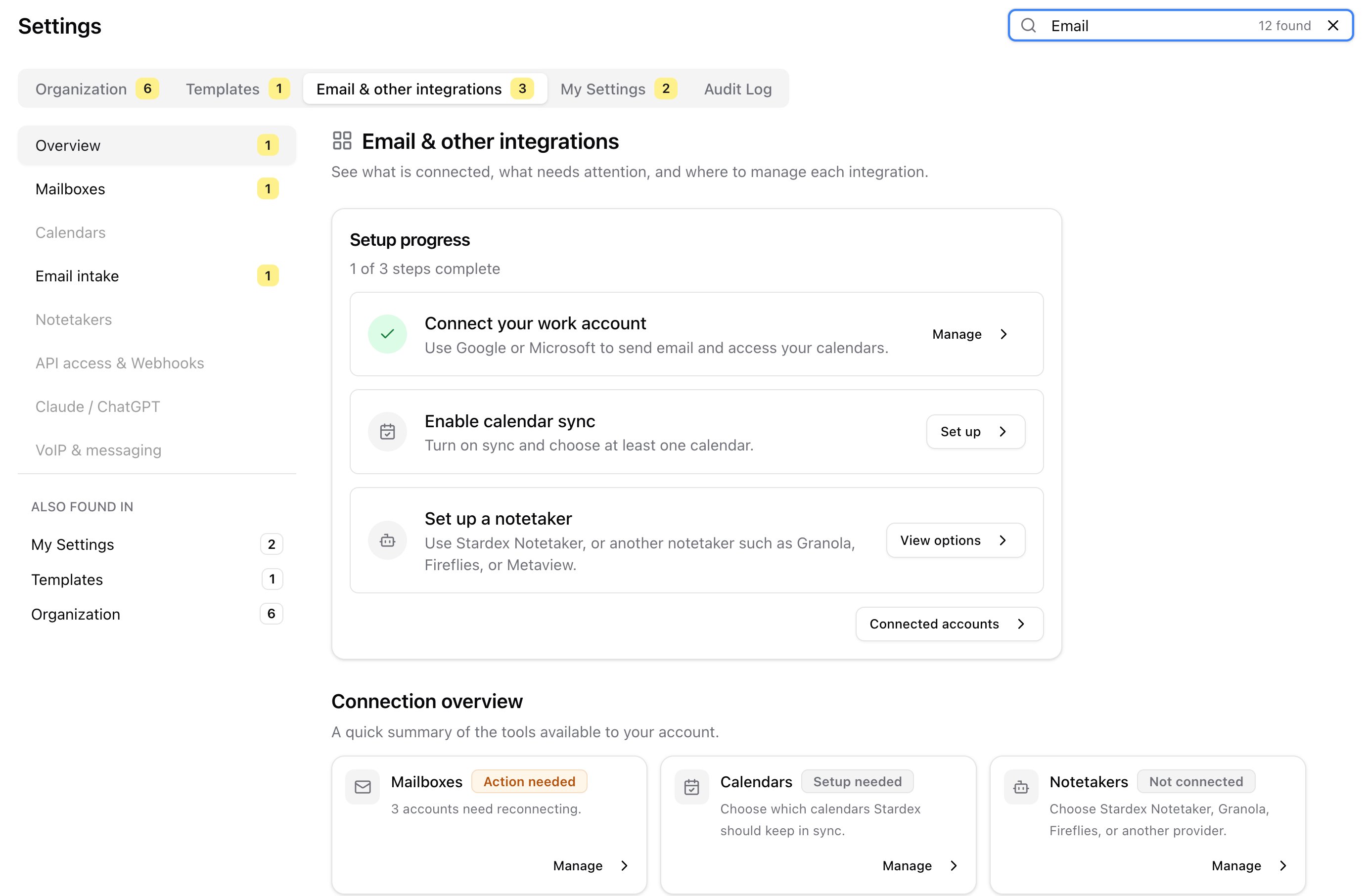
Use **Filter settings...** in the top right. Matching tabs get a yellow badge. If the match is on another tab, a jump chip appears in the sidebar.
Left sidebar of Email & other integrations showing every section
***
## Finding a setting
Use **Filter settings...** in the top right. Matching tabs get a yellow badge. If the match is on another tab, a jump chip appears in the sidebar.
 Filter settings search with yellow badges on tabs
***
## Related guides
* [Email and calendar syncing](/help-center/email-and-calendar-syncing)
* [Connecting Multiple Mailboxes](/help-center/connecting-multiple-mailboxes)
* [Connect your calendar and enable Stardex notetaker!](/help-center/connect-your-calendar-and-enable-stardex-notetaker)
* [Calendar Stage Automation](/help-center/calendar-stage-automation)
* [Resume Forwarding & Email Intake](/help-center/resume-forwarding-email-intake)
* [Granola Integration](/help-center/granola-integration)
* [Fireflies](/help-center/fireflies)
* [WhatsApp Integration](/help-center/whatsapp-integration)
* [API Keys](/help-center/api-keys)
* [Webhooks](/help-center/webhooks)
* [Claude connector](/help-center/claude-connector)
* [Ringcentral Call Widget](/help-center/ringcentral-call-widget)
* [Ringover Integration](/help-center/ringover-integration)
This documentation is built and hosted on [Mintlify](https://mintlify.com), a developer documentation platform.
Filter settings search with yellow badges on tabs
***
## Related guides
* [Email and calendar syncing](/help-center/email-and-calendar-syncing)
* [Connecting Multiple Mailboxes](/help-center/connecting-multiple-mailboxes)
* [Connect your calendar and enable Stardex notetaker!](/help-center/connect-your-calendar-and-enable-stardex-notetaker)
* [Calendar Stage Automation](/help-center/calendar-stage-automation)
* [Resume Forwarding & Email Intake](/help-center/resume-forwarding-email-intake)
* [Granola Integration](/help-center/granola-integration)
* [Fireflies](/help-center/fireflies)
* [WhatsApp Integration](/help-center/whatsapp-integration)
* [API Keys](/help-center/api-keys)
* [Webhooks](/help-center/webhooks)
* [Claude connector](/help-center/claude-connector)
* [Ringcentral Call Widget](/help-center/ringcentral-call-widget)
* [Ringover Integration](/help-center/ringover-integration)
This documentation is built and hosted on [Mintlify](https://mintlify.com), a developer documentation platform.