> ## Documentation Index
> Fetch the complete documentation index at: https://docs.stardex.com/llms.txt
> Use this file to discover all available pages before exploring further.
# Email & calendar sharing controls
> Control what teammates can see in synced email, calendar events, and notetaker recordings.
When you connect a mailbox or calendar, Stardex syncs it so the rest of the team can work from the same place: they can see that someone emailed a candidate, and they can find a time to meet. That only works if some of that information is shared.
It does not mean every subject line and every calendar title has to be team-wide. **Sharing controls** let you choose how much teammates can see of a mailbox or calendar you connected. Sync stays on. You are not turning the account off.
Email and calendar are set separately, because they are used differently. Email is mostly about what appears on a person’s timeline. Calendar is mostly about whether teammates can see the title of an event, or just that you are busy.
You change this on mailboxes and calendars you connected.
***
## Email: what shows up on a timeline
Stardex logs mail from your connected mailbox onto the matching candidate or company. Teammates opening that profile can see the thread, unless you limit it.
### Change it
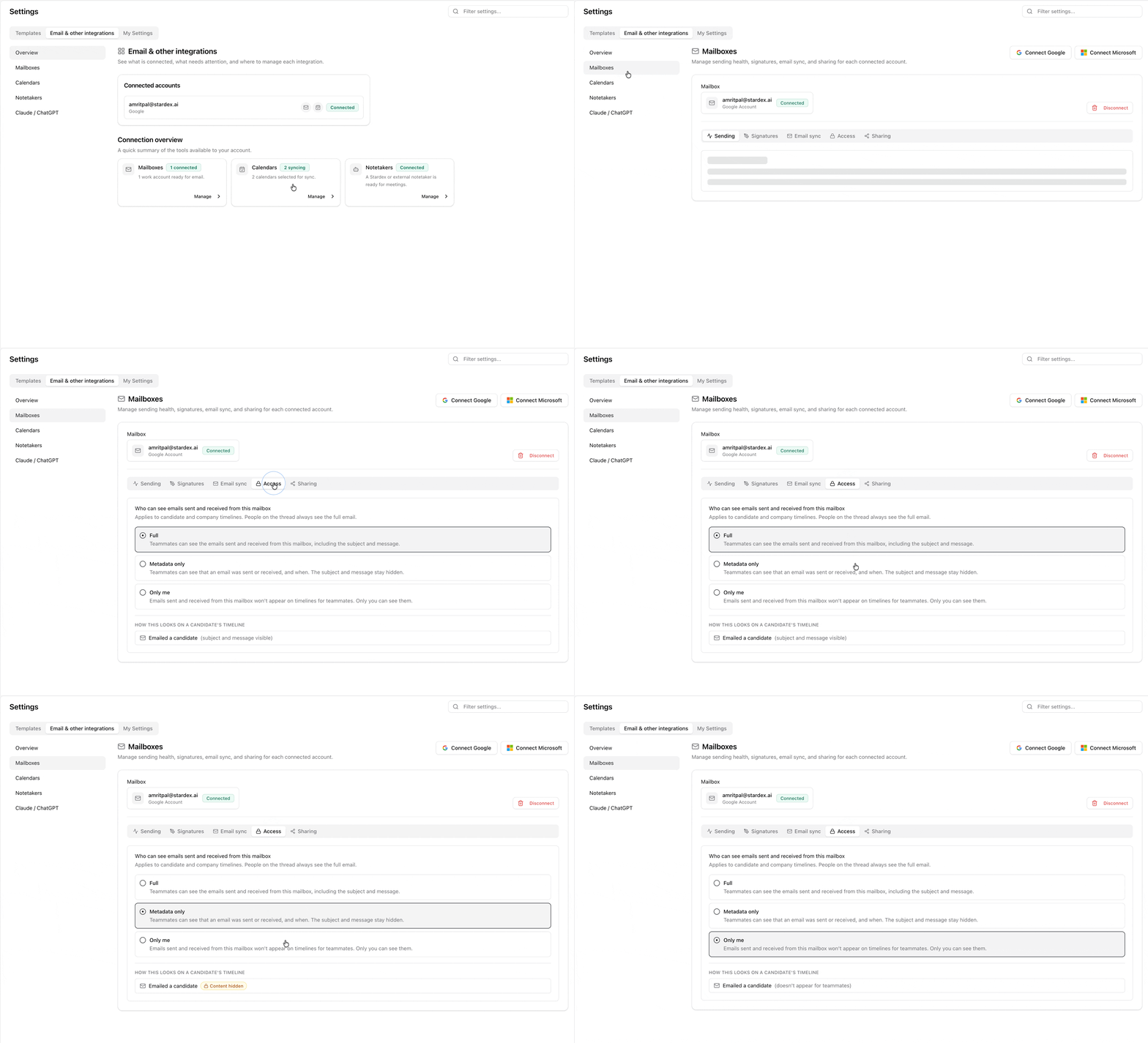
1. Go to **Settings → Email & other integrations → Mailboxes**: [stardex.com/settings?tab=email-calendar\§ion=mailboxes](https://stardex.com/settings?tab=email-calendar\§ion=mailboxes)
2. Select the mailbox you connected.
3. Open the **Access** tab. (There is also a **Sharing** tab. That one is who can *send* from this mailbox, not who can read it.)
4. Pick how much teammates can see.
Only you can change **Access** on a mailbox you connected. An admin cannot do this for you
 ### The three options
**Full** is the default for a new mailbox. Teammates see the emails from this account the way you do on a timeline, including the subject and the message. Use this when the inbox is mainly recruiting mail and the team should be able to pick up a thread.
**Metadata only** lets teammates see that the email happened, who sent it, and when. The subject and body are replaced with a **Content hidden** chip. Use this when you want the activity on the profile, but not the contents.
**Only me** keeps those emails off other people’s timelines altogether. You still see them. Use this for a mailbox that should stay private.
| | Teammates see that it happened | Teammates see subject and body |
| - | - | - |
| **Full** | Yes | Yes |
| **Metadata only** | Yes | No (**Content hidden**) |
| **Only me** | No | No |
### The three options
**Full** is the default for a new mailbox. Teammates see the emails from this account the way you do on a timeline, including the subject and the message. Use this when the inbox is mainly recruiting mail and the team should be able to pick up a thread.
**Metadata only** lets teammates see that the email happened, who sent it, and when. The subject and body are replaced with a **Content hidden** chip. Use this when you want the activity on the profile, but not the contents.
**Only me** keeps those emails off other people’s timelines altogether. You still see them. Use this for a mailbox that should stay private.
| | Teammates see that it happened | Teammates see subject and body |
| - | - | - |
| **Full** | Yes | Yes |
| **Metadata only** | Yes | No (**Content hidden**) |
| **Only me** | No | No |
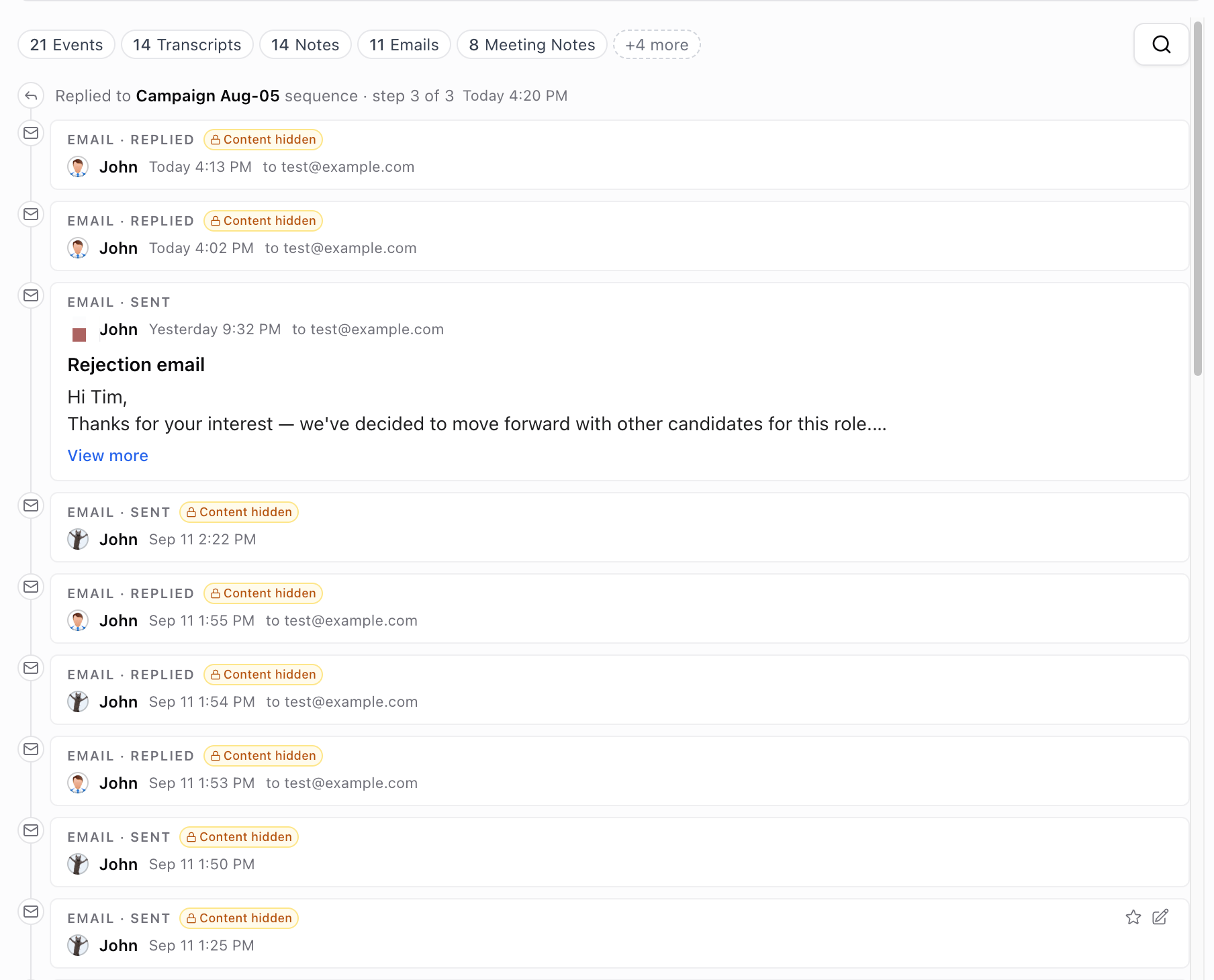 If you were on the email, either because you sent it or were on the To/Cc line, you always see the full message. Access only limits teammates who were not part of that thread.
***
## Calendar: what shows up on the team calendar
Your calendars are what teammates look at when they are trying to book time, and what can also show up as events on a person’s timeline. Unlike email, hiding *everything* would make scheduling harder. The middle option here is **Busy**: teammates can see the time is taken, but not what the event is called.
### Change it
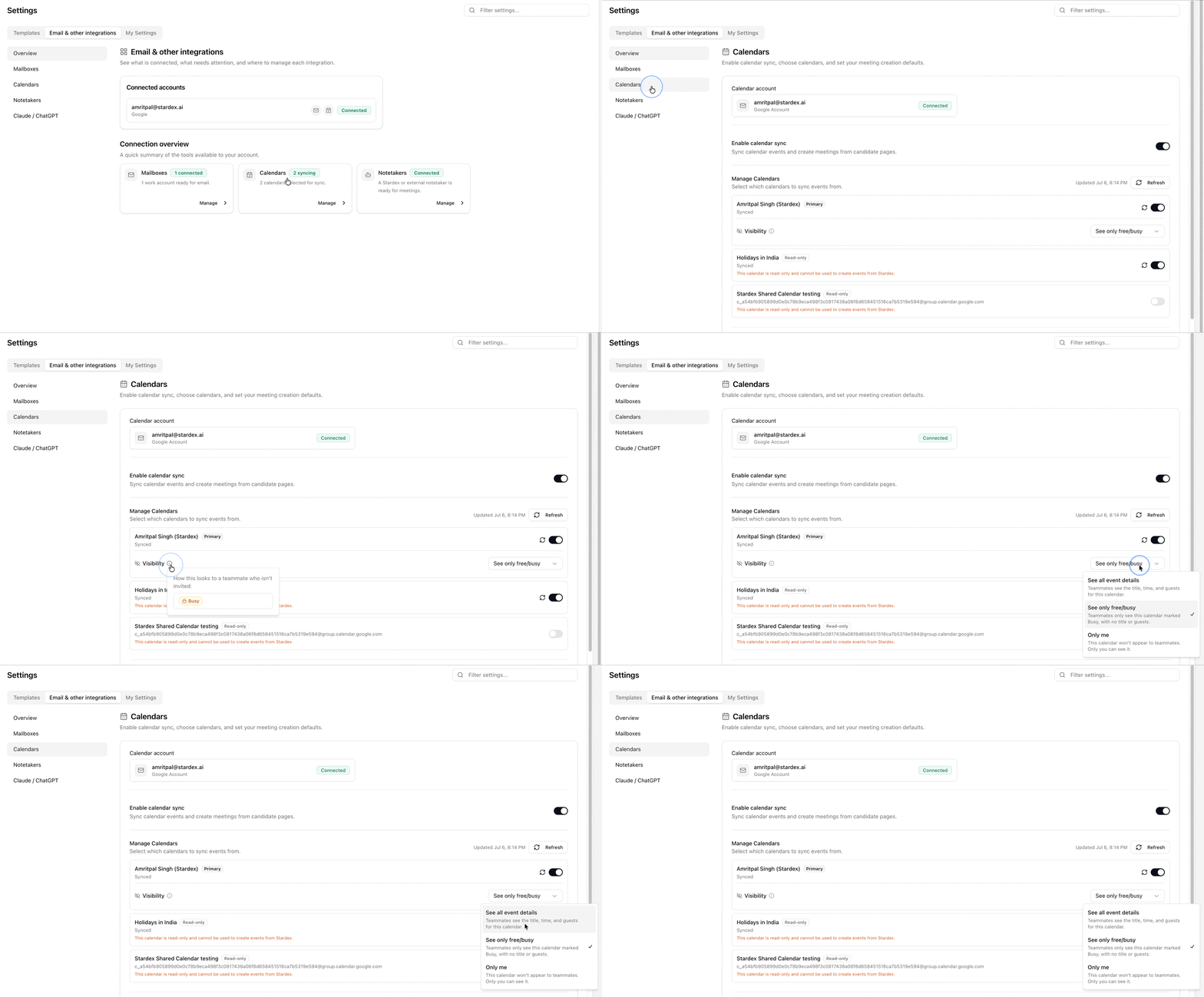
1. Go to **Settings → Email & other integrations → Calendars**: [stardex.com/settings?tab=email-calendar\§ion=calendars](https://stardex.com/settings?tab=email-calendar\§ion=calendars)
2. Select the connected account.
3. Turn on sync for the calendar if it is not syncing yet.
4. Set **Visibility**.
Visibility is for that calendar as a whole, not per teammate. If you and someone else can both edit it in Google or Outlook, either of you can change what the rest of the team sees.
You will not see **Visibility** on a **Read-only** calendar (a holidays feed, or a calendar someone shared with you as view-only). Only someone who can edit that calendar can set it.
If you were on the email, either because you sent it or were on the To/Cc line, you always see the full message. Access only limits teammates who were not part of that thread.
***
## Calendar: what shows up on the team calendar
Your calendars are what teammates look at when they are trying to book time, and what can also show up as events on a person’s timeline. Unlike email, hiding *everything* would make scheduling harder. The middle option here is **Busy**: teammates can see the time is taken, but not what the event is called.
### Change it
1. Go to **Settings → Email & other integrations → Calendars**: [stardex.com/settings?tab=email-calendar\§ion=calendars](https://stardex.com/settings?tab=email-calendar\§ion=calendars)
2. Select the connected account.
3. Turn on sync for the calendar if it is not syncing yet.
4. Set **Visibility**.
Visibility is for that calendar as a whole, not per teammate. If you and someone else can both edit it in Google or Outlook, either of you can change what the rest of the team sees.
You will not see **Visibility** on a **Read-only** calendar (a holidays feed, or a calendar someone shared with you as view-only). Only someone who can edit that calendar can set it.
 ### The three options
**See all event details** lets teammates see the title, time, and guests, the same way they would on a shared calendar.
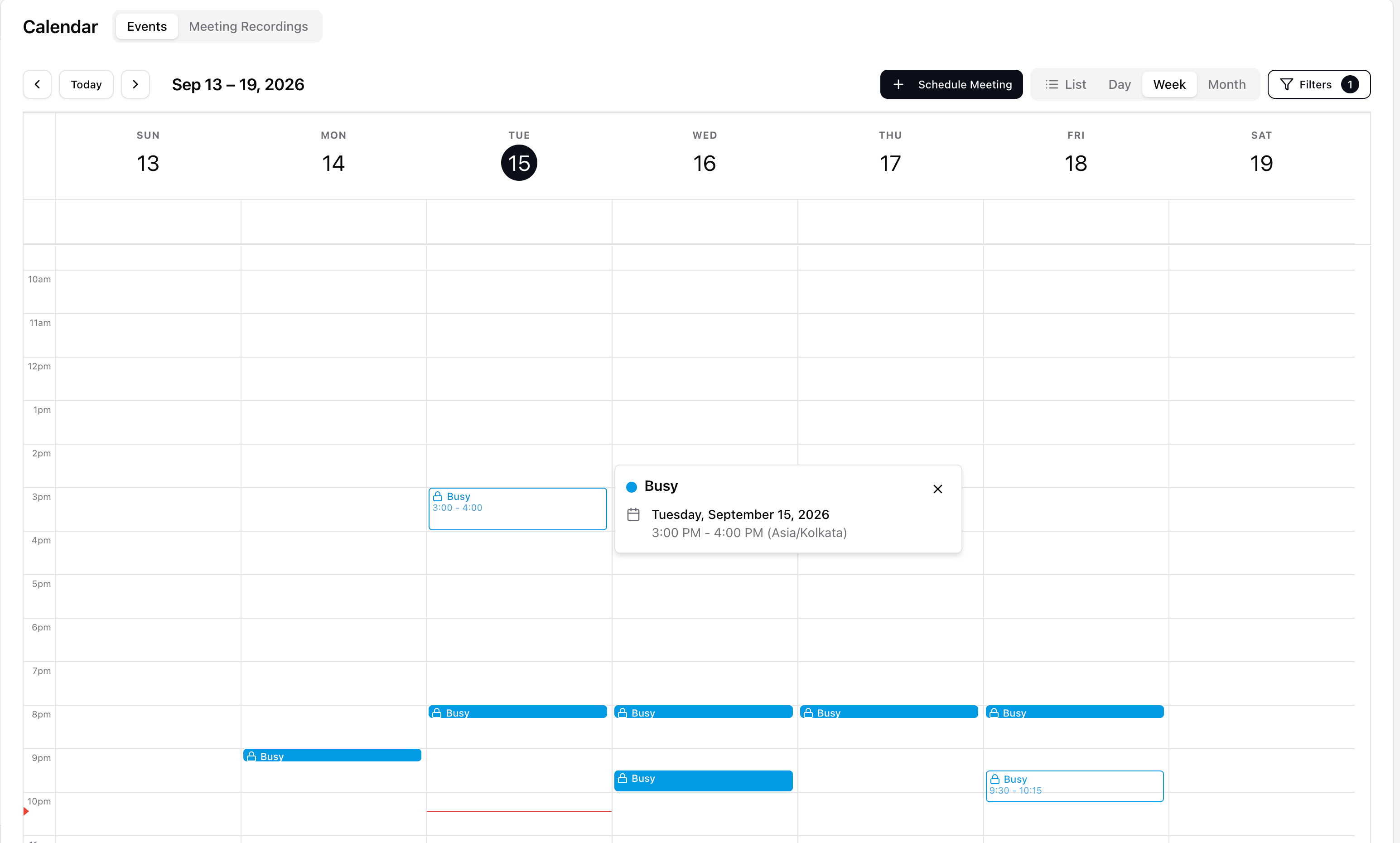
**See only free/busy** is the default for a new calendar. Teammates see a **Busy** block at that time, on the team calendar and on a person’s timeline. No title, no guests. They can still avoid the slot. They cannot read the event.
**Only me** keeps the calendar from appearing for teammates. Only you see it.
| | Teammates see the time | Teammates see title and guests |
| - | - | - |
| **See all event details** | Yes | Yes |
| **See only free/busy** | Yes (**Busy**) | No |
| **Only me** | No | No |
### The three options
**See all event details** lets teammates see the title, time, and guests, the same way they would on a shared calendar.
**See only free/busy** is the default for a new calendar. Teammates see a **Busy** block at that time, on the team calendar and on a person’s timeline. No title, no guests. They can still avoid the slot. They cannot read the event.
**Only me** keeps the calendar from appearing for teammates. Only you see it.
| | Teammates see the time | Teammates see title and guests |
| - | - | - |
| **See all event details** | Yes | Yes |
| **See only free/busy** | Yes (**Busy**) | No |
| **Only me** | No | No |
 ### If you already have access to the calendar
Visibility only applies to teammates who do not already have access to that calendar in Google or Outlook.
If a colleague has shared their calendar with you in Google or Outlook, Stardex follows that access. Whether you have read-only or edit access, you can see the calendar’s events in full in Stardex. Changing Visibility does not remove access you already have through Google or Outlook.
Visibility controls what Stardex shows to other teammates who do not have that calendar shared with them.
Getting invited to a meeting does not open a colleague’s calendar. You see the event on **your** calendar, with whatever Visibility that calendar uses.
***
## Stardex Notetaker recordings
Stardex Notetaker recordings follow who attended the meeting, not the calendar’s Visibility setting.
If you were an attendee, you can open the recording, including its title, attendee list, transcript, and summary. Organization admins can open recordings too.
Teammates who were not attendees cannot open the recording just because the calendar is set to **See all event details**. If you can open a recording, it always shows its full details. Recordings are never shown as **Busy**.
***
## Defaults for new connections
The settings above are per mailbox and per calendar, set by the person who connected them. Organization admins can manage defaults only. They cannot change a teammate’s existing Access or Visibility setting.
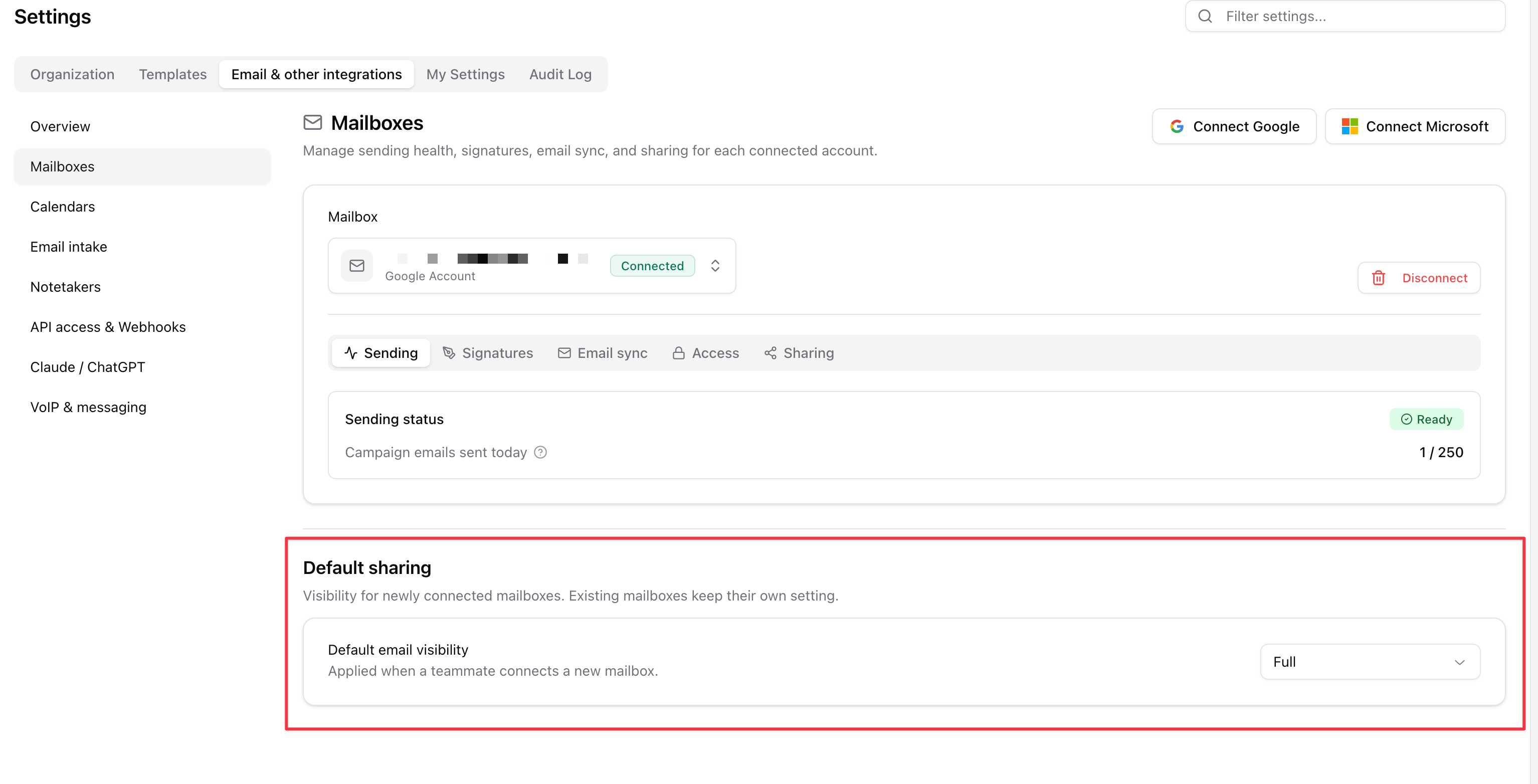
When a teammate connects a **new** mailbox, it starts at **Full**.
When they connect a **new** calendar, it starts at **See only free/busy**.
Admins can change those defaults so the next connection starts somewhere else:
1. On **Mailboxes**, scroll to **Default sharing** and set **Default email visibility**.
2. On **Calendars**, scroll to **Default sharing** and set **Default calendar visibility**.
That only affects new connections. Mailboxes and calendars that are already connected keep whatever Access or Visibility their owner chose. Admins cannot change a teammate’s existing setting.
### If you already have access to the calendar
Visibility only applies to teammates who do not already have access to that calendar in Google or Outlook.
If a colleague has shared their calendar with you in Google or Outlook, Stardex follows that access. Whether you have read-only or edit access, you can see the calendar’s events in full in Stardex. Changing Visibility does not remove access you already have through Google or Outlook.
Visibility controls what Stardex shows to other teammates who do not have that calendar shared with them.
Getting invited to a meeting does not open a colleague’s calendar. You see the event on **your** calendar, with whatever Visibility that calendar uses.
***
## Stardex Notetaker recordings
Stardex Notetaker recordings follow who attended the meeting, not the calendar’s Visibility setting.
If you were an attendee, you can open the recording, including its title, attendee list, transcript, and summary. Organization admins can open recordings too.
Teammates who were not attendees cannot open the recording just because the calendar is set to **See all event details**. If you can open a recording, it always shows its full details. Recordings are never shown as **Busy**.
***
## Defaults for new connections
The settings above are per mailbox and per calendar, set by the person who connected them. Organization admins can manage defaults only. They cannot change a teammate’s existing Access or Visibility setting.
When a teammate connects a **new** mailbox, it starts at **Full**.
When they connect a **new** calendar, it starts at **See only free/busy**.
Admins can change those defaults so the next connection starts somewhere else:
1. On **Mailboxes**, scroll to **Default sharing** and set **Default email visibility**.
2. On **Calendars**, scroll to **Default sharing** and set **Default calendar visibility**.
That only affects new connections. Mailboxes and calendars that are already connected keep whatever Access or Visibility their owner chose. Admins cannot change a teammate’s existing setting.
 **Copilot** and **MCP** see what the signed-in user would see in Stardex. If a teammate would get **Content hidden** or **Busy**, so will Copilot and MCP.
**API keys** authenticate the workspace, not a person, so the API returns full email and calendar content.
***
## FAQ
### Does changing Access or Visibility turn off sync?
No. Your mailbox or calendar continues syncing as usual. These settings only change what teammates can see in Stardex.
### Does my new setting apply to emails and events that already synced?
Yes. Once you save the setting, Stardex uses it for both existing and future emails or calendar events.
### Does this change my Google or Outlook sharing permissions?
No. Google and Outlook control who has access to your calendar outside Stardex. These settings only control what Stardex shows to teammates who do not already have access through Google or Outlook.
### Will free/busy calendars still help teammates schedule meetings?
Yes. With **See only free/busy**, teammates can still see that you are unavailable at that time. They do not see the event title or guest list.
This documentation is built and hosted on [Mintlify](https://mintlify.com), a developer documentation platform.
**Copilot** and **MCP** see what the signed-in user would see in Stardex. If a teammate would get **Content hidden** or **Busy**, so will Copilot and MCP.
**API keys** authenticate the workspace, not a person, so the API returns full email and calendar content.
***
## FAQ
### Does changing Access or Visibility turn off sync?
No. Your mailbox or calendar continues syncing as usual. These settings only change what teammates can see in Stardex.
### Does my new setting apply to emails and events that already synced?
Yes. Once you save the setting, Stardex uses it for both existing and future emails or calendar events.
### Does this change my Google or Outlook sharing permissions?
No. Google and Outlook control who has access to your calendar outside Stardex. These settings only control what Stardex shows to teammates who do not already have access through Google or Outlook.
### Will free/busy calendars still help teammates schedule meetings?
Yes. With **See only free/busy**, teammates can still see that you are unavailable at that time. They do not see the event title or guest list.
This documentation is built and hosted on [Mintlify](https://mintlify.com), a developer documentation platform.