> ## Documentation Index
> Fetch the complete documentation index at: https://docs.stardex.com/llms.txt
> Use this file to discover all available pages before exploring further.
# Email and calendar syncing
> Connect email and calendars, configure sync behavior, and manage connected accounts.
Information about which emails are synced, how to import signatures, and how to let a teammate send as you.
To sync emails, or send emails from Stardex, you need to connect your mailbox.
1. Go to **Settings → Email & other integrations → Mailboxes**: [stardex.com/settings?tab=email-calendar\§ion=mailboxes](https://stardex.com/settings?tab=email-calendar\§ion=mailboxes)
2. Click **Connect Google** or **Connect Microsoft** and finish the authentication flow.
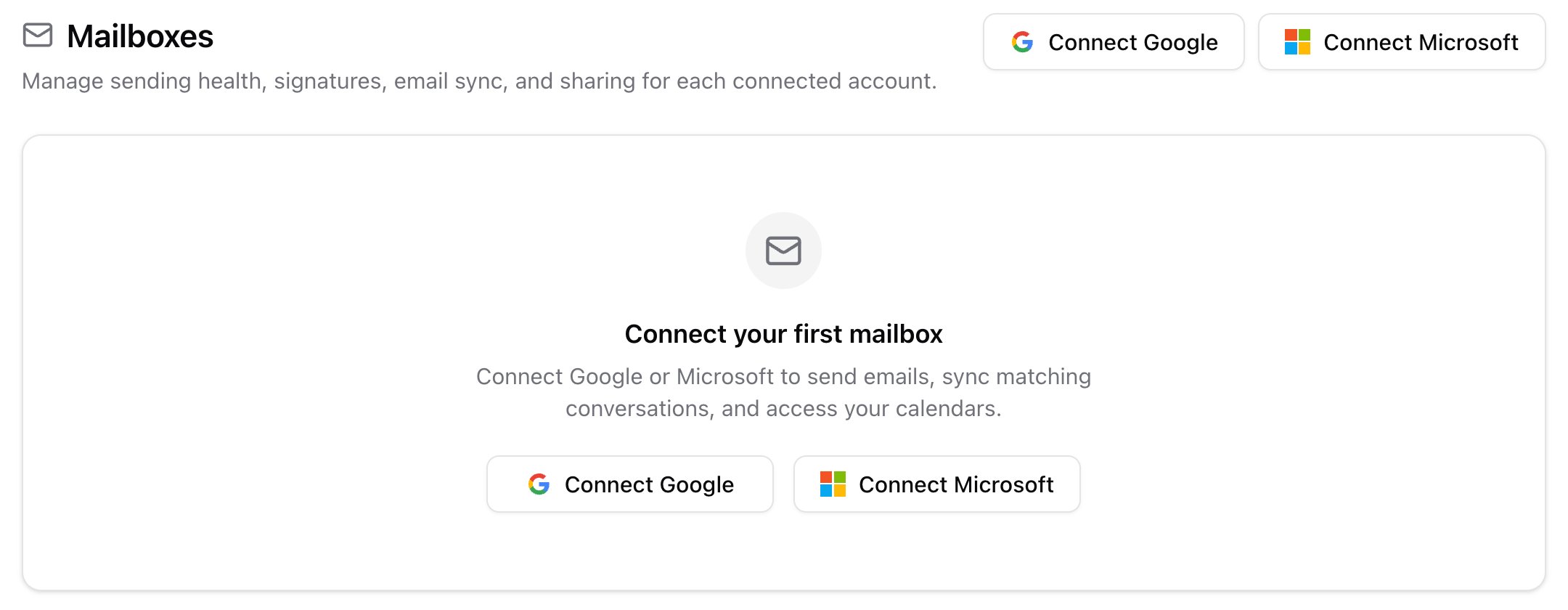 Mailboxes empty state with Connect Google and Connect Microsoft
Once you do that, you can start sending emails and sequences.
* To send a one-off email, click **Actions** on a profile, then **Send Email** (`C` for the shortcut).
* For sequences, see [Setting up your multi-step outreach campaign](/help-center/setting-up-your-multi-step-outreach-campaign) (available on Pro).
* You can also bulk enroll candidates.
Mailboxes empty state with Connect Google and Connect Microsoft
Once you do that, you can start sending emails and sequences.
* To send a one-off email, click **Actions** on a profile, then **Send Email** (`C` for the shortcut).
* For sequences, see [Setting up your multi-step outreach campaign](/help-center/setting-up-your-multi-step-outreach-campaign) (available on Pro).
* You can also bulk enroll candidates.
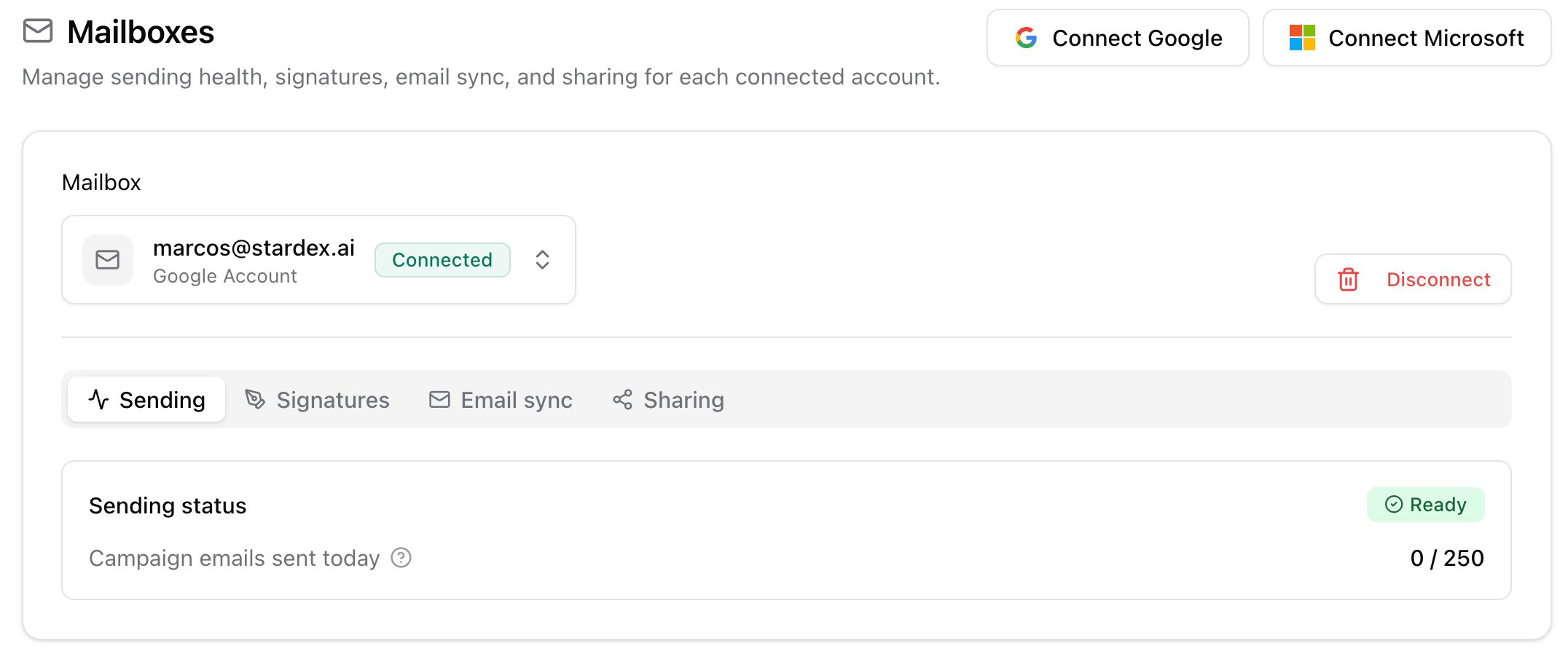 Mailboxes with a connected inbox, account picker, Connected badge, and the Sending / Signatures / Email sync / Sharing tabs
* **What permissions does Stardex have when I give it access to my email?**
Stardex requests minimal Gmail permissions to:
* Send emails on your behalf (`gmail.send`)
* Read messages to sync conversations related to candidates in your database (`gmail.readonly`)
For **Microsoft Outlook**, we request:
* Read and send emails on your behalf (`Mail.Read`, `Mail.Send`, `Mail.ReadWrite`)
* Read and send from shared mailboxes (`Mail.Read.Shared`, `Mail.Send.Shared`, `Mail.ReadWrite.Shared`)
**Calendar (optional):** When connecting your mailbox, Stardex will also request calendar permissions. This is optional and used to sync your calendar within Stardex. For Gmail, we request read access and the ability to create events (`calendar.readonly`, `calendar.events`). For Microsoft, we request read and write access to your calendar (`Calendars.Read`, `Calendars.ReadWrite`). If you don't want to use the calendar feature, you can still connect your email — calendar permission can be skipped, then added later from **Calendars**.
**Security:**
* We passed Google's CASA security review and app verification. Our review was done by TAC security, an independent third security firm vetted by Google.
* Email integration powered by Nylas (industry-standard email infrastructure). Nylas doesn’t store your emails.
* Tokens are encrypted and stored securely—even our team can't access them.
* The actual emails are processed, and stored with encryption on our servers based in the US. These are your team’s emails, and only your team can see them.
**Retention:**
* Emails are stored on the candidate record until you delete it. At that point, everything is permanently deleted associated with that email.
***
## What emails are synced, and can I sync all my past emails?
When you connect your inbox to Stardex, by default all future emails that are sent or received will be synced, as long as that email is associated to a client or candidate in Stardex. You can turn this off from settings. You can import your past emails through settings. That import can take a while.
If the email of the client or candidate isn’t already in Stardex, we won’t sync the messages due to privacy reasons.
To change this, go to [Mailboxes](https://stardex.com/settings?tab=email-calendar\§ion=mailboxes), pick the inbox, then open the **Email sync** tab. Calendar sync is no longer in this modal. It lives under **Calendars**.
Mailboxes with a connected inbox, account picker, Connected badge, and the Sending / Signatures / Email sync / Sharing tabs
* **What permissions does Stardex have when I give it access to my email?**
Stardex requests minimal Gmail permissions to:
* Send emails on your behalf (`gmail.send`)
* Read messages to sync conversations related to candidates in your database (`gmail.readonly`)
For **Microsoft Outlook**, we request:
* Read and send emails on your behalf (`Mail.Read`, `Mail.Send`, `Mail.ReadWrite`)
* Read and send from shared mailboxes (`Mail.Read.Shared`, `Mail.Send.Shared`, `Mail.ReadWrite.Shared`)
**Calendar (optional):** When connecting your mailbox, Stardex will also request calendar permissions. This is optional and used to sync your calendar within Stardex. For Gmail, we request read access and the ability to create events (`calendar.readonly`, `calendar.events`). For Microsoft, we request read and write access to your calendar (`Calendars.Read`, `Calendars.ReadWrite`). If you don't want to use the calendar feature, you can still connect your email — calendar permission can be skipped, then added later from **Calendars**.
**Security:**
* We passed Google's CASA security review and app verification. Our review was done by TAC security, an independent third security firm vetted by Google.
* Email integration powered by Nylas (industry-standard email infrastructure). Nylas doesn’t store your emails.
* Tokens are encrypted and stored securely—even our team can't access them.
* The actual emails are processed, and stored with encryption on our servers based in the US. These are your team’s emails, and only your team can see them.
**Retention:**
* Emails are stored on the candidate record until you delete it. At that point, everything is permanently deleted associated with that email.
***
## What emails are synced, and can I sync all my past emails?
When you connect your inbox to Stardex, by default all future emails that are sent or received will be synced, as long as that email is associated to a client or candidate in Stardex. You can turn this off from settings. You can import your past emails through settings. That import can take a while.
If the email of the client or candidate isn’t already in Stardex, we won’t sync the messages due to privacy reasons.
To change this, go to [Mailboxes](https://stardex.com/settings?tab=email-calendar\§ion=mailboxes), pick the inbox, then open the **Email sync** tab. Calendar sync is no longer in this modal. It lives under **Calendars**.
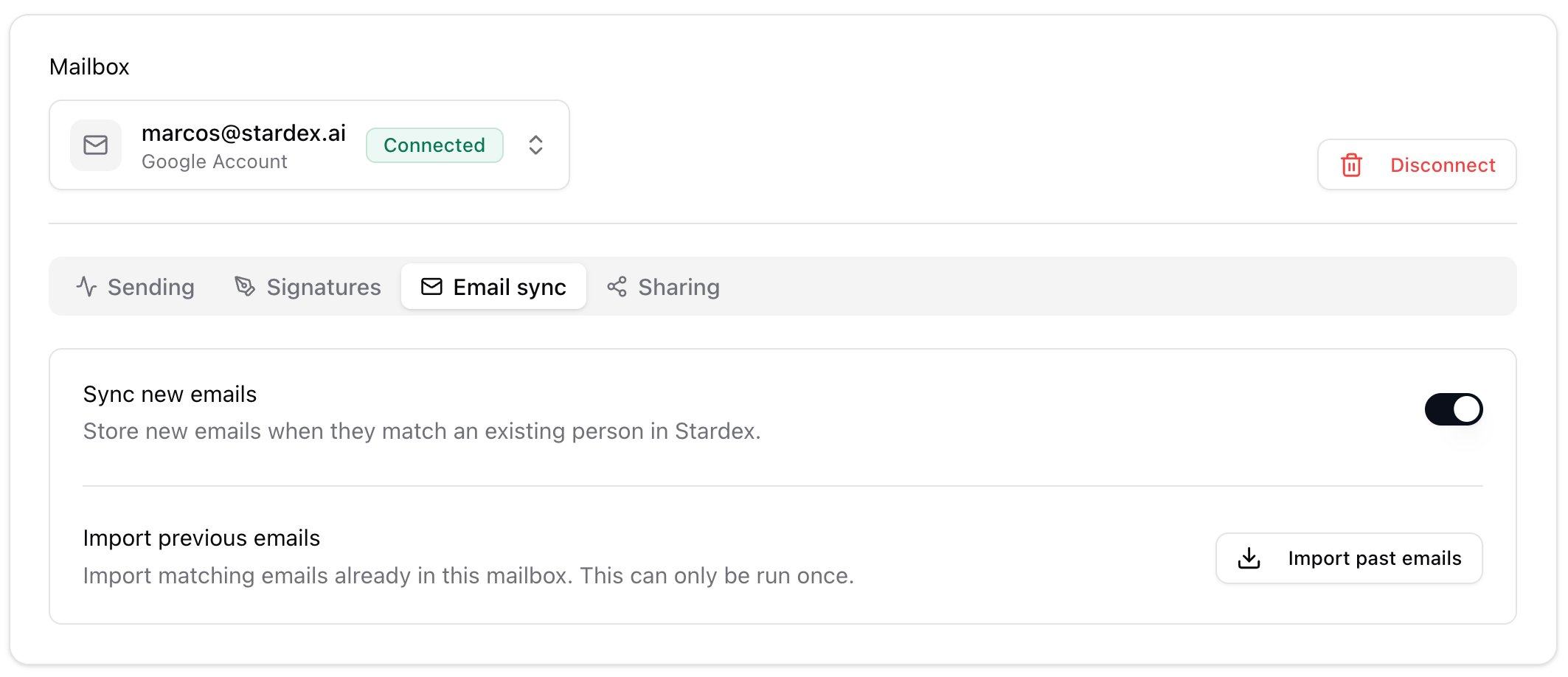 Mailboxes Email sync tab with Sync new emails and Import past emails
If you turn **Sync new emails** off, only messages sent through Stardex will be stored. Other messages won’t auto-sync.
You will also see **Import past emails**. Turn sync on first. This is a one-time import and can take a while.
***
## Signatures
You can import and manage signatures from the **Signatures** tab on the same mailbox.
1. Go to [Mailboxes](https://stardex.com/settings?tab=email-calendar\§ion=mailboxes)
2. Pick the inbox
3. Open **Signatures**
Mailboxes Email sync tab with Sync new emails and Import past emails
If you turn **Sync new emails** off, only messages sent through Stardex will be stored. Other messages won’t auto-sync.
You will also see **Import past emails**. Turn sync on first. This is a one-time import and can take a while.
***
## Signatures
You can import and manage signatures from the **Signatures** tab on the same mailbox.
1. Go to [Mailboxes](https://stardex.com/settings?tab=email-calendar\§ion=mailboxes)
2. Pick the inbox
3. Open **Signatures**
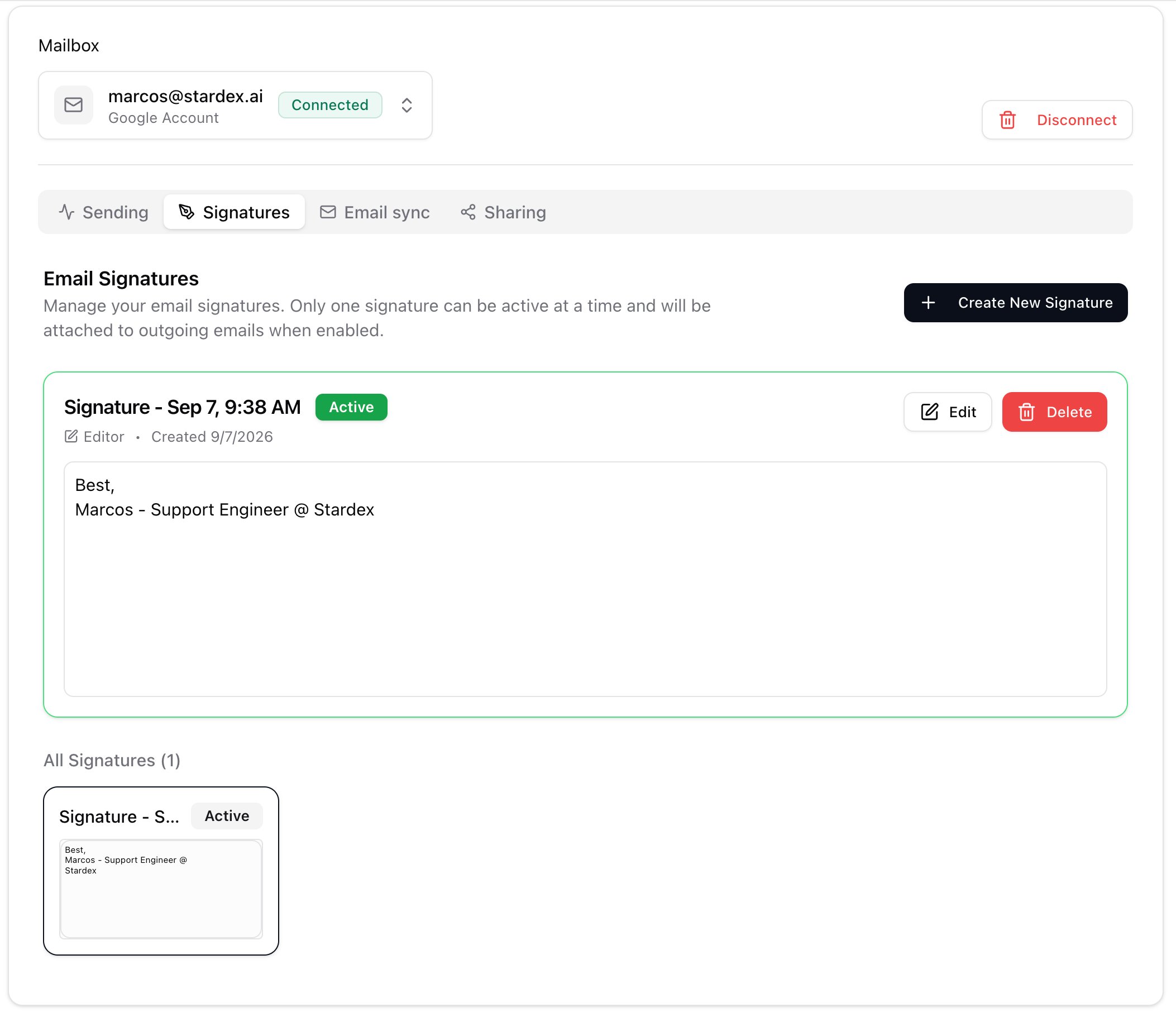 Mailboxes Signatures tab
***
## Sending health
The **Sending** tab shows deliverability / mailbox health for that address. Use this if campaigns are landing in spam, or you want to confirm the inbox is healthy before enrolling a sequence.
Mailboxes Sending tab with mailbox health
***
## Allow others on your team to send email on your behalf
Stardex lets you delegate a team member to send emails on your behalf. They can pick that address when sending a campaign. This does **not** let them read your inbox, only send from Stardex.
If you have delegated someone on the team to send emails on your behalf, make sure they pick the right sender at the time of sending, so they don’t send from a different email.
1. Go to [Mailboxes](https://stardex.com/settings?tab=email-calendar\§ion=mailboxes)
2. Pick the inbox you want to share
3. Open the **Sharing** tab
4. Pick the team member and click **Grant Access**
Mailboxes Signatures tab
***
## Sending health
The **Sending** tab shows deliverability / mailbox health for that address. Use this if campaigns are landing in spam, or you want to confirm the inbox is healthy before enrolling a sequence.
Mailboxes Sending tab with mailbox health
***
## Allow others on your team to send email on your behalf
Stardex lets you delegate a team member to send emails on your behalf. They can pick that address when sending a campaign. This does **not** let them read your inbox, only send from Stardex.
If you have delegated someone on the team to send emails on your behalf, make sure they pick the right sender at the time of sending, so they don’t send from a different email.
1. Go to [Mailboxes](https://stardex.com/settings?tab=email-calendar\§ion=mailboxes)
2. Pick the inbox you want to share
3. Open the **Sharing** tab
4. Pick the team member and click **Grant Access**
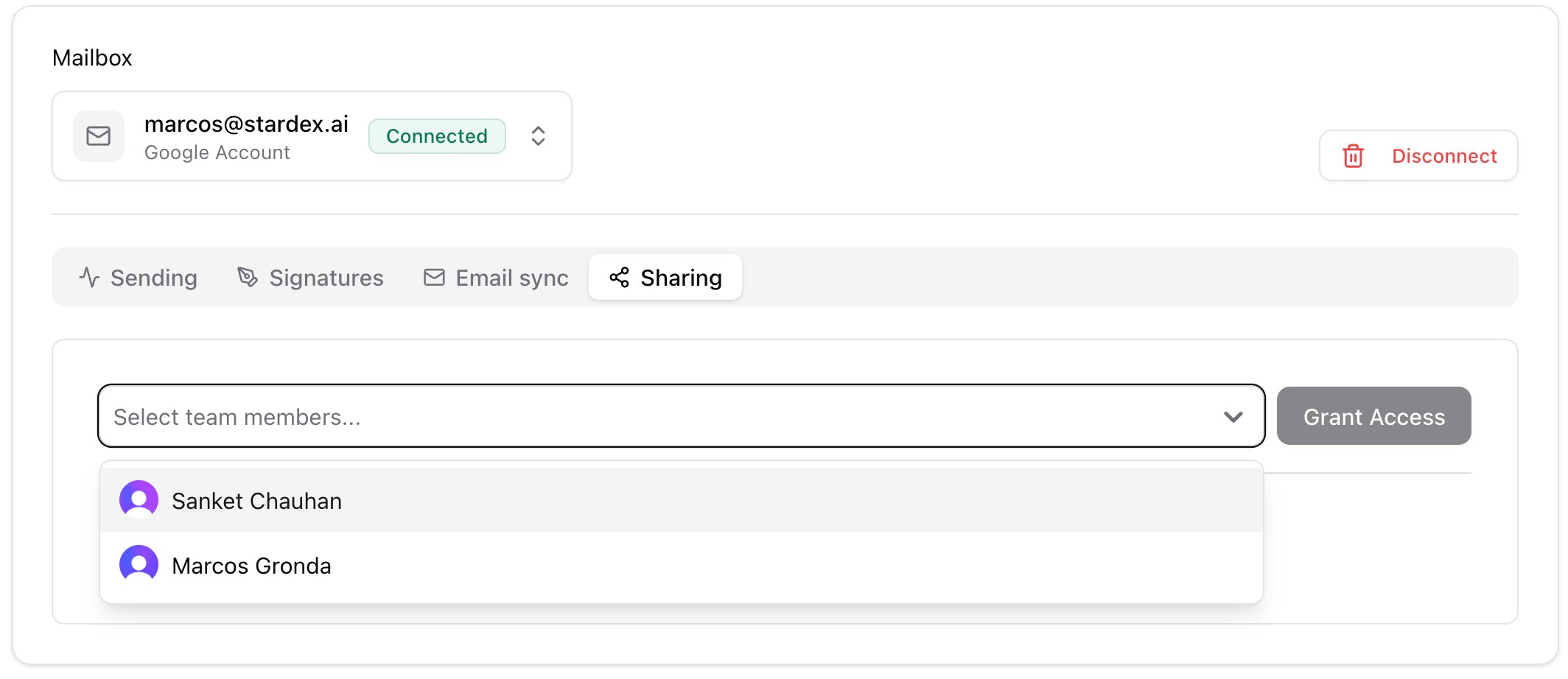 Mailboxes Sharing tab with teammate picker and Grant Access
1. They should see the address listed as **Mailboxes shared with you**
2. When they send, the **From** dropdown in Enroll Campaign or Send email includes that address.
You can revoke this anytime from **Sharing**.
***
## Disconnecting a mailbox
Click **Disconnect** on the mailbox, then confirm. Campaign enrollments using that inbox will pause until you reconnect or pick a different From address.
Mailboxes Sharing tab with teammate picker and Grant Access
1. They should see the address listed as **Mailboxes shared with you**
2. When they send, the **From** dropdown in Enroll Campaign or Send email includes that address.
You can revoke this anytime from **Sharing**.
***
## Disconnecting a mailbox
Click **Disconnect** on the mailbox, then confirm. Campaign enrollments using that inbox will pause until you reconnect or pick a different From address.
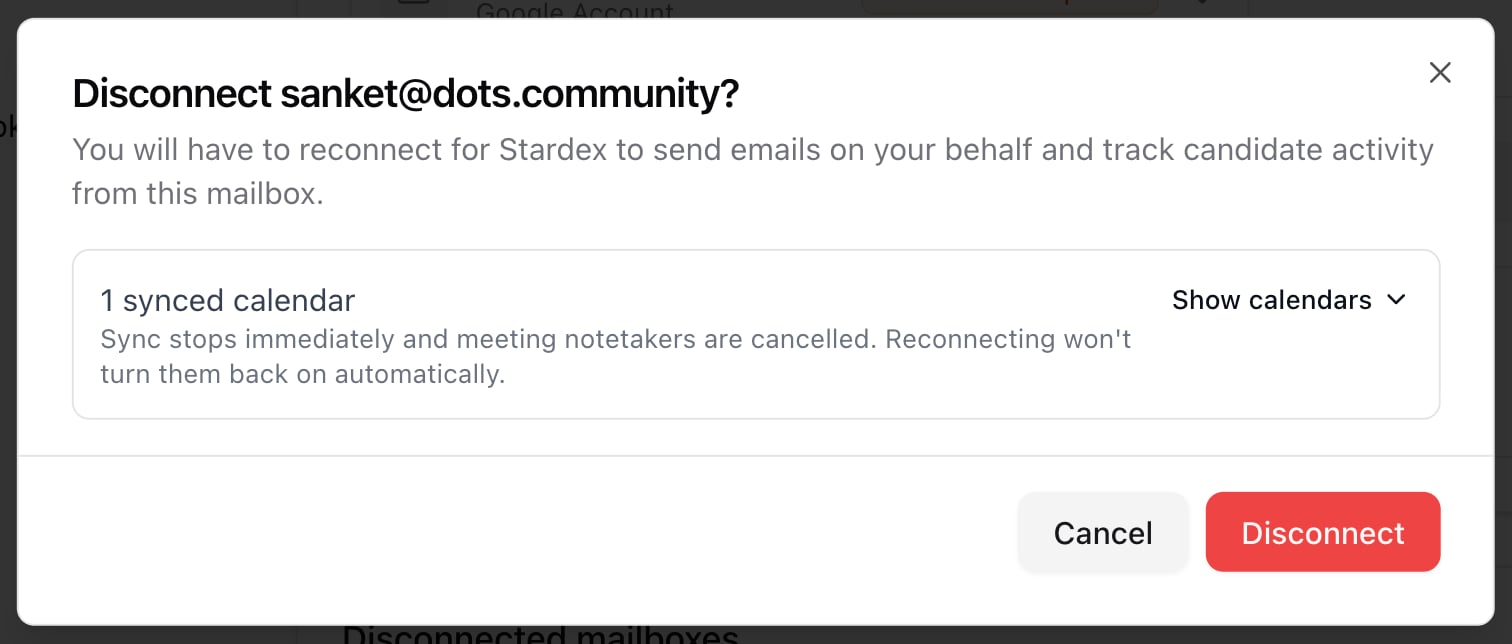 Disconnect mailbox confirmation
Disconnected inboxes stay listed under **Disconnected mailboxes** so you can reconnect later.
Disconnect mailbox confirmation
Disconnected inboxes stay listed under **Disconnected mailboxes** so you can reconnect later.
 Disconnected mailboxes list
If someone else on your team already connected that address, Stardex will not attach it to you a second time. You will see that it is already connected, with their name.
***
## Related guides
* [Connecting Multiple Mailboxes](/help-center/connecting-multiple-mailboxes)
* [Connect your calendar and enable Stardex notetaker!](/help-center/connect-your-calendar-and-enable-stardex-notetaker)
* [Email deliverability : Best Practices](/help-center/email-deliverability-best-practices)
* [Email & other integrations](/help-center/email-other-integrations)
This documentation is built and hosted on [Mintlify](https://mintlify.com), a developer documentation platform.
Disconnected mailboxes list
If someone else on your team already connected that address, Stardex will not attach it to you a second time. You will see that it is already connected, with their name.
***
## Related guides
* [Connecting Multiple Mailboxes](/help-center/connecting-multiple-mailboxes)
* [Connect your calendar and enable Stardex notetaker!](/help-center/connect-your-calendar-and-enable-stardex-notetaker)
* [Email deliverability : Best Practices](/help-center/email-deliverability-best-practices)
* [Email & other integrations](/help-center/email-other-integrations)
This documentation is built and hosted on [Mintlify](https://mintlify.com), a developer documentation platform.