> ## Documentation Index
> Fetch the complete documentation index at: https://docs.stardex.com/llms.txt
> Use this file to discover all available pages before exploring further.
# Customizing table column layouts for users
> Set default table column layouts in the Data Model and help users reset their saved column order.
## Setting default column order in the Data Model
Admins can set the default table column order from **Settings > Organization > Data Model**. This lets your team decide which fields appear first, and which columns are visible by default, for each major data type in Stardex.
## What column ordering controls
Column ordering controls the default layout of tables across Stardex. In **Data Model**, each data type has its own column layout:
* **Persons**
* **Candidates in a job**
* **Companies**
* **Jobs**
* **Deals**
* **Client Contacts**
Each layout is independent. For example, changing the column order for **Companies** does not change the order for **Persons** or **Deals**.
This works across both standard Stardex fields and custom fields, regardless of field type: text, number, select, date, currency, URL, relation, team member, and other supported custom field types.
## How admins set a default column order
1. Go to **Settings**
2. Open the **Organization** tab
3. Select **Data Model**
4. Choose the data type you want to configure, such as **Persons**, **Companies**, **Jobs**, **Deals**, or **Client Contacts**
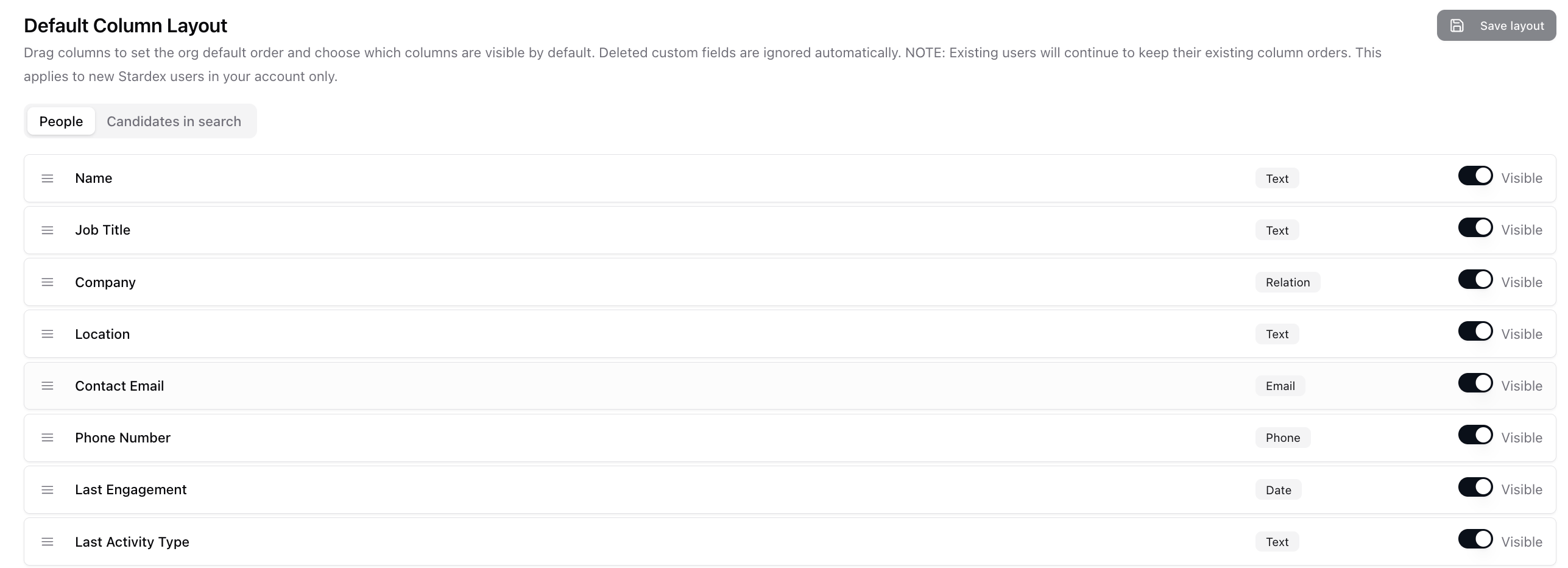
5. In **Default Column Layout**, drag columns into the order you want
6. Use the visibility controls to choose which columns should show by default
7. Click **Save layout**
For **Persons**, there are two separate layouts:
* **People** — used for the main People table
* **Candidates in a job** — used for candidate tables inside jobs
Set both if you want the same structure in both places.
 ## What happens after saving
Saved layouts become the organization default for that data type.
New team members, or team members who have not customized their own table columns yet, will see the admin default automatically.
Existing team members keep their current column layout. Stardex does this so an admin change does not unexpectedly overwrite someone’s personal workspace setup.
## How team members reset their column order
If a team member already has a saved personal column layout, they need to reset their column order to pick up the admin default.
To reset:
1. Go to **Settings**
2. Open **My Settings**
3. Select **Preferences**
4. Find **Reset column order**
5. Click **Reset column order**
After resetting, their table columns will match the admin’s saved default layouts across People, Candidates, Companies, Jobs, Deals, and Client Contacts.
If they already had a table open, they may need to refresh the page or reopen the table to see the reset layout.
## What happens after saving
Saved layouts become the organization default for that data type.
New team members, or team members who have not customized their own table columns yet, will see the admin default automatically.
Existing team members keep their current column layout. Stardex does this so an admin change does not unexpectedly overwrite someone’s personal workspace setup.
## How team members reset their column order
If a team member already has a saved personal column layout, they need to reset their column order to pick up the admin default.
To reset:
1. Go to **Settings**
2. Open **My Settings**
3. Select **Preferences**
4. Find **Reset column order**
5. Click **Reset column order**
After resetting, their table columns will match the admin’s saved default layouts across People, Candidates, Companies, Jobs, Deals, and Client Contacts.
If they already had a table open, they may need to refresh the page or reopen the table to see the reset layout.
 ## Key Takeaway
Admins set the default column layout in **Settings > Organization > Data Model**. Existing team members keep their personal layouts until they reset from **Settings > My Settings > Preferences > Reset column order**.
This documentation is built and hosted on [Mintlify](https://mintlify.com), a developer documentation platform.
## Key Takeaway
Admins set the default column layout in **Settings > Organization > Data Model**. Existing team members keep their personal layouts until they reset from **Settings > My Settings > Preferences > Reset column order**.
This documentation is built and hosted on [Mintlify](https://mintlify.com), a developer documentation platform.