> ## Documentation Index
> Fetch the complete documentation index at: https://docs.stardex.com/llms.txt
> Use this file to discover all available pages before exploring further.
# Customize profile view
> Choose a tabbed or single-page profile layout and control visible sections, ordering, and activity filters.
Stardex now allows you to customize what elements you want to see on a profile page. Default is a tabbed view which is accessible through keyboard shortcuts. If you want everything in one view, you can click Single page, and display the items you care the most.
1. Click "Actions" on a person’s profile
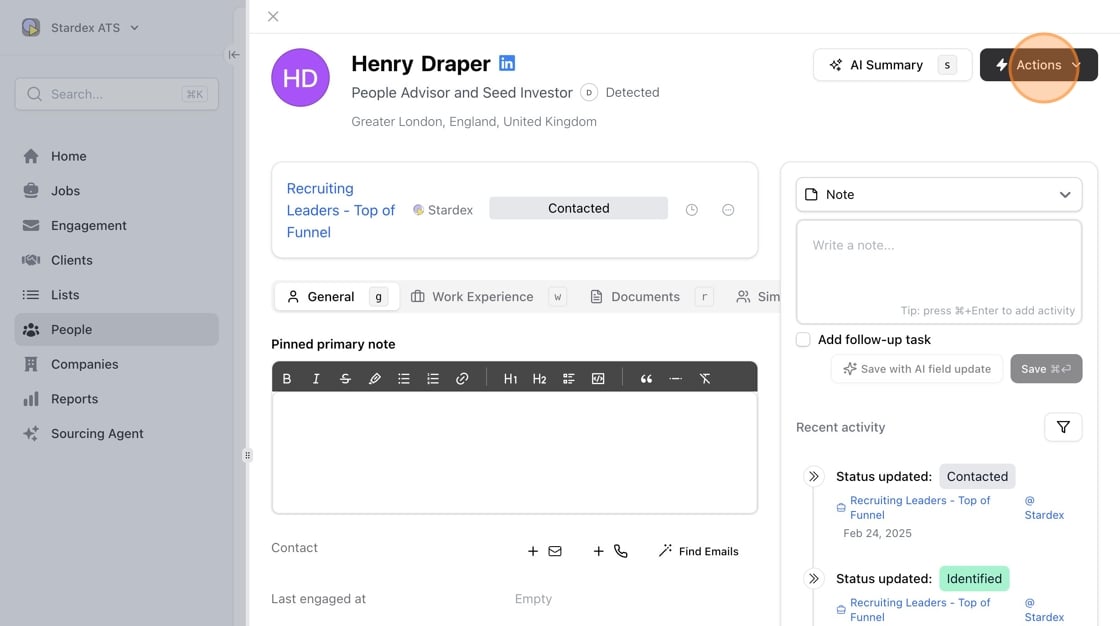 2. Click "Customize Profile View"
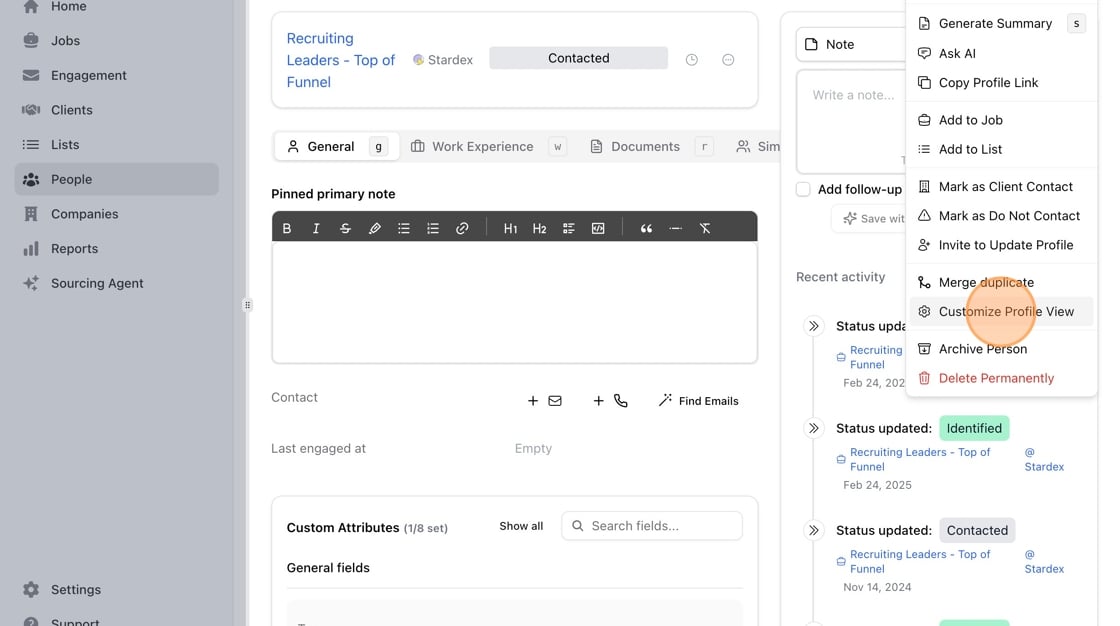 3. You can switch between Tabbed interface or Single page if you want to see all sections on one scrollable page.
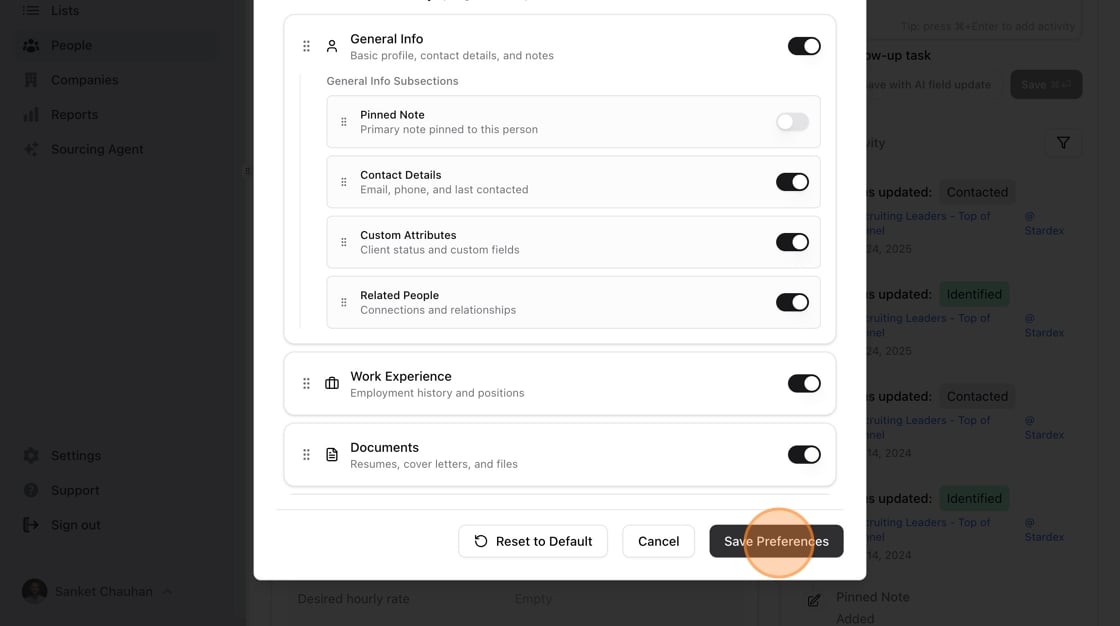
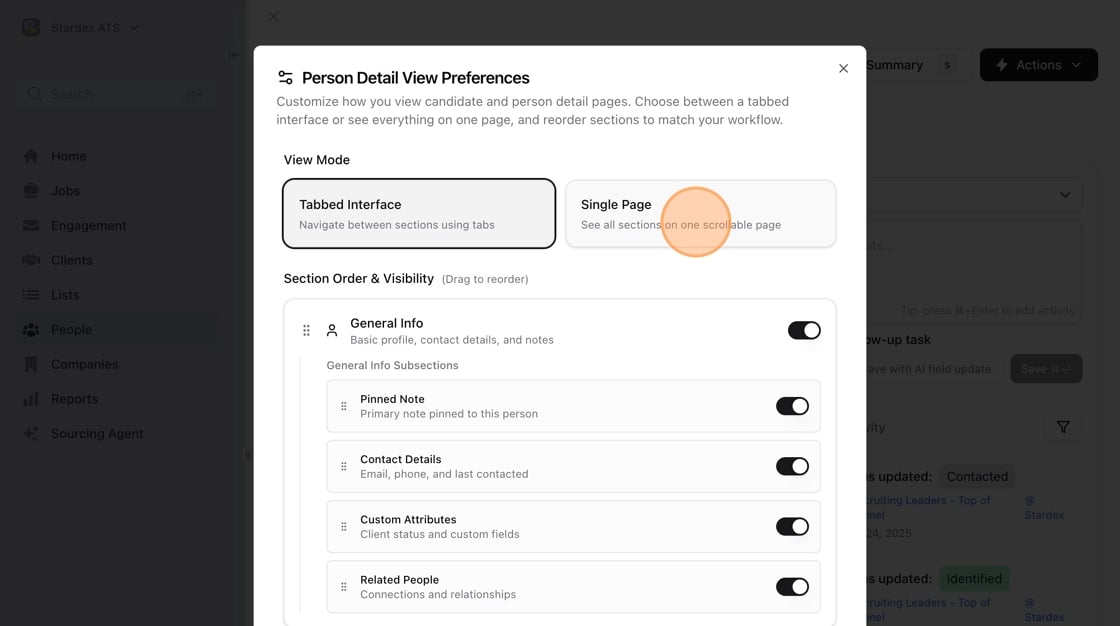 4. You can also customize what items you want to show / hide and the ordering!
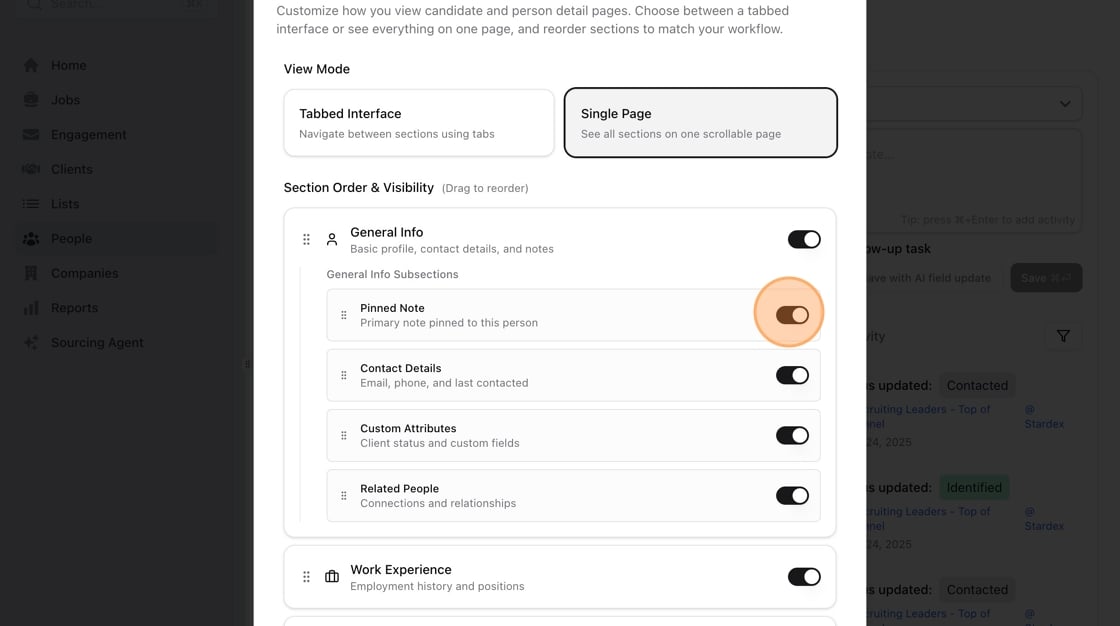 5. Click "Save Preferences" This will be available now on all profiles going forward for your account.
 FAQs:
**How can I only see certain activities in the recent activity?**
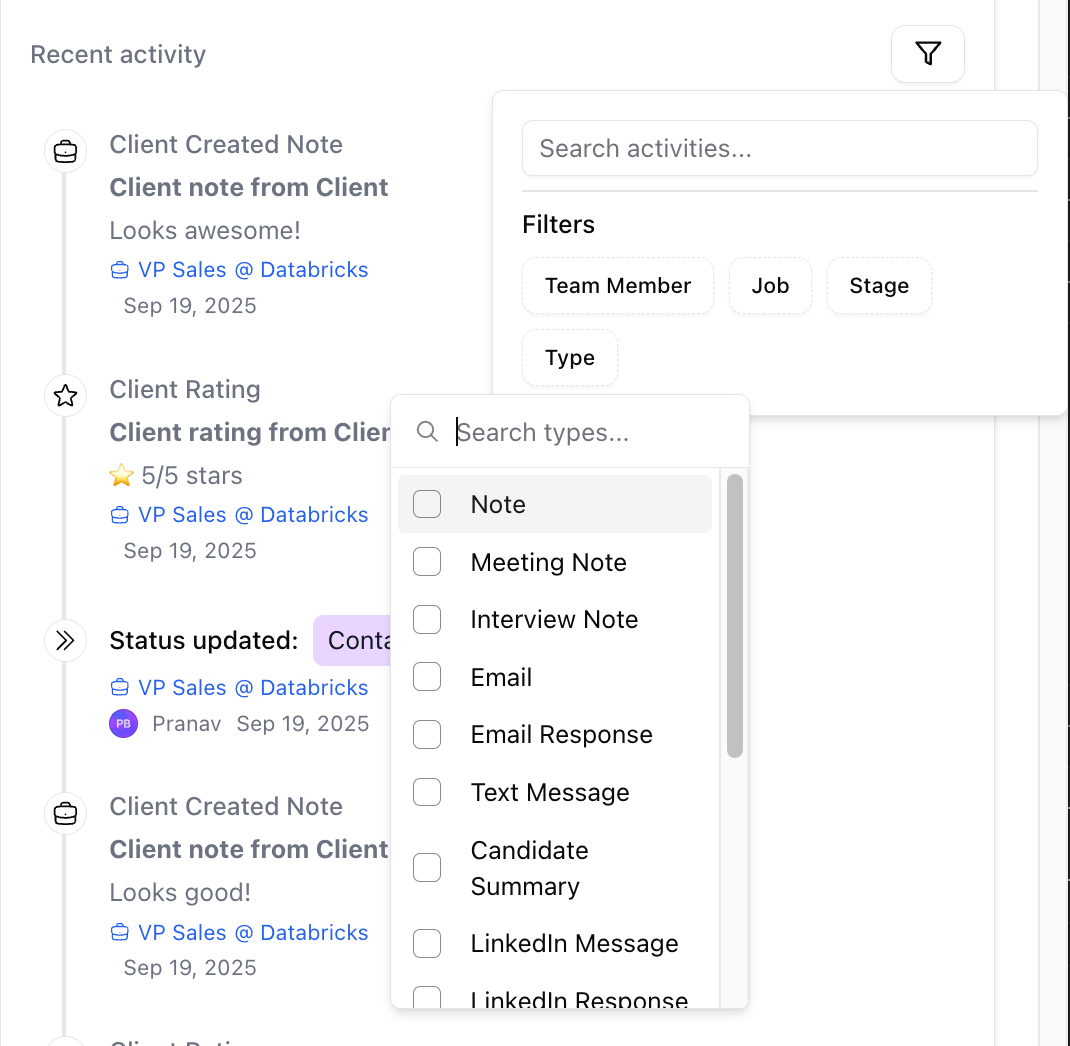
You can use the Filter on the top right of the Recent activity feed to only see certain activities. Click the Filter icon, and pick the ones you would like this see.
FAQs:
**How can I only see certain activities in the recent activity?**
You can use the Filter on the top right of the Recent activity feed to only see certain activities. Click the Filter icon, and pick the ones you would like this see.
 This documentation is built and hosted on [Mintlify](https://mintlify.com), a developer documentation platform.