> ## Documentation Index
> Fetch the complete documentation index at: https://docs.stardex.com/llms.txt
> Use this file to discover all available pages before exploring further.
# Connecting Multiple Mailboxes
> Connect additional Google or Microsoft mailboxes and choose the sending address for your outreach.
Stardex lets you connect more than one email address to your account, so you can send outreach from any inbox you own. This is useful if you manage multiple brands, client personas, or simply want to keep candidate and client emails separate.
***
## Supported Providers
Stardex connects to mailboxes via **OAuth** (secure, token-based login). The following providers are supported:
* **Google Workspace / Gmail** — any Google account you own
* **Microsoft 365 / Outlook** — any M365 account you own
**SMTP is not supported.**
Stardex does not support connecting mailboxes via SMTP/IMAP credentials (e.g. Hostinger, cPanel, or other shared-hosting providers). There are no plans to add SMTP support in the near future.
If your mailboxes are currently hosted on a shared provider, we strongly recommend migrating to **Google Workspace** or **Microsoft 365** — see the deliverability note below.
***
## How to Connect an Additional Mailbox
1. Go to **Settings → Email & other integrations → Mailboxes**: [stardex.com/settings?tab=email-calendar\§ion=mailboxes](https://stardex.com/settings?tab=email-calendar\§ion=mailboxes)
2. Click **Connect Google** or **Connect Microsoft**.
3. Complete the OAuth flow in your browser. You will be asked to grant Stardex permission to send on your behalf.
4. Once connected, the new address appears in the account picker at the top of Mailboxes, and in the **From** dropdown when you send.
After connecting, pick which mailbox to send from when composing a sequence or a one-off email.
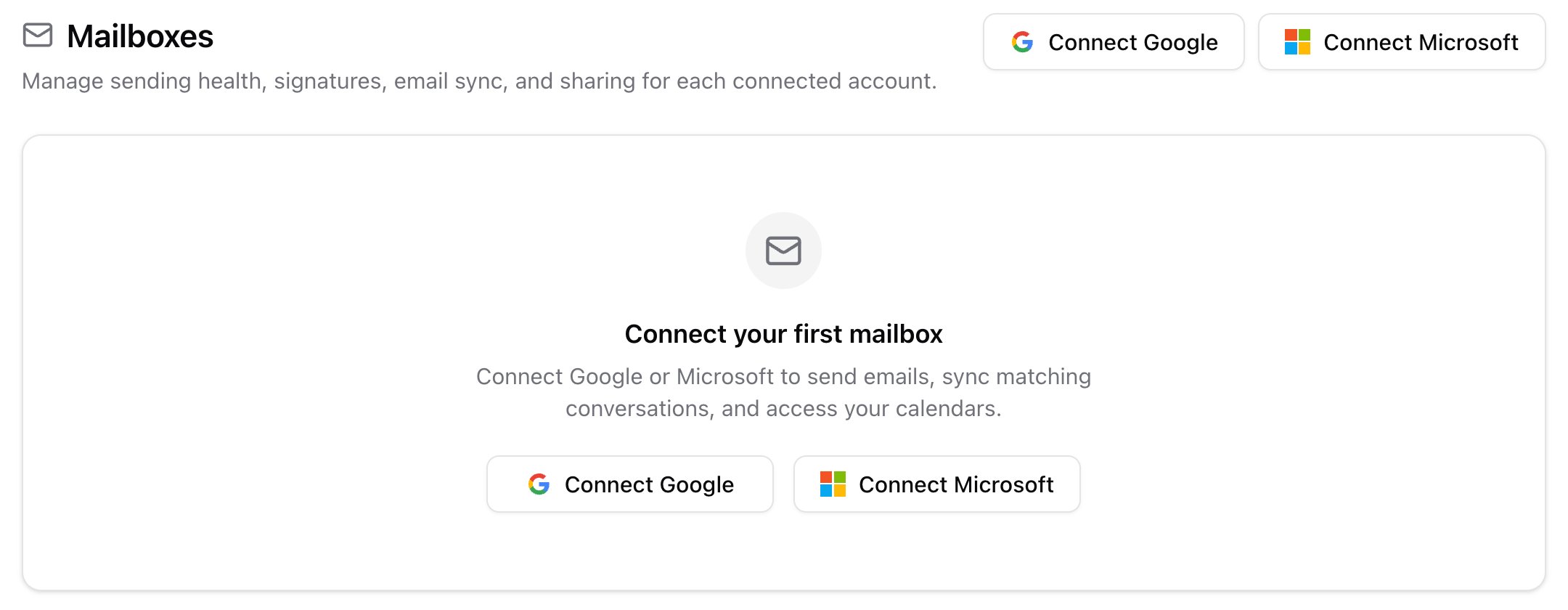 Mailboxes empty state with Connect Google and Connect Microsoft
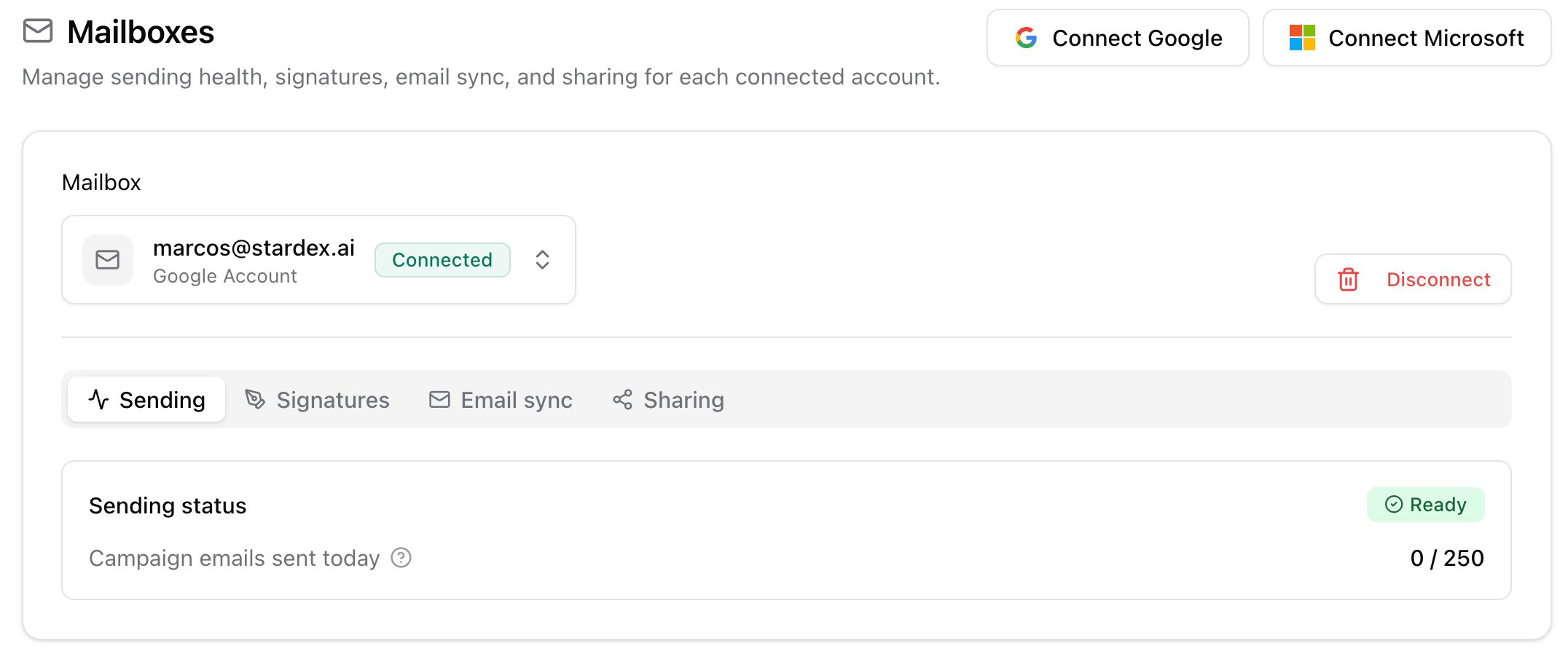 Account picker at the top of Mailboxes
***
## Switching the Sending Address
When writing an email or building an outreach sequence, open the **From** dropdown to choose any of your connected inboxes. Each sequence step can use a different sending address if needed.
Make sure you pick the right account when you have multiple inboxes before clicking send.
You can also share a mailbox so a teammate can send as you, without giving them inbox access. That is on the **Sharing** tab. See [Email and calendar syncing](/help-center/email-and-calendar-syncing).
***
## Removing a Mailbox
1. Go to **Settings → Email & other integrations → Mailboxes**.
2. Pick the inbox you want to remove and click **Disconnect**.
3. Confirm. Any pending sequences using that inbox will pause until you reconnect or pick a different sending address.
Account picker at the top of Mailboxes
***
## Switching the Sending Address
When writing an email or building an outreach sequence, open the **From** dropdown to choose any of your connected inboxes. Each sequence step can use a different sending address if needed.
Make sure you pick the right account when you have multiple inboxes before clicking send.
You can also share a mailbox so a teammate can send as you, without giving them inbox access. That is on the **Sharing** tab. See [Email and calendar syncing](/help-center/email-and-calendar-syncing).
***
## Removing a Mailbox
1. Go to **Settings → Email & other integrations → Mailboxes**.
2. Pick the inbox you want to remove and click **Disconnect**.
3. Confirm. Any pending sequences using that inbox will pause until you reconnect or pick a different sending address.
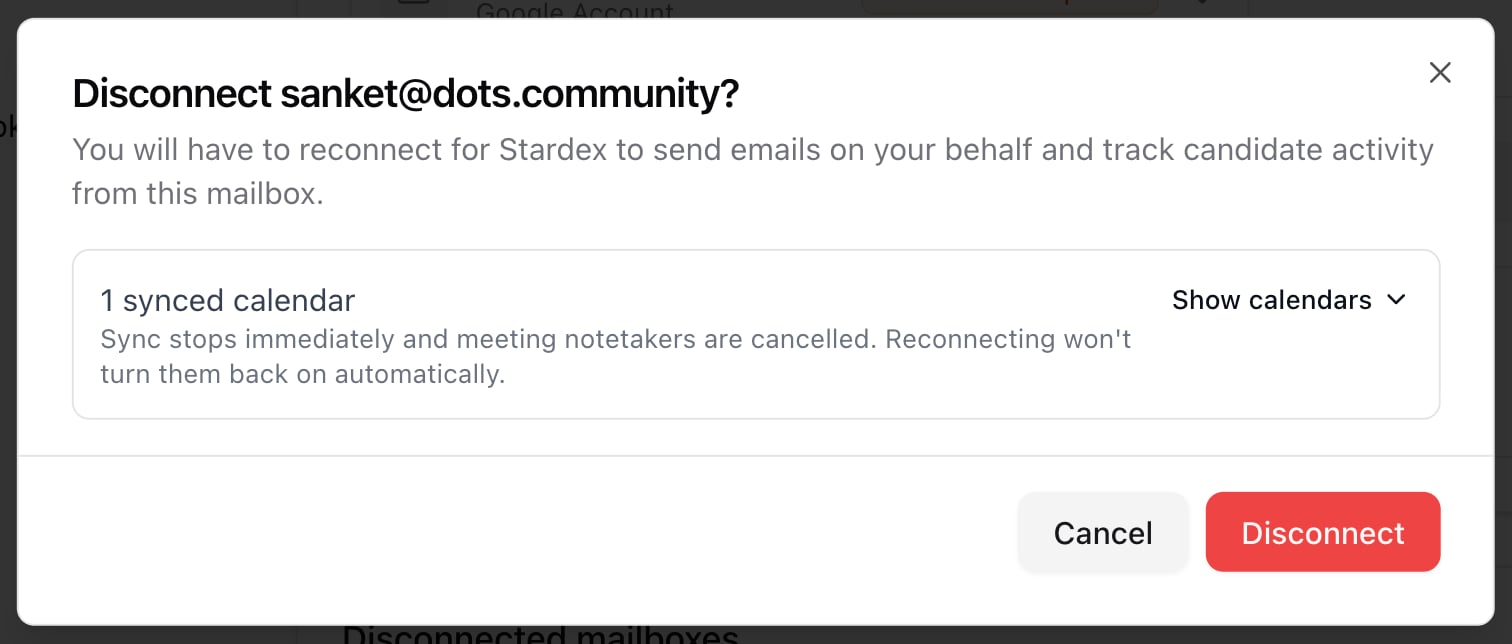 Disconnect mailbox confirmation
Disconnected inboxes stay under **Disconnected mailboxes** so you can reconnect later.
***
## A Note on Deliverability
If you are running cold outreach to candidates or clients, the provider you send from matters significantly.
Shared-hosting SMTP (Hostinger, cPanel, etc.) routes your mail through IPs shared with thousands of other senders. DKIM/DMARC configurations on these providers are less reliable, and inbox providers like Gmail and Outlook assign less trust to mail originating from shared infrastructure.
Google Workspace and Microsoft 365 are the supported path. Check mailbox health under Mailboxes → **Sending**.
## Related guides
* [Email and calendar syncing](/help-center/email-and-calendar-syncing)
* [Email deliverability : Best Practices](/help-center/email-deliverability-best-practices)
* [Email & other integrations](/help-center/email-other-integrations)
This documentation is built and hosted on [Mintlify](https://mintlify.com), a developer documentation platform.
Disconnect mailbox confirmation
Disconnected inboxes stay under **Disconnected mailboxes** so you can reconnect later.
***
## A Note on Deliverability
If you are running cold outreach to candidates or clients, the provider you send from matters significantly.
Shared-hosting SMTP (Hostinger, cPanel, etc.) routes your mail through IPs shared with thousands of other senders. DKIM/DMARC configurations on these providers are less reliable, and inbox providers like Gmail and Outlook assign less trust to mail originating from shared infrastructure.
Google Workspace and Microsoft 365 are the supported path. Check mailbox health under Mailboxes → **Sending**.
## Related guides
* [Email and calendar syncing](/help-center/email-and-calendar-syncing)
* [Email deliverability : Best Practices](/help-center/email-deliverability-best-practices)
* [Email & other integrations](/help-center/email-other-integrations)
This documentation is built and hosted on [Mintlify](https://mintlify.com), a developer documentation platform.