> ## Documentation Index
> Fetch the complete documentation index at: https://docs.stardex.com/llms.txt
> Use this file to discover all available pages before exploring further.
# Connect your calendar and enable Stardex notetaker!
> Connect your calendar, enable the Stardex notetaker, and record scheduled or ad-hoc meetings.
Stardex can show your meetings and send a notetaker into Zoom, Google Meet, and Microsoft Teams. Calendar sync and the notetaker are two different switches. You can sync calendars without ever turning the bot on.
**Admins first:** if your team wants Stardex Notetaker, an admin must enable it for the workspace. Open **Settings → Email & other integrations → Notetakers**, click the gear, and turn it on. You can also set the bot display name and exclusion keywords there. Direct link: [stardex.com/settings?tab=email-calendar\§ion=notetaker](https://stardex.com/settings?tab=email-calendar\§ion=notetaker)
***
## Connect your calendar
1. Connect a work account if you have not already. Go to **Settings → Email & other integrations → Mailboxes** and click **Connect Google** or **Connect Microsoft**: [stardex.com/settings?tab=email-calendar\§ion=mailboxes](https://stardex.com/settings?tab=email-calendar\§ion=mailboxes)
2. Open **Calendars**: [stardex.com/settings?tab=email-calendar\§ion=calendars](https://stardex.com/settings?tab=email-calendar\§ion=calendars)
If you have no mailbox yet, you will see **Connect an account first**.
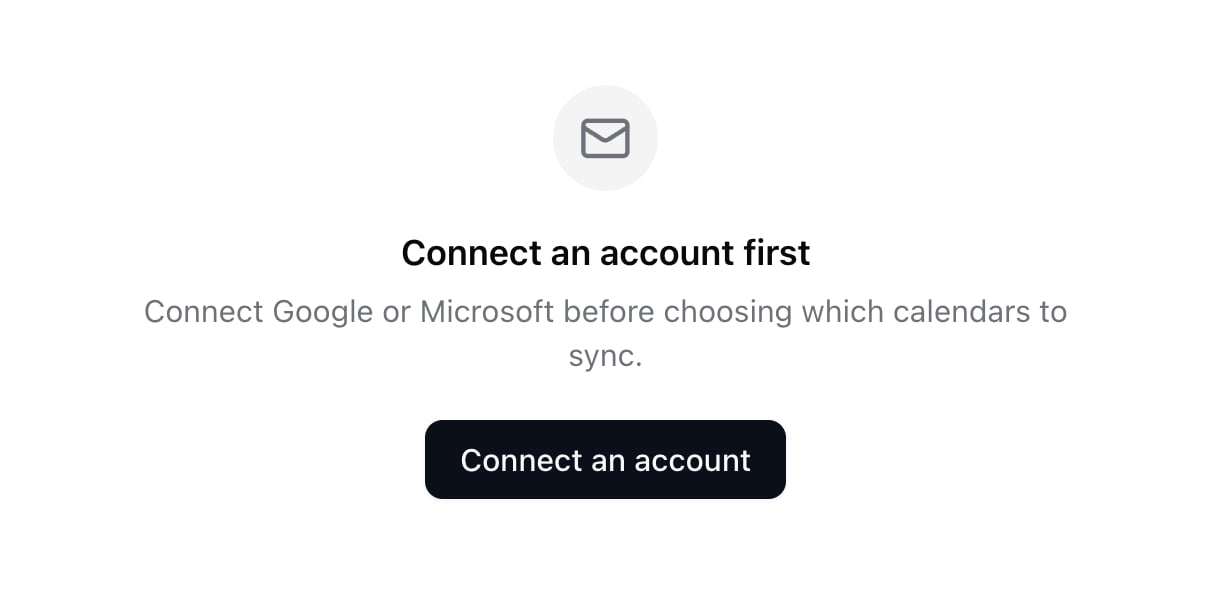 Calendars empty state asking to connect an account first
1. If email is connected but calendar permission is missing, you will see **Calendar Not Connected**. Click **Connect Calendar** and finish OAuth. On Google, leave the calendar checkbox on.
2. Turn **Enable calendar sync** on, then pick which calendars Stardex should use. Primary is labeled. You can also set meeting-creation defaults on this page (which calendar new events go to, conference links, invite defaults).
Calendars empty state asking to connect an account first
1. If email is connected but calendar permission is missing, you will see **Calendar Not Connected**. Click **Connect Calendar** and finish OAuth. On Google, leave the calendar checkbox on.
2. Turn **Enable calendar sync** on, then pick which calendars Stardex should use. Primary is labeled. You can also set meeting-creation defaults on this page (which calendar new events go to, conference links, invite defaults).
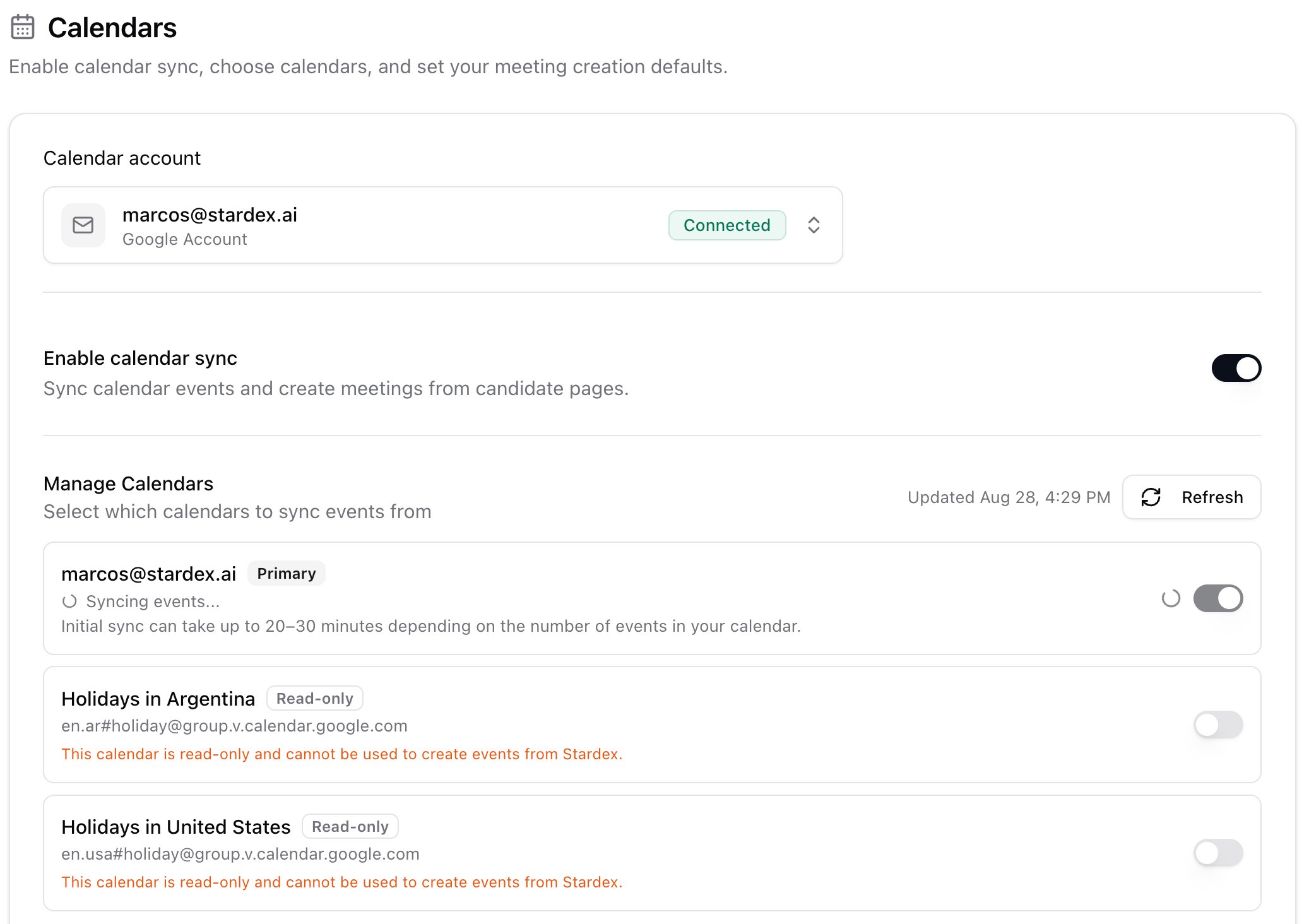 Calendar sync on, with the calendar list and visibility toggles
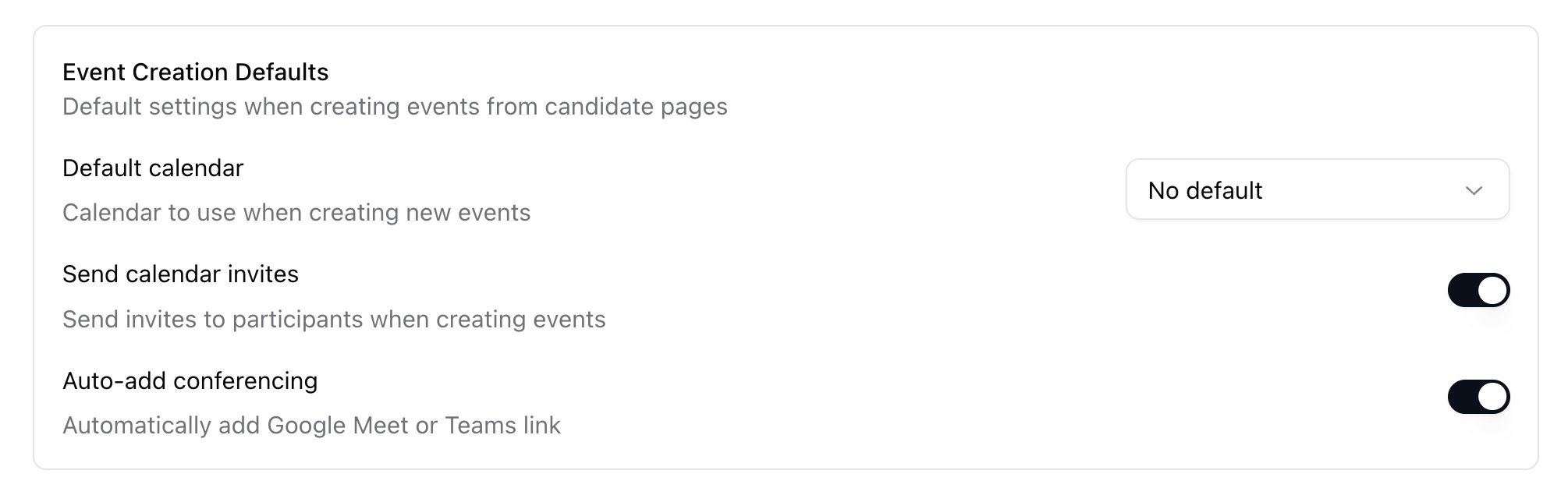 Meeting creation defaults on Calendars
Turning calendar sync off hides those calendars in Stardex and cancels Stardex notetaker bots for that account. Shared bots are kept.
***
## Turn on Stardex Notetaker for your calendars
Once the org has enabled the notetaker, and you have a writable synced calendar:
1. Go to **Notetakers**: [stardex.com/settings?tab=email-calendar\§ion=notetaker](https://stardex.com/settings?tab=email-calendar\§ion=notetaker)
2. Pick the mailbox if you have more than one.
3. Toggle the notetaker **On** for each calendar that should send the bot. Confirm in the dialog.
If you see **Organization setup required**, ask an admin to enable Stardex Notetaker from the gear on this same page.
Meeting creation defaults on Calendars
Turning calendar sync off hides those calendars in Stardex and cancels Stardex notetaker bots for that account. Shared bots are kept.
***
## Turn on Stardex Notetaker for your calendars
Once the org has enabled the notetaker, and you have a writable synced calendar:
1. Go to **Notetakers**: [stardex.com/settings?tab=email-calendar\§ion=notetaker](https://stardex.com/settings?tab=email-calendar\§ion=notetaker)
2. Pick the mailbox if you have more than one.
3. Toggle the notetaker **On** for each calendar that should send the bot. Confirm in the dialog.
If you see **Organization setup required**, ask an admin to enable Stardex Notetaker from the gear on this same page.
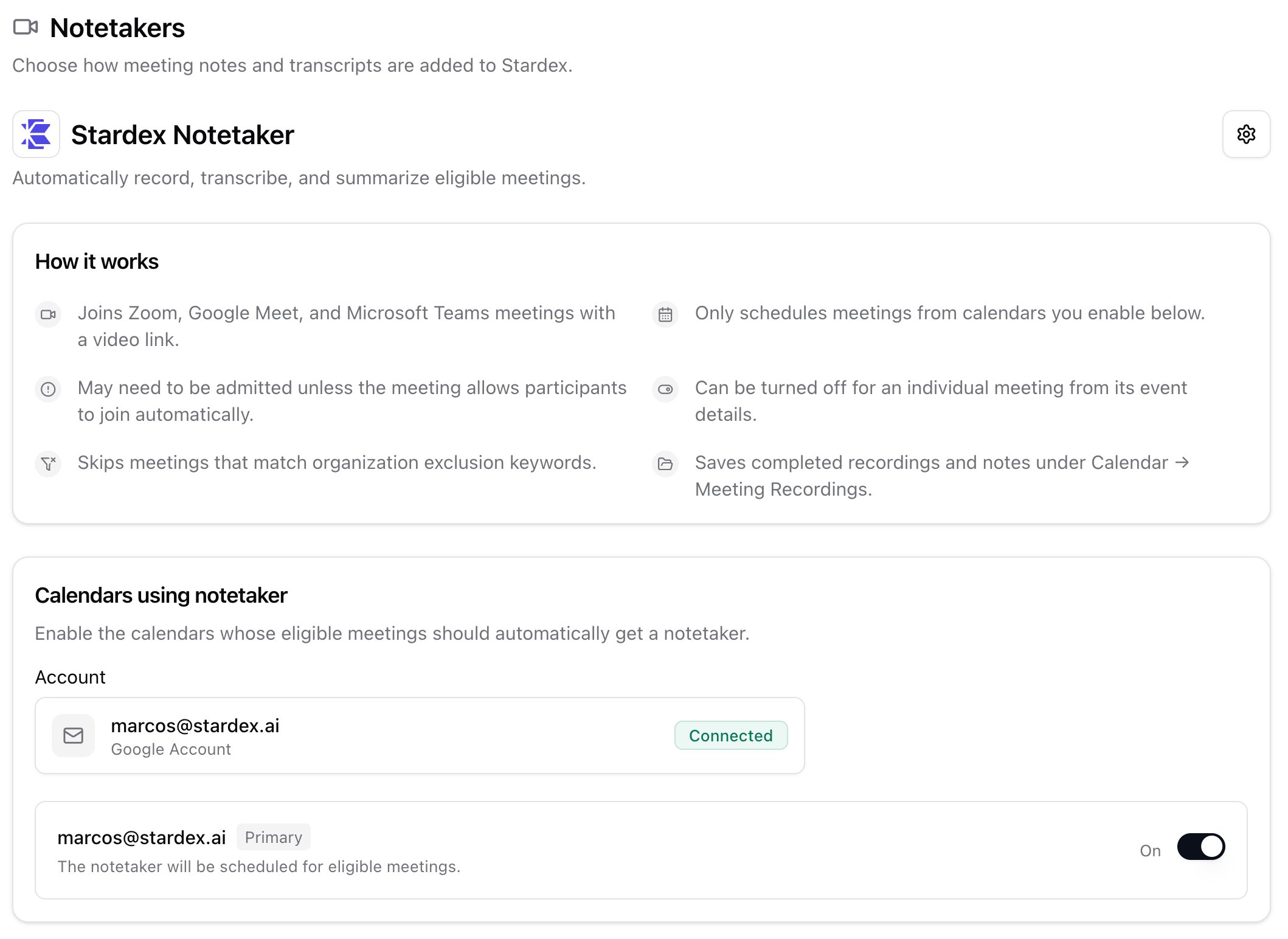 Notetakers page with how-it-works cards and the org settings gear
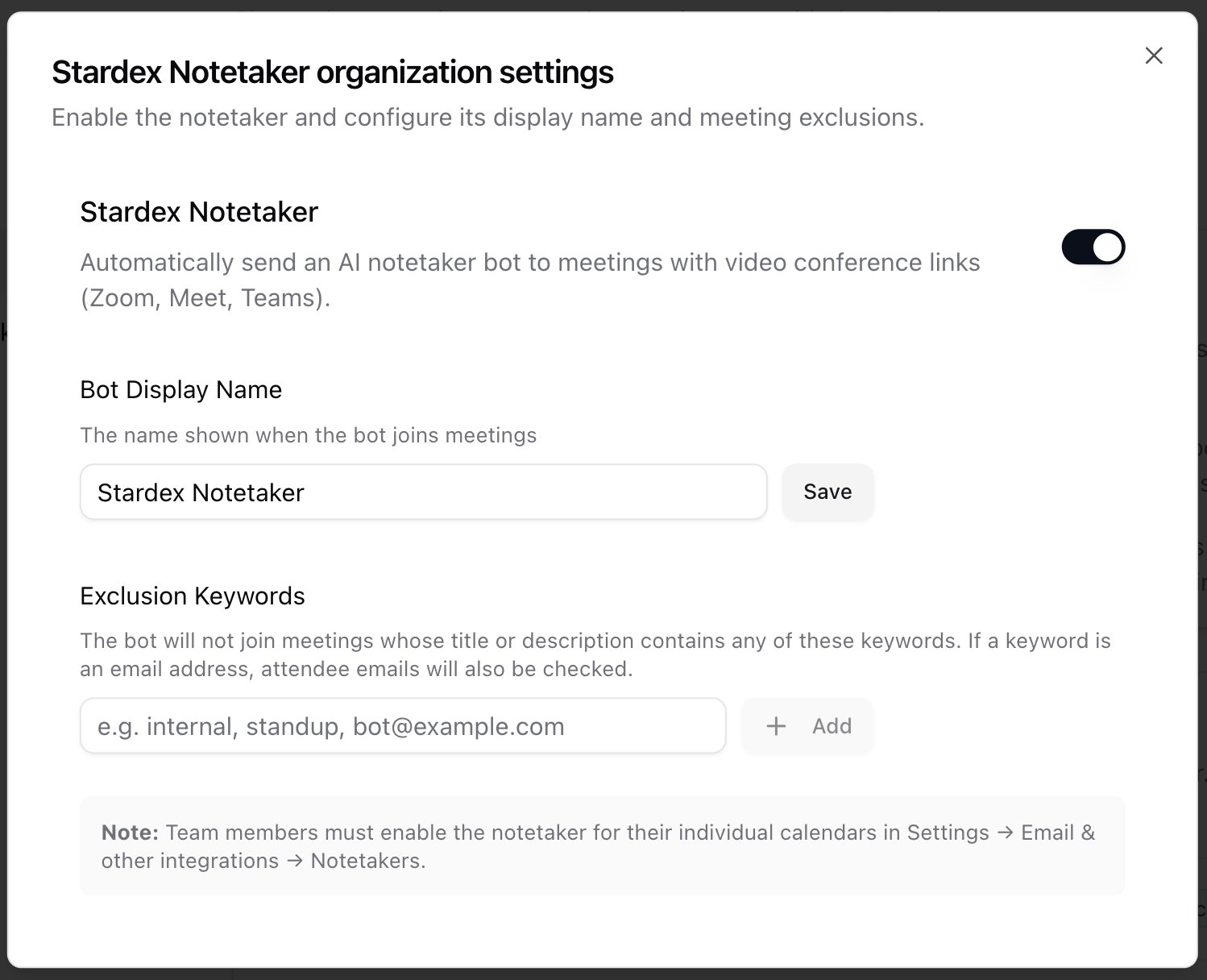 Org notetaker settings dialog
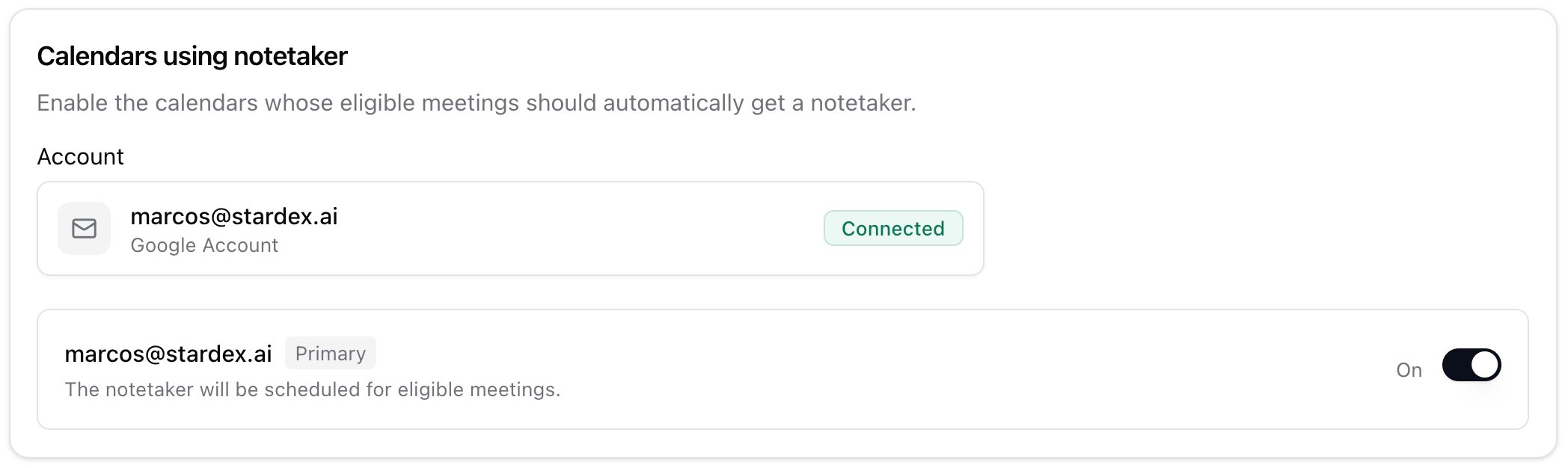 Per-calendar Stardex Notetaker On/Off toggles
How it works:
* The bot joins Zoom, Google Meet, and Microsoft Teams when there is a video link
* It only uses calendars you enable here
* You may need to admit it from the waiting room
* You can turn it off on a single event
* Meetings whose titles match org exclusion keywords are skipped
* Recordings land under **Calendar → Meeting Recordings**
Granola and Fireflies are on this same page, under **Other personal notetakers** (everyone) and **Other organization notetakers** (admins). See those guides for API keys and webhooks.
***
## Send the notetaker to an ad-hoc call
If a meeting is not on your calendar, you can still send the Stardex notetaker by pasting the meeting link directly.
1. Open **Calendar → Meeting Recordings** in Stardex.
2. Click **Record a meeting**.
3. Paste the meeting link.
* Supported links include Zoom, Google Meet, Microsoft Teams, and Webex.
4. Add a title if you want one. This is optional.
5. Click **Start recording**.
The notetaker will start joining the meeting right away. It may take 1–2 minutes to appear, and you may need to admit it from the meeting waiting room.
After the call ends, the recording will appear in Stardex like your other notetaker recordings.
***
## Related guides
* [Email and calendar syncing](/help-center/email-and-calendar-syncing)
* [Calendar Stage Automation](/help-center/calendar-stage-automation)
* [Meeting recordings, transcripts, and summaries](/help-center/meeting-recordings-transcripts-and-summaries)
* [Granola Integration](/help-center/granola-integration)
* [Fireflies](/help-center/fireflies)
* [Email & other integrations](/help-center/email-other-integrations)
This documentation is built and hosted on [Mintlify](https://mintlify.com), a developer documentation platform.
Per-calendar Stardex Notetaker On/Off toggles
How it works:
* The bot joins Zoom, Google Meet, and Microsoft Teams when there is a video link
* It only uses calendars you enable here
* You may need to admit it from the waiting room
* You can turn it off on a single event
* Meetings whose titles match org exclusion keywords are skipped
* Recordings land under **Calendar → Meeting Recordings**
Granola and Fireflies are on this same page, under **Other personal notetakers** (everyone) and **Other organization notetakers** (admins). See those guides for API keys and webhooks.
***
## Send the notetaker to an ad-hoc call
If a meeting is not on your calendar, you can still send the Stardex notetaker by pasting the meeting link directly.
1. Open **Calendar → Meeting Recordings** in Stardex.
2. Click **Record a meeting**.
3. Paste the meeting link.
* Supported links include Zoom, Google Meet, Microsoft Teams, and Webex.
4. Add a title if you want one. This is optional.
5. Click **Start recording**.
The notetaker will start joining the meeting right away. It may take 1–2 minutes to appear, and you may need to admit it from the meeting waiting room.
After the call ends, the recording will appear in Stardex like your other notetaker recordings.
***
## Related guides
* [Email and calendar syncing](/help-center/email-and-calendar-syncing)
* [Calendar Stage Automation](/help-center/calendar-stage-automation)
* [Meeting recordings, transcripts, and summaries](/help-center/meeting-recordings-transcripts-and-summaries)
* [Granola Integration](/help-center/granola-integration)
* [Fireflies](/help-center/fireflies)
* [Email & other integrations](/help-center/email-other-integrations)
This documentation is built and hosted on [Mintlify](https://mintlify.com), a developer documentation platform.