> ## Documentation Index
> Fetch the complete documentation index at: https://docs.stardex.com/llms.txt
> Use this file to discover all available pages before exploring further.
# Client Sharable Link (Client Portal)
> Create client share links, control what clients can see, and share candidate pipeline updates and feedback.
Stardex has a robust, customizable client portal that keeps a live sync with your candidate pipeline and allows clients to leave ratings and feedback. Clients don’t need to login and learn Stardex - it’s similar to a sharable link from Google Sheets.
Here's a one-minute video walkthrough and scroll down for detailed instructions!
[Watch the video on Loom](https://www.loom.com/share/8885a1464433483489e3677fef08a3e9)
## Creating a client sharable link from a job
1\. Click "Share" at the top of the job pipeline view.
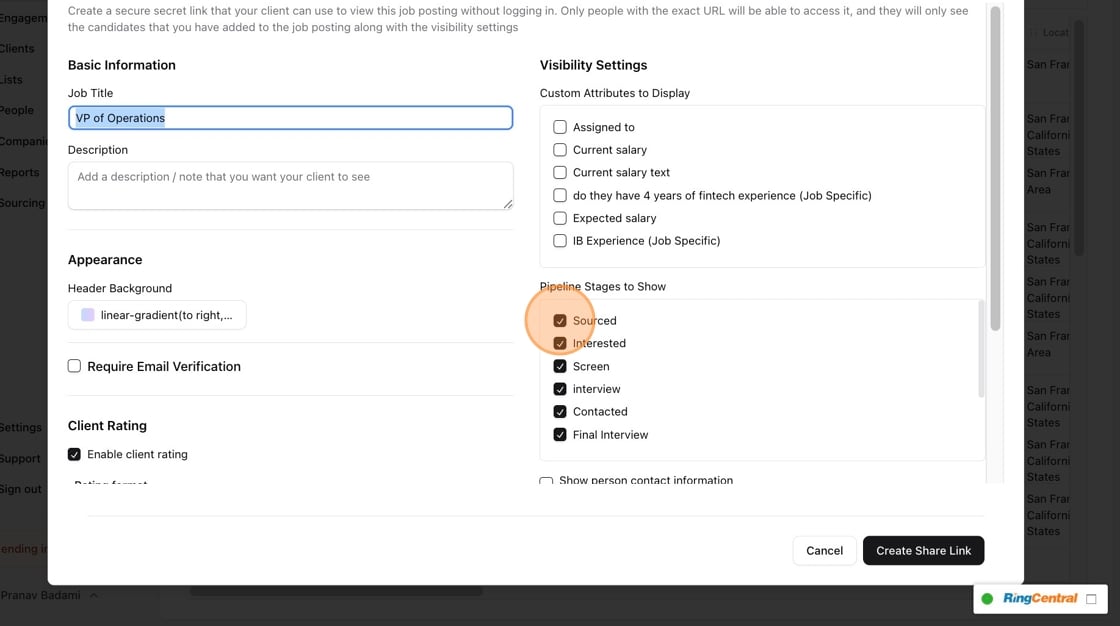
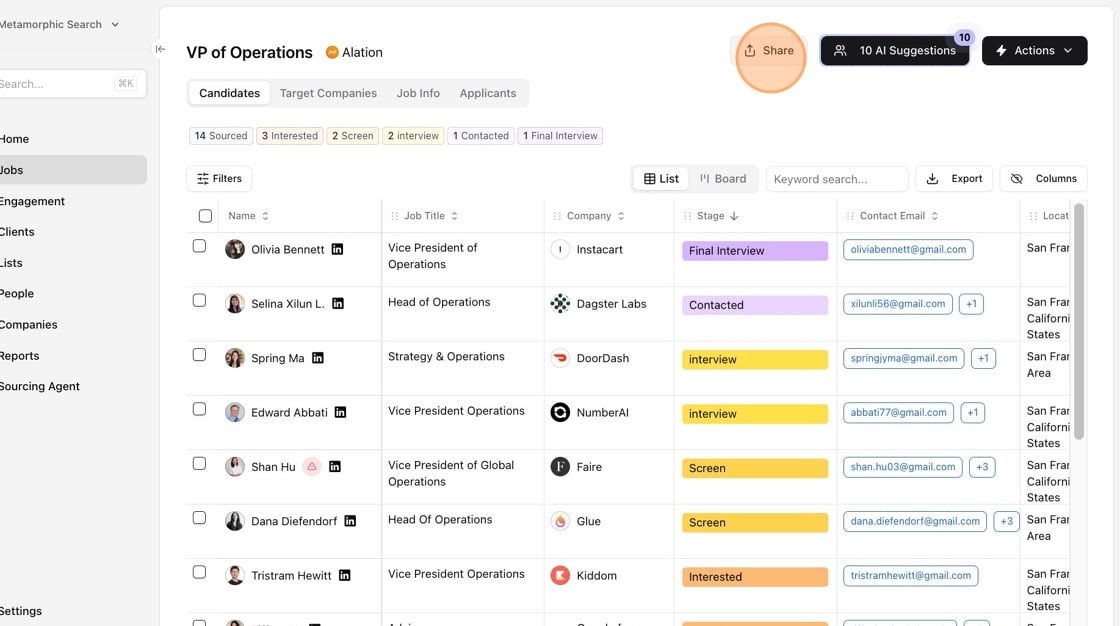 2\. You can modify which candidate stages are visible in the client portable sharable link.
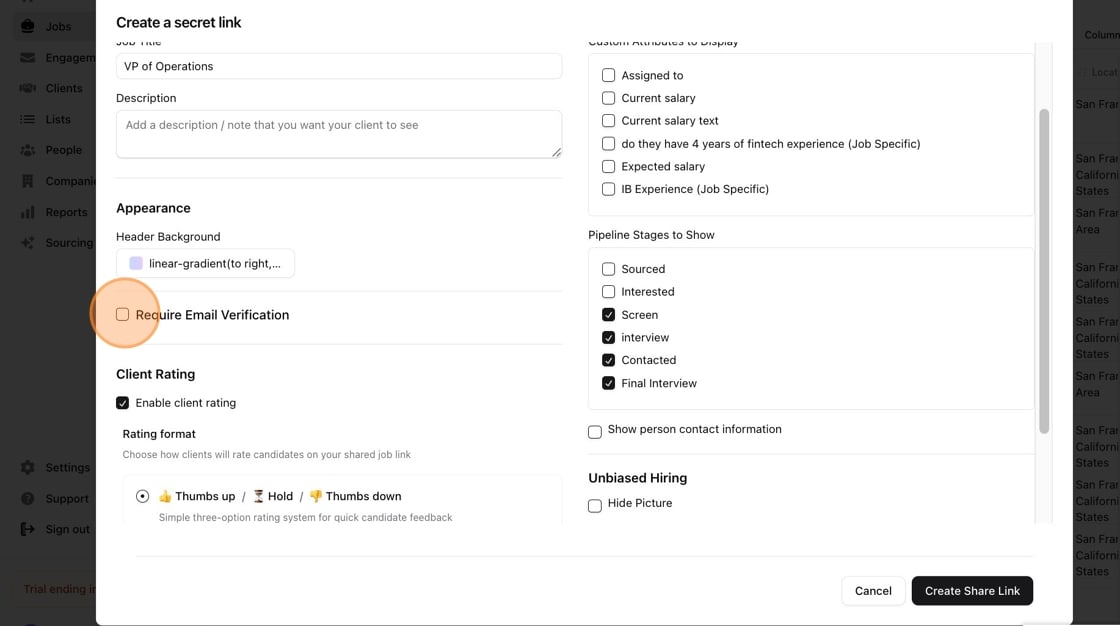
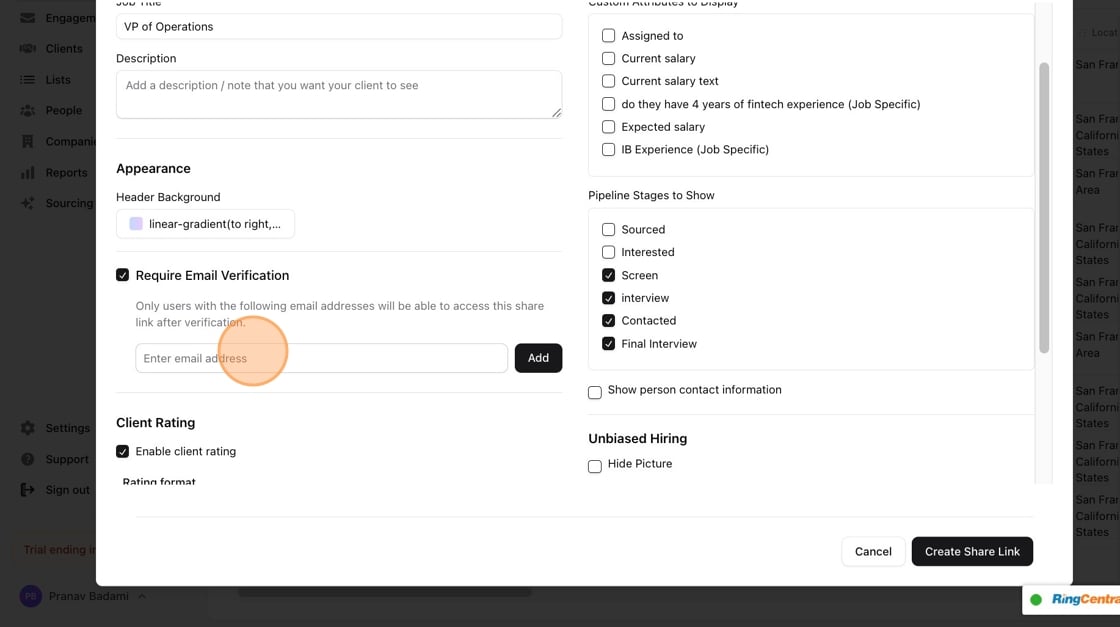
 3\. If you want only people with specific email addresses to be able to view the portal, click "Require Email Verification" and enter the email address you are granting access to.
 4\.
4\.
 5\. To enable client ratings and rating format, select the "Enable client rating" checkbox and then select your format.
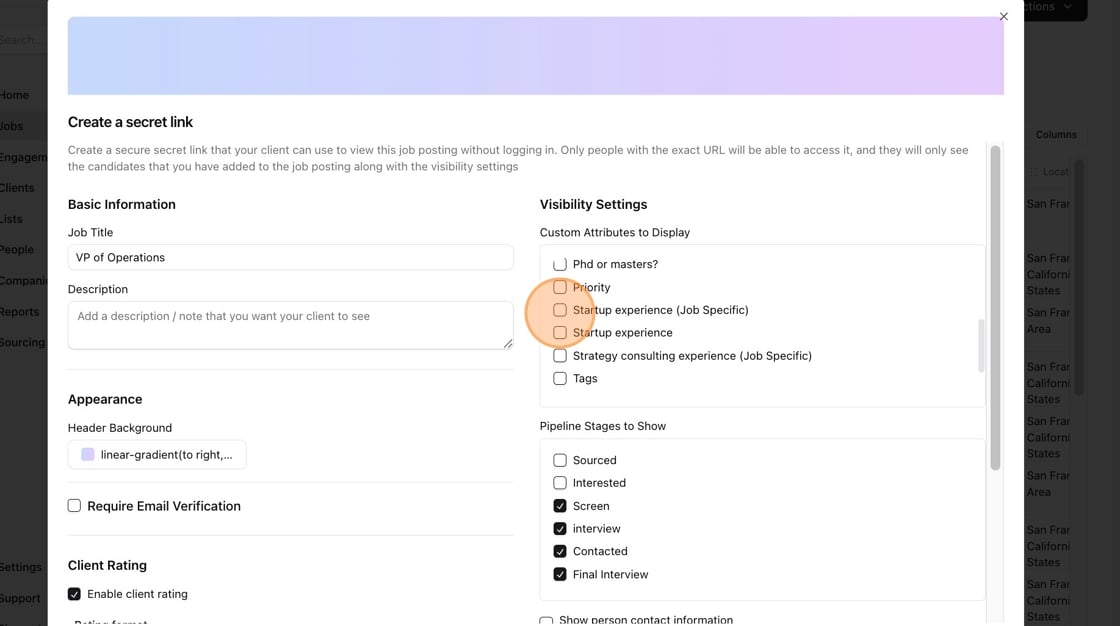
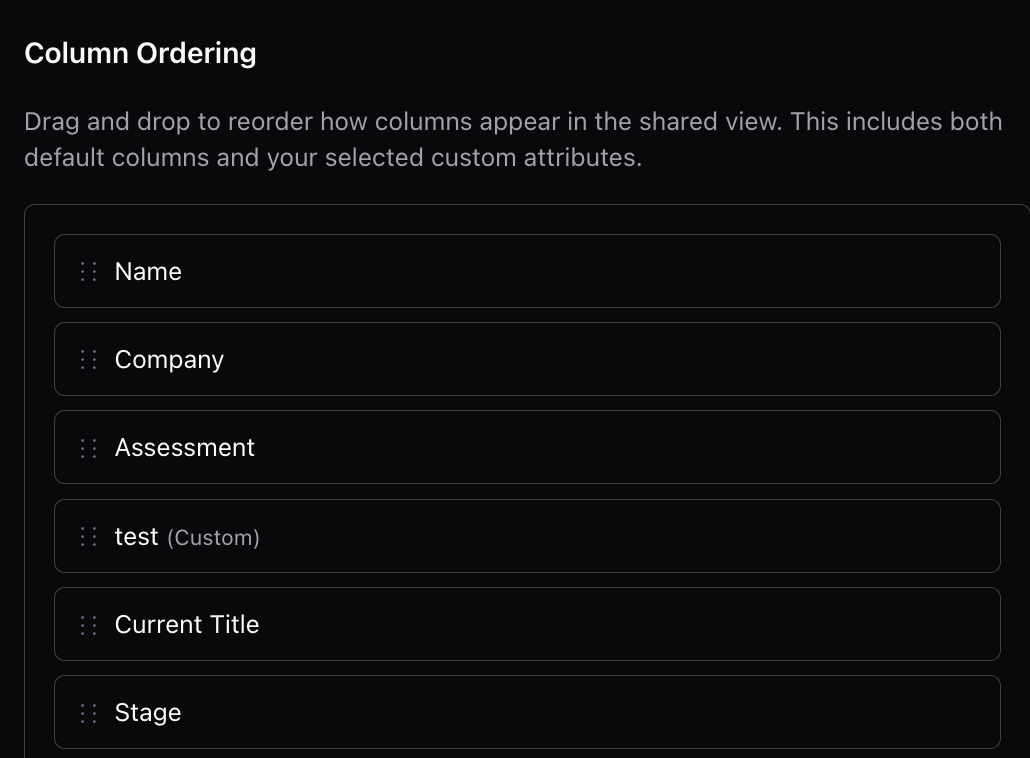
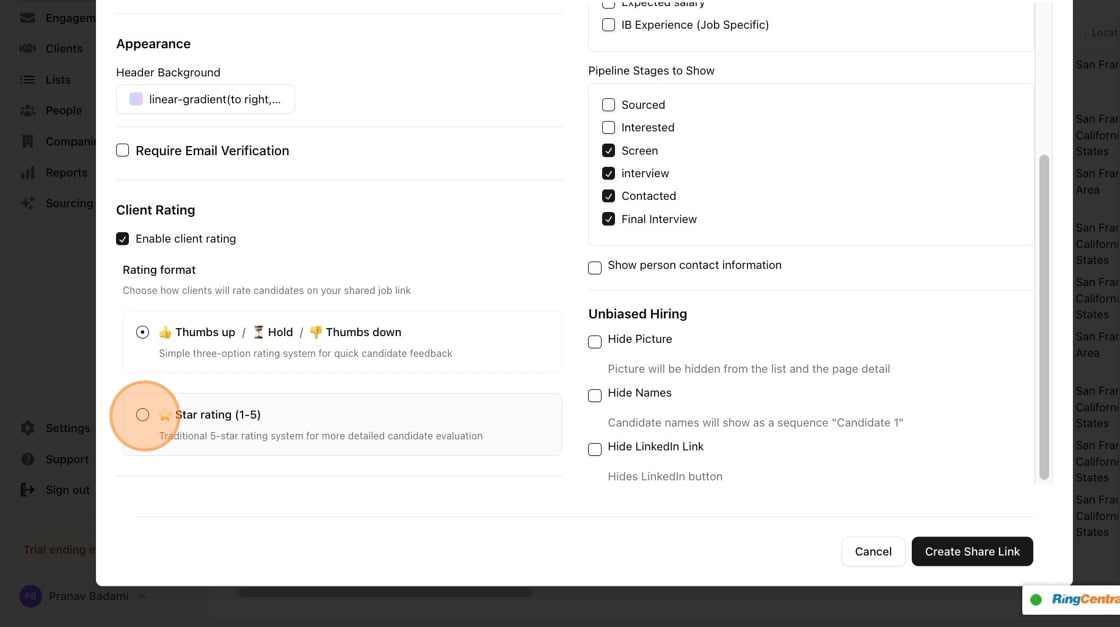 6\. You can also pick which custom attributes in Stardex are visible in your client sharable link. If you scroll down, you can also customize the ordering of the columns
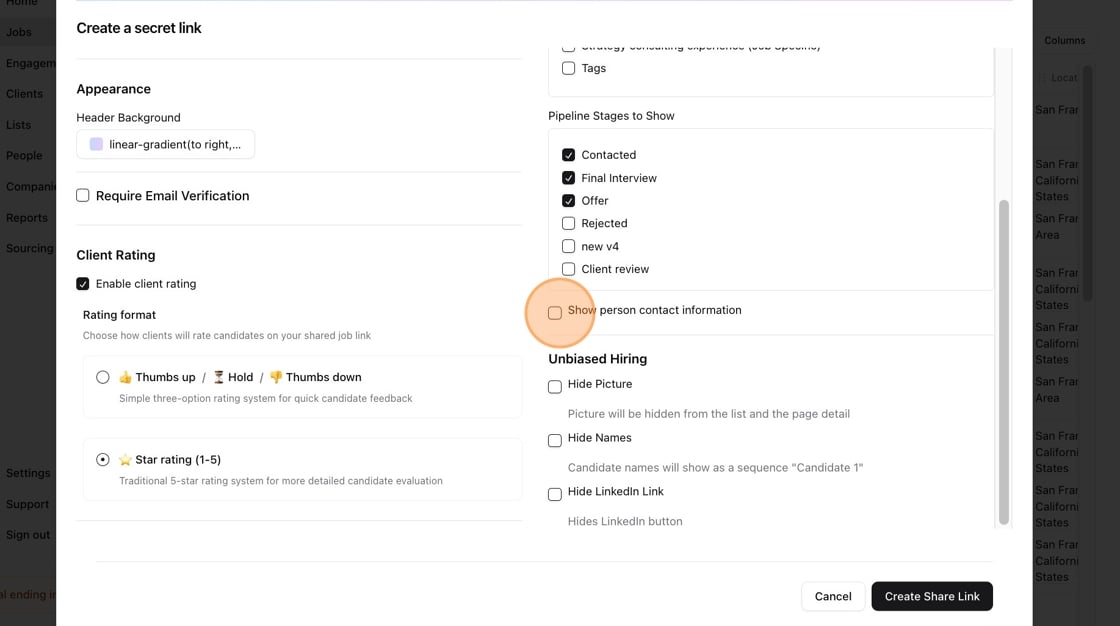
 7\. To hide or display contact information, click on the "Show person contact information" checkbox.
 8\. For unbiased hiring processes, you can choose to hide personally identifiable information like picture, names and LinkedIn url.
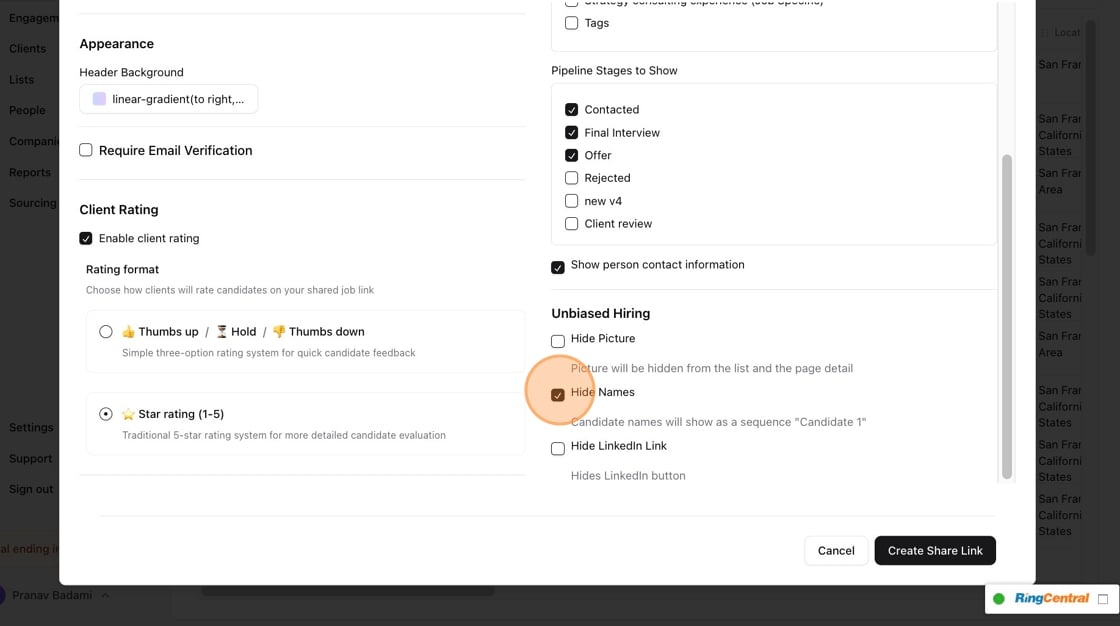 9\. When you're ready, click "Create Share Link" and copy the created link. You can share this directly with a client!
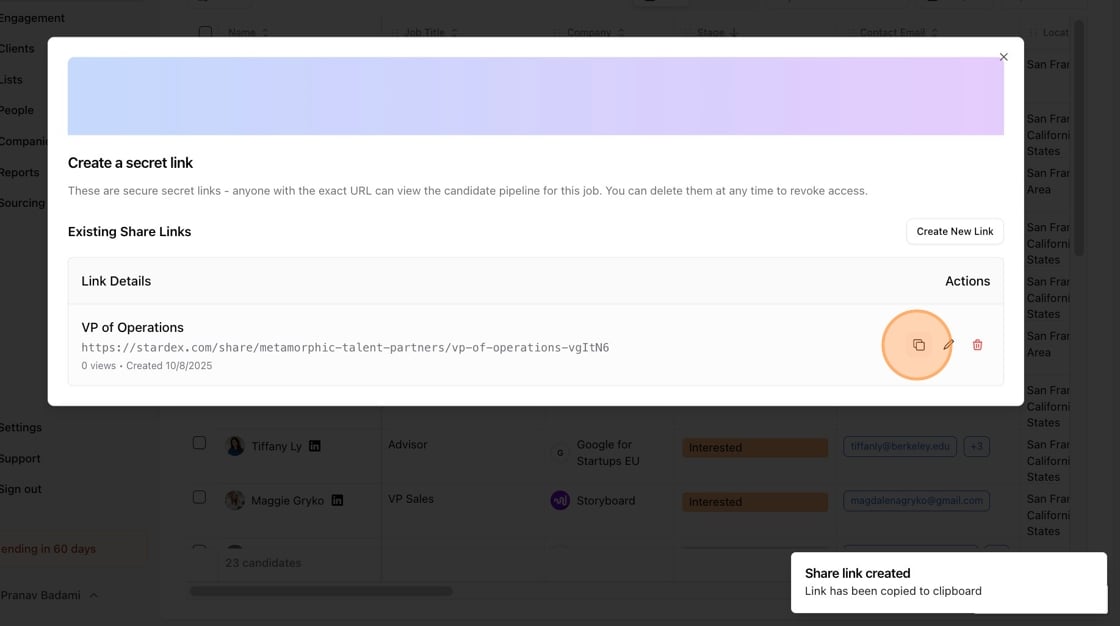
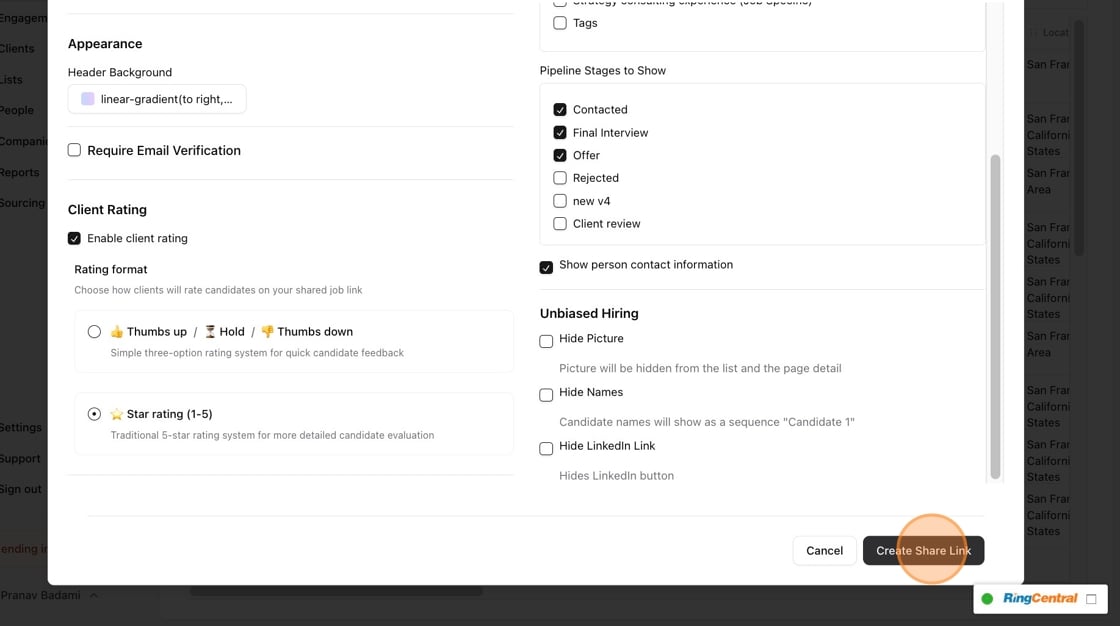 10\. Click to copy sharable link.
 ## Show or hide individual candidates
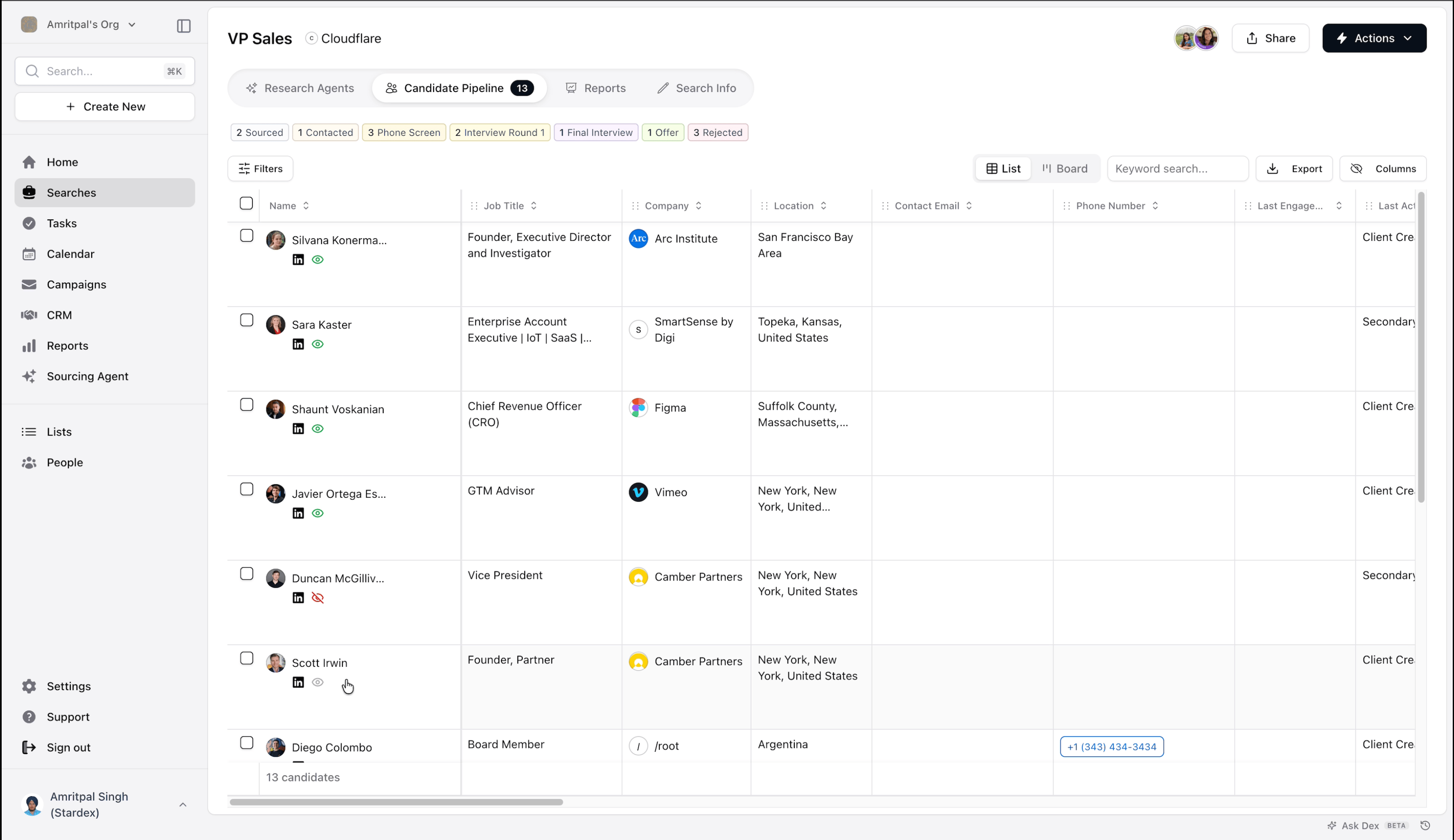
The stages you select decide which candidates appear in your sharable link by default. If you need finer control, you can show or hide specific candidates straight from the candidate pipeline, regardless of what stage they're in.
While a share link exists for a job, an eye icon appears next to each candidate's name in your pipeline view (list and board). Hover over a candidate to reveal it, then click to cycle between three states:
* **Default** (faint eye, shown on hover): the candidate follows your stage visibility settings.
* **Always hidden** (red crossed-out eye): the candidate is always hidden from clients, even if their stage is visible.
* **Always shown** (green eye): the candidate is always visible to clients, even if their stage is hidden.
This applies across all sharable links for that job.
## Show or hide individual candidates
The stages you select decide which candidates appear in your sharable link by default. If you need finer control, you can show or hide specific candidates straight from the candidate pipeline, regardless of what stage they're in.
While a share link exists for a job, an eye icon appears next to each candidate's name in your pipeline view (list and board). Hover over a candidate to reveal it, then click to cycle between three states:
* **Default** (faint eye, shown on hover): the candidate follows your stage visibility settings.
* **Always hidden** (red crossed-out eye): the candidate is always hidden from clients, even if their stage is visible.
* **Always shown** (green eye): the candidate is always visible to clients, even if their stage is hidden.
This applies across all sharable links for that job.
 ## Choose who gets notified
By default, all team members on the job receive an email notification when a client leaves a rating or comment. If you'd like to override this, open the "Notifications" section in the Share settings and choose specific team members to notify instead.
## Choose who gets notified
By default, all team members on the job receive an email notification when a client leaves a rating or comment. If you'd like to override this, open the "Notifications" section in the Share settings and choose specific team members to notify instead.
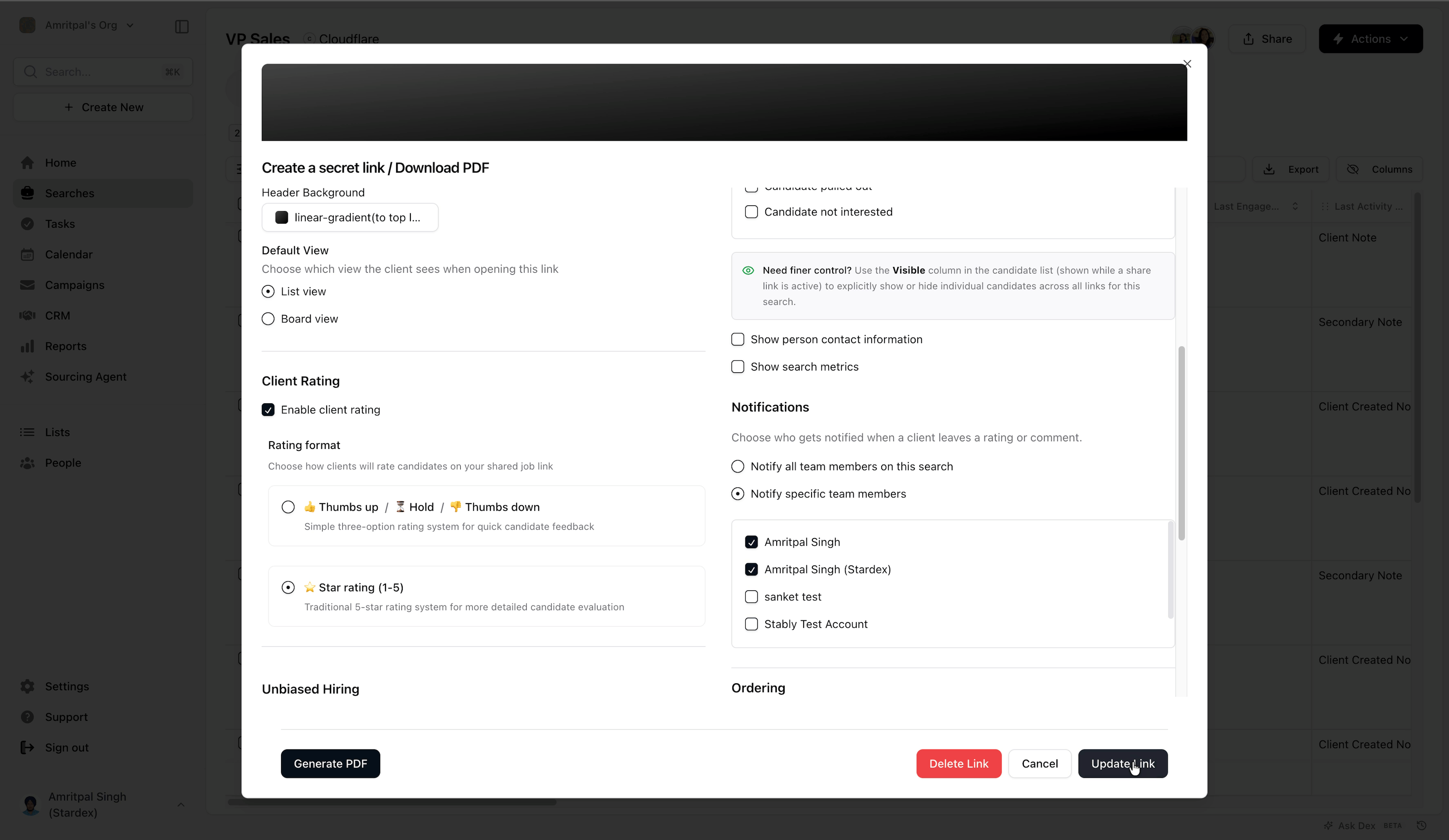 ## How does a client use the sharable link?
1\. When you share your link with a client, here's what they'll see!
## How does a client use the sharable link?
1\. When you share your link with a client, here's what they'll see!
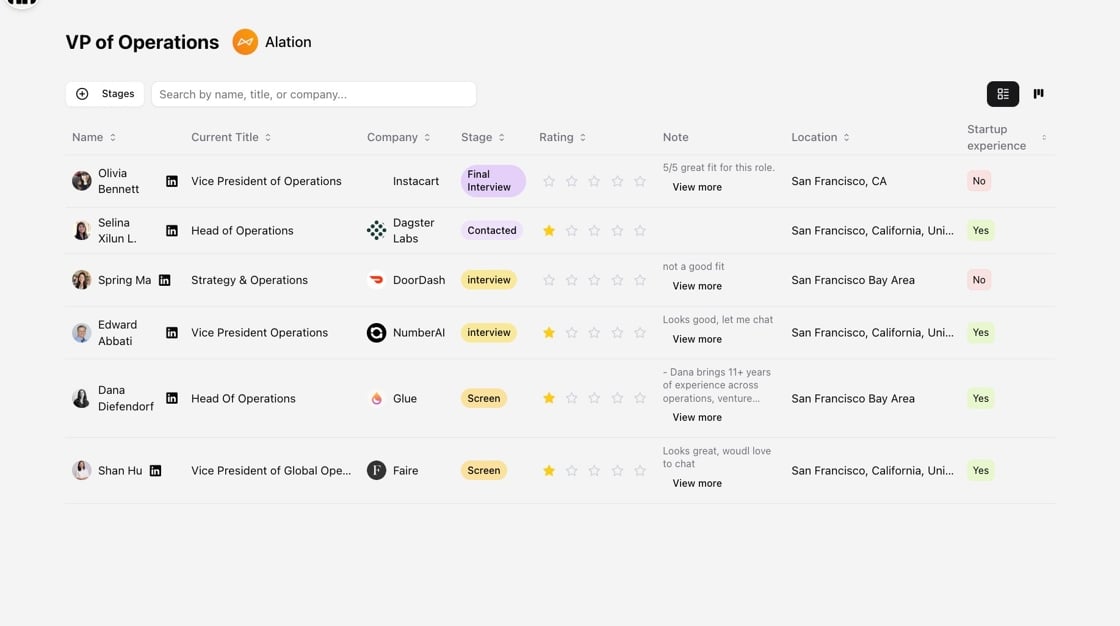 2\. They can view detailed information like work history, candidate assessments from your team, and shared resume documents by clicking on a candidate.
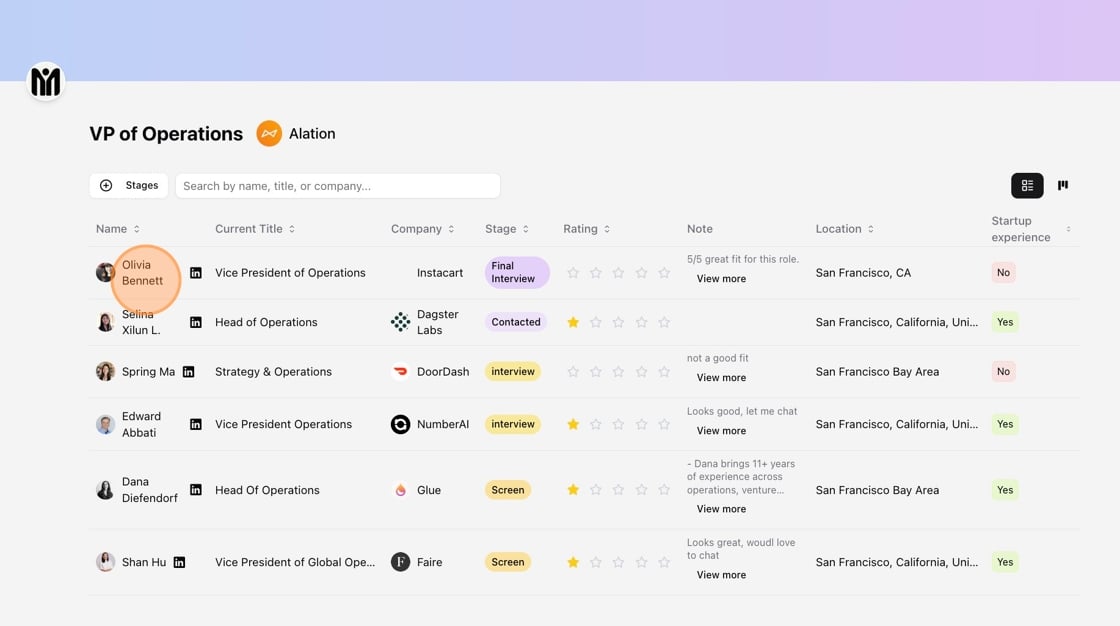 3\. Assessments will show up here.
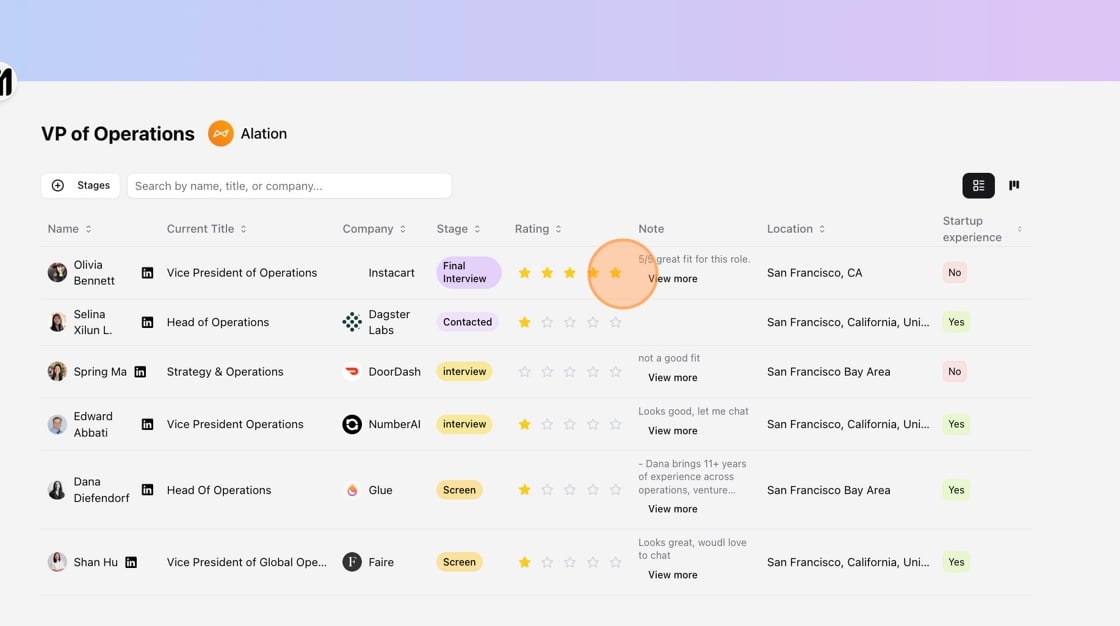
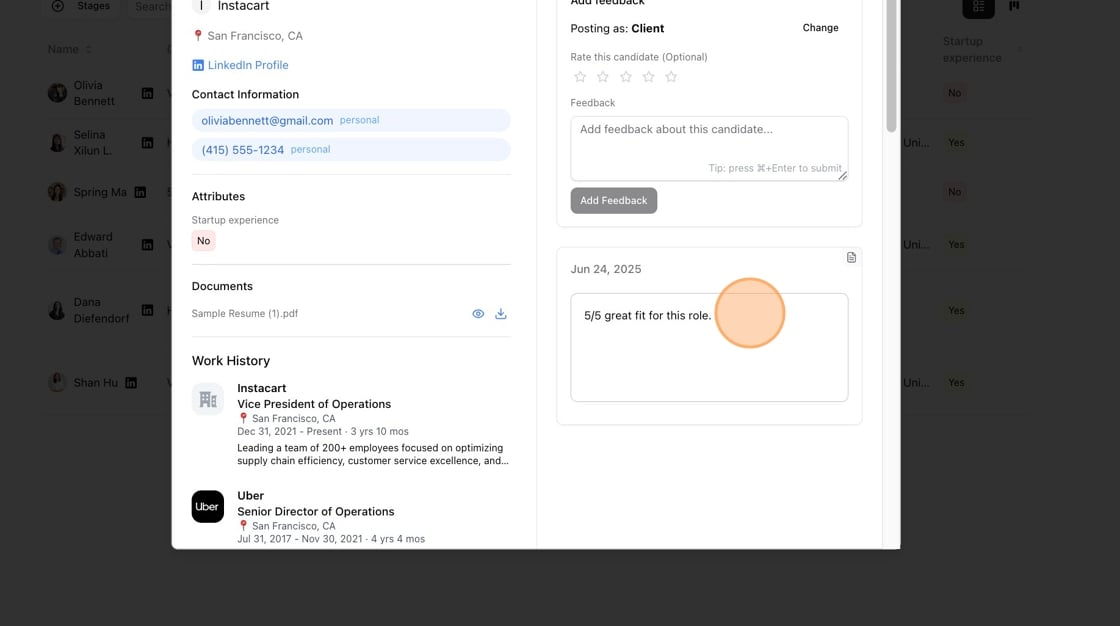 4\. Clients can leave ratings based on which rating format you've specified.
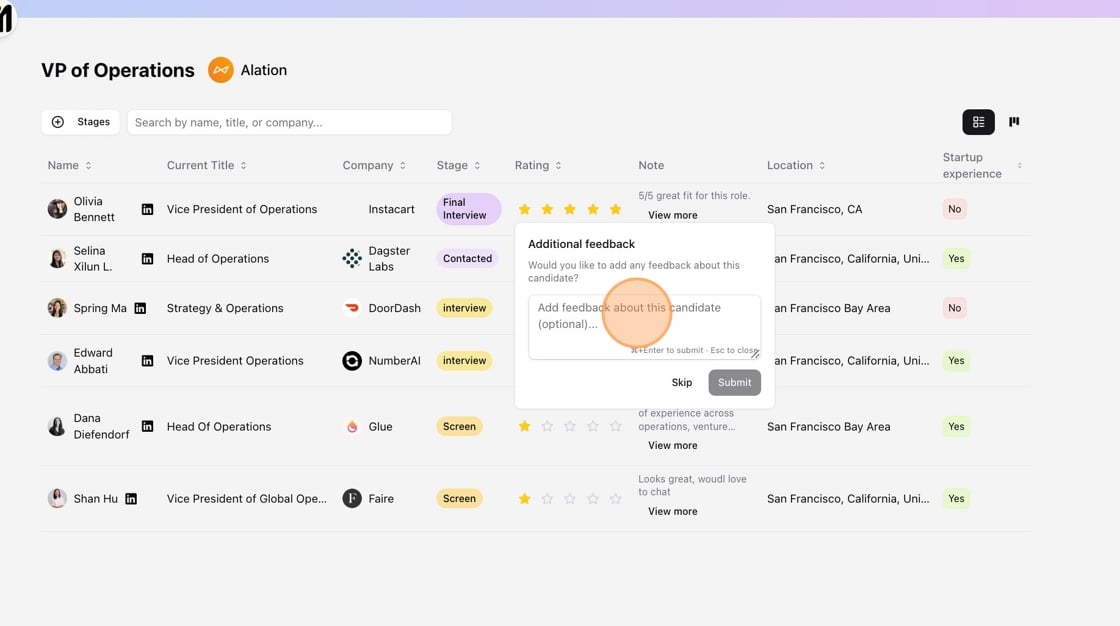
 5\. They can add text feedback here as well. This will all show up in the candidate's activity section in Stardex!
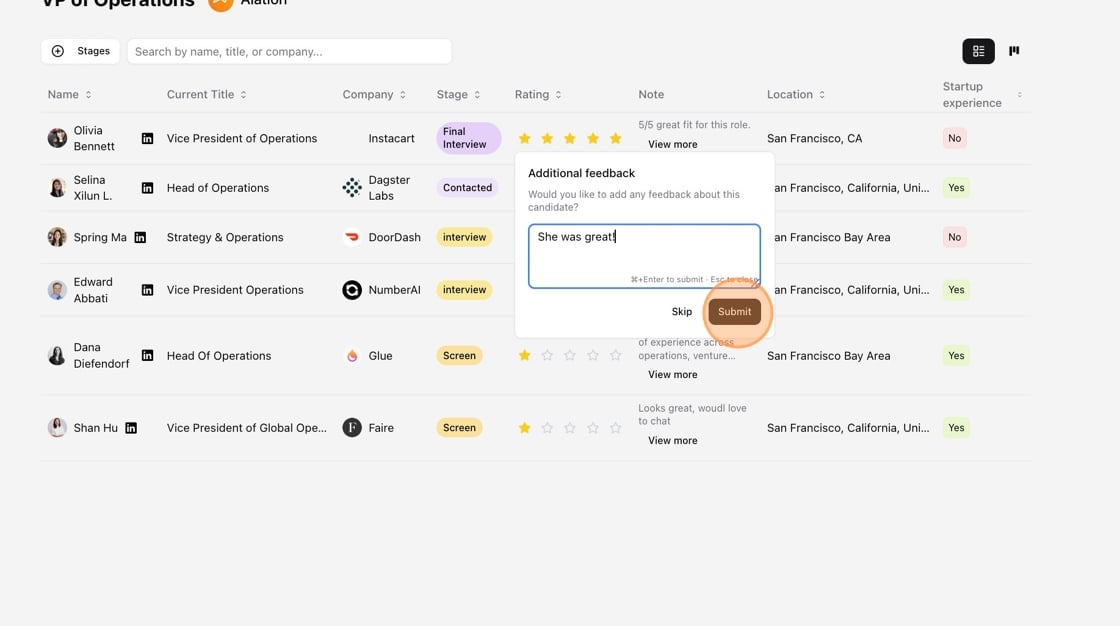
 6\. Click this button.
 ## Share specific notes and documents in the client sharable link
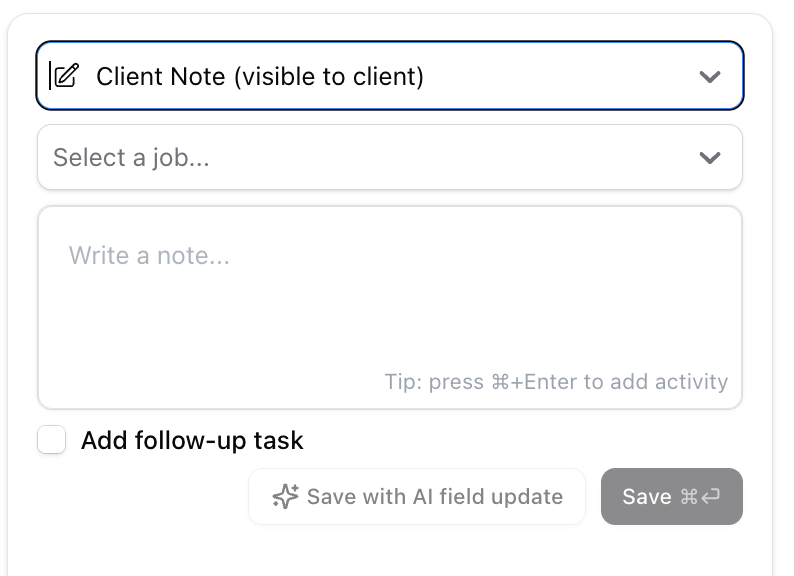
Stardex allows you to share specific notes with your client in the Client Sharable Links. To do so, create a note of type “Client Note (visible to Client)“:
## Share specific notes and documents in the client sharable link
Stardex allows you to share specific notes with your client in the Client Sharable Links. To do so, create a note of type “Client Note (visible to Client)“:
 ### **Share specific notes in the client shareable link**
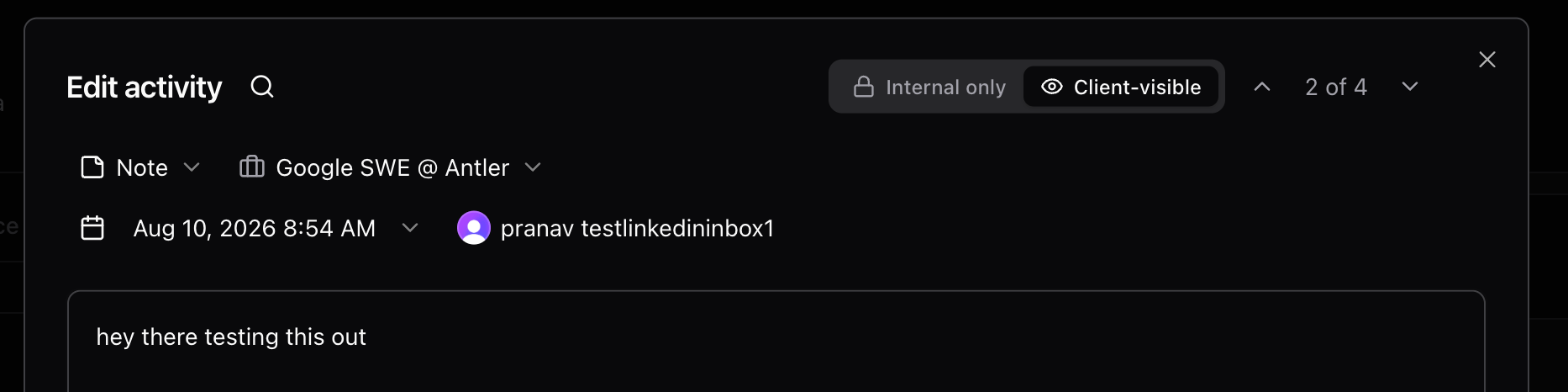
Stardex also lets you publish individual notes to a job’s **client shareable link**.
1. Open the note (Edit activity).
2. Make sure the note is linked to the relevant **job/search**.
3. Set visibility to **Client-visible** (vs Internal only).
Client-visible notes only appear on the share link for the job they’re linked to. Notes with no job can’t be made client-visible.
**Tip:** Notes of type *Client Note (visible to Client)* are always client-visible. For other note types, use the Internal / Client-visible toggle.
### **Share specific notes in the client shareable link**
Stardex also lets you publish individual notes to a job’s **client shareable link**.
1. Open the note (Edit activity).
2. Make sure the note is linked to the relevant **job/search**.
3. Set visibility to **Client-visible** (vs Internal only).
Client-visible notes only appear on the share link for the job they’re linked to. Notes with no job can’t be made client-visible.
**Tip:** Notes of type *Client Note (visible to Client)* are always client-visible. For other note types, use the Internal / Client-visible toggle.
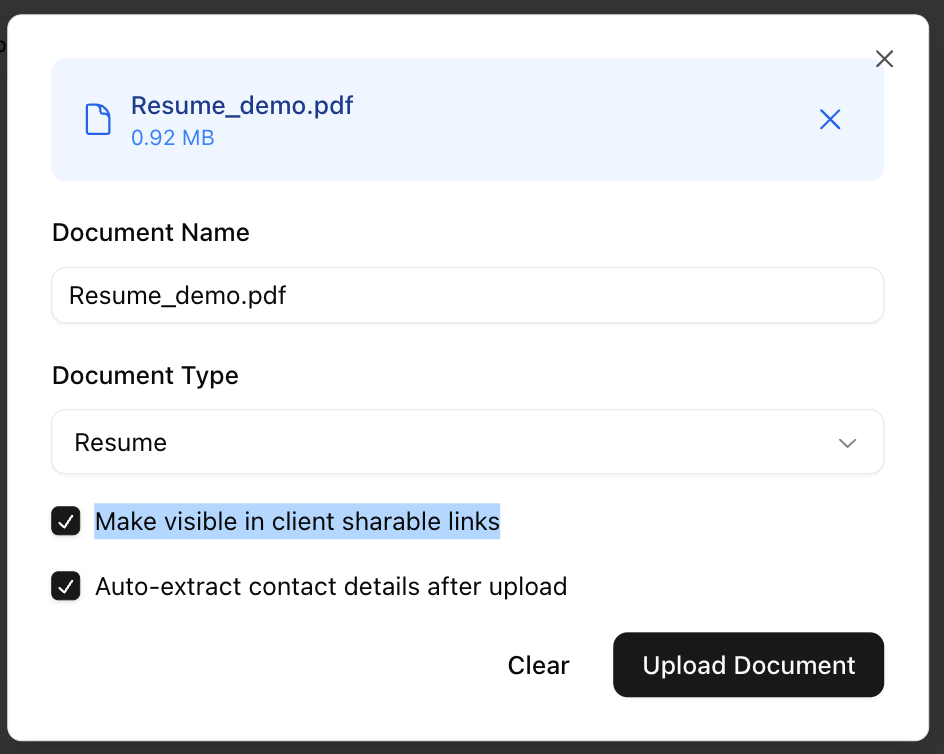
 Similarly, you can mark specific documents as visible in the Client Sharable Links as well:
 How to share a specific candidate in the client portal?
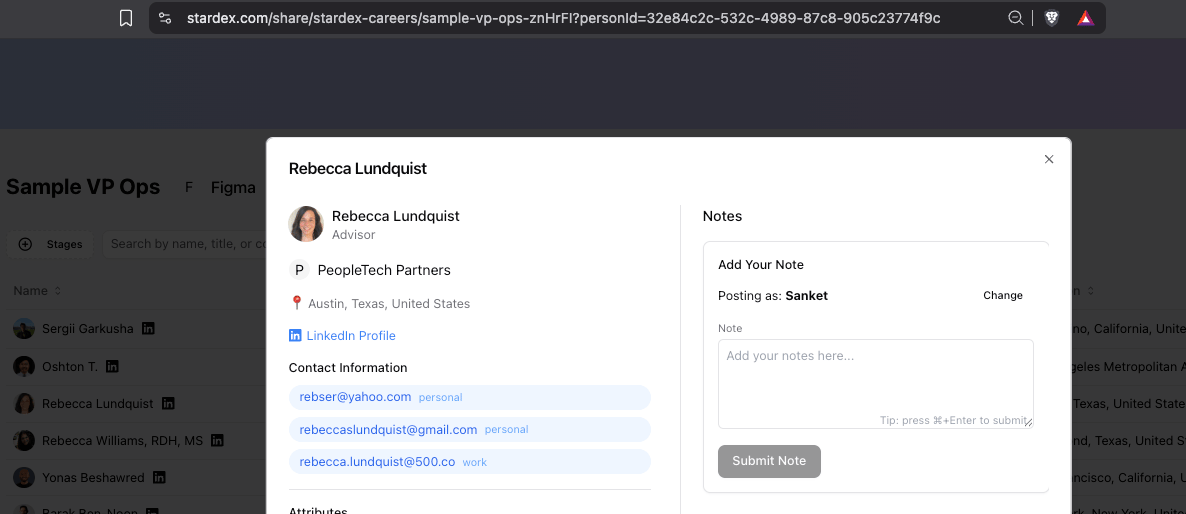
When you open up a profile, the URL will update to include the person’s profile, so you can share that link with your client. Example: [https://stardex.com/share/stardex-careers/sample-vp-ops-znHrFI?personId=32e84c2c-532c-4989-87c8-905c23774f9c](https://stardex.com/share/stardex-careers/sample-vp-ops-znHrFI?personId=32e84c2c-532c-4989-87c8-905c23774f9c)
How to share a specific candidate in the client portal?
When you open up a profile, the URL will update to include the person’s profile, so you can share that link with your client. Example: [https://stardex.com/share/stardex-careers/sample-vp-ops-znHrFI?personId=32e84c2c-532c-4989-87c8-905c23774f9c](https://stardex.com/share/stardex-careers/sample-vp-ops-znHrFI?personId=32e84c2c-532c-4989-87c8-905c23774f9c)
 ## Showing rejection reasons to clients
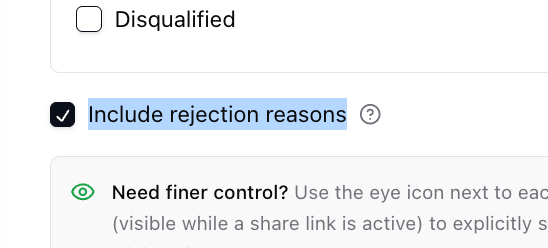
When a candidate is rejected, your client often wants to know *why* — but you don't always want that context exposed automatically. The **Include rejection reasons** setting lets you decide, per link, whether clients can see the reason a candidate was rejected.
In the **Create a secret link / Download PDF** dialog, under **Visibility Settings**, tick **Include rejection reasons**.
## Showing rejection reasons to clients
When a candidate is rejected, your client often wants to know *why* — but you don't always want that context exposed automatically. The **Include rejection reasons** setting lets you decide, per link, whether clients can see the reason a candidate was rejected.
In the **Create a secret link / Download PDF** dialog, under **Visibility Settings**, tick **Include rejection reasons**.
 When enabled, any candidate currently sitting in a rejection stage shows a small info icon next to their stage badge on the client portal. Hovering over it reveals:
* **Reason** — the rejection category recorded by your team (for example, "Rejected by client" or "Rejected by candidate")
* **Note** — any optional free-text note the recruiter added when rejecting
When enabled, any candidate currently sitting in a rejection stage shows a small info icon next to their stage badge on the client portal. Hovering over it reveals:
* **Reason** — the rejection category recorded by your team (for example, "Rejected by client" or "Rejected by candidate")
* **Note** — any optional free-text note the recruiter added when rejecting
 New links have this turned on by default. Untick it to keep rejection context internal.
> 💡 A client only ever sees a rejection reason when **all** of these are true: the link has **Include rejection reasons** enabled, the candidate is currently in a rejection stage, and your team recorded a reason or note when rejecting them. If any of these is missing, nothing is shown.
The reason categories themselves are managed separately by admins in **Settings → Pipeline & Stages → Rejection Reasons**. The per-link toggle only controls visibility — it doesn't change which categories exist or what your team selected.
This documentation is built and hosted on [Mintlify](https://mintlify.com), a developer documentation platform.
New links have this turned on by default. Untick it to keep rejection context internal.
> 💡 A client only ever sees a rejection reason when **all** of these are true: the link has **Include rejection reasons** enabled, the candidate is currently in a rejection stage, and your team recorded a reason or note when rejecting them. If any of these is missing, nothing is shown.
The reason categories themselves are managed separately by admins in **Settings → Pipeline & Stages → Rejection Reasons**. The per-link toggle only controls visibility — it doesn't change which categories exist or what your team selected.
This documentation is built and hosted on [Mintlify](https://mintlify.com), a developer documentation platform.